Note
Access to this page requires authorization. You can try signing in or changing directories.
Access to this page requires authorization. You can try changing directories.
Note
Community interest groups have now moved from Yammer to Microsoft Viva Engage. To join a Viva Engage community and take part in the latest discussions, fill out the Request access to Finance and Operations Viva Engage Community form and choose the community you want to join.
[This article is prerelease documentation and is subject to change.]
The keep supply for confirmed demand feature ensures that customer commitments provided by capable-to-promise (CTP) functionality are strictly preserved between planning runs. This functionality is applied across all BOM levels, meaning that all derived requirements originating from a confirmed sales line are preserved. Such requirements are referred to as confirmed requirements.
Important
- This is a preview feature.
- Preview features aren’t meant for production use and might have restricted functionality. These features are subject to supplemental terms of use, and are available before an official release so that customers can get early access and provide feedback.
What qualifies as confirmed demand
A sales order line is considered confirmed demand when it meets the following criteria:
- The sales order line has a Line status equal to Open order.
- The Confirmed ship date field is populated. The CTP calculation typically sets this date.
What data is preserved
When the system identifies confirmed demand, it preserves the following data across planning runs:
- Planned orders
- Pegging information for planned orders, released orders, and on-hand inventory
- Routes
- Route jobs
- Capacity reservations
Important
The following behavior applies to this feature:
- Action dates and futures are updated for all requirements, including confirmed requirements.
- This feature doesn't respect the Period coverage code for confirmed supplies created between planning runs.
- This feature doesn't reevaluate product substitution after requirements are confirmed. For example, planning doesn't substitute a confirmed requirement with an alternate item, even if the alternate item becomes available later.
- Sales order demands for co-products and by-products aren't treated as confirmed demand, even if they have a confirmed ship date.
Prerequisites
Before you can use the keep supply for confirmed demand feature, your system must meet the following requirements:
- You must be running Microsoft Dynamics 365 Supply Chain Management version 10.0.48 build 10.0.2645.33 or later.
- You must use Planning Optimization.
- The (Preview) Keep supply for confirmed demand in Planning Optimization feature must be turned on in Feature management.
Note
This feature works together with CTP delivery date control. You can use either Near real-time CTP or Batch CTP delivery date control. The supply chain is retained if you later change the delivery date control to other values, as long as the confirmed ship date remains populated.
Set a master plan to keep supply for confirmed demand
You can choose to keep supply for confirmed demand at the master plan level. This setting controls whether the system preserves confirmed requirements for the selected master plan. The value applies to both non-interactive scenarios (such as CTP calculation, BOM explosion, and scheduling with finite capacity) and interactive scenarios (such as the master planning run dialog, where it serves as the default value).
To set a master plan to keep supply for confirmed demand:
- Go to Master planning > Setup > Plans > Master plans.
- Select or create a master plan.
- On the General FastTab, set the Keep supply for confirmed demand option to one of the following values:
- Yes – The system identifies confirmed sales lines and preserves the full supply chain linked to them during planning runs. Planned orders that are part of a confirmed supply chain aren't replanned.
- No – The system doesn't consider confirmed requirements. All planned orders that aren't approved and fall outside the freezing time fence are replanned during each planning run. This is the default behavior.
Keep supply for confirmed demand when running a master plan interactively
You can choose to keep supply for confirmed demand when you run master planning interactively. The planning run dialog provides the Keep supply for confirmed demand option, and the selected master plan automatically sets the default value.
To keep supply for confirmed demand when running a master plan interactively:
- Go to Master planning > Master planning > Run > Master planning.
- In the Master planning dialog box, on the Parameters FastTab, set the Keep supply for confirmed demand option to Yes or No. The behavior is identical to that described in the previous section.
Check master planning history to see whether supply was kept for confirmed demand
After a planning run completes, you can verify whether the Keep supply for confirmed demand parameter was active for that run by reviewing the master planning history.
To view the history of a master planning run and check whether supply was kept for confirmed demand:
- Go to Master planning > Master planning (Workspace) > History.
- Select the planning run you want to inspect.
- On the Request FastTab, locate the Keep supply for confirmed demand field. The value shows whether confirmed requirements were preserved during that specific run.
Tip
Reviewing the master planning history is useful when troubleshooting scenarios where confirmed delivery dates appear to have changed unexpectedly. If the parameter shows No for a given run, that run may have replanned supply that was previously backing a confirmed sales order line.
Control how on-hand inventory is pegged to confirmed demand
By default, the keep supply for confirmed demand feature preserves planned orders, pegging, routes, route jobs, and capacity reservations that are part of a confirmed supply chain. However, the pegging from confirmed demand to received supply (on-hand inventory) is still subject to the Positive days coverage group setting. This condition applies when a confirmed sales line is initially pegged to a purchase order (or other supply) that you later receive and add to on-hand inventory. As a result, if the confirmed sales line falls outside positive days, the system can reallocate the on-hand inventory to an earlier demand during the next planning run, even if the original sales line still has a confirmed ship date.
To override this behavior, use the Keep received supply outside positive days parameter on the coverage group.
Note
This parameter is visible only when both Planning Optimization and the (Preview) Keep supply for confirmed demand in Planning Optimization feature are enabled. The parameter is used by Planning Optimization and takes effect only for confirmed demand (sales orders with a confirmed ship date) when you run master planning with the Keep supply for confirmed demand parameter enabled.
To set the Keep received supply outside positive days parameter on a coverage group:
- Go to Master planning > Setup > Coverage > Coverage groups.
- Select or create a coverage group.
- On the General FastTab, set the Keep received supply outside positive days option to one of the following values:
- No – Confirmed demand is pegged to on-hand inventory only when the demand falls within the positive days. This setting allows on-hand inventory that was previously backing a confirmed sales line to be reallocated to earlier orders if the supply arrives earlier than required. This is the default setting.
- Yes – Confirmed demand is always pegged to on-hand inventory, regardless of the positive days setting. The pegging from a confirmed sales line to on-hand inventory is preserved across planning runs even when the demand date is outside positive days.
Interaction with approved planned orders and the freezing time fence
The keep supply for confirmed demand feature works alongside approved planned orders and the existing freezing time fence functionality. These features preserve planned orders from being replanned during planning runs, but they use different criteria:
| Feature | Criteria for preservation |
|---|---|
| Approved planned orders | Retains approved planned orders with the status of Approved. |
| Freezing time fence | Retains planned orders with a requirement date within the freezing time fence. |
| Keep supply for confirmed demand | Retains planned orders, pegging information, and other elements that are part of a confirmed supply chain, regardless of their requirement date and status. |
Example scenario 1: Period grouping
This example shows how the keep supply for confirmed demand feature identifies and preserves confirmed requirements across a multilevel BOM, including scenarios where components are shared (grouped) between multiple sales orders.
Example scenario 1 setup
A manufacturer produces a finished good, ItemFG1, with the following BOM structure:
ItemFG1 (finished good, produced)
└── ItemSFG1 (semi-finished, produced, coverage by period)
    └── ItemSFG2 (semi-finished, produced)
        └── ItemRM1 (raw material, purchased)
        └── ItemRM2 (raw material, purchased)
        └── ItemRM3 (raw material, purchased)
In this example, ItemSFG1 is a component that uses period grouping, meaning its planned production order is grouped and shared across multiple sales orders.
Identify confirmed requirements for example scenario 1
The following orders are entered:
- Customer 1 places a sales order for 5 pcs of ItemFG1 and uses CTP delivery date control.
- Customer 2 places a sales order for 5 pcs of ItemFG1 but doesn't use CTP delivery date control. No confirmed shipping date is set.
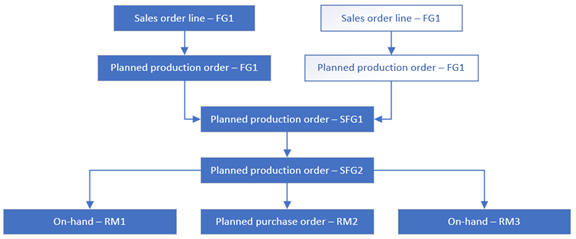
When planning runs, it groups the demand for ItemSFG1 from both orders into a single planned production order. Because the sales line for Customer 1 has a confirmed shipping date, the system traces the entire supply chain from that sales line and identifies all related requirements as confirmed, including the shared ItemSFG1 branch and all its derived requirements.
The following illustration shows how the system identifies confirmed requirements for both customers. The shared (grouped) ItemSFG1 planned production order and its entire subtree are marked as confirmed (highlighted in blue).
Remove a confirmed sales line
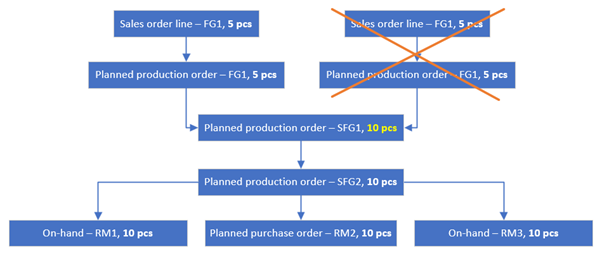
If the sales order for Customer 2 is later canceled, the system removes only the confirmed requirements that are explicitly linked to that sales order line. As the following illustration shows, only the planned production order for ItemFG1 that was created for Customer 2 is removed.
The grouped ItemSFG1 branch and all its subcomponents remain intact. Their quantities aren't reduced either, because they remain linked to demand from Customer 1 and are therefore considered confirmed.
Example scenario 2: Coverage by requirement
This example shows how the keep supply for confirmed demand feature identifies and preserves confirmed requirements when components are planned with the Requirement coverage code, including scenarios where part of the supply is already firmed into a purchase order.
Example scenario 2 setup
A manufacturer produces a finished good, ItemFG1, with the following BOM structure:
ItemFG1 (finished good, produced)
└── ItemRM1 (raw material, purchased, coverage by requirement)
Because ItemRM1 uses the Requirement coverage code, each demand for ItemFG1 generates its own dedicated supply for ItemRM1.
Identify confirmed requirements for example scenario 2
The following orders are entered:
- Customer 1 places a sales order for 5 pcs of ItemFG1 and uses CTP delivery date control.
- Customer 2 places a sales order for 5 pcs of ItemFG1 and uses CTP delivery date control.
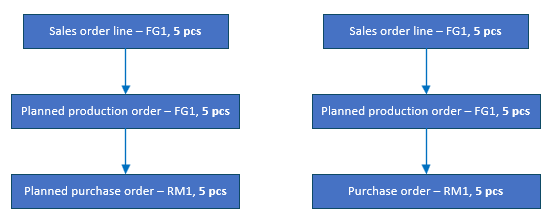
When planning runs, the Requirement coverage code creates a separate supply branch for each sales line. Both sales lines have a confirmed ship date, so the system identifies both branches as confirmed. The supply for ItemRM1 differs between them: the demand for Customer 1 is covered by a planned purchase order, while the demand for Customer 2 is covered by a released purchase order that you firmed previously.
The following illustration shows the two confirmed branches. Both branches and their pegging are marked as confirmed (highlighted in blue).
Remove a confirmed sales line backed by a firmed purchase order
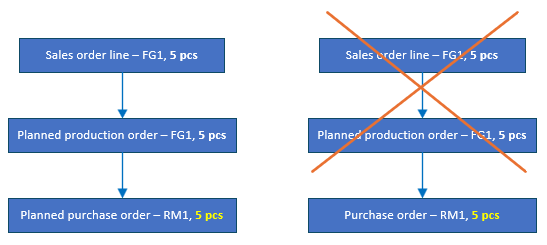
If you later cancel the sales order for Customer 2, the system removes only the confirmed planned requirements that are explicitly linked to that sales line—in this case, the planned production order for ItemFG1 that you created for Customer 2. The released purchase order for ItemRM1 that was pegged to that planned production order isn't removed.
The pegging from the planned purchase order is also preserved as-is. Planning doesn't re-peg the released purchase order to other confirmed demand, even though the sales line for Customer 2 is no longer present. The released purchase order remains in the system and can be used by any other demand that isn't yet confirmed. If the released purchase order remains unpegged, planning assigns it a Cancel action, provided that actions are enabled.
Performance considerations
The keep supply for confirmed demand feature adds processing time to each planning run, because the system must identify confirmed sales lines, trace the full supply chain across all BOM levels, and preserve the related requirements. The impact depends on the number of open sales lines that have confirmed ship dates and the depth of the BOM structures involved.
To minimize performance impact, consider the following recommendations:
- Use this feature with dynamic plans used by CTP – Dynamic plans with a shorter coverage period are the best fit for this feature.
- Avoid using this feature with static plans or long coverage periods – For static plans or plans with long coverage time fences, the number of confirmed requirements can grow significantly, which increases processing time and might result in a timeout.