Note
Access to this page requires authorization. You can try signing in or changing directories.
Access to this page requires authorization. You can try changing directories.
Use the Confirm purchase orders batch job to confirm multiple purchase orders at the same time. For example, you can schedule the job to confirm all approved purchase orders at the end of each day, confirm drop-shipment purchase orders that are generated from sales orders, or confirm time-sensitive purchase orders before supplier cutoff times.
This article describes how to schedule the job, prevent failures when a vendor is on hold, and configure options for printing or emailing purchase order confirmation journals.
Schedule the auto-confirmation batch job
The Confirm purchase orders batch job processes purchase orders in bulk. Follow these steps to schedule and configure the batch job:
Go to Procurement and sourcing > Purchase orders > Purchase order confirmation > Confirm purchase orders.
The Confirm purchase order dialog opens.
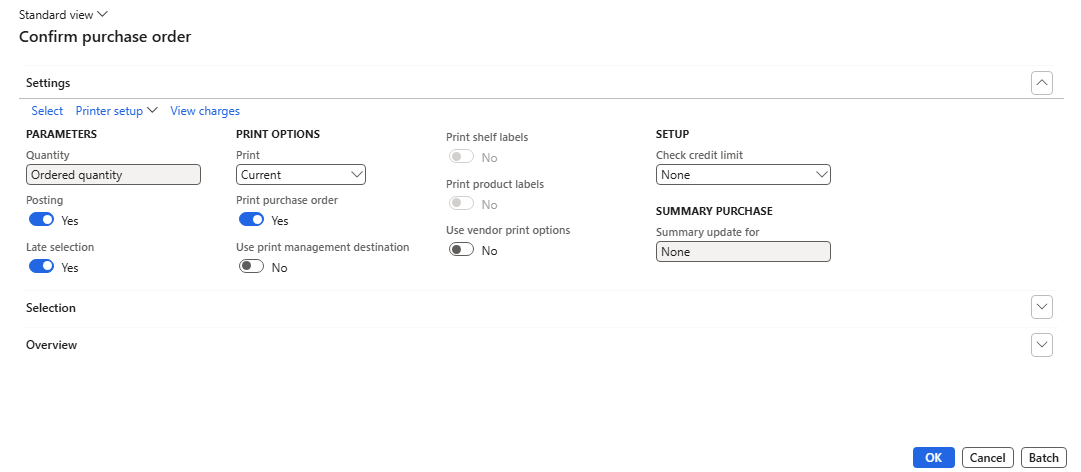
On the Settings FastTab, set Print to one of the following values.
- Current – The system generates and sends a purchase order confirmation journal for each purchase order it confirms while it works. Use this option when each confirmation must be sent even if another purchase order in the same batch fails.
- After – The system confirms all purchase orders before it generates and sends any purchase order confirmation journals. With this option, if one purchase order in a batch fails validation (for example, because of a credit management check or because change management is enabled), the system might not send confirmations for any of the purchase orders in the batch, including those that were confirmed successfully. Use this option if your organization needs to use the standard (global) print management destination set on the Print management setup page.
Set other options on the Settings FastTab as needed. Use tooltips to learn more about each setting. The following settings are recommended for most organizations:
- Print purchase order – Set to Yes to print or send purchase order confirmation journal after the system confirms a purchase order.
- Use print management destination – Choose how the system decides where to send purchase order confirmation journals. Set to No to use the destination specified in the local Printer setup dialog (as set on this page). Set to Yes to use the standard (global) print management destination set on the Print management setup page (available from Accounts payable > Setup > Forms). If you want to deliver confirmations by email, set this option to No so you can use the local printer setup to configure the email. See the next section for details. When this option is set to Yes, the system always uses the After print behavior in batch processing, even if Current is selected in the Print field.
- Late selection – Set to Yes to select the most recent purchase orders for confirmation each time the batch job runs.
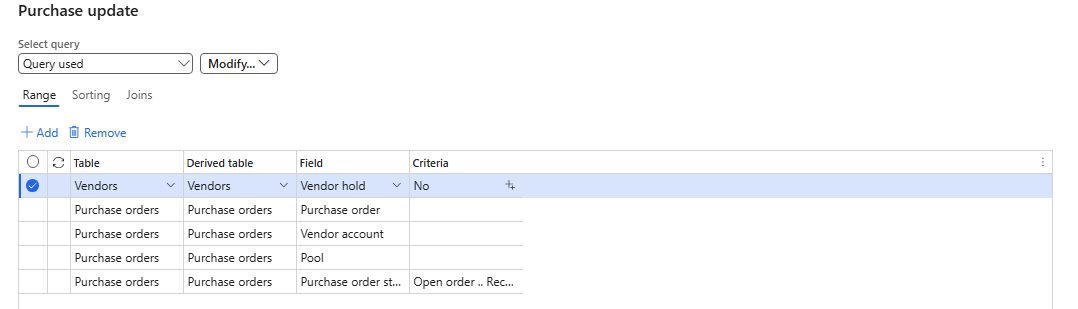
The batch job fails if it tries to confirm an order or generate a document for a vendor that's on hold, so you should exclude these vendors. To exclude purchase orders for vendors that are on hold, select Select on the Settings FastTab toolbar and then make the following settings in the Purchase update dialog:
- Go to the Joins tab. Expand the Tables node and select Purchase orders in the tree. On the toolbar, select Add table join. Set Show details to Yes and select the row where Relation is Vendors (Vendor account) and Relation source is VendTable : InvoiceVendor. On the toolbar, select Select.
- Go to the Range tab. On the toolbar, select Add. Add a row where Table = Vendors, Field = Vendor hold, and Criteria = No.
- Select OK.
Select the Batch button to open the batch job scheduler. Make the following settings on the Parameters FastTab:
- On the toolbar, select Recurrence. Set up the run schedule for the batch job, and then select OK. Choose a recurrence interval that reflects your order volume, other batch workloads, and vendor lead times. In environments that process large volumes of data or run many batch jobs, don't run this job more often than every 10 minutes.
- Set Batch processing to Yes.
- Set other batch options as needed.
- Select OK.
Select OK to save the batch job configuration.
Note
When Print management destination is set to Yes, the system always uses the After print behavior in batch processing, even if you set Print to Current (the batch job always saves and runs with Print set to After). With After, if one purchase order in a batch fails validation (for example, because of a credit management check or because change management is enabled), the document sending step might not run for any purchase orders in the same batch, even those that were confirmed successfully.
Where to find confirmation history after a recurring batch runs
The Confirmations page that you open from a purchase order shows posting-parameter records. These records are staging data for the current batch operation, not the permanent confirmation history. On every recurrence, the Confirm purchase orders batch job clears the existing records in its posting-parameter set before it selects the purchase orders for the next run. As a result, purchase orders from a previous run no longer appear on that page. This behavior is by design, and the Late selection setting isn't the reason that the previous staging records are cleared.
The permanent confirmation history isn't affected. To review confirmations for audit or historical purposes, go to Accounts payable > Purchase orders > Purchase order confirmations, and then filter by purchase order, vendor, confirmation number, or date. Build reports and integrations from the purchase order confirmation journals rather than from the posting-parameter staging tables.
Configure email delivery of purchase order confirmation documents
To set your system to deliver purchase order confirmation journals by email after auto-confirmation, follow the procedure in the previous section, but be sure to use the following settings in the Confirm purchase order dialog:
- Set Print purchase order to Yes.
- Set Use print management destination to No.
- Set Print to Current.
- Set Late selection to Yes.
- On the toolbar, select Printer setup > Purchase order. Select Email and then set up your email options for delivering purchase order confirmation journals.
- If you want to send or print a copy of the purchase order confirmation journals, select Printer setup > Purchase order (copy). Then set up the destination options for the copy.