Note
Access to this page requires authorization. You can try signing in or changing directories.
Access to this page requires authorization. You can try changing directories.
[This article is prerelease documentation and is subject to change.]
Same-batch selection lets you reserve the consumption of a raw material on a production order or batch order against a single batch of inventory. This capability keeps batch traceability consistent through the manufacturing process. For example, when an ingredient must come from one batch to guarantee a uniform mix, same batch selection reserves the whole bill of materials (BOM) or formula line from one batch instead of spreading it across several batches. It brings the Same batch selection capability that's already available for sales orders to production and batch orders.
Important
- This is a preview feature.
- Preview features aren’t meant for production use and might have restricted functionality. These features are subject to supplemental terms of use, and are available before an official release so that customers can get early access and provide feedback.
Prerequisites
To use the features described in this article, your system must meet the following requirements:
- You must be running Microsoft Dynamics 365 Supply Chain Management version 10.0.49 or later.
- The feature named (Preview) Use same batch selection for raw materials in production must be turned on in feature management.
- The feature supports both warehouse management processes (WMS) and non–WMS scenarios. WMS scenarios are supported only when you use a reservation hierarchy where the batch number dimension is above the location dimension (a Batch-above [location] reservation hierarchy).
- This feature applies only to batch-enabled products that aren't tracked by serial numbers. That means that it only supports products assigned a tracking dimension group in which the Batch number dimension is active and the Serial number dimension is inactive.
Set the Same batch selection field on a BOM or formula line
The Same batch selection setting flows through the manufacturing setup, so you can control it at the level that makes sense for your process. The value comes from the Same batch selection field on the item model group and flows through the BOM and formula lines to the production order lines, where it becomes read-only.
You can override the default value on individual BOM or formula lines. Follow these steps:
Go to Product information management > Bills of materials and formulas > Bills of materials (or Formulas).
Select or create a BOM or formula version, and open its lines.
Select the line for the raw material that you want to configure.
On the Line details FastTab, select the Setup tab.
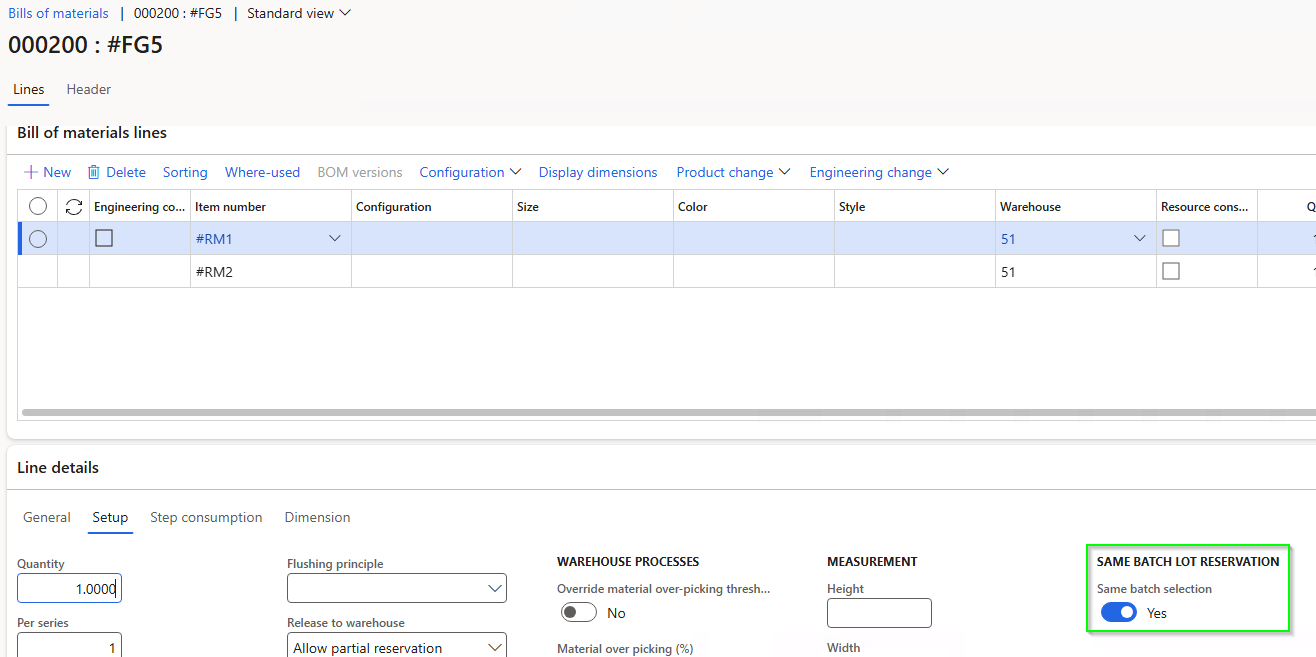
In the Same batch lot reservation field group, find the Same batch selection field. This field has the following values:
- Yes – The raw material must be reserved from a single batch during production. Only inventory from one batch can be used for this line.
- No – No single-batch constraint is applied. The system can reserve inventory from multiple batches.
The field inherits its default value from the item model group that's assigned to the product. You can override it here for specific BOM or formula lines.
Select Save.
The following screenshot shows the Bills of materials page with the Same batch selection field highlighted on the Setup tab of the Line details FastTab.
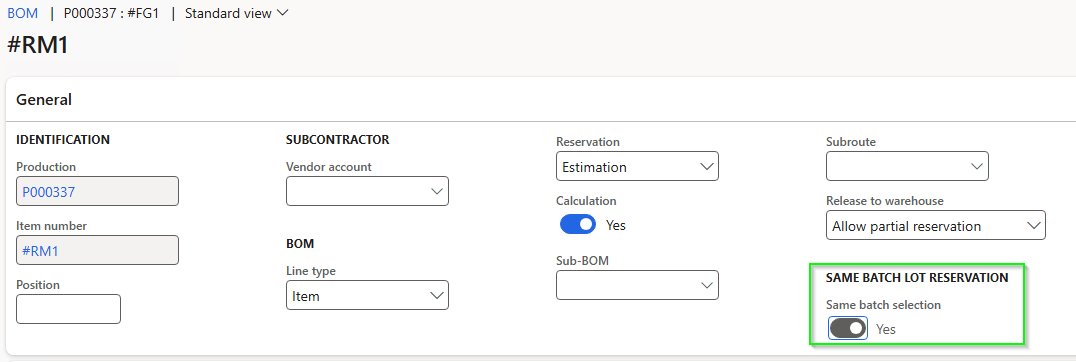
When you create a production order or batch order, the BOM or formula line usually copies its Same batch selection value to the production order BOM line. On the production order BOM line, the Same batch selection field appears in the Same batch lot reservation field group on the General tab and is read-only.
The following screenshot shows the production order BOM line with the read-only Same batch selection field.
Reservation behavior
When you turn on same-batch selection for a production order or batch order line, the system tries to reserve the required quantity from a single batch during estimation. The outcome depends on available on-hand inventory. Reservation can happen automatically, according to the reservation rules of the BOM or formula line, or manually, when a user reserves against a specific batch directly from the order lines. In either case, same-batch selection constrains the reservation so that the whole required quantity is drawn from one batch wherever on-hand allows. The outcome depends on available on-hand inventory:
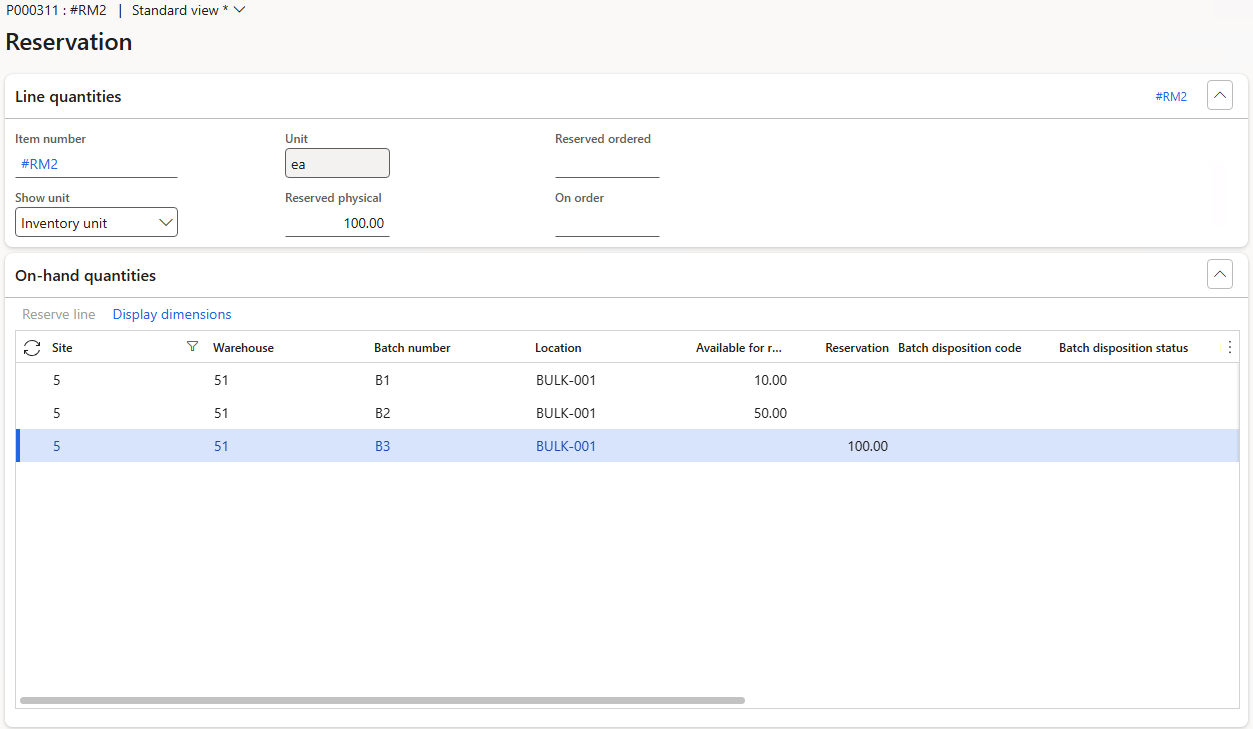
- If a single batch has enough on-hand inventory to fulfill the line, the system reserves that batch. When the item model group enables FEFO, the system selects the batch that has the earliest expiry or best-before date.
- If no single batch can fulfill the line, the system doesn't reserve any batch against the BOM or formula line. The system doesn't show any warning or error message.
The following screenshot shows the Reservation page for a production order BOM line where a single batch (B3) was successfully reserved because it had sufficient quantity.
Batch selection sorting priority
When multiple batches can fulfill the requirement, the system selects a batch based on the following sorting priorities:
- FEFO – Expiry date or best-before date (ascending), then batch number (ascending).
- Standard – Batch number (ascending).
Resolve a same-batch reservation conflict
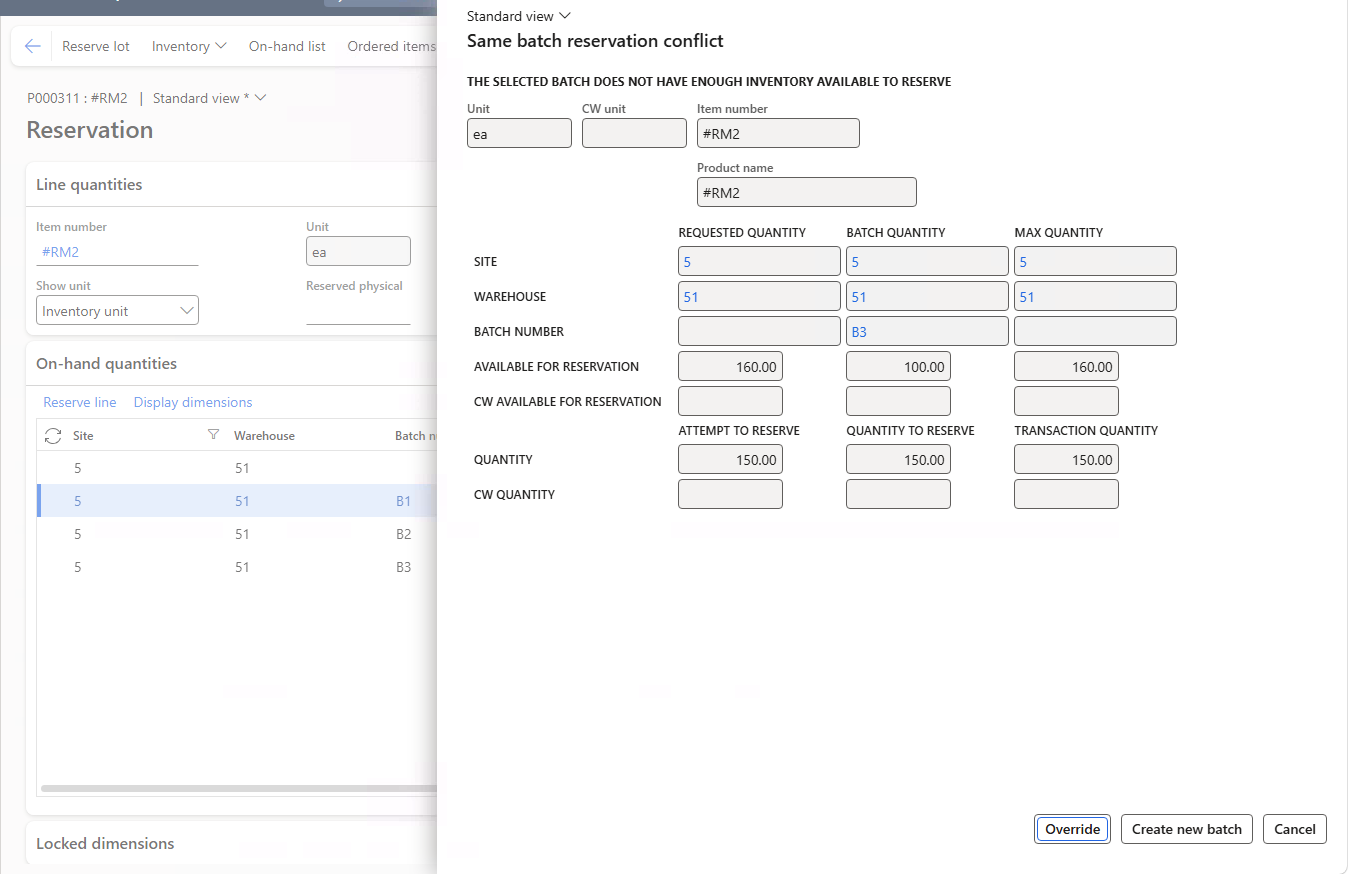
When you manually reserve a production order BOM line that you can't fulfill from a single batch, the Same batch reservation conflict page opens. This page shows the requested quantity, the available batch quantity, and the maximum quantity available. It offers the following actions:
- Override – Turns off single-batch selection for that line and reserves the quantity across multiple batches. The line's Same batch selection setting is cleared and marked as overridden.
- Create new batch – Generates a new batch number through the standard number sequence and leaves the line on order, so that you can produce or receive inventory into the new batch.
- Cancel – Leaves the line on order with no batch reservation.
The following screenshot shows the Same batch reservation conflict page with the available actions.
Important
The Lower quantity action that's available for sales orders is intentionally turned off for production scenarios, because reducing the consumed quantity would invalidate the production estimation.
Batch reservation policy for non-WMS warehouses
For warehouses that don't use WMS, the Batch reservation policy for non-advanced warehouses parameter controls whether the system enforces single-batch reservation when the reservation hierarchy has the batch number dimension below the location dimension (a Batch-below [location] reservation hierarchy). To set this option, follow these steps:
- Go to Warehouse management > Setup > Warehouse management parameters.
- Open the General tab.
- On the Batches FastTab, set Batch reservation policy for non-advanced warehouses to one of the following values:
- Simple – The system doesn't consider same-batch selection constraints when using batch-below reservation hierarchy.
- Advanced – The system applies FEFO rules and batch disposition codes during reservation. Same-batch selection for batch-below items on non-WMS warehouses is blocked, and an error message is shown.
Learn more in Flexible warehouse-level dimension reservation policy.