Note
Access to this page requires authorization. You can try signing in or changing directories.
Access to this page requires authorization. You can try changing directories.
This article explains how hardware providers can integrate their devices with the Microsoft Dynamics 365 Warehouse Management mobile app by using the form bridge. The form bridge lets your Android app receive the current warehouse form and return user input. You can present the form on an arm-mounted display, provide voice guidance, or build another device-specific experience.
The protocol is vendor neutral. Your app handles communication with your hardware. The Warehouse Management mobile app handles the warehouse workflow and communication with Dynamics 365 Supply Chain Management. Adding a provider that implements the protocol requires configuration on the Android device, not provider-specific code in the Warehouse Management mobile app.
ProGlove is the first hardware provider integrated through the form bridge. Other providers can implement the same protocol without using ProGlove software. Learn more about ProGlove hardware and its integration on the contact ProGlove sales page.
Note
The form bridge is an Android integration. It differs from barcode input and haptic feedback. If your device only needs to send scanned barcodes, see Advanced bar code scanner configuration.
Prerequisites
Before you begin the integration, make sure you have the following prerequisites in place:
- An Android device running Warehouse Management mobile app version 4.2.0.0 or later.
- Your provider app installed on the same Android device, with a connection to your hardware.
- A test connection to Supply Chain Management and warehouse workflows to validate your integration.
- An administrator who can add your app's Android package name to the Warehouse Management mobile app's Allowed apps setting.
The protocol version, v1, identifies the message contract. It isn't the Warehouse Management mobile app version.
How the form bridge works
The bridge exchanges Android broadcast intents between the Warehouse Management mobile app and your provider app on the same Android device. This local exchange doesn't require a network request. The Warehouse Management mobile app still communicates with Supply Chain Management to process warehouse work.
The workflow follows this sequence:
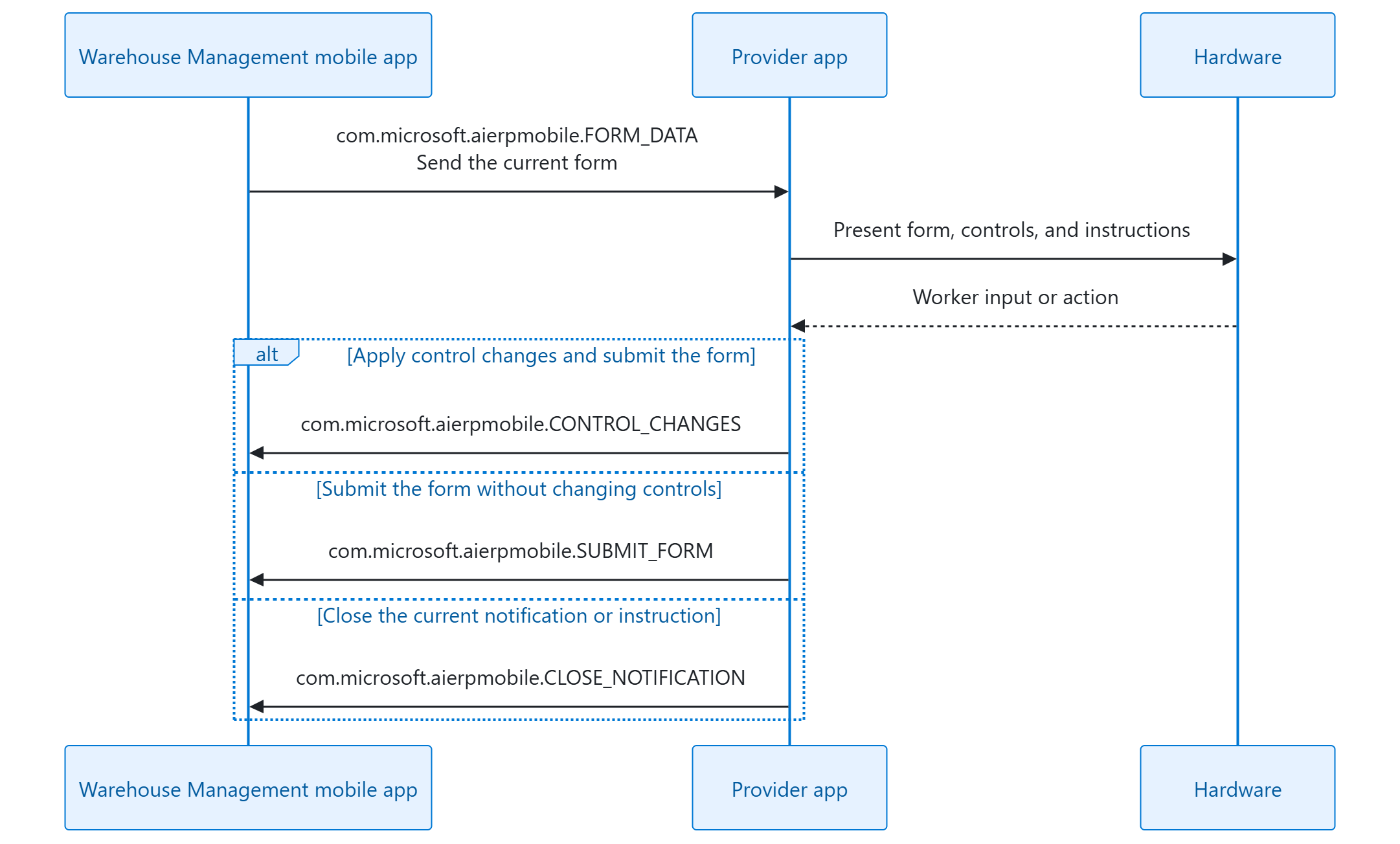
- The Warehouse Management mobile app sends the current form to each allowed provider app.
- Your app presents the relevant controls, instructions, and image through your hardware.
- Your app sends the worker's input or action back to the Warehouse Management mobile app.
- The Warehouse Management mobile app applies the input, submits the form when required, and sends the next form.
Every message contains a JSON string in the com.microsoft.aierpmobile.extra.PAYLOAD intent extra. Every JSON payload includes "version": "v1".
| Action | Direction | Purpose |
|---|---|---|
com.microsoft.aierpmobile.FORM_DATA |
Warehouse Management mobile app to provider app | Send the current form. |
com.microsoft.aierpmobile.CONTROL_CHANGES |
Provider app to Warehouse Management mobile app | Apply control changes and submit the form. |
com.microsoft.aierpmobile.SUBMIT_FORM |
Provider app to Warehouse Management mobile app | Submit the current form without changing controls. |
com.microsoft.aierpmobile.CLOSE_NOTIFICATION |
Provider app to Warehouse Management mobile app | Close the current notification or instruction without submitting. |
Preserve the spelling and case of action names, extra keys, and payload fields. Earlier integrations used FORM_RENDER or the com.microsoft.wma.* namespace. Update those integrations to the names in this table.
The following diagram shows the message flow between the Warehouse Management mobile app, the provider app, and the connected hardware during a form-driven workflow.
Allow your provider app
An administrator must allow your app before the bridge can exchange messages. Configure this setting on each Android device.
- Open the Warehouse Management mobile app.
- From the sign-in screen, open Connection setup > Client settings > Allowed apps.
- Enter your provider app's Android package name. Use the package name of the app that receives form data and sends responses, not the hardware model or display name.
- Separate multiple package names with a semicolon.
For example, the following value allows a provider app and the ProGlove integration app:
com.contoso.warehousebridge; de.proglove.integrationkit.intenthub
For ProGlove, allow de.proglove.integrationkit.intenthub. For your own integration, replace com.contoso.warehousebridge with your app's actual package name.
Package names are matched exactly, including case. Whitespace around names is removed. A mistyped name prevents delivery without showing an error.
Important
An empty Allowed apps list disables the bridge in both directions. The Warehouse Management mobile app sends no forms and accepts no bridge input. Allow only trusted apps—they can receive warehouse form data and submit actions on the worker's behalf.
The list is stored on the Android device. Don't assume that configuring one device configures the rest of your fleet.
Receive form data
Implement an Android BroadcastReceiver in your app. Declare it inside the <application> element of AndroidManifest.xml, with android:exported="true" and the FORM_DATA action.
<receiver
    android:name=".WmaFormBridgeReceiver"
    android:exported="true">
    <intent-filter>
        <action android:name="com.microsoft.aierpmobile.FORM_DATA" />
    </intent-filter>
</receiver>
The Warehouse Management mobile app sends one package-targeted broadcast per allowed app. On Android 11 and later, the manifest declaration also lets the Warehouse Management mobile app discover your package through its action-based package visibility query. A receiver registered only at runtime doesn't satisfy that query.
In your receiver:
- Check that the action is
com.microsoft.aierpmobile.FORM_DATA. - Read the JSON string from
com.microsoft.aierpmobile.extra.PAYLOAD. - Parse the payload and check
version. If it differs fromv1, log a version warning and attempt to parse the fields your app supports. - Pass the form to your device-specific presentation logic.
Validate incoming data and report malformed messages without logging credentials or full form payloads. Treat unknown fields as extensions rather than rejecting the entire form.
Form payload
The following example shows a form with one editable control.
{
  "version": "v1",
  "screenId": "Default",
  "pageTitle": "Enter license plate",
  "controls": [
    {
      "controlType": "text",
      "name": "WHSWorkLicensePlateId",
      "label": "License plate",
      "data": "",
      "enabled": "1",
      "selected": "0",
      "error": "0",
      "defaultButton": "-1",
      "newLine": "1",
      "color": "#000000",
      "Status": "1",
      "InputType": "string",
      "DisplayArea": "PrimaryInputArea",
      "DisplayPriority": "1",
      "DisplaySubPriority": "1",
      "DataSequence": "1",
      "length": "32",
      "type": "1",
      "PreferredInputType": "Alpha",
      "PreferredInputMode": "Scanning"
    }
  ]
}
| Field | Type | Description |
|---|---|---|
version |
String | Protocol version. The current value is v1. |
screenId |
String | Screen pattern used for presentation hints. |
pageTitle |
String | Localized title. It can be empty. Don't use it as a routing key. |
controls |
Array | Form controls in presentation order. |
image |
Object, optional | Product image, with mimeType and base64 fields. |
instruction |
Object, optional | Step instruction, with a localized text field. |
Current screenId values are Default, Login, Menu, Custom, Inquiry, InquiryWithNavigation, MultiScan, MultiScanResult, and FastValidation. Use them as presentation hints, not persistent business identifiers. Provide a generic presentation for unfamiliar screen patterns.
Map controls to your hardware
Identify each control by its name. Send that exact value back when the worker changes the control. Don't use its label, position, or an internal identifier. The bridge doesn't send _controlId.
| Control field | How to use it |
|---|---|
controlType |
Choose the input or presentation behavior. See the following control types. |
name |
Identify the control in a response. |
label, data |
Present the localized label and current string value. |
enabled |
Allow input only when the value is "1". "0" means disabled. |
defaultButton |
Highlight the primary action when the value is "1". |
DisplayArea |
Group controls into the appropriate presentation area. |
DisplayPriority, DisplaySubPriority, DataSequence |
Interpret these string values numerically when ordering controls. Lower values come first. |
PreferredInputType, PreferredInputMode |
Use these optional hints to choose an input method. |
length, InputType, type |
Respect length and data type hints. |
Status |
Interpret "1" as default, "2" as error, "3" as success, and "4" as warning. |
error, selected |
Read error and selection state. error is "0" when there's no error. |
color, newLine |
Use these presentation hints where your hardware supports them. |
KeyCode, InstructionControl, AttachedTo, Icon |
Use these optional key binding, related-control, and icon hints where applicable. |
Numeric-looking flags and ordering values are strings, not JSON numbers or Booleans. Field names are case-sensitive: for example, Status starts with a capital letter, but enabled doesn't.
| Control type | Expected behavior |
|---|---|
label, FastValidationLabel |
Present read-only information. |
text, FastValidationText |
Accept input when enabled. |
password |
Mask the value and keep it out of logs. |
button, detourButton |
Send a control change with value: "1" when selected. |
combobox |
Send a value from _comboboxItems. |
FastValidationIds |
Present the fast-validation identifier selection. |
The display areas are SubHeaderArea, PrimaryInputArea, PrimaryActionArea, InfoAndSecondaryInputArea, GroupHeaderArea, and BodyArea. Keep the supplied control order unless your device requires a layout based on these areas and their ordering hints.
PreferredInputType can be Alpha, Numeric, Date, Selection, or NonNegativeInteger. PreferredInputMode can be Scanning, Manual, or ManualWithStep.
For a combobox, _comboboxItems contains the choices and _comboboxItemSelected identifies the current choice. _comboboxIsInitialSelectionEmpty is an internal Boolean flag. Don't send internal fields back as changes; send only the control's name and chosen value.
Handle images and instructions
Both image and instruction are embedded in FORM_DATA. When absent, their keys are omitted, not set to null.
- Image –
mimeTypeisimage/jpeg.base64contains JPEG data without adata:prefix or a URL. The encoded image is limited to 150 KB. The Warehouse Management mobile app omits images that can't fit within this limit. Your app must work without an image. - Instruction – Present
instruction.textas an instruction over the current form. SendCLOSE_NOTIFICATIONwhen the worker dismisses it. SetdontShowAgaintotrueonly when the worker chooses to suppress that instruction for the screen.
Identify your app when sending input
The Warehouse Management mobile app accepts inbound actions only when it can attribute them to an allowed app.
- On Android 14 and later, Android provides the sender's identity.
- On Android 13 and earlier, your app provides a
PendingIntentin thecaller_id_intentextra. The Warehouse Management mobile app reads its creator package.
Attach caller_id_intent to all three inbound actions on every supported Android version. Create a blank, immutable PendingIntent in your own app and reuse it. It serves as a caller identifier and isn't invoked. A package name placed in JSON isn't a substitute.
The following Kotlin example sends one control change. Use a control name from the latest FORM_DATA payload.
import android.app.PendingIntent
import android.content.Context
import android.content.Intent
import org.json.JSONArray
import org.json.JSONObject

class WmaFormBridge(context: Context) {
    private val appContext = context.applicationContext
    private val callerId = PendingIntent.getActivity(
        appContext,
        0,
        Intent(),
        PendingIntent.FLAG_IMMUTABLE
    )

    fun sendControlChange(name: String, value: String) {
        val change = JSONObject()
            .put("name", name)
            .put("value", value)
        val payload = JSONObject()
            .put("version", "v1")
            .put("changes", JSONArray().put(change))

        val intent = Intent("com.microsoft.aierpmobile.CONTROL_CHANGES").apply {
            putExtra("com.microsoft.aierpmobile.extra.PAYLOAD", payload.toString())
            putExtra("caller_id_intent", callerId)
        }
        appContext.sendBroadcast(intent)
    }
}
The example doesn't call setPackage(): the Warehouse Management mobile app registers its inbound receiver at runtime for the protocol actions. If you choose to target broadcasts explicitly, use the actual application ID, com.Microsoft.WarehouseManagement, and declare that package in your app's <queries> manifest element on Android 11 and later. The action namespace, com.microsoft.aierpmobile, isn't the application ID.
Important
Untargeted broadcasts can be received by other apps that register for the same actions. Protect warehouse data and credentials when choosing your delivery configuration. On Android 13 and earlier, the caller identifier proves who created the PendingIntent, not who sent a particular broadcast. Another app that obtains it could reuse it. Don't treat this mechanism as equivalent to Android 14 sender identification.
Send user input and actions
For each action, serialize the payload as a JSON string in com.microsoft.aierpmobile.extra.PAYLOAD and attach the caller_id_intent extra.
Change controls and submit
Send com.microsoft.aierpmobile.CONTROL_CHANGES with only the changed controls. For example:
{
  "version": "v1",
  "changes": [
    {
      "name": "WHSWorkLicensePlateId",
      "value": "LP-000123"
    }
  ]
}
The Warehouse Management mobile app applies changes in array order and immediately submits the form. If the same control appears more than once, the last value wins. A name that doesn't match a control on the current form is ignored and recorded in telemetry.
To press a button, send its name with "value": "1". This value applies to action, menu, navigation, and detour buttons, even when the button's data value is empty. You can include changed inputs and a button press in the same changes array.
For a combobox, send a value from its _comboboxItems choices. The Warehouse Management mobile app updates both data and _comboboxItemSelected.
Important
CONTROL_CHANGES isn't a draft update. It submits the form. Don't send it on every keystroke, and don't follow it with SUBMIT_FORM for the same action.
Submit without changes
Send com.microsoft.aierpmobile.SUBMIT_FORM when the worker confirms the current form without changing any controls.
{
  "version": "v1"
}
Close a notification or instruction
Send com.microsoft.aierpmobile.CLOSE_NOTIFICATION to close the current error notification or step instruction. No notification identifier is required.
{
  "version": "v1",
  "dontShowAgain": true
}
Omit dontShowAgain, or set it to false, to dismiss the instruction for the current visit only. Set it to true to persist the worker's choice not to show that instruction again for that screen.
Closing a notification doesn't change or submit the form. Repeating this action is safe.
Validate your integration
Test on the Android versions and hardware that you plan to support.
- Allow your provider package and navigate to a warehouse form. Confirm that your app receives
FORM_DATA. - Present the localized title, labels, and control values. Confirm that disabled controls remain read-only and password values stay masked.
- Change an input and confirm it. Verify that
CONTROL_CHANGESupdates the intended control and submits once. - Press an action or navigation button by its
name, using"value": "1". Include a button whosedatais empty. - Submit an unchanged form by using
SUBMIT_FORM. - Close an error or instruction. Confirm that closing doesn't submit. Test temporary dismissal separately from
dontShowAgain. - Test forms with and without images and instructions, plus the control types used by your warehouse workflows.
- Verify caller identification on Android 13 or earlier as well as Android 14 or later if your product supports both.
- Remove your package from Allowed apps. Confirm that your app no longer receives forms and that the Warehouse Management mobile app no longer accepts its input.
Troubleshoot message delivery
| Symptom | What to check |
|---|---|
| No form data arrives. | Confirm that the installed provider package is in Allowed apps, spelled exactly. |
| The package is allowed, but forms still don't arrive. | Declare an exported manifest receiver for com.microsoft.aierpmobile.FORM_DATA. Don't rely only on runtime registration. |
| An older integration no longer receives forms. | Replace FORM_RENDER and com.microsoft.wma.* action names with the current protocol names. |
| Forms arrive, but input is ignored. | Check the allowed package and attach a caller_id_intent created by your app to every inbound action. |
| Explicitly targeted input isn't delivered. | Use com.Microsoft.WarehouseManagement, not the action namespace, and declare the target package in your app's <queries> element. |
| A control change has no effect. | Use the exact name from the current form, not its label or a name from a previous form. |
| A button doesn't respond. | Send "value": "1" for the button's name, even if its data is empty. |
| An image is missing. | The form might have no image, or the image couldn't fit within the 150 KB limit. |
| A form is submitted twice. | Don't send SUBMIT_FORM after CONTROL_CHANGES for the same confirmation. |
During development, inspect sender identification by using:
adb logcat -s IntentScanner
On Android 14 and later, the sender identity log can include both the OS-reported package and the caller identifier's creator package. A missing caller identifier can leave an integration working on newer devices but failing on Android 13 and earlier. A Sender identity mismatch warning indicates that the broadcast sender and the caller identifier's creator differ.