Note
Access to this page requires authorization. You can try signing in or changing directories.
Access to this page requires authorization. You can try changing directories.
Note
Microsoft Sustainability Manager has been rebranded as Dynamics 365 Sustainability. This change reflects a new product name only. Product functionality, capabilities, licensing, and service offerings remain unchanged. Some screenshots and UI labels in this article may show the previous name while visuals are being updated.
Important
Some or all of this functionality is available as part of a preview release. The content and the functionality are subject to change. Preview features aren't intended for production use and might have restricted functionality. These features are subject to supplemental terms of use, and are available before an official release so that customers can get early access and provide feedback.
Create sustainability data owner user
As an admin or data manager, use the following steps to add a new user to Microsoft Dynamics 365 Sustainability and assign them the role of sustainability data owner.
Sign in to the Power Portal admin center and select the Environments tab in the left navigation pane.
Search for the environment where Microsoft Dynamics 365 Sustainability is deployed, and select the environment.
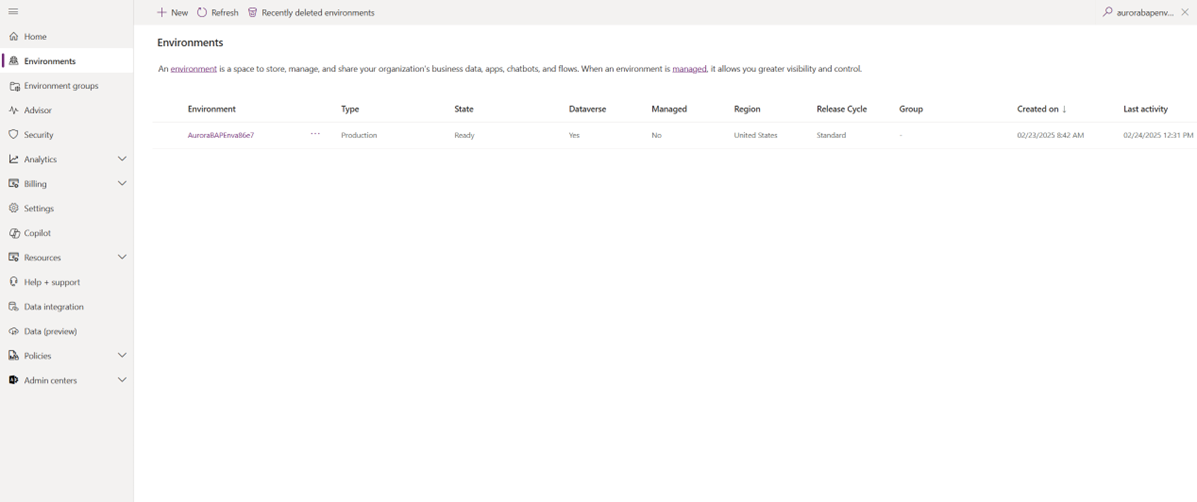
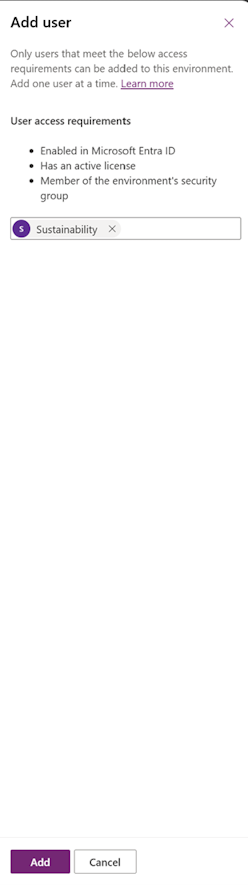
Select Settings in the top ribbon, and then select Users + permissions > Users. Select Add user, enter the name or email address of the user to add, and select Add.
Select Sustainability data owner as the security role, and select Save.
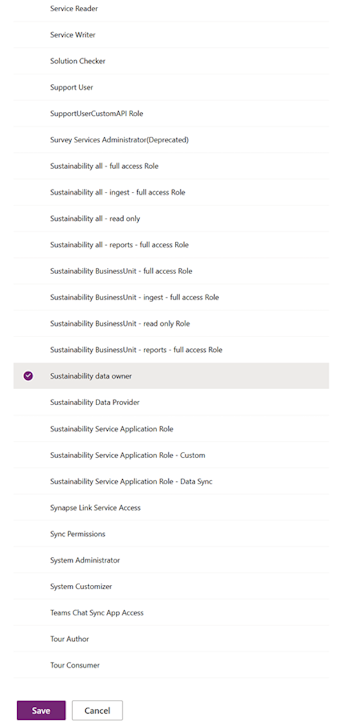
Select Save to confirm the role assignment.
Create a data owner
Sign in to Microsoft Dynamics 365 Sustainability and select Data collection (preview) > Data owners in the left navigation pane.
Select New, and enter the data owner details.
Name: A uniquely identifiable name for the ESG data owner.
Description: Optional field to describe the entity.
Assigned to: A lookup to the user table.
Select Save.