Note
Access to this page requires authorization. You can try signing in or changing directories.
Access to this page requires authorization. You can try changing directories.
Note
Microsoft Sustainability Manager has been rebranded as Dynamics 365 Sustainability. This change reflects a new product name only. Product functionality, capabilities, licensing, and service offerings remain unchanged. Some screenshots and UI labels in this article may show the previous name while visuals are being updated.
Use demo data to explore Microsoft Dynamics 365 Sustainability and understand its features, workflows, and reporting capabilities - without setting up your own data.
Important
External reporting demo data is updated to include the prefix "DemoData_" to differentiate demo concepts and facts from the rest. The data is streamlined.
If you're already using external reporting demo data, delete the existing demo data before reinstalling the new version.
Don't use demo data facts in your actual assessments, as they're fictitious and provided solely for example purposes.
Deploy demo data
Sign in to the Power Platform admin center.
Follow the steps in Manage Dynamics 365 apps that run on Microsoft Dataverse - Power Platform | Microsoft Learn to install Dynamics 365 Sustainability.
Search for "sustainability" to see all the sustainability-related solutions. Select the Microsoft Dynamics 365 Sustainability Demo Data solution.
Explore demo data
After you install the demo data in Microsoft Dynamics 365 Sustainability, explore the following data:
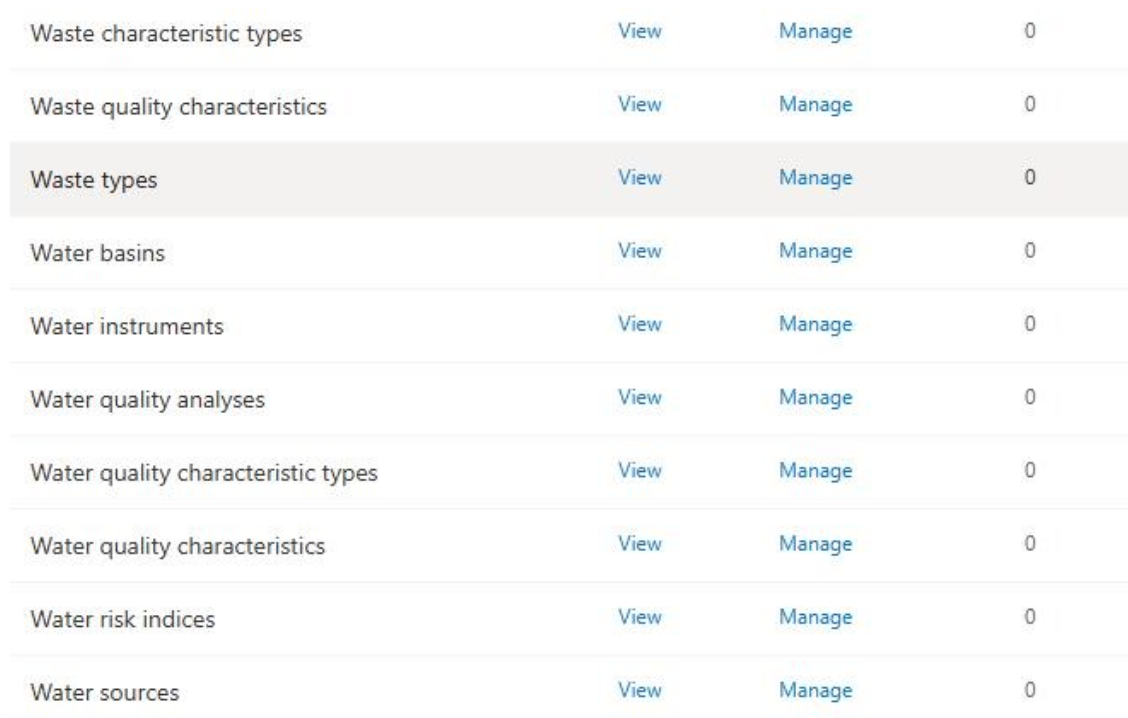
Reference data, such as Facility, FacilityType, estimation factors, organizational unit revenue, and all reference data entities for water, waste, and circularity:
Activity data
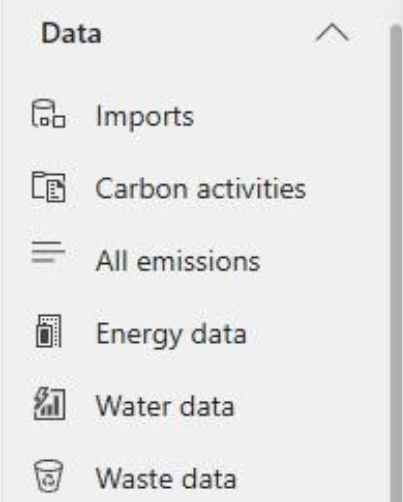
Calculation models
Preparation reports
Sample assessment for a Corporate Sustainability Reporting Directive (CSRD) report
Delete demo data
If you're using external reporting from Microsoft Dynamics 365 Sustainability (Premium) or Microsoft Dynamics 365 Sustainability (Essentials) solution versions, follow these steps to delete demo data:
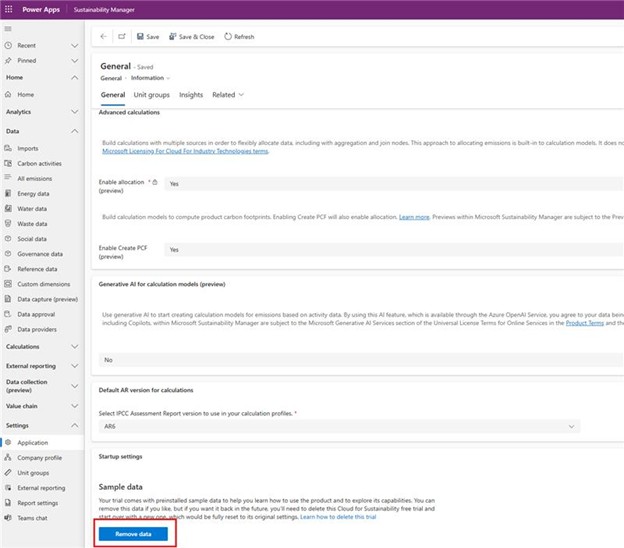
Go to Settings -> Application from the left navigation.
Under General -> Startup settings, select Remove data.
Caution
This step removes all the demo data in your Dynamics 365 Sustainability environment, including external reporting's demo data.
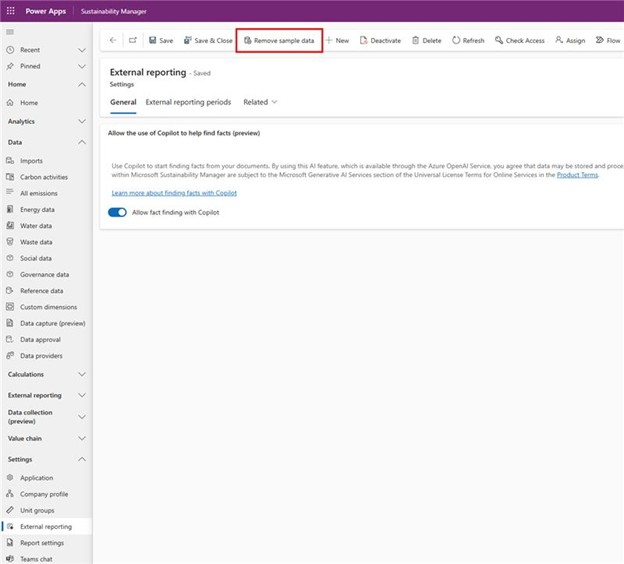
If you're using external reporting from Microsoft Dynamics 365 Sustainability solution version, go to Settings -> External reporting and select Remove sample data in the top ribbon.