Note
Access to this page requires authorization. You can try signing in or changing directories.
Access to this page requires authorization. You can try changing directories.
In Dynamics 365 Sustainability, the user who creates a data import connection is its owner by default. System Administrators might need to transfer ownership to another user when the current owner is no longer available - for example, if they leave the team or organization, their account is disabled, or they lose access to the data source. Transferring ownership to an active user enables the new user to make updates to the connection as required and the Power Query import jobs continue to work.
Prerequisites
Before you transfer ownership, verify the following conditions:
You have the System Administrator security role.
The import you want to transfer is a Power Query import or a data provider connector import.
The new owner has the required security role and access level to own the import.
The new owner has access to the original data source and can sign in with their own credentials to reconnect the import.
When the owner of a Power Query import changes:
- The import status changes to Action required, and Ready to import is set to No, until the new owner finishes setup.
- The queries and data transformations associated with the import connection are preserved. The new owner doesn't need to rebuild them.
- The underlying connection linked to the dataflow is reset because credentials must be refreshed. The new owner must reconnect to the same data source with their own credentials before the import can run.
- Incremental refresh settings are cleared, and must be recreated after the first successful import under the new owner.
Change the owner of a Power Query import
To change the owner of a Power Query import:
On Data imports, select the Power Query import you want to edit. Select Change owner in the toolbar.
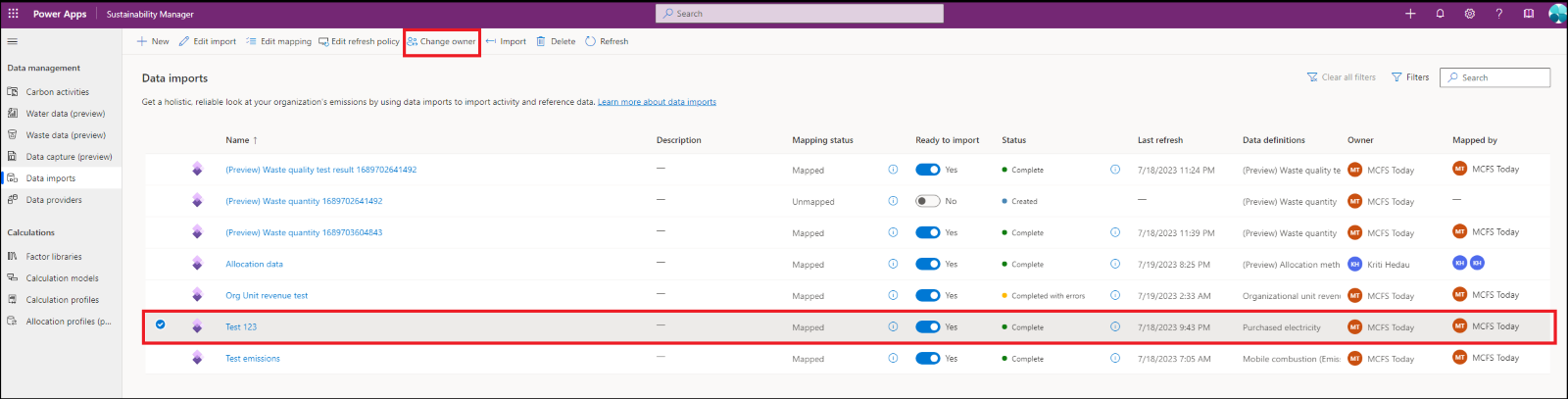
In Change ownership of data import, review the current owner.
In New owner, enter the name of the new owner, select the correct user from the available options, and then select Save. The import status changes to Action required.
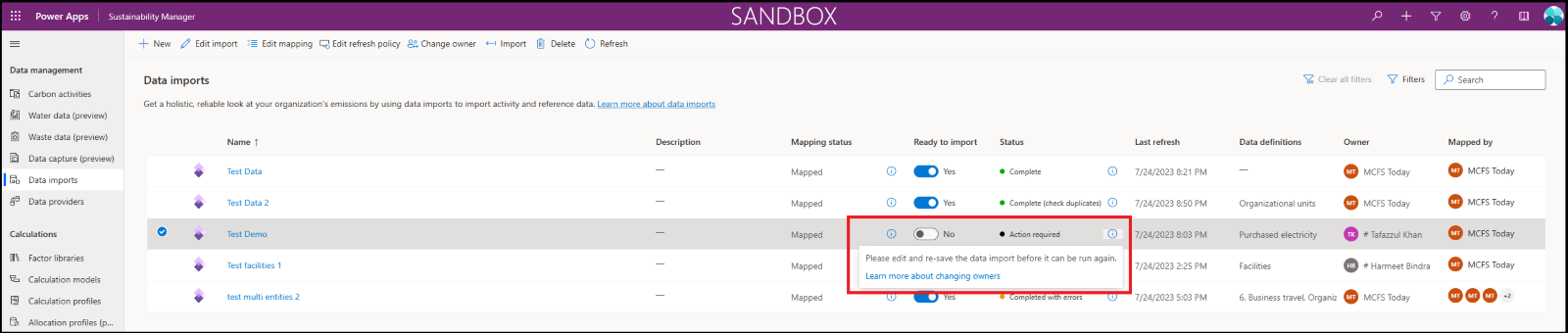
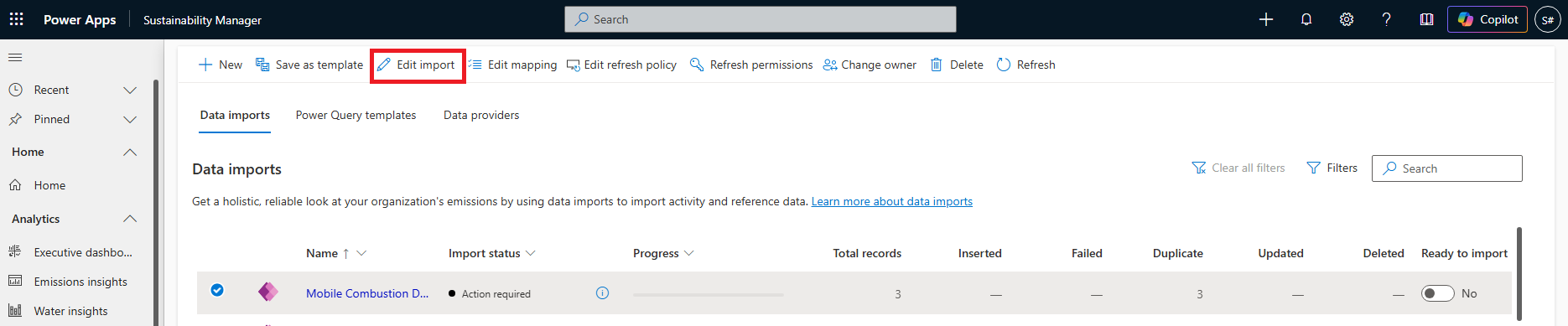
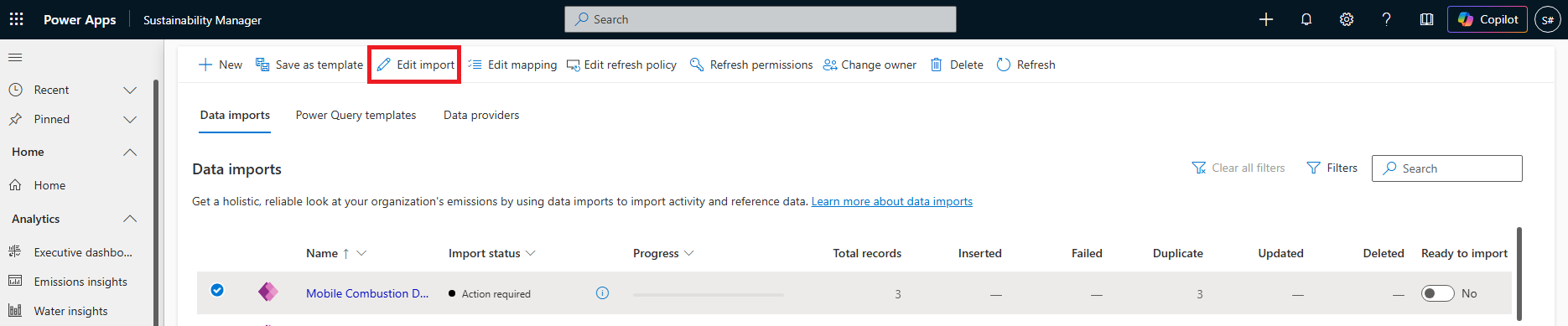
Select the import, and then select Edit import. If you aren't adding new entities to the import, select Next.
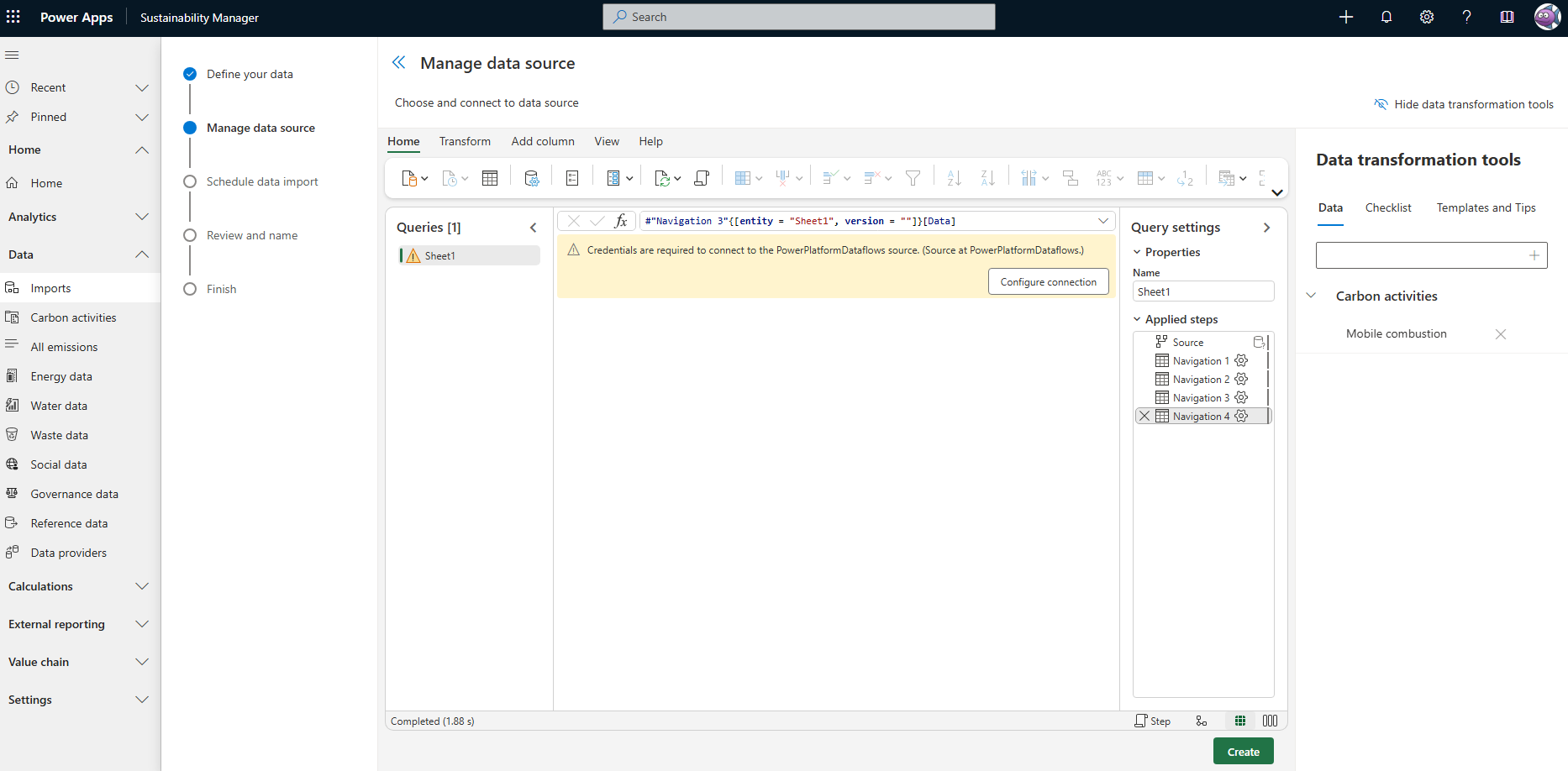
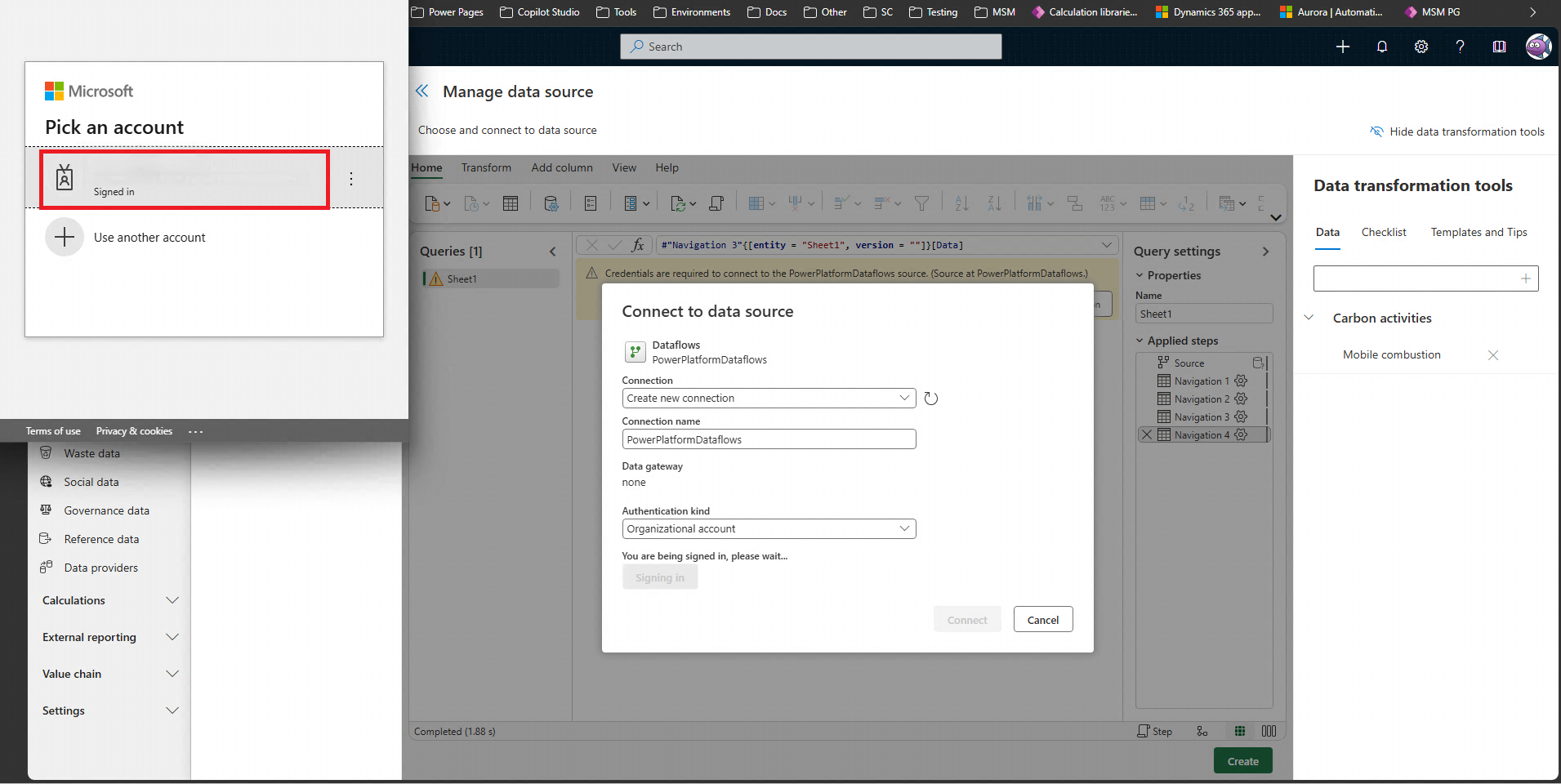
On Manage data source, the query shows that credentials are required to connect to the data source. Select Configure connection.
In Connect to data source, select the account to sign in with, confirm the authentication kind, and then select Connect. Make sure the new owner has access to the data source used in the import.
After the connection succeeds, the query data loads.
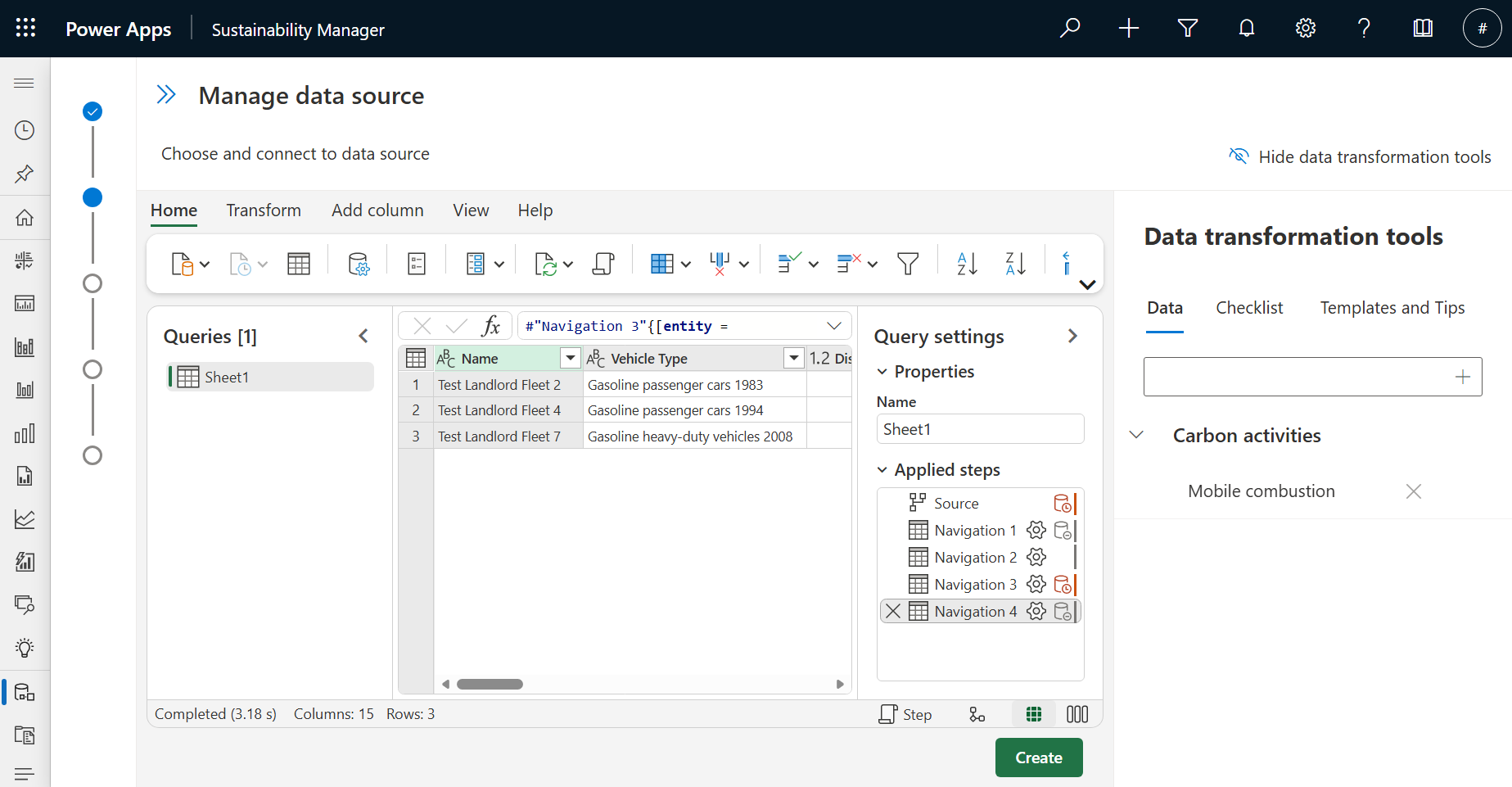
To change the import type or source file, select Get data in the toolbar. Back on Manage data source, repeat the previous steps as needed. You can also edit and transform data in the existing queries by using Power Query features. For more guidance, see Templates and tips under Data transformation tools.
If you only need to update the data refresh schedule, select Create at the bottom of the page. You can then update the data refresh, import name, or description. After you're done, select Connect.
If you don't need to update mappings, select Done.
If you need to update mappings, select Map fields. Select the queries to remap and follow the mapping steps. After mapping is complete, save the mapping and set the Ready to import toggle to Yes.
The import appears on Data imports with the updated owner.
Change the owner of a data provider connection
To change the owner of a data provider connector import, use the existing ownership transfer experience:
In the Data area under Data management, select Data imports.
On the Data imports page, select the data provider connector import you want to edit. Select Change owner in the toolbar.
In the Change ownership of data import pane that appears, review the current owner. In the New owner field, enter the name of the new owner, select the correct user from the available options, and then select Save.
After you save, the import shows the new owner. The standard ownership transfer flow applies and is unaffected by this change: as noted earlier, the new owner reconnects to the data source with their own credentials before the import can run.