Note
Access to this page requires authorization. You can try signing in or changing directories.
Access to this page requires authorization. You can try changing directories.
Network content filtering in Microsoft Entra Internet Access allows administrators to use content policies to prevent the transport of specific file types over the network. This feature helps protect sensitive data by blocking uploads and downloads of certain file formats (such as .doc, .docx, .pdf, and .zip) to and from web applications like ChatGPT, Gmail, and file-sharing apps. It can also use Microsoft Purview to scan files and apply network-level policies based on document sensitivity labels.
In this tutorial, you learn how to:
- Create a content policy to block specific file types from being uploaded.
- Link the content policy to a security profile.
- Verify that file upload blocking works as expected.
Key concepts
Why are content policies critical?
Content policies address a key data exfiltration vector, which is users who intentionally or accidentally upload sensitive files to unauthorized destinations.
| Threat scenario | Example | Content policy solution |
|---|---|---|
| Shadow AI data leakage | Employee pastes confidential contract into ChatGPT. | Block document uploads to *.oaiusercontent.com. |
| Personal email exfiltration | Employee emails customer database to personal Gmail. | Block uploads to mail.google.com. |
| Unauthorized cloud storage | Employee syncs work files to personal Dropbox. | Block uploads to *.dropbox.com. |
| Insider threat | Malicious employee downloads sensitive files before leaving. | Block downloads of specific file types. |
How content policies work with TLS inspection
User attempts upload     GSA client      SSE with TLS inspection     Destination
         │                    │                     │                      │
         │  Upload file.pdf   │                     │                      │
         ├───────────────────>│                     │                      │
         │                    │  Tunnel traffic     │                      │
         │                    ├────────────────────>│                      │
         │                    │                     │  Decrypt & inspect   │
         │                    │                     │  ┌───────────────┐   │
         │                    │                     │  │ File type: PDF│   │
         │                    │                     │  │ Action: Upload│   │
         │                    │                     │  │ Dest: chatgpt │   │
         │                    │                     │  │ → BLOCK       │   │
         │                    │                     │  └───────────────┘   │
         │    Block message   │                     │                      │
         │<───────────────────┤                     │                      │
Content policies require Transport Layer Security (TLS) inspection to be enabled. Security service edge (SSE) can't detect file types within encrypted uploads unless the traffic is decrypted.
Sample walkthrough videos
The following video demonstrates how to configure a content policy.
Step 1: Create a content policy
From the Microsoft Entra admin center, browse to Global Secure Access > Secure > Content policies.
Select Create policy.
Enter a name and description for the policy. Select Next.
Select Add rule.
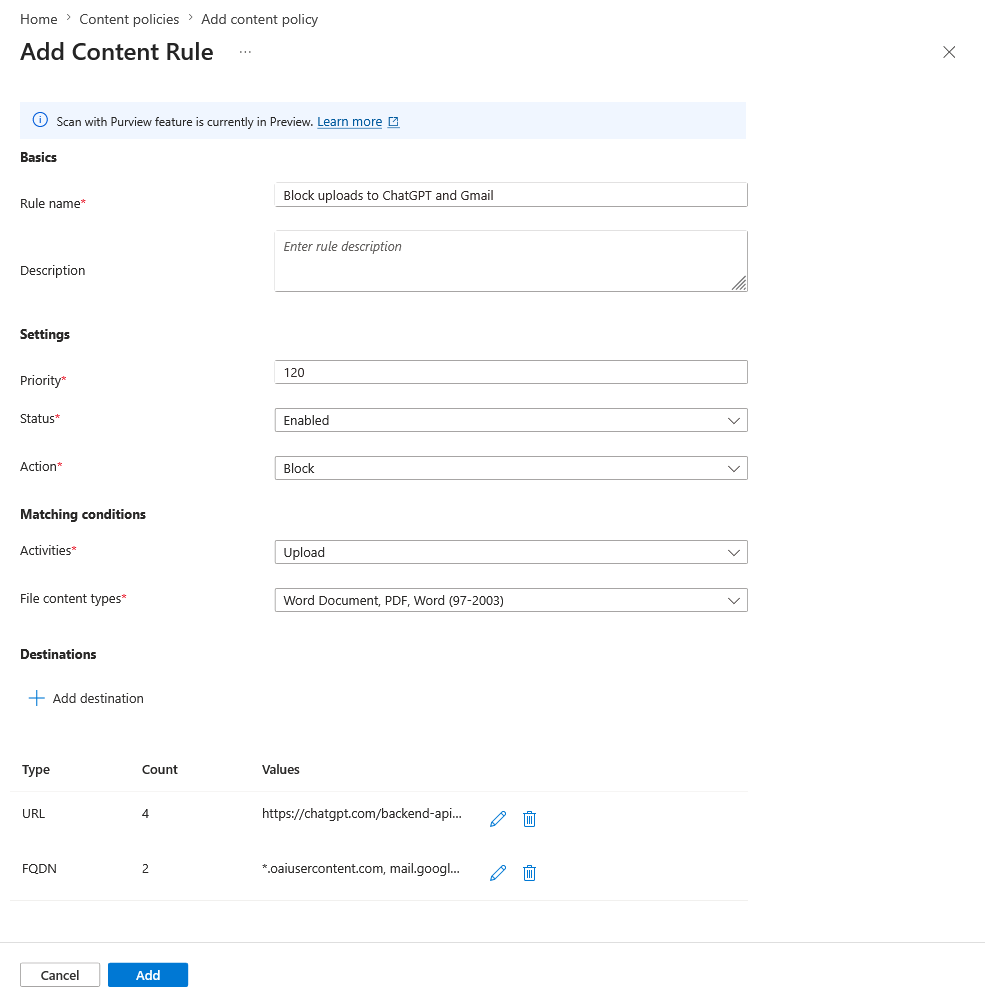
Enter the following information:
- Rule name: Enter Block uploads to ChatGPT and Gmail.
- Description: Enter a description (optional).
- Priority: Select 120.
- Status: Select Enabled.
- Action: Select Block.
- Activities: Select the checkbox for Upload.
- Content types: Select the checkboxes for Word (97-2003), Word Document, and PDF.
Select Add destination, select FQDN, and then enter the following fully qualified domain names (FQDNs):
*.oaiusercontent.commail.google.comclients6.google.com*.clients6.google.com
Select Add.
Select Add destination, and then select URL and enter the following URLs:
https://chatgpt.com/backend-api/fileshttps://chatgpt.com/backend-api/files/process_upload_stream
Note
Apps might use multiple URLs and FQDNs under the hood when you interact with them. In this example, ChatGPT uses
*.oaiusercontent.comand Gmail usesmail.google.com. If you aren't seeing content policies applied, check with dev tools to confirm which URLs and FQDNs the app is using.Select Save.
Select Next, and then select Create.
Step 2: Link the policy to a security profile
- After the policy is created, browse to Global Secure Access > Secure > Security profiles.
- Select the existing security profile from a previous tutorial.
- Go to the Link policies pane.
- Select Link a policy, and then select Existing Content policy.
- Choose the content policy that you created and select Add.
Note
Verify that the security profile is assigned to a Microsoft Entra Conditional Access policy.
Step 3: Verify file upload and download blocking
On your test device, open a browser, go to
www.chatgpt.com, and sign in with an account of your choice.Attempt to upload a PDF or Word document to ChatGPT, and verify that the upload fails.
Go to
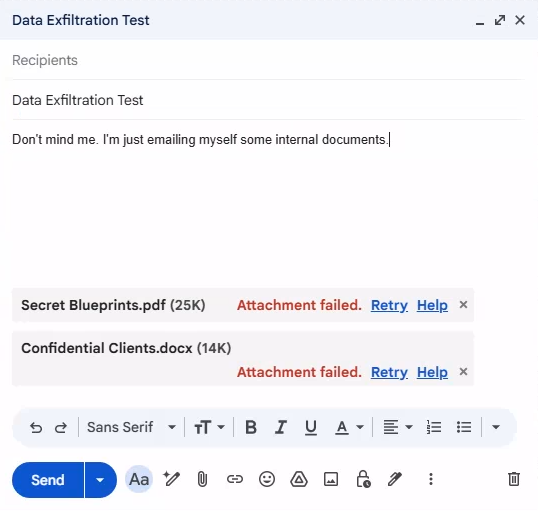
mail.google.com, and sign in with a Google account.Attempt to upload a PDF or Word document to Gmail, and verify that the upload fails.
Known limitations
Refer to official documentation for the list of known limitations.
What you learned
In this tutorial, you accomplished the following tasks:
- Created a content policy to prevent data exfiltration: You blocked specific document types from being uploaded to AI tools and personal email, which addresses a key data loss vector.
- Understood FQDN discovery for apps: You learned that web applications often use multiple back-end URLs, like
*.oaiusercontent.comfor ChatGPT. - Linked content policies to security profiles: You learned that content policies follow the same security profile model, which you can use to target specific users via Conditional Access.
- Combined multiple security controls: You saw in this tutorial how content policies work alongside web content filtering, TLS inspection, and threat intelligence as part of a comprehensive security strategy.
Identify application FQDNs
When you configure content policies, you need to know the actual FQDNs that are used by applications.
To discover the FQDNs, select F12 to open the browser developer tools:
- Open the Network tab.
- Upload a file to the target app.
- Look for
POSTrequests with file content.
Use the application discovery feature to identify which apps are being used, and then create targeted content policies:
1. Discover shadow AI apps.
        ↓
2. Assess risk scores.
        ↓
3. Decide to block entirely or allow with content restrictions.
        ↓
4. Create content policy if allowing with restrictions.
Best practices
- Start by blocking uploads to high-risk AI apps (or all AI apps with authorized exceptions).
- Consider blocking both uploads and downloads for maximum protection.
- Test policies with a pilot group before broad deployment.
- Communicate changes to users to avoid confusion.
Related content
For more information, see the following resources: