Note
Access to this page requires authorization. You can try signing in or changing directories.
Access to this page requires authorization. You can try changing directories.
Intelligent Local Access (ILA) is a feature in Microsoft Entra Private Access that optimizes traffic flow when users are on the corporate network. When the Global Secure Access client detects that the user is inside the corporate network using DNS probes, traffic to specified Private Access applications can bypass the cloud backend and connect directly. This reduces latency and improves user experience while maintaining a consistent security posture.
In this tutorial, you learn how to:
- Create a Private Network with Intelligent Local Access configuration
- Link the Private Network to a target application
- Verify ILA flow on the client
Key concepts
Tip
ILA is a path optimization capability, not a separate access model.
- Off corporate network: traffic follows standard Private Access tunnel path.
- On corporate network (probe match): configured app traffic can take a local/bypassed route.
Detection is based on DNS probe logic (server + FQDN + expected resolution result). When the probe result matches your configured corporate network signature, the client knows local reachability is available and can avoid unnecessary cloud traversal for targeted resources.
Even if the user is on the corporate network and ILA takes effect, Conditional Access policies for Private Access applications will still apply. This gives you a dual benefit: Zero Trust access continuity for remote users and improved performance for in-office users.
Step 1: Create a Private Network with ILA configuration
To enable Intelligent Local Access, you need to create a Private Network that defines how the Global Secure Access client identifies it is on the corporate network.
- From the Microsoft Entra admin center, browse to Global Secure Access > Connect > Private networks.
- Select Add Private network.
- In the Add Private network panel, configure the following:
- Name: Enter a friendly name for the network (e.g.,
Contoso Corporate Network) - DNS Servers: Enter the DNS server address used for DNS resolution on the corporate network. This should be an IPv4 address, such as
10.10.2.1, that identifies a DNS server on the network. - Fully qualified domain name (FQDN): Enter the FQDN that needs to be resolved to identify the corporate network
- Resolved to IP address type: Select the appropriate type based on your network configuration, such as IP address
- Resolved to IP address value: Enter the appropriate value to which the DNS query will resolve
- Name: Enter a friendly name for the network (e.g.,
- Under Target Resource, select Select applications.
- Select an application you want to configure for Intelligent Local Access.
- Select Create.
Note
The Global Secure Access client uses DNS probes to determine if the client is inside the corporate network. When the DNS query for the specified FQDN resolves to an IP address within the configured range, the client knows it's on the corporate network and can enable local bypass for the specified applications.
Tip
You can create multiple Private Networks with different target resources to control which applications use Intelligent Local Access on which networks based on your organization's requirements.
Step 2: Verify ILA flow on the client
To verify that Intelligent Local Access is working correctly, use the Advanced Diagnostics tool in the Global Secure Access client.
On the client device, right-click the Global Secure Access icon in the system tray and select Advanced diagnostics.
Select the Traffic tab, then select Start Collecting.
In the filter options, add a filter for Destination IP/FQDN and enter the FQDN of the resource you want to test.
Note
Remove the default filter for
Action == Tunnelto see all traffic including bypassed traffic.Access the Private Access application you configured with ILA.
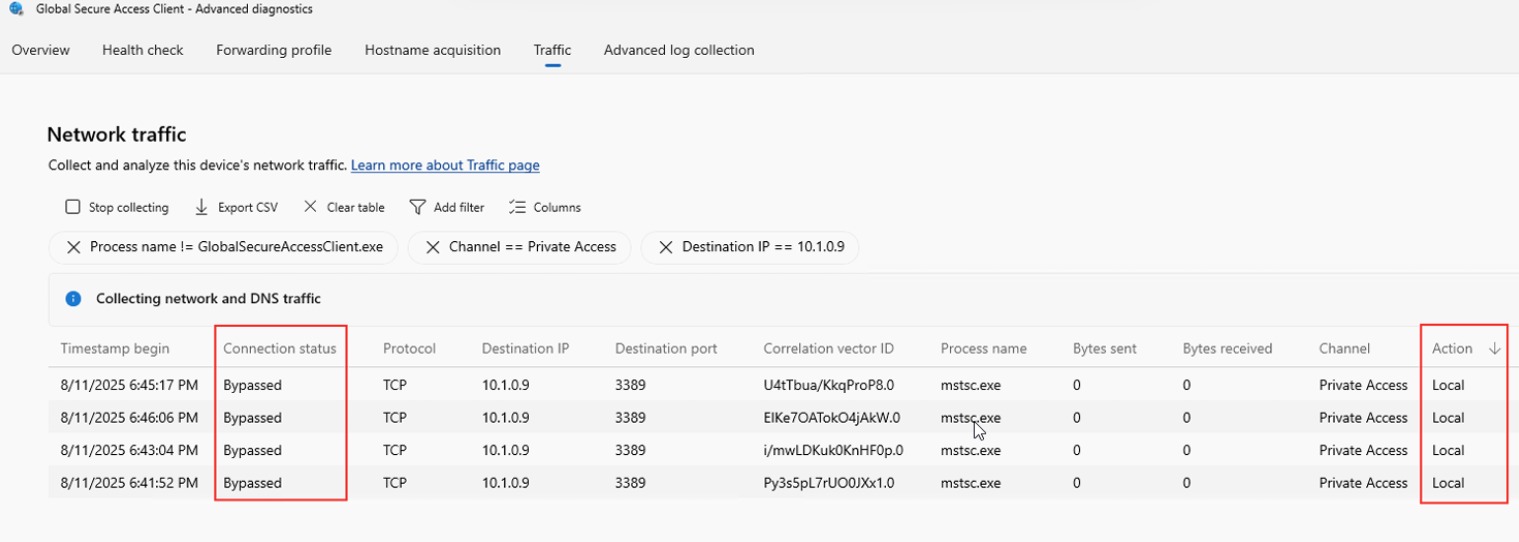
Review the network traffic results and verify the following:
- Connection Status: Should show as Bypassed
- Action: Should show as Local
Note
You can also review Windows Event Logs by opening Event Viewer and navigating to Application and Services Logs > Microsoft > Windows > Global Secure Access Client > Operational. You can then search for Event ID's 217 and 218, which are triggered when the GSA client detects that it is now on or off the corporate network.
To fully understand ILA behavior, you can test from both locations:
| Location | Expected behavior |
|---|---|
| On corporate network | Traffic is bypassed locally (Action: Local) |
| Off corporate network (remote) | Traffic goes through the tunnel (Action: Tunnel) |
Note
The DNS probe used by Intelligent Local Access always bypasses GSA tunneling even if the DNS probe matches a suffix configured in Private DNS. This ensures that when the user is off the corporate network, the DNS probe will fail to resolve to the expected IP range, and traffic will be tunneled as normal.
Troubleshooting
If ILA isn't working as expected:
- Verify DNS configuration: Ensure the DNS record is correctly configured on the private network.
- Check IP resolution: Verify from the client that the FQDN resolves to an IP address within the configured range when on the private network. For example, when on the private network, run
nslookup -v your.domain.com 10.0.100.10(pointing to your DNS server's IP) then verify it resolves to the expected values. - Review client logs: Use the Advanced Diagnostics tool to review connection attempts and identify any issues.
- Confirm target resource assignment: Verify that the correct Quick Access or enterprise application is linked to the Private Network.
What you learned
In this exercise, you accomplished the following:
- Defined corporate network detection signals - You configured DNS-based indicators used by the client to determine when it is on or off the private network.
- Scoped ILA to specific target resources - You controlled which apps can bypass tunnel routing when on the private network.
- Validated behavior in diagnostics - You confirmed expected
LocalvsTunnelactions by network location.
ILA improves user experience and reduces unnecessary tunnel usage without requiring users to change how they access applications.
Next steps
For more information, see the following resources: