Note
Access to this page requires authorization. You can try signing in or changing directories.
Access to this page requires authorization. You can try changing directories.
Applies to:  External tenants (learn more)
In this tutorial, you register a strong authentication method for a user in your Angular single-page application (SPA) by using native authentication's JavaScript SDK.
If you enable multifactor authentication (MFA), but the user has no registered strong authentication method, you need to have the user register one before tokens can be issued.
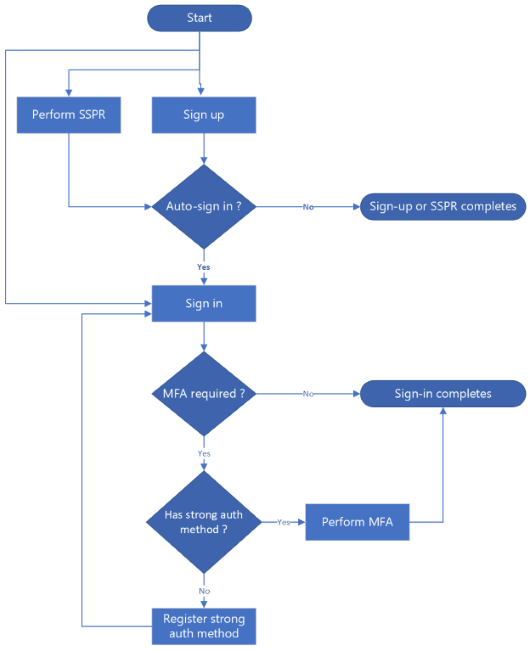
The strong authentication method registration flow occurs in three scenarios:
- During sign-in: The user signs in but doesn't have a strong authentication method registered.
- After sign-up: The user successfully signs up and automatically proceeds to sign in.
- After self-service password reset (SSPR): The user successfully resets their password and automatically proceeds to sign in.
When strong authentication method registration is required, the user selects a method of choice from a list of supported methods. The available methods are email and SMS one-time passcode.
The flow diagram below illustrates the three scenarios:
Prerequisites
- Complete the steps in sign up, sign in and password reset tutorials.
- Visual Studio Code or another code editor.
- Node.js 20.x or later.
- Angular CLI installed globally. This example uses version 19.2.1.
- Enable multifactor authentication (MFA) for your app.
Enable app to handle strong authentication method registration
To enable the strong authentication method registration in your React app, update the app configuration by adding the required capability:
Locate the src/app/config/auth-config.ts file.
In the
customAuthobject, add or update thecapabilitiesproperty to include theregistration_requiredvalue in the array as shown in the following code snippet:const customAuthConfig: CustomAuthConfiguration = { customAuth: { ... capabilities: ["registration_required"], ... }, ... };
The capability value registration_required informs Microsoft Entra that your app can handle strong authentication method registration flow. Learn more about native authentication challenge types and capabilities.
Create UI components
You require form components to handle strong authentication method registration. The following sections show how to add form components.
Create strong authentication method selection form
In in your console, navigate to the src/app/components/shared folder, then use Angular CLI to create a component such as auth-method-selection-form by using the following command:
ng generate component auth-method-selection-formThis command generates auth-method-selection-form.component.html and auth-method-selection-form.component.ts files in the folder src/app/components/shared/auth-method-selection-form/.
Open the auth-method-selection-form.component.ts file, then replace its contents with the content in auth-method-selection-form.component.ts.
Open the auth-method-selection-form.component.html file, then add the contents in auth-method-selection-form.component.html
Create strong authentication method challenge form
In in your console, navigate to the src/app/components/shared folder, then use Angular CLI to create a component, such as auth-method-challenge-form by using the following command:
ng generate component auth-method-challenge-formThis command generates auth-method-challenge-form.component.ts and auth-method-challenge-form.component.html files in the folder src/app/components/shared/auth-method-challenge-form/.
Open the auth-method-challenge-form.component.ts file, then replace its contents with the content in auth-method-challenge-form.component.ts.
Open the auth-method-challenge-form.component.html file, then add the contents in auth-method-challenge-form.component.html
Register strong authentication method during sign-in
Update the src/app/components/sign-in/sign-in.component.ts file to enable your app to handle strong authentication method registration flow during sign-in. See the complete code in sign-in.component.ts:
Import the necessary types and components:
import {
    AuthMethodRegistrationRequiredState,
    AuthenticationMethod,
    AuthMethodVerificationRequiredState,
} from "@azure/msal-browser/custom-auth";
import { AuthMethodSelectionFormComponent } from "../shared/auth-method-selection-form/auth-method-selection-form.component";
import { AuthMethodChallengeFormComponent } from "../shared/auth-method-challenge-form/auth-method-challenge-form.component";

@Component({
    selector: "app-sign-in",
    templateUrl: "./sign-in.component.html",
    standalone: true,
    imports: [
        ...
        AuthMethodSelectionFormComponent,
        AuthMethodChallengeFormComponent,
        ...
    ],
})
Add new variables for strong authentication method registration:
showAuthMethodsForRegistration = false;
showChallengeForRegistration = false;
authMethodsForRegistration: AuthenticationMethod[] = [];
selectedAuthMethodForRegistration: AuthenticationMethod | undefined = undefined;
verificationContactForRegistration: string | undefined = undefined;
challengeForRegistration: string | undefined = undefined;
Update the
startSignIn,handlePasswordSubmitandhandleCodeSubmitfunctions to check if strong authentication method registration is required:async startSignIn() { const client = await this.auth.getClient(); const result: SignInResult = await client.signIn({ username: this.username }); ... if (result.isAuthMethodRegistrationRequired()) { this.showAuthMethodsForRegistration = true; this.showPassword = false; this.showCode = false; this.showChallengeForRegistration = false; this.showMfaAuthMethods = false; this.showMfaChallenge = false; this.authMethodsForRegistration = result.state.getAuthMethods(); // Set default selection to the first auth method this.selectedAuthMethodForRegistration = this.authMethodsForRegistration.length > 0 ? this.authMethodsForRegistration[0] : undefined; this.signInState = result.state; } ... } async submitPassword() { if (this.signInState instanceof SignInPasswordRequiredState) { const result = await this.signInState.submitPassword(this.password); ... if (result.isAuthMethodRegistrationRequired()) { this.showAuthMethodsForRegistration = true; this.showPassword = false; this.showCode = false; this.showChallengeForRegistration = false; this.showMfaAuthMethods = false; this.showMfaChallenge = false; this.authMethodsForRegistration = result.state.getAuthMethods(); // Set default selection to the first auth method this.selectedAuthMethodForRegistration = this.authMethodsForRegistration.length > 0 ? this.authMethodsForRegistration[0] : undefined; this.signInState = result.state; } ... } } async submitCode() { if (this.signInState instanceof SignInCodeRequiredState) { const result = await this.signInState.submitCode(this.code); ... if (result.isAuthMethodRegistrationRequired()) { this.showAuthMethodsForRegistration = true; this.showPassword = false; this.showCode = false; this.showChallengeForRegistration = false; this.showMfaAuthMethods = false; this.showMfaChallenge = false; this.authMethodsForRegistration = result.state.getAuthMethods(); // Set default selection to the first auth method this.selectedAuthMethodForRegistration = this.authMethodsForRegistration.length > 0 ? this.authMethodsForRegistration[0] : undefined; this.signInState = result.state; } } }In each of the functions, notice that we check if strong authentication method registration is required by using the following code snippet:
if (result.isAuthMethodRegistrationRequired()) {...}Add the handler for strong authentication method selection:
async submitAuthMethodForRegistration() {
    this.error = "";
    this.loading = true;

    if (!this.selectedAuthMethodForRegistration || !this.verificationContactForRegistration) {
        this.error = "Please select an authentication method and enter a verification contact.";
        this.loading = false;
        return;
    }

    if (this.signInState instanceof AuthMethodRegistrationRequiredState) {
        const result = await this.signInState.challengeAuthMethod({
            authMethodType: this.selectedAuthMethodForRegistration,
            verificationContact: this.verificationContactForRegistration,
        });

        if (result.isFailed()) {
            if (result.error?.isInvalidInput()) {
                this.error = "Incorrect verification contact.";
            } else if (result.error?.isVerificationContactBlocked()) {
                this.error =
                    "The verification contact is blocked. Consider using a different contact or a different authentication method.";
            } else {
                this.error =
                    result.error?.errorData?.errorDescription ||
                    "An error occurred while verifying the authentication method.";
            }
        }

        if (result.isCompleted()) {
            this.isSignedIn = true;
            this.userData = result.data;
            this.showAuthMethodsForRegistration = false;
            this.signInState = result.state;
        }

        if (result.isVerificationRequired()) {
            this.showAuthMethodsForRegistration = false;
            this.showChallengeForRegistration = true;
            this.signInState = result.state;
        }
    }
    this.loading = false;
}
Add the handler for strong authentication method verification:
async submitChallengeForRegistration() {
    this.error = "";
    this.loading = true;

    if (!this.challengeForRegistration) {
        this.error = "Please enter a code.";
        this.loading = false;
        return;
    }

    if (this.signInState instanceof AuthMethodVerificationRequiredState) {
        const result = await this.signInState.submitChallenge(this.challengeForRegistration);

        if (result.isFailed()) {
            if (result.error?.isIncorrectChallenge()) {
                this.error = "Incorrect code.";
            } else {
                this.error =
                    result.error?.errorData?.errorDescription ||
                    "An error occurred while verifying the challenge response.";
            }
        }

        if (result.isCompleted()) {
            this.isSignedIn = true;
            this.userData = result.data;
            this.showChallengeForRegistration = false;
            this.signInState = result.state;
        }
    }
    this.loading = false;
}
Update the sign-in.component.html file to include the authentication method registration forms. See a complete example in sign-in.component.html:
<!-- Use shared auth method selection form -->
<app-auth-method-selection-form *ngIf="showAuthMethodsForRegistration" [authMethods]="authMethodsForRegistration"
    [selectedAuthMethod]="selectedAuthMethodForRegistration"
    [verificationContact]="verificationContactForRegistration" [loading]="loading"
    [getPlaceholderText]="getPlaceholderTextForVerificationContact.bind(this)"
    (selectedAuthMethodChange)="selectedAuthMethodForRegistration = $event"
    (verificationContactChange)="verificationContactForRegistration = $event"
    (submitForm)="submitAuthMethodForRegistration()">
</app-auth-method-selection-form>

<!-- Use shared challenge form -->
<app-auth-method-challenge-form *ngIf="showChallengeForRegistration" [challenge]="challengeForRegistration"
    [loading]="loading" (challengeChange)="challengeForRegistration = $event"
    (submitForm)="submitChallengeForRegistration()">
</app-auth-method-challenge-form>
Register strong authentication method after sign-up or password reset
Strong authentication method registration flow after sign-up and password reset works similar to the method registration during sign-in flow. After a successful sign-up or password reset, the SDK can automatically continue with the sign-in. If the user doesn't have a strong authentication method registered, the flow transitions to the authentication method registration states.
Register strong authentication method after sign-up
For strong authentication method registration after sign-up flow, you need you update the src/app/components/sign-up/sign-up.component.ts file. See the complete code in sign-up.component.ts:
Make sure you import the required types and components.
Handle the strong authentication method registration states in a similar manner as it happens in the sign-in flow. After sign-up completes successfully, you can use the result to automatically trigger a sign-in as shown in the following code snippet:
// In your sign-up completion handler
if (this.signUpState instanceof SignUpCompletedState) {
    const result = await this.signUpState.signIn();

    ...

    if (result.isAuthMethodRegistrationRequired()) {
        this.showAuthMethodsForRegistration = true;
        this.showPassword = false;
        this.showCode = false;
        this.showChallengeForRegistration = false;
        this.showMfaAuthMethods = false;
        this.showMfaChallenge = false;
        this.authMethodsForRegistration = result.state.getAuthMethods();
        // Set default selection to the first auth method
        this.selectedAuthMethodForRegistration =
            this.authMethodsForRegistration.length > 0 ? this.authMethodsForRegistration[0] : undefined;
        this.signUpState = result.state;
    }

    ...
}
Update the sign-up.component.html file to add the authentication method registration forms (auth-method-selection-form and auth-method-challenge-form) in a similar manner as shown in the sign-in flow. See a complete example in sign-up.component.html.
Register strong authentication method after password reset
For strong authentication method registration after SSPR, you need to update the /src/app/components/reset-password/reset-password.component.ts file. See the complete code in reset-password.component.ts:
Make sure you import the required types and components.
Handle the strong authentication method registration states in a similar manner as in the sign-in flow. After SSPRS completes successfully, you can use the result to automatically trigger a sign-in as shown in the following code snippet:
if (this.resetState instanceof ResetPasswordCompletedState) {
    const result = await this.resetState.signIn();

    ...

    if (result.isAuthMethodRegistrationRequired()) {
        this.showAuthMethodsForRegistration = true;
        this.showCode = false;
        this.showNewPassword = false;
        this.showChallengeForRegistration = false;
        this.showMfaAuthMethods = false;
        this.showMfaChallenge = false;
        this.isReset = false;
        this.authMethodsForRegistration = result.state.getAuthMethods();
        // Set default selection to the first auth method
        this.selectedAuthMethodForRegistration =
            this.authMethodsForRegistration.length > 0 ? this.authMethodsForRegistration[0] : undefined;
        this.resetState = result.state;
    }

    ...
}
Update the reset-password.component.html file to add the authentication method registration forms (auth-method-selection-form and auth-method-challenge-form) in a similar manner as shown in the sign-in flow. See a complete example in reset-password.component.html.
Run and test your app
Use the steps in Run and test your app to run your app, but this time, test the strong authentication method registration flow.
Test authentication method registration after sign-up
Navigate to http://localhost:4200/sign-up to display the sign-up form.
Enter the required details, then sign up by following prompts. After you successfully sign up, the app automatically continues to sign-in flow by displaying the strong authentication method registration form.
Select the strong authentication method of choice, such as Emails OTP, then enter an email address.
Select Continue to submit the form details. You should receive a verification code to your email address.
Enter the verification code in the challenge form textbox, then select Continue button. After the code is verified, your strong authentication method is registered and you're signed in.
Test strong authentication method registration during sign-in
To test strong authentication method registration during sign-in, make sure you have a user account that doesn't have a strong authentication method registered.
Navigate to http://localhost:4200/sign-in to display the sign-in form.
Input your details, select the Continue button, then follow the prompts. The app enters strong authentication method registration flow.
Follow the app prompts to complete strong authentication method registration.
Test authentication method registration after password reset
To test strong authentication method registration after SSPR, make sure you have a user account that doesn't have a strong authentication method registered.
Navigate to http://localhost:4200/reset-password to display the password reset form.
Input your details, select the Continue button, then follow app prompts to complete the password reset flow. After you successfully reset your password, the app continues to sign-in flow by displaying the strong authentication method registration form.
Follow the app prompts to complete strong authentication method registration.