Note
Access to this page requires authorization. You can try signing in or changing directories.
Access to this page requires authorization. You can try changing directories.
Use Choose Your Own Telephony Provider (CYOT) to deliver SMS and voice authentication through your organization's telephony provider. With CYOT, you purchase a supported provider offer through Microsoft Security Store, deploy the integration in your Azure subscription, and configure Microsoft Entra to route SMS or voice authentication through your provider.
This article walks you through the end-to-end setup, including purchasing your provider offer, deploying the integration, configuring the authentication method policy, and testing the experience before moving to production.
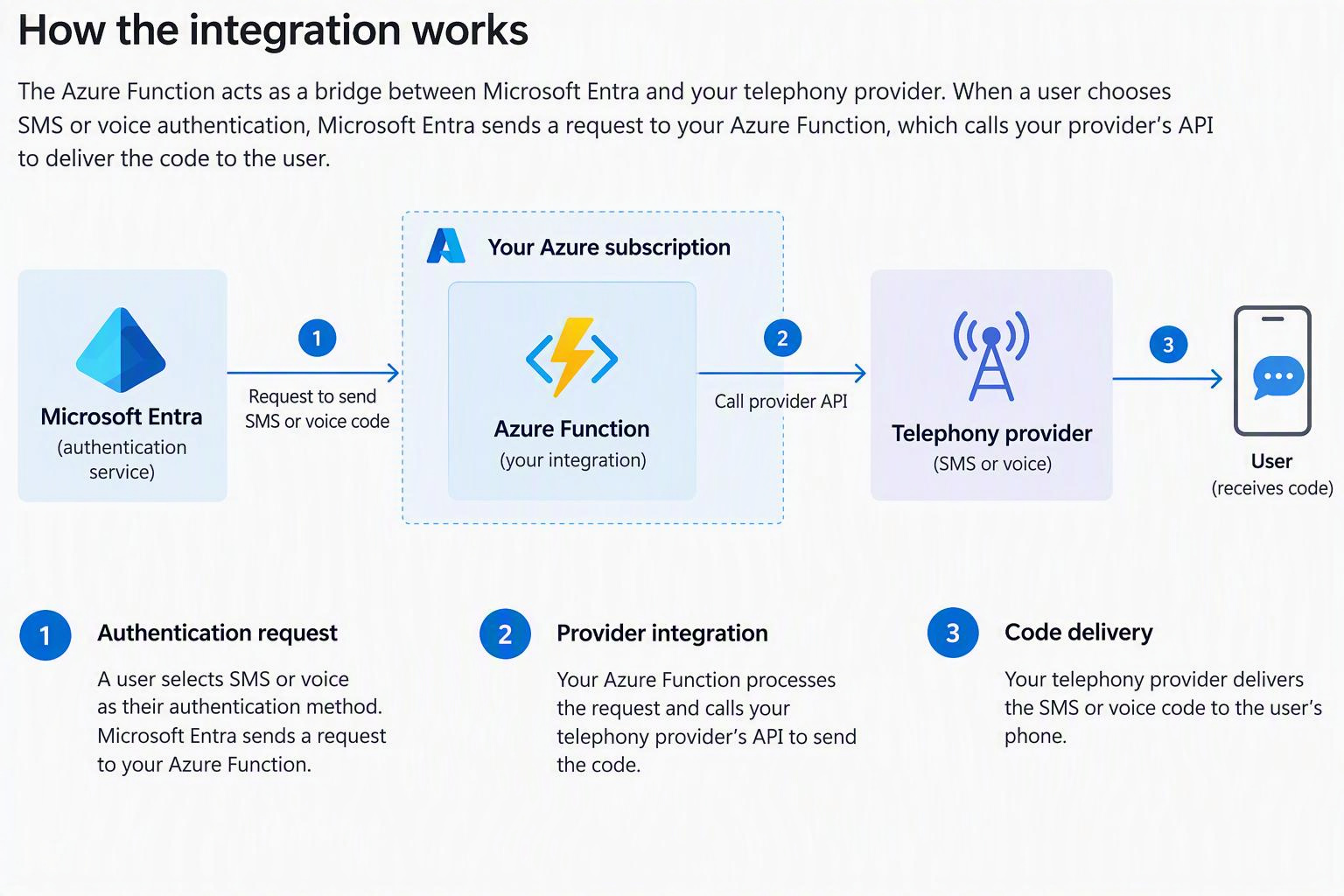
How the integration works
CYOT uses an Azure Function in your Azure subscription to connect Microsoft Entra with your telephony provider. The Azure Function processes SMS or voice requests from Microsoft Entra and sends them to your provider for delivery.
Prerequisites
Before you begin, prepare:
- A Microsoft Entra workforce tenant.
- An Azure subscription with a valid payment method to host the integration and subscribe to your provider. See Security Store purchasing prerequisites.
- Azure Cloud Shell in PowerShell mode (recommended), or PowerShell 7.0+ with Azure CLI 2.61+ for integration deployment.
- A test user with a phone number registered for SMS or voice authentication.
Required permissions
Use accounts with the following permissions:
| Task | Required access | Why it's needed |
|---|---|---|
| Create the application | Permission to register applications in the customer tenant | Lets setup create the application that securely connects Microsoft Entra to your integration. |
| Deploy Azure resources | Subscription Owner, or Contributor + Role Based Access Control Administrator at the required scope | Lets setup deploy the integration in your subscription. |
| Grant directory access during deployment | Privileged Role Administrator | Lets setup grant the directory permissions that Microsoft Entra needs to route requests to your integration. |
| Read authentication method policy | Delegated Policy.Read.AuthenticationMethod permission and a supported role, such as Authentication Policy Administrator |
Allows setup to read the existing SMS or voice authentication method configuration. |
| Update authentication method policy | Authentication Policy Administrator and delegated Policy.ReadWrite.AuthenticationMethod permission |
Allows setup to configure the SMS or voice authentication method to use the integration. |
Important
Before you begin, confirm that your Microsoft Entra policies allow the setup script to create the application and credentials it needs. If you use app management policies for credentials, multitenant apps, or custom Application ID URIs, review them with your Microsoft Entra administrator.
Step 1: Purchase and activate your telecom provider
- Purchase your provider's offer from Microsoft Security Store. For detailed purchasing instructions, see Purchase and deploy a SaaS solution from Security Store.
- After you Place Order, select Configure Account Now and follow your provider's registration instructions.
- Keep this page available and continue to step 2. You'll complete registration in step 3 with the application ID from the deployment summary.
Step 2: Deploy the integration
Use Azure Cloud Shell in PowerShell mode to run the setup script for the telecom provider you select.
What the setup script does
The setup script deploys everything needed to connect Microsoft Entra ID to your telecom provider, so you don't have to create Azure resources by hand. It walks you through a few choices, then shows the full deployment plan. Nothing is created until you approve it.
After you approve, the script creates the Microsoft Entra application, deploys and secures the Azure resources, and applies your provider's configuration. Deployment usually takes a few minutes.
You configure the authentication method policy in step 4.
Your organization is responsible for renewing and rotating the integration's application credentials and certificates.
Costs
Important
The integration runs on Azure resources in your subscription, billed based on your configuration and usage. To plan your budget, see Estimate telecom-provider and Azure hosting costs before you deploy.
Run the setup script
Sign in to the Azure portal and select the Cloud Shell icon (>_) in the top toolbar. You can also go directly to https://shell.azure.com.
Select PowerShell. If Cloud Shell opens in Bash, select Switch to PowerShell in the toolbar.
If this is your first time, select No storage account required, choose your subscription, and then select Apply.
Download and review the setup script:
Invoke-WebRequest -Uri 'https://raw.githubusercontent.com/Azure-Samples/ExternalPhoneProvider-AzureFunction-Sample/main/setup/Setup-Epp.ps1' `
    -OutFile '.\Setup-Epp.ps1'
Run the script.
.\Setup-Epp.ps1Follow the prompts to select the customer tenant, hosting subscription, Azure region, telecom provider, runtime, and hosting plan, then approve the deployment plan.
Save the deployment summary, including its tenant ID, endpoint URL, and Application (client) ID. You need these values to complete provider registration and configure your profile.
Important
Copy these values before you leave the Cloud Shell window. Cloud Shell sessions are temporary and can end when you navigate away, and the output isn't saved.
Step 3: Complete telecom provider registration
After deployment completes, return to your telecom provider's registration page to complete the provider setup.
- Provide the Application (client) ID from your Microsoft Entra application when requested by your telecom provider.
- Complete any additional registration steps required by the provider.
- In Microsoft Security Store, go to Management > My Solutions and confirm that the Subscription status is 'Subscribed' before continuing.
Important
Complete the telecom provider registration before configuring Microsoft Entra to send authentication traffic through the provider.
Step 4: Update the authentication method policy
Configure each channel with the endpoint URL and application client ID from the deployment summary. Start in evaluation mode, validate the integration, and then gradually move delivery to your telecom provider.
Warning
CYOT uses the existing SMS or voice authentication method policy. Changes to the policy, including changes to includeTargets, also affect the existing SMS or voice configuration.
Before making updates, save the current SMS and voice settings by copying the full JSON responses from Read the current policy.
In a production tenant, preserve the existing includeTargets configuration when adding CYOT settings. Changing or removing existing targets can affect users who rely on SMS or voice authentication.
Test targeting changes in a test tenant. In production, preserve the existing SMS or voice includeTargets and use evaluation mode plus migrationPercentage to validate and gradually roll out CYOT.
Read the current policy
Use Microsoft Graph Explorer to read and update the policy. Confirm that you're signed in to the tenant whose ID matches the Tenant ID in the deployment summary.
Use these request URLs for the corresponding channel:
| Channel | Request URL |
|---|---|
| SMS | https://graph.microsoft.com/beta/policies/authenticationMethodsPolicy/authenticationMethodConfigurations/Sms |
| Voice | https://graph.microsoft.com/beta/policies/authenticationMethodsPolicy/authenticationMethodConfigurations/Voice |
- Set the request method to GET and enter the corresponding channel's request URL.
- Open Modify permissions and consent to
Policy.Read.AuthenticationMethod. - Select Run query and save the complete JSON response as a record of the existing policy.
- Repeat for the other channel if you're configuring both SMS and voice.
Important
When you prepare the updated policy, use the saved response to preserve your existing includeTargets and other intended authentication method settings.
Configure CYOT settings
Configure these properties:
| Property | Value |
|---|---|
telecomProviderSettings.url |
Endpoint URL from the deployment summary. |
telecomProviderSettings.appId |
Integration application client ID. |
telecomProviderSettings.isEvaluationModeEnabled |
Set to true for evaluation mode or false to enable telecom provider delivery. |
telecomProviderSettings.migrationPercentage |
Percentage of eligible authentication requests sampled during evaluation, or routed to your telecom provider when evaluation mode is disabled. |
includeTargets |
Preserve the existing production configuration. These targets are shared with the existing SMS or voice authentication method policy. |
Start in evaluation mode
Start in evaluation mode to validate the integration before moving authentication delivery to your telecom provider.
Use migrationPercentage to set the evaluation sampling percentage.
- Use the tested SMS or voice JSON example provided below in Request body.
- Replace the endpoint URL and application client ID with the values for your deployment.
- Set
isEvaluationModeEnabledtotrue. - For production tenants, preserve the existing
includeTargetsfrom your saved policy configuration. Do not replace existing production targeting for CYOT testing. - Open Modify permissions, consent to
Policy.ReadWrite.AuthenticationMethod, and send the PATCH request to the corresponding channel's URL. - Read the policy again with GET and verify the endpoint URL, application client ID, evaluation-mode setting, migration percentage, and existing targets.
- Complete the evaluation-mode tests in step 5.
Note
To evaluate CYOT with a specific test user or group, perform the test in a test tenant and configure the appropriate includeTargets there.
Important
The JSON examples below contain the tested configuration values. Before using an example, replace the endpoint URL and application client ID with the values for your deployment.
For evaluation mode, set isEvaluationModeEnabled to true. In a production tenant, preserve the includeTargets from your existing SMS or voice policy rather than replacing them with the values shown in the example. Use a test tenant if you want to validate CYOT with different target users or groups.
For SMS:
{
  "@odata.type": "#microsoft.graph.smsAuthenticationMethodConfiguration",
  "state": "enabled",
  "includeTargets": [
    {
      "targetType": "group",
      "id": "all_users",
      "isRegistrationRequired": false,
      "isUsableForSignIn": false
    }
  ],
  "telecomProviderSettings": {
    "url": "<YOUR-ENDPOINT-URL>",
    "appId": "<YOUR-APPLICATION-CLIENT-ID>",
    "isEvaluationModeEnabled": false,
    "migrationPercentage": 100
  }
}
For Voice:
{
  "@odata.type": "#microsoft.graph.voiceAuthenticationMethodConfiguration",
  "state": "enabled",
  "includeTargets": [
    {
      "targetType": "group",
      "id": "all_users",
      "isRegistrationRequired": false,
      "verificationMode": "voiceOneTimePasscode"
    }
  ],
  "telecomProviderSettings": {
    "url": "<YOUR-ENDPOINT-URL>",
    "appId": "<YOUR-APPLICATION-CLIENT-ID>",
    "isEvaluationModeEnabled": false,
    "migrationPercentage": 100
  }
}
Move to production mode
After evaluation succeeds:
- Set
telecomProviderSettings.isEvaluationModeEnabledtofalse. - Set
telecomProviderSettings.migrationPercentageto your initial traffic percentage. - Keep the existing production
includeTargetsunchanged. - Submit the policy update.
- Read the configuration again and verify the endpoint URL, application client ID, evaluation mode, migration percentage, and targets.
- Test telecom provider delivery before increasing traffic.
Increase traffic gradually
- Keep
isEvaluationModeEnabledset tofalse. - Increase
migrationPercentagein increments until you reach100. - Keep the endpoint URL, application client ID, and existing
includeTargetsunchanged while changing the migration percentage. - Validate authentication and telecom provider delivery after each change.
- Increase the percentage after each stage validates successfully. To investigate an issue, hold at the current percentage and see Monitor and troubleshoot.
Important
When each stage validates successfully, continue to 100 percent without delay. Completing your rollout early helps ensure uninterrupted authentication for your users. For dates, see Passkeys by default and retirement of Microsoft-provided SMS and voice authentication.
Step 5: Test the integration
Use a test user with a phone number registered for SMS or voice.
Test in Evaluation
- In an InPrivate browser session, sign in as the test user and complete an SMS or voice authentication.
- In the Azure portal, go to your Function App > SendOtp > Invocations and open the latest transaction. In Invocation details, confirm Evaluation request completed with HTTP
200. - In the Microsoft Entra admin center, go to Monitoring & health > Audit logs and filter by Service: Azure MFA. Open the latest entry and confirm DeliveryMethod is
CyotEvaluation.
Test provider delivery
After evaluation succeeds, set isEvaluationModeEnabled to false and configure your initial migrationPercentage.
- In a new InPrivate browser session, sign in as the test user. Confirm the SMS or voice code arrives and authentication completes.
- In the Azure portal, go to your Function App > Invocations and open the latest transaction. In Invocation details, confirm the request completed with HTTP
200. - In the Microsoft Entra admin center, go to Audit logs and filter by Service: Azure MFA. Open the latest entry and confirm Delivery Method is
Cyot. - In your provider's portal, confirm the message was delivered.
At a partial percentage, only some requests route through your provider, so make a few attempts. If something doesn't look right, see Monitor and troubleshoot your own telephony provider.
Troubleshooting
To diagnose integration issues, use the troubleshooting guide to identify whether the issue is with the Microsoft Entra configuration, Azure Function, telecom provider, or authentication flow.
See Monitor and troubleshoot your own telephony provider for diagnostic steps, logs, common issues, and remediation guidance.