Note
Access to this page requires authorization. You can try signing in or changing directories.
Access to this page requires authorization. You can try changing directories.
This document provides comprehensive guidance for tenant administrators on migrating mailboxes from on-premises Exchange servers, to Microsoft 365 Primary and Archive mailboxes. Administrator will use XML mappings to define how mailbox content is distributed across target mailbox locations and use Large Mailbox Onboarding (LMO) with XML mappings to move mailboxes smoothly to Microsoft 365.
What do you need to know before you begin?
Limitations
- Microsoft 365 offers a resultant cumulative mailbox size of up to 1.6 TB. This includes 100 GB of Primary Mailbox, and 1.5 TB of Archives (including 100 GB Main Archive). For more information, see archive-mailboxes.
- Deleted-item retention (also known as "single-item recovery") time in Microsoft 365 is 14 days, with a maximum of 30 days. When a mailbox is migrated to the cloud, items exceeding this time limit in mailboxes that aren't on hold are removed.
- Currently, LMO with XML mappings is available only through PowerShell cmdlets. Automated UI experience will be added later.
Requirements
- Hybrid deployment needs to be configured between On-Premises and Exchange Online organizations. Also, the migration endpoint needs to be setup and working. See Move mailboxes between on-premises and Exchange Online organizations in hybrid deployments.
- To ensure post migration experience, administrators should check whether they have Exchange online archiving subscription.
How LMO works
Content distribution
LMO uses an XML mapping file to control content distribution during migration. The mapping file determines how mailbox content is distributed across Exchange Online mailbox locations, including Primary, MainArchive, and AuxArchive mailboxes.
| Mailbox location type | Description |
|---|---|
| Primary | Exchange Online primary mailbox |
| MainArchive | Exchange Online main archive mailbox |
| AuxArchive | Exchange Online auxiliary archive mailbox locations used for additional archive storage |
Mailbox content is typically partitioned by received date ranges so that different portions of the mailbox can be migrated to different target mailbox locations. The following examples illustrate common mapping scenarios.
Example 1 - user has primary mailbox on Exchange On-Premises.
| Source Mailbox | Time range | Target Mailbox |
|---|---|---|
| Primary | After 2023/01/01 | Primary |
| Primary | From 2022/01/01 to 2023/01/01 | Archive mailbox 1 |
| Primary | From 2021/01/01 to 2022/01/01 | Archive mailbox 2 |
| Primary | Before 2021/01/01 | Archive mailbox 3 |
Example 2 - user has primary mailbox and archive mailbox on Exchange On-Premises.
| Source Mailbox | Time range | Target Mailbox |
|---|---|---|
| Primary | After 2025/01/01 | Primary |
| Primary | Before 2025/01/01 | Archive mailbox 1 |
| Archive | After 2021/01/01 | Archive mailbox 2 |
| Archive | Before 2021/01/01 | Archive mailbox 3 |
What content can be migrated to AuxArchive mailbox locations
The following content can be migrated to AuxArchive mailbox locations:
- Mail items located in the IPM subtree.
- Recoverable Items content.
The following content isn't migrated to AuxArchive mailbox locations, instead remain in Primary or MainArchive mailbox locations according to its source location:
- Calendar items.
- Contacts.
- Tasks and other non-mail content.
Mailbox experience after migration completes
After migration completes, users have an Exchange Online Primary mailbox, a MainArchive mailbox, one or more AuxArchive mailbox locations. Archive content is presented through the Exchange Online archive mailbox experience in supported clients.
Plan the migration
Choose a strategy
Administrators should check user's current status to determine which migration scenarios a user fits in. Here are three migration scenarios.
| Scenario | Exchange On-Premises Mailbox status | Description |
|---|---|---|
| A | Primary | User has only a primary mailbox on Exchange On-Premises |
| B | Primary+Archive | User has a primary mailbox and an archive mailbox on Exchange On-Premises |
| C | Primary+Remote Archive | User has a primary mailbox on Exchange On-Premises and a remote archive mailbox in Exchange Online |
The following examples check the mailbox size on Exchange On-Premises. For detailed syntax and parameter information, see Get-MailboxStatistics.
$primary_stats = Get-MailboxStatistics $user;
$primary_stats | Format-Table TotalDeletedItemSize,TotalItemSize

# if user has archive mailbox on Exchange On-Premises
$archive_stats = Get-MailboxStatistics $user -Archive;
$archive_stats | Format-Table TotalDeletedItemSize,TotalItemSize
Scenario A: Primary mailbox on Exchange On-Premises
Scenario A is when user has only primary mailbox on Exchange On-Premises and doesn't have archive mailbox. In this case, user cannot be migrated directly by LMO. Before migration, the user must first be converted to either Scenario B or Scenario C.
This decision affects:
- Archive visibility during migration
- Migration restart procedures
- Auxiliary archive provisioning behavior
- Operational complexity
The following sections describe the differences between Scenario B and Scenario C.
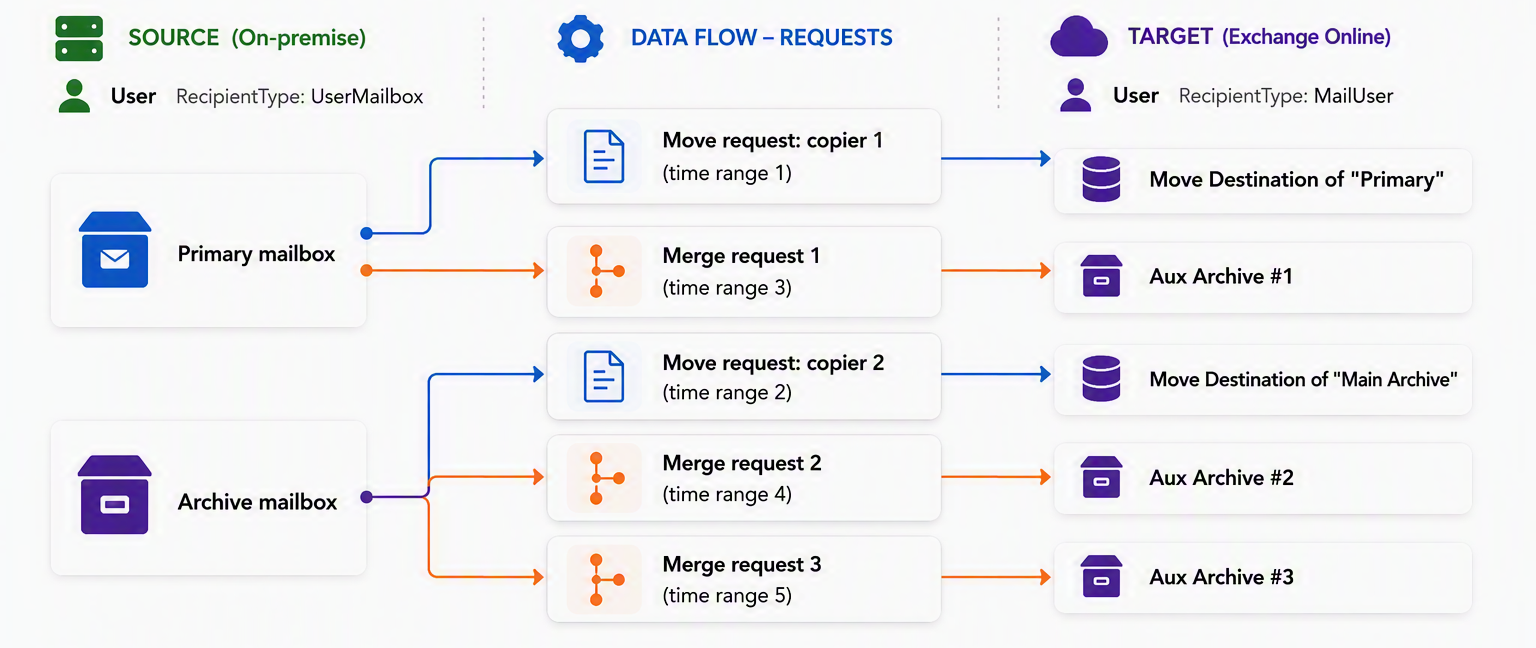
Scenario B: Primary and archive mailboxes on Exchange On-Premises
Scenario B is when user has both primary mailbox and archive mailbox on Exchange On-Premises.
Benefits
- Simpler migration restart experience.
- Simpler cleanup and recovery if a migration batch must be recreated.
- Automatic AuxArchive provisioning.
Considerations
- Exchange Online archive content isn't visible during migration. Get-MailboxStatistics and Get-MailboxFolderStatistics cannot fetch data during migration.
- MainArchive and AuxArchive mailbox locations become visible after migration completes.
Scenario C: Primary mailbox on Exchange On-Premises and Exchange Online remote archive
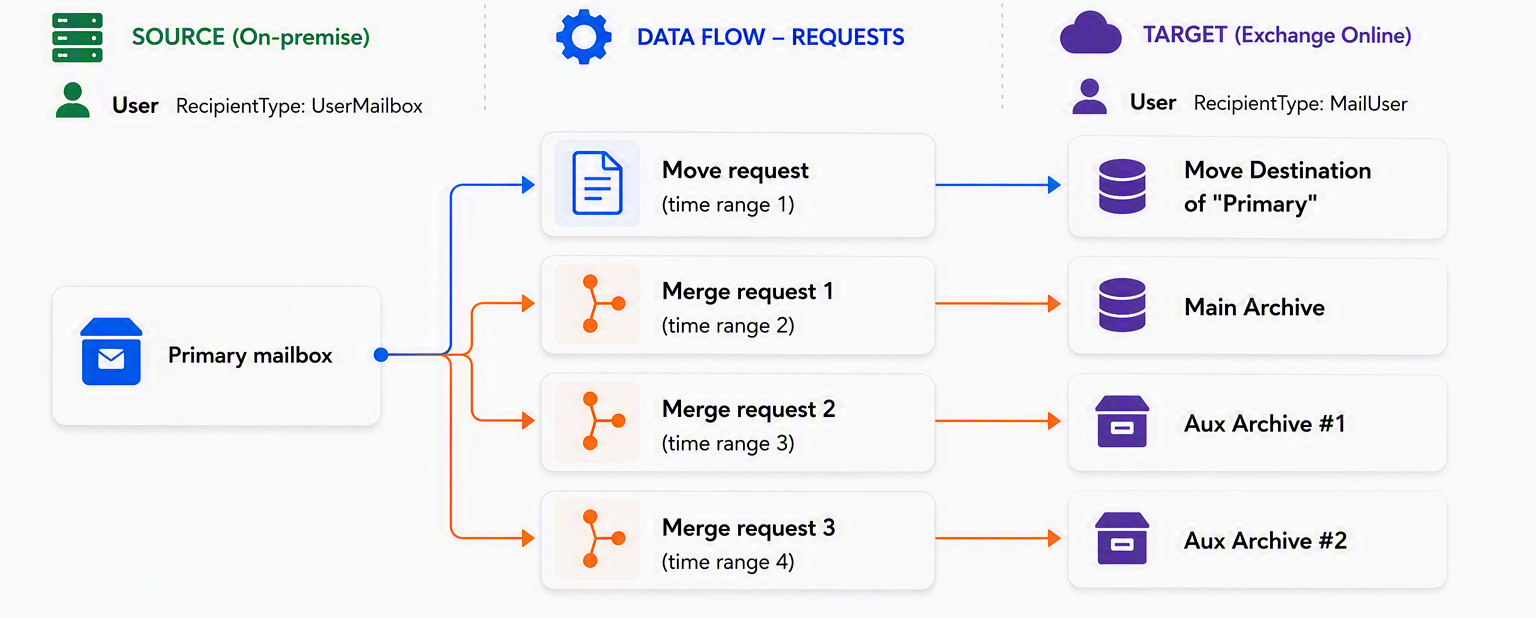
Scenario C is when user has primary mailbox on Exchange On-Premises and remote archive mailbox on Exchange Online.
Benefits
- Archive visibility before migration, during, after migration. Administrators can run Get-MailboxStatistics and Get-MailboxFolderStatistics to check the status of archive mailboxes.
Considerations
- If administrators later restart the migration using different XML mappings, cleanup and recovery can be more complex.
- Existing archive mailbox content requires additional planning when recreating migration batches that use different mapping definitions.
- End user and other Exchange Online services could access the archive mailbox content, which might affect the migration progress.
How to convert Scenario A
For users that currently have only a primary mailbox, belongs to Scenario A, administrators need to choose the strategy that best meets the operational requirements. As a general guideline:
- Choose Scenario B when operational simplicity and restart flexibility are most important.
- Choose Scenario C when archive visibility throughout the migration process is most important.
Enable-Mailbox is used for the conversion. For detailed syntax and parameter information, see Enable-Mailbox.
The example converts user from Scenario A to Scenario B by enabling archive on Exchange On-Premises.
# To convert scenario A to scenario B
Enable-Mailbox $user -Archive
The example converts user from Scenario A to Scenario C by enabling remote archive on Exchange Online.
# To convert scenario A to scenario C
Enable-Mailbox $user -RemoteArchive -ArchiveDomain "archive.contoso.com"
Plan mailbox distribution and prepare XML mappings
Successful LMO migrations depend on balanced mailbox content distribution. Mailbox data should be partitioned into segments that align with supported mailbox size and item-count limits. A common approach is to partition mailbox content by received date, creating manageable date ranges that can be migrated independently.
LMO uses XML mappings to determine how mailbox content is distributed based on time ranges. The XML mapping file specifies:
- Which content is migrated to Primary
- Which content is migrated to MainArchive
- Which content is migrated to AuxArchive mailbox locations
Mapping Guidelines
When creating XML mappings:
- Ensure each mailbox location remains within supported capacity limits.
- Avoid overlapping mapping rules.
- Validate date ranges to ensure complete and accurate content coverage.
- Account for future mailbox growth.
- Verify that archive content is routed to the intended mailbox location.
Mapping tool
Mailbox analysis tool is provided to automatically generate the XML mapping file after running analysis on the source mailbox. See Analyze source mailboxes before migrating from Exchange On-Premises for guidance.
Important
It's highly recommended use Mailbox Analysis tool before migrating large mailboxes.
Note
The analysis tool is month-granular, so it can't split a single month into a smaller time range if single month data is larger then 100 GB. In that case, administrator must create the XML mapping file manually and carefully.
Mapping file format and examples
XML file is used to map the source content to a specific target mailbox (content-to-mailbox mapping). Each mapping associates a set of mailbox items with a specific target mailbox.
The following example shows the contents of a mapping file for Scenario B, where user has both primary and archive mailboxes on Exchange On-Premises:
<?xml version="1.0" encoding="utf-8" ?>
<Users>
    <User EmailAddress="user1@contoso.onmicrosoft.com">
            <Mapping ContentFilter="Received -gt '2023/1/1'" Target="Primary" />
            <Mapping ContentFilter="Received -le '2023/1/1'" Target="AuxArchive0" />
            <Mapping ContentFilter="" Target="MainArchive" SourceIsArchive="true" />
   </User>
</Users>
The following example shows the contents of a mapping file for Scenario C, where user has primary mailbox on Exchange On-Premises and remote archive on Exchange Online:
<?xml version="1.0" encoding="utf-8" ?>
<Users>
    <User EmailAddress="user1@contoso.onmicrosoft.com">
            <Mapping ContentFilter="Received -gt '2023/1/1'" Target="Primary" />
            <Mapping ContentFilter="Received -gt '2022/1/1' -and Received -le '2023/1/1'" Target="MainArchive" />
            <Mapping ContentFilter="Received -le '2022/1/1'" Target="AuxArchive0" />
   </User>
</Users>
ContentFilter defines which items are selected for migration. LMO currently supports filtering by item received date. The Received property represents the date and time when an item was received. The following operators can be used to define date ranges:
| Operator | Meaning |
|---|---|
| -gt | Greater than (>) |
| -ge | Greater than and equal to (>=) |
| -lt | Less than (<) |
| -le | Less than and equal to (<=) |
For example, "Received -gt '2020/01/01'" means migrating items that were received after 2020/01/01.
Note
In practice, using -gt instead of -ge, or -lt instead of -le, rarely affects migration results. Date filters are evaluated against a specific timestamp (yyyy/MM/dd HH:mm:ss), and mailbox items are effectively included regardless of which operator is used.
If ContentFilter is empty, all items from the source mailbox location are migrated to the specified target mailbox. In the preceding example, the following mapping migrates all content from the source archive mailbox to the target MainArchive mailbox: <Mapping ContentFilter="" Target="MainArchive" SourceIsArchive="true" />.
"Target" specifies the destination mailbox location for the migrated content. Supported values include mailbox location names and mailbox GUIDs. Mailbox location names include:
- Primary
- MainArchive
- AuxArchive* (where * is an integer value, such as AuxArchive0 or AuxArchive1)
Specifying an AuxArchive* target instructs the migration service to automatically provision and use auxiliary archive mailboxes. Specifying a mailbox GUID instructs the migration service to use the existing mailbox associated with that GUID as the migration target.
"SourceIsArchive" is an optional attribute that indicates the source content originates from the Exchange On-Premises archive mailbox. If this attribute isn't specified, the source is assumed to be the primary mailbox.
This attribute is commonly used when migrating large archive mailboxes from Exchange On-Premises. In the preceding example, the following mapping migrates all content from the source archive mailbox to the target MainArchive mailbox: <Mapping ContentFilter="" Target="MainArchive" SourceIsArchive="true" />.
Important
For LMO migration, it's highly recommended the Mailbox Analysis Tool to assess mailbox size and distribution and to generate the XML mapping file. For more information, see Analyze source mailboxes before migrating from Exchange On-Premises.
Note
The Mailbox Analysis Tool can't split content within a single calendar month. If finer-grained partitioning is required, you must create the XML mapping file manually.
Note
Multiple mappings that use the same start month and end month but target different archive mailboxes aren't supported.
Unsupported mapping example 1
<Mapping ContentFilter="Received -ge '2022-01-01' -and Received -lt '2022-01-15'" Target="AuxArchive0" />
<Mapping ContentFilter="Received -ge '2022-01-15' -and Received -lt '2022-01-31'" Target="AuxArchive1" />
Unsupported mapping example 2
<Mapping ContentFilter="Received -ge '2022-01-01' -and Received -lt '2022-01-15'" Target="AuxArchive0" />
<Mapping ContentFilter="Received -ge '2022-01-15' -and Received -lt '2022-01-31'" Target="AuxArchive1" SourceIsArchive="true"/>
Note
If the source user has an archive mailbox in Exchange On-Premises, mapping content from the source primary mailbox to the target MainArchive mailbox isn't supported.
Unsupported mapping example 3
<Mapping ContentFilter="" Target="MainArchive" SourceIsArchive="true" />
<Mapping ContentFilter="Received -lt '2022-08-01'" Target="MainArchive" />
<Mapping ContentFilter="Received -ge '2022-08-01'" Target="Primary" />
There are alternatives for the above three unsupported examples.
Supported mapping example 4
The mapping in Unsupported mapping example 1 can be restructured by adjusting the date boundaries so that the mappings no longer share the same start and end months.
<Mapping ContentFilter="Received -ge '2021-12-31' -and Received -lt '2022-01-15'" Target="AuxArchive0" />
<Mapping ContentFilter="Received -ge '2022-01-15' -and Received -lt '2022-02-01'" Target="AuxArchive1" />
Supported mapping example 5
The following mapping is supported. Although January 2022 is divided into multiple date ranges, each mapping spans a different month boundary, resulting in unique start-month and end-month combinations.
<Mapping ContentFilter="Received -ge '2021-12-31' -and Received -lt '2022-01-10'" Target="AuxArchive0" />
<Mapping ContentFilter="Received -ge '2022-01-10' -and Received -lt '2022-01-20'" Target="AuxArchive1" />
<Mapping ContentFilter="Received -ge '2022-01-20' -and Received -lt '2022-02-01'" Target="AuxArchive2" />
Supported mapping example 6
The mapping in Unsupported mapping example 3 can be restructured by replacing MainArchive with AuxArchive.
<Mapping ContentFilter="" Target="MainArchive" SourceIsArchive="true" />
<Mapping ContentFilter="Received -lt '2022-08-01'" Target="AuxArchive0" />
<Mapping ContentFilter="Received -ge '2022-08-01'" Target="Primary" />
Create LMO migration batch using PowerShell
Avoid large-scale mailbox-content changes during migration
LMO determines mailbox-content distribution based on the mailbox state when migration is planned and synchronized. To help ensure predictable migration results, avoid large-scale mailbox-content changes while migration is in progress. Examples include:
- Running retention policies that move large volumes of items.
- Enabling archiving processes that relocate mailbox content.
- Performing bulk mailbox reorganizations.
- Moving large numbers of items between folders.
- Importing or exporting large amounts of mailbox content.
Normal user activity, such as sending and receiving email, typically doesn't affect migration results.
Important
Maintain a stable mailbox configuration during migration. Avoid introducing new mailbox-management processes or performing large-scale content movement until migration is complete.
Verify source and destination configurations
Before starting the migration, verify the Exchange On-Premises mailbox and the corresponding Exchange Online mail user have matching ExchangeGuid and ArchiveGuid values.
Run the following command in the Exchange On-Premises Management Shell:
Get-Mailbox $user | Format-Table ExchangeGuid, ArchiveGuid
Run the following command in Exchange Online PowerShell:
Get-MailUser $user | Format-Table ExchangeGuid, ArchiveGuid
Verify migration endpoint
The source endpoint and CSV format for an LMO batch are the same as for a standard hybrid onboarding migration batch.
- For standard hybrid onboarding details, see Move mailboxes between on-premises and Exchange Online organizations in hybrid deployments.
- To learn more about migration endpoints, see Get-MigrationEndpoint.
You can verify the availability of the migration endpoint using the Test-MigrationServerAvailability cmdlet. For more information on this cmdlet, see Test-MigrationServerAvailability.
Example:
Test-MigrationServerAvailability -Endpoint $endpoint
Prepare CSV file and XML file
CSV file is the same as for regular migration, containing the set of the users who are to be onboarded. The admin can choose to migrate one user or multiple users in each batch. For CSV file format details, see CSV files for mailbox migration.
Important
For LMO migration, it's highly recommended each CSV file contains only one user, because there will be multiple migration user objects in LMO migration batch.
XML file is used to map the source content to a specific target mailbox (content-to-mailbox mapping). See "Mapping Guidelines" in the above section.
The EmailAddress value in XML file should match the value in the CSV file.
CSV file example:
EmailAddress
user1@contoso.onmicrosoft.com
XML file example:
<?xml version="1.0" encoding="utf-8" ?>
<Users>
    <User EmailAddress="user1@contoso.onmicrosoft.com">
            <Mapping ContentFilter="Received -gt '2023/1/1'" Target="Primary" />
            <Mapping ContentFilter="Received -le '2023/1/1'" Target="AuxArchive0" />
            <Mapping ContentFilter="" Target="MainArchive" SourceIsArchive="true" />
   </User>
</Users>
Create migration batch
To create a large mailbox migration batch, administratros need to use New-MigrationBatch with -XMLData parameter.
New-MigrationBatch -SourceEndpoint RemoteMoveEndpoint -Name $batchName -CSVData $([System.IO.File]::ReadAllBytes(".\users.csv")) -XMLData $([System.IO.File]::ReadAllBytes(".\userMapping.xml")) -TargetDeliveryDomain "contoso.onmicrosoft.com" -AutoStart
Important
Don't use the '-CompleteAfter' or '-AutoComplete' parameters when creating an LMO migration batch. LMO migrations require administrators to review migration progress, verify item counts and data consistency, approve any skipped items, and then manually complete the migration batch by using Complete-MigrationBatch. Automatically completing the batch can bypass these validation steps and may cause data loss.
Monitor LMO migration progress
Check migration batch, migration user status
To check batch’s status, use Get-MigrationBatch. To check user’s status, use Get-MigrationUser and Get-MigrationUserStatistics.
Get-MigrationBatch $batchNameOrId | Format-Table Identity, Status, IsLargeArchiveOnboarding
Get-MigrationUser -BatchId $batchNameOrId                                             # to get all migration job items in a batch
Get-MigrationUser -EmailAddress $user                                                 # to get all migration job items for this user
Get-MigrationUserStatistics $migrationUserId -IncludeSkippedItems -IncludeReport
Understand migration user Identities
In LMO migration, a user has multiple migration user objects. Each migration user object corresponds to a specific source-to-target migration path. The Identity value indicates the source mailbox location and the target mailbox location associated with that migration user.
For users with only a primary mailbox in Exchange On-Premises and an archive mailbox in Exchange Online:
- "Primary" represents migration from the source Primary mailbox to the target Primary mailbox.
- "AuxArchive0" represents migration from the source Primary mailbox to the target AuxArchive0 mailbox.
For users with both primary and archive mailboxes in Exchange On-Premises:
- "Primary" represents migration from the source Primary mailbox to the target Primary mailbox, together with migration from the source Archive mailbox to the target MainArchive mailbox. These migrations are handled by a single move request.
- "Archive_AuxArchive0" represents migration from the source Archive mailbox to the target AuxArchive0 mailbox.
When a target mailbox is specified by mailbox GUID in the XML mapping file, the migration user Identity includes that GUID instead of a mailbox location name.
Use the following command to view migration user identities and status:
Get-MigrationUser -BatchId $batchNameOrId  | Format-Table Identity, Status

# Example output:

Identity                                   Status
--------                                   ------
alice@contoso.com/Primary                  Synced
alice@contoso.com/Archive_AuxArchive0      Synced
alice@contoso.com/Archive_AuxArchive1      Synced
During migration, monitor the item synchronization progress for each migration user. Use the following command to review the migration status and item counts:
Get-MigrationUser -EmailAddress <email> | Format-Table Identity, Status, SkippedItemCount, SyncedItemCount
For migration users whose target is an auxiliary archive mailbox (AuxArchive*), the SyncedItemCount value shouldn't remain 0. A value of 0 may indicate that no items in source mailbox were mapped to the target mailbox.
Review skipped items
Review skipped items throughout the migration process. If a migration user's Status is NeedsApproval, skipped items require administrator review and approval before migration can continue. For more information, see Track and Prevent Migration Data Loss.
It's expected that additional skipped items may be encountered during incremental synchronization, which runs approximately every 24 hours. As a result, a migration user that was previously approved may later require approval again.
To determine whether new skipped items have been encountered since the last approval:
- Compare
LastSkippedItemEncounteredTimewithSkippedItemApprovalTime. - If
LastSkippedItemEncounteredTimeis later thanSkippedItemApprovalTime, new skipped items have been detected and require review.
Use the following command to review skipped-item statistics and approval status.
Get-MigrationUser -Identity $migrationUser  | Format-Table Identity,Status,SkippedItemCount,DataConsistencyScore, HasUnapprovedSkippedItems

Get-MigrationUserStatistics -Identity $migrationUser  | Format-Table LastSkippedItemEncounteredTime, SkippedItemApprovalTime
$mus = Get-MigrationUserStatistics -Identity $migrationUser -IncludeSkippedItems; $mus.SkippedItems | Format-Table
Complete the migration batch
After all migration users in the batch reach the Synced state, verify that:
- DataConsistencyScore is Good or Perfect.
- SyncedItemCount values are as expected for each migration user.
- Any skipped items have been reviewed and approved.
After validation is complete, complete the migration batch by running the Complete-MigrationBatch cmdlet.
The Primary migration user is typically completed shortly after the batch is completed. AuxArchive migration users can take up to 24 hours to reach the Completed state. Once the Primary migration user is completed, users can access their Exchange Online mailbox. To display the updated Exchange Online archive folder hierarchy, users may need to restart Outlook.
Note
It is expected that AuxArchive migration users may remain in Synced status for up to 24 hours after the Primary migration user is completed.
Best Practices
Use a single user per CSV file
Each LMO user can create multiple migration users and migration requests. To simplify monitoring, troubleshooting, and error isolation, create a separate LMO migration batch for each user by including only one user in the CSV file.
Control users using LMO at the same time
Each LMO user can create multiple migration users and migration requests. Running too many LMO users concurrently can increase load on the Exchange On-Premises environment, causing source-side throttling and slower migration performance. Consider onboarding users in smaller batches and review your migration concurrency settings before scaling up.
Performance
Before beginning a migration of any mailbox, but particularly for large mailboxes, be familiar with the concepts and recommendations in the Microsoft 365 email migration performance and best practices guide.
Troubleshooting
Determine whether a batch is an LMO batch
LMO migration batches have the IsLargeArchiveOnboarding property set to True.
Get-MigrationBatch $batch | Format-Table IsLargeArchiveOnboarding
Retrieve migration errors
Use the following commands to view the migration user's error summary and detailed error information.
Get-MigrationUser -BatchId $lmoBatchId | Format-Table Identity, Status, ErrorSummary

Get-MigrationUser $migrationUserId | Format-Table ErrorSummary
Get-MigrationUserStatistics $migrationUserId | Format-List Error
For primary migration user, administrator can also retrieve the error via Get-MoveRequest.
Get-MoveRequest $user
Get-MoveRequestStatistics $user -IncludeReport
Non-LMO errors
Some migration failures aren't specific to LMO and are common to regular hybrid onboarding migrations. Examples include:
- MRS Proxy configuration and connectivity errors.
- Exchange On-Premises connectivity and authentication errors.
- Folder hierarchy conflicts and folder creation conflicts.
- Other general mailbox migration errors unrelated to XML mappings or mailbox content distribution.
This section focuses on troubleshooting issues specific to LMO migrations and doesn't cover these known hybrid onboarding errors. For general error troubleshooting, refer to the standard Exchange hybrid migration documentation.
NoDataIsCopiedAndInTargetArchivePermanentException
An LMO merge job copies content from the source Exchange On-Premises mailbox to the target Exchange Online archive mailbox. If a migration user transfers no items and the target mailbox remains empty (less than 1 MB), it fails with NoDataIsCopiedAndInTargetArchivePermanentException. This exception typically indicates one of the following conditions.
- No source items match the XML mapping criteria.
- Source items couldn't be retrieved during the migration attempt.
Because the second condition may be transient, retry the migration user:
Start-MigrationUser -Identity $migrationUser
If the issue persists, review the mailbox analysis results and verify that the source mailbox contains items that match the configured XML mapping ranges at the time of migration. For example, if the mapping covers a specific date range, run mailbox analysis for the same period:
Get-MailboxAnalysisRequestStatistics $user -IncludeAnalysisRequest -ItemsStartTime $startTimeOfMapping -ItemsEndTime $endTimeOfMapping
If the analysis results indicate that matching items exist, verify the source mailbox directly to confirm that items in the specified time range are still present.
Note
Mailbox analysis results represent a point-in-time snapshot of the source mailbox. The analysis results may not reflect the actual mailbox state when the migration runs if mailbox content has changed since the analysis was performed.
Quota-Related Failures
If a migration fails because of mailbox quota limits, start by identifying which target mailbox quota was exceeded. In most cases, troubleshooting involves three steps:
- Verify the target mailbox quota configuration.
- Validate the mailbox analysis results used to create the XML mapping.
- Verify the actual source mailbox content and size.
Following these steps helps determine whether the failure is caused by mailbox configuration, mailbox growth after analysis, or unbalanced content distribution in the XML mapping.
1) Verify Target Mailbox Quotas
Review the target mailbox configuration and quota settings:
Get-MailUser $user | Format-List *Quota
Determine which mailbox location exceeded its quota, such as Primary, MainArchive, or an AuxArchive mailbox. Verify that the target mailbox configuration matches the intended XML mapping design.
2) Determine How the XML Mapping Was Created
After identifying the affected mailbox location, determine how the XML mapping file was created:
- If the XML file was created manually, the quota failure typically indicates that the content distribution is unbalanced. Review the mappings and redistribute content across mailbox locations.
- If the XML file was automatically generated by the Mailbox Analysis Tool, validate the analysis results against the actual mailbox statistics and mailbox contents
3) Validate mailbox-level analysis results
Run Get-MailboxStatistics on Exchange On-Premises PowerShell and compare the size with the analysis result to ensure the analysis job works as expected. See Get-MailboxStatistics.
-Run Get-MailboxStatistics, compare its sum of TotalItemSize and TotalDeletedItemSize with the analysis result’s Primary total ItemSize.
-Run Get-MailboxStatistics -Archive, compare its sum of TotalItemSize and TotalDeletedItemSize with the analysis result’s MainArchive total ItemSize.
$stats = Get-MailboxAnalysisRequestStatistics $user -IncludeAnalysisResult
$stats.MailboxAnalysisResult.AnalysisResultDataRows | Format-Table -AutoSize SourceMailbox, FolderIsSelected, FolderPath, StartTime, ItemCount, ItemSize
4) Validate folder-level analysis results
Run Get-MailboxFolderStatistics on Exchange On-Premises PowerShell and compare the size with the per-folder analysis result to ensure the analysis job works as expected. See Get-MailboxFolderStatistics.
$stats = Get-MailboxAnalysisRequestStatistics $user -IncludeAnalysisResult -IncludeFolderDetails
$stats.MailboxAnalysisResult.AnalysisResultDataRows | Format-Table -AutoSize SourceMailbox, FolderIsSelected, FolderPath, StartTime, ItemCount, ItemSize
5) Validate XML mapping ranges
If a specific mapping is suspected to exceed a mailbox quota, run mailbox analysis for the corresponding date range and compare the results with the XML mapping.
# Items from August 2022 through January 2023 (i.e., before February 2023)
$stats_select = Get-MailboxAnalysisRequestStatistics $user -IncludeAnalysisResult -ItemsStartTime "2022/08/01" -ItemsEndTime "2023/02/01"
$stats_select.MailboxAnalysisResult.AnalysisResultDataRows | Format-Table -AutoSize
NeedsApproval
If a migration user's Status is NeedsApproval, skipped items require administrator review and approval before migration can continue. For more information, see Track and Prevent Migration Data Loss.
It's expected that additional skipped items may be encountered during incremental synchronization, which runs approximately every 24 hours. As a result, a migration user that was previously approved may later require approval again.
Use the following command to review skipped-item statistics and approval status.
Get-MigrationUser -Identity $migrationUser  | Format-Table Identity, Status, SkippedItemCount ,DataConsistencyScore, HasUnapprovedSkippedItems

Get-MigrationUserStatistics -Identity $migrationUser  | Format-Table LastSkippedItemEncounteredTime, SkippedItemApprovalTime
$mus = Get-MigrationUserStatistics -Identity $migrationUser -IncludeSkippedItems; $mus.SkippedItems | Format-Table
Get MRS request GUID
To correlate an LMO migration user with its underlying MRS request, use the following command to retrieve request GUID and corresponding mailbox target information for further troubleshooting.
Get-MigrationUser -Identity $migrationUser | Format-Table Identity, RequestGuid, MailboxGuid, WorkflowStep, WorkflowStage
If RequestGuid is empty, the MRS request hasn't been created. In this case, the failure likely occurred before MRS processing started, such as during validation, mailbox provisioning, or request injection.
If RequestGuid is populated, use the GUID to investigate the corresponding MRS request and review its detailed status, failure information and report.
Information to Collect for Support Requests
If additional investigation is required and you need to open a support case, collect the following information:
- The XML mapping file used for the migration.
- The migration batch ID and migration user ID.
- Current mailbox statistics.
- Output from
Get-MailboxStatisticsfor the source mailbox. - Output from
Get-MailboxStatistics -Archiveif the user has an Exchange On-Premises archive mailbox. - Output from
Get-MailboxFolderStatisticsfor the source mailbox. - Output from
Get-MailboxFolderStatistics -Archiveif the user has an Exchange On-Premises archive mailbox.
- Output from
- Mailbox analysis results, including folder-level analysis details (
-IncludeFolderDetails). - Relevant migration error messages, migration user statistics, and MRS request information.
The XML mapping file, mailbox analysis results, and Exchange On-Premises mailbox statistics are the most important artifacts for investigating content distribution and quota-related issues.