Note
Access to this page requires authorization. You can try signing in or changing directories.
Access to this page requires authorization. You can try changing directories.
Admins can access New Message trace and its capabilities by navigating to Exchange admin center > Mail flow > Message Trace.
New Message Trace is toggled On by default once the change is deployed to your tenant. If you wish to disable the preview, you can do so by toggling this setting to Off.
Note
The old Message trace UX and cmdlets will be deprecated on September 1, 2025.

Extended Query Range:
You can now query up to 90 days of historical data for near real-time queries. However, you can only query 10 days' worth of data at a time.
Subject filter:
The Subject filter for Message Trace queries has the following options: starts with, ends with, and contains. This filter also supports special characters.
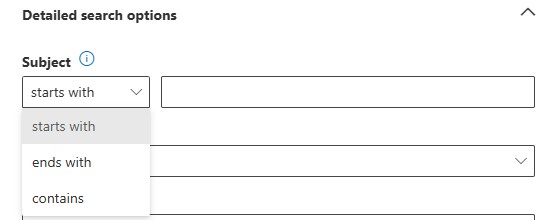
Delivery status filter:
The Delivery status filter supports searches for status like, Quarantined, Filtered as spam, and Getting status.
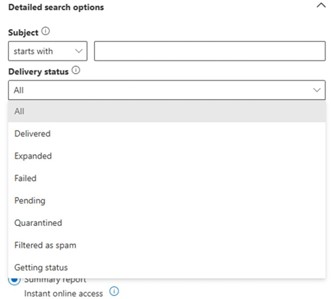
Time range:
In the Time range section, the default value is 2 days, but you can specify date/time ranges up to 90 days. When you use date/time ranges, consider the following issues:
- By default, you select the time range in the Custom time range view to specify the following values:
- Time zone: Applies to your query inputs and query results
- Start date: Date and time
- End date: Date and time

Saving a query in Custom time range view saves the absolute date/time range (for example, 2025-06-06 13:00 to 2025-06-08 18:00).
- You can switch to the Slider view using a timeline.

Saving a query in Slider view saves the relative time range (for example, two days from today).
Customizable columns:
For your search results, you can select from the customizable columns.

Wider flyout option:
You can select the flyout option for a wider flyout for the Message trace detail.

Time Zone Consistency:
Message trace defaults to the time zone set in the Exchange account settings of the logged-on admin.
Using PowerShell cmdlet Get-MessageTraceV2
To utilize the new Message trace functionality via the new PowerShell cmdlet Get-MessageTraceV2, ensure you're using version 3.7.0 or later of the Exchange Online PowerShell V3 module.
Throttling limits:
To reduce the risk of misuse and abuse of Exchange Online resources, ensure services availability for all users, and provide a predictable experience for our customers, we implemented a rate-based throttling limit based on the number of requests in a time period. For a tenant, a maximum of 100 query requests are accepted within a 5-minute running window. Throttling is automatically not applied if the request rate is lower than 100 requests in the past 5 minutes. If your tenant has automation set up to query more frequently than the throttling threshold, update your automation to fit below the throttling limit.
| Cmdlet | Tenant level limit |
|---|---|
Get-MesesageTraceV2 |
100 requests per 5 min |
Get-MessageTraceDetailV2 |
100 requests per 5 min |
ResultSize parameter: The new Message trace supports a default value of 1000 results and a maximum of 5000 results (set via the -ResultSize parameter). This change is to ensure fair use of our resources, as pagination can create performance issues for our system.
StartingRecipientAddress parameter: This parameter's main use is to help pulling subsequent data while minimizing duplication.
Since pagination is no longer supported, you can utilize the EndTime parameter with the Received time of the last record of the query results and fill in the StartingRecipientAddresss parameter with RecipientAddress of the last record of the previous result. For more information, see the example below.
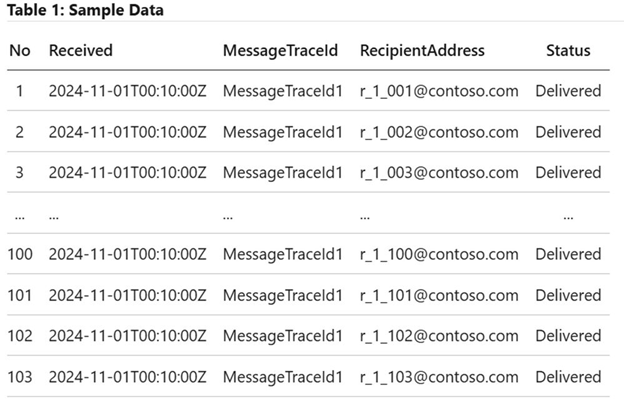
For the sample data above, you can pull the first 10 records using the following query:
Get-MessageTraceV2 -StartDate '2024-11-01T00:00:00Z' -EndDate '2024-11-01T00:10:00Z' -ResultSize 10
In the V2 example below, we're using the StartingRecipientAddress of the last recipient (r_1_010@contoso) from the previous results. To pull the next subsequent records, use the following query.
Get-MessageTraceV2 -StartDate '2024-11-01T00:00:00Z' -EndDate '2024-11-01T00:10:00Z' -ResultSize 10 -StartingRecipientAddress r_1_010@contoso.com
Best practices
To improve query performance, specify as many and as precise filters as possible.
We highly recommend that admins narrow the gap between StartDate and EndDate whenever possible. It's also advisable to set more parameters, such as SenderAddress, when the sender is known.
Use MessageTraceId when applicable for PowerShell queries. This is required when querying data for messages sent to over 1,000 recipients. This is also supported in EAC now.
Set the MessageTraceId (also known as NetworkMsgId in the message tracking log) when investigating a specific message or when a message is sent to many recipients (for example, over 1,000). This is required to obtain complete results. When used together with StartingRecipientAddress, you can retrieve the full dataset in multiple rounds. For more information on StartingRecipientAddress, see the FAQ section.
Frequently asked questions
How can we tell if partial results are displayed?
For EAC users, scroll down to get more results until the data is complete. Users don't have to take any additional action, and V2 will load it automatically as user scrolls down to get additional results. For Exchange Online PowerShell cmdlet users, we're working on providing a hint in the output for the next query if the data is partial (expected within next few weeks). For now, users can utilize the sample script below to gather results continuously.
Sample script:
$mt = Get-MessageTraceV2 -<filters>

$nextRound = Get-MessageTraceV2 -<filters> -EndDate $mt[-1].Received.ToString("O")
How could pagination from V1 be achieved in V2?
Pagination is deprecated in V2 to ensure fair use of resources and query performance for all users. Instead, you can get results round by round. The results are ordered by Received in descending order first, then RecipientAddress in ascending order (case-insensitive). To get the next round of results, update the EndDate parameter to the Received value of the last data from the current round. Refer to the sample scripts in the previous section.
When and how could we use the parameter: StartingRecipientAddress?
The StartingRecipientAddress parameter is used to get the next round of data. StartingRecipientAddress together with Received, can get the results round by round to get the complete results. In the next round, data that shares the same Received as the last result in the current round but has RecipientAddress that is alphabetically larger than the StartingRecipientAddress(case-insensitive), or older than the last result in the current round, will be output.
Sample script:
$mt = Get-MessageTraceV2 -<filters>

$nextRound = Get-MessageTraceV2 -<filters> -EndDate $mt[-1].Received.ToString("O") -StartingRecipientAddress $mt[-1].RecipientAddress