Note
Access to this page requires authorization. You can try signing in or changing directories.
Access to this page requires authorization. You can try changing directories.
Summary
In an Exchange Hybrid deployment, Transport Layer Security (TLS) certificates securely share information between users in Exchange on-premises and Exchange Online. This secure sharing includes mail flow, free/busy sharing, and other features. While a self-signed certificate is enough for internal mail flow between servers in an on-premises organization, when you configure a hybrid deployment, you must use and configure certificates that you purchase from a trusted third-party CA for hybrid mail flow - Certificate requirements for hybrid deployments.
If you renew an Exchange certificate without updating the associated hybrid configuration, you can disrupt secure communication between Exchange Online and Exchange on-premises. This disruption results in hybrid mail flow failures and other hybrid feature issues.
This article describes how to safely renew a certificate in an Exchange hybrid environment without affecting the rich hybrid services like secure mail flow, availability, and more.
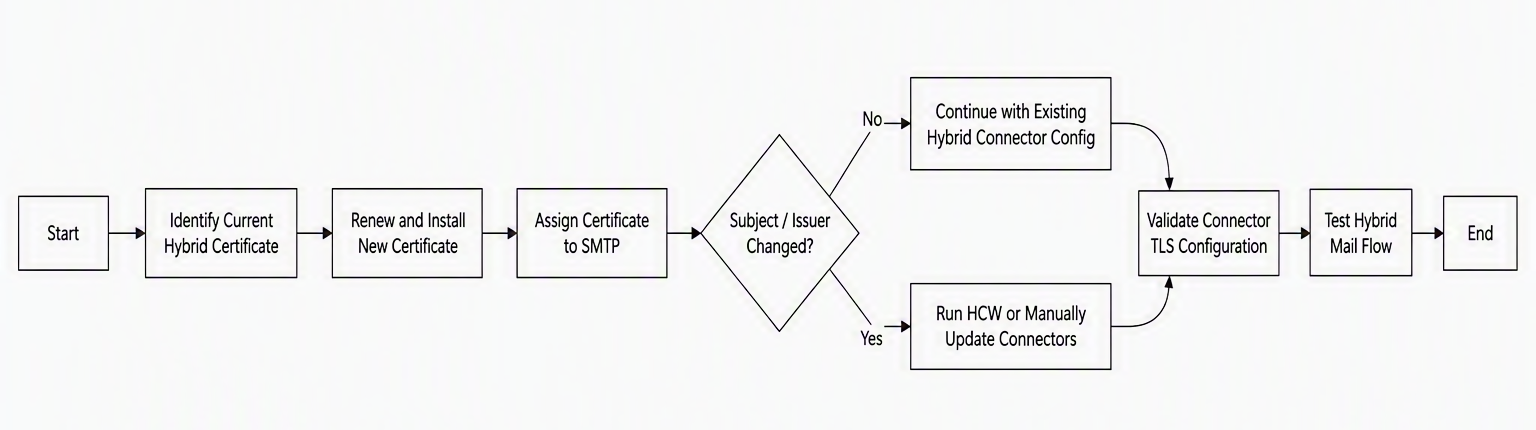
The following diagram shows the major steps involved in the process:
Important considerations when renewing Exchange Certificate
Hybrid mail flow depends on connectors and their TLS configuration.
When you renew certificates, connectors might still reference the previous certificate, which can disrupt mail flow.
Step 1: Identify current certificate used for hybrid mailflow
Send and Receive Connector don't store the thumbprint of the certificate. Connectors use the TLSCertificateName parameter to choose the certificate for Hybrid mail flow. Set this parameter in the format: <I>Issuer<S>SubjectName, where the values correspond to the issuer and subject name of the third-party CA certificate.
Check Send and Receive Connector’s TLScertificatename parameter
Get-SendConnector "Outbound to Office 365*" | fl Name,TlsCertificateName
Get-ReceiveConnector "Server\ Default Frontend Server" | fl Name,TlsCertificateName
Note
By default, Exchange Server on-premises receives emails from Exchange Online through the Default Frontend Receive connector. Enter the name of this connector unless your environment uses a custom Receive connector to accept mail from your Exchange Online tenant.
Verify if the certificate you plan to renew is used by current Hybrid Mailflow
Copy the subject name derived from the preceding step and run the following command (the example uses contoso as the subject name in the command)-
Get-ExchangeCertificate | where {$_.Subject -like "*contoso*"} | fl Thumbprint,Subject,Services
If the output matches the certificate you plan to renew, the certificate is currently used for hybrid mailflow. If there are multiple trusted 3rd-party certificates with the same subject name and issuer name, Exchange server usually uses the one that's valid (non-expired) and has the most recent Valid from date.
If you're still not sure, you can Analyze Exchange Server protocol logs which clearly shows the certificate with thumbprint used by the connectors.
Step 2: Verify certificate requirements and install it
Ensure the new certificate:
Is issued by a trusted third-party certificate authority
Has a valid certificate chain with root and intermediate certificates installed
The certificate has an associated private key.
Use the steps here to generate a new certificate request and get the certificate issued by your certificate provider. When generating the Certificate Signing Request (CSR), set PrivateKeyExportable to TRUE and submit the request to the third-party certificate provider.
After you receive the certificate from the provider, follow the steps to complete the pending Exchange Server certificate request. If more than one server is involved in routing email with Exchange Online, make sure you export the certificate from Exchange server and import or install the certificate on all other Exchange servers.
To learn about important considerations when renewing Exchange certificates, see TLS Certificates in Exchange Hybrid - Common Issues & How to Fix them.
Step 3: Assign the renewed certificate to SMTP
Enable the SMTP service on the new certificate. You can do this from EAC by following assign certificates to Exchange Server services. Or run the following command from ```powershell
Enable-ExchangeCertificate -Thumbprint <NewCertificateThumbprint> -Services SMTP
When you assign the SMTP service to a renewed certificate, Exchange prompts you to overwrite the existing certificate set for transport services. Select No if you want to use the existing self-signed certificate for internal communication with other Transport Services and Edge server (if any). Continue using the self-signed certificate for internal transport communication because of higher validity.
Step 4: Update hybrid connectors with new certificate
If the old and renewed certificate use the same subject and issuer name, you usually don't need to do anything. Exchange matches the new certificate with the existing TlsCertificateName parameter and automatically uses the new certificate based on the latest Valid from date. However, if they're different, run the Hybrid Configuration wizard (HCW) again and select the new certificate for hybrid mailflow. HCW automatically updates the required parameters.
If you don't want to run HCW, you can manually update the certificate configuration on connectors by using the following PowerShell commands:
$cert = Get-ExchangeCertificate -Thumbprint "<new certificate thumbprint>"
$TLSCertificateName = "<i>$($Cert.Issuer)<s>$($Cert.Subject)"
Set-ReceiveConnector -Identity "Receive Connector Identity" -TlsCertificateName $TLSCertificateName
Set-SendConnector -Identity “"Outbound to Office 365*" -TlsCertificateName $TLSCertificateName
Step 5: Restart transport services
Restart Exchange transport services to apply changes.
PowerShell
Restart-Service MSExchangeTransport
Step 6: Edge Transport considerations (if applicable)
If your environment includes Edge Transport servers:
- Install the new certificate on the Edge server and enable it for SMTP Service.
When you assign the SMTP service to a renewed certificate, Exchange prompts you to overwrite the existing certificate set for transport services. Select No if you want to use the existing self-signed certificate for internal communication with other Transport Services and Edge server (if any).
- Using Exchange Management Shell on the Edge server, manually set the
TlsDomainCapabilitiesandFqdnparameters of the Receive connector of the Edge server. Follow the procedure mentioned at Edge Transport servers with hybrid deployments.
Step 7: Validate configuration
Verify Send Connector configuration
PowerShell
Get-SendConnector "Outbound to Office 365" | fl TlsCertificateName
Make sure the TlsCertificateName has the current certificate’s issuer name and subject name in the format: <I>Issuer<S>SubjectName
Send test email from Exchange On-Premises to Exchange online and check Exchange Server protocol logs to know which certificate with thumbprint is used by the connector.
Confirm mail flow
Send test messages from:
On-premises → Exchange Online
Exchange Online → On-premises
Common issues and best practices
Based on field experience and Exchange Team guidance:
Always update connectors after certificate renewal to avoid mail flow disruption [techcommun...rosoft.com].
Avoid importing certificates too early - Exchange might select the newest certificate unexpectedly.
Maintain complete certificate chain (root + intermediate).
Use HCW for consistent configuration updates across environments.