Note
Access to this page requires authorization. You can try signing in or changing directories.
Access to this page requires authorization. You can try changing directories.
Overview
This article helps Microsoft 365 tenant administrators identify common calendar-sharing scenarios, understand the improved shared-calendar model, and select the appropriate configuration or troubleshooting guidance.
Exchange Online supports several sharing scenarios:
- Sharing between users in the same Microsoft 365 tenant.
- Sharing between Microsoft 365 tenants.
- Sharing between Exchange Online and Exchange Server organizations.
- Publishing a calendar to recipients who do not use a trusted Exchange organization.
Tip
Start by identifying the calendar owner, the recipient, and whether their mailboxes are in the same tenant. These details determine the sharing method and expected synchronization behavior.
Choose the sharing approach
| Scenario | Approach | Public guidance |
|---|---|---|
| Users are in the same Microsoft 365 tenant | Share the calendar directly and assign the required permission level | Calendar sharing in Microsoft 365 |
| Users are in different Microsoft 365 tenants | Use Microsoft 365 Cross-Tenant Access Policy when it is available for the tenants | Migrate to Microsoft 365 Cross-Tenant Access Policy |
| Exchange Online shares with an on-premises Exchange organization | Configure an organization relationship and the required federation | Sharing in Exchange Online |
| A user shares with an external internet recipient | Configure an appropriate sharing policy | Sharing policies in Exchange Online |
Important
An on-premises Exchange organization is external to Exchange Online, including in a hybrid deployment. Do not treat this scenario as same-tenant sharing.
Microsoft 365 Cross-Tenant Access Policy is replacing organization relationships and sharing policies for free/busy, shared-calendar, and MailTips access between Microsoft 365 tenants. The feature might not yet be available in every tenant. Check the Microsoft 365 Message center and the migration guidance before changing an existing cross-tenant configuration.
Calendar-sharing terminology
- Calendar owner: The mailbox user who shares a calendar.
- Recipient: The user who receives and accepts a calendar-sharing invitation.
- Sharing invitation: The email request that invites a recipient to access a calendar.
- Delegate: A user who manages another user's calendar.
- Principal: The mailbox whose calendar a delegate manages.
- Local copy: The synchronized copy of the owner's calendar in the recipient's mailbox.
- Improved shared-calendar model: The current service-based model that synchronizes the owner's calendar to a local copy in the recipient's mailbox.
- Legacy shared-calendar model: The earlier model in which classic Outlook for Windows connected directly to the shared mailbox by using MAPI.
- Meeting invitation: A meeting request that an organizer sends to attendees. It is different from a calendar-sharing invitation.
Use owner and recipient, or principal and delegate, when describing calendar sharing. Use organizer and attendee when describing meetings.
Check the sharing configuration
Before troubleshooting, verify the following:
- Confirm the calendar owner and recipient.
- Determine whether both mailboxes are in the same Microsoft 365 tenant.
- For cross-tenant sharing, confirm that the required Cross-Tenant Access Policy or organization relationship is configured.
- For sharing with an external internet recipient, confirm that the sharing policy allows the recipient's domain and the requested detail level.
- Confirm that the invitation was not changed by a mail-flow rule, transport service, or mail-hygiene service. Changes to the invitation can prevent it from being accepted.
- Confirm that the owner granted the intended calendar permission and that the recipient accepted the current invitation.
For configuration details, see Sharing in Exchange Online.
Shared mailboxes and group mailboxes
A shared mailbox includes a calendar, but a shared mailbox is not the same as a calendar that one user shares with another user. Administrators assign users access to the shared mailbox. For configuration guidance, see Shared mailboxes in Exchange Online.
A Microsoft 365 group also includes a group calendar. The group calendar is part of the group's shared workspace and uses a different membership and access model from user-to-user calendar sharing.
When troubleshooting, first identify whether the affected calendar belongs to a user mailbox, shared mailbox, or Microsoft 365 group. The correct access and sharing configuration depends on the mailbox type.
Adding a calendar from the directory
In Outlook, a user can add another user's calendar from the directory:
Calendar > Add calendar > Add from directory > Select an account > Add
Adding a calendar from the directory can display availability based on the permissions assigned to the calendar. It does not necessarily create an improved shared-calendar relationship. Availability updates can be delayed because the client refreshes the information periodically.
Improved shared-calendar model
The improved shared-calendar model is available for calendars shared between users whose mailboxes are hosted in Exchange Online. It provides:
- Consistent sharing permissions across Outlook applications.
- A consistent invitation-acceptance experience.
- Shared calendars that synchronize across supported devices.
- Immediate synchronization for supported same-tenant scenarios.
- Better performance when users view and edit shared calendars.
For the complete support matrix and synchronization behavior, see Calendar sharing in Microsoft 365.
How synchronization works
In the improved model, Exchange Online synchronizes the calendar from the principal's mailbox to a local copy in the delegate's mailbox. The delegate's Outlook client synchronizes with that local copy.
In the legacy model, classic Outlook for Windows connects directly to each mailbox whose calendar it opens.
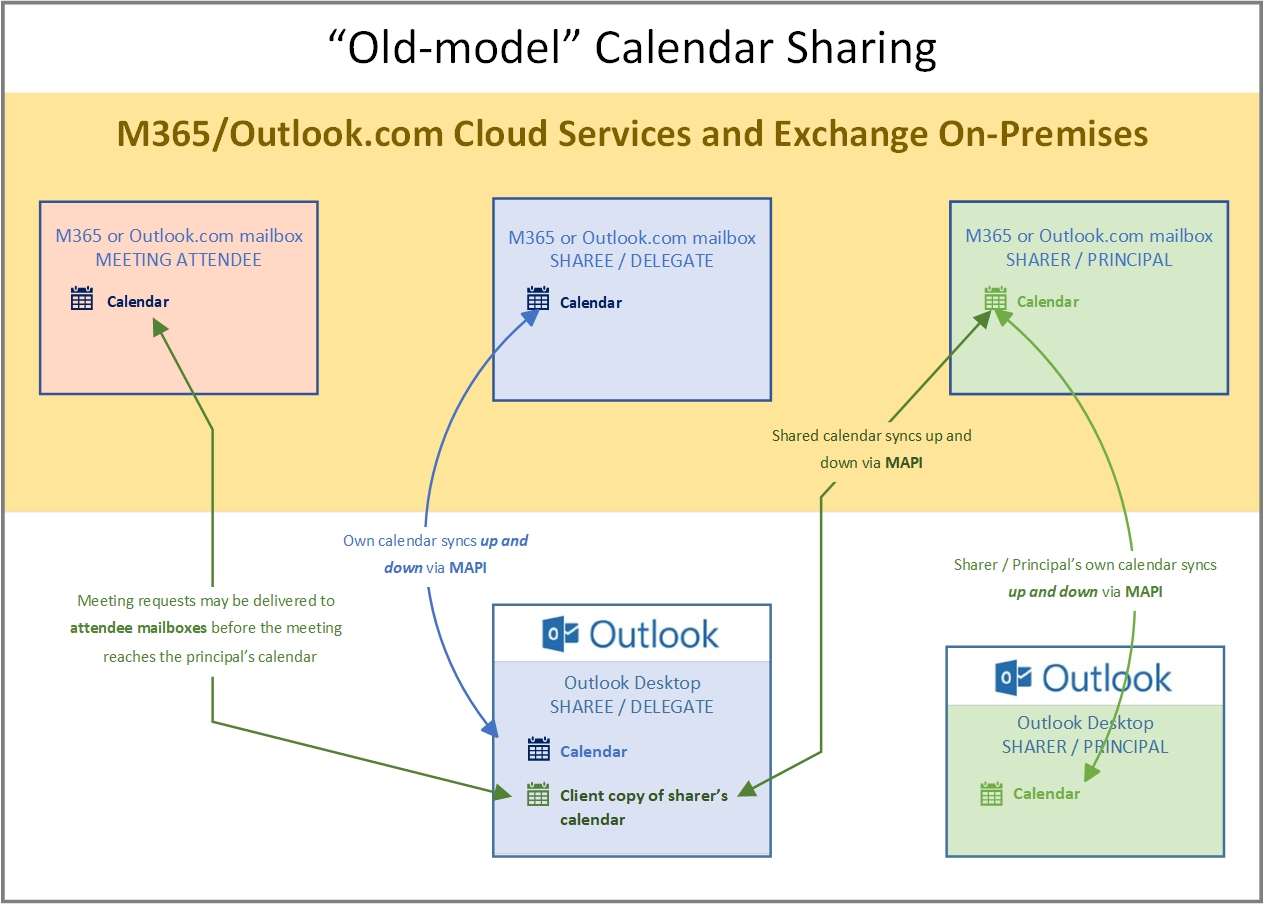
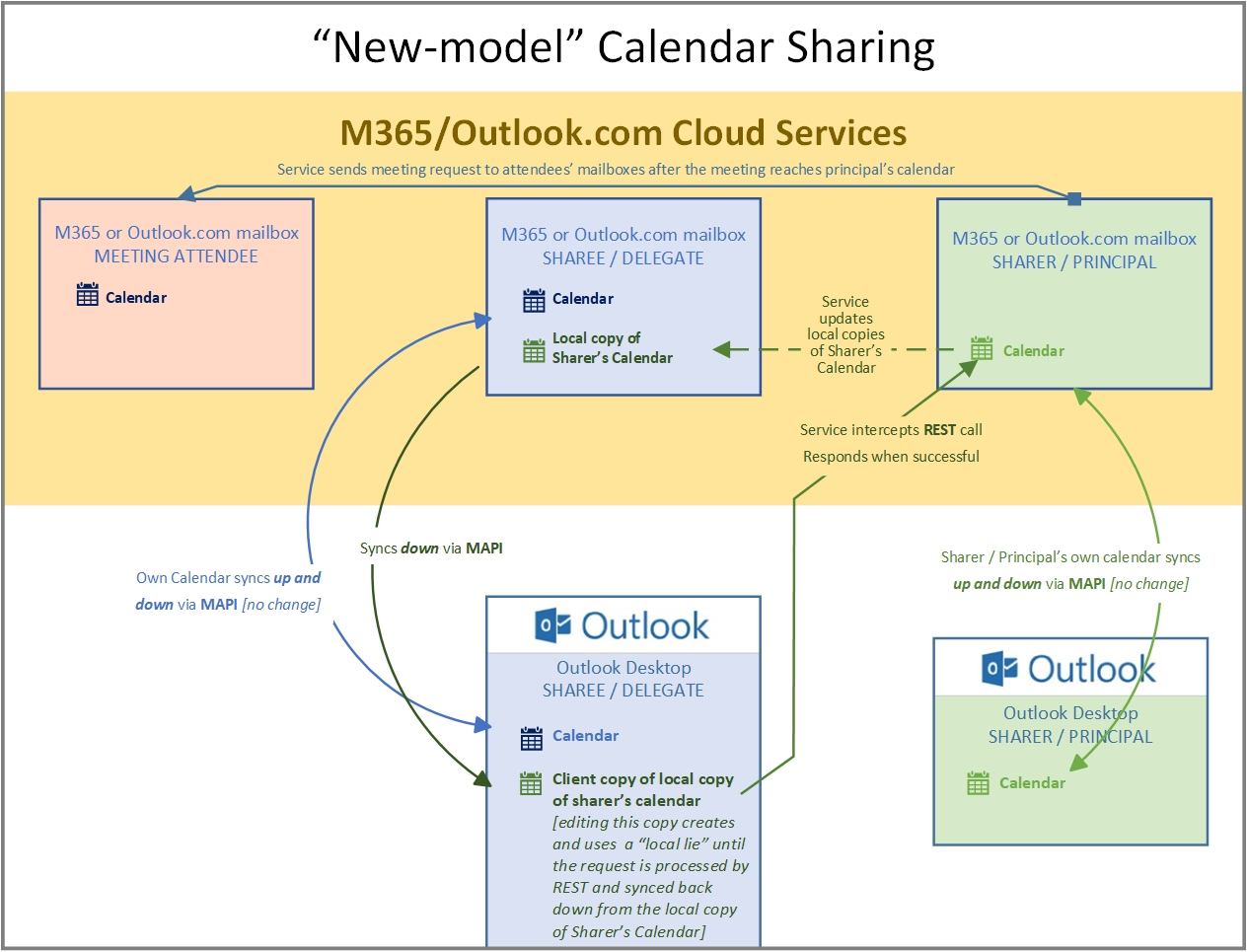
Changing permissions does not by itself repair a synchronization problem. Verify both the permission configuration and the shared-calendar connection.
Requirements
The improved experience requires:
- The calendar owner's mailbox and recipient's mailbox to be hosted in Exchange Online.
- Explicit permission to the shared calendar.
- A supported Outlook client and connection mode.
- The shared calendar to use the improved model.
Shared Calendar Improvements are enabled by default in current supported versions of Microsoft 365 Apps. For classic Outlook configuration details, see How to enable and disable Outlook calendar sharing updates.
Identify the model in classic Outlook
In classic Outlook for Windows, open the shared calendar's folder properties. A calendar using the improved model displays (REST).
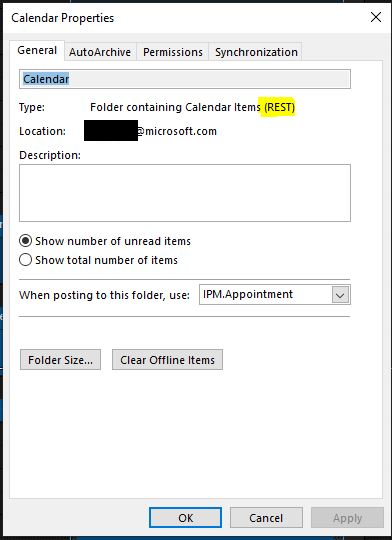
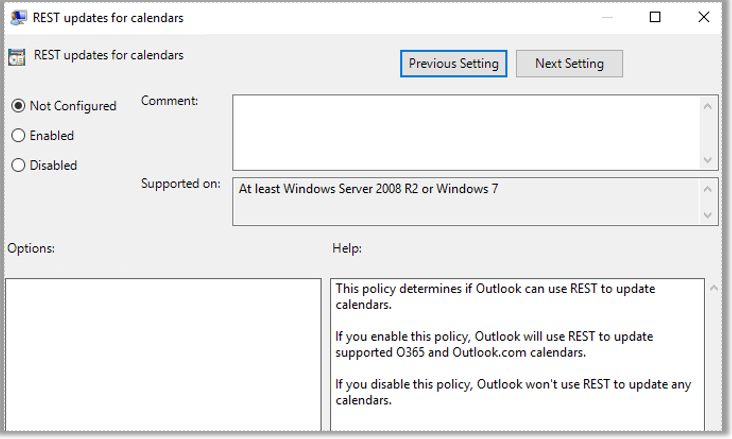
Administrators can also manage the REST updates for calendars Group Policy setting for supported versions of classic Outlook.
Automatic upgrades
Eligible existing shared calendars are upgraded to the improved model in the background. The upgrade is service-managed and does not require users to re-share their calendars or accept new invitations.
After a calendar is upgraded:
- Changes can synchronize immediately in supported scenarios.
- The synchronized copy includes events from up to one year before the upgrade date by default.
- Recurring events are included when an occurrence falls within or after the one-year window.
For current upgrade behavior and user-visible changes, see Shared calendars updates in Outlook for Windows.
Exchange Online administrators can use the SharedCalendarSyncStartDate parameter to control the beginning of the synchronization range. For syntax and requirements, see Set-MailboxCalendarFolder.
Troubleshoot synchronization
Use this sequence before changing the Outlook profile or removing the calendar:
- Confirm that both mailboxes are in Exchange Online.
- Confirm that the recipient has explicit calendar permission.
- In classic Outlook, confirm whether the folder properties show (REST).
- Check whether the issue occurs in Outlook on the web as well as the desktop client.
- Confirm that the affected event exists in the owner's calendar in Exchange Online.
- Review the documented behavior changes and known issues for the improved model.
- If the problem persists, open a Microsoft support request and include the owner, recipient, approximate event time, affected Outlook clients, and the results of the preceding checks.
Do not use legacy mitigations without first checking current public guidance. For example, disabling shared-calendar improvements or changing the Download shared folders setting is not a general fix for a calendar that uses the improved model.
See:
- Shared calendars updates in Outlook for Windows
- Known issues with classic Outlook Desktop Shared Calendar Improvements
Expected behavior and limitations
- Same-tenant shared calendars can synchronize changes immediately when they use the improved model.
- Cross-tenant and internet calendar scenarios can have longer synchronization intervals. The interval depends on the sharing type and the recipient's calendar service.
- Events older than one year are not included in the synchronized copy by default after an upgrade, unless an administrator configures a different synchronization start date.
- Some meeting and calendar behaviors change after upgrade. Review the documented behavior changes before treating a difference as a synchronization failure.
- If a user marks a meeting as Private, forwarding or redirection can be restricted. See Mark email as Normal, Personal, Private, or Confidential in Outlook.
Public references
- Calendar sharing in Microsoft 365
- Sharing in Exchange Online
- Sharing policies in Exchange Online
- Migrate to Microsoft 365 Cross-Tenant Access Policy
- Shared calendars updates in Outlook for Windows
- How to enable and disable Outlook calendar sharing updates
- Known issues with classic Outlook Desktop Shared Calendar Improvements