Note
Access to this page requires authorization. You can try signing in or changing directories.
Access to this page requires authorization. You can try changing directories.
In this tutorial, you set up a two-workspace lifecycle for a Fabric app by using only the Rayfin CLI. You deploy feature changes to a development workspace, validate them, and then promote the same project to a production workspace. This workflow uses manual promotion steps, so you stay in control of when and how changes reach production.
In this tutorial, you learn how to:
- Create a dev and a prod Fabric workspace for the same project.
- Deploy feature changes to the dev workspace.
- Switch between deployments by using the Rayfin CLI.
- Promote the validated project to the prod workspace.
Prerequisites
- A Fabric account
- Node.js installed locally.
- The Rayfin CLI available through
npx rayfin. For details, see the Rayfin CLI reference.
Overview of deployment flow
- Start on your local machine and create a Fabric App.
- Build features for the app.
- Test locally, then deploy to the development workspace using
npx rayfin up -workspace <dev-workspace>. - When the code changes are well tested, re-deploy directly to the Production workspace using
npx rayfin up switch -workspace <prod-workspace>.switchallows you switch between environment to deployments environments.
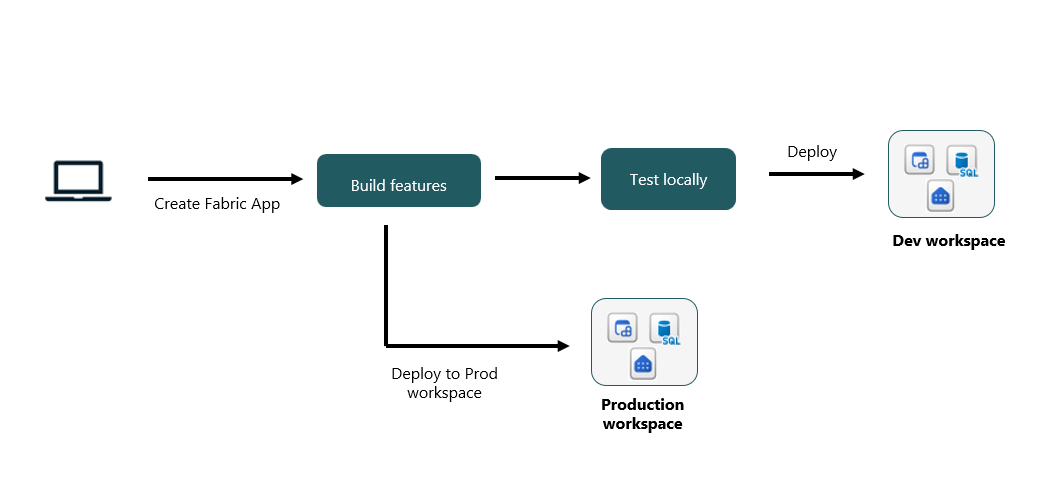
Step 1: Create dev and prod workspaces in Fabric
Create the two workspaces manually in the Fabric portal:
- In the Fabric portal, create a workspace named my-app-dev. Record its workspace ID.
- Create a second workspace named my-app-prod. Record its workspace ID.
Step 2: Sign in to Fabric
Sign in with your Entra ID account so the CLI can deploy to your tenant:
npx rayfin login
To target a specific tenant, pass --tenant:
npx rayfin login --tenant <tenant id>
Verify the signed-in account at any time:
npx rayfin login status
Step 3: Create the project locally
Scaffold a new Fabric app from a template. Run this command once for the project:
npm create @microsoft/rayfin@latest my-app --workspace my-app-dev
cd my-app
If you're adding Rayfin to an existing project, run npx rayfin init instead.
Step 4: Deploy to the dev workspace
From your project root, deploy the app to my-app-dev:
npx rayfin up --workspace my-app-dev
The CLI creates a Fabric app item in the dev workspace, applies your database schema, and uploads static content if static hosting is enabled. The deployment is recorded in rayfin/.env, and the dev workspace becomes the active deployment for subsequent npx rayfin up calls.
To preview the deployment without applying changes, run:
npx rayfin up --dry-run --verbose
Step 5: Develop and iterate against the dev workspace
Use the dev workspace as the target while you build features:
Run the frontend dev server locally:
npm run devEdit your code, data model, or
rayfin/rayfin.yml.Apply schema-only changes when needed:
npx rayfin up db applyRedeploy the full app to dev:
npx rayfin up
Repeat this loop until the feature is ready for promotion.
Step 6: Promote the project to the prod workspace
When you're ready to release, deploy the same project to my-app-prod:
npx rayfin up --workspace my-app-prod
The CLI creates a separate Fabric app item in the prod workspace and records a second deployment. Prod becomes the new active deployment, and rayfin/.env is rewritten to point at it.
Step 7: Switch between dev and prod deployments
Use npx rayfin up switch to move between the two recorded deployments without retyping workspace IDs.
List the deployments recorded for the project:
npx rayfin up list
Pick a deployment to switch to:
npx rayfin up switch --list
Switch back to dev to continue feature work:
npx rayfin up switch my-app-dev
Switch to prod for a hotfix or validation:
npx rayfin up switch my-app-prod
After switching, plain npx rayfin up commands target the newly active workspace.
Step 8: Validate the prod deployment
After deploying to prod, confirm the deployment is healthy:
npx rayfin up status
Open the hosting URL printed by the CLI and verify the app behaves as expected. If you find an issue:
Switch back to dev:
npx rayfin up switch my-app-devReproduce and fix the issue against the dev workspace.
Redeploy to dev, validate, then switch to prod and run
npx rayfin upto release the fix.
Recommended practices
- Keep your source code in version control. Treat
rayfin/.envas a local pointer to the active deployment, not as the source of truth. - Use a feature branch for in-progress work and merge to your main branch only after the dev deployment is validated.
- Reserve
npx rayfin up --forcefor cases where the CLI explicitly recommends it. Avoid running it routinely against prod. - Use
--dry-runbefore any prod deploy to preview the actions the CLI takes. - Confirm authentication settings in
rayfin.ymlbefore promoting to prod. Only Fabric brokered authentication (Entra SSO) is supported for deployed apps. For details, see Deploy a Fabric app to Fabric.