Note
Access to this page requires authorization. You can try signing in or changing directories.
Access to this page requires authorization. You can try changing directories.
Compare code changes is a feature of Microsoft Fabric Git integration that lets users review the exact changes that occur during Git operations—commit, undo, or update—before applying them.
Instead of only showing which items are affected, Compare code changes displays a side‑by‑side or inline diff of every modified file within each workspace item. This diff gives developers clarity, confidence, and control over the changes moving between the Fabric workspace and the connected Git branch.
Key Capabilities
Compare code changes enables developers to:
- View a precise, file‑level diff for all modified items participating in a Git operation.
- Ability to compare workspace changes before committing them into git
- Ability to review incoming updates before performing git 'update-all' operation
- Review conflict before resolving them
Entry Points
Compare code changes can be opened from multiple locations. The following table summarizes the various entry points.
| Entry Point | Description |
|---|---|
| Source Control → Changes tab | ●Shows diffs where the workspace has changes relative to workspace last Git synced ●Workspace side is highlighted ("green side") |
| Source Control → Updates tab | ●Shows diffs where connected Git folder has new changes relative to workspace last Git synced ●Git branch side is highlighted ("green side") |
| Conflict Dialog | ●Shows only conflicted items ●Comparisons current workspace version vs. current Git version) |
| Per‑item compare | ●Clicking a specific item shows its diff expanded ●Other items remain collapsed |
Example - Review commit changes
The following steps show how to review commit changes:
- At the top of your workspace, select Source control, Changes tab.
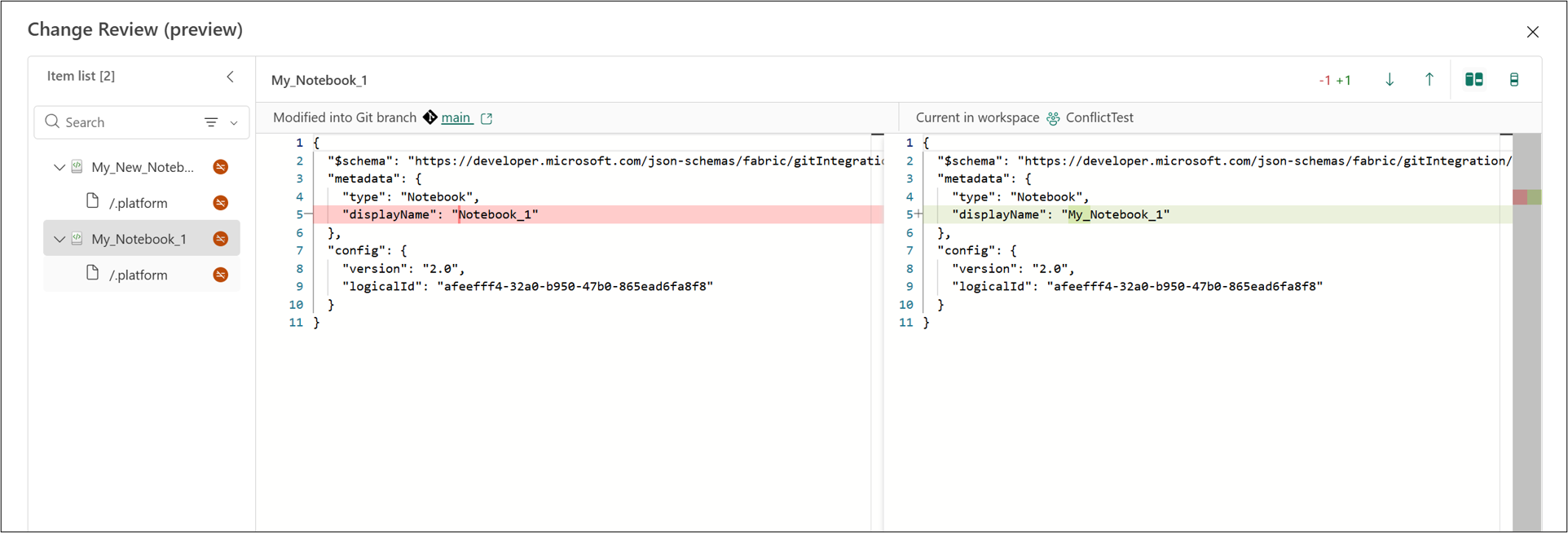
- To review all changes, select the review changes button at the top. This action opens a dialog showing all the changes.
- To review a specific item's changes, hover next to it and select the review changes button. This action opens a dialog that takes you directly to that item. You can review more items from here also.
::: image type="content" source="media/granular-compare/compare-new-1.png" alt-text="Screenshot of item review changes." lightbox="media/granular-compare/compare-new-1.png" :::
- On the diff screen, review the changes.
Example - Review incoming updates changes
The following steps show how to review incoming updates changes:
- At the top of your workspace, select Source control, Updates tab.
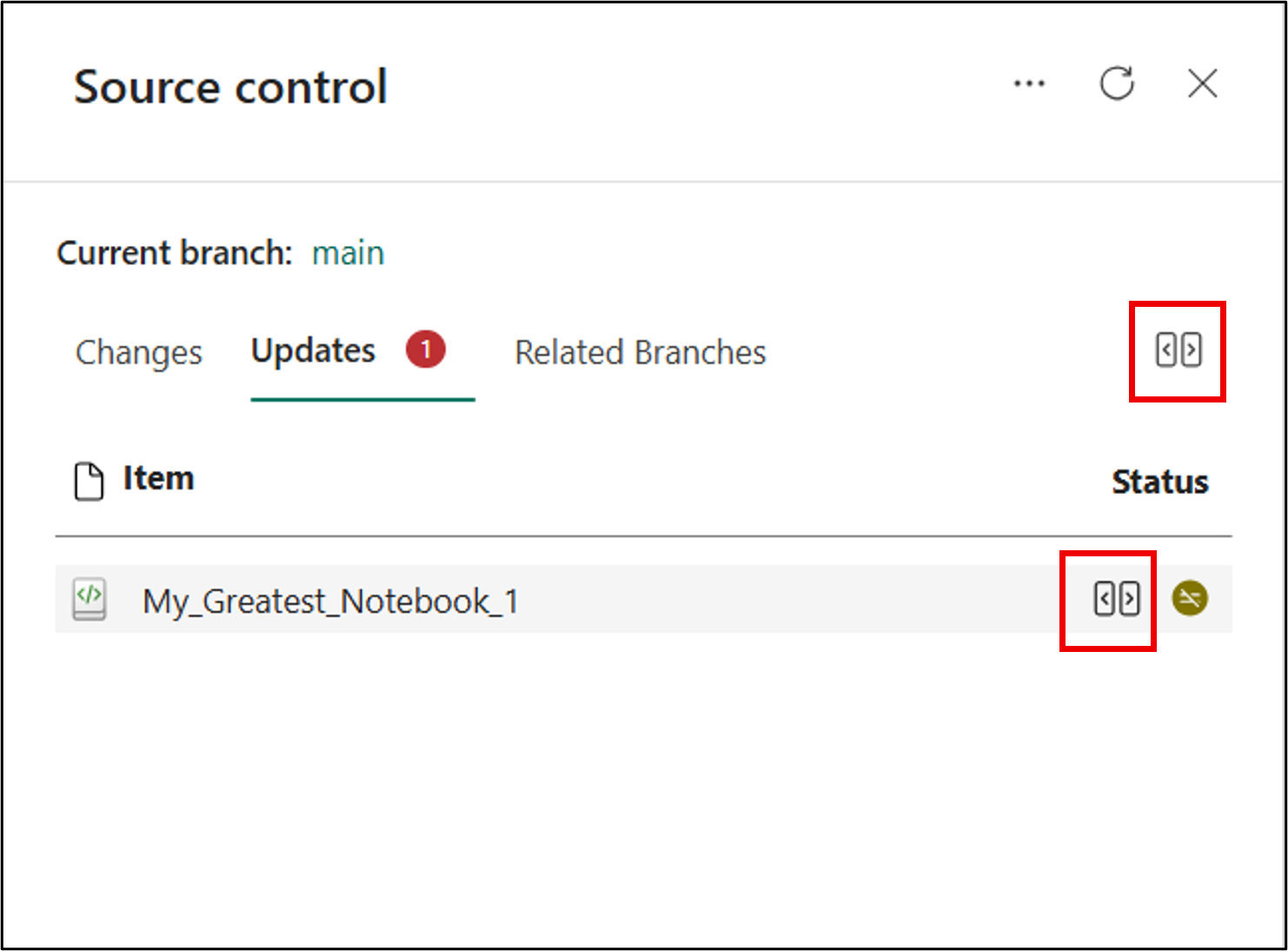
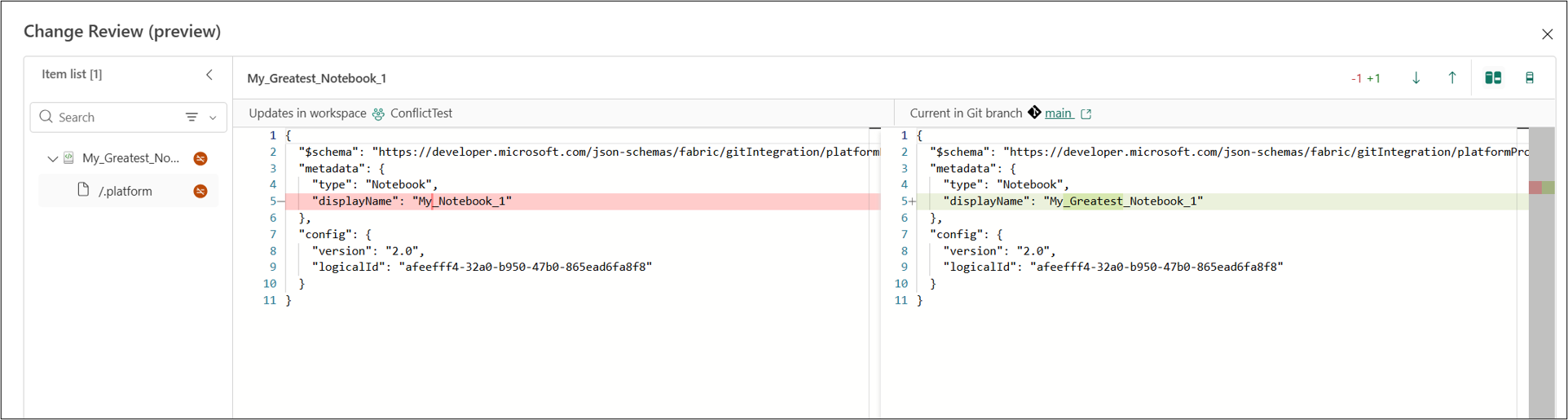
- To review all updates, select the review changes button at the top. This action opens a dialog showing all the incoming updates.
- To review a specific item's update, hover next to it and select the review changes button. This action opens a dialog that takes you directly to that item. You can review more items from here also.
- On the diff screen, review the updates.
Conflict resolution
Compare code changes helps in resolving conflicts by making differences explicit, scoped, and reviewable before taking any actions.
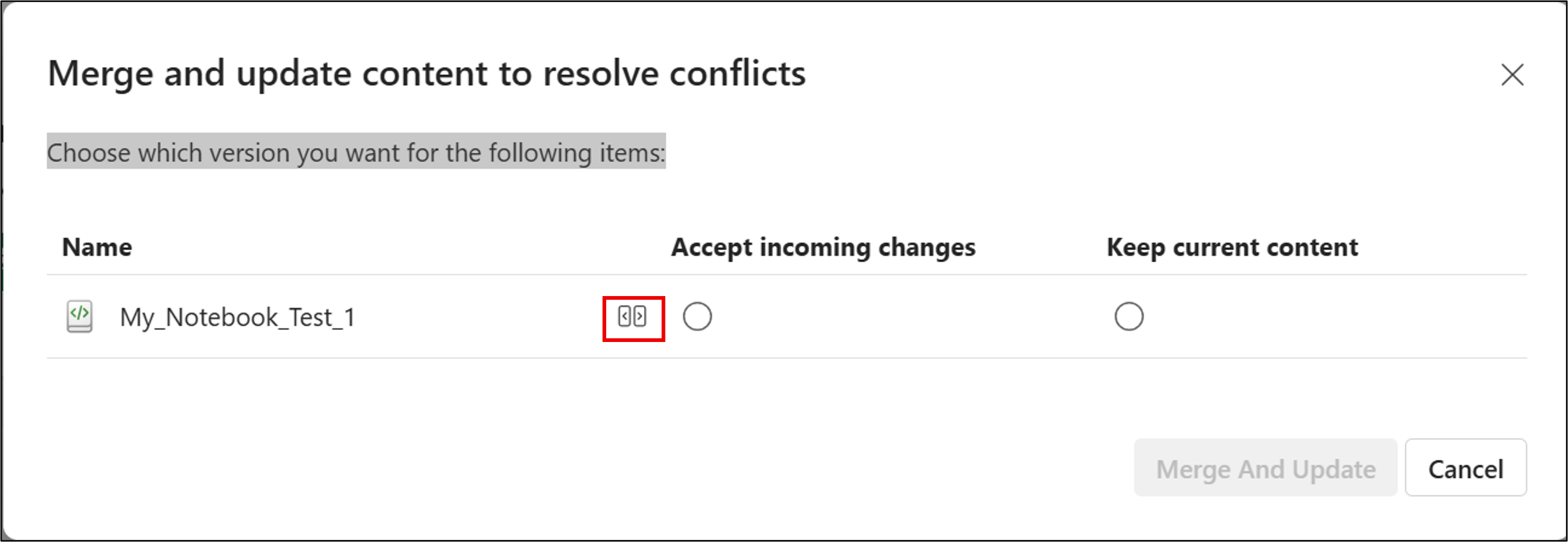
Hovering over the two options reveals the Review changes button. Click on it and you can see the compare the current workspace version vs. current Git version.
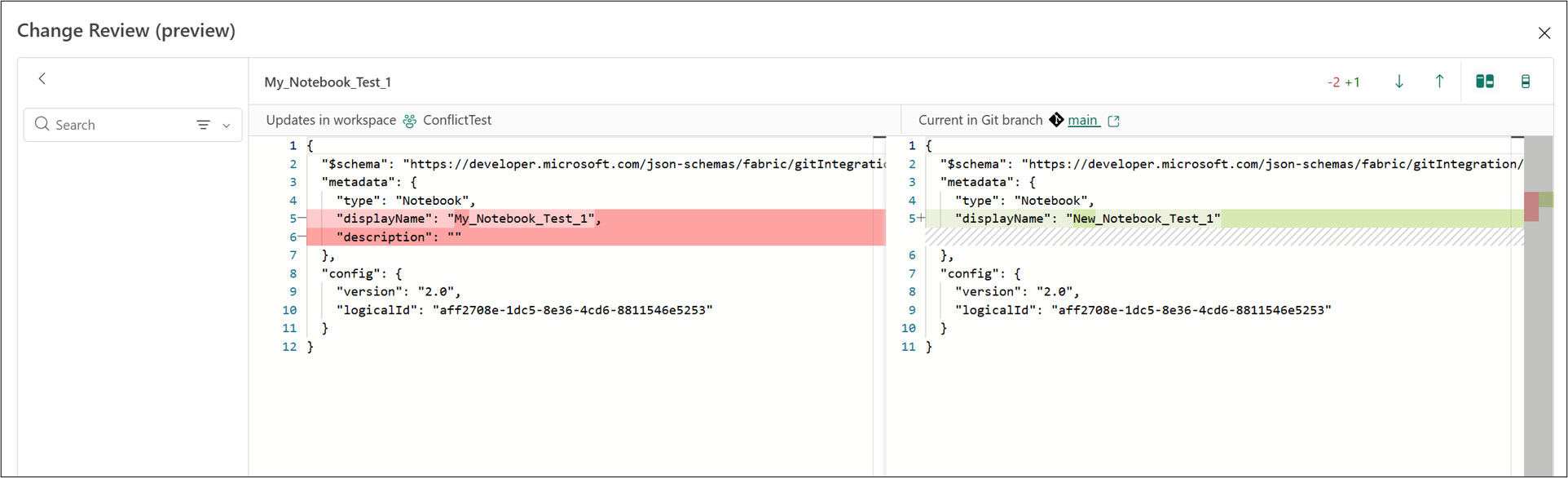
System files and system level changes
System files and platform changes participate in Git synchronization. So whenever Microsoft Fabric sees a difference in the underlying system files, metadata changes, version updates — it correctly marks the item as "modified." This reason is why the item appears in the Changes or Updates list.
System files are represented by a "/" in the list of changes or updates.
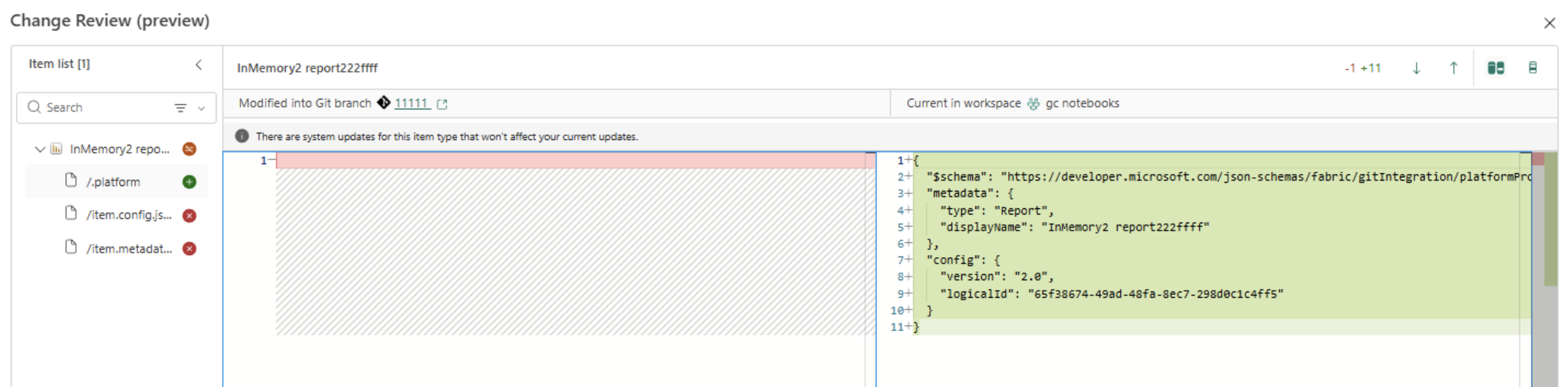
In most cases, the changes in the system files are just like any other changes. You may see system platform file upgrade from version 1 to version 2 that shows additions and deletion of files which won’t affect your current changes.
For more information, see Automatically generated system files.
Limitations
The following is a list of limitations for the code changes compare feature.
- Files that are over 1 MB OR binary files - don't show content.
- Not all Fabric / Power BI items is supported with Git code changes compare experience.
- In case of conflict, you can only open the compare dialog from the changes tab or via the conflict dialog.
- if the change is one of encoding (if the file was manually uploaded to git and saved under a special encoding), the git status detects the change, but code changes compare dialog shows 0 diffs