Note
Access to this page requires authorization. You can try signing in or changing directories.
Access to this page requires authorization. You can try changing directories.
Role-Based Access Control (RBAC) for GraphQL enables API owners to control who can access which GraphQL types and operations. This preview feature allows you to define roles, assign users to those roles, and explicitly grant permissions for query and mutation operations at the schema level. RBAC is designed to help API owners enforce least-privilege access and meet common customer requirements for secure GraphQL APIs.
GraphQL RBAC helps you:
- Restrict access to sensitive data types
- Allow read-only access without permitting mutations
- Prevent unauthorized users from executing queries even if they can invoke the API
- Manage access centrally through roles rather than individual permissions
Enabling RBAC on a GraphQL API
Open your GraphQL item.
To turn on RBAC, select Manage API data access (Preview).
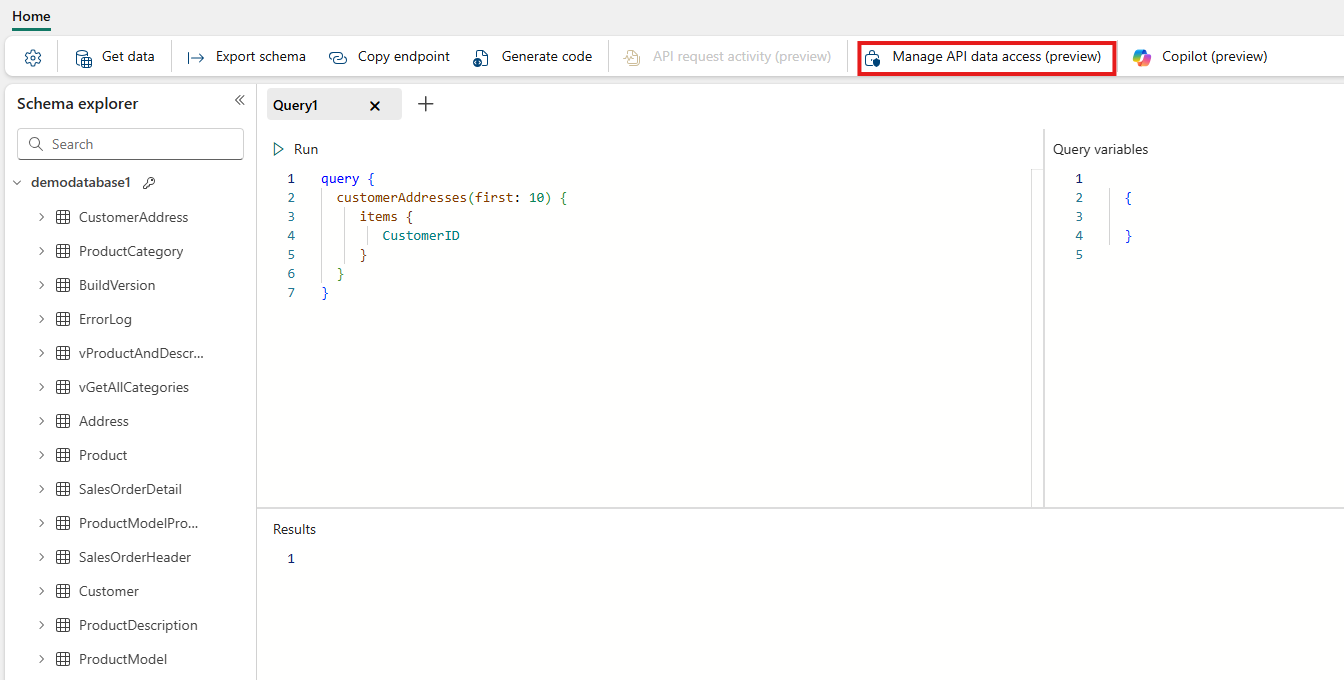
Confirm enabling the feature.
Note
A Default role exists with read/write permissions Deleting the Default role removes access for the item owner Users must belong to a role to access data
Creating a custom role
You can create full read write access roles or limited access roles. Permissions take effect immediately after the role is created.
Full read-write access role
Create a role with full read and write access to all data.
To create a role, select New.
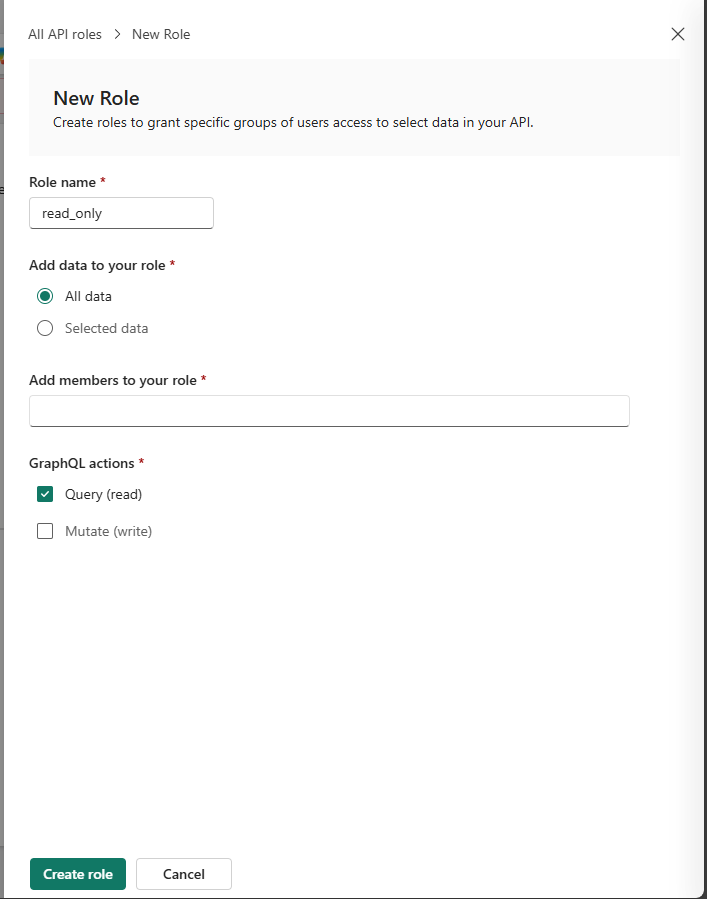
Provide a valid role name.
Add one or more users as members.
To give the role access to all data, select All data.
To grant permissions, select one or more actions (query or mutation) for the role.
Limited access role
Create a role with limited access to specific data.
- To create a role with granular access, select New and choose Selected data.
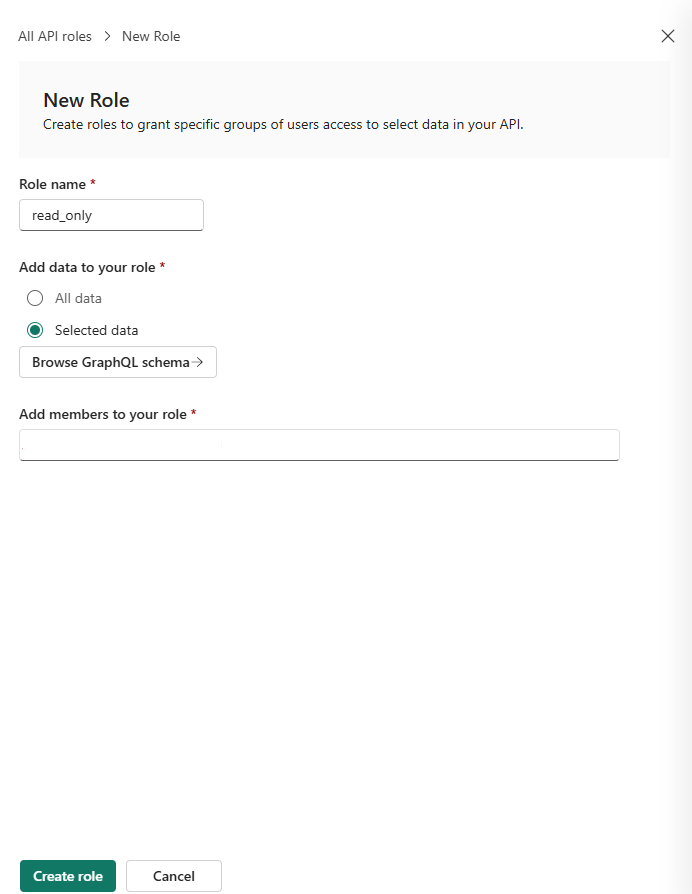
- Provide a valid role name.
- Add one or more users as members.
- To limit access at a granular level, select Selected data.
- To choose the tables to add to the role, select Browse GraphQL schema.
Field and row-level access control
You can define more granular permissions at the field and row level for a role.
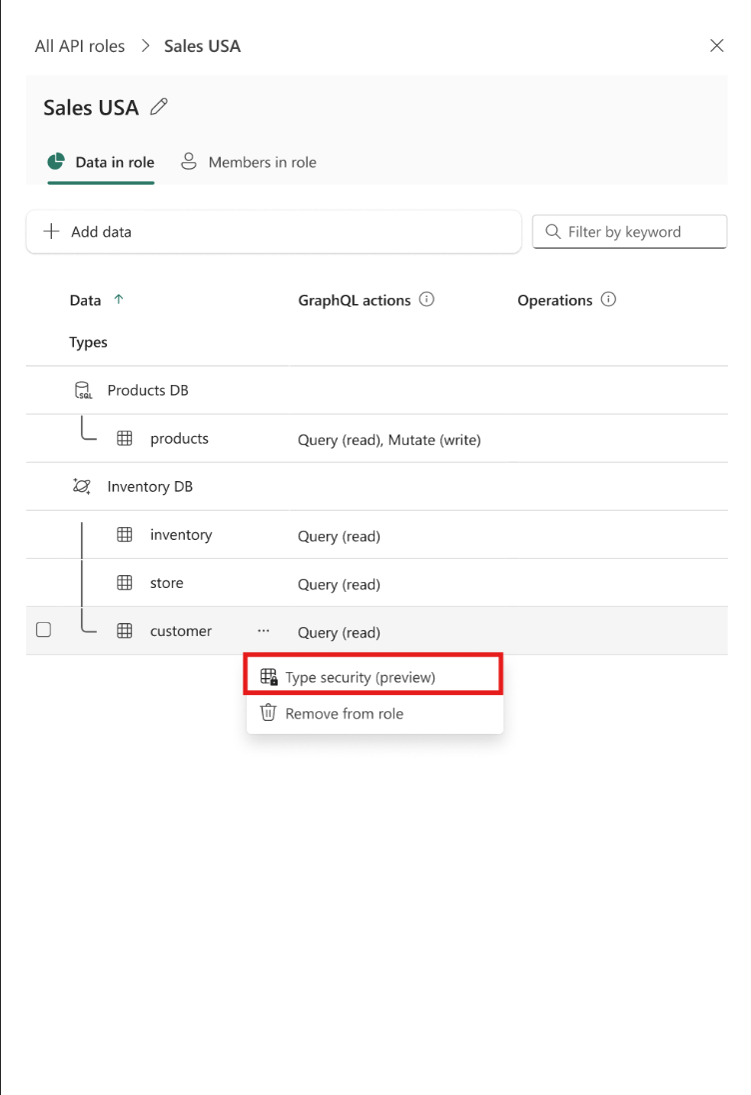
To update granular access, edit the role and open the more options (…).
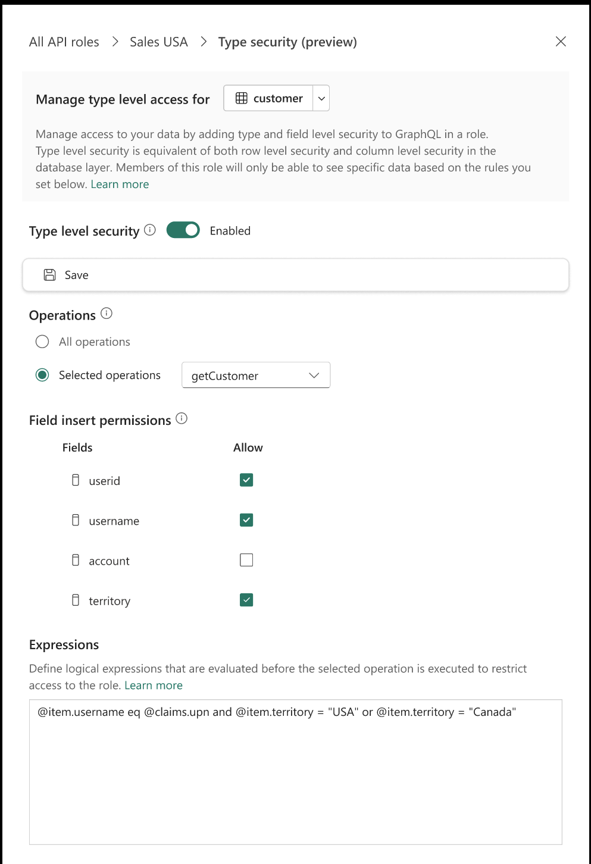
To view and adjust per-field permissions, select Type security. You can view all operations that the selected type is allowed to perform for that role. For each operation, you can explicitly select or deselect individual fields.
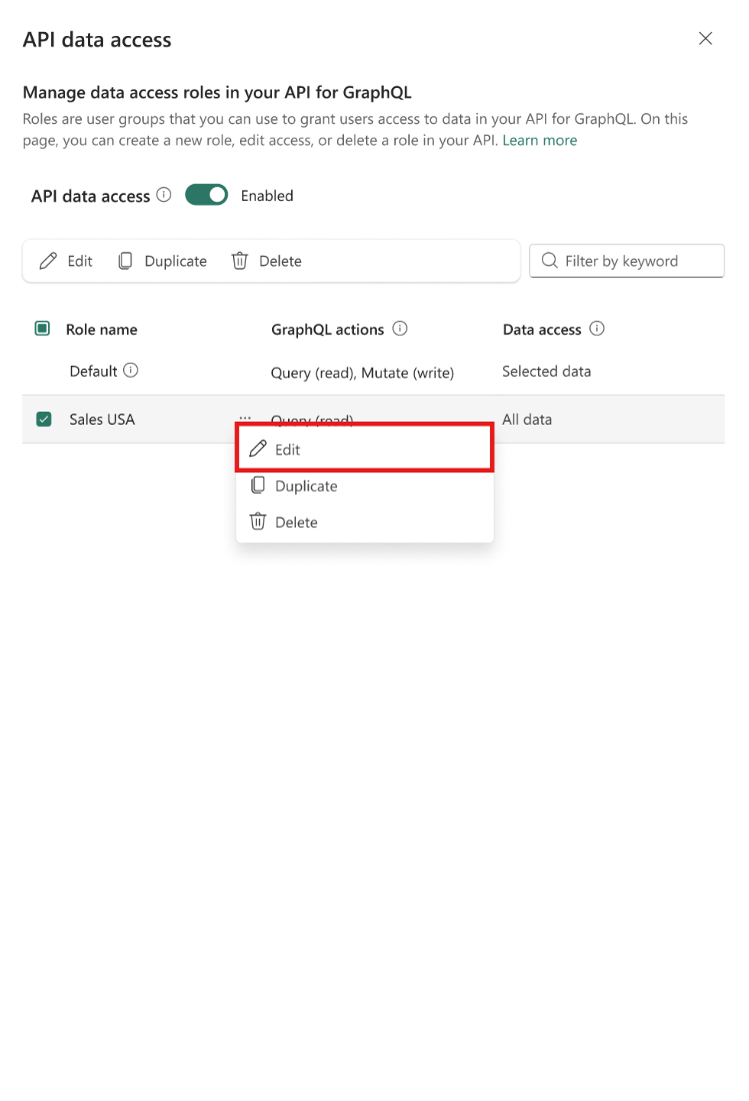
For example, to allow a role to read all fields except Account of the Customers type, go to Selected operations under Operations, choose the getCustomers (read) operation, and then, under Field insert permissions, deselect the Account field.
To control row-level access, use the Expressions field to define row-level access rules.
Authorization errors
When a user attempts an operation that is not allowed by their assigned roles, the request fails with an authorization error. This behavior applies to:
- Mutations without permission
- Queries on unauthorized types
- Any access when the user is not a member of a role
What happens when no roles exist?
If all roles (including the default role) are removed:
- The current user loses access to the API.
- Any GraphQL query execution fails with an authorization error.
This enforcement ensures that access is explicitly granted and never implied.