Note
Access to this page requires authorization. You can try signing in or changing directories.
Access to this page requires authorization. You can try changing directories.
The Fabric Data Engineering VS Code extension integrates with the Claude Code and Codex VS Code extensions to help you author Fabric notebooks. You can use your preferred agent to generate code with the active notebook's language, selected cell, runtime, and attached-resource context, without manually restating that context for each prompt.
When to use this integration
Use this integration when you prefer Claude Code or Codex for Fabric notebook authoring tasks, such as generating Spark code, refining existing notebook logic, or working with data in an attached lakehouse.
You can reuse the same prompt with GitHub Copilot, Claude Code, or Codex for the same notebook context. The generated code can differ in wording, formatting, or implementation. Review each result to make sure it meets your requirements.
This article covers the Claude Code and Codex VS Code extensions, not their command-line tools. To use the default agent in GitHub Copilot Chat for Fabric notebooks, see Develop Fabric notebooks with GitHub Copilot in VS Code.
Prerequisites
- Install the Fabric Data Engineering VS Code extension and complete the sign-in and workspace setup.
- Install and sign in to the Claude Code VS Code extension or the Codex VS Code extension, depending on which agent you want to use.
- Have access to a Fabric notebook that you can open and edit through the Fabric Data Engineering extension.
Enable the integration
Enable the integration for the agent extension you want to use.
Open VS Code with the Fabric Data Engineering extension and your selected agent extension installed.
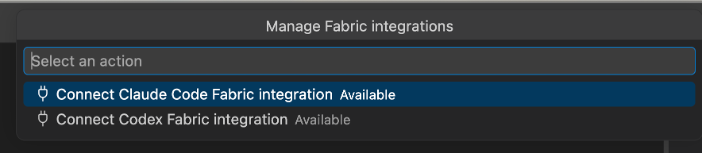
Open the Command Palette. On Windows or Linux, press Ctrl+Shift+P. On macOS, press Cmd+Shift+P.
Find and run the Fabric Data Engineering command that enables integration with Claude Code or Codex.
Generate notebook code with Claude Code or Codex
The following workflow uses Codex as an example. Follow the same steps in the Claude Code VS Code extension to use Claude Code.
Open a supported Fabric notebook through the Fabric Data Engineering extension.
Select the cell or insertion location that you want the agent to update.
Open the Codex extension and enter a prompt that describes the task. For example, if your attached lakehouse contains a sales table, you can use:
Add a cell with PySpark, to read the publicholidays table from the attached lakehouse, aggregate by countryOrRegion, and display the result
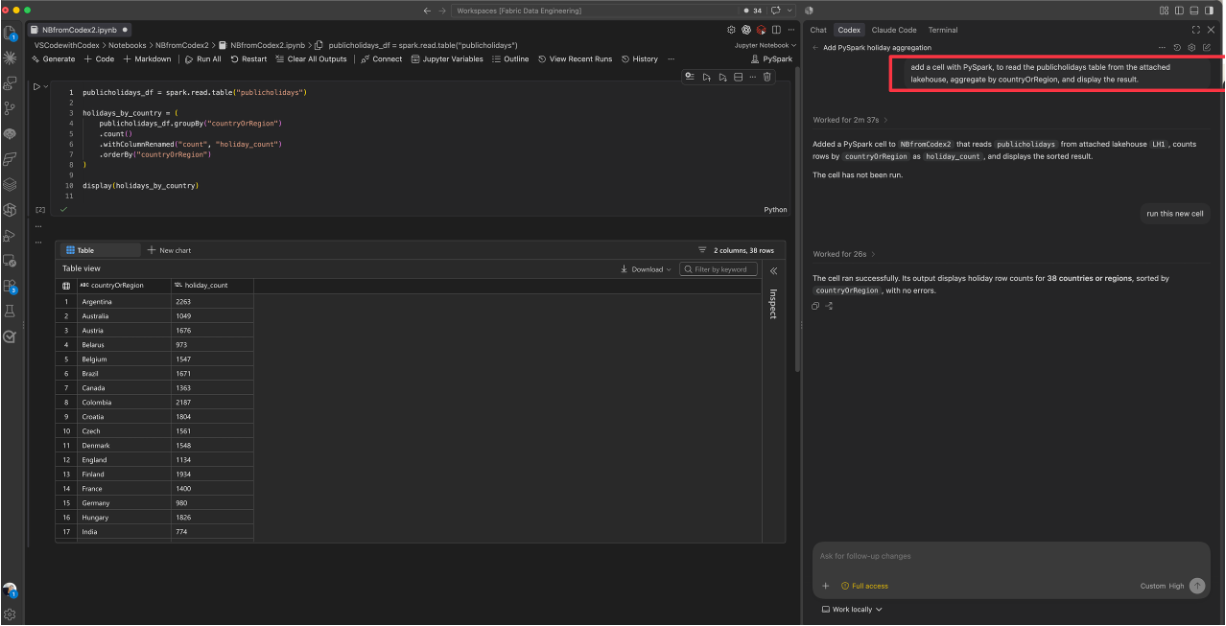
Let the agent retrieve the approved context and generate code. Keep the same notebook and target selected while the request is in progress.
The agent uses the local MCP server to retrieve the notebook language, target, document revision, workspace and runtime context, and relevant attached-resource metadata. You don't need to copy this metadata into your prompt.
If you switch notebooks, change the target, edit the document, or change the workspace or runtime context while a request is in progress, the original approval no longer applies. Start a new request with the updated context.
Important
The integration doesn't automatically execute generated code. Validation doesn't replace your review of the code or its results. Check the proposed operations before accepting and running them.
Understand what context is shared
By default, the integration shares only the metadata relevant to the active notebook and your request. This metadata includes the notebook identity, target cell or range, language, document revision, workspace and runtime identifiers, and relevant metadata for attached resources.
Resource content or sample rows require separate, explicit consent and are limited to the selected resource and prompt. Platform credentials, access tokens, configured secrets, and known sensitive fields are excluded or redacted. The integration doesn't share unrelated workspace content and resources you aren't authorized to access.
Limitations
The integration is limited to notebook code generation and review:
- You must have a supported Fabric notebook active in the current VS Code workspace. Opening an arbitrary local notebook or a non-Fabric project doesn't provide Fabric context.
- Each proposed change targets one selected cell or insertion range, not multiple cells or notebooks.
- Generated results don't change notebook metadata or request automatic execution.
- The integration doesn't change your Fabric authentication, workspace permissions, or notebook runtime behavior.
Troubleshoot context and code-generation issues
If the integration can't retrieve context or safely apply a result, follow the reported error before retrying. An invalid request doesn't silently update another cell or notebook.
| Issue | Action |
|---|---|
| The agent can't find or connect to the local MCP server. | Make sure the Fabric Data Engineering and selected agent extensions are active, the integration is enabled, and a supported Fabric notebook is open. Retry from the agent extension in the same VS Code workspace. |
| Notebook or target context is missing. | Open the notebook through the Fabric Data Engineering extension, select a cell or insertion location, and start a new request. |
| Access to a resource is denied. | Check that you're signed in to the correct Fabric account and have permission to access the selected resource. |
| A result is blocked because the context changed or the request expired. | Reselect the intended notebook and target, then submit and approve a new request. Don't reuse the outdated result. |
| Generated code fails language, syntax, or Fabric API validation. | Use the reported diagnostic to refine your prompt and request a new result for the active notebook language and runtime. |