Note
Access to this page requires authorization. You can try signing in or changing directories.
Access to this page requires authorization. You can try changing directories.
You can connect to Excel workbooks in Dataflow Gen2 using the Excel connector provided by Data Factory in Microsoft Fabric.
Set up your connection for Dataflow Gen2
You can connect Dataflow Gen2 to an Excel workbook in Microsoft Fabric using Power Query connectors. Follow these steps to create your connection:
- Check capabilities, limitations, and considerations to make sure your scenario is supported.
- Complete prerequisites for Excel workbook.
- Get data in Fabric.
- Connect to an Excel workbook.
Capabilities
- Import
Prerequisites
To connect to a legacy workbook (such as .xls or .xlsb), the Access Database Engine OLEDB (or ACE) provider is required. To install this provider, go to the download page and install the relevant (32 bit or 64 bit) version. If it isn't installed, the following error is displayed when connecting to legacy workbooks:
The 'Microsoft.ACE.OLEDB.12.0' provider is not registered on the local machine. The 32-bit (or 64-bit) version of the Access Database Engine OLEDB provider may be required to read this type of file. To download the client software, visit the following site: https://go.microsoft.com/fwlink/?LinkID=285987.
ACE can't be installed in cloud service environments. So if you're seeing this error in a cloud host (such as Power Query Online), you must use a gateway that has ACE installed to connect to the legacy Excel files.
Get data
To get data in Data Factory:
On the left side of Data Factory, select Workspaces.
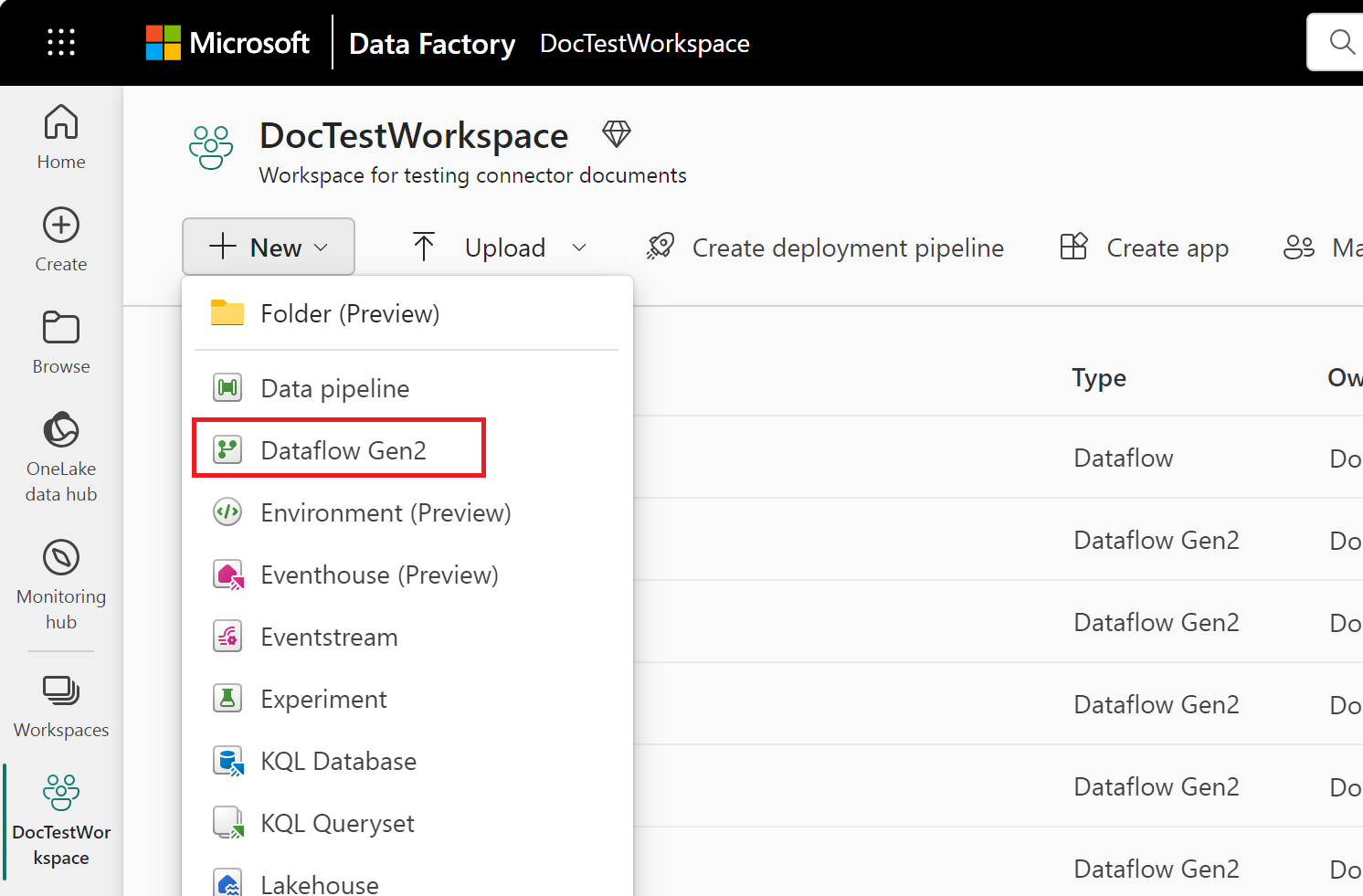
From your Data Factory workspace, select New > Dataflow Gen2 to create a new dataflow.
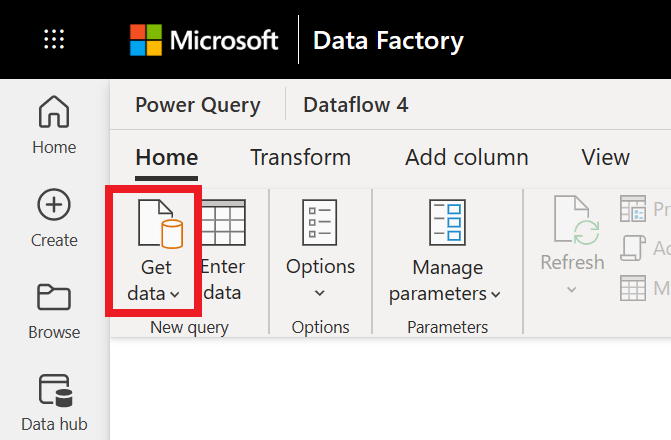
In Power Query, either select Get data in the ribbon or select Get data from another source in the current view.
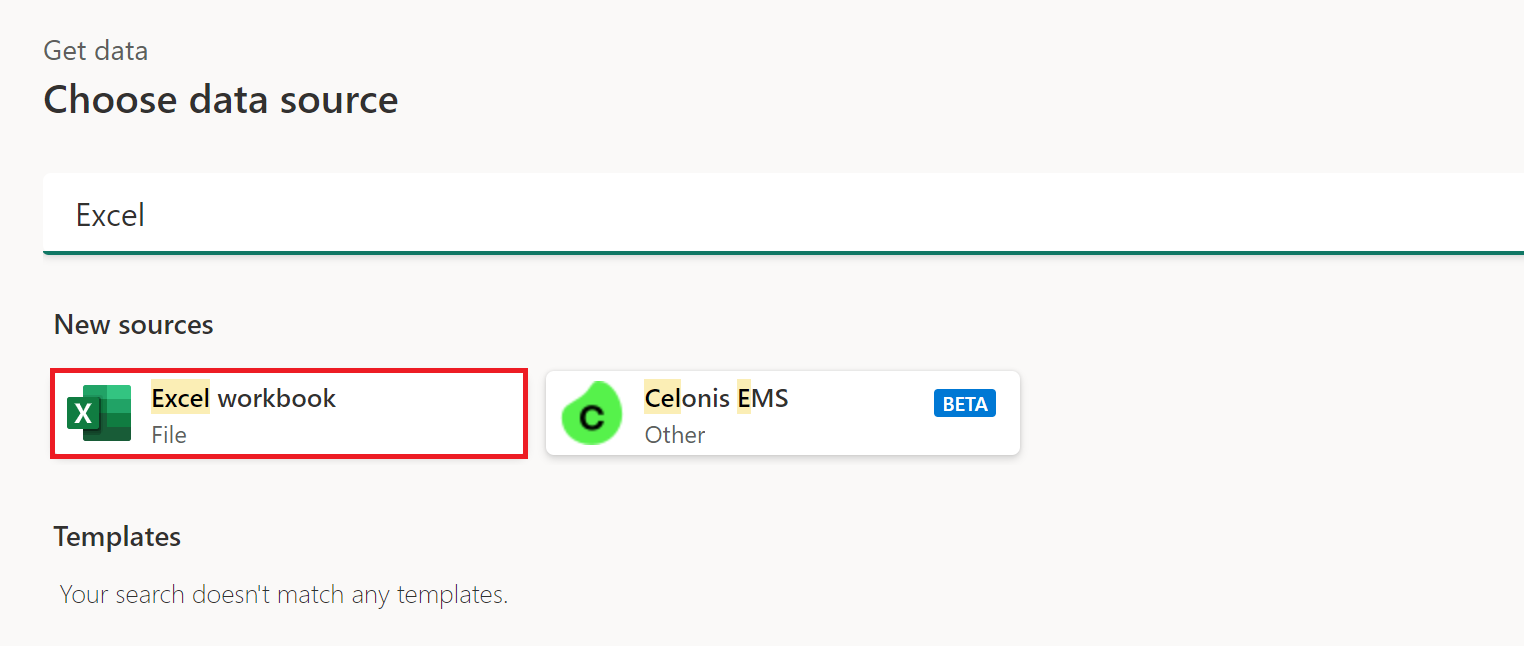
In the Choose data source page, use Search to search for the name of the connector, or select View more on the right hand side the connector to see a list of all the connectors available in Power BI service.

If you choose to view more connectors, you can still use Search to search for the name of the connector, or choose a category to see a list of connectors associated with that category.


Connect to an Excel workbook
To make the connection from Power Query Online:
Select the Excel workbook option in the get data experience. Different apps have different ways of getting to the Power Query Online get data experience. For more information about how to get to the Power Query Online get data experience from your app, go to Where to get data.
In the Excel dialog box that appears, provide the path to the Excel workbook.
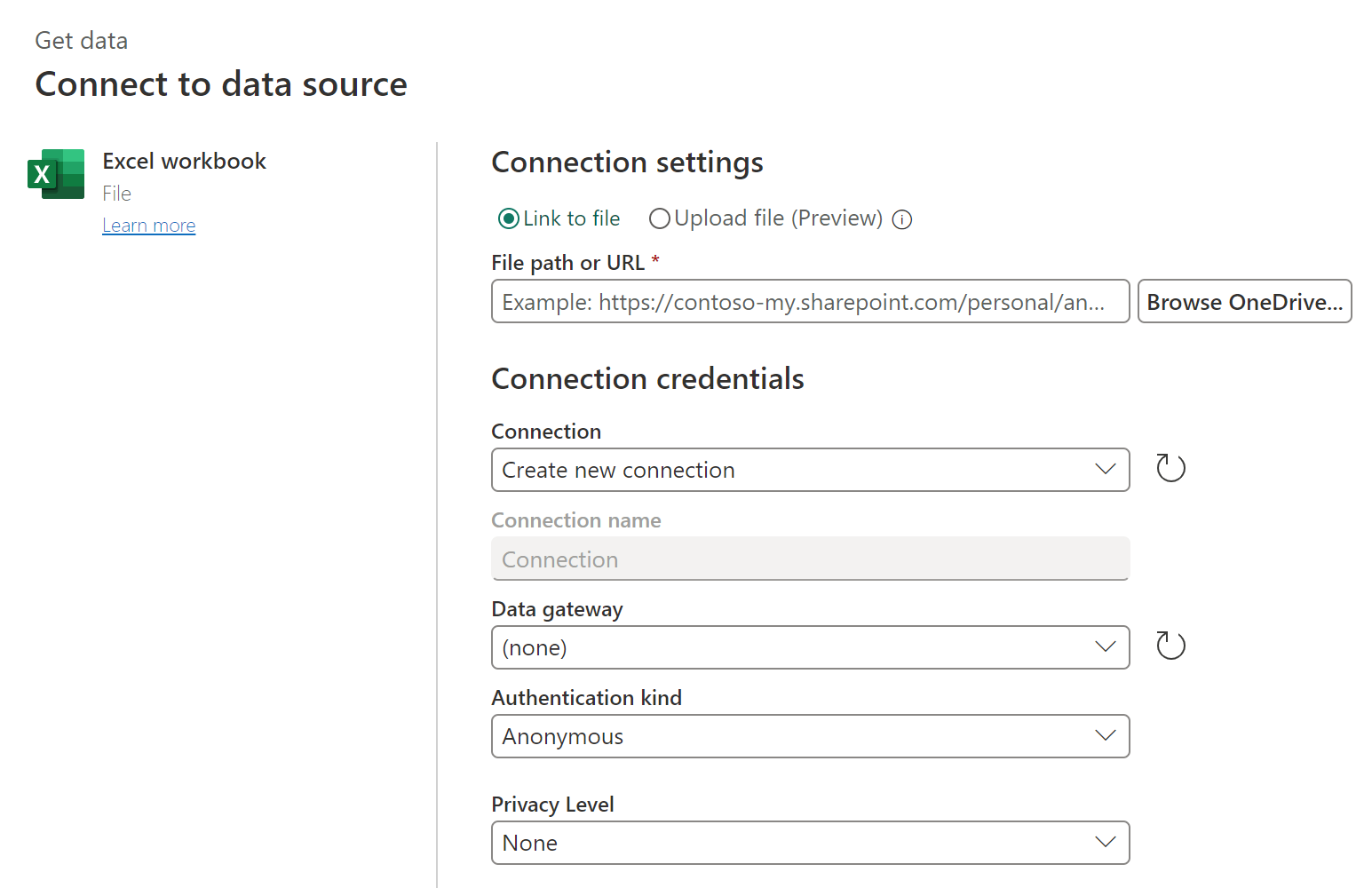
If necessary, select an on-premises data gateway to access the Excel workbook.
If you're accessing this Excel workbook for the first time, select the authentication kind and sign in to your account (if needed).
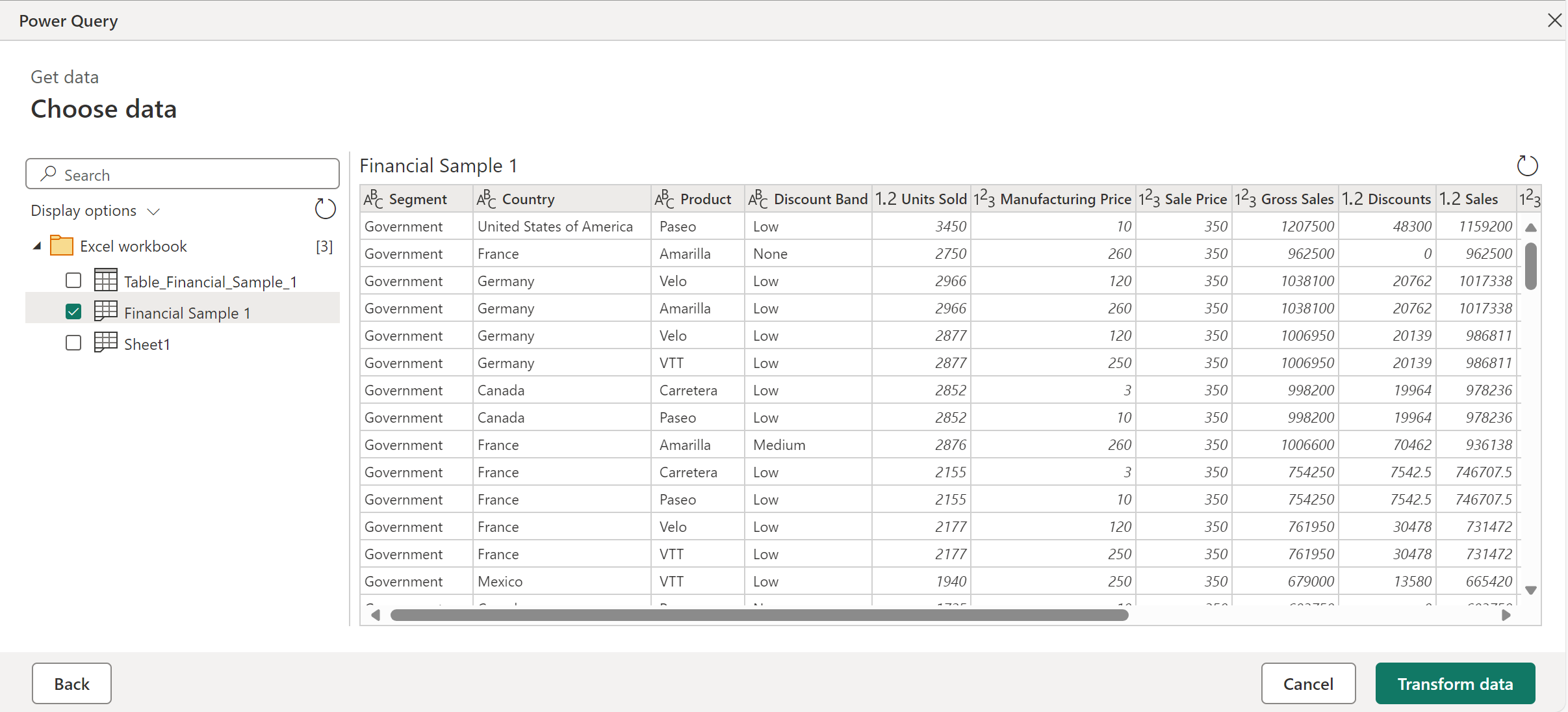
In Navigator, select the workbook information you want, and then Transform Data to continue transforming the data in Power Query Editor.
Limitations and considerations
- Power Query Online is unable to access encrypted Excel files. Since Excel files labeled with sensitivity types other than "Public" or "Non-Business" are encrypted, they aren't accessible through Power Query Online.
- Power Query Online doesn't support password-protected Excel files.
- The Excel.Workbook
useHeadersoption converts numbers and dates to text using the current culture, and thus behaves differently when run in environments with different operating system cultures set. We recommend using Table.PromoteHeaders instead.
More information
- Excel connector suggested tables
- Excel connector troubleshooting
- Excel connector known issues and limitations