Note
Access to this page requires authorization. You can try signing in or changing directories.
Access to this page requires authorization. You can try changing directories.
Note
This feature is in preview. Names, screens, and behavior might change before general availability.
Data connection policies give Fabric tenant administrators centralized control over how cloud connections authenticate and which Microsoft Entra ID tenants they can reach. Today, admins can govern access at the connector or endpoint level, but they have limited control over:
- Which authentication mechanisms users are allowed to use, and
- Which Microsoft Entra ID tenants users are allowed to connect to.
Data connection policies close both gaps by introducing centralized allowlists that are enforced when cloud connections are created and used.
Who can use this feature
- Role: Fabric tenant administrator.
- Scope: Policies apply tenant-wide to all existing and new cloud connections.
- Connection types affected: Cloud connections. Under Cloud connection policies, you can set a rule for any individual cloud connection kind (for example, Web, Web v2, or Azure DevOps – Source control), and an All other connection kinds rule acts as a catch-all for everything else. This means every cloud connection kind is governable—either by a specific rule or the catch-all.
Where to find it
- Open the Power BI Admin portal (the Fabric/Power BI admin experience).
- In the left navigation, select Data Policies.
- Open the Data connection policies page.
The page has three tabs:
| Tab | Purpose |
|---|---|
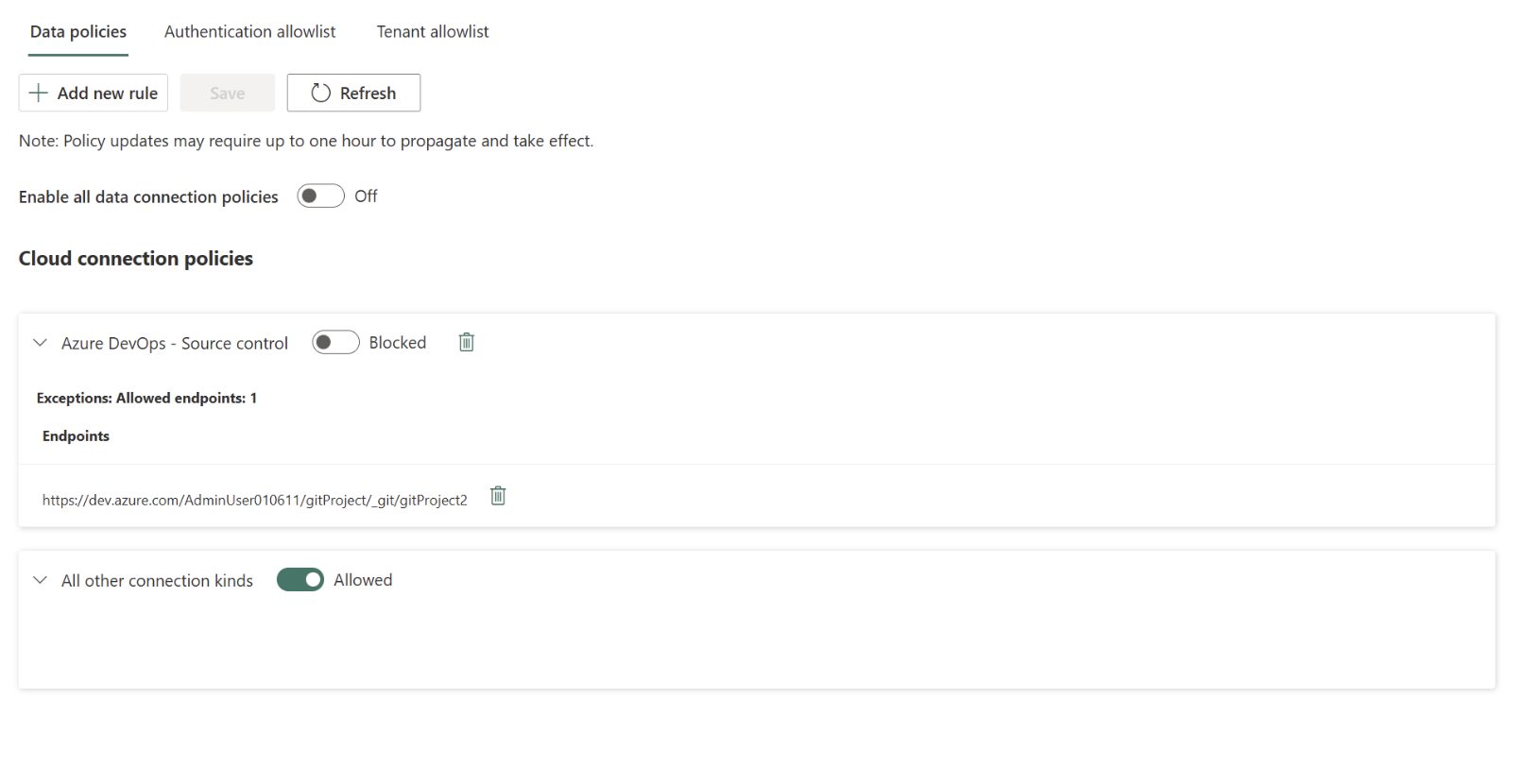
| Data policies | Block or allow specific connection kinds. Includes a master Enable all data connection policies toggle and per-kind rules under Cloud connection policies (for example, Azure DevOps – Source control set to Blocked, All other connection kinds set to Allowed). A blocked kind can define endpoint-level exceptions (specific allowed endpoints); some kinds don't support endpoints. |
| Authentication allowlist | Restrict which authentication methods cloud connections can use. |
| Tenant allowlist | Restrict which Microsoft Entra ID tenants cloud connections can target. |
Data policies
Use the Data policies tab to block or allow specific cloud connection kinds, with optional endpoint-level exceptions for kinds that support them.
Turn on and configure a data policy
- Go to Admin portal > Data Policies > Data connection policies > Data policies.
- Turn on Enable all data connection policies.
- Under Cloud connection policies, select Add new rule.
- Select a connection kind (for example, Azure DevOps – Source control) and set it to Blocked or Allowed.
- For a blocked kind that supports endpoints, optionally add endpoint-level exceptions that specify the endpoints to allow. Some kinds don't support endpoints.
- Use the All other connection kinds catch-all rule to set the default behavior for every kind that doesn't have a specific rule.
- Select Save.
Tip
Select Refresh to reload the current policy state.
Authentication allowlist
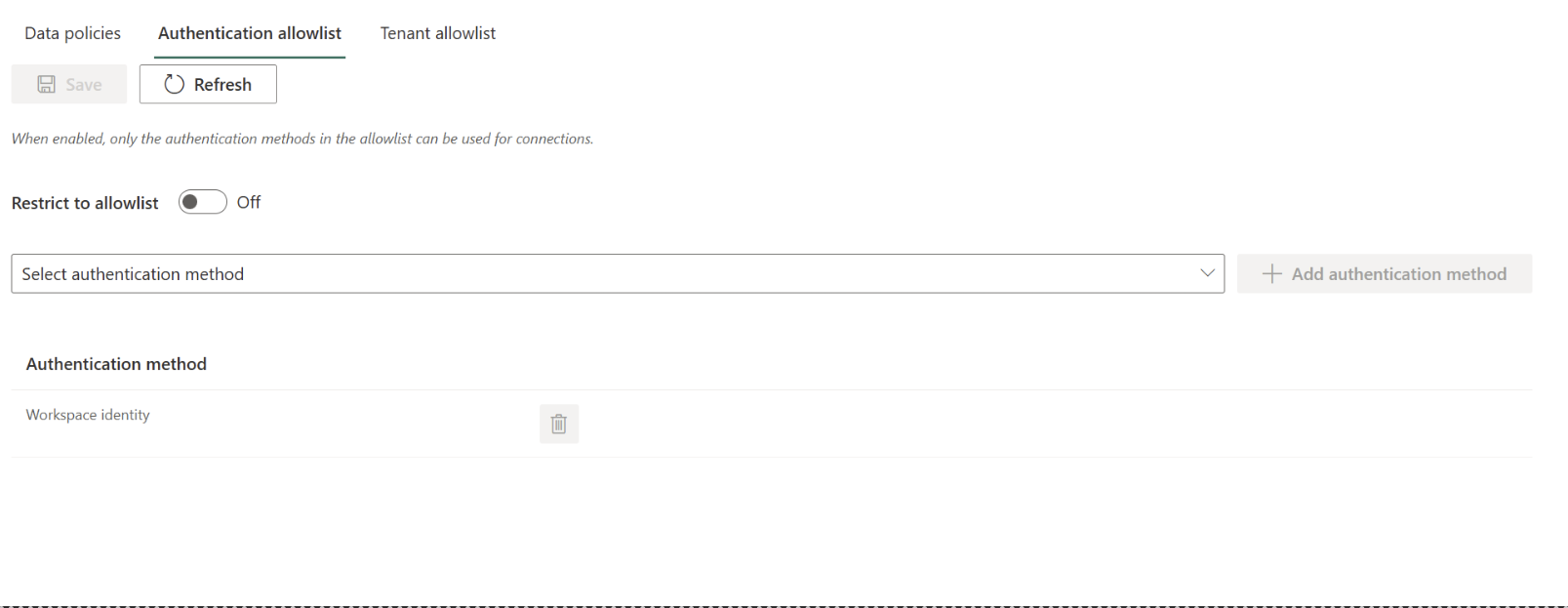
Use the Authentication allowlist to define the set of authentication methods that cloud connections are permitted to use. When enforcement is on, any connection using a method that isn't on the allowlist fails policy evaluation.
Turn on and configure an authentication allowlist
- Go to Admin portal > Data Policies > Data connection policies > Authentication allowlist.
- Turn on Restrict to allowlist. When enabled, only the authentication methods in the allowlist can be used for connections.
- In Select authentication method, choose a method and select Add authentication method.
- Repeat to add each method you want to permit. Added methods appear in the Authentication method list. Use the delete (trash) icon to remove one.
- Select Save.
- In Confirm changes, review the note that saving applies authentication changes across all cloud connections and affects all users across the organization. Select I understand and accept the risk, and then select Continue.
Tip
Select Refresh to reload the current policy state.
Supported authentication methods
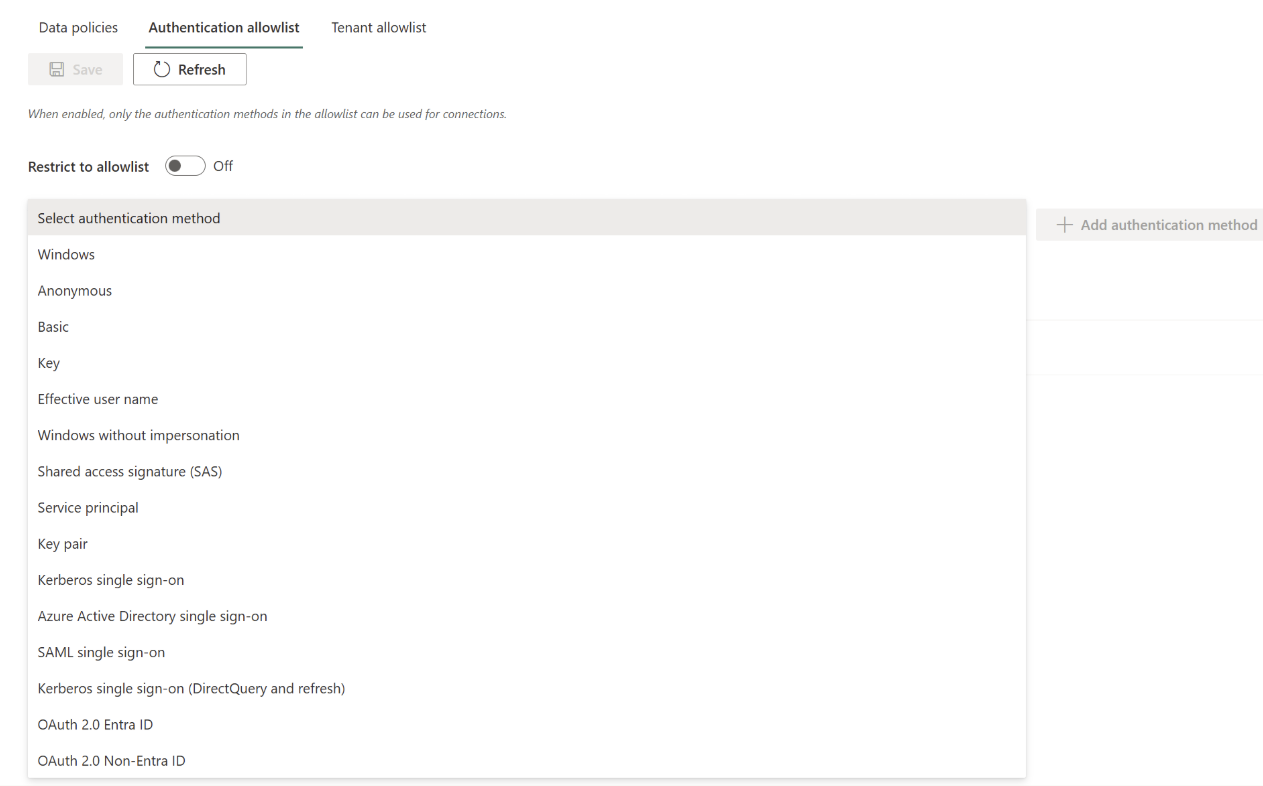
The Select authentication method dropdown lists the authentication kinds that can be added to the allowlist:
- Windows
- Anonymous
- Basic
- Key
- Effective user name
- Windows without impersonation
- Shared access signature (SAS)
- Service principal
- Key pair
- Kerberos single sign-on
- Azure Active Directory single sign-on
- SAML single sign-on
- Kerberos single sign-on (DirectQuery and refresh)
- OAuth 2.0 Entra ID
- OAuth 2.0 Non-Entra ID
Tenant allowlist
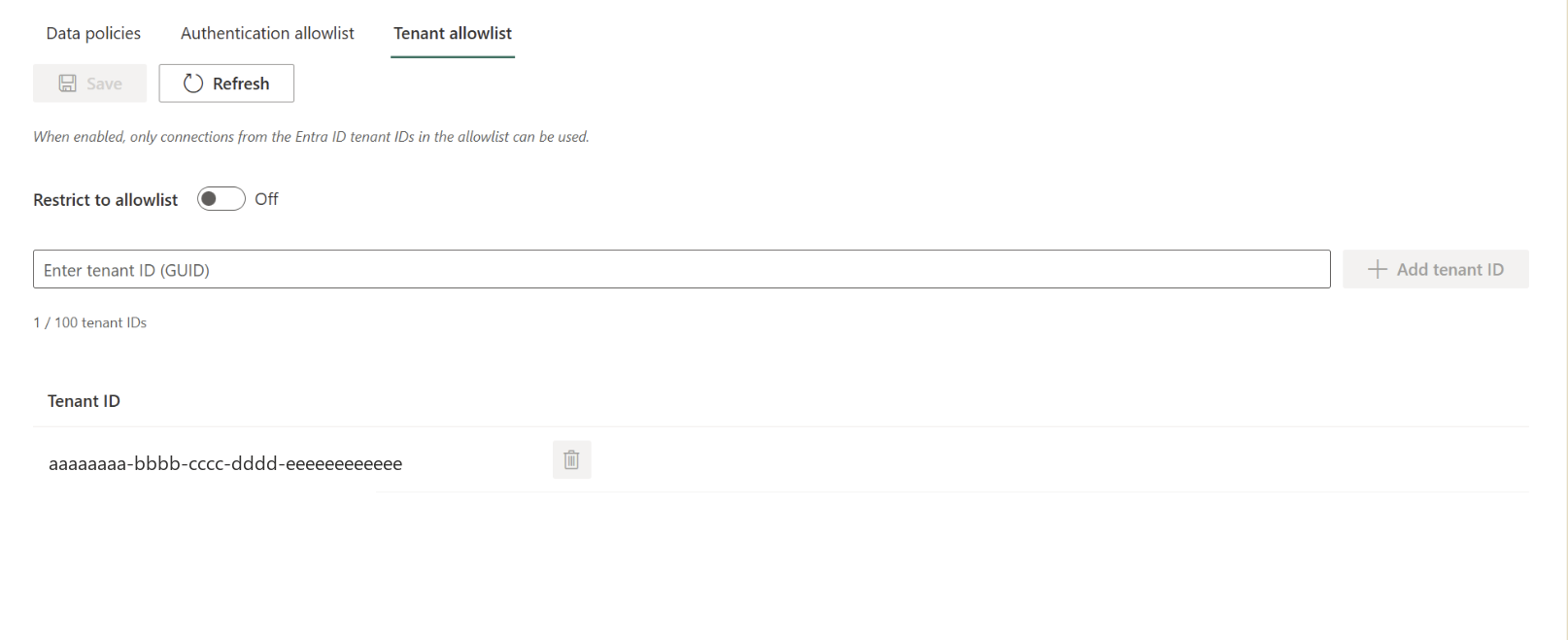
Use the Tenant allowlist to define which Microsoft Entra ID tenants cloud connections may connect to. When enforcement is on, connections whose target tenant isn't on the allowlist fail policy evaluation—both at creation time and for existing connections.
Turn on and configure a tenant allowlist
- Go to Admin portal > Data Policies > Data connection policies > Tenant allowlist.
- Turn on Restrict to allowlist. When enabled, only connections to the Microsoft Entra ID tenant IDs in the allowlist can be used.
- In Enter tenant ID (GUID), paste a tenant ID and select Add tenant ID.
- Repeat for each tenant you want to permit. A counter shows usage against the limit of 100 tenant IDs (for example, 7 / 100 tenant IDs). Added IDs appear in the Tenant ID list; use the delete icon to remove one.
- Select Save.
- In Confirm changes, review the note that the policy applies to all existing and new cloud Microsoft Entra ID connections in your tenant, potentially affecting business-critical operations. Select I understand and accept the risk, and then select Continue.
Important
The tenant ID field takes a raw GUID and isn't validated against a tenant name. The list shows a single Tenant ID column (GUID) with a delete action—there's no friendly name column, so double-check each GUID before you save.
How enforcement appears to users
When a connection violates an active policy, the connection is blocked and surfaces a policy evaluation failure:
- At creation time, a noncompliant connection is rejected with a red banner, for example: "Unable to create connection for the following reason: This operation was blocked due to inter-tenant data loss prevention policies."
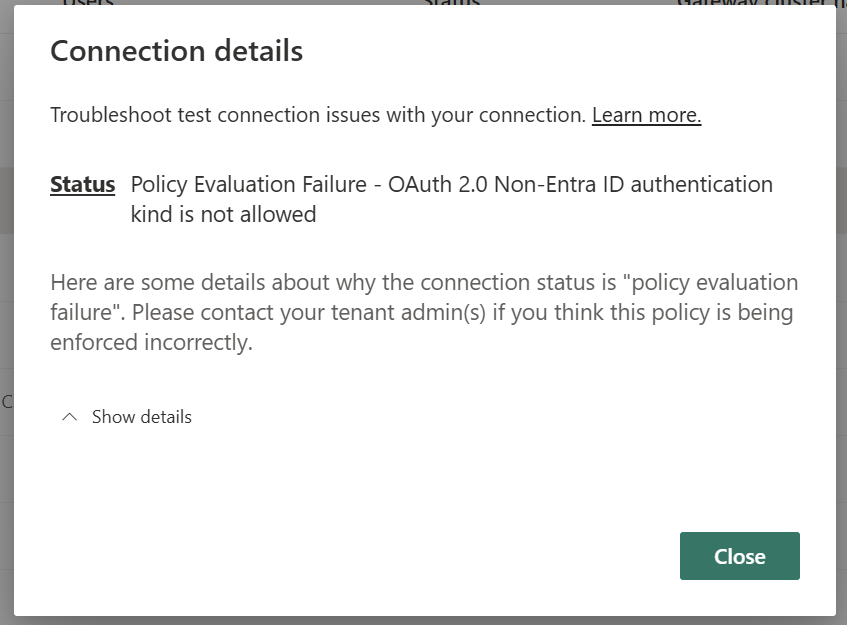
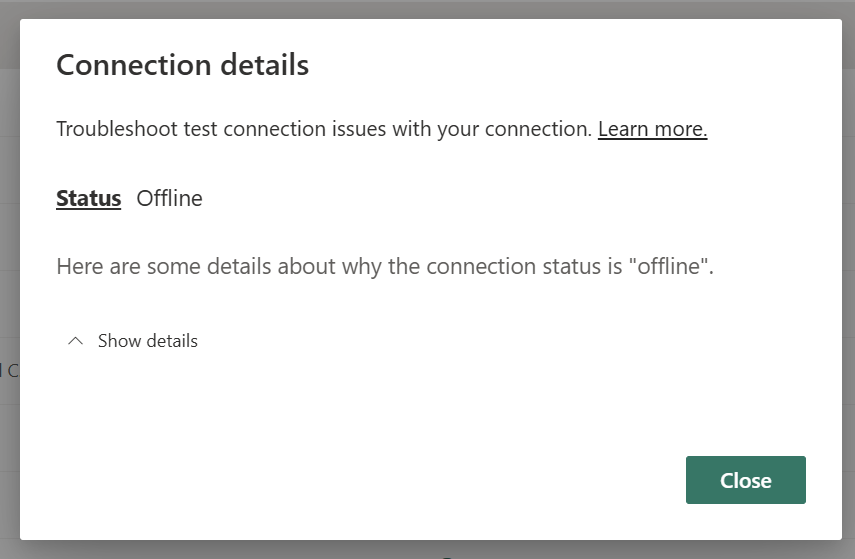
- For existing connections, in Manage connections and gateways, the connection Status shows Policy Evaluation Failure and the connection goes Offline.
- Opening Connection details explains the cause. For example (authentication): "OAuth 2.0 Non-Entra ID authentication kind is not allowed" (error
DMTS_BlockedByAuthenticationKindPolicies). The details add: "Please contact your tenant admin(s) if you think this policy is being enforced incorrectly."
To restore a blocked connection, the tenant admin must either add the required authentication method or target tenant to the appropriate allowlist, or turn off Restrict to allowlist.
Behavior notes
- Policies apply to both new and existing cloud connections.
- Policy updates might take up to one hour to propagate and take effect.
- Turning Restrict to allowlist off removes enforcement for that allowlist.
- Enforcement applies to cloud connections.
Limitations
- Maximum of 100 tenant IDs in the tenant allowlist.
- Enter tenant IDs as GUIDs with no name lookup; there's no friendly name column.