Note
Access to this page requires authorization. You can try signing in or changing directories.
Access to this page requires authorization. You can try changing directories.
The pipeline canvas in Data Factory for Microsoft Fabric is where you visually author and manage your data pipelines. You can add activities, configure dependencies, and build complex workflows directly on the canvas without writing code.
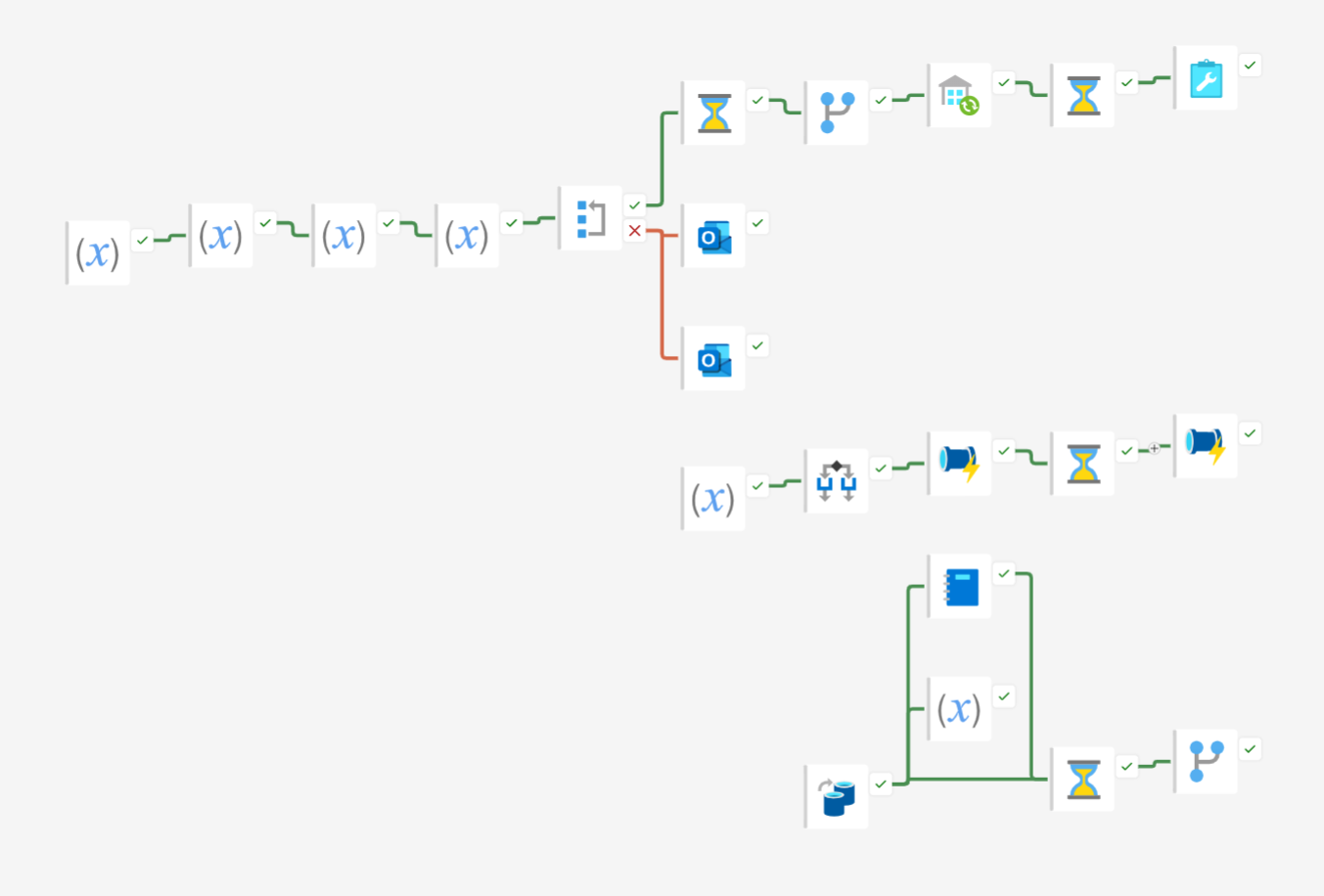
Canvas overview
When you open a pipeline, the canvas displays the following areas:
- Activities toolbar at the top of the canvas, where you browse and select activities to add to your pipeline.
- Canvas area in the center, where activities appear as nodes connected by dependency lines.
- Configuration pane at the bottom, where you configure the selected activity's settings, including General, Settings, and other tabs depending on the activity type.
To add an activity, select it from the Activities toolbar. The activity appears on the canvas as a node that you can select, move, and connect to other activities.
Activity nodes
Each activity on the canvas is displayed as a node that shows the activity type, name, and common actions.
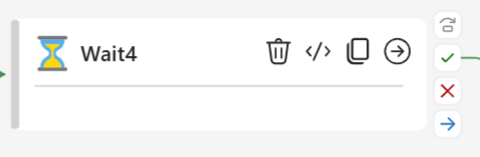
Each node includes:
- Activity type icon and label at the top of the node.
- Activity name below the type label.
- Action buttons for common operations like delete, view code, copy, and add a downstream connection.
- Dependency connectors on the edges of the node for linking activities together.
Select a node to view and edit its configuration in the pane below the canvas.
Dependencies and connections
Activities are connected by dependency lines that define execution flow. Each dependency has a condition that determines when the downstream activity runs:
- On success (green) - The downstream activity runs when the upstream activity succeeds.
- On failure (red) - The downstream activity runs when the upstream activity fails.
- On completion (blue) - The downstream activity runs when the upstream activity completes, regardless of outcome.
- On skip (gray) - The downstream activity runs when the upstream activity is skipped.
To create a dependency, select the connection button on a node and drag to another activity, or use the connection icon on the node's action bar.
Container and nested activities
Control flow activities like ForEach, If Condition, Until, and Switch act as containers that hold inner activities. On the canvas, these containers display a summary of their nested activities directly inside the node.
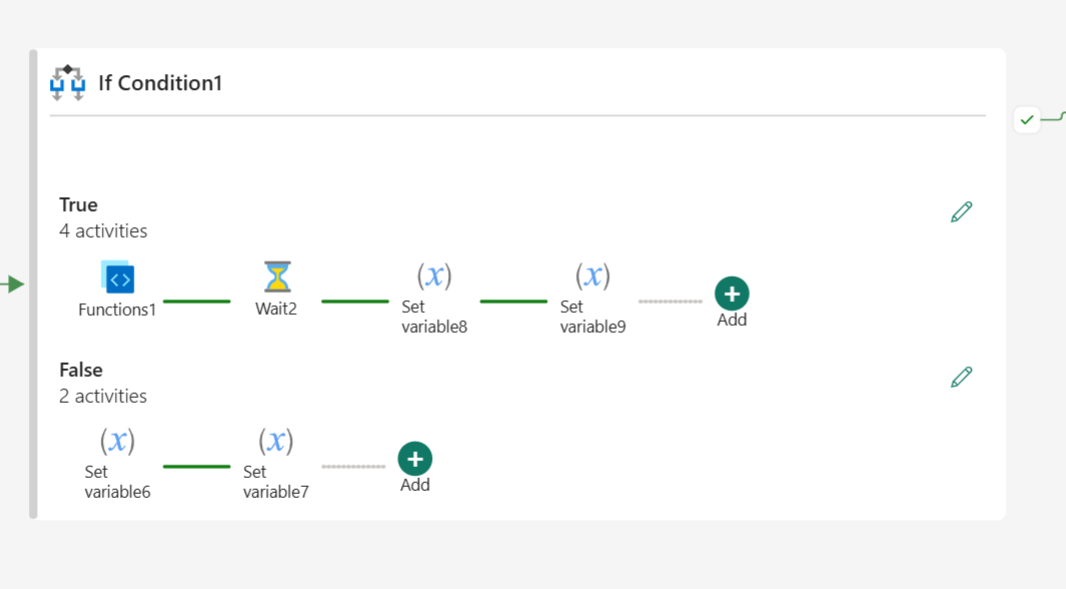
For example, an If Condition node shows:
- True branch with a count and preview of its activities.
- False branch with a count and preview of its activities.
To edit the inner activities of a container, select the pencil icon on the node. The canvas switches to the context of the container, and a breadcrumb trail appears at the top so you can navigate back to the parent pipeline.
Canvas navigation
The canvas includes navigation controls on the right side to help you work with large or complex pipelines:
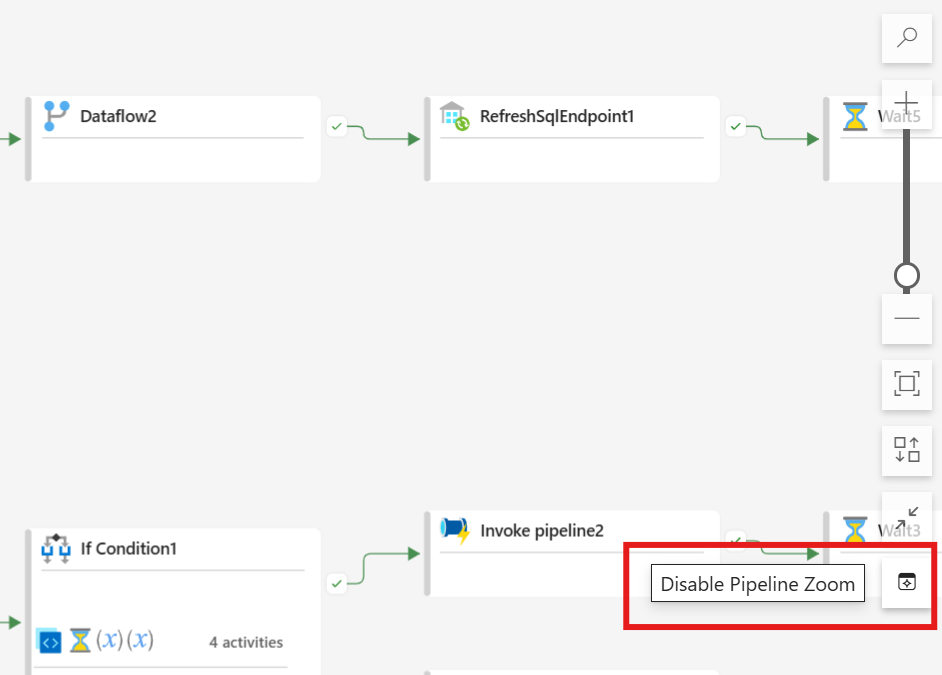
- Search - Find activities by name on the canvas.
- Zoom in / Zoom out - Adjust the canvas zoom level, or use the I and O keyboard shortcuts.
- Zoom to fit - Fit all activities into the current view, or press F.
- Auto-align - Automatically arrange activities on the canvas, or press A.
You can also pan across the canvas by holding Shift and pressing the arrow keys. For a full list of keyboard shortcuts, see Keyboard shortcuts for pipelines.
Canvas and pipeline settings
When no activity is selected, the configuration pane at the bottom of the canvas shows pipeline-level settings. These settings include:
- Parameters - Define input parameters that make your pipeline reusable.
- Variables - Create variables that can be set and modified during pipeline execution.
- Settings - Configure pipeline-level options like concurrency and logging.
- Output - View the output of previous pipeline runs.
For more information on pipeline parameters and variables, see Pipeline overview.
Updated canvas experience
The pipeline canvas has an updated experience that changes how activities are displayed and how you interact with them. The updated experience improves visual clarity, navigation, and performance - especially for pipelines with many activities, complex branching, or deeply nested workflows.
Your existing pipelines continue to run exactly as before. The updates only affect the canvas layout and editing experience, not pipeline execution, or backend behavior.
The updated experience includes:
- Clearer node layout - Activity nodes surface key information and actions directly on the canvas, making it easier to scan activity names and types at a glance.
- Improved scalability - The canvas remains readable and responsive as pipelines grow larger, with better handling of parallel paths and complex branching.
- Inline nested activity previews - Container activities like ForEach and If Condition display a summary of their inner activities directly inside the node, so you can understand pipeline structure without drilling down.
- Enhanced navigation - Navigation controls and canvas performance are optimized for large pipelines, helping you stay oriented as you work with deeply nested or wide-spanning workflows.
Enable the updated experience
To enable the updated canvas experience:
- Open a pipeline to view the pipeline canvas.
- Select the Try the new experience option in the pipeline canvas banner.
After you enable the experience, the pipeline canvas displays activities using the updated node layout.
Disable the updated experience
If you prefer the previous canvas layout, you can switch back at any time:
Select the Disable option in the pipeline canvas banner.
The canvas reverts to the previous layout.