Note
Access to this page requires authorization. You can try signing in or changing directories.
Access to this page requires authorization. You can try changing directories.
Run conditions define when a Fabric pipeline can start. Instead of relying only on a fixed schedule or manually coordinating related pipelines, add run conditions that wait for upstream pipeline runs, data availability, or covered time windows before the pipeline runs.
Use run conditions when you need to:
- Start a downstream pipeline only after the required upstream pipeline runs are complete.
- Coordinate related pipeline runs by a shared business value, such as date, region, customer, batch, partition, tenant, or model version.
- Wait until required files are available in OneLake or Azure Data Lake Storage before a pipeline run proceeds.
- Coordinate a downstream time window with one or more successful upstream time windows.
Note
This feature is in preview.
Supported run condition types
Fabric pipelines support the following run condition types.
| Run condition type | Use when | Example |
|---|---|---|
| Custom | A pipeline should run after one or more upstream pipelines meet matching criteria. | Run a transformation pipeline after ingestion and validation pipelines complete for the same region. |
| Data availability | A pipeline should wait until required data is available in a configured source. | Check for .parquet files under an /input/ path before an ingestion pipeline run proceeds. |
| Window coverage | A pipeline should run after upstream scheduled windows successfully cover the downstream window. | Run a daily pipeline after all required hourly upstream windows complete successfully. |
Configure a run condition
Create or open an existing pipeline.
On the pipeline authoring canvas, go to the Run conditions tab.
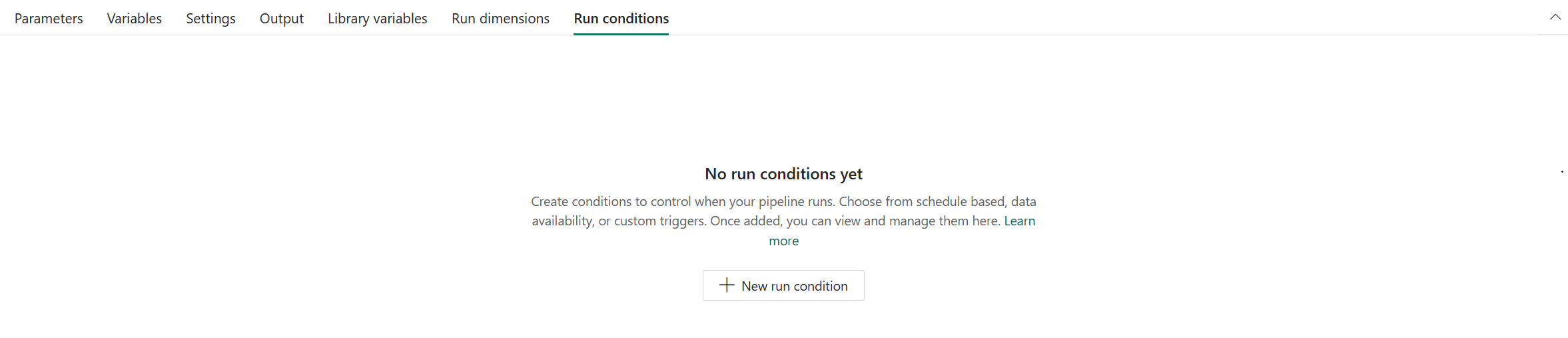
Select New run condition.
From the Type list, select Custom, Data availability, or Window coverage.
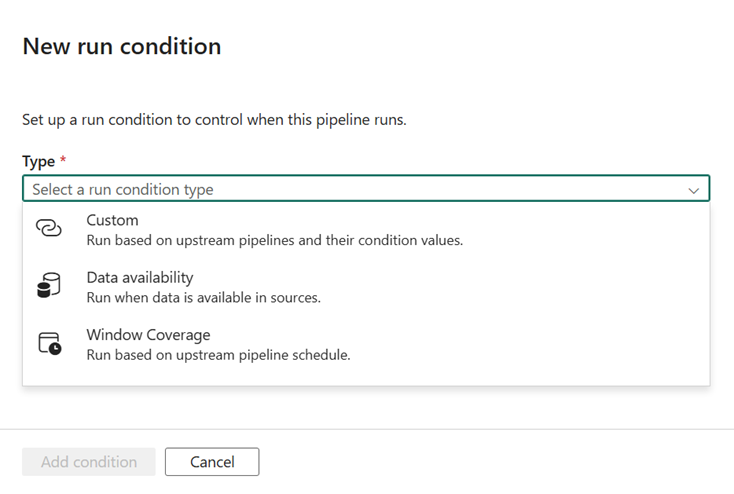
Configure the required settings for the selected type.
Save the pipeline.
Create a custom run condition
Use a custom run condition when a downstream pipeline should wait for one or more upstream pipelines. Configure the run condition on the downstream pipeline, which starts after the configured dependency criteria are met.
A custom run condition includes:
- A run condition name.
- A run dimension that matches related pipeline runs.
- A connection.
- One or more upstream pipelines.
Run dimensions
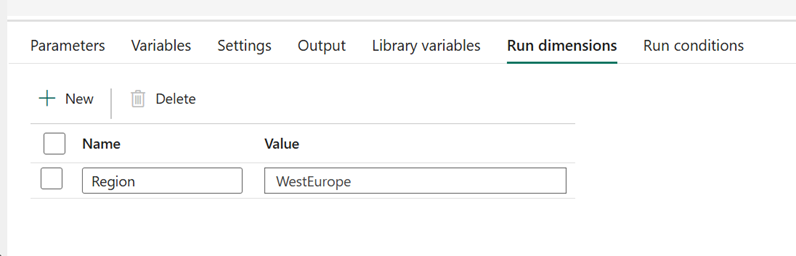
The run dimension is the correlation value that identifies which upstream and downstream pipeline runs belong to the same logical unit of work. Common examples include processing date, region plus date, customer ID, batch ID, partition name, tenant, or model version.
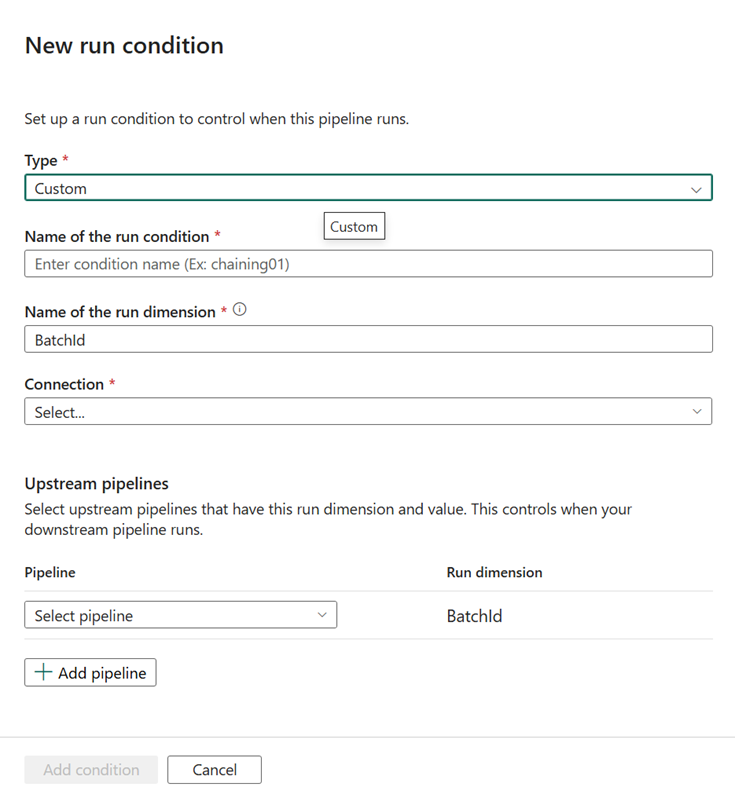
Choose a run dimension that upstream and downstream pipelines use to match related runs.
Important
Run dimension values should identify a unique logical run. A run dimension value is evaluated once for a downstream pipeline. If the downstream pipeline already ran for a value, later upstream runs that use the same value don't start another downstream run for that value. Use values such as a batch ID, processing date, or a combination like region plus date when you need to track each run separately.
When you select multiple upstream pipelines, the downstream pipeline waits for all matching upstream pipeline runs to meet the configured condition. Use this pattern when the downstream pipeline requires output from more than one upstream pipeline.
Coordinate daily processing by region
In this example, an ingestion pipeline and a validation pipeline both run for the same logical batch, such as Region=WestEurope and ProcessingDate=2026-09-18. A downstream transformation pipeline uses the same run dimension values and starts only after the required upstream pipelines complete for that batch.
Create a data availability run condition
Use a data availability run condition when a pipeline should wait until required data is present in a configured source. Data availability checks for data before the pipeline activities begin. It's a separate run condition type, not a pipeline-status dependency.
A data availability run condition includes:
- A run condition name.
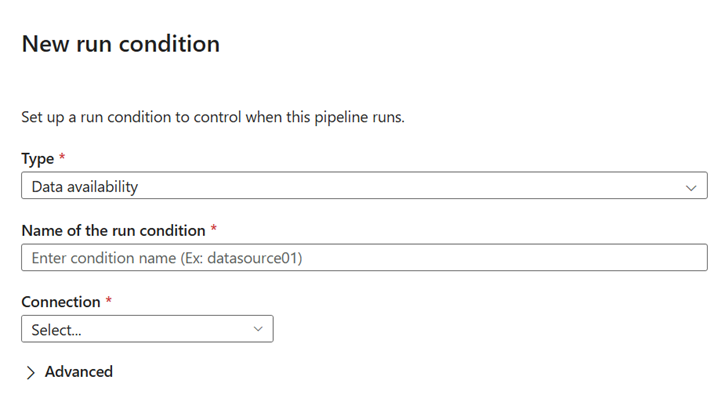
- A source connection.
- Source-specific condition settings, such as a path or file filter.
For example, configure a data availability condition to check for files in a OneLake or Azure Data Lake Storage folder. You can also limit the condition to files that match a specific path prefix or suffix, such as files under /input/ with a .parquet extension.
Configure the condition to match the required data availability criteria. For example, define the source location and file filters required before the pipeline run proceeds.
Create a window coverage run condition
Use a window coverage run condition when a downstream pipeline should wait for successful upstream schedule intervals. The upstream pipeline must have an interval-based schedule. Window coverage matches or aggregates upstream time windows before the downstream pipeline runs.
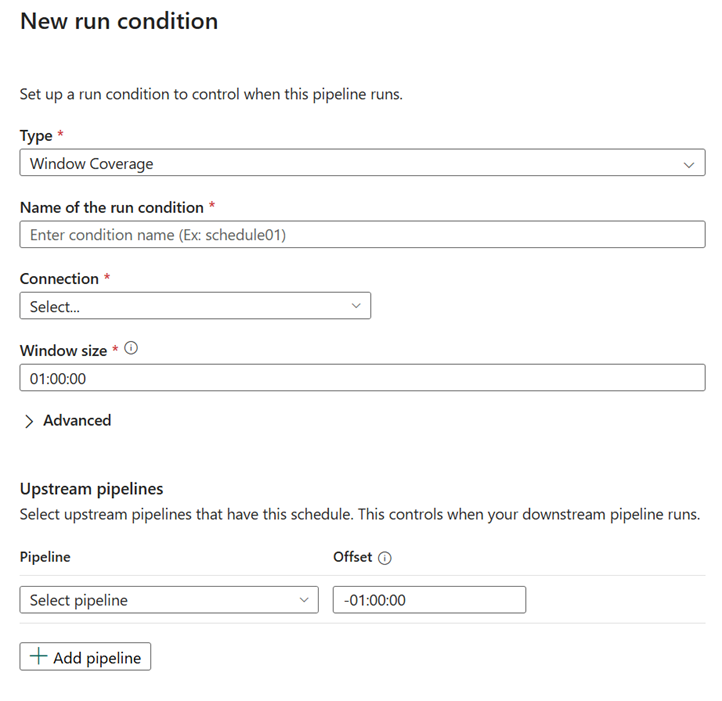
A window coverage run condition includes:
- A run condition name.
- A connection.
- A window size.
- One or more upstream pipelines.
- An offset, if needed.
Common window coverage scenarios include:
- Matching windows: An hourly downstream window starts after the corresponding hourly upstream window succeeds.
- Aggregation: A daily downstream window waits until all covered hourly upstream windows succeed.
- Recovery: If an upstream window fails, the downstream window remains blocked until a rerun of the failed upstream window succeeds.
- Window context: The downstream pipeline can use the associated
windowStartTimeandwindowEndTimevalues.
Window coverage is interval-based coordination. It doesn't create or change interval windows. The interval-based schedule and window settings define the windows.
Manage run conditions
After you create a run condition, you can review, edit, or remove it from the Run conditions tab.
When you update a run condition, confirm that the pipeline still has the expected upstream pipelines, connections, run dimension values, and window settings.

Monitor pipeline runs with run conditions
Use pipeline monitoring to confirm whether a pipeline run started, waited, failed, or remained blocked because a run condition wasn't satisfied. Review the upstream pipeline runs, data availability criteria, or window interval associated with the condition.
Monitoring can help you determine whether the cause is an upstream pipeline state, missing data, or a window that isn't fully covered.
Limitations and considerations
- Multiple upstream pipelines use all-required matching behavior. The downstream pipeline waits for all selected upstream pipelines that match the run condition.
- If an upstream pipeline is renamed, moved, deleted, or becomes inaccessible, review the dependent pipeline's run condition configuration.
- Cross-workspace dependencies require appropriate access to the upstream and downstream pipelines.
- Data availability checks data arrival or existence. Use custom or window coverage run conditions for pipeline-to-pipeline coordination.
- Window coverage coordinates time intervals. It doesn't replace the interval-based schedule settings that define window schedules.