Note
Access to this page requires authorization. You can try signing in or changing directories.
Access to this page requires authorization. You can try changing directories.
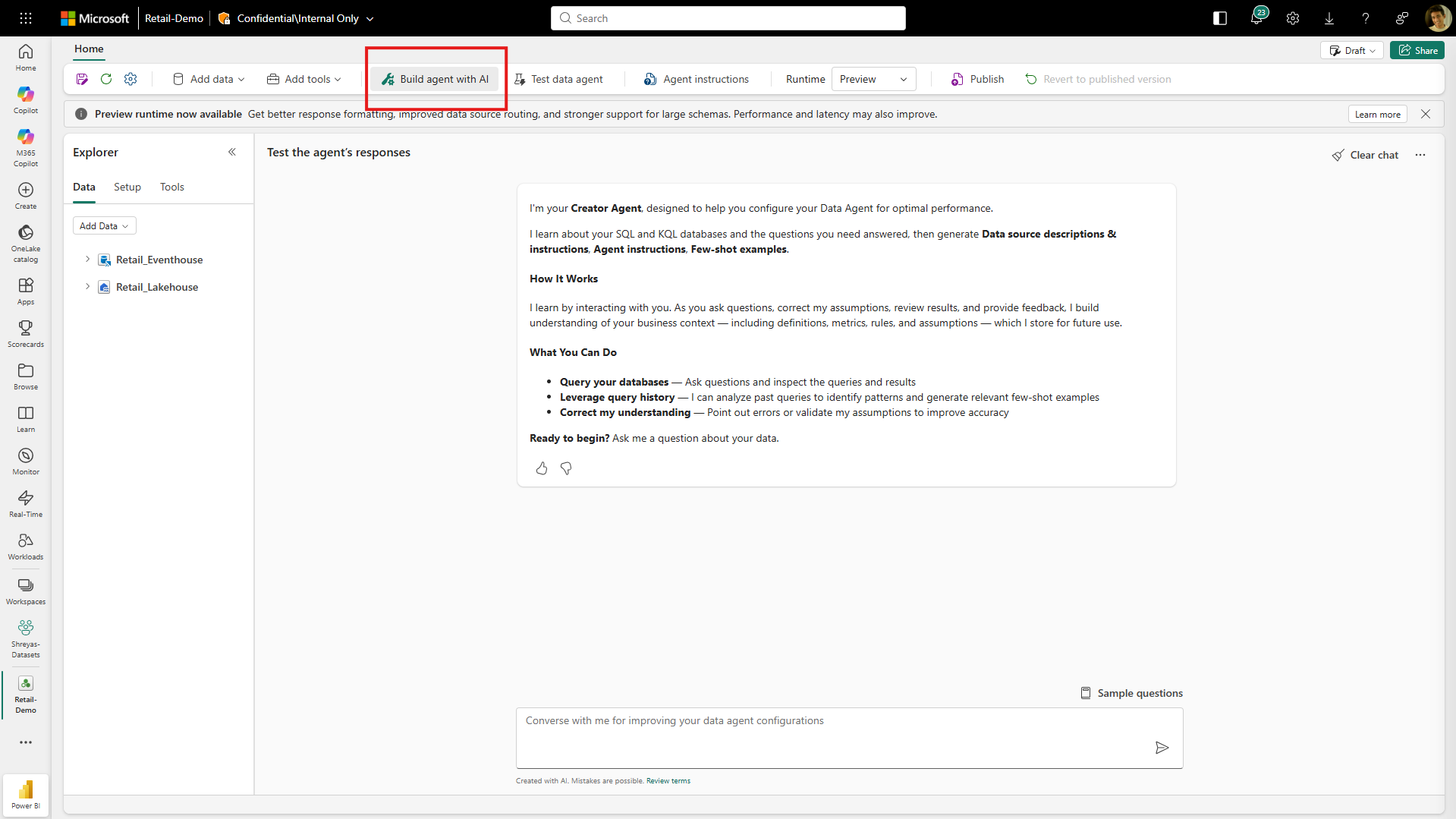
Build agent with AI mode is a specialized AI assistant that helps you quickly build and refine the configurations that determine how a data agent behaves when answering questions over your data. Build agent with AI guides you through generating and improving the core configurations: Agent Instructions, Data Source Instructions, Data Source Descriptions, and Example Queries.
Use the Build agent with AI mode to explore your connected data source, discuss the types of questions you want your data agent to answer, and review recommended configuration updates. When you're ready, accept the suggestions to apply them, then switch to Test data agent to validate the improvements.
Note
This feature is currently in preview and is available for SQL and Eventhouse data sources only. Build agent with AI mode doesn't work if you add any unsupported data sources to your data agent.
Prerequisites
Before using Build agent with AI, make sure you have the following items:
- A Fabric capacity (an F SKU or a trial capacity) that hosts your data agent.
- The data agent tenant setting enabled by your Fabric administrator. For more information, see Configure Fabric data agent tenant settings.
- A data agent with at least one attached supported data source. You can add more than one data source, but they must all be supported source types.
- All relevant tables selected as input to the data agent.
- Read permissions on the data source. Query history exploration also requires permission to view query history in that source.
Configuration types
Build agent with AI helps you generate and manage four types of configuration artifacts that drive data agent quality:
| Configuration | Description |
|---|---|
| Agent Instructions | High-level rules that govern how the data agent reasons and selects data sources. |
| Data Source Instructions | Guidance on how to use specific tables, columns, joins, and how data is modeled within a source. |
| Data Source Descriptions | High-level descriptions of what a data source contains and how it's organized. |
| Example Queries | Example natural-language questions paired with queries that capture business logic and expected patterns. |
Get started
Follow these steps to start using the Build agent with AI mode with your data agent:
Create a data agent and add a supported data source with the relevant tables selected.
Select Build agent with AI in the ribbon of your data agent.
- Build agent with AI opens the creator assistant chat experience.
- Test data agent switches to the standard data agent test mode.
Start a conversation. The build agent with AI mode opens with guidance on how to get started. Provide details about what you're trying to build, or ask a question you want the data agent to answer.
Suggested first steps
- Ask the creator assistant a question you want the data agent to answer.
- Ask the creator assistant to explore your schema and summarize key entities.
- Request Data Source Instructions and a few few-shot examples for two or three key questions.
- Execute a query to validate the generated output.
- Accept the updates and switch to Test mode to try sample questions.
Key features
The Build agent with AI mode provides four core capabilities designed to help you discover your data, learn from existing patterns, and translate that context into better agent configurations.
Schema exploration
Helps you quickly understand what's available in your attached data source by discovering tables, columns, and the fields most relevant to the questions you want your data agent to answer.
Example prompts:
- "Explore the schema and tell me which tables look relevant for sales pipeline reporting."
- "What columns should I use to join customers to orders?"
- "Show me the key date fields and how they're used across tables."
The Build agent with AI mode summarizes key entities, likely join paths, and important columns you can reference in Data Source Instructions or few-shot examples.
Query history exploration
Surfaces patterns from successfully executed queries, such as common joins, filters, and aggregation logic, to inform better few-shot examples and more precise Data Source Instructions.
Example prompts:
- "Look at recent query patterns and suggest a few representative few-shot examples."
- "Find common joins between factSales and dimensions and summarize the join keys."
- "Are there standard filters we always apply for active customers?"
The build agent with AI mode summarizes recurring query structures and proposes candidate few-shot examples based on observed patterns.
Note
Access to query history depends on your permissions in the data source. If query history isn't available, the creator assistant falls back to schema-driven recommendations.
Generate instructions and few-shot examples
Generates, improves, and helps you iterate on the configuration artifacts that drive data agent quality, including Data Source Instructions, Data Source Descriptions, and few-shot examples.
Example prompts:
- "Generate Data Source Instructions for this lakehouse so the agent uses the correct join keys and date grain."
- "Here are my current Agent Instructions. Please rewrite them to be clearer and remove ambiguity."
- "Suggest five few-shots about revenue and returns."
- "Please identify few-shots that contradict each other and recommend corrections."
The creator assistant proposes updates and you choose whether to apply them. Review changes carefully before accepting, as updates replace your existing configuration blocks when applied during the current preview.
Execute query
Executes read-only queries against your attached data source to validate assumptions during setup—such as confirming join paths, checking data availability, and verifying that proposed few-shot examples return the expected results.
Example prompts:
- "Run a sample query to verify the join between dimCustomer and factSales."
- "Execute this query and tell me if the results look correct for active customers."
- "Test the query you proposed for this few-shot and adjust it if it returns duplicates."
The creator assistant shows the query it ran and summarizes the results. A successful run returns a result set you can review in the chat. If the query fails, the creator assistant reports the error so you can adjust the instructions or few-shot examples.
Important
Only read-only queries are supported. Data modification operations are blocked.
Recommended workflow
Most successful setups follow a simple iterative loop:
- Explore — Use Schema Exploration to understand the tables, columns, and join paths available in your data source.
- Learn — Use Query History Exploration (when available) to discover known patterns and common query structures.
- Generate — Use those inputs to Generate Instructions and few-shot examples tailored to your business questions.
- Validate — Use Execute Query to test generated queries against real data and refine configurations.
- Apply — Accept the configuration updates and switch to Test mode to validate end-to-end with sample questions.
Repeat this loop as needed to refine your data agent's behavior.
Update configurations
The build agent with AI mode proposes configuration changes through the chat experience. When a suggestion is ready:
- Review the proposed changes in the chat.
- Select Accept to apply the changes to your data agent, or decline to keep your current configuration.
- Changes take effect immediately, enabling a tight build → test → refine loop.
Unsupported configurations (preview)
Build agent with AI doesn't generate or manage the following configurations:
- Data source selection (you must already attach a supported data source).
- Schema selection.
- Data agent description (used when publishing the data agent).
- Semantic Models and Power BI's Prep for AI.
- Ontology.
- Graph.
- Unstructured Data.