Note
Access to this page requires authorization. You can try signing in or changing directories.
Access to this page requires authorization. You can try changing directories.
Microsoft 365 provides a comprehensive set of productivity tools that help organizations collaborate, communicate, and make data-driven decisions. With Teams at the center of communication and collaboration, users can access their organization's knowledge and insights in one unified workspace. Therefore, Microsoft 365 isn't just a suite of applications, but a platform that connects people to the information they need to act confidently.
Important
This feature is in preview.
Prerequisites
- A paid F2 or higher Fabric capacity, or a Power BI Premium per capacity (P1 or higher) capacity with Microsoft Fabric enabled.
- Enable cross-geo processing and cross-geo storing for AI based on requirements explained in Fabric data agent tenant settings.
- At least one of these data sources, with data: A warehouse, a lakehouse, a Power BI semantic model, a KQL database, a mirrored database, or an ontology. You must have read access to the data source.
- Microsoft 365 Copilot license or Office 365 commercial subscription
- User licenses for each individual using Fabric data agent in Microsoft 365 Copilot.
- Both the Fabric data agent and Microsoft 365 Copilot must be on the same tenant and must sign in to both with the same account.
How it works
With Fabric data agents, business users can now tap into organizational knowledge stored in Fabric OneLake to get actionable insights. After creating and validating a Fabric data agent, you can publish it to make it available to others. As part of the publish process, you can also make the agent available to the Agent Store in Microsoft 365 Copilot by selecting Publish to Agent Store.

Once published, the Fabric data agent appears in the Agent Store in Microsoft 365 Copilot, allowing users to interact with it directly from Teams.
Note
It might take a few seconds for your Fabric data agent to appear in the Agent Store. If it doesn't show up immediately, select the Expand Navigation button on the left side of the window to refresh the list of agents.
If agents don't appear, ask your Microsoft 365 admin to confirm that Copilot extensibility is enabled for your account. For more information, see Manage Copilot agents.
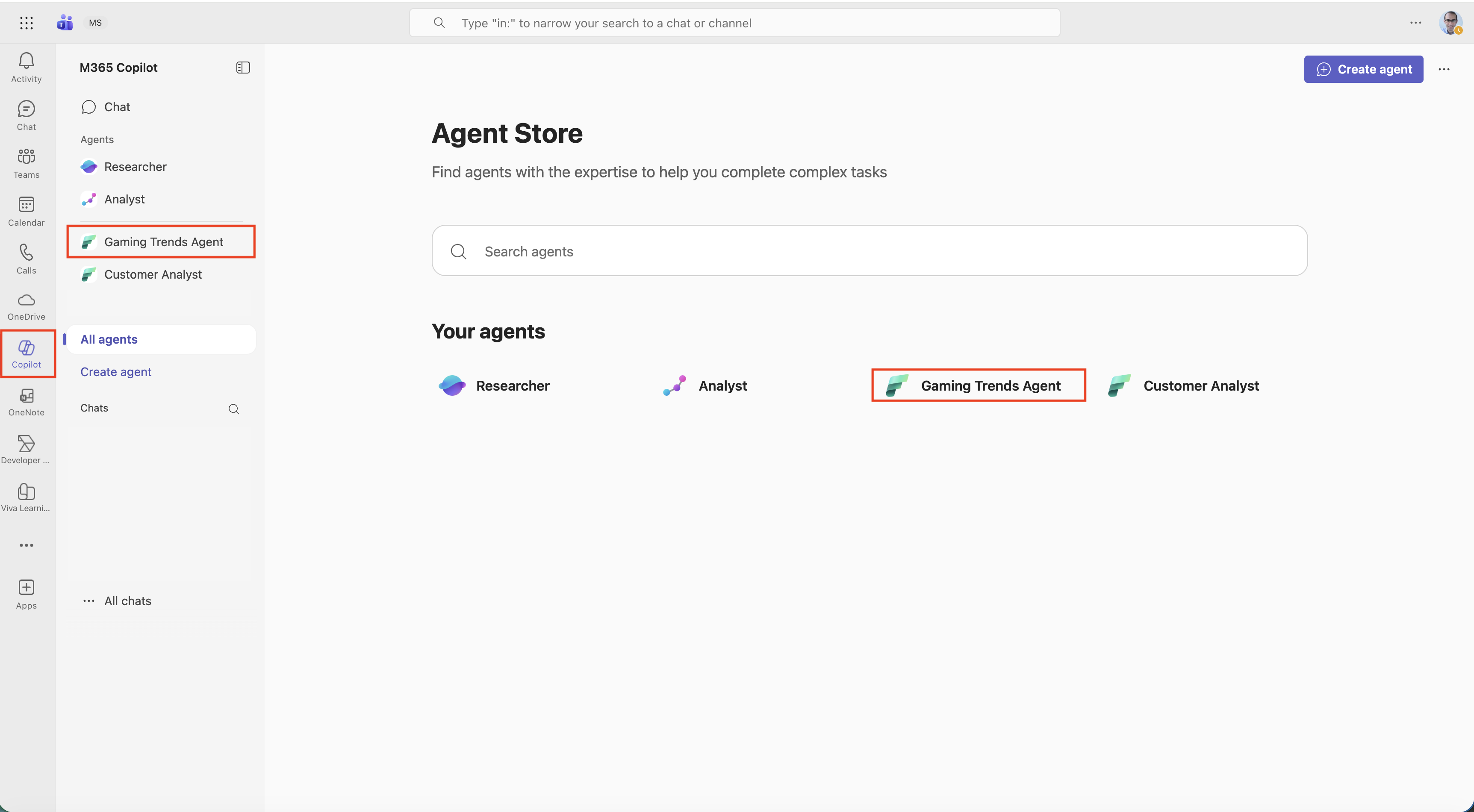
In Microsoft 365 Copilot, you can use the Fabric data agent just like any other Copilot to ask questions, retrieve data, and explore insights generated by the agent. You can either chat directly with the Fabric data agent or use @ to mention it from the main Copilot chat.

When you type @, you see the list of different agents including Fabric data agents that are published to the Agent Store and are available to you. Once you select one, it's attached to the chat, and you can start asking questions and getting answers right away.

You can also share the agent with colleagues. To do this, select the agent name, select Share, copy the link, and send it in a 1:1 chat, group chat, or Teams channel. This allows your teammates to use the agent and explore the same insights within their own Copilot experience.

Note
When sharing a Fabric data agent in Microsoft 365 Copilot, you need to make sure that the recipients have access not only to the data agent but also to the underlying data sources it connects to.
It's important to note that when you interact with the Fabric data agent in Microsoft 365 Copilot, you only see results based on your access to the underlying data and all row-level and column-level security settings are fully respected.
Additionally, users can use the code interpreter in Microsoft 365 Copilot to generate visualizations from results returned by the Fabric data agent. This enables users to explore insights visually and interactively, helping them understand trends, patterns, and metrics directly within Teams.
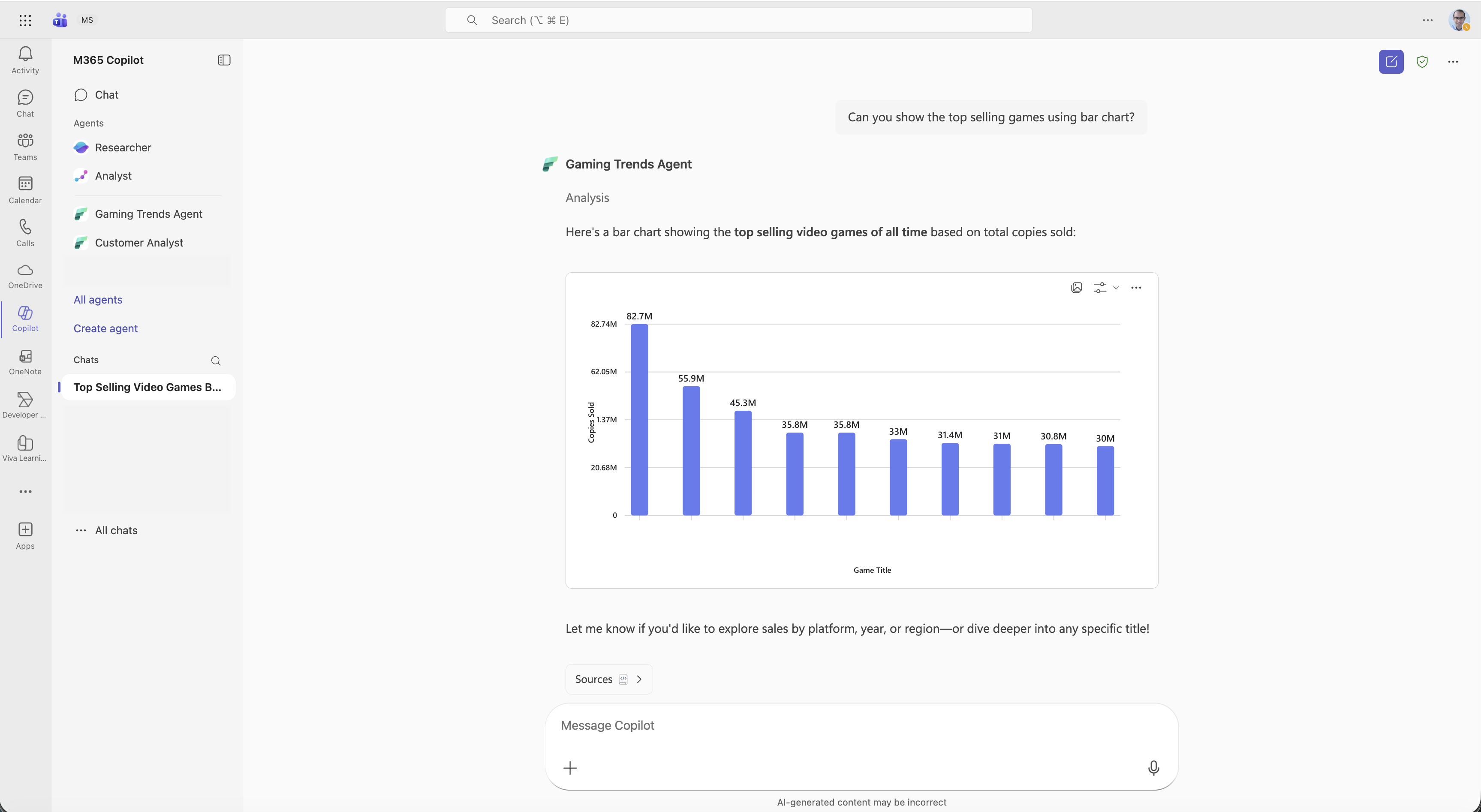
By publishing your Fabric data agent to the Agent Store in Microsoft 365 Copilot, you provide business users with a seamless way to access organizational knowledge from Fabric OneLake, collaborate more effectively, and make informed decisions faster.
Control how Microsoft 365 Copilot handles the output from Fabric data agent
When you publish a Fabric data agent to Microsoft 365 Copilot, the agent runs inside Microsoft 365 Copilot environment that has its own orchestrator. The orchestrator uses the chat context, user intent, and its own model's reasoning to shape the final response.
If you want to minimize the amount of change applied to the Fabric data agent's responses in Microsoft 365 Copilot, you can add specific instructions when you publish the Fabric data agent. The description becomes the description_for_model in Microsoft 365 Copilot, and it influences how the orchestrator handles the Fabric data agent's output.
Note
You can add to the publishing description that the output from Fabric data agent should be delivered as-is, without summarizing, rephrasing, or adding extra interpretation.
Note that these instructions aim to reduce the variation in response. However, the model behind the Microsoft 365 Copilot orchestrator will still reason over the grounding data returned by the Fabric data agent to generate the final response and some level of change is inevitable.