Note
Access to this page requires authorization. You can try signing in or changing directories.
Access to this page requires authorization. You can try changing directories.
Fabric User data functions provides a platform to host your custom logic and reference from different types of Fabric items and data sources. You can use this service to write your business logic, internal algorithms, and libraries. You can also integrate it into your Fabric architectures to customize the behavior of your solutions.
In this guide, we create a new User Data Functions item and write a new function in it. Each User Data Functions item contains code that defines one or many functions that you can run individually.
Tip
For complete samples of User Data Functions with Cosmos DB in Fabric, see Fabric User Data Functions for Cosmos DB on GitHub. These samples are also available within User Data Functions portal in Fabric.
Prerequisites
An existing Fabric capacity
- If you don't have Fabric capacity, start a Fabric trial.
An existing Cosmos DB database in Fabric
- If you don't have one already, create a new Cosmos DB database in Fabric.
An identity with the Read permission for the database in Fabric
For more information on Fabric permissions, see access controls.
Capture the name of the new Cosmos DB database you created. You use this value in later step[s].
An existing container with data
- If you don't have one already, we suggest that you load the sample data container.
- Use the SampleData container in later step[s].
Retrieve Cosmos DB endpoint
After saving the Cosmos database and container name, get the endpoint for the Cosmos DB database in Fabric. This endpoint is required to connect the user data function to Cosmos DB.
Open the Fabric portal (https://app.fabric.microsoft.com).
Navigate to your existing Cosmos DB database.
Select the Settings option in the menu bar for the database.

In the settings dialog, navigate to the Connection section. Then, copy the value of the Endpoint for Cosmos DB NoSQL database field. You use this value in later step[s].


Create a new Fabric User Data Functions item
- Select your workspace, and select on + New item.
- Select Item type as All items. Search for and select User data functions.
Create a new user data functions item
In your workspace, select + New item.
In the pane that opens, search for
user data functions, then select the tile.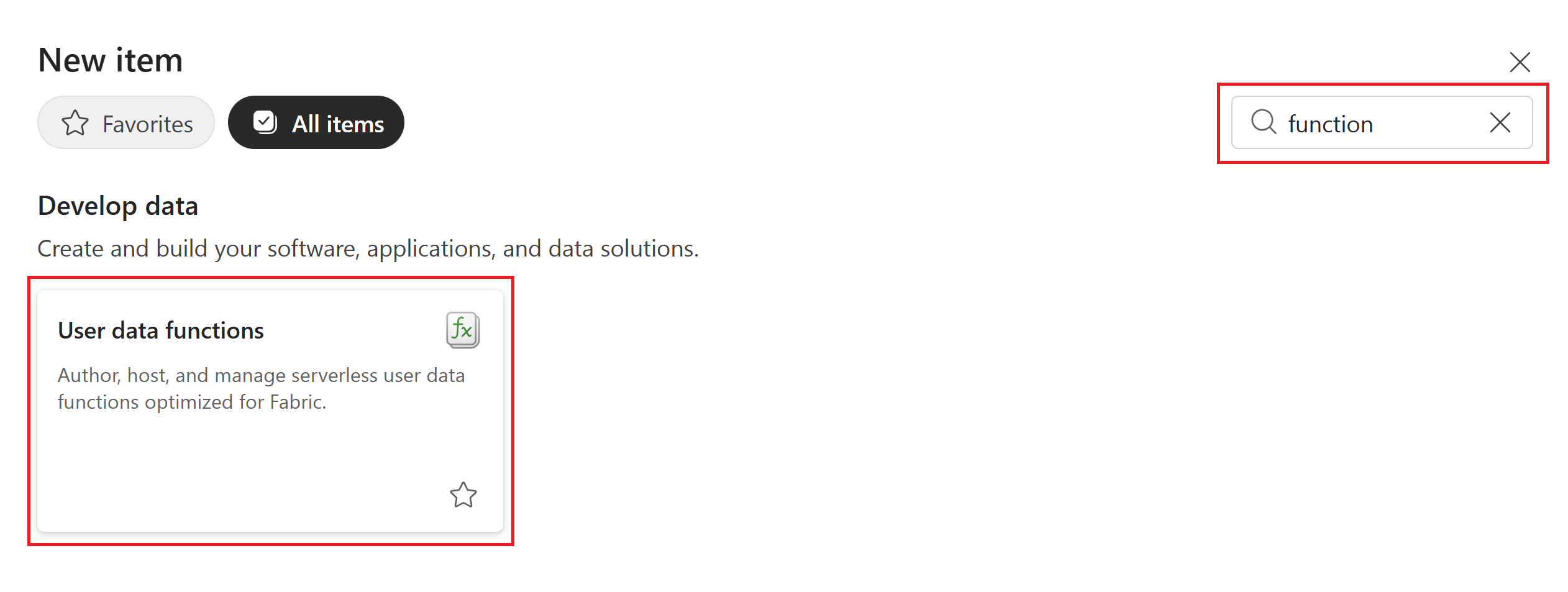
Provide a Name for the user data functions item.
Select New function to create a
hello_fabricPython function template. The Functions explorer shows all the functions that are published and ready to be invoked.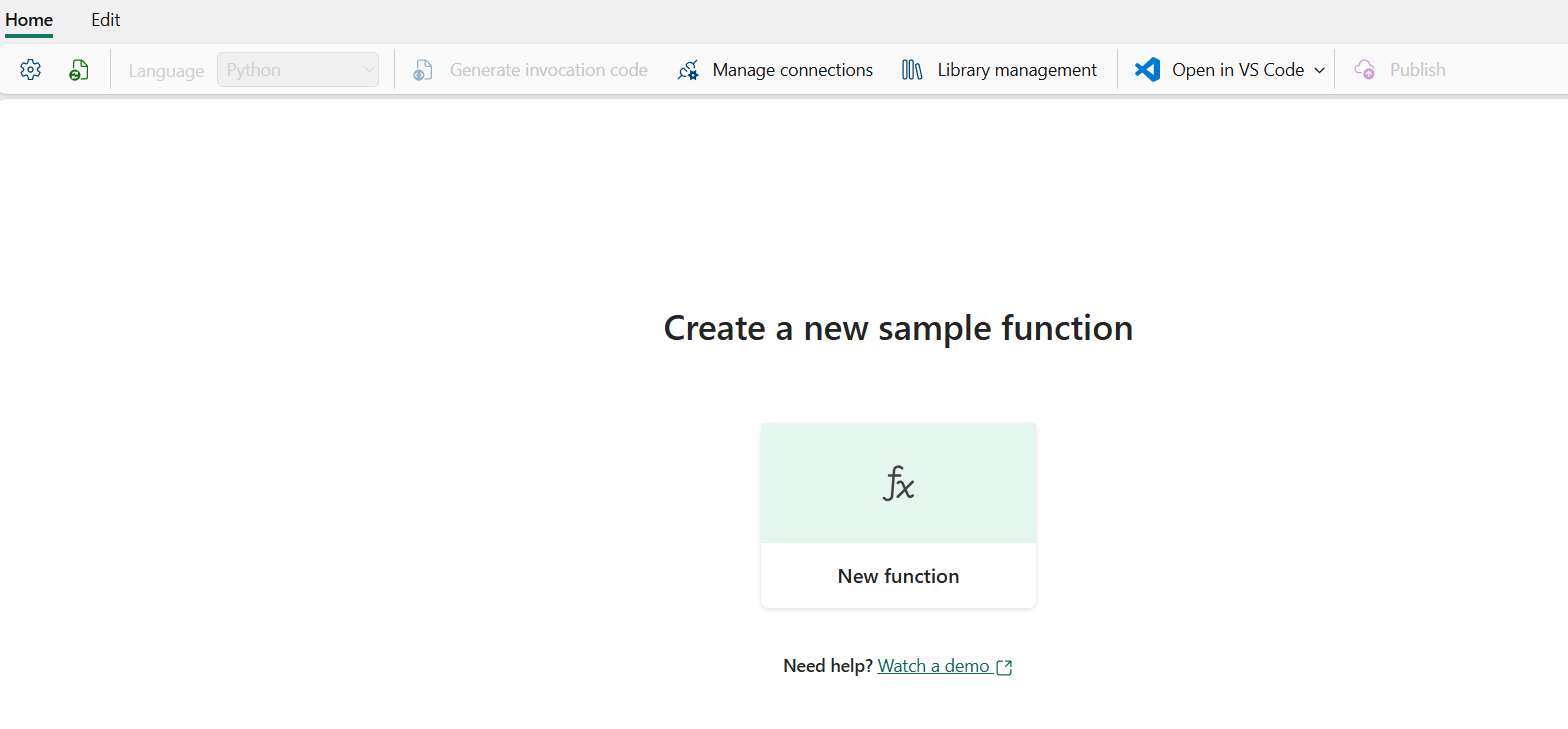
Once the
hello_fabricfunction is published, you can run it from the list of functions in the Functions explorer.

Add a new function for Cosmos DB
Next create a new function. In this example, modify the hello_fabric function and rename it query_products. Follow the steps to add this sample function:
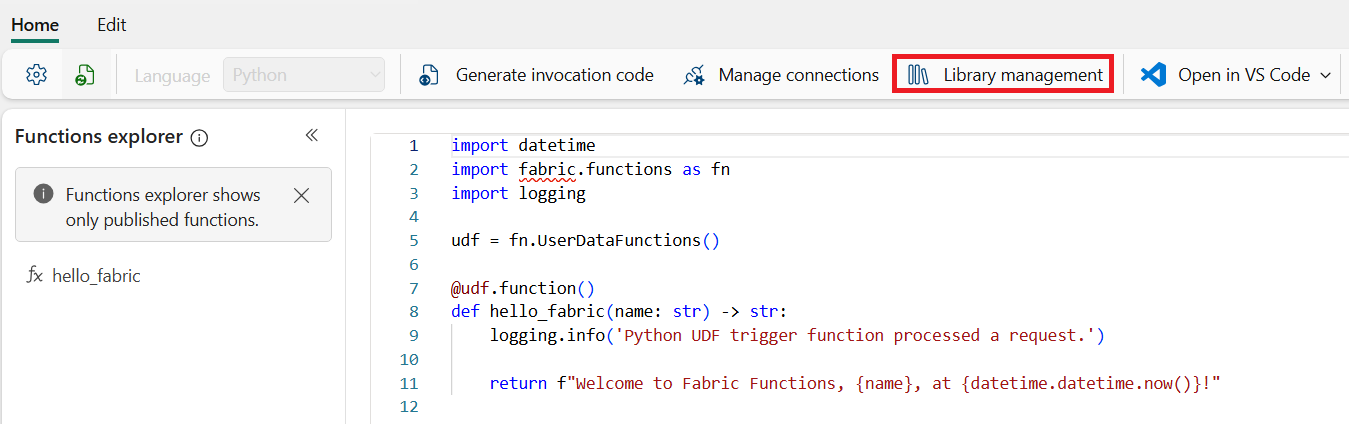
Make sure you are in Develop mode. Select Library management to add the libraries that your function requires.
Note
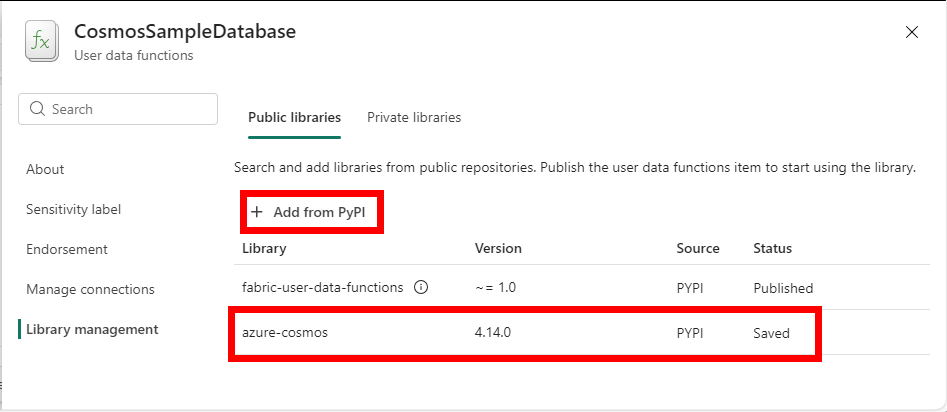
fabric_user_data_functionslibrary is added by default and can't be removed. This library is required for the functionality of User data functions. You need to update the version of this library for any future releases of this SDK.Select azure-cosmos library and select the latest version. Once the library is added, it's saved in your User Data Functions item. Then close the Library management dialog.
Select the code below then insert it into the body of your new function then update the COSMOS_DB_URI and the DB_NAME with the values you captured earlier.
import fabric.functions as fn
udf = fn.UserDataFunctions()

import logging
from typing import Any
from azure.cosmos import CosmosClient
from azure.cosmos import exceptions

COSMOS_URI = "{my-cosmos-artifact-uri}"
DB_NAME = "{my-cosmos-artifact-name}"
CONTAINER_NAME = "SampleData"

@udf.connection(argName="cosmosClient", audienceType="CosmosDB", cosmos_endpoint=COSMOS_URI)
@udf.function()
def query_products(cosmosClient: CosmosClient, categoryName: str) -> list[dict[str, Any]]:

    try:
        # Get the database and container clients
        database = cosmosClient.get_database_client(DB_NAME)
        container = database.get_container_client(CONTAINER_NAME)

        # Use parameterized query
        query = """
            SELECT
                c.categoryName,
                c.name,
                c.description,
                c.currentPrice,
                c.inventory,
                c.priceHistory
            FROM c
            WHERE
                c.categoryName = @categoryName AND
                c.docType = @docType
            ORDER BY
                c.price DESC
        """

        parameters = [
            {"name": "@categoryName", "value": categoryName},
            {"name": "@docType", "value": 'product'}
        ]

        # Execute the query
        products = [p for p in container.query_items(
            query=query,
            enable_cross_partition_query=False,
            parameters=parameters
        )]

        return products

    except exceptions.CosmosHttpResponseError as e:
        logging.error(f"Cosmos DB query failed: {e}")
        raise
    except exceptions as e:
        logging.error(f"Unexpected error in query_products: {e}")
        raise
Now you can test it by using the Test capability in Develop mode.
In the catetoryName parameter type
Computers, Laptops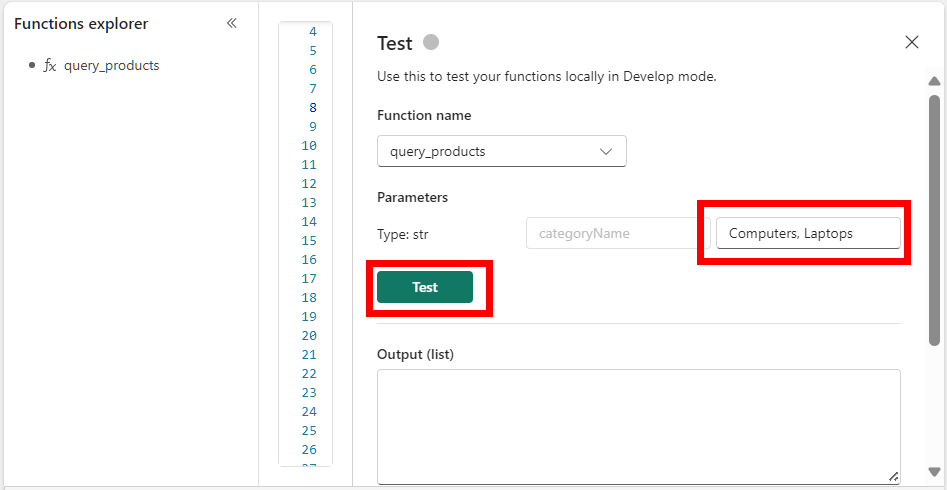
Press Test and view the results in the output.
When you are ready, you can select Publish to save your changes and update your functions. Publishing may take a few minutes.
