Note
Access to this page requires authorization. You can try signing in or changing directories.
Access to this page requires authorization. You can try changing directories.
Set up Microsoft Fabric Embed before you embed a Real-Time Dashboard item in a JavaScript or TypeScript web application. You should have a workspace assigned to a Microsoft Fabric capacity, user access to the Real-Time Dashboard item, a Microsoft Entra ID app registration with delegated permissions, and local development tools.
Microsoft Fabric Embed is a public-preview capability for embedding supported Microsoft Fabric items.
Note
Microsoft Fabric Embed is in public preview. For supported item types, authentication, and preview-contract limitations, see Limitations for Microsoft Fabric Embed.
Prerequisites for Microsoft Fabric Embed setup
For a list of prerequisites, see What do I need to use Microsoft Fabric Embed?
Configure your Fabric workspace
Microsoft Fabric Embed supports delegated user access. The signed-in Microsoft Entra ID user must be able to open the Real-Time Dashboard item in Microsoft Fabric before the same item can render in an embedded application.
- Open Microsoft Fabric.
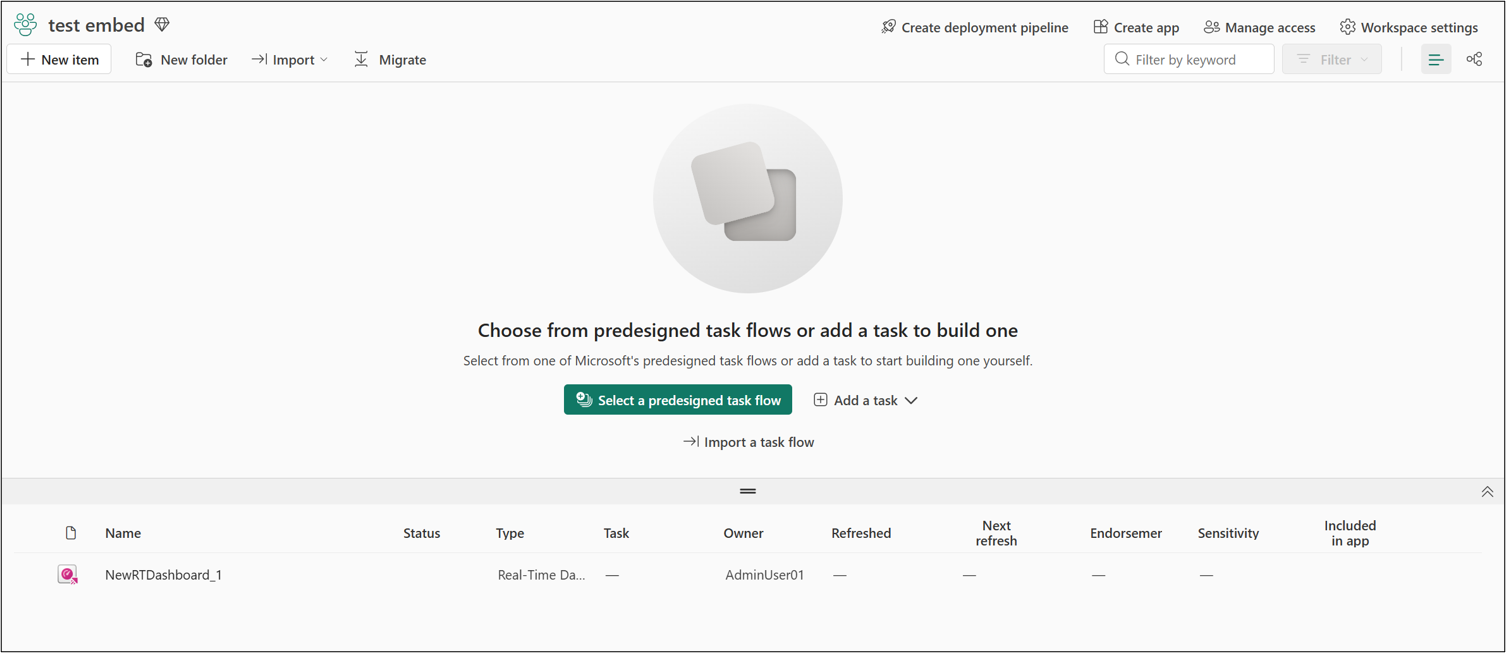
- Open the workspace that contains the Real-Time Dashboard item.
- Confirm that the workspace is assigned to an active Microsoft Fabric capacity.
- Confirm that users who view the embedded Real-Time Dashboard item have Viewer or higher access to the workspace and the Real-Time Dashboard item.
Success check: the workspace shows an active capacity assignment, and the user can open the Real-Time Dashboard item directly in the Microsoft Fabric portal.
Important
If a signed-in user doesn't have access to the workspace or Real-Time Dashboard item in Microsoft Fabric, Microsoft Fabric Embed doesn't render the item in the embedded application.
Register a Microsoft Entra ID app for user sign-in
Your JavaScript or TypeScript application needs a Microsoft Entra ID app registration to sign in users and request delegated access tokens for Microsoft Fabric Embed.
Sign in to the Azure portal.
Select your Microsoft Entra tenant by selecting your account in the upper-right corner of the page.
Select App registrations. If you don't see this option, search for it.
In App registrations, select New registration.
Fill in the following fields:
- Name - Give your application a name.
- Supported account type - Select who can use the application. Select Accounts in this organizational directory only for single tenant apps, or Accounts in any organizational directory for cross-tenant scenarios.
(Optional) In the Redirect URI box, add a redirect URL.
Select Register. After your app is registered, you're directed to your app's overview page, where you can obtain the Application ID. Copy and save the Application ID and all information in the Summary box for later use. Your Microsoft Fabric Embed environment is ready to use.
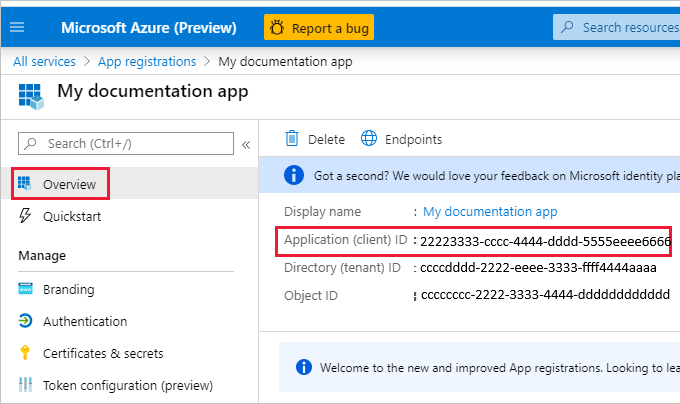
Success check: the app registration overview shows the client ID and tenant ID that your application uses for Microsoft Authentication Library (MSAL) authentication.
Note
Keep these values available. You use them when you configure authentication in your application.
Add delegated API permissions for Microsoft Fabric Embed
Your app must request delegated API permissions for Fabric embedding, item read access, and optional workspace discovery. Use delegated user permissions for Microsoft Fabric Embed.
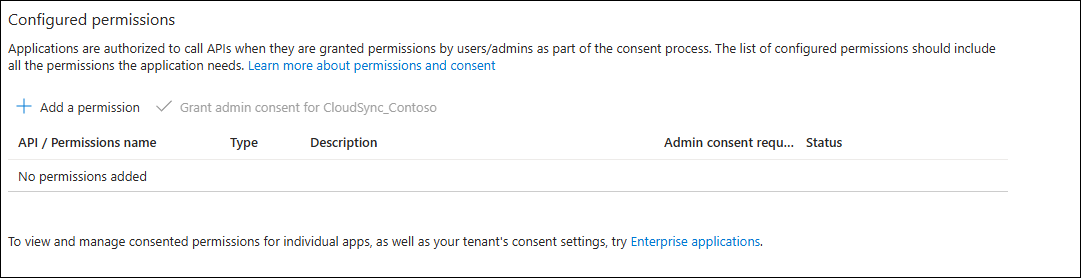
In your app registration, open API permissions.
Select Add a permission.
Add the delegated permissions that match your scenario.
If your organization requires admin consent, ask a tenant admin to grant consent.
Note
Request the least-privileged delegated permissions for your scenario:
| Permission | When to use it | Purpose |
|---|---|---|
Fabric.Embed |
Required for Microsoft Fabric Embed. | Allows your application to embed supported Microsoft Fabric items. |
KQLDashboard.Read.All |
Preferred read permission for Real-Time Dashboard items. | Allows your application to read Real-Time Dashboard items that the signed-in user can access. |
Item.Read.All |
Use only if your scenario requires broader Fabric item read access. | Allows your application to read Fabric items that the signed-in user can access. |
Workspace.Read.All |
Required only when your application uses Microsoft Fabric REST APIs to discover workspace or item IDs. | Allows read-only workspace discovery for the signed-in user. |
Success check: the app registration includes Fabric.Embed, one item read permission, and Workspace.Read.All only if your application uses Microsoft Fabric REST APIs to discover IDs.
Install local development tools for your web app
Install these tools and libraries for the JavaScript or TypeScript application that hosts the embedded Real-Time Dashboard item:
- Node.js and npm for installing the Fabric Embed SDK package
- A code editor, such as Visual Studio Code
- The Microsoft Authentication Library (MSAL) for JavaScript for Microsoft Entra ID authentication
Install the Fabric Embed SDK package in your web app
Install the public-preview Fabric Embed SDK package in the web application that hosts the embedded Real-Time Dashboard item. The package name and version might change during preview. Use the package name that your preview release provides.
npm install @microsoft/fabric-embed
Success check: the Fabric Embed SDK package appears in your application's package.json dependencies.
Collect workspace and Real-Time Dashboard IDs
You can also collect the workspace ID and Real-Time Dashboard item ID programmatically by using Microsoft Fabric REST APIs. Use Microsoft Fabric REST APIs when your setup script or application needs to discover IDs instead of copying them from the Microsoft Fabric portal.
Get the workspace ID with the List Workspaces API:
GET https://api.fabric.microsoft.com/v1/workspacesFind the workspace by its
displayNameand copy itsidvalue.Get the Real-Time Dashboard item ID with the List Items API:
GET https://api.fabric.microsoft.com/v1/workspaces/<workspaceId>/items?type=KQLDashboardReplace
<workspaceId>with the workspace ID from the previous step. In the response, find the Real-Time Dashboard item by itsdisplayName, and copy itsidvalue. Use that value as the item ID in your embed configuration.
Note
In the Microsoft Fabric REST API, the item type value for a Real-Time Dashboard item is KQLDashboard.
Optionally, validate the item ID by calling:
GET https://api.fabric.microsoft.com/v1/workspaces/<workspaceId>/items/<itemId>
Use the Get Item API to confirm that the workspace ID and item ID identify the expected Real-Time Dashboard item.
Success check: the List Items response includes the expected dashboard displayName, an id value for the item ID, and the item type value KqlDashboard.