Note
Access to this page requires authorization. You can try signing in or changing directories.
Access to this page requires authorization. You can try changing directories.
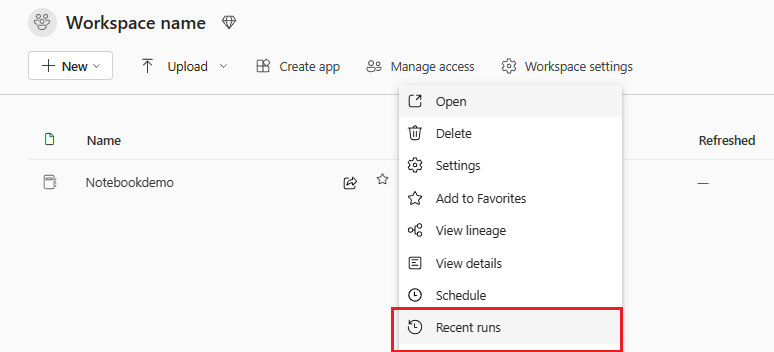
Add custom actions to the context menu that appears when users click the More options (...) menu next to your item in the workspace. These actions appear alongside standard Fabric actions like rename, delete, and share.
Overview
Custom item actions are entries in the workspace context menu (the "..." ellipsis button) that enable users to perform item-specific operations without opening the item editor. Common uses include:
- Running data processing jobs
- Exporting data
- Viewing reports or logs
- Opening external tools
- Scheduling operations
Define context menu items
Context menu actions are defined in your item's JSON manifest using the contextMenuItems array.
File: Workload/Manifest/items/[YourItem]/[YourItem]Item.json
Properties
name: System identifier for the action
displayName: Text shown to users in the menu
icon: Icon configuration (optional)
handler: Action handler with the action name to trigger
tooltip: Tooltip text on hover (optional)
handle: Action handler with the action name to trigger
tooltip: Tooltip text on hover (optional)
Add a custom action
Example: Export Data action
{
  "name": "DataProcessorItem",
  "displayName": "Data Processor",
  "editor": {
    "path": "/DataProcessorItem-editor"
  },
  "icon": {
    "name": "assets/images/DataProcessorItem-icon.png"
  },
  "contextMenuItems": [
    {
      "name": "exportData",
      "displayName": "Export Data",
      "icon": {
        "name": "assets/images/export-icon.svg"
      },
      "handler": {
        "action": "item.exportData"
      },
      "tooltip": "Export item data to file"
    }
  ]
}
Built-in Fabric actions
Fabric provides built-in context menu actions. Enable them by adding their name to contextMenuItems:
Schedule
{
  "contextMenuItems": [
    {
      "name": "schedule"
    }
  ],
  "itemSettings": {
    "schedule": {
      "itemJobType": "YourWorkload.YourItem.ScheduledJob",
      "refreshType": "Refresh"
    }
  }
}
Recent Runs
{
  "contextMenuItems": [
    {
      "name": "recentruns"
    }
  ],
  "itemSettings": {
    "recentRun": {
      "useRecentRunsComponent": true
    }
  }
}
Implement action handlers
Register action handlers in your worker file to respond to menu item clicks:
File: Workload/app/index.worker.ts
workloadClient.action.onAction(async function ({ action, data }) {
  switch (action) {
    case 'item.exportData': {
      const { objectId, displayName } = data;

      try {
        console.log(`Exporting data for: ${displayName}`);
        await callExportData(objectId);

        await workloadClient.notification.show({
          type: 'success',
          message: `Successfully exported data from ${displayName}`
        });

        return { success: true };
      } catch (error) {
        await workloadClient.notification.show({
          type: 'error',
          message: `Export failed: ${error.message}`
        });

        return { success: false };
      }
    }

    case 'item.viewLogs': {
      const { objectId } = data;

      // Open a custom page
      return workloadClient.page.open({
        workloadName: 'Your.Workload.Name',
        route: {
          path: `/logs/${objectId}`
        }
      });
    }

    default:
      throw new Error(`Unknown action: ${action}`);
  }
});
Complete example
Manifest with multiple context menu items:
{
  "name": "DataProcessorItem",
  "displayName": "Data Processor",
  "editor": {
    "path": "/DataProcessorItem-editor"
  },
  "icon": {
    "name": "assets/images/DataProcessorItem-icon.png"
  },
  "contextMenuItems": [
    {
      "name": "schedule"
    },
    {
      "name": "recentruns"
    },
    {
      "name": "runNow",
      "displayName": "Run Now",
      "handler": {
        "action": "item.runNow"
      },
      "tooltip": "Execute immediately"
    },
    {
      "name": "exportResults",
      "displayName": "Export Results",
      "handler": {
        "action": "item.exportResults"
      }
    }
  ],
  "itemSettings": {
    "schedule": {
      "itemJobType": "MyWorkload.DataProcessor.ScheduledJob",
      "refreshType": "Refresh"
    },
    "recentRun": {
      "useRecentRunsComponent": true
    }
  }
}
Best practices
- Clear naming: Use descriptive display names that clearly indicate the action
- Error handling: Always handle errors and show user-friendly notifications
- Permissions: Ensure users have appropriate permissions before executing actions
- Loading states: Provide feedback for long-running operations
- Localization: Use localization keys for
displayNameandtooltipproperties
Troubleshooting
Actions don't appear in menu:
- Verify the manifest file is correctly formatted
- Check that the item manifest is properly registered in your workload package
- Ensure the workload is properly deployed
Action handler not triggered:
- Verify the action name in the handler matches the manifest
- Check the browser console for JavaScript errors
- Ensure the worker file is properly loaded