Note
Access to this page requires authorization. You can try signing in or changing directories.
Access to this page requires authorization. You can try changing directories.
Use the Apps view on the OneLake catalog's Govern tab to review Fabric apps across your tenant and temporarily block users from loading an app when you identify a potential concern.
Blocking an app prevents users from loading it while allowing the app owner to continue accessing the app to investigate the issue, make changes, and test fixes. An authorized administrator must unblock the app before other users can load it again.
Important
This feature is in preview.
Prerequisites
To use the Apps view, you must be a Fabric administrator.
View Fabric apps in your tenant
To review Fabric apps across your tenant:
- Sign in to Fabric by using your administrator account.
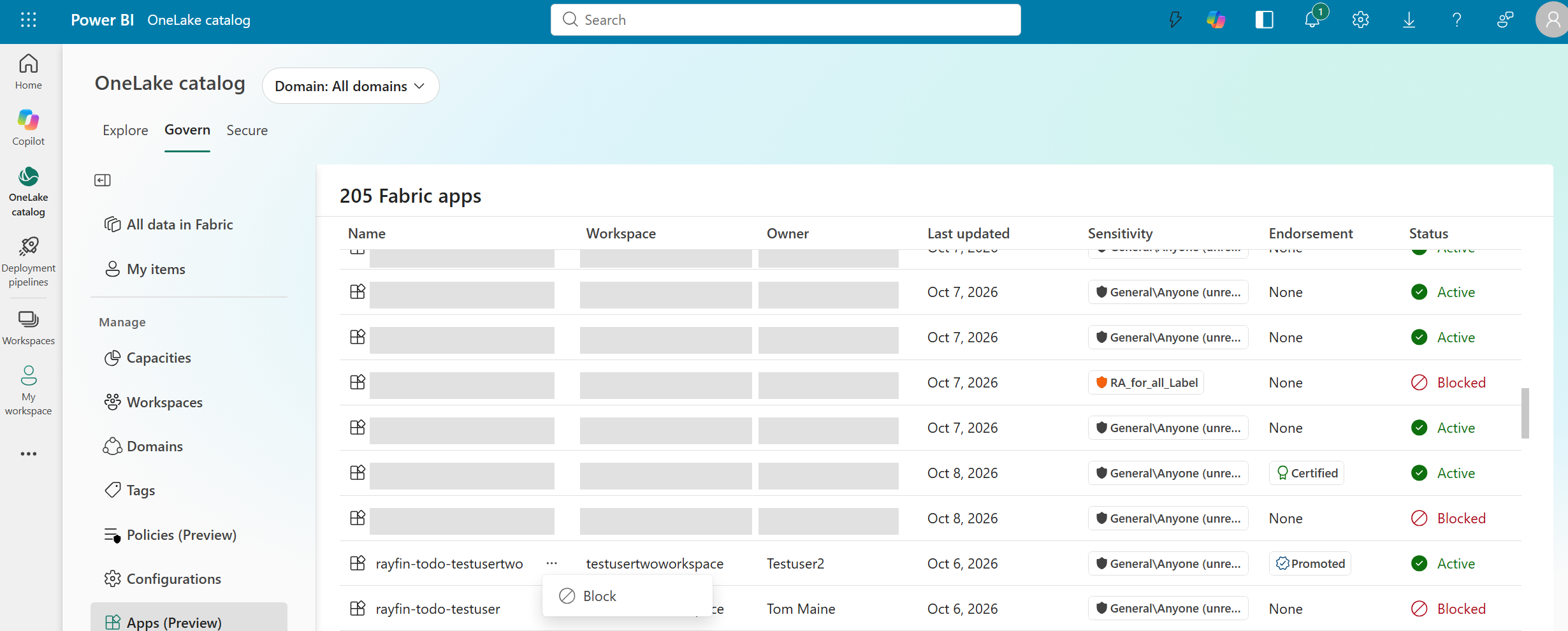
- Select OneLake catalog, and then select the Govern tab.
- Select Apps (Preview).
- Review the list of Fabric apps.
The Apps view shows each app's name, workspace, owner, last updated date, sensitivity, endorsement, and status. The status indicates whether an app is Active or Blocked.
Block a Fabric app
Block an app when you need to prevent users from loading it while the app owner investigates or resolves a concern.
In the Apps view, find the active app that you want to block.
Select the options menu (three dots) next to the app's name.
Select Block.
In Reason (Optional), enter a reason for blocking the app, if needed.
Select Block to confirm.
To leave the app unchanged, select Cancel instead.
When the operation succeeds, the app's status changes to Blocked, and the options menu provides the option to unblock it. If the operation fails, an error appears and the app's status remains unchanged.
What happens when an app is blocked
When you block an app, the following restrictions and owner capabilities apply:
- Users other than the app owner, including anonymous users, can't load the app, even from a direct link.
- The app owner can still load the app to investigate the concern and test fixes.
- The app owner can continue publishing changes, but publishing doesn't unblock the app or change the block information.
- The block remains in effect until an authorized Fabric administrator unblocks the app.
Users who try to load a blocked app see the following message:
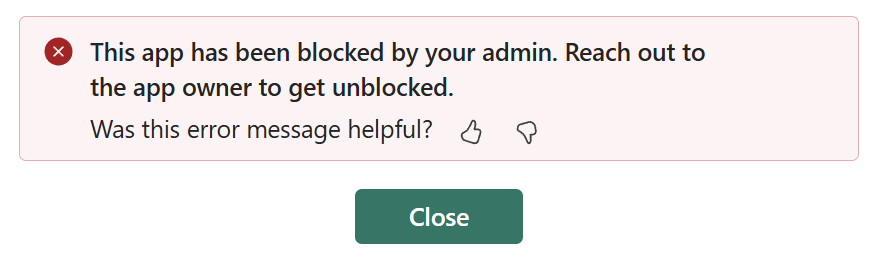
The app owner sees a blocked-app notice on the app's management page. If the administrator provided a reason, the notice includes it.

Unblock a Fabric app
Unblock an app after the concern is resolved and users can safely access the app again.
- In the Apps view, find the blocked app that you want to unblock.
- Select the options menu (three dots) next to the app's name.
- Select Unblock.
- Confirm that you want to unblock the app.
When the operation succeeds, the app's status changes to Active, and the options menu provides the option to block it. The app's management page no longer shows the blocked-app notice or its associated reason. If the operation fails, an error appears and the app's status remains unchanged.
Unblocking restores the ability to load the app according to its existing permissions. It doesn't grant access to users who didn't already have permission to use the app.
Considerations and limitations
Blocking restricts app loading; it isn't a full shutdown of the app.
Blocking an app:
- Doesn't delete the app.
- Doesn't change the app's owner.
- Doesn't change sharing or access permissions.
- Doesn't automatically end sessions that are already open.
- Doesn't stop background execution.
- Doesn't independently restrict access to the app's backend resources or APIs.