Note
Access to this page requires authorization. You can try signing in or changing directories.
Access to this page requires authorization. You can try changing directories.
In this tutorial step, you query your graph by using the visual query builder. The query builder provides an interactive way to explore your graph by selecting nodes and relationships.
You can also query your graph by using GQL, the graph query language. The next tutorial step shows you how.
Switch to query builder mode
To switch to query builder and start querying your graph interactively, select Modes > Query from your graph's home page.
Tip
From this view, you can also create a read-only queryset. This queryset has the same functionalities and it allows you to share your query results.
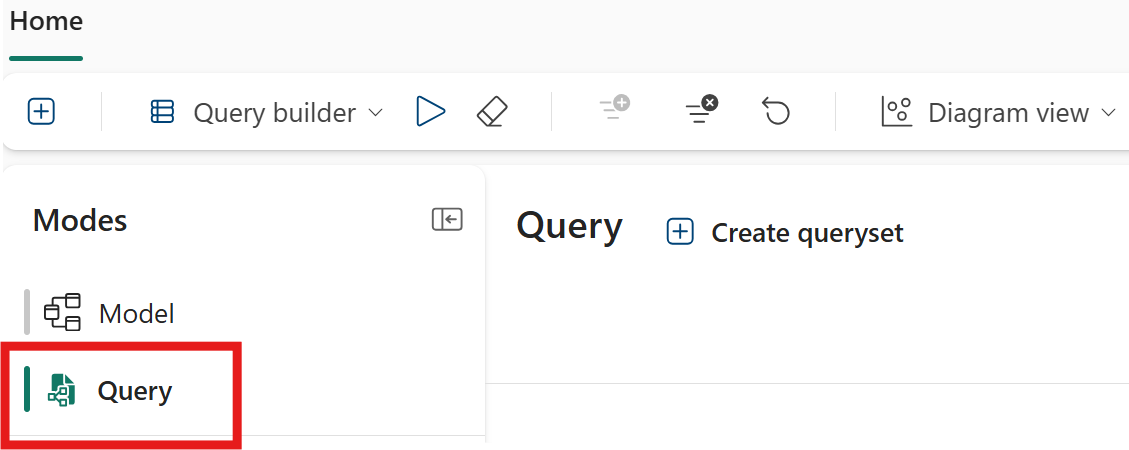
Build a query
Build a query to answer the question: "What products did a specific customer purchase?" This query traverses the graph from Customer through Order to Product. For example, to query customer Carla Adams' purchases, follow these steps:
Select Add a node to see the available nodes for querying.
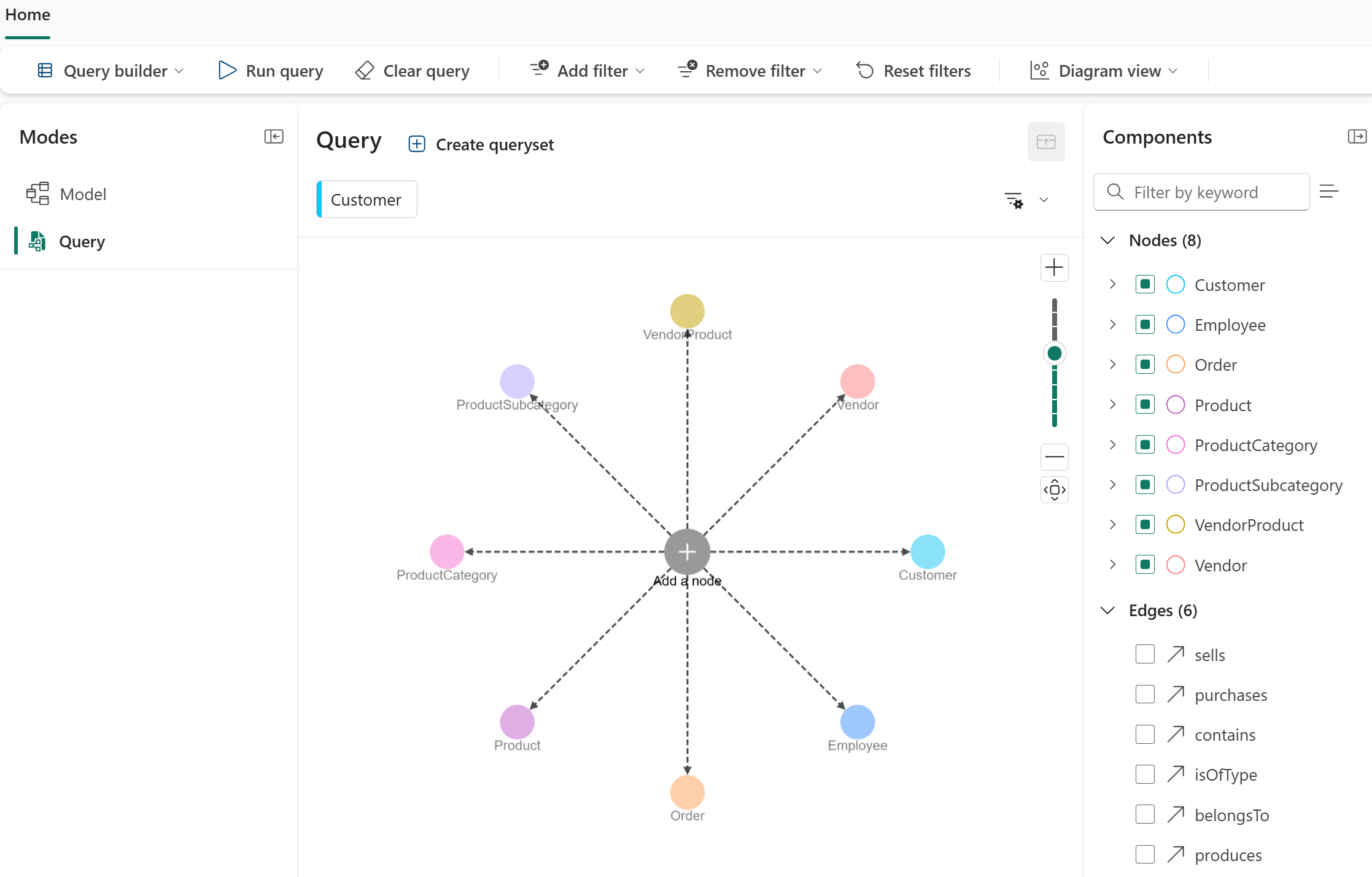
Select the Customer node to add it to your query.
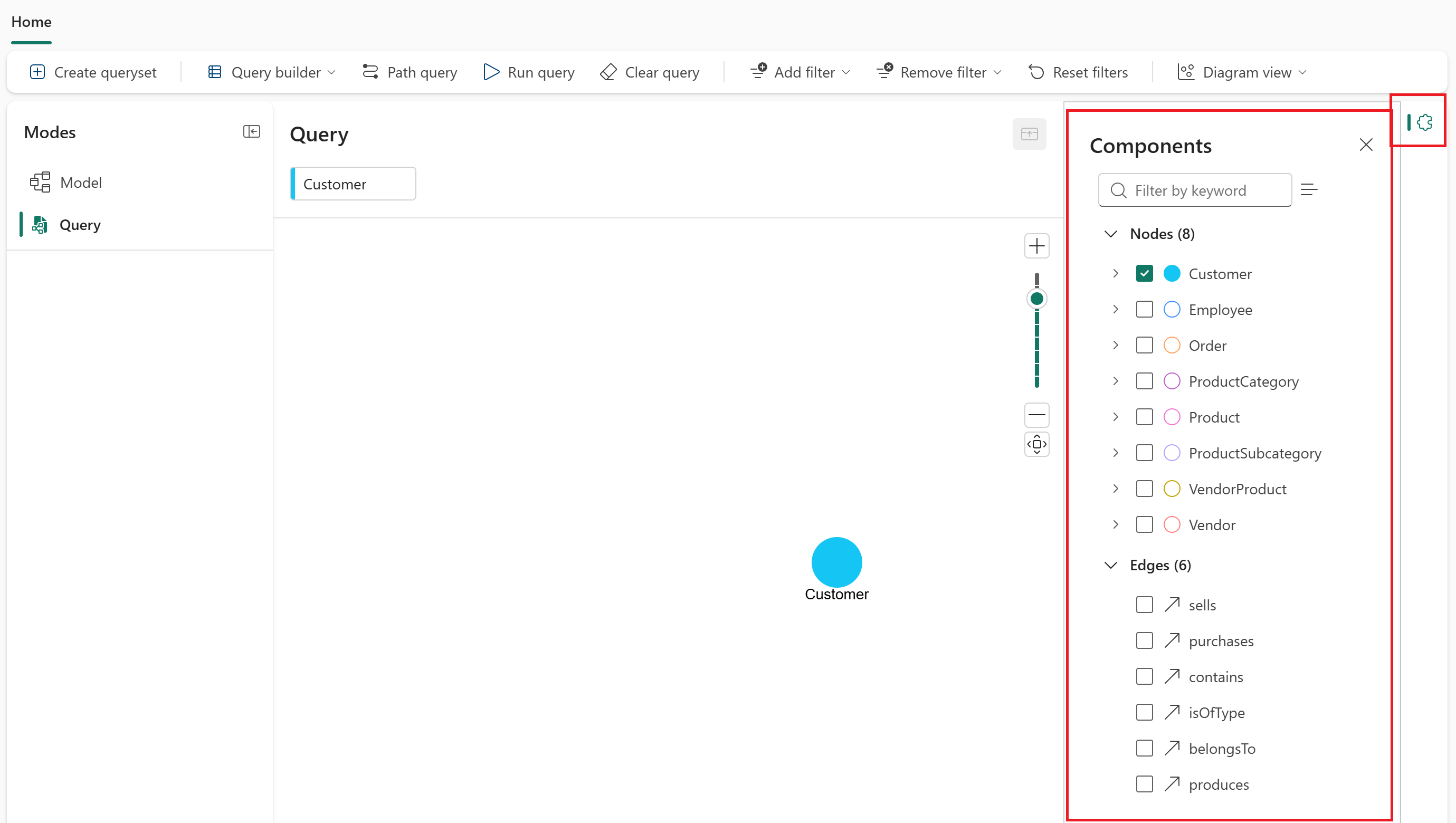
On the right side, select the Components icon (shaped like a puzzle piece). The Components pane shows all nodes and edges and lets you add them to your query.
Select the
purchasesedge (while theCustomernode is selected). The query builder automatically adds the edge and the connectedOrdernode.Select the
containsedge (while theOrdernode is selected). The query builder automatically adds the edge and the connectedProductnode.You now have a query pattern:
Customer→purchases→Order→contains→Product.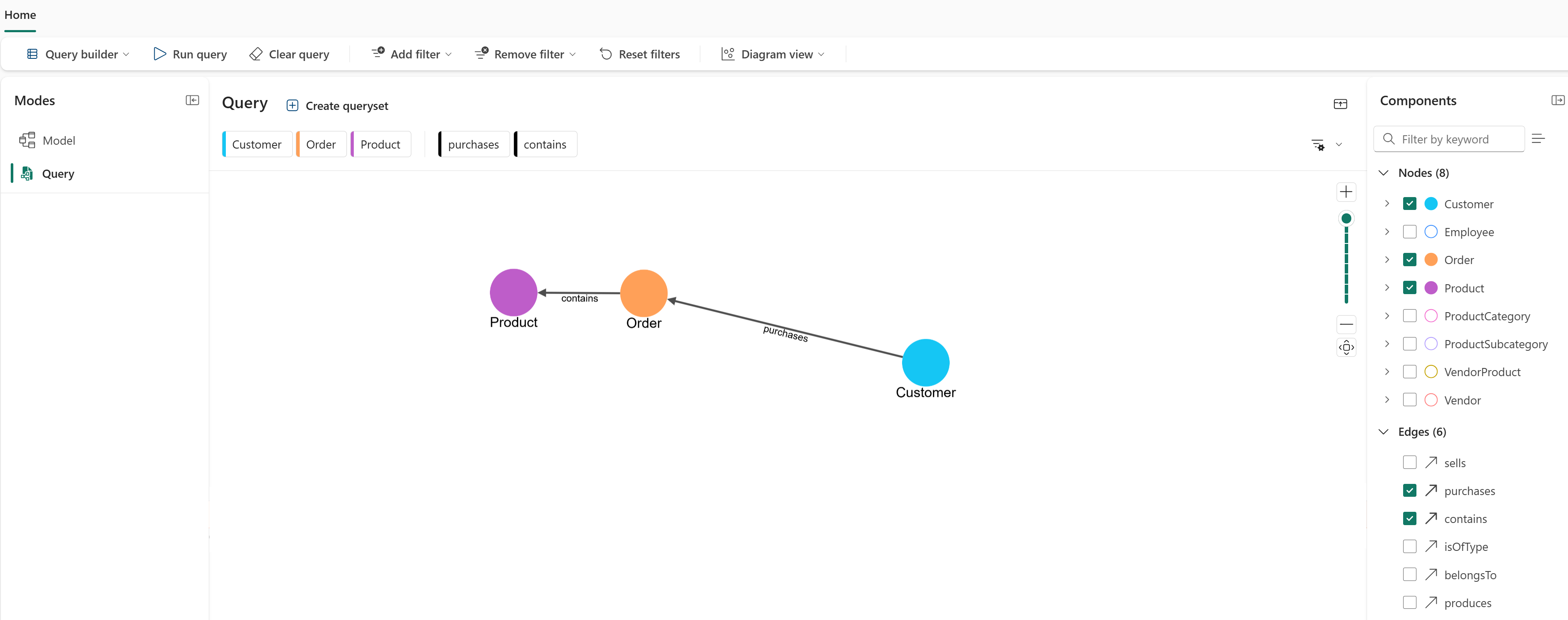
Apply a filter to the
Customernode to focus on a specific customer. Select the Customer node, and then select Filter.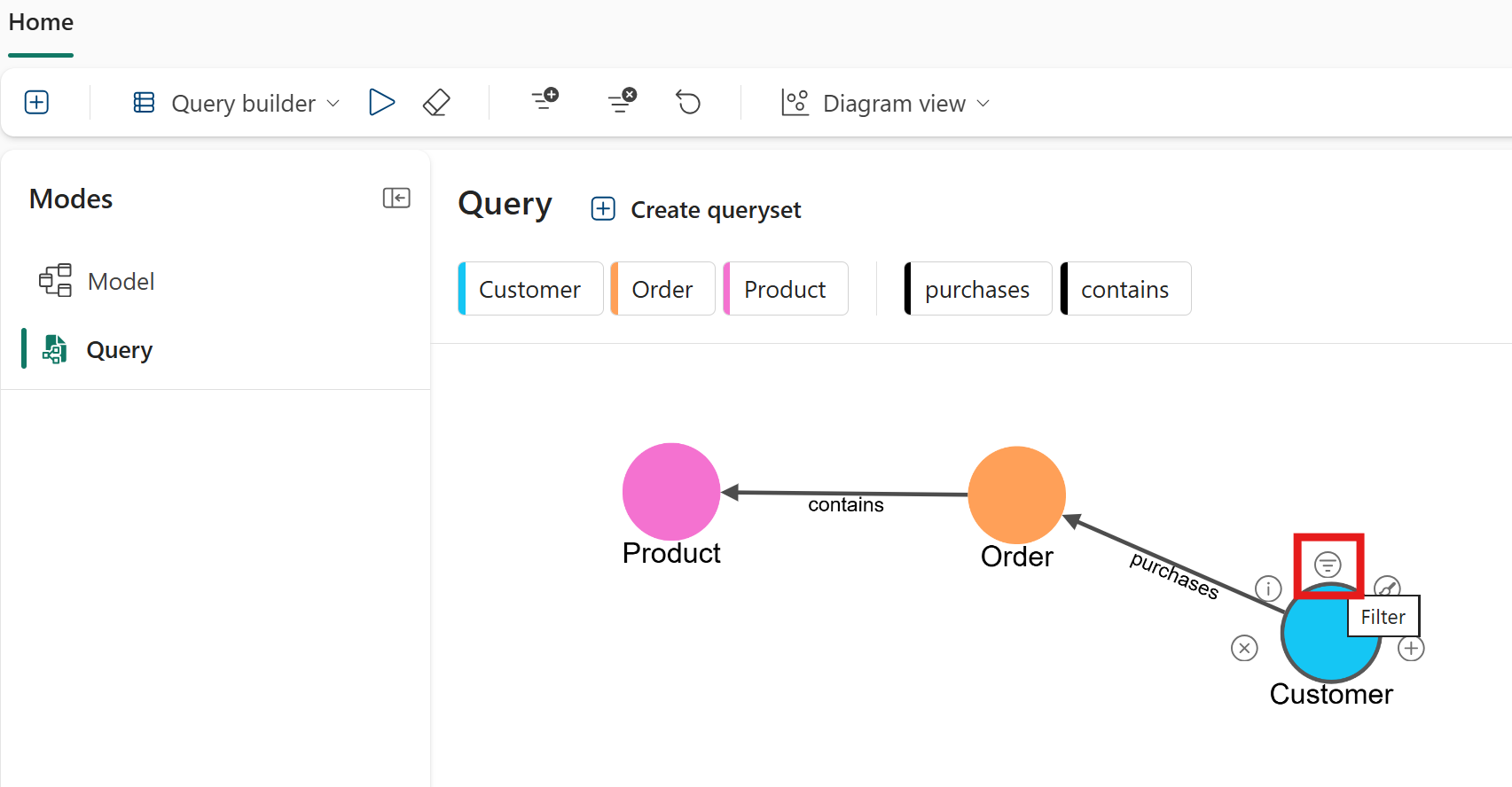
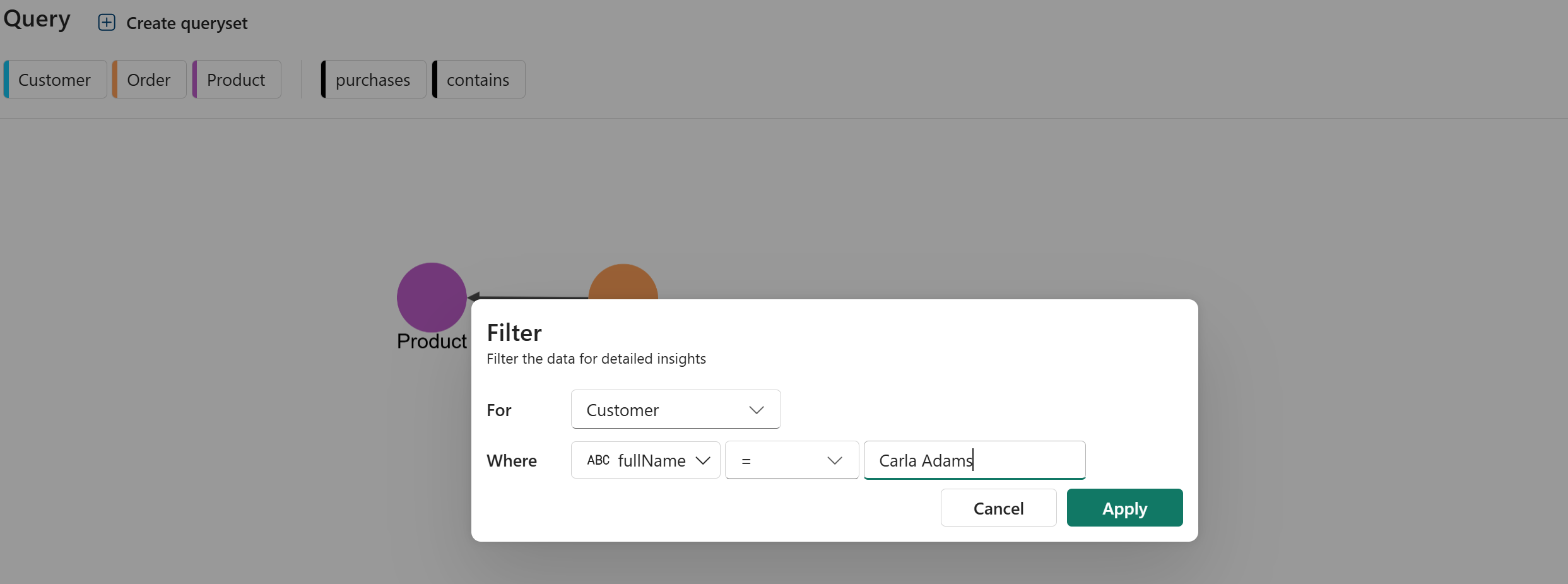
In the Filter popup window, configure the filter as follows:
- For:
Customer - Where:
fullName = Carla Adams
- For:
Select Apply to add the filter to the
Customernode.
The query is now set to find all products purchased by Carla Adams.
Run the query
Select Run query in the top ribbon to run the query and see the results. The query might take a few moments to complete.
When the query finishes, close the Components pane and collapse the query builder pane to get a better view of the results. You should see the products that Carla Adams purchased, displayed as a graph of connected
Customer,Order, andProductnodes.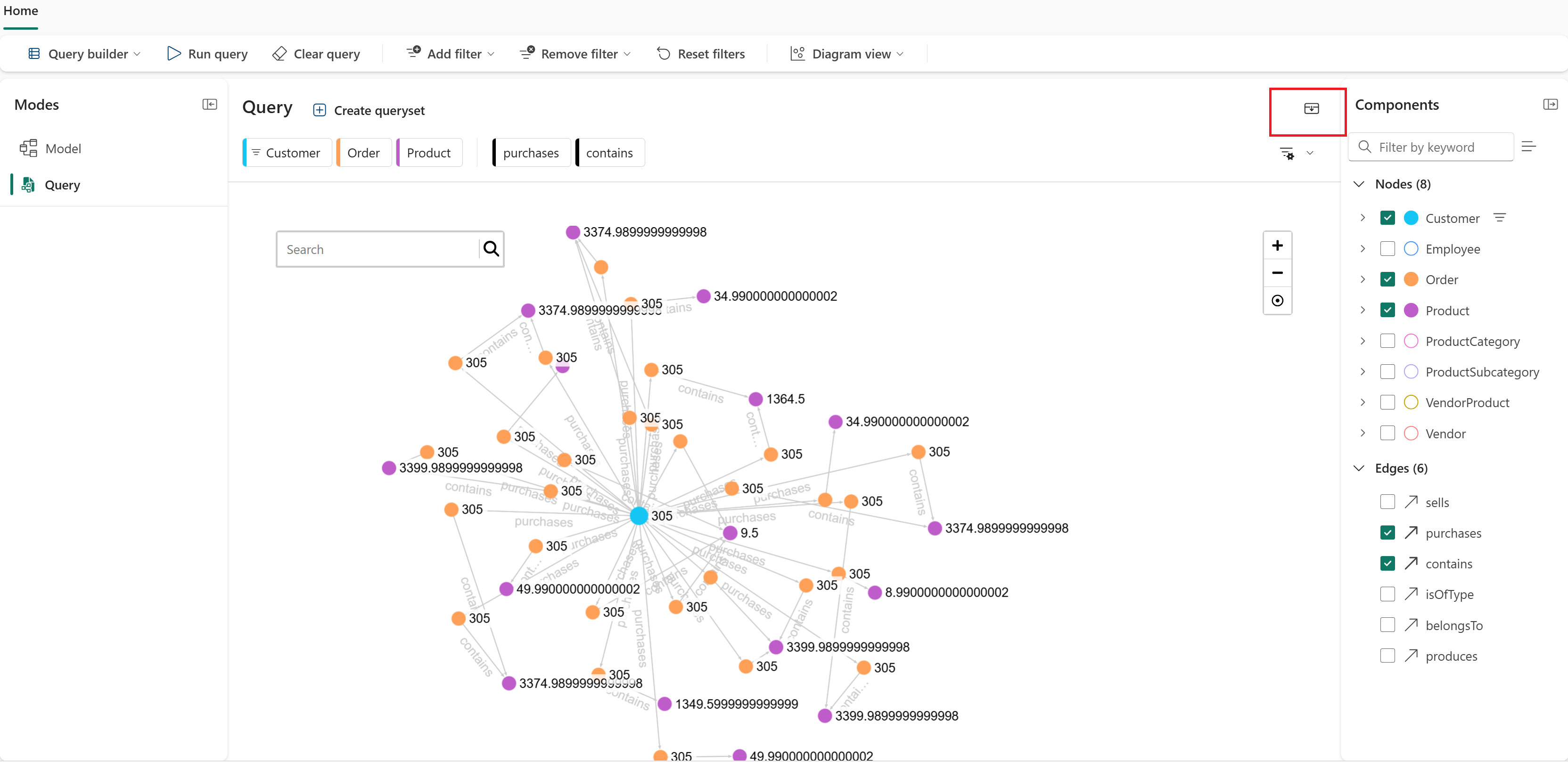
Explore your data
The query builder helps you visually explore your graph:
- Expand nodes: Hover over a node to see its connected nodes and relationships.
- View node properties: Select a node to view its properties.
- Interact with nodes: Drag nodes to reposition them or select to highlight connections.
- Filter results: Apply filters to focus on specific data.
- Select properties: Choose which node and edge properties to include in your results.
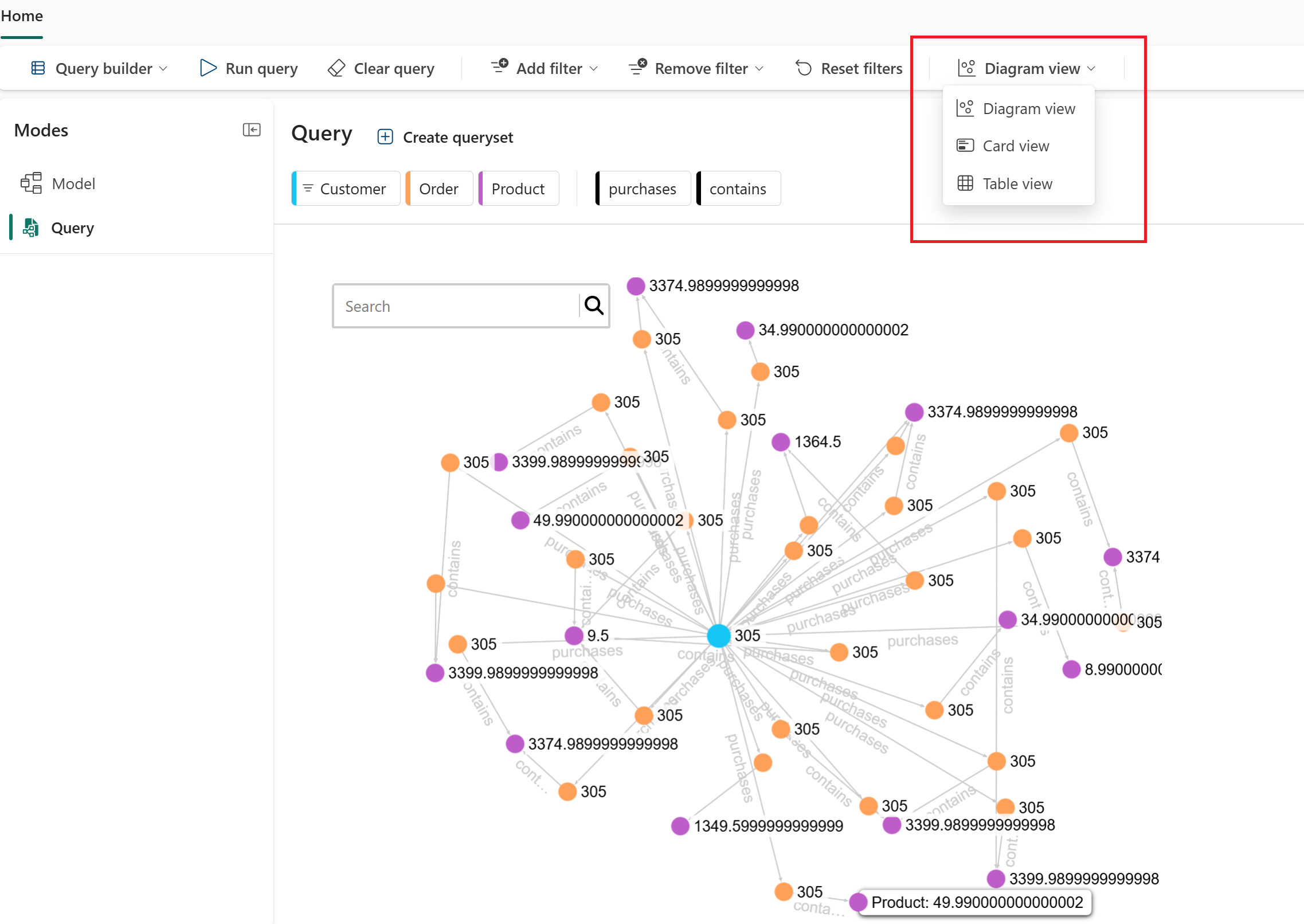
You can view your query results in different ways:
- Diagram view: Visualize the graph structure and relationships. This view is the default.
- Card view: View detailed information about each node in a card format.
- Table view: See the results in a tabular format for easier analysis.
Save the query
You can save your query by creating a queryset in your workspace. You can create a queryset in several ways in Fabric. This tutorial uses the interface in Query mode.
To create a queryset, follow these steps:
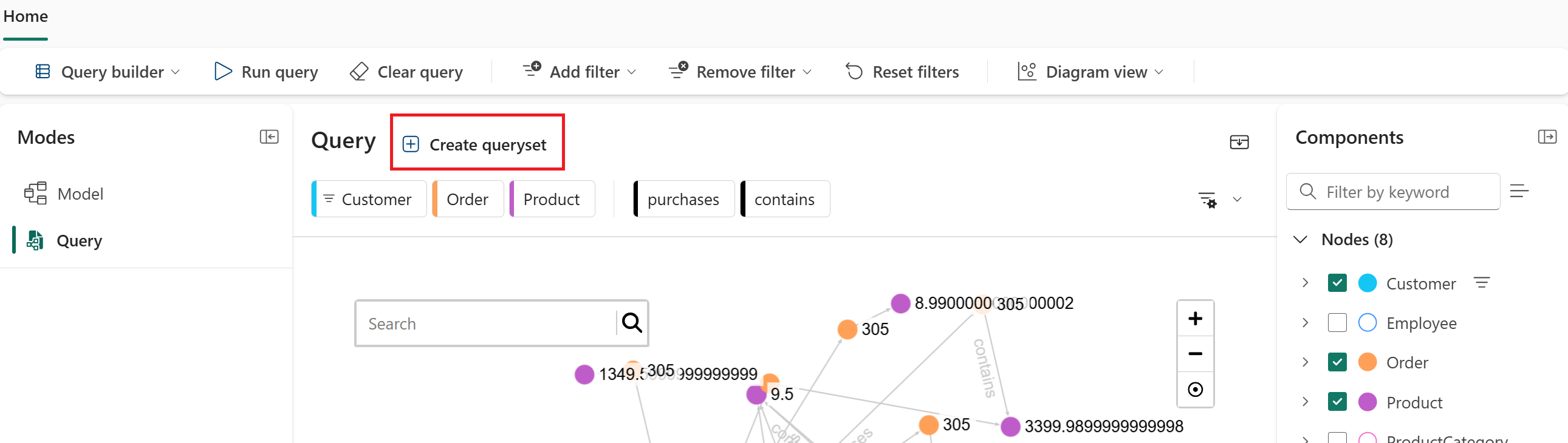
In the top ribbon, select Create queryset.
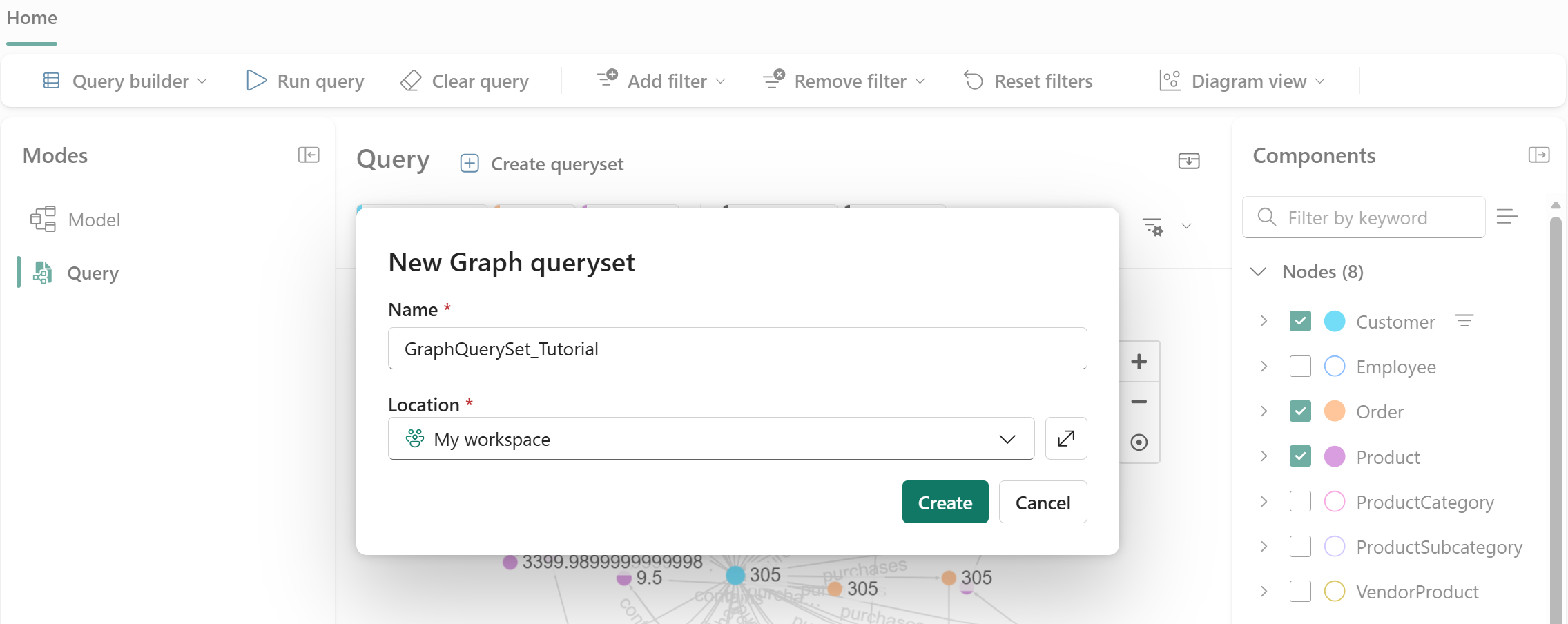
In the New Graph queryset dialog, enter a name for your queryset (for example, GraphQuerySet_1) and set Location to your workspace. Then select Create.
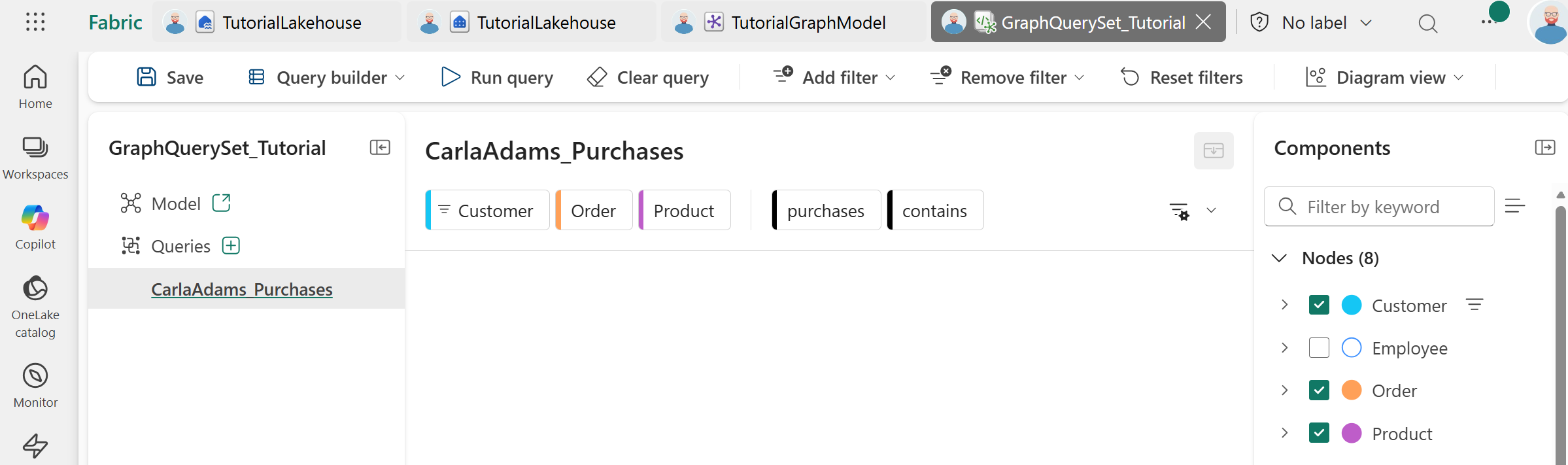
A new queryset item is created in your workspace, and the current query is saved in it. Select the triple ellipsis (...) next to the query name and select Rename to give it a meaningful name, such as CarlaAdams_Purchases.
When you save querysets, you can:
- Rerun queries without recreating them
- Share queries with teammates who have workspace access
- Organize related queries together