Note
Access to this page requires authorization. You can try signing in or changing directories.
Access to this page requires authorization. You can try changing directories.
A variable library provides a reusable way to configure references that are used by Plan items. Instead of selecting the same semantic model, database, or connection each time, you can define the reference as a variable and reuse it where supported. This article shows how to use a variable library with a Plan item by creating the following variables:
SM_Variable — an item reference to the Enterprise Dataset semantic model.
DB_Variable — an item reference to the My_Planning_DB SQL database.
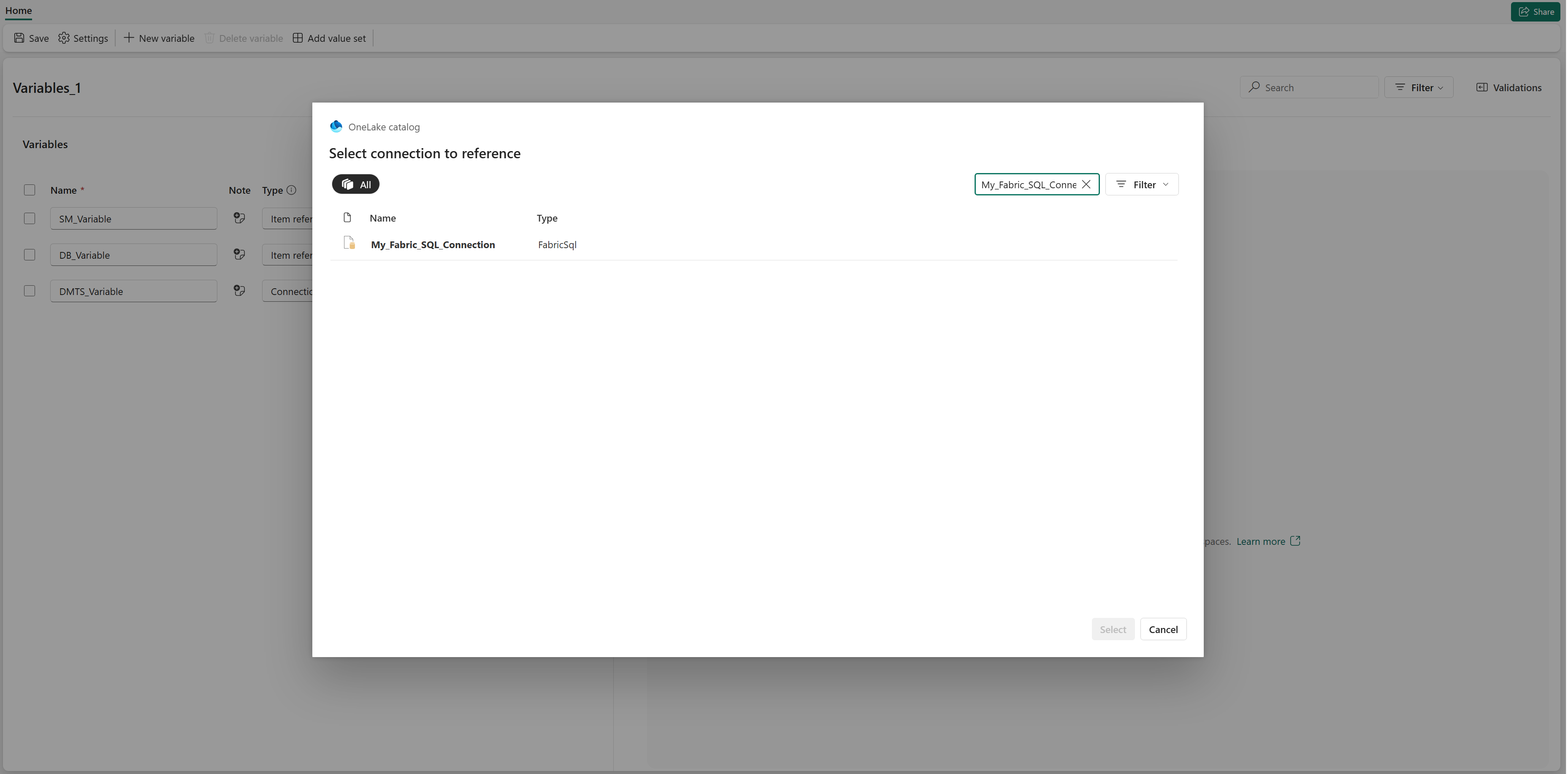
DMTS_Variable — a connection reference to the My_Fabric_SQL_Connection connection, which uses the FabricSql connection type.
The example then uses these variables in the Enterprise_Plan Plan item. The semantic model is configured from SM_Variable, and the Writeback destination uses DMTS_Variable for the connection and DB_Variable for the database.
Create a variable library
Create a variable library in the workspace where you are developing the
Plan item.
In your workspace, select New item.
Create a Variable library item.
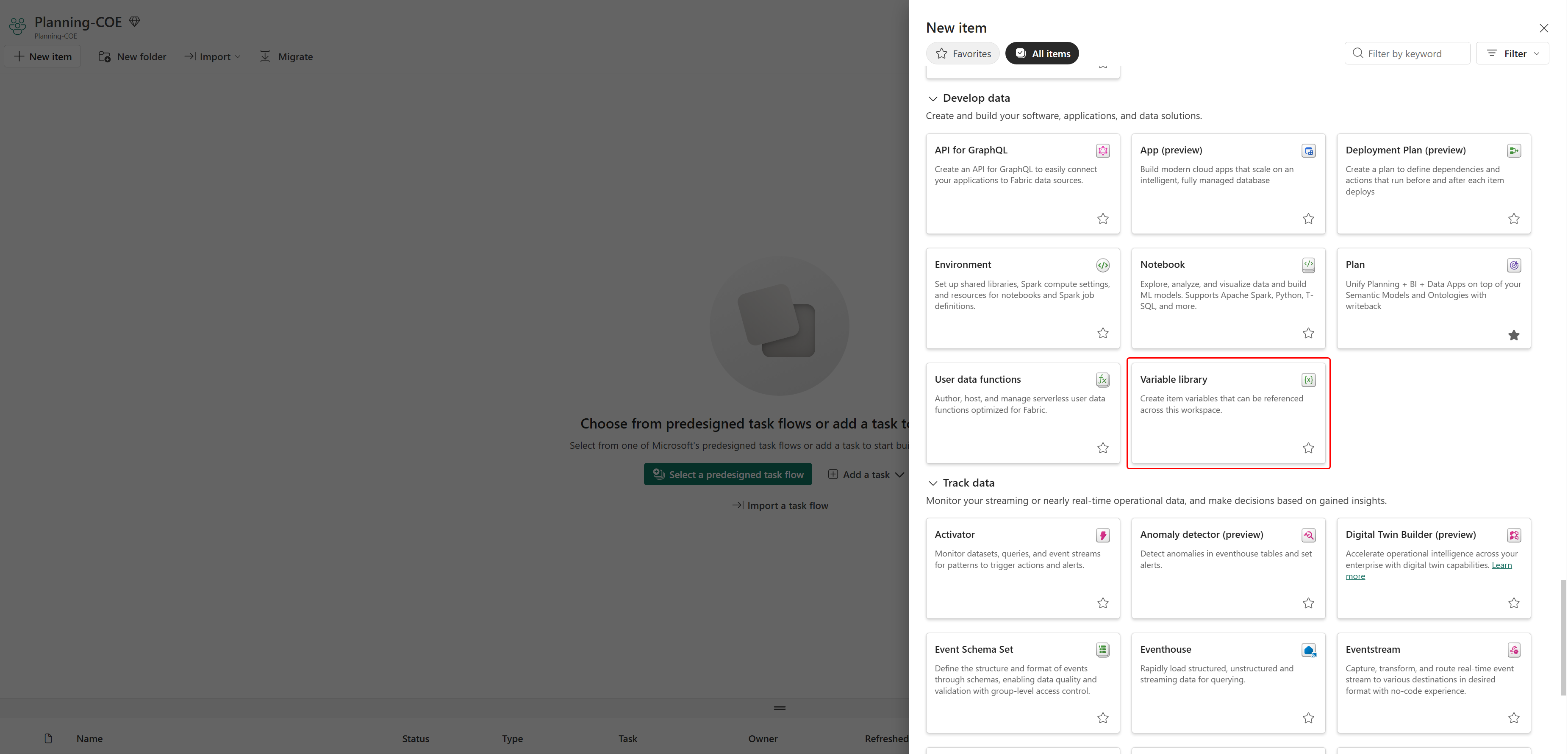
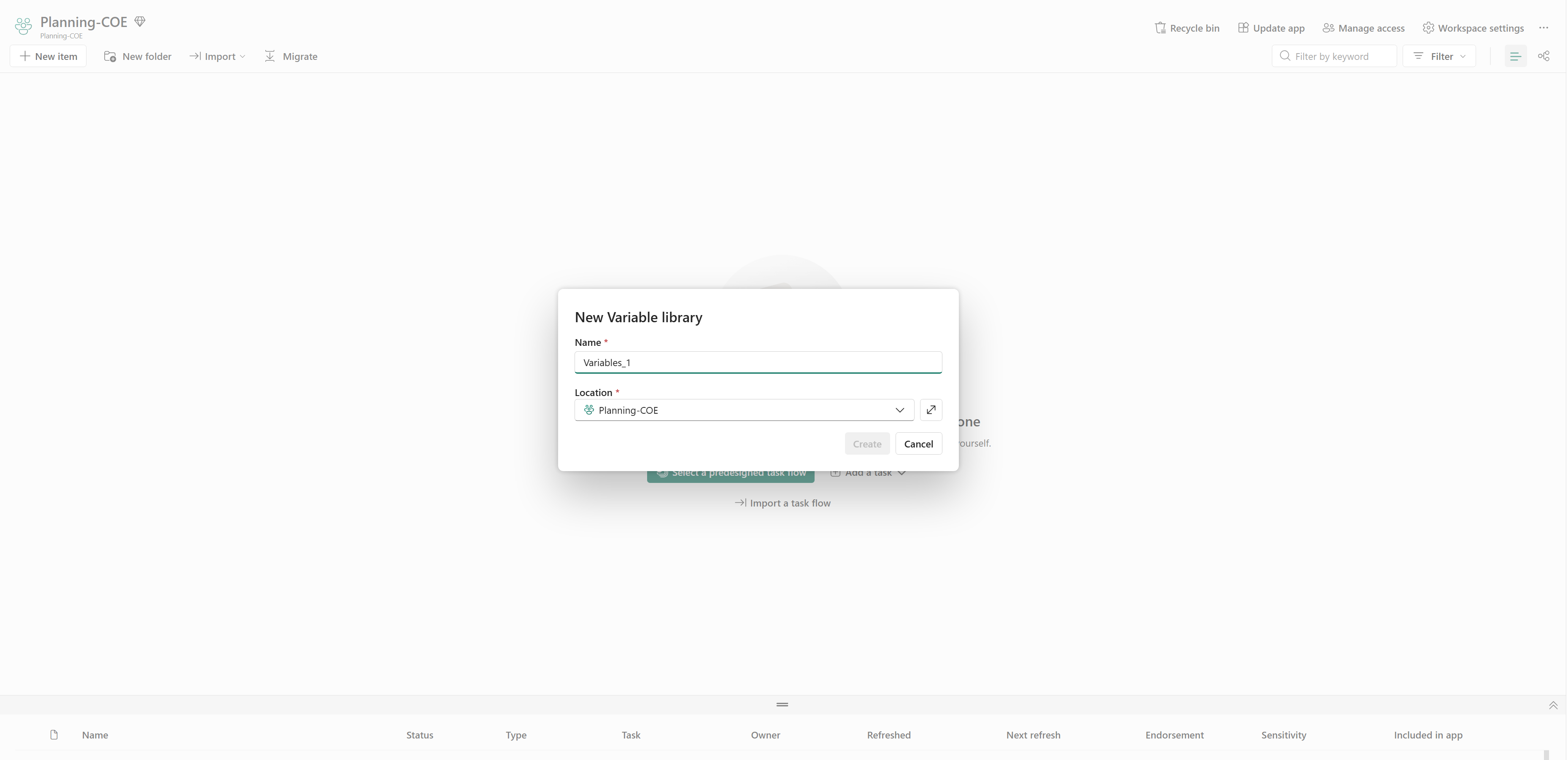
Enter a name for the variable library.
Select Create.
In this example, the variable library is named Variables_1.
Create an item reference for the semantic model
Create an item reference variable that points to the semantic model used by the Plan item.
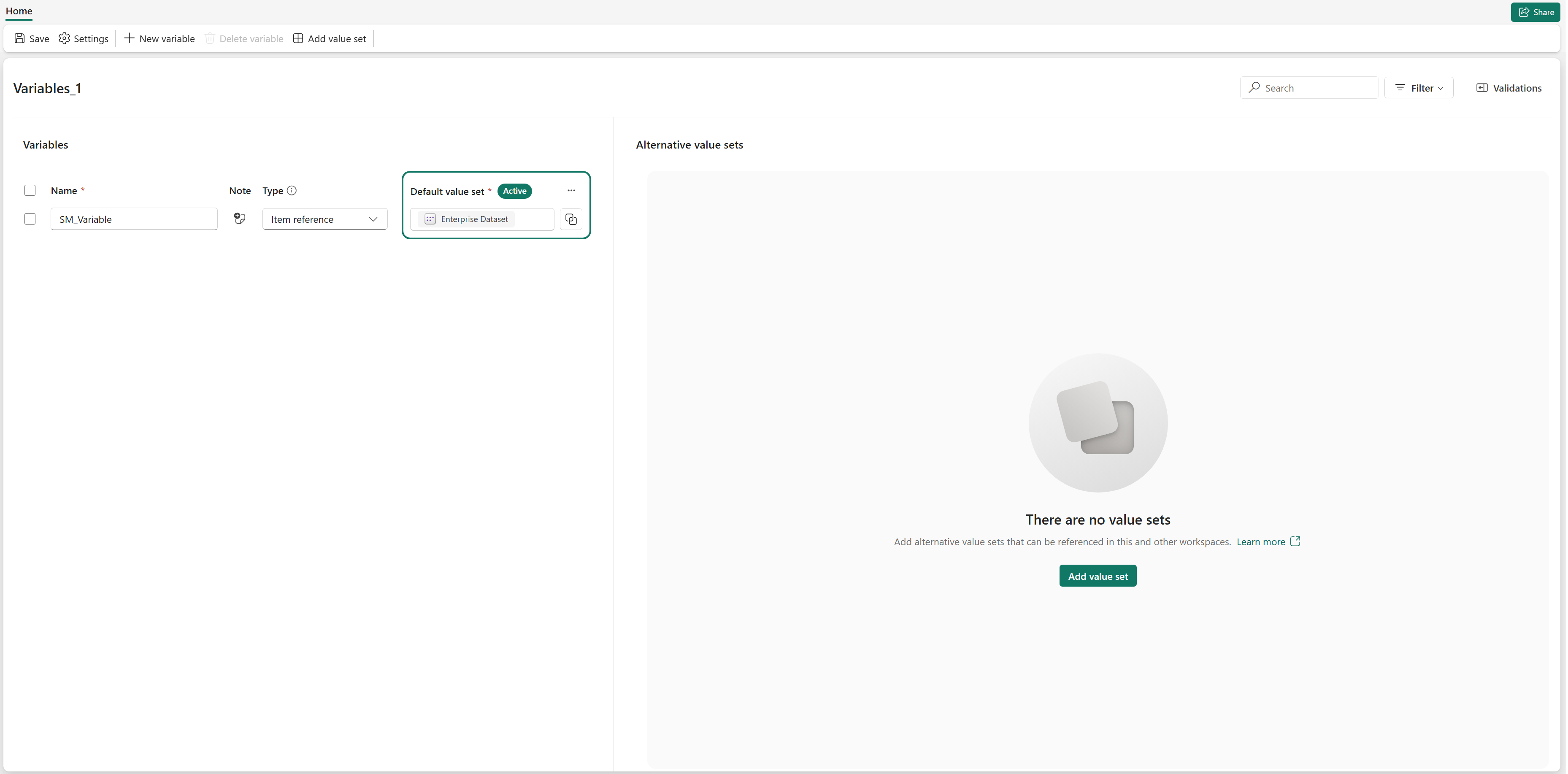
- In the variable library, select New variable.
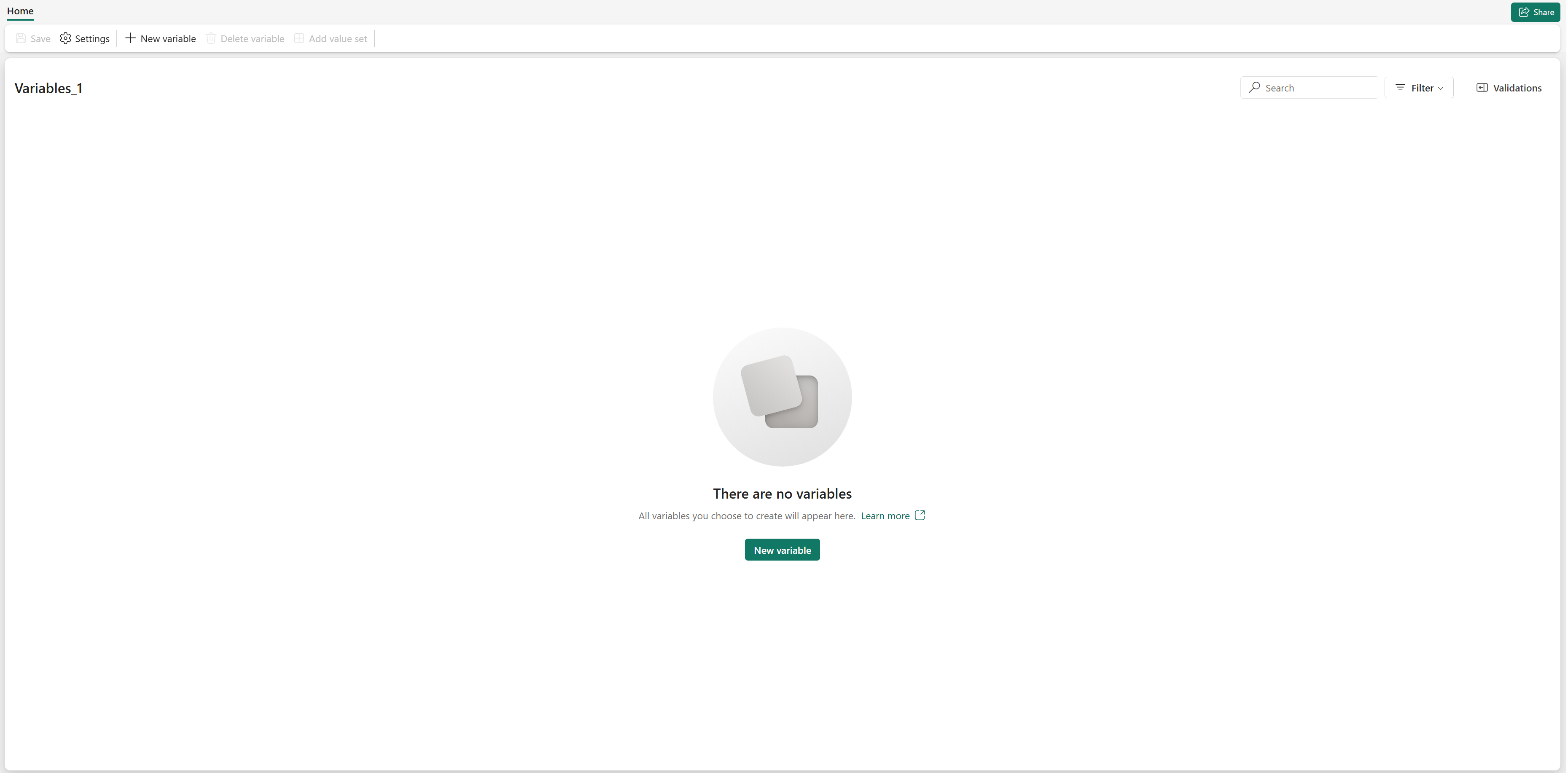
Enter SM_Variable as the variable name.
Select Item reference as the variable type.
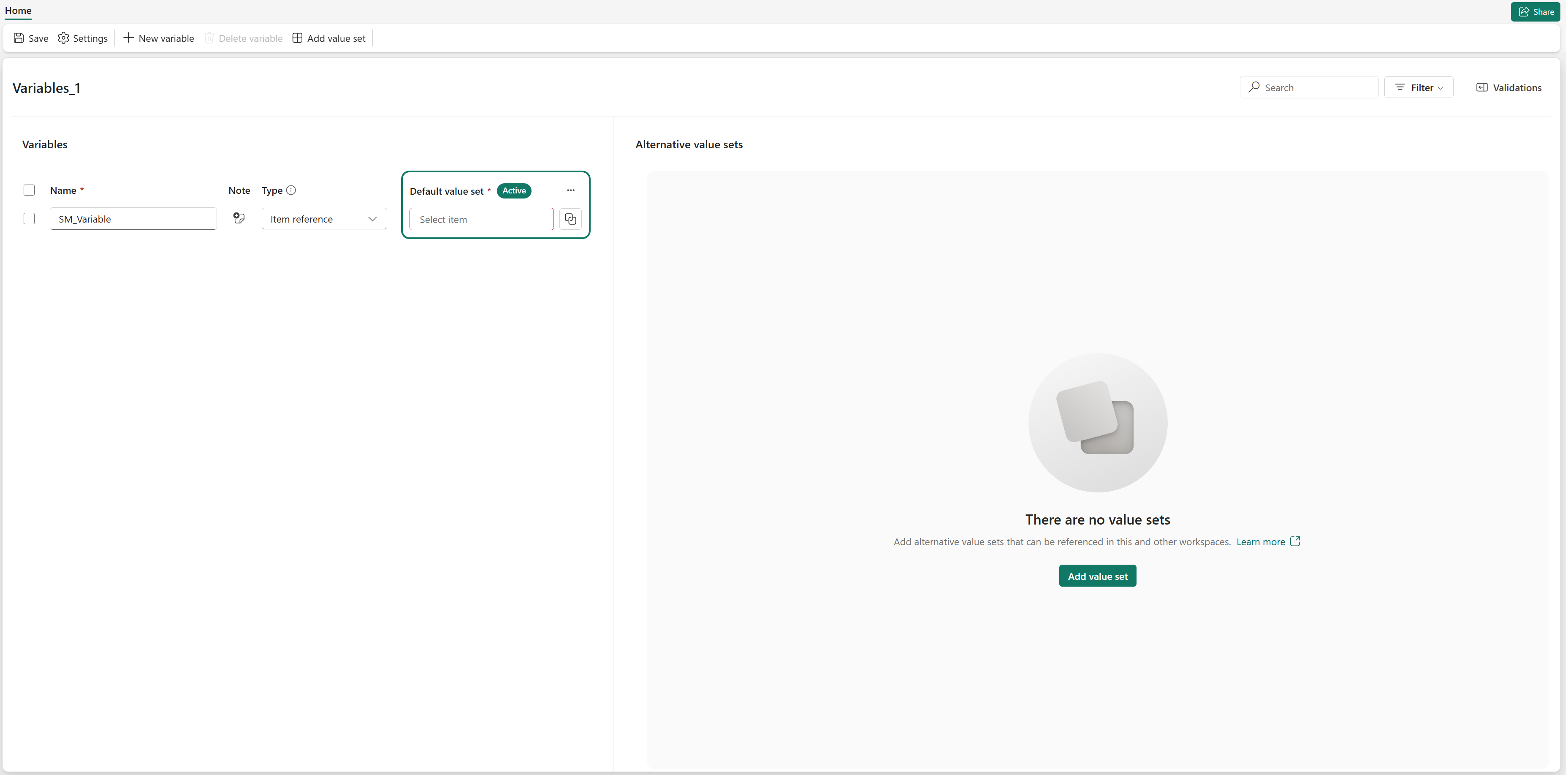
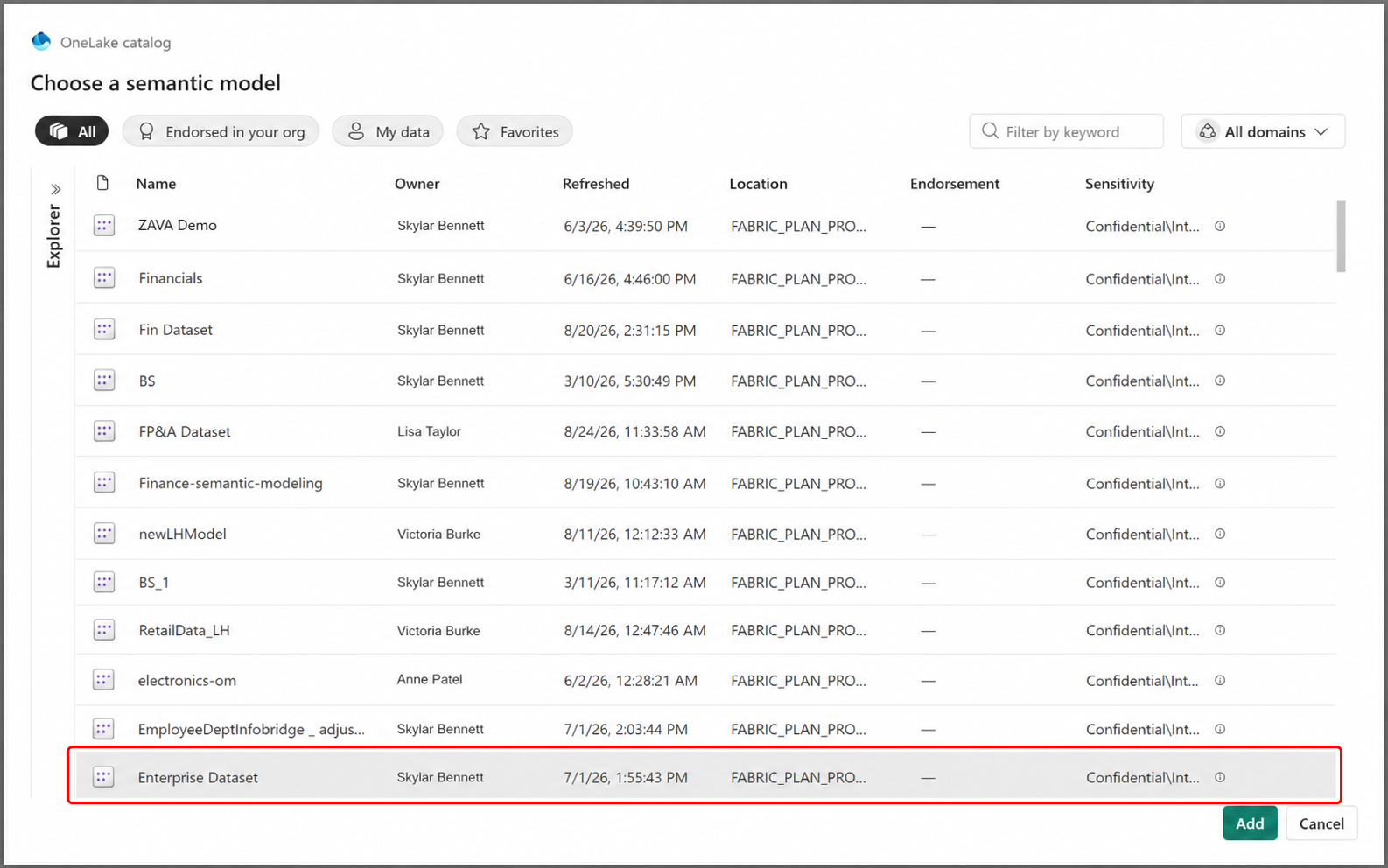
Select the item picker for the variable value.
Select the Enterprise Dataset semantic model.
- Select Save.
Create a Plan item
Create the Plan item that uses the semantic model variable.
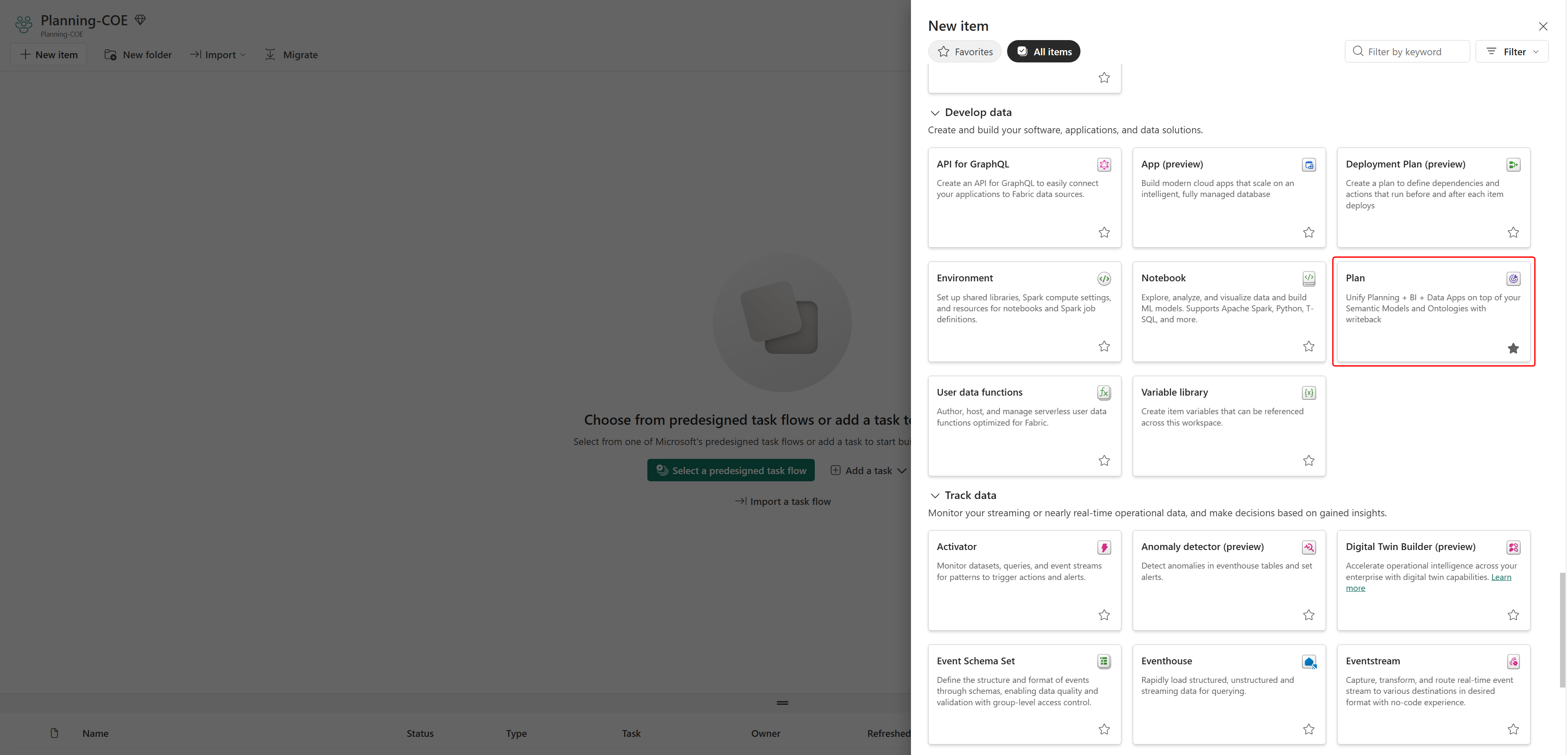
In the workspace, select New item.
Select Plan.
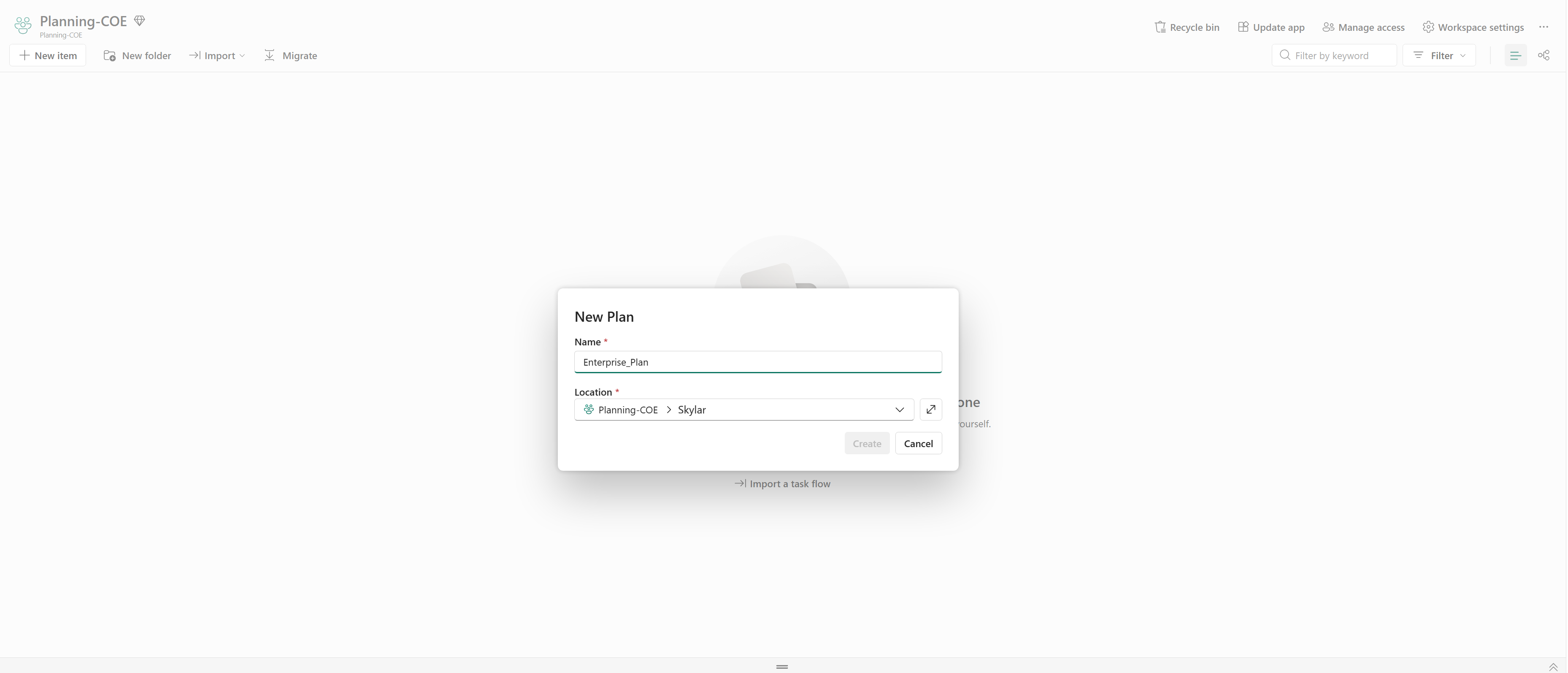
Enter Enterprise_Plan as the Plan name.
Select Create.
Use the semantic model variable in the Plan
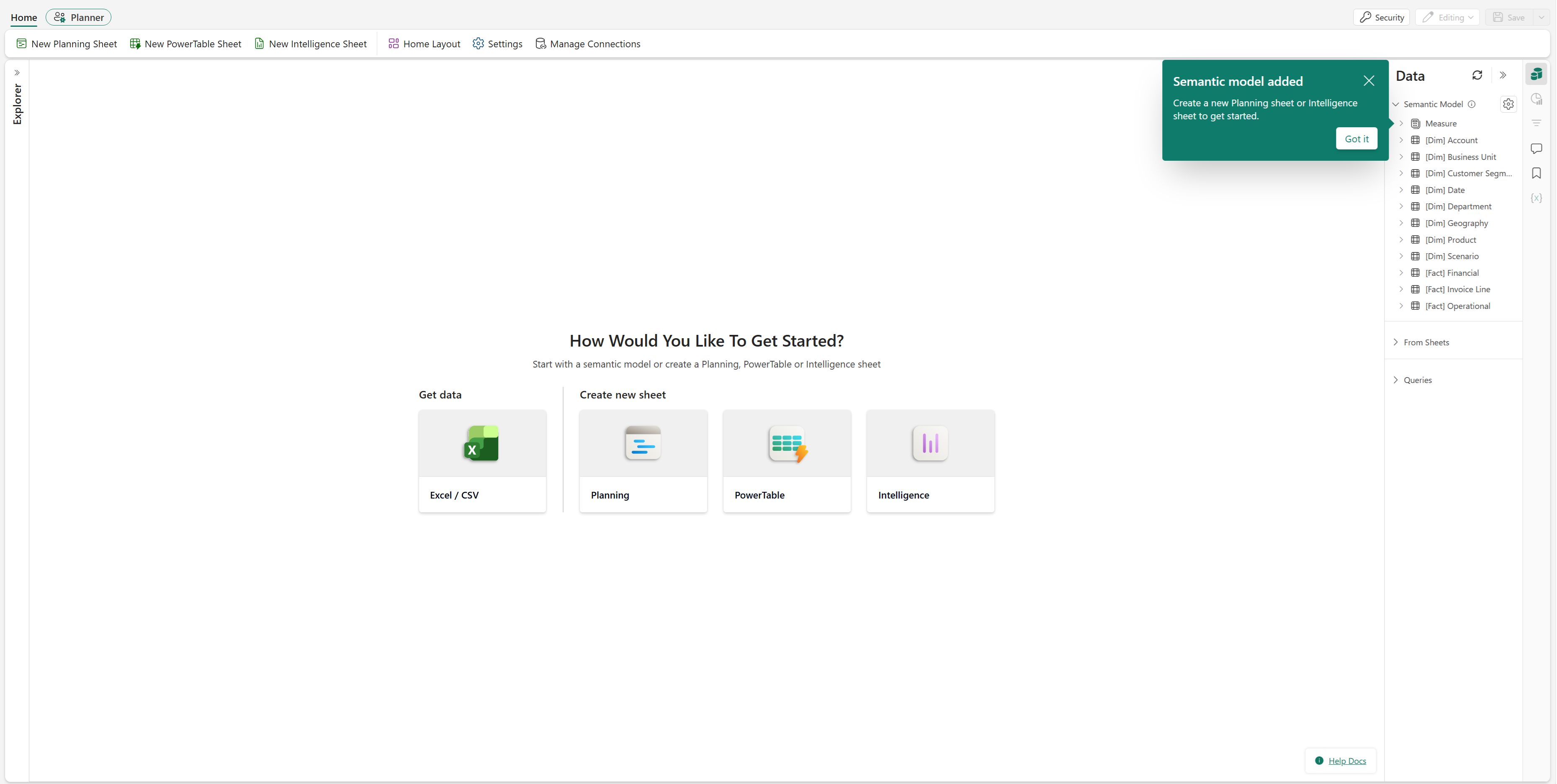
Configure the Plan item to use SM_Variable instead of selecting the semantic model directly.
- In the Plan creation flow, select Semantic Model.
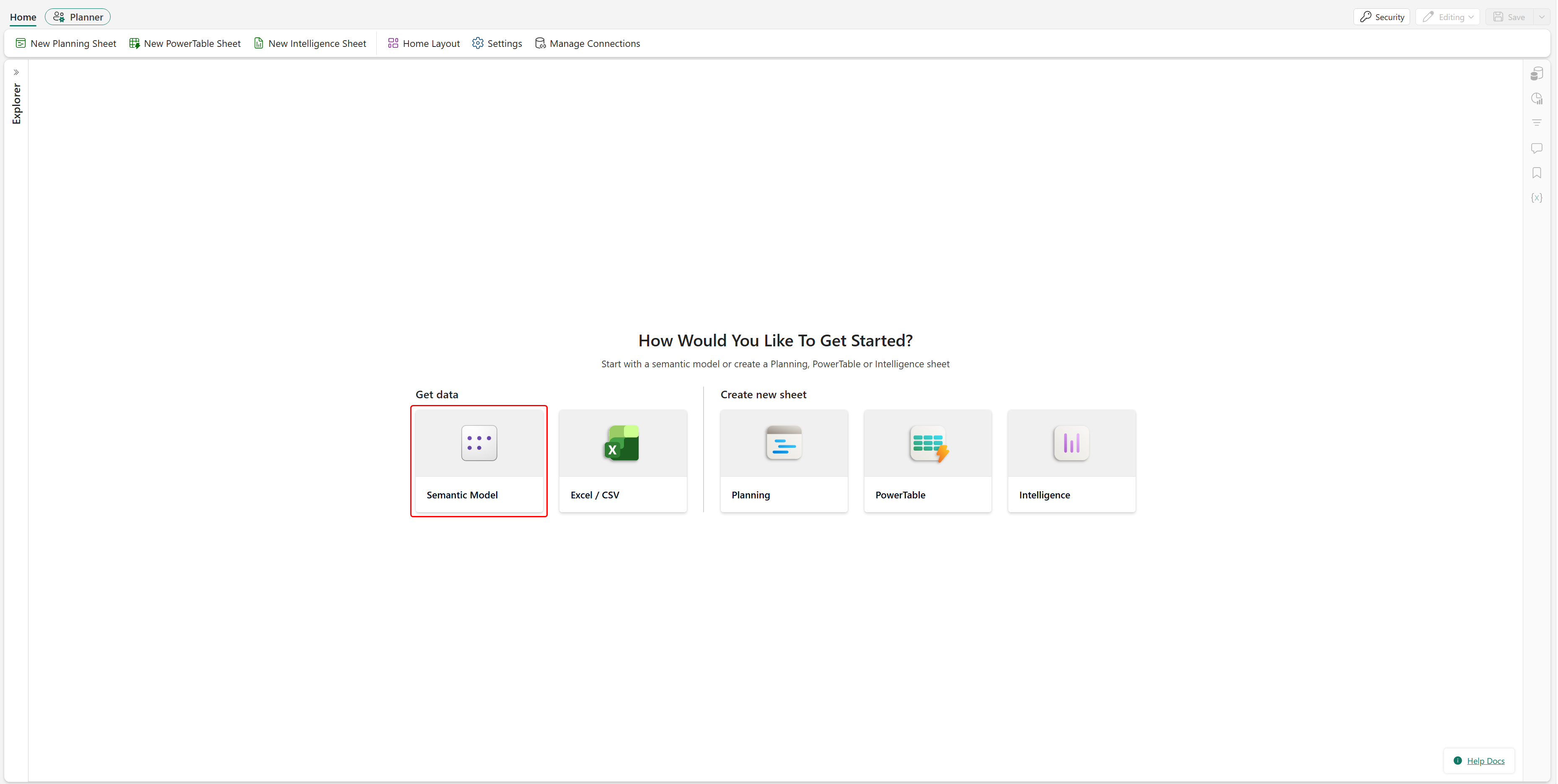
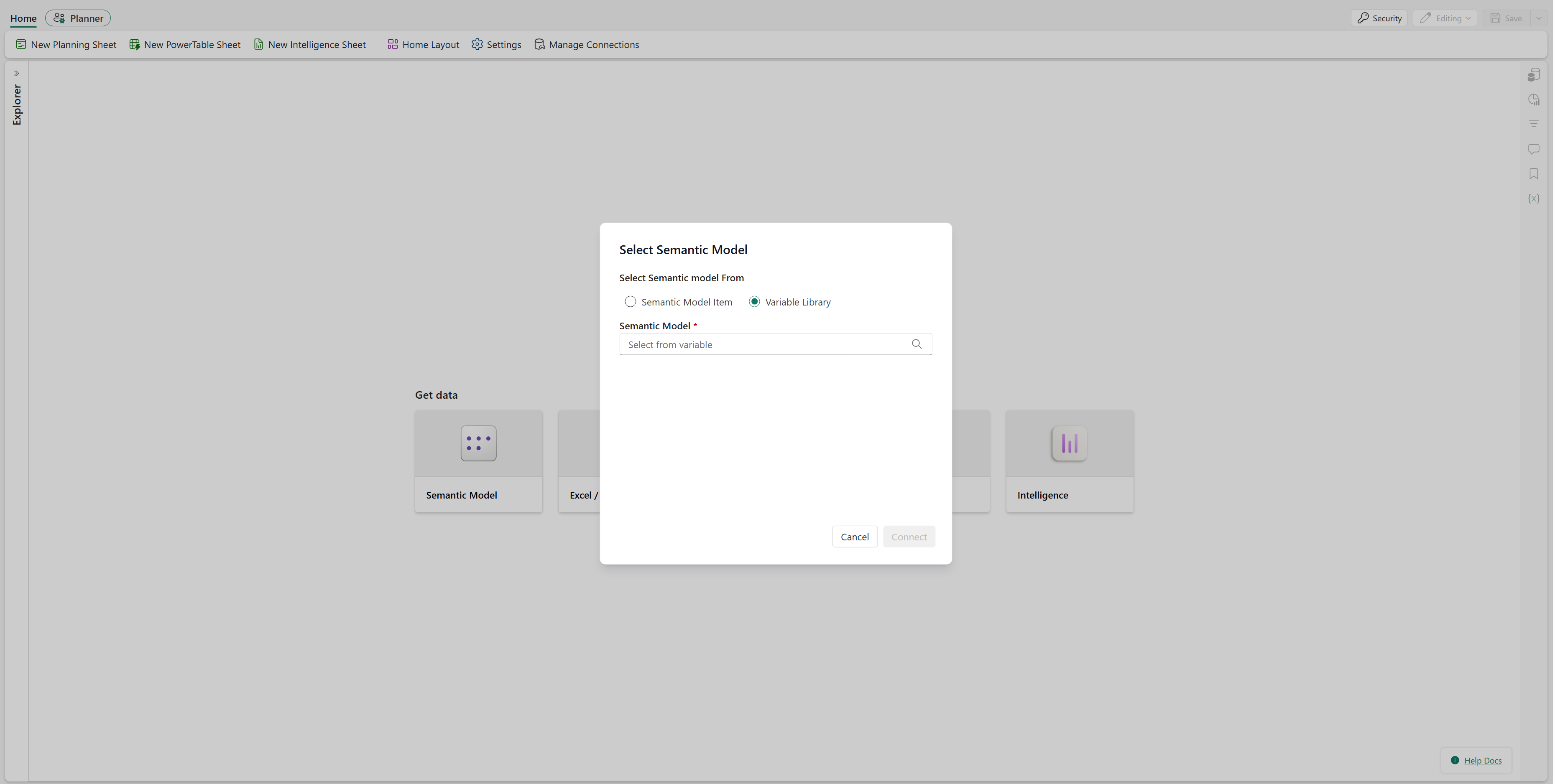
In the Select Semantic Model pane, select Variable Library.
In Semantic Model, select Select from variable.
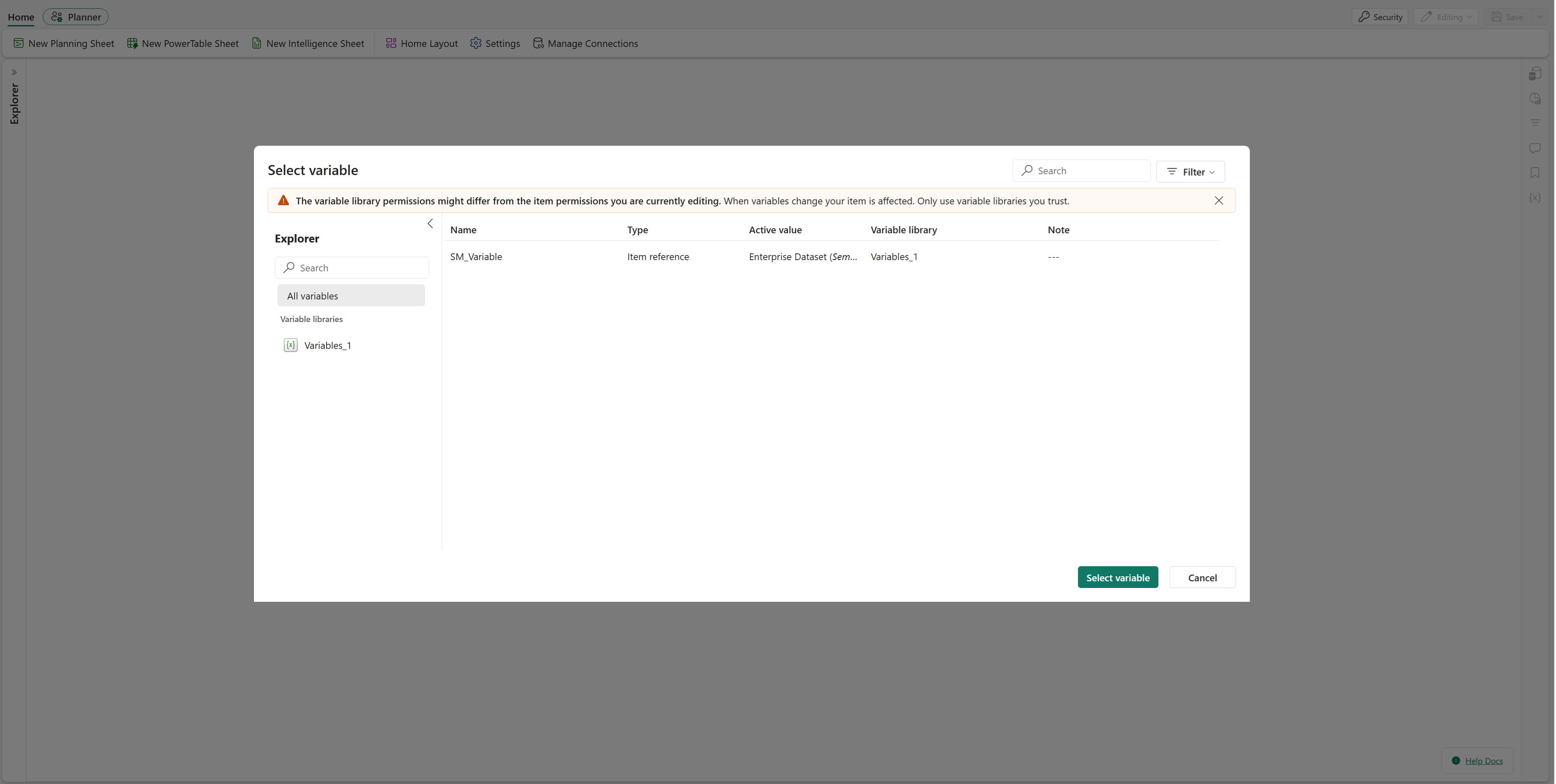
- Select SM_Variable.
- Select Connect.
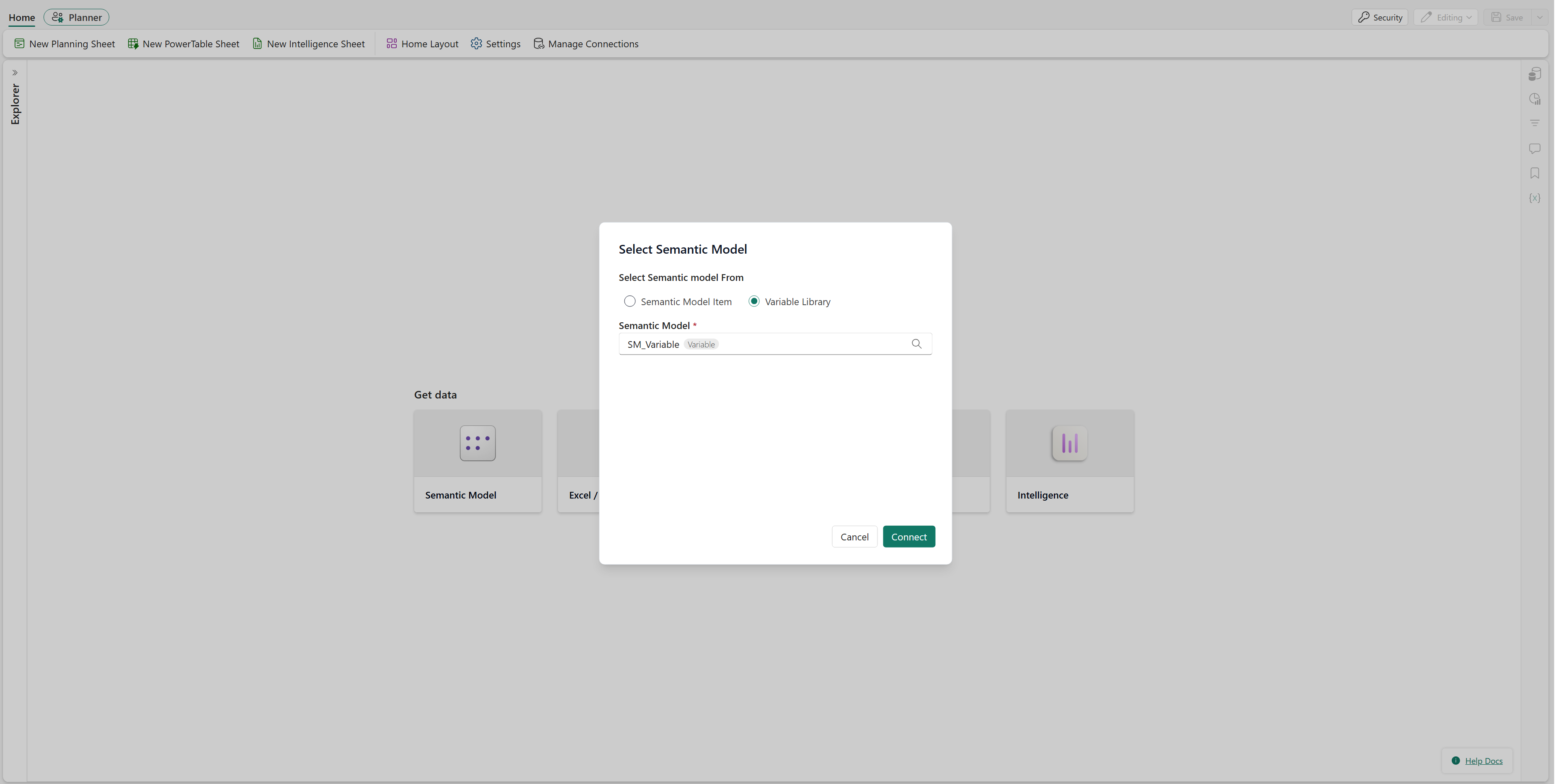
The Plan is now configured to use the semantic model referenced by SM_Variable.
Create an item reference for the SQL database
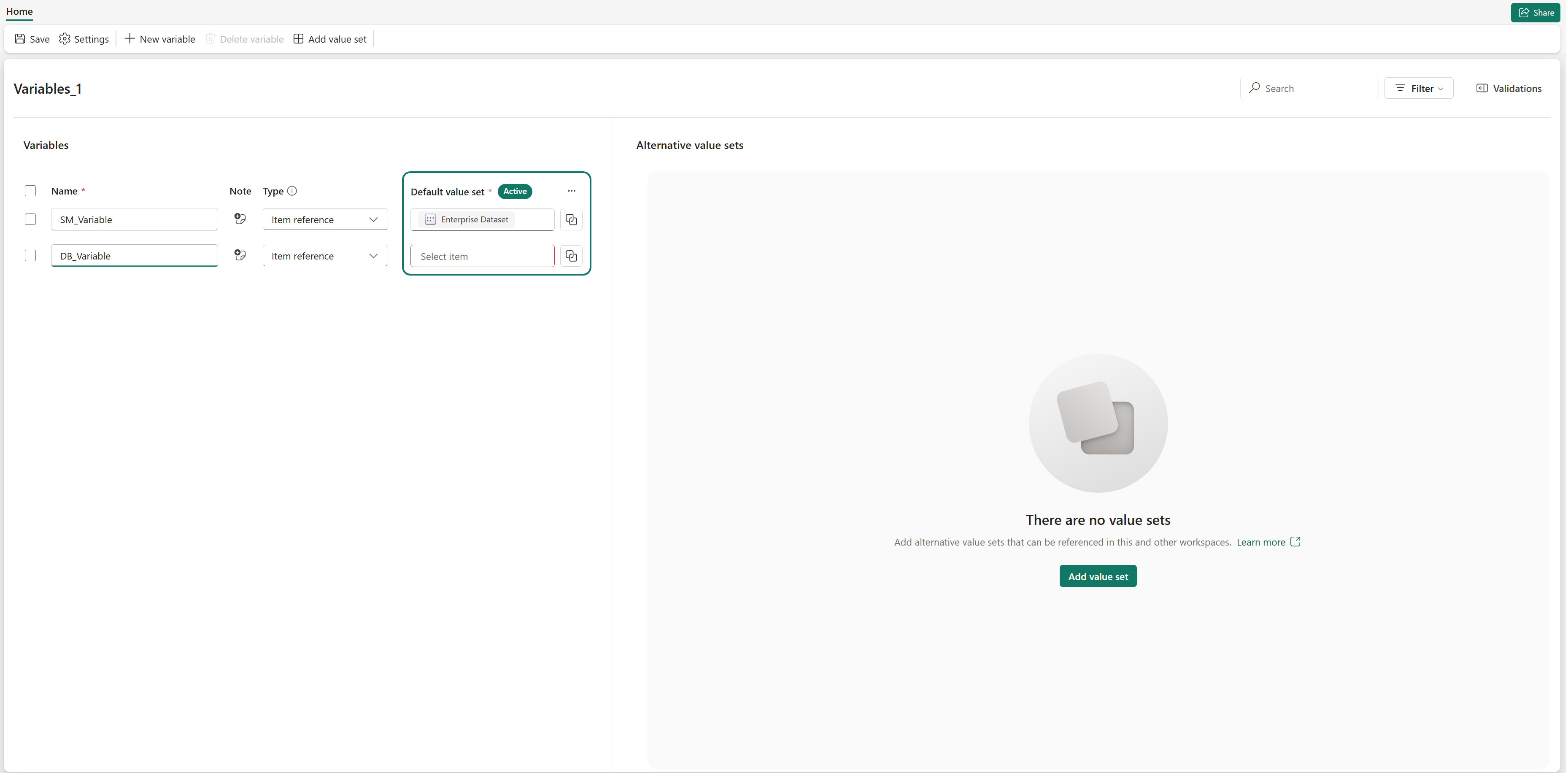
Create an item reference variable for the SQL database that you use as the Writeback database.
In the variable library, select New variable.
Enter DB_Variable as the variable name.
Select Item reference as the variable type.
Select the item picker for the variable value.
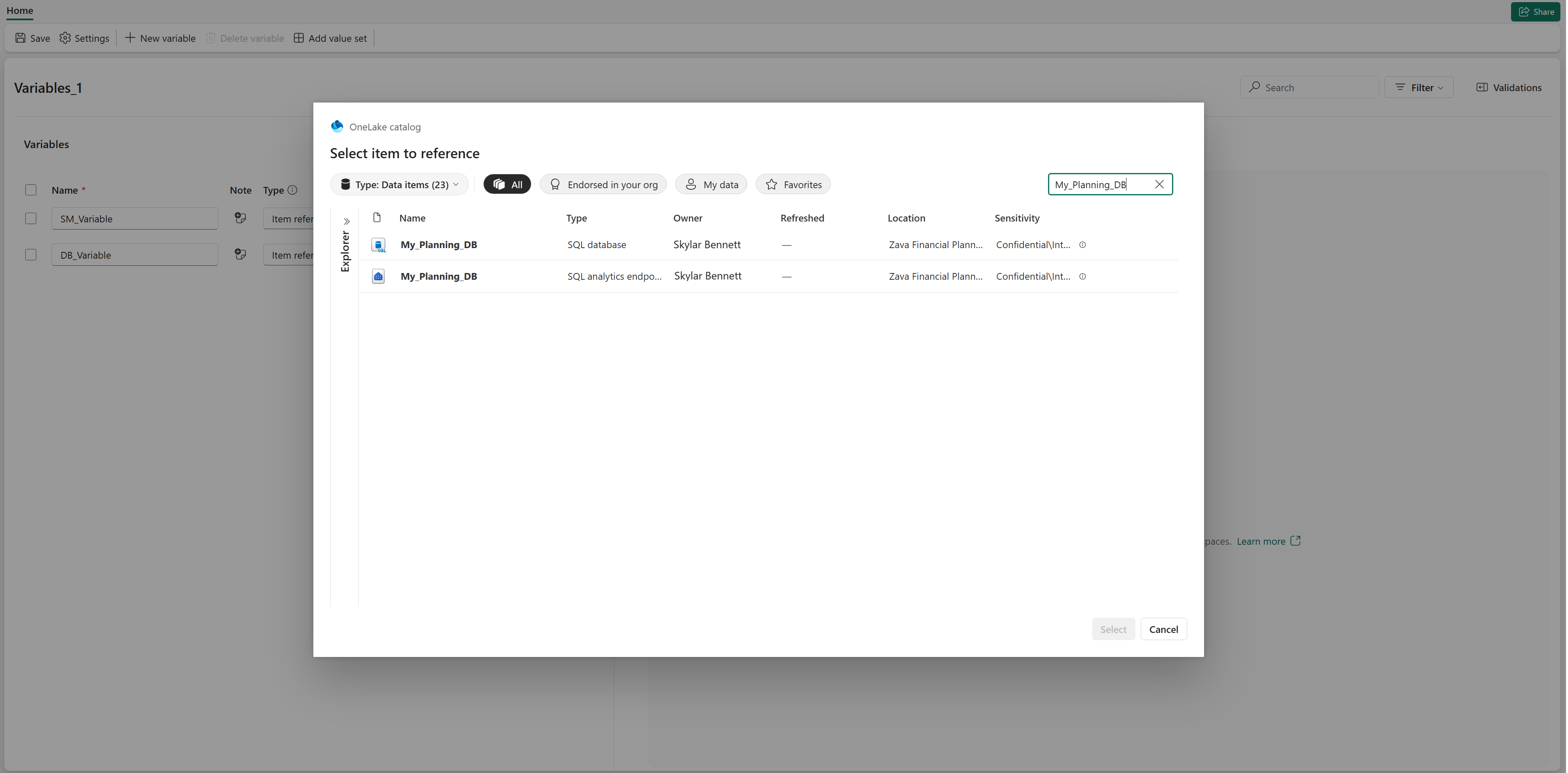
- Select My_Planning_DB.
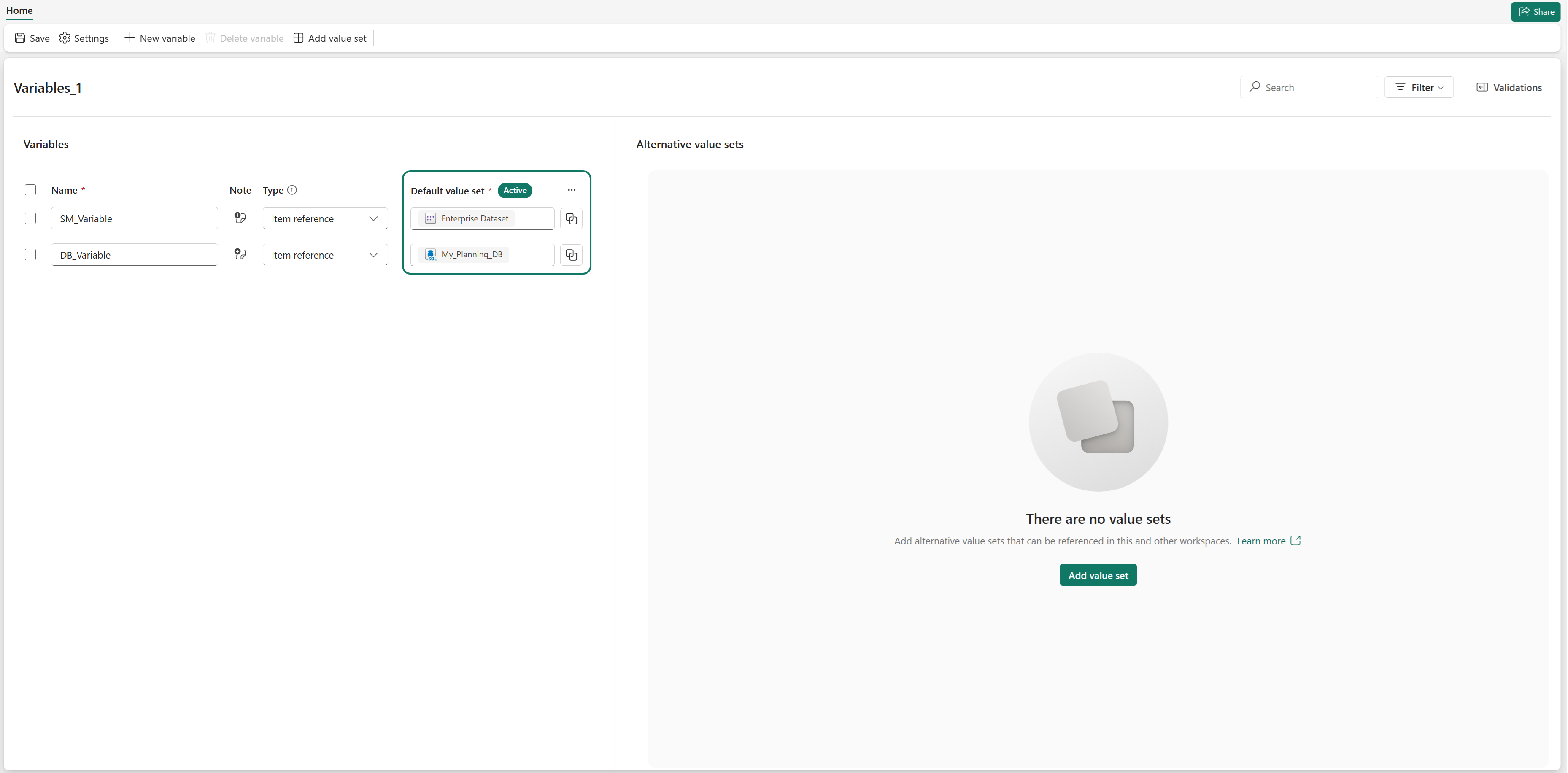
- Select Save.
Create a connection reference for the App DB connection
Create a connection reference variable for the reusable App DB connection.
In the variable library, select New variable.
Enter DMTS_Variable as the variable name.
Select Connection reference as the variable type.
Select the connection picker.
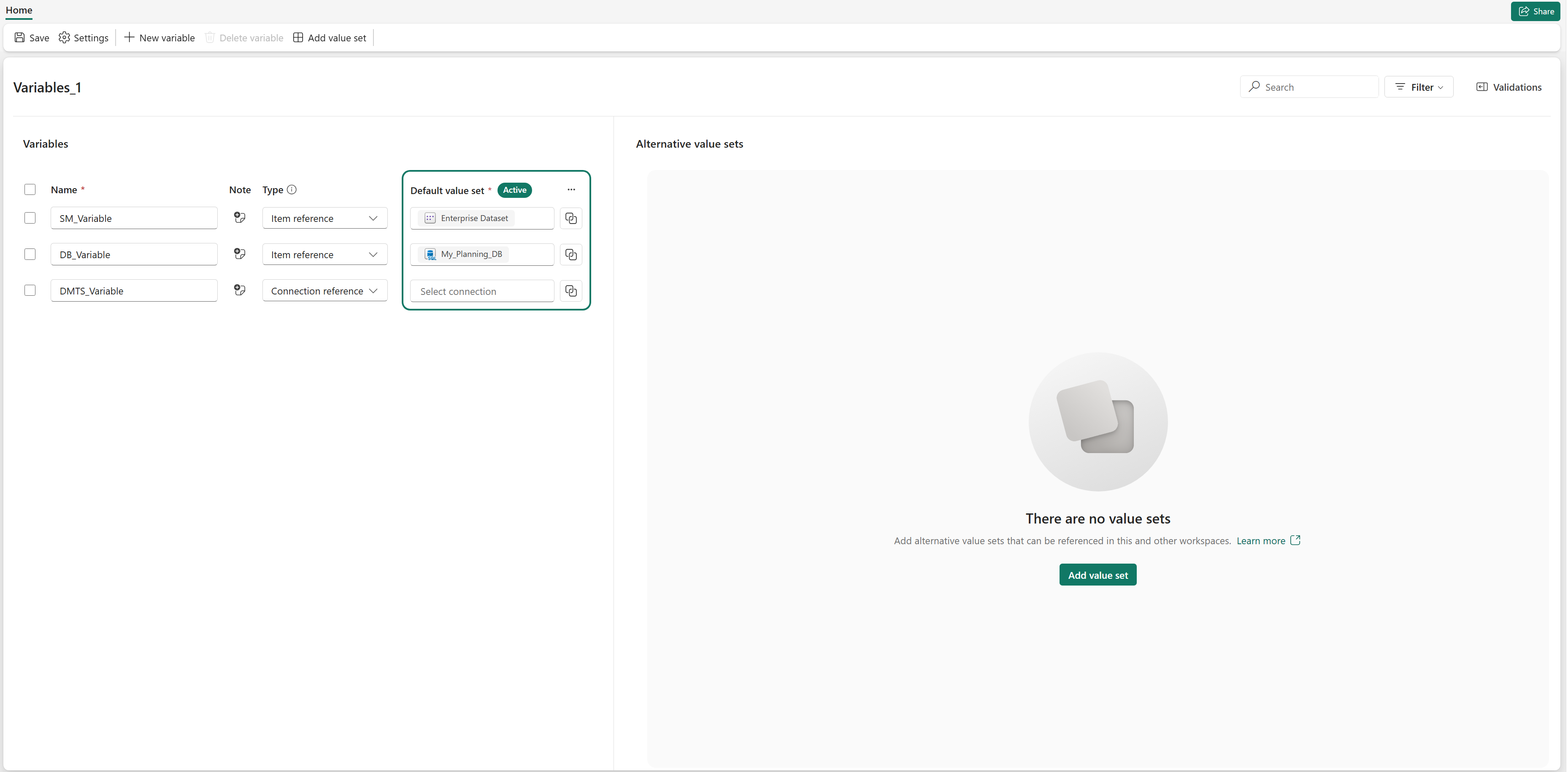
Select My_Fabric_SQL_Connection.
Select Save.
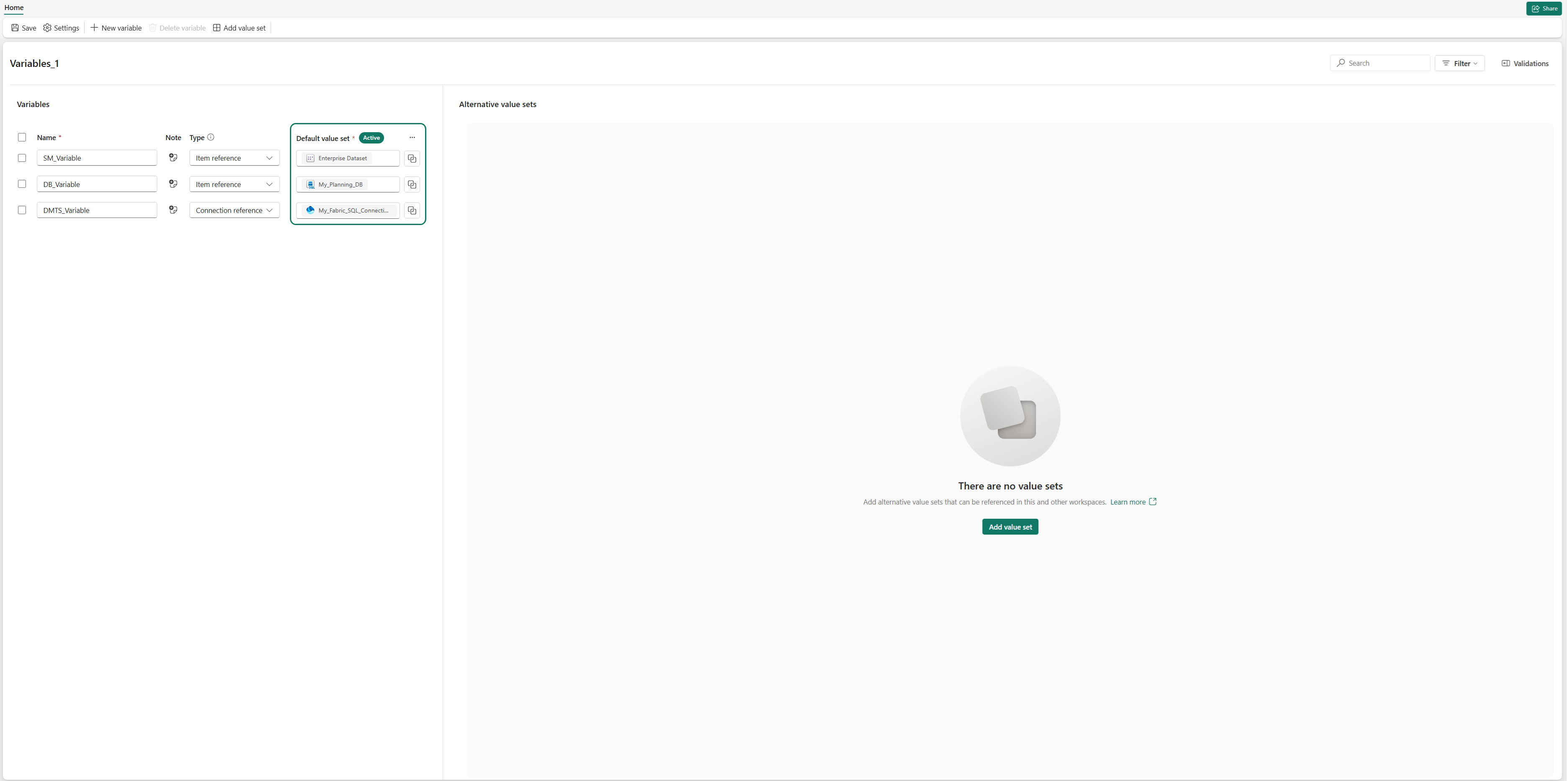
The variable library now contains reusable references for the semantic model, SQL database, and App DB connection.
Use the variables for a Writeback destination
Use DMTS_Variable and DB_Variable when you configure the Writeback destination in Enterprise_Plan.
Open Enterprise_Plan.
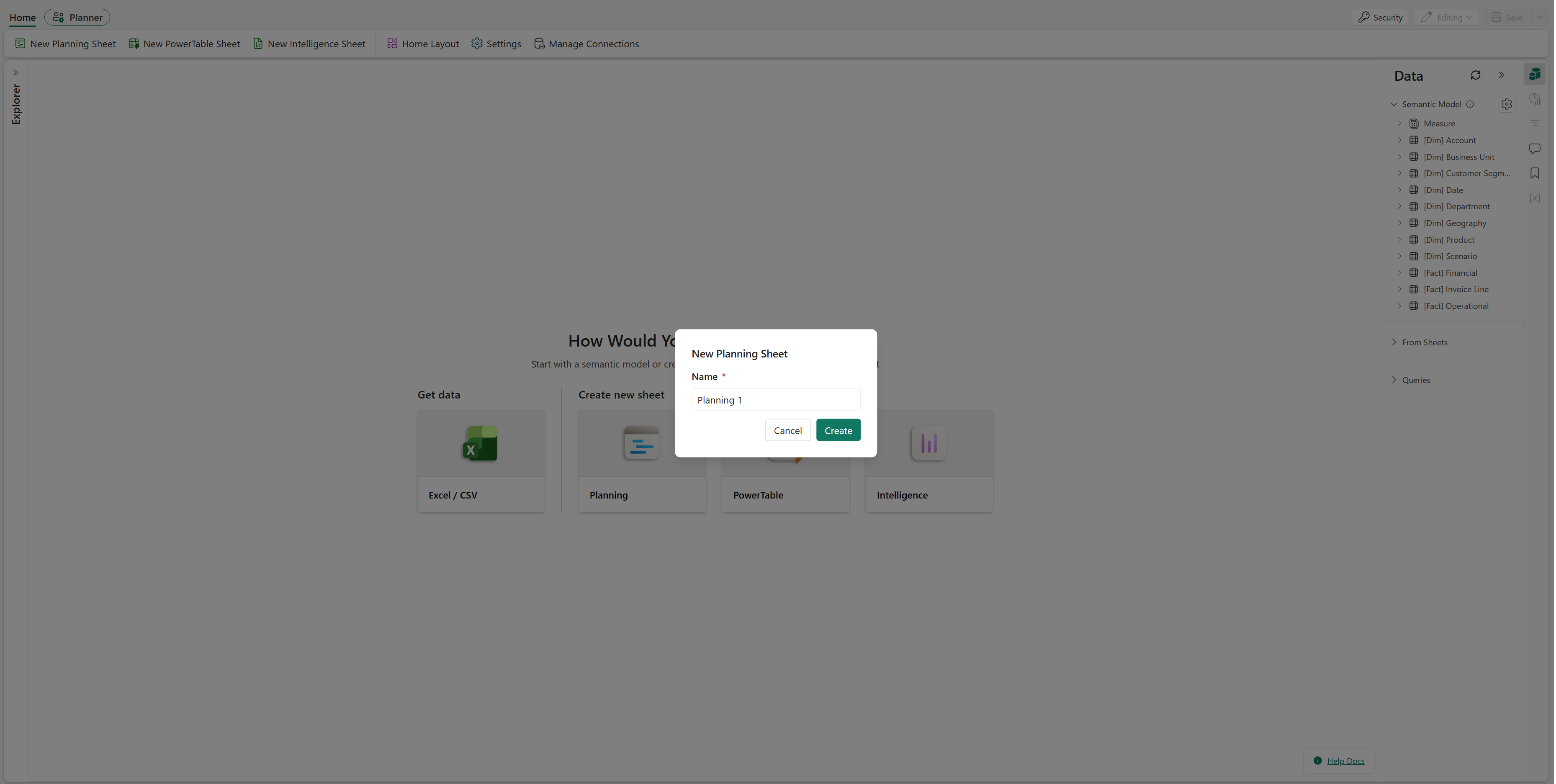
Select Planning.
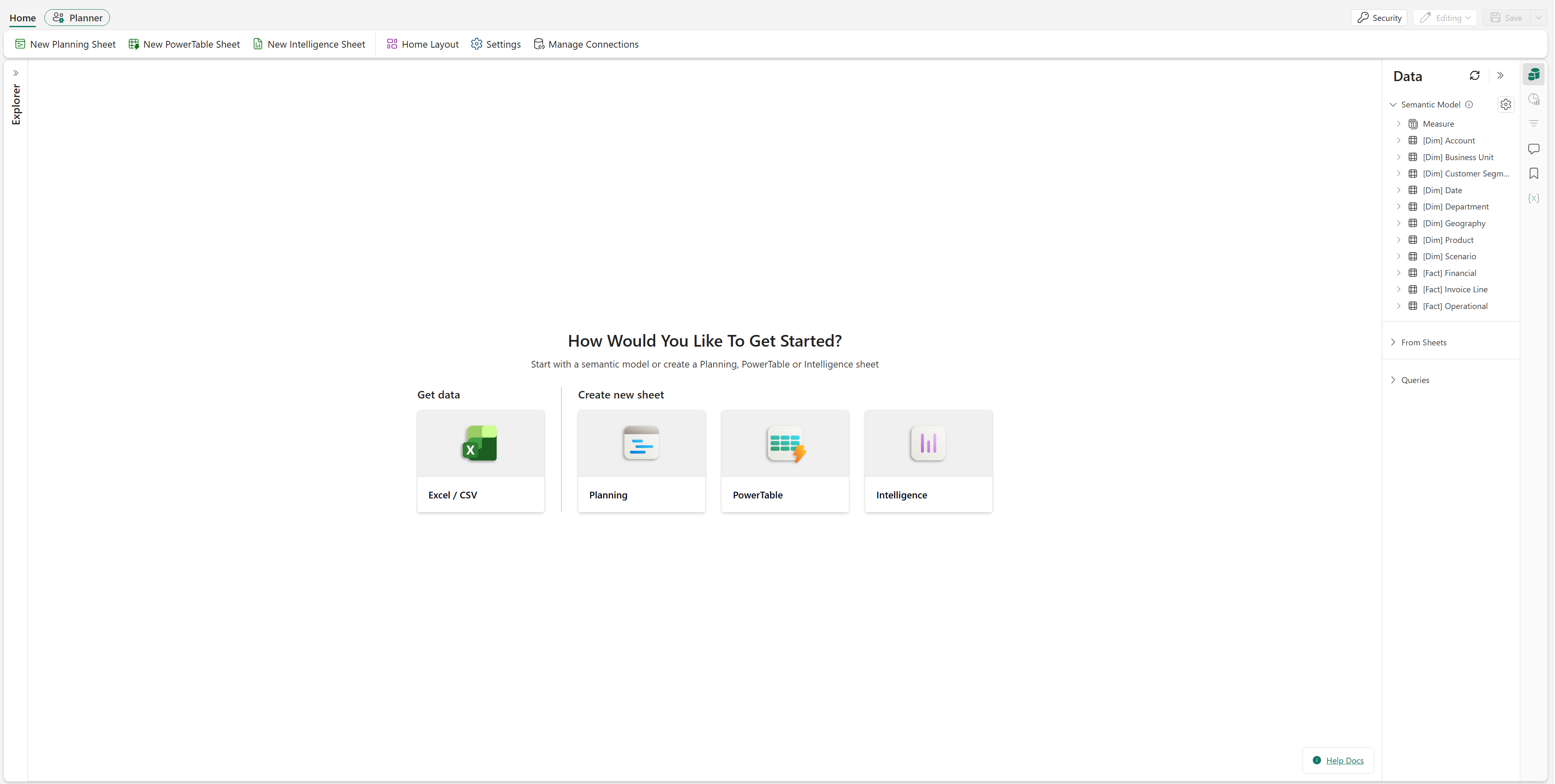
- Create a planning sheet.
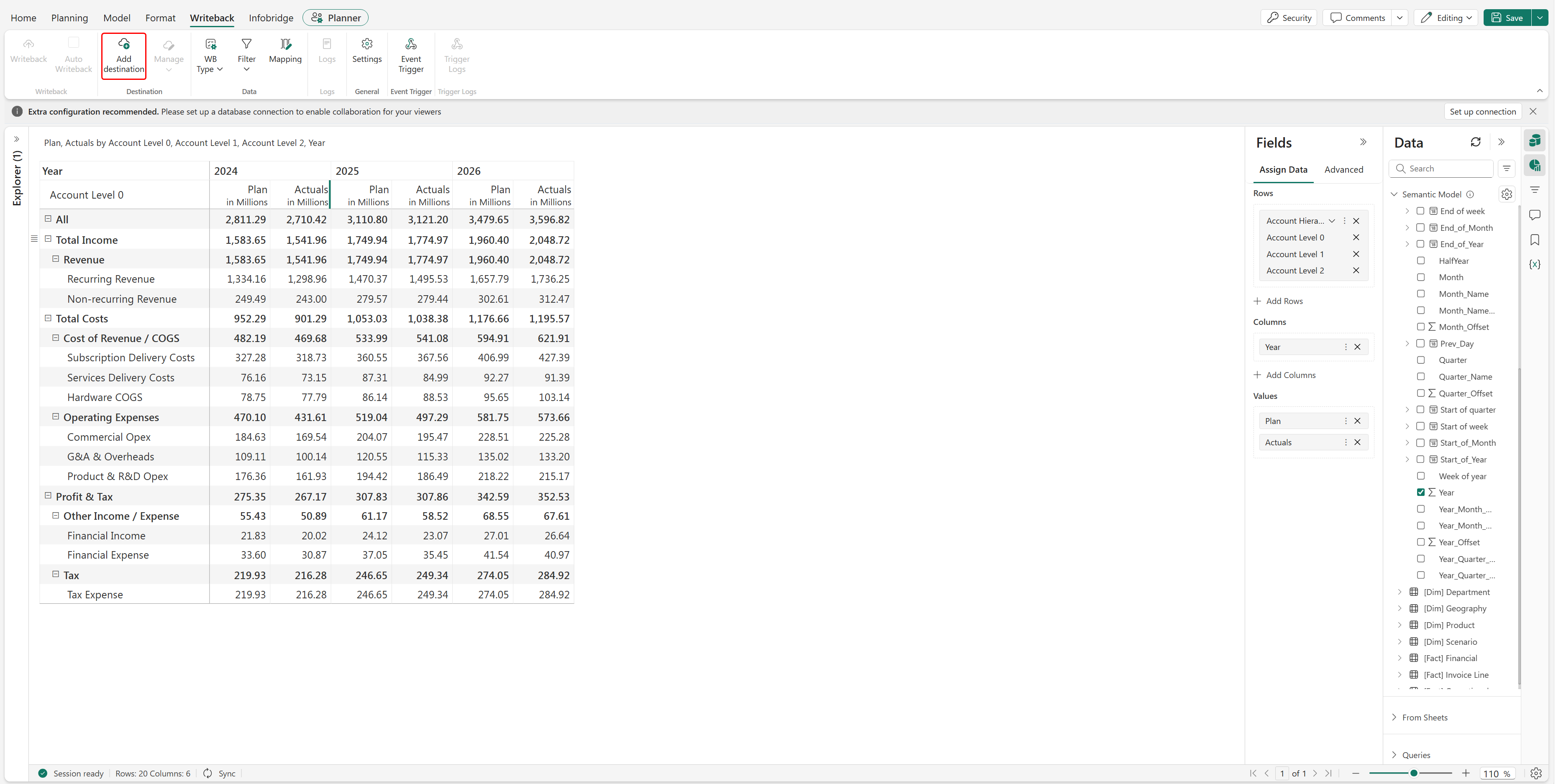
- In the Writeback experience, select Add destination.
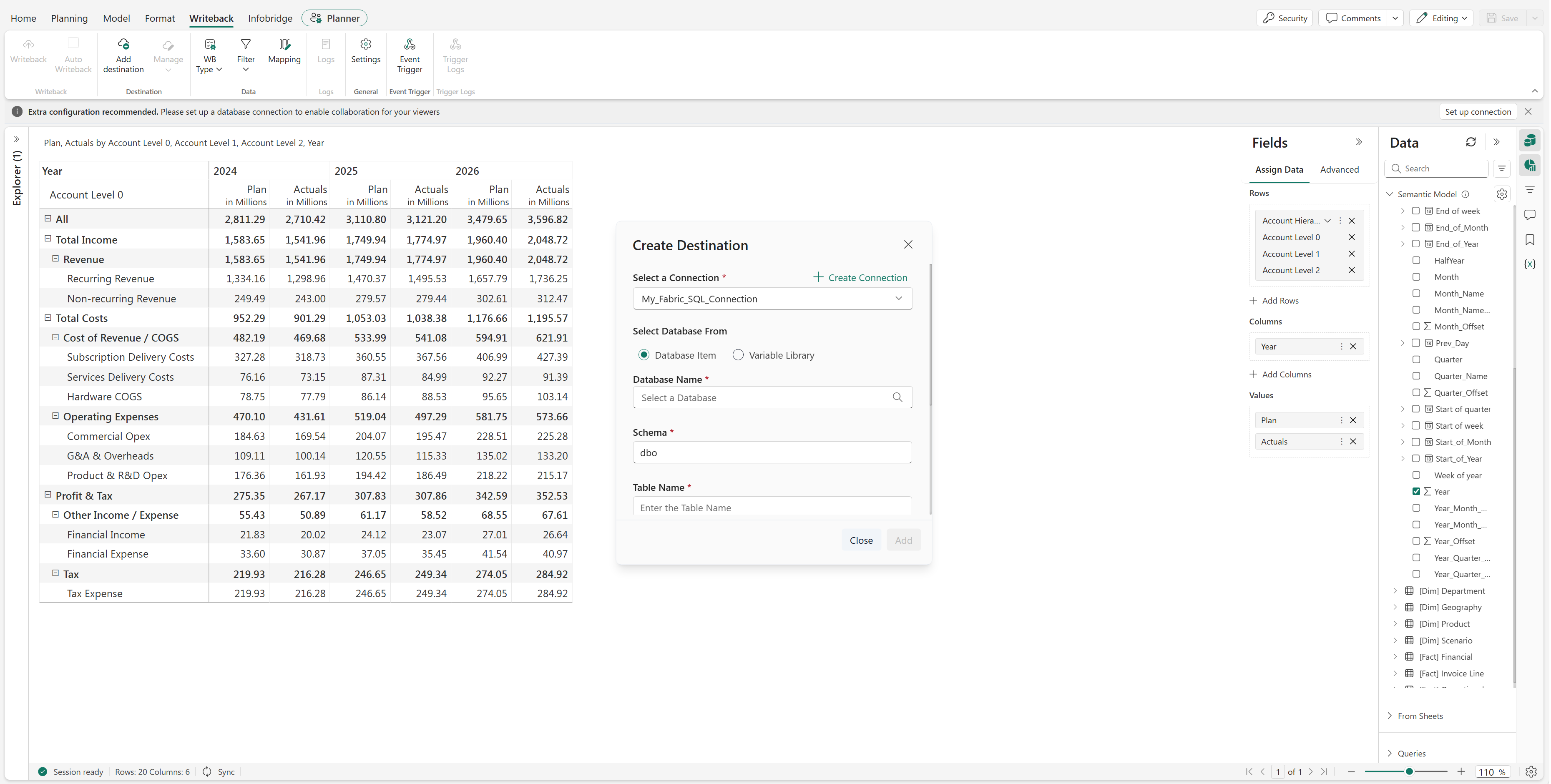
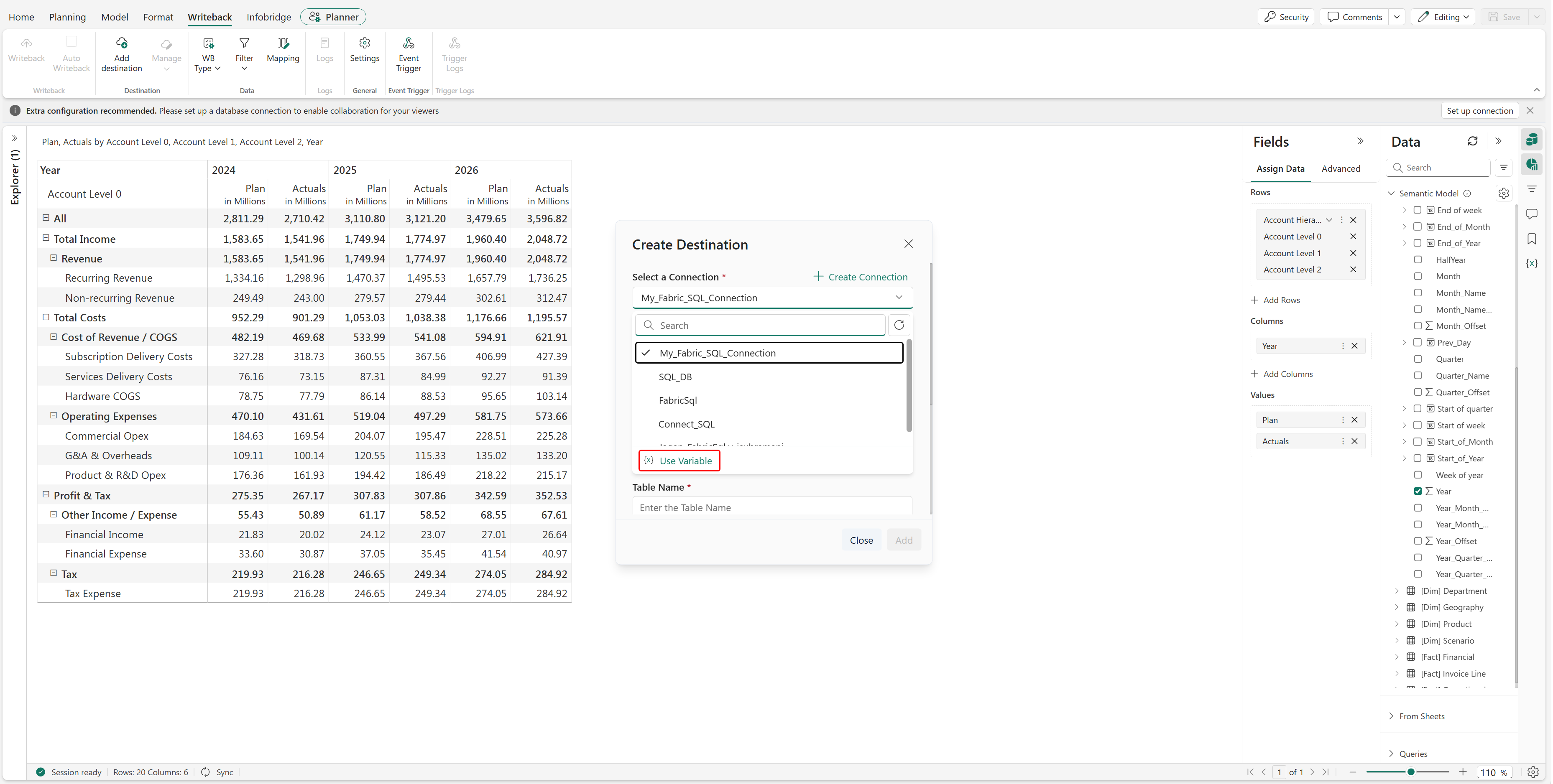
- In Create Destination, open the Select a Connection list.
- Select Use Variable.
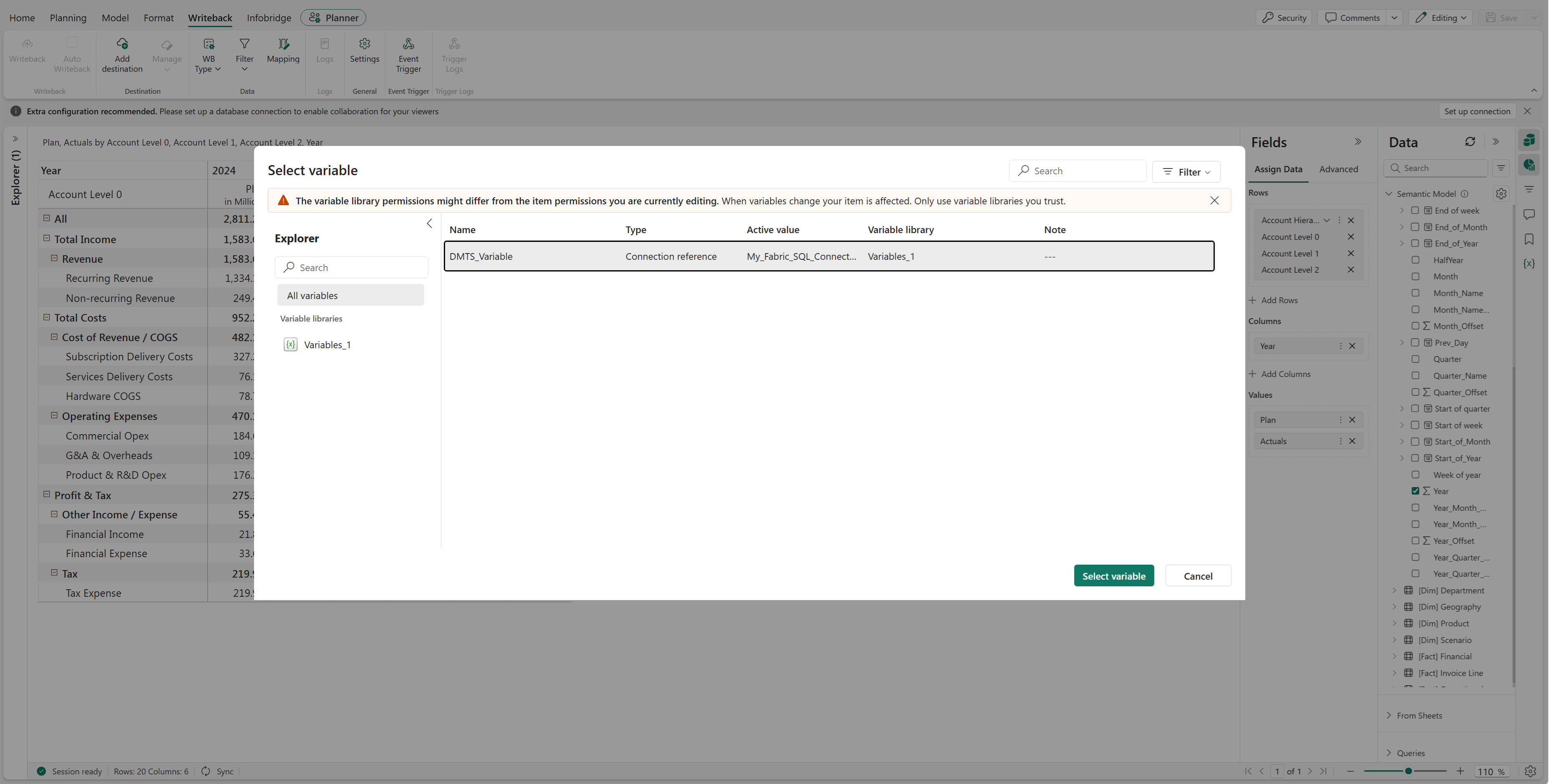
In the Select variable pane, select DMTS_Variable.
Select Select variable.
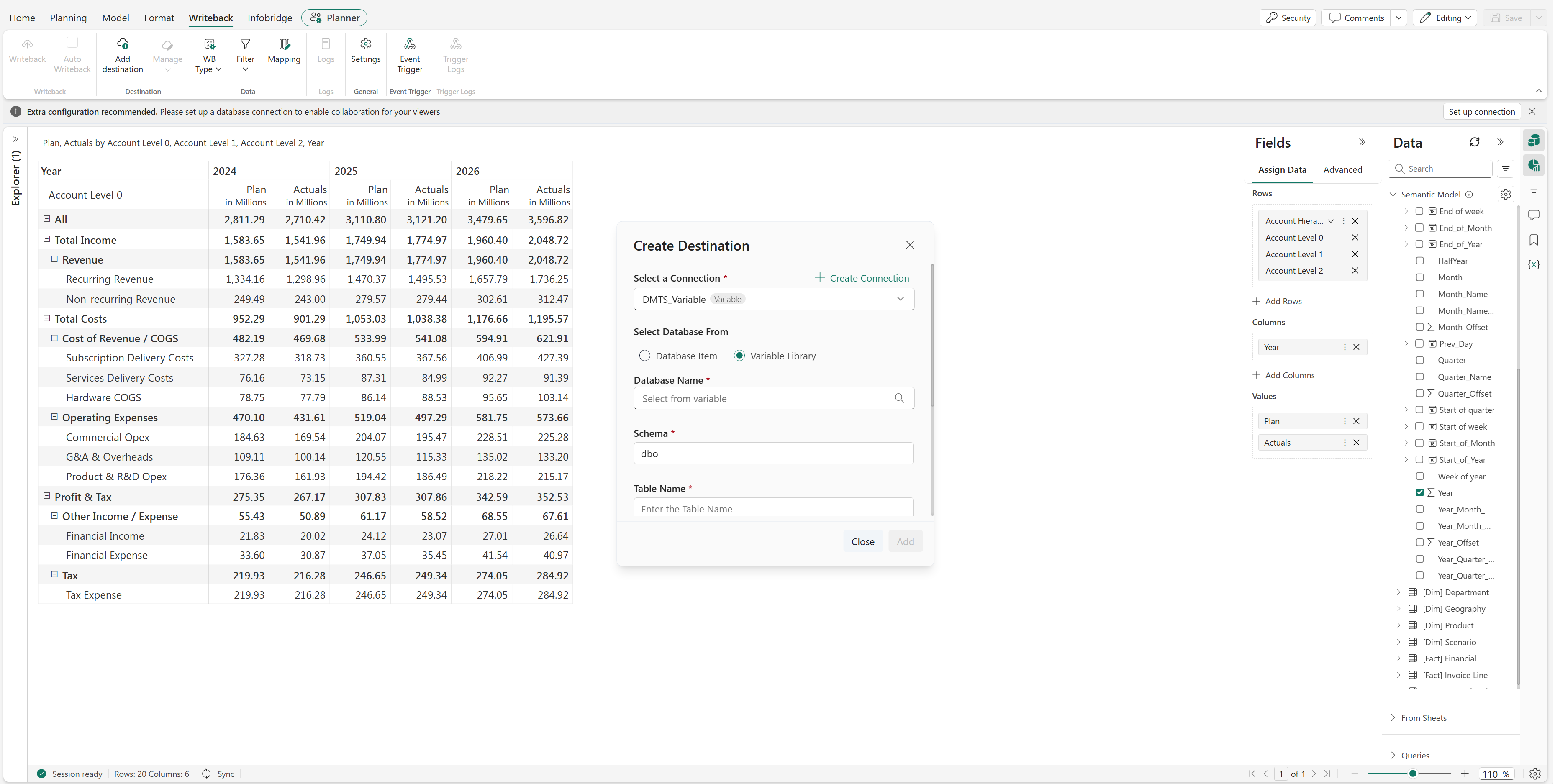
Under Select Database From, select Variable Library.
In Database Name, select Select from variable.
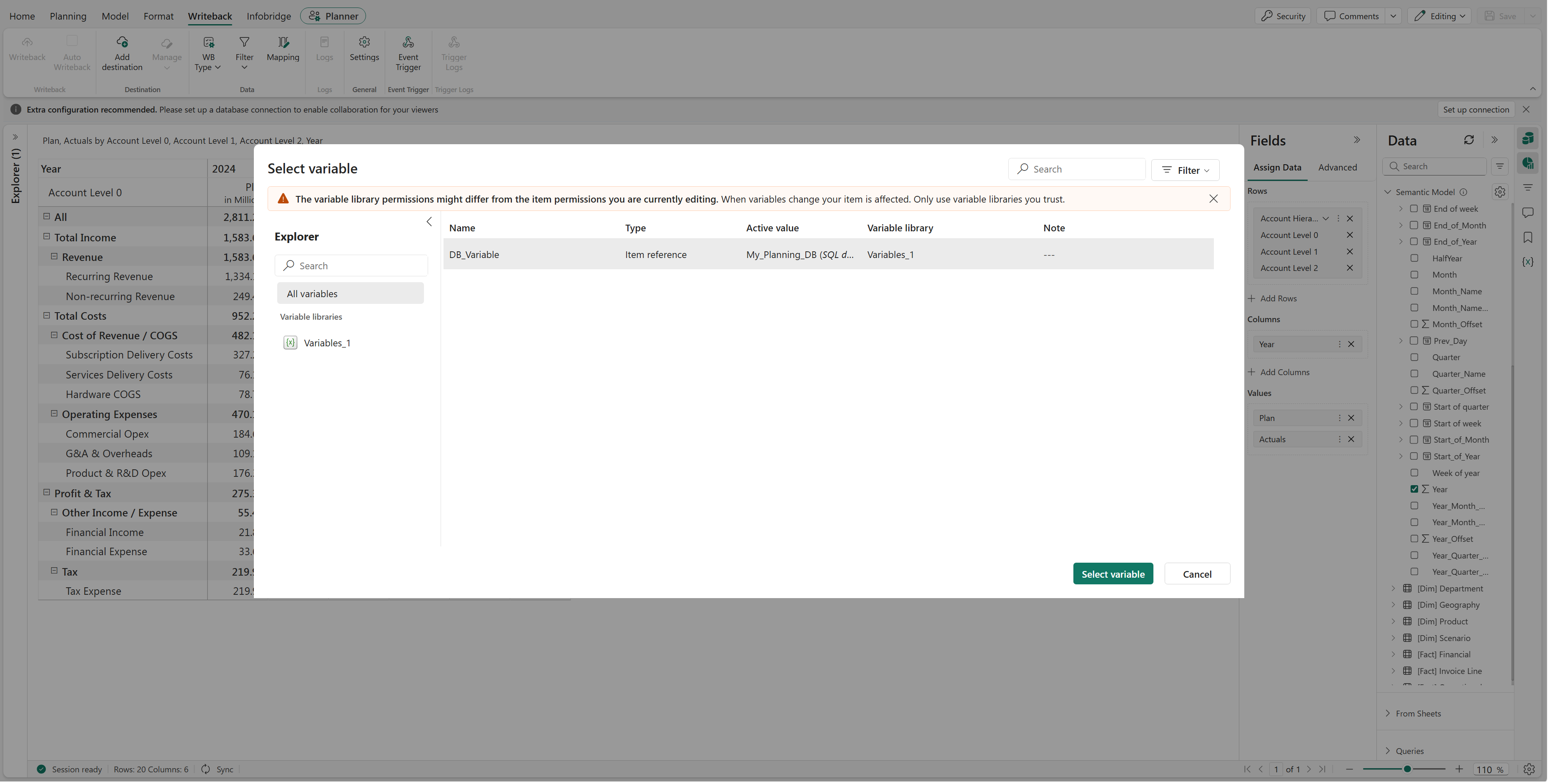
Select DB_Variable.
Select Select variable.
Complete the remaining required destination fields, such as Schema and Table Name.
Select Add.
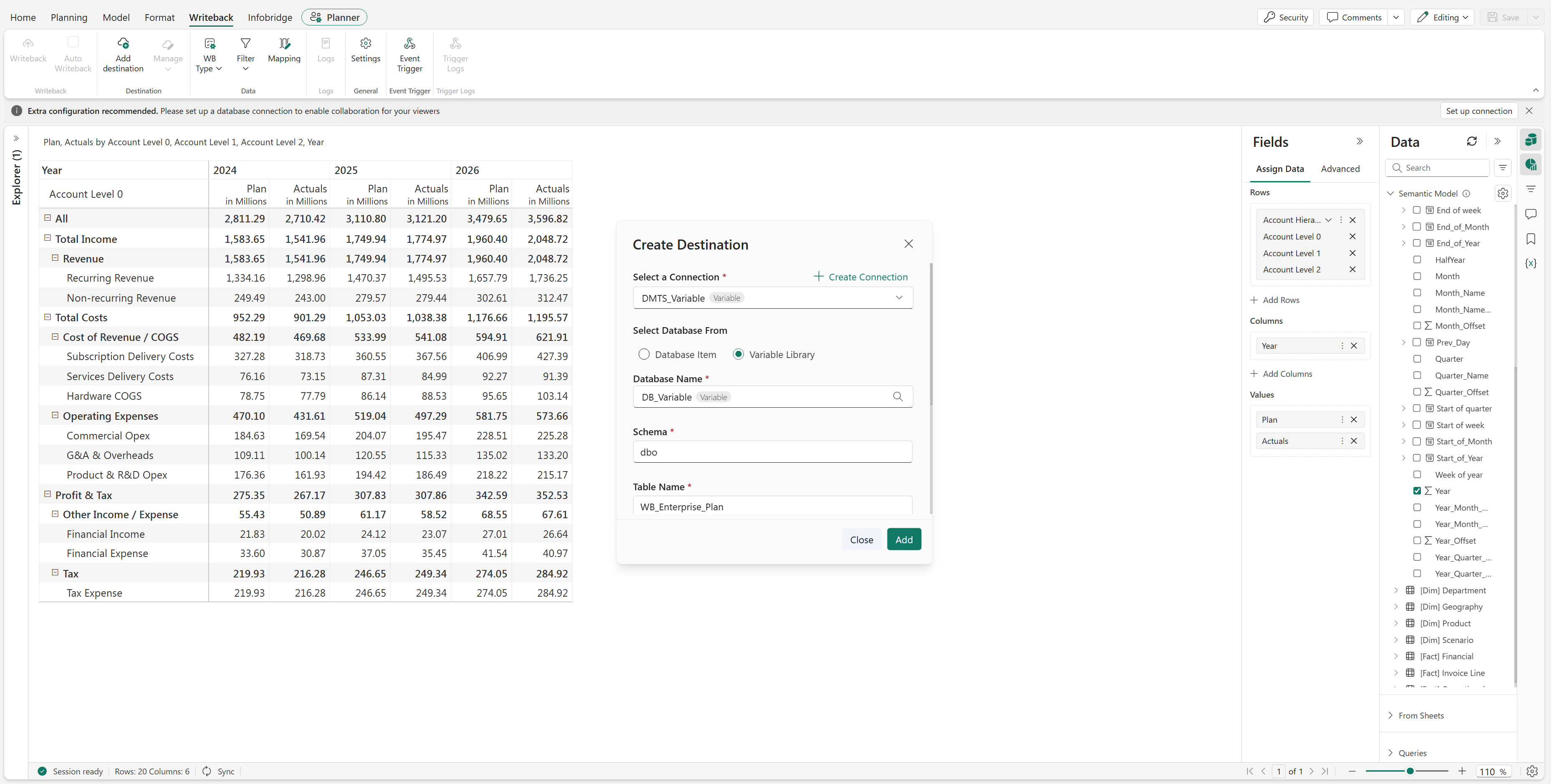
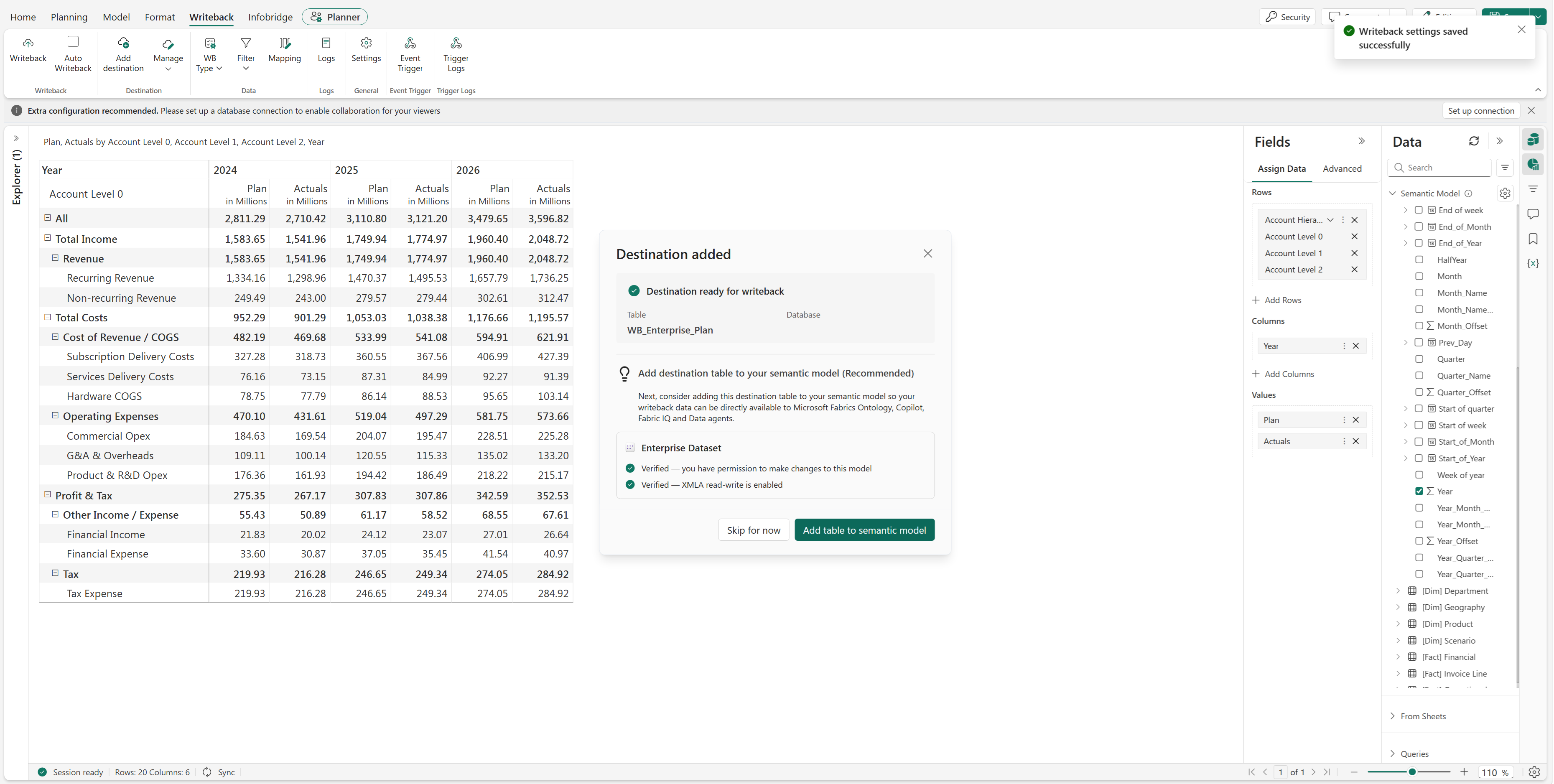
The Writeback destination is added to the Plan using the reusable variables.
Summary
In this example, the variable library centralizes the references
required by the Plan item:
| Variable | Type | Reference |
|---|---|---|
| SM_Variable | Item reference | Enterprise Dataset semantic model |
| DB_Variable | Item reference | My_Planning_DB SQL database |
| DMTS_Variable | Connection reference | My_Fabric_SQL_Connection connection |
The Plan uses SM_Variable for its semantic model and uses DMTS_Variable and DB_Variable when configuring the Writeback destination. This approach avoids selecting the same references directly each time they are required and provides reusable configuration for ALM scenarios.