Note
Access to this page requires authorization. You can try signing in or changing directories.
Access to this page requires authorization. You can try changing directories.
Use SQL Query to create a new query by writing SQL statements against an existing Infobridge query.
SQL queries let you retrieve specific columns, filter data, and reshape query results without modifying the original query.
Note
SQL queries create a new query. They don't modify the original Infobridge query.
Example scenario
This example creates a new SQL query named High Value Product Sales from an existing planning sheet query.
The SQL query retrieves the product, category, country/region, units, unit price, and revenue columns from the source query.
Create a SQL query
This example shows how to create a new SQL query from an existing Infobridge query.
On the Home ribbon, select SQL Query.

In Source Name, enter High Value Product Sales.
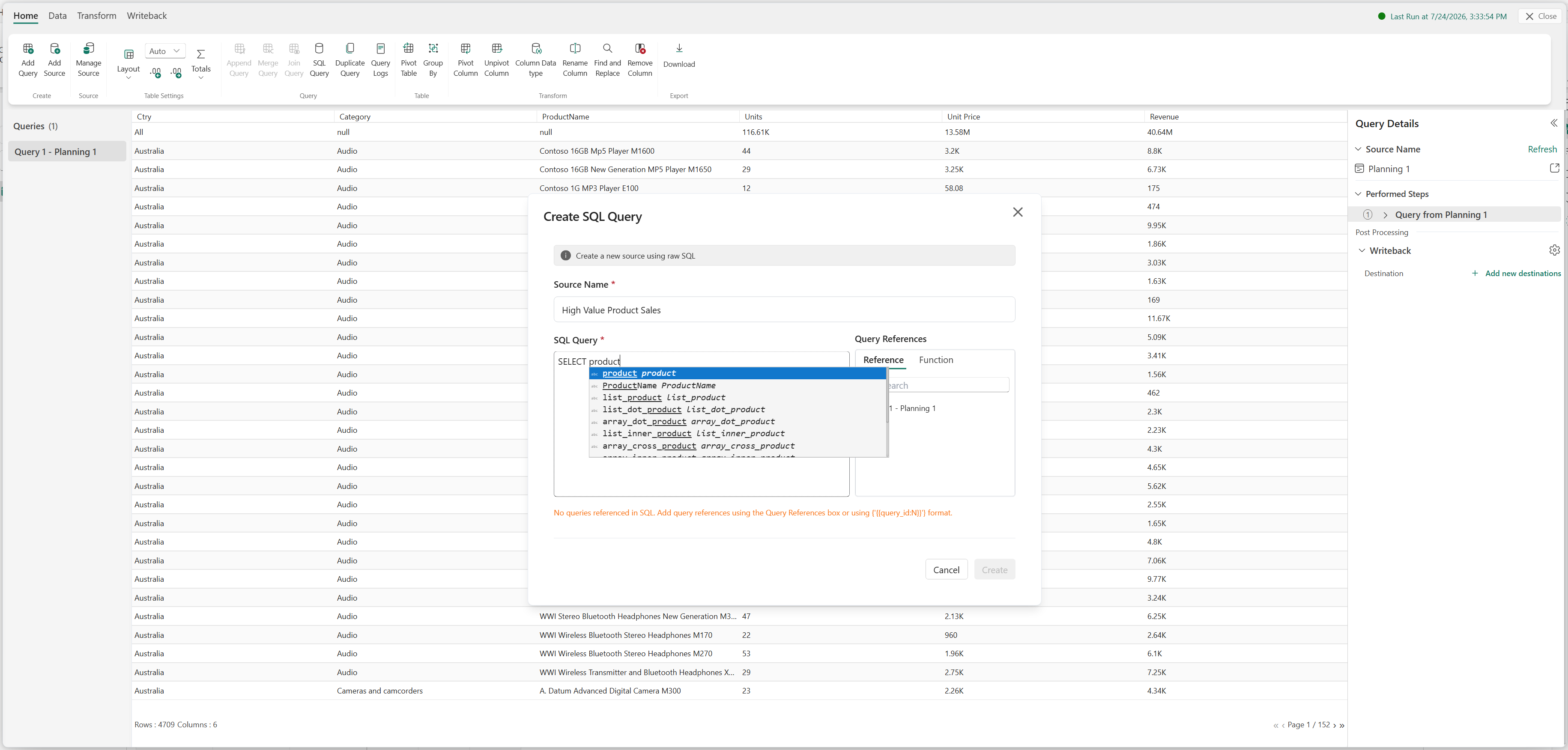
Under Query References, on the Reference tab, select Query 1 - Planning 1.
Infobridge inserts the query reference into the SQL editor.
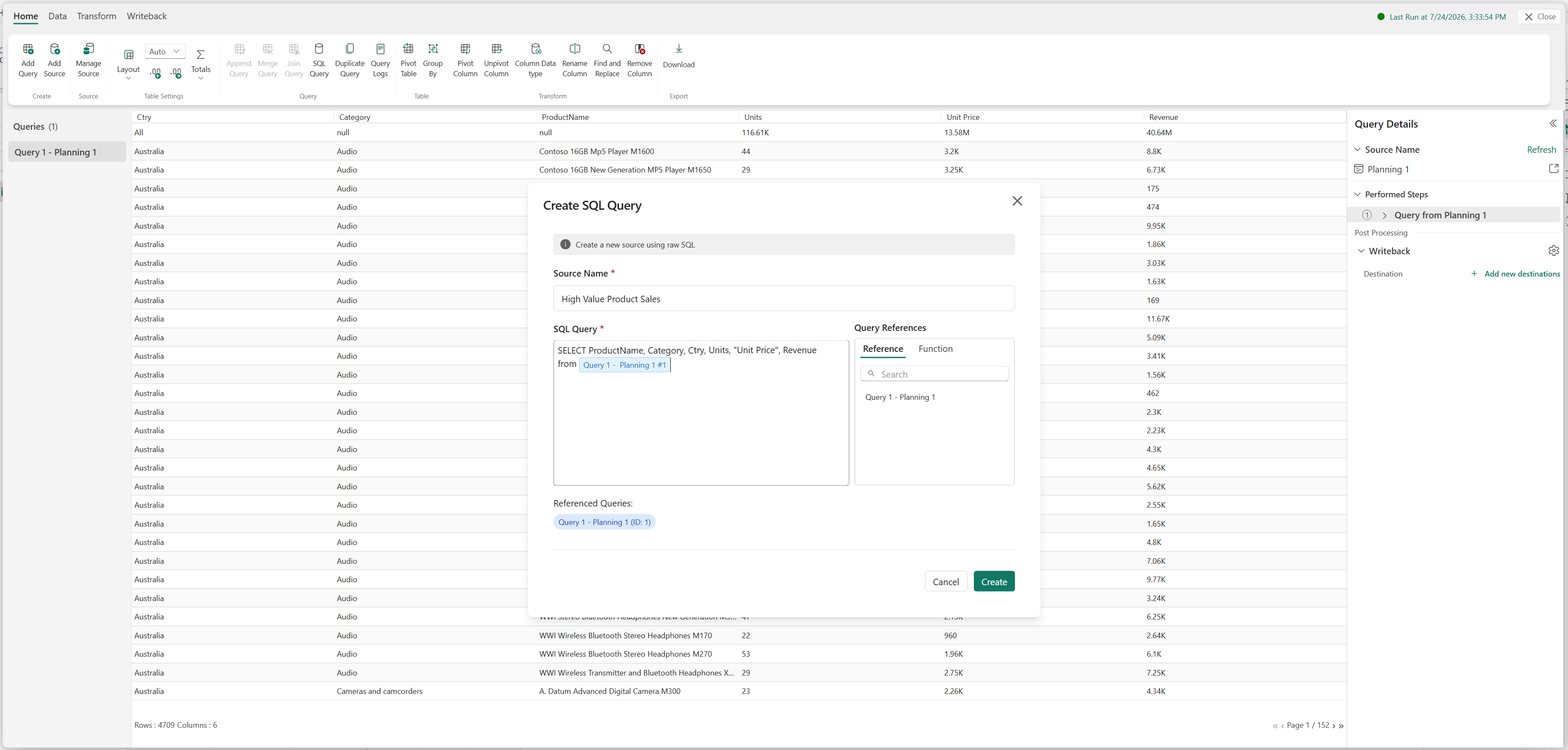
In SQL Query, enter the following SQL statement.
SELECT
    ProductName,
    Category,
    Ctry,
    Units,
    "Unit Price",
    Revenue
FROM {{query_id:1}}
Note
Add query references by using the Query References pane or by entering
{{query_id:1}}directly in the SQL statement.Select Create.
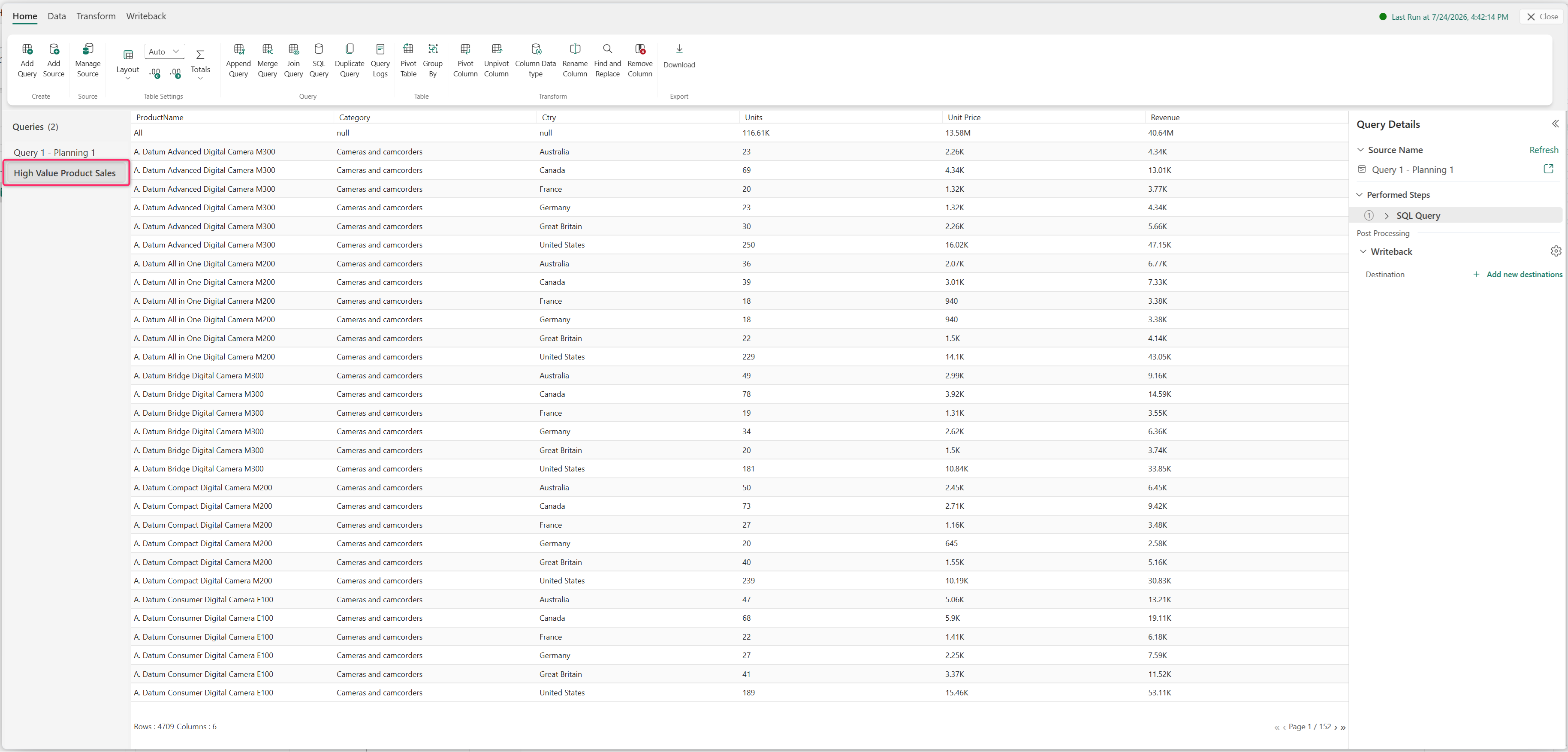
Infobridge creates a new SQL query named High Value Product Sales under Queries.