Note
Access to this page requires authorization. You can try signing in or changing directories.
Access to this page requires authorization. You can try changing directories.
Use bulk edit to update multiple values in a planning sheet at the same time. Apply the same value across categories, dimensions, hierarchy levels, or data input types.
Important
This feature is in preview.
Use bulk edit operations to:
- Allocate costs or revenue across multiple fields.
- Distribute forecast or budget values across categories.
- Assign the same expiry date to multiple products.
- Assign the same manager to multiple locations.
Open bulk edit
- Go to the Planning tab.
- In the Tools section, select Bulk Edit.
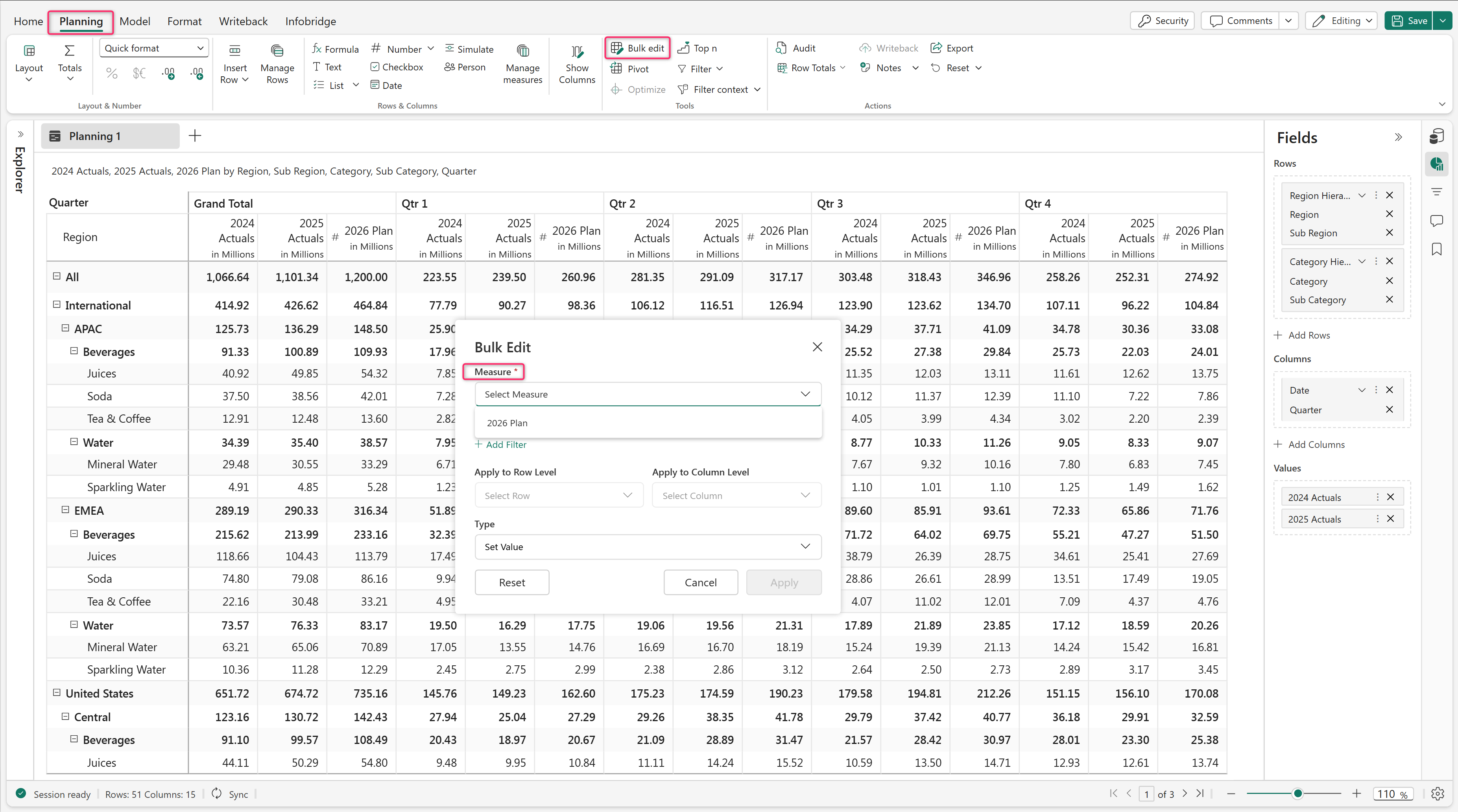
Select a measure
In Measure, select the data input measure to update.
Select categories and dimensions
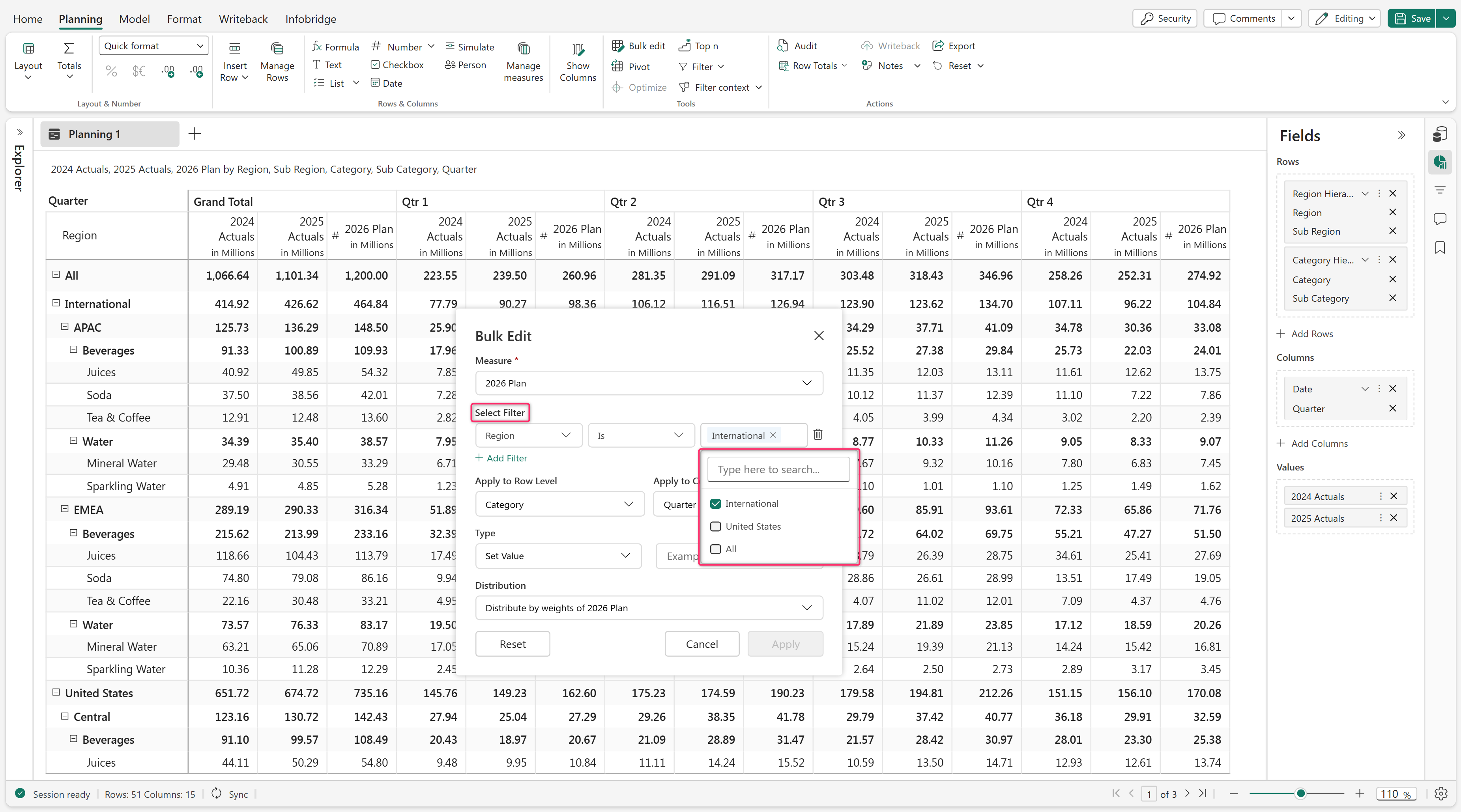
- In Select Filter, choose the categories and dimensions to update.
- Select multiple values for each dimension as required.
- Add filters for another dimensions.
The planning sheet updates dynamically based on the selected filters.
Select a row hierarchy level
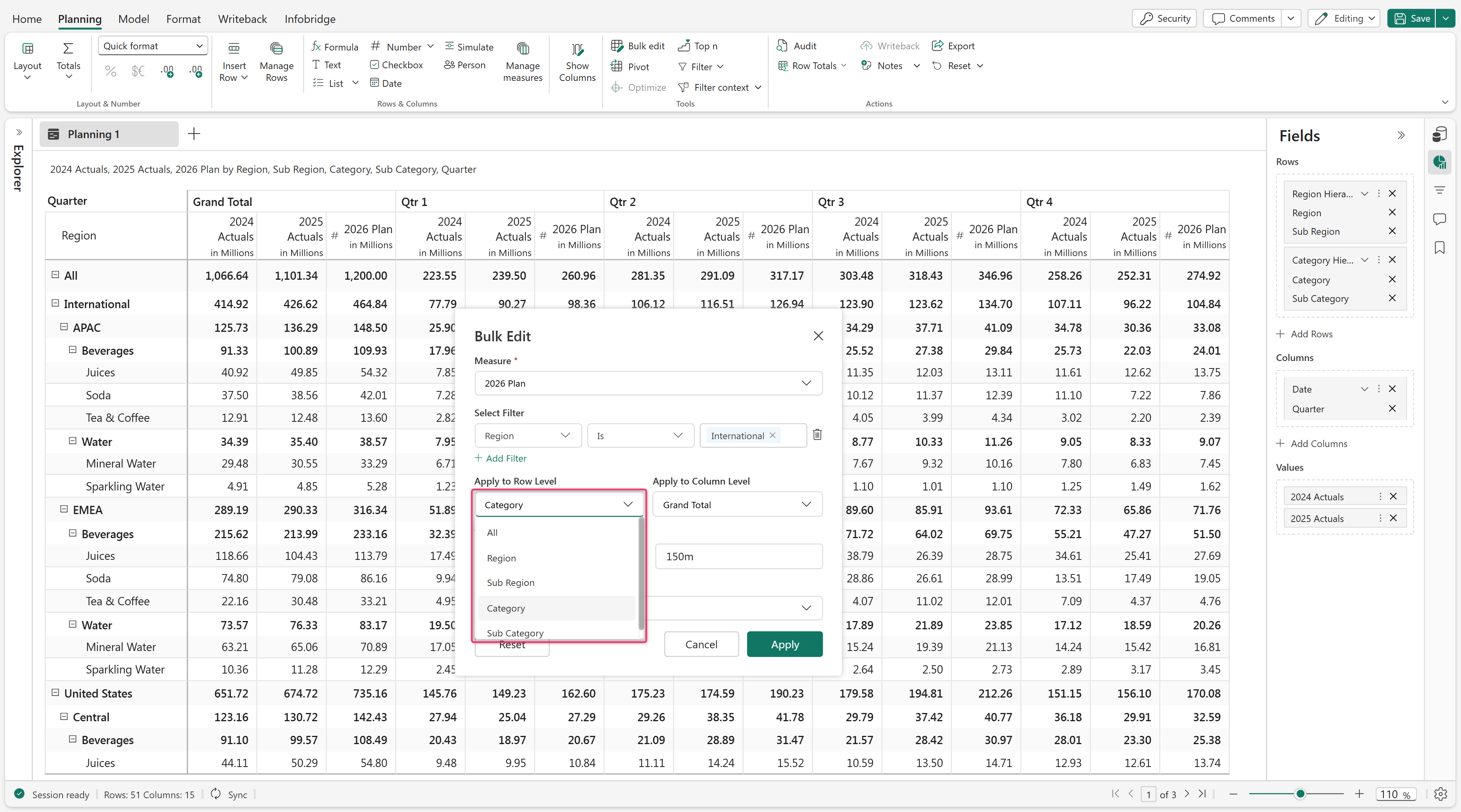
In Apply to Row Level, select the hierarchy level to update.
Select a column hierarchy level
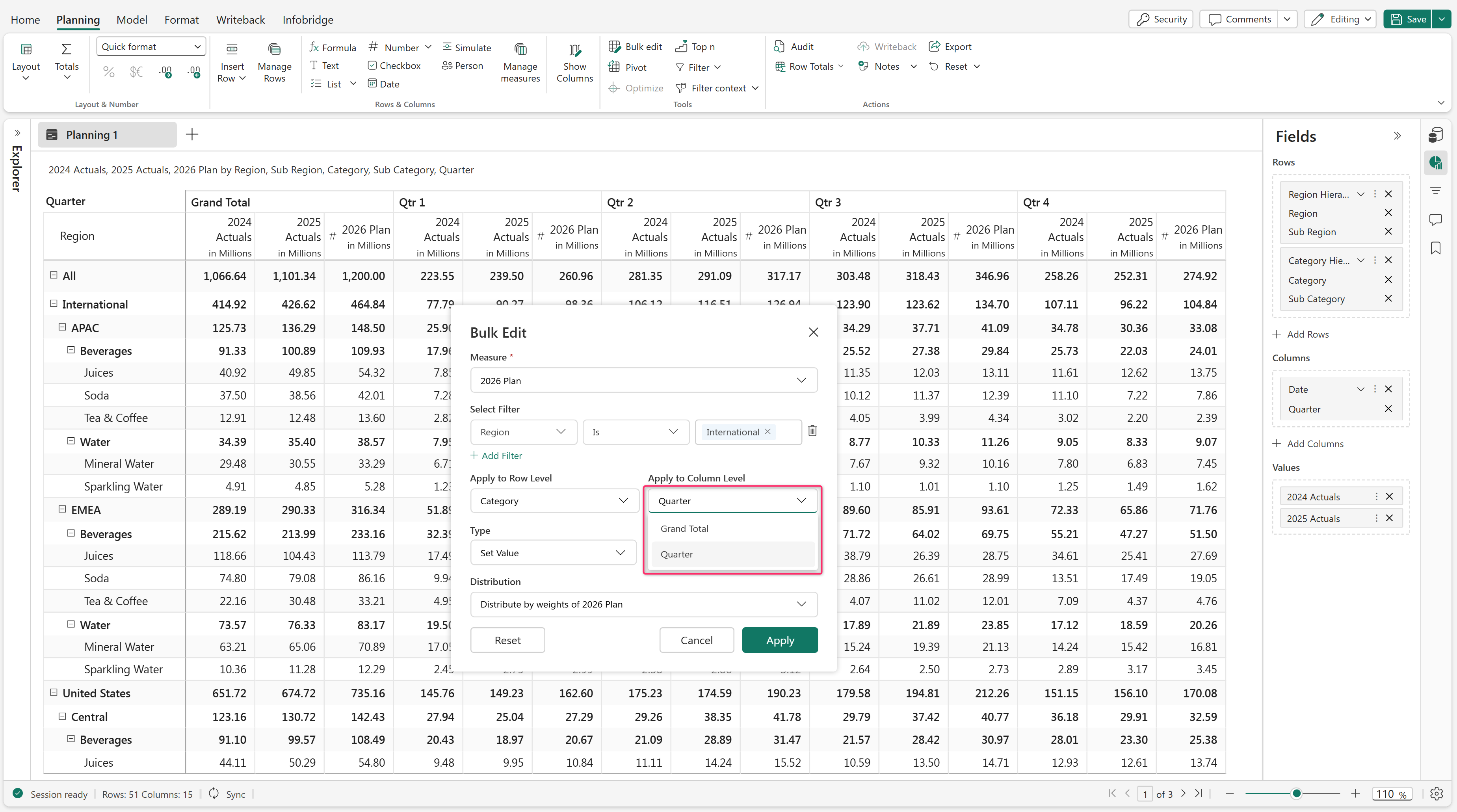
- In Apply to Column Level, select the column hierarchy level to update.
- If the planning sheet doesn't contain a column hierarchy, apply updates at the grand total or quarter level.
Configure the update type
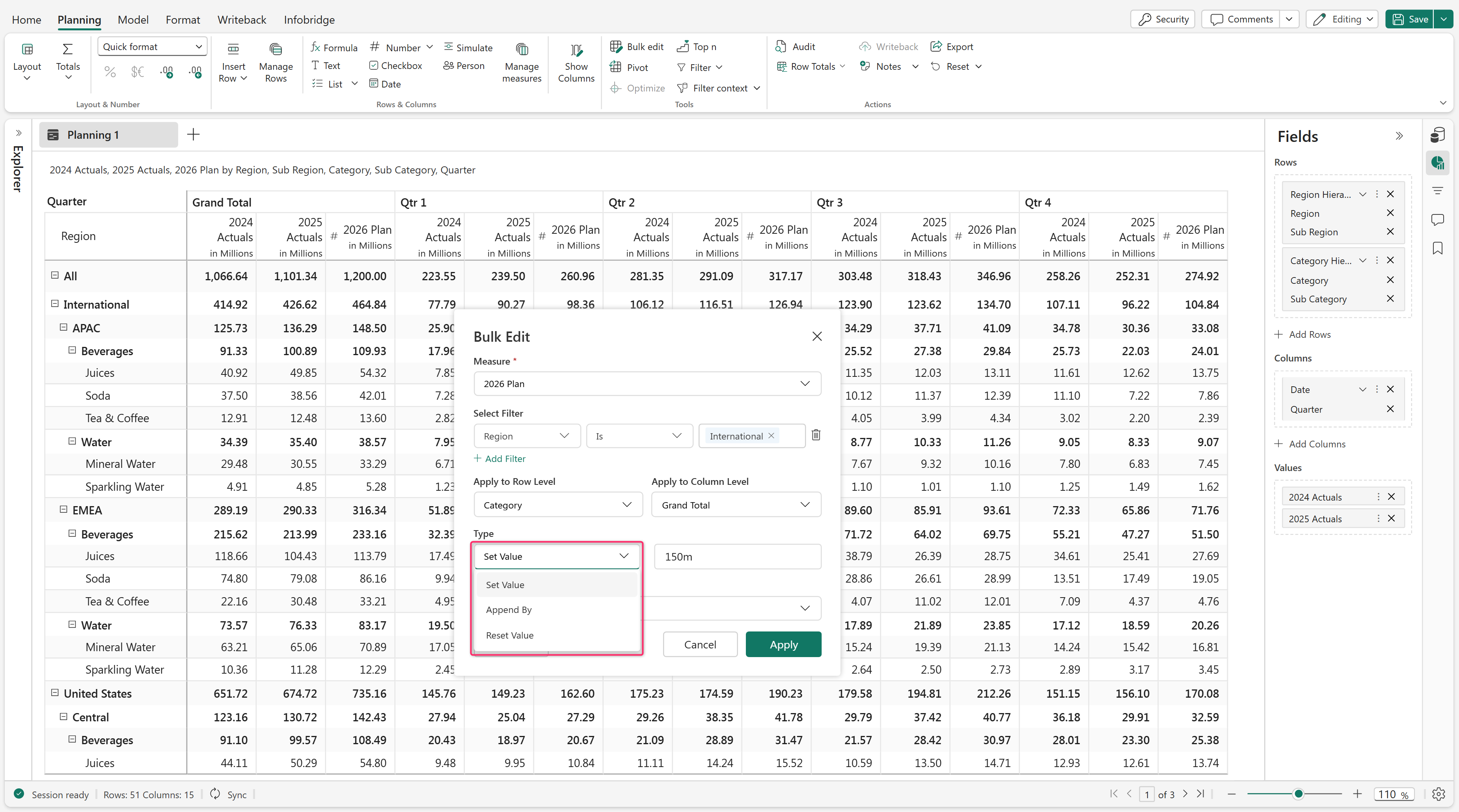
- In Type, select the update type.
- Enter the value to apply.
Supported update types include:
- Append By: Adds the entered value to the existing value.
- Set Value: Replaces the existing value.
- Reset Value: Removes the existing value.
Distribute values
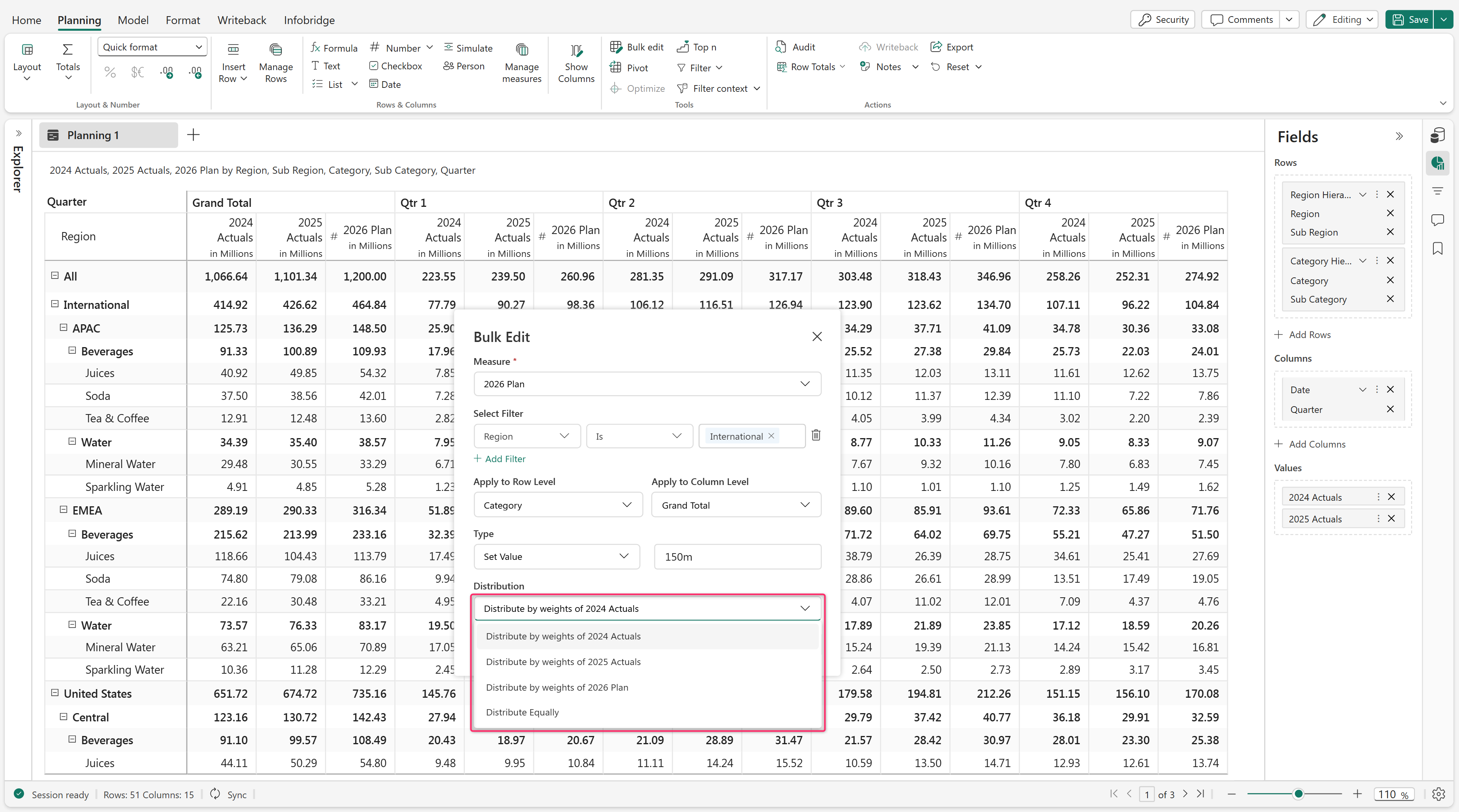
Select a Distribution method for child rows. Distribute updated values equally or based on another measure's weights.
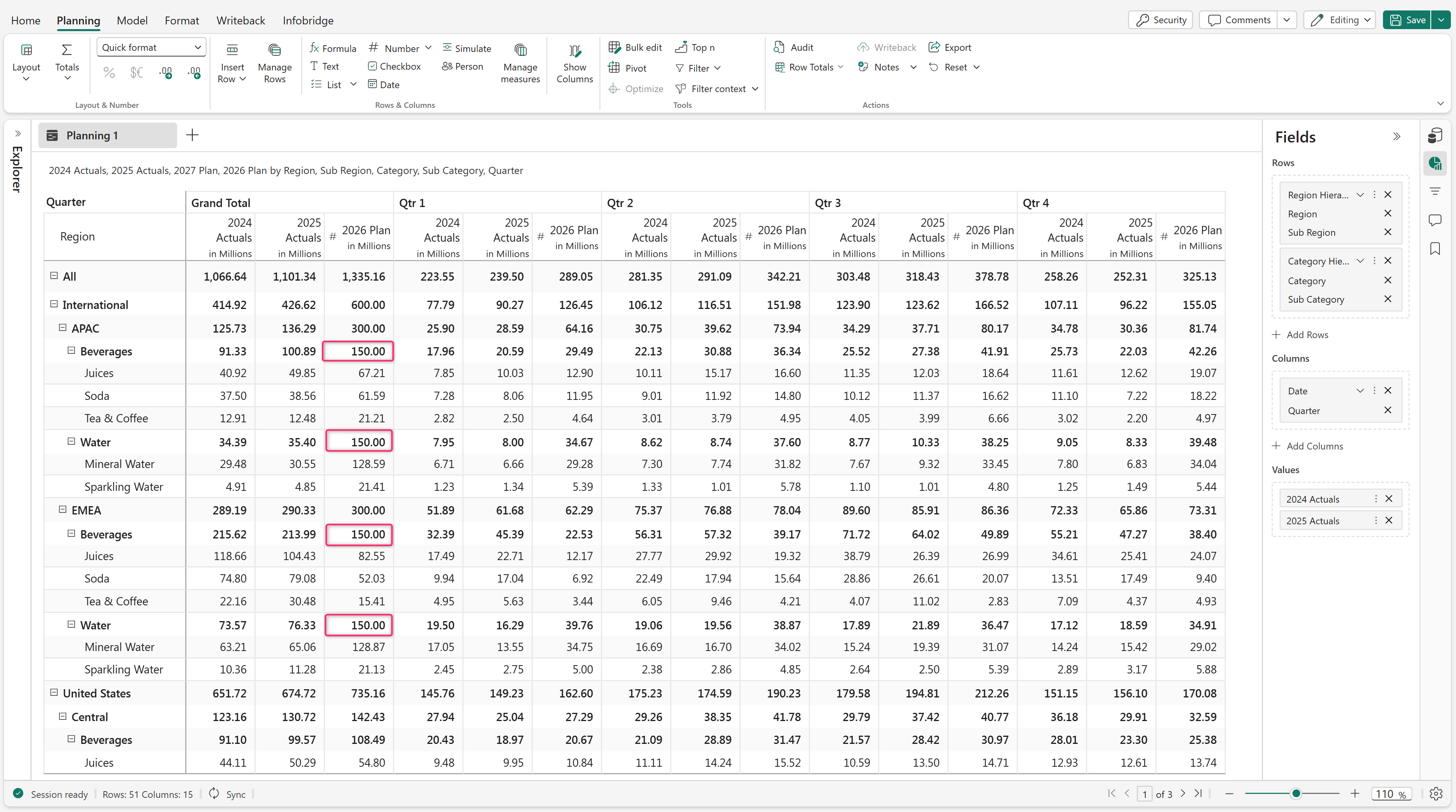
Child rows inherit values based on the selected distribution method.
Supported data input types
Bulk edit supports multiple data input types, including:
- Text
- Date
- Person
- Single-select dropdown
- Multi-select dropdown
Apply values across selected categories, subcategories, and dimensions.
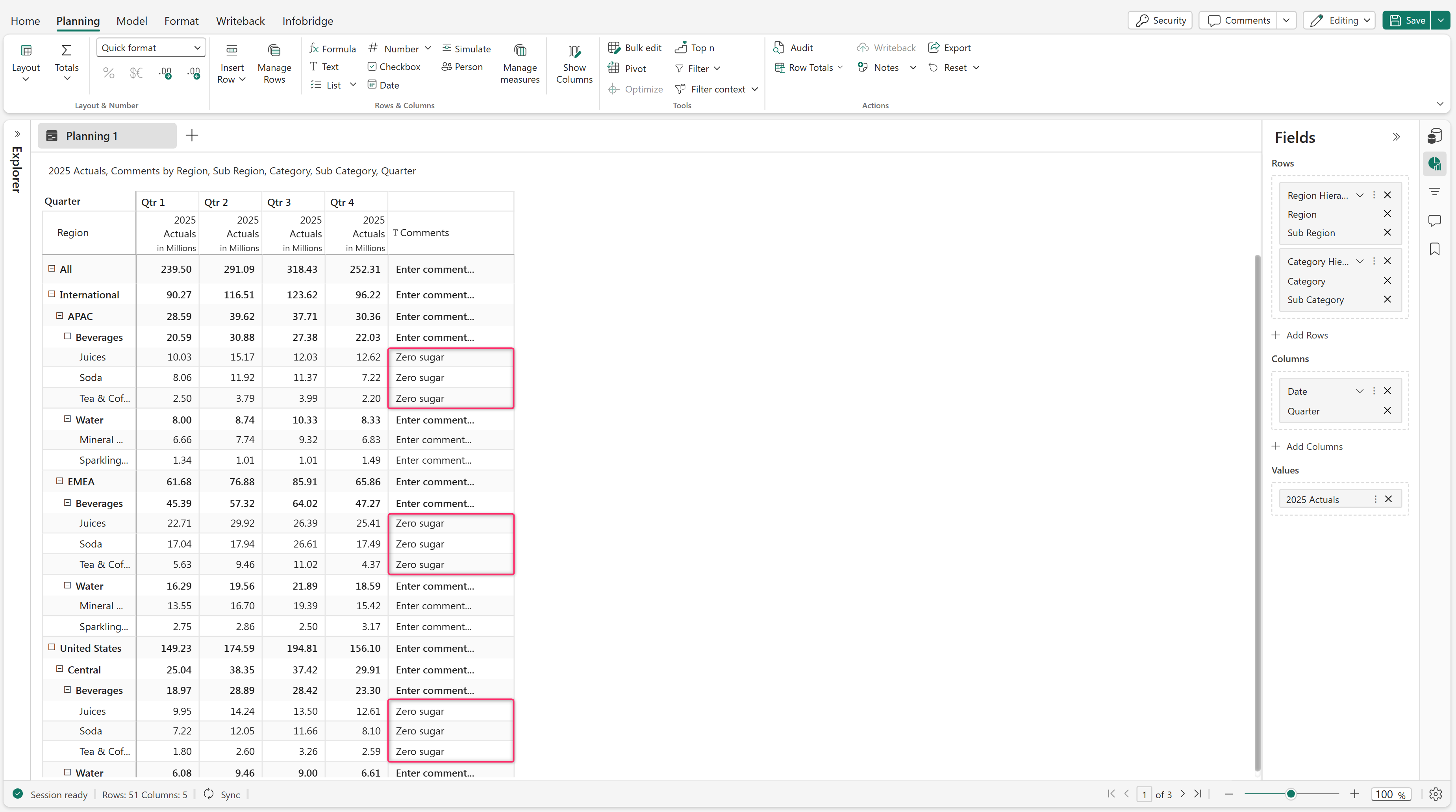
Bulk edit text inputs
Use Bulk Edit to apply text values across selected categories and subcategories.
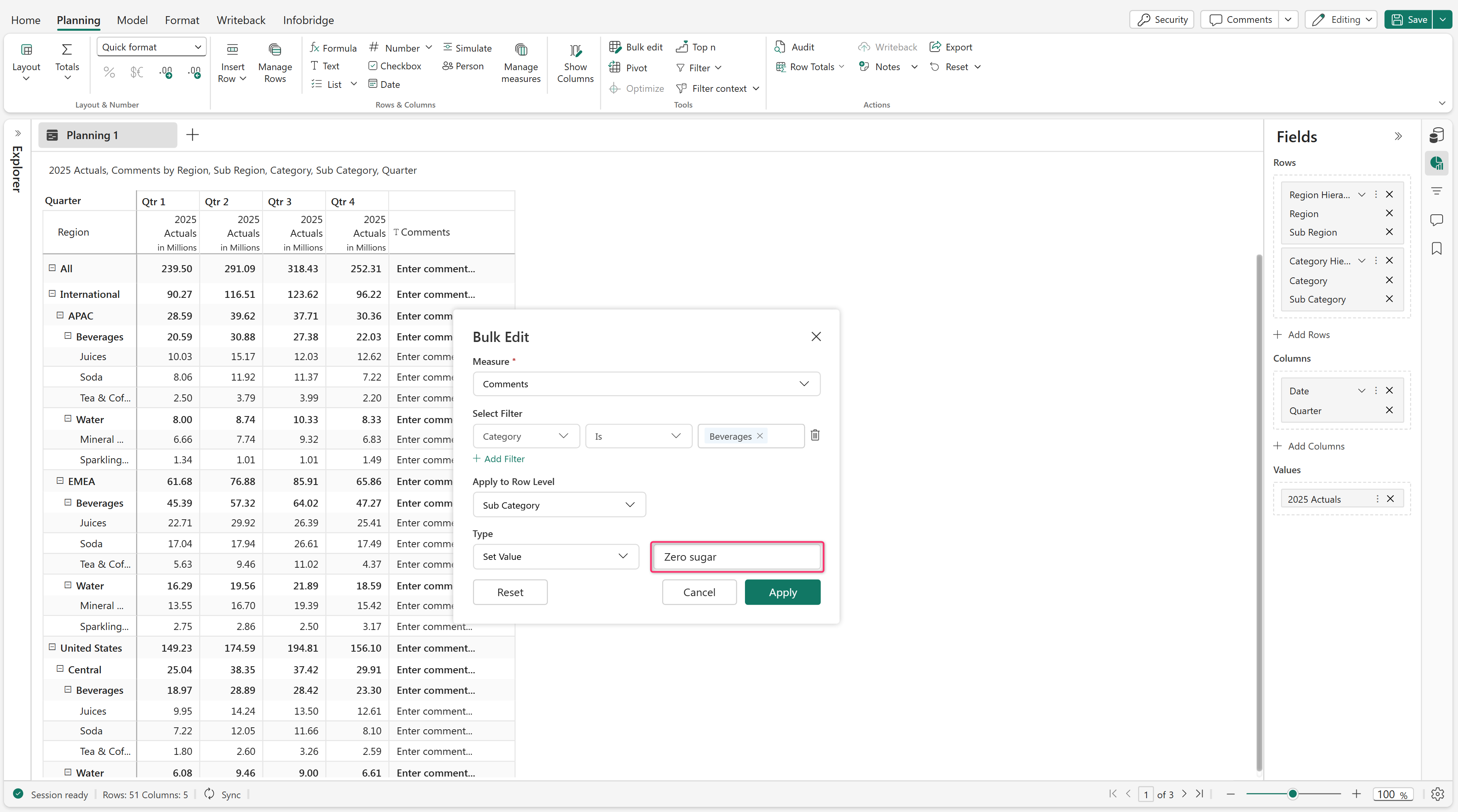
The text column is updated with the selected value.
Bulk edit date inputs
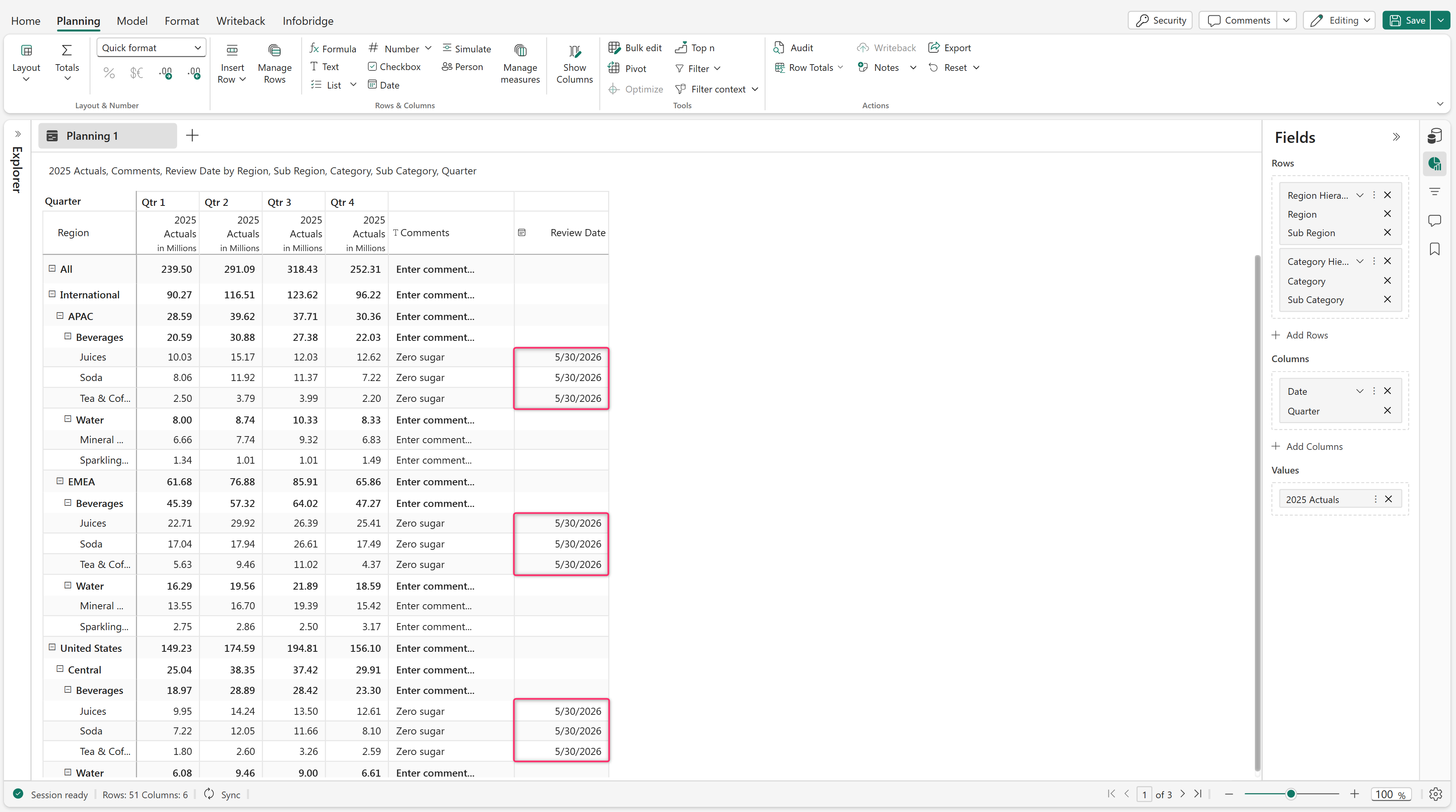
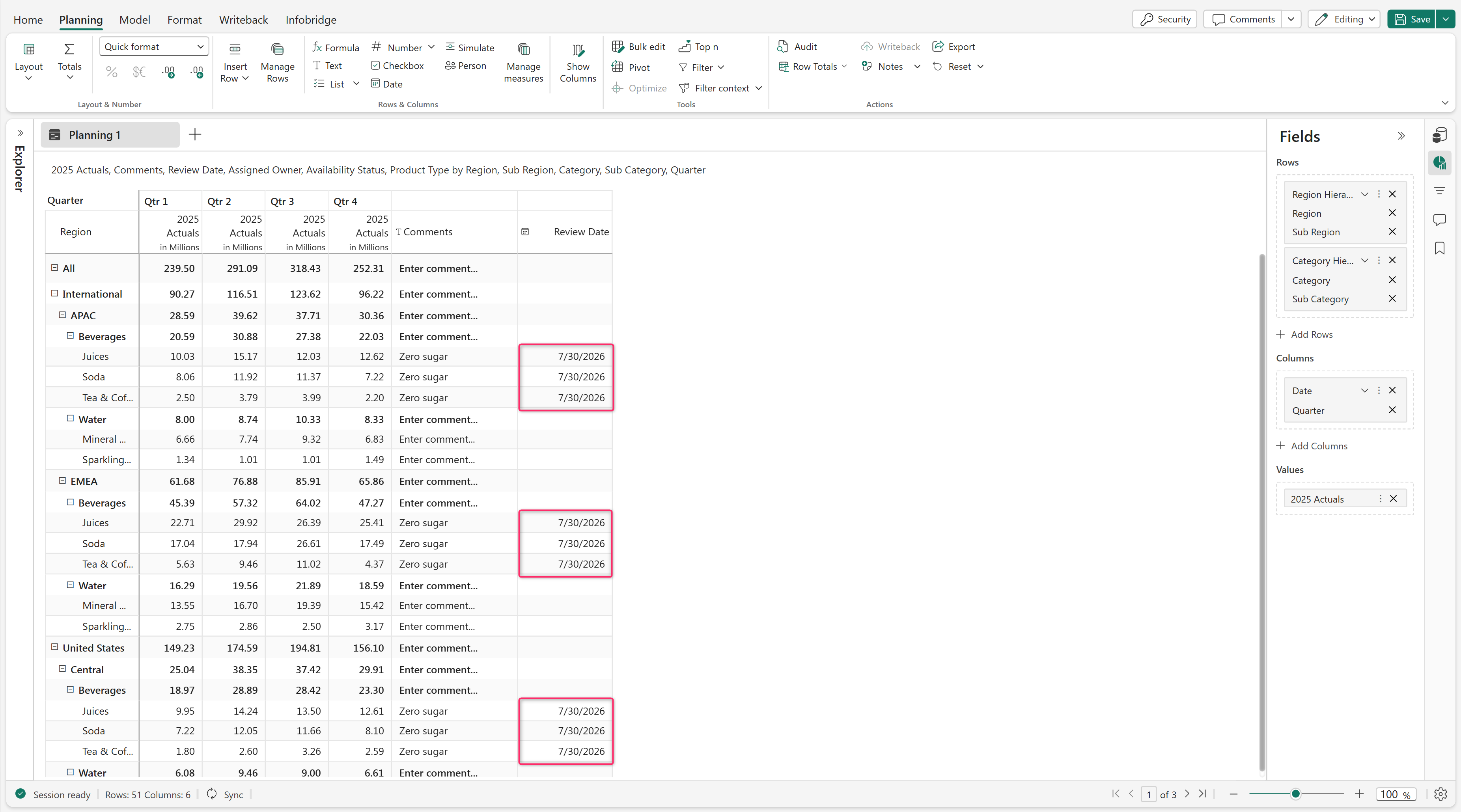
Use Bulk Edit to apply date values across selected categories and subcategories.
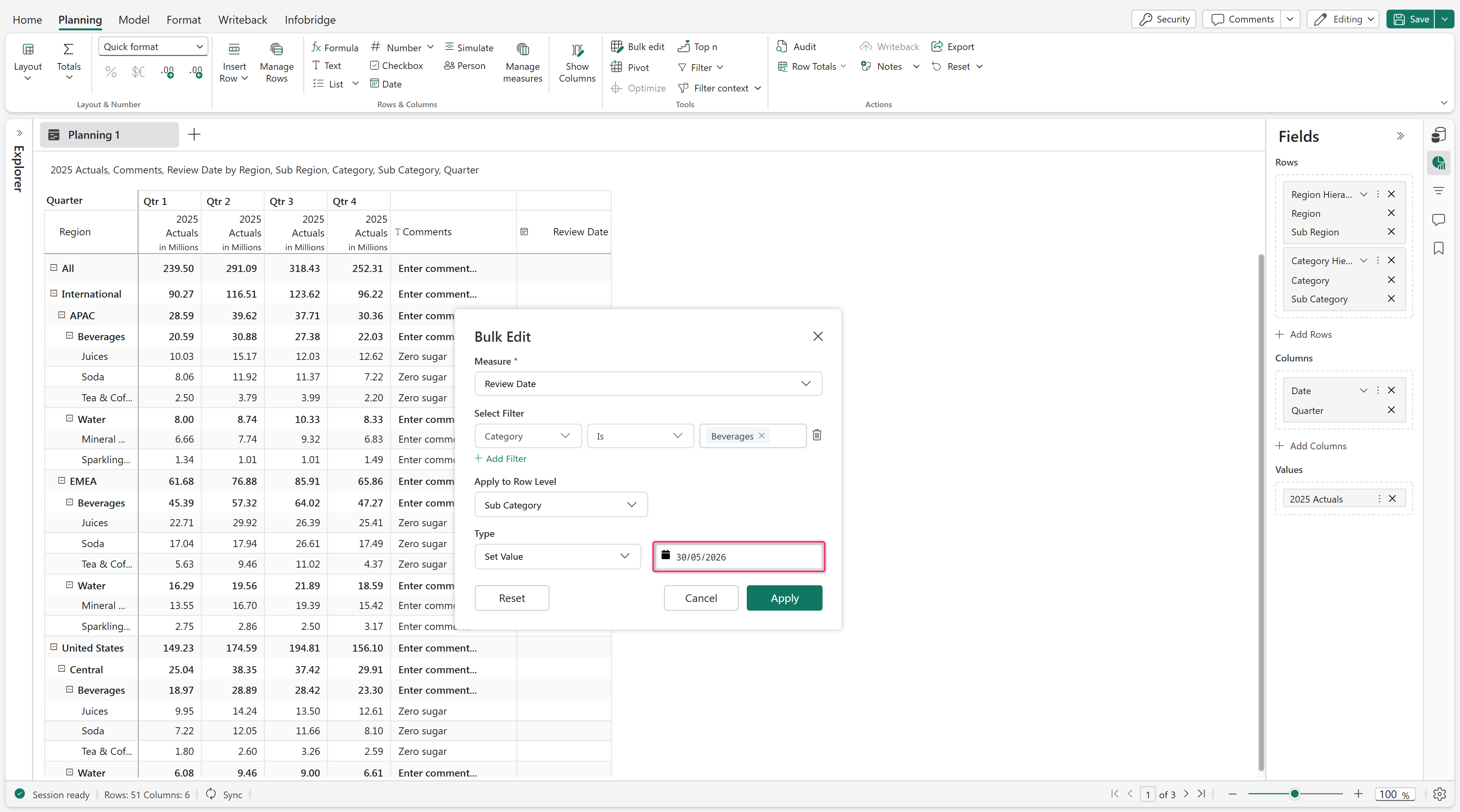
The date column is updated with the selected date.
Add duration to existing dates
Use Bulk Edit to add a duration to existing date values.
Supported duration types:
- Years
- Quarters
- Months
- Weeks
- Days
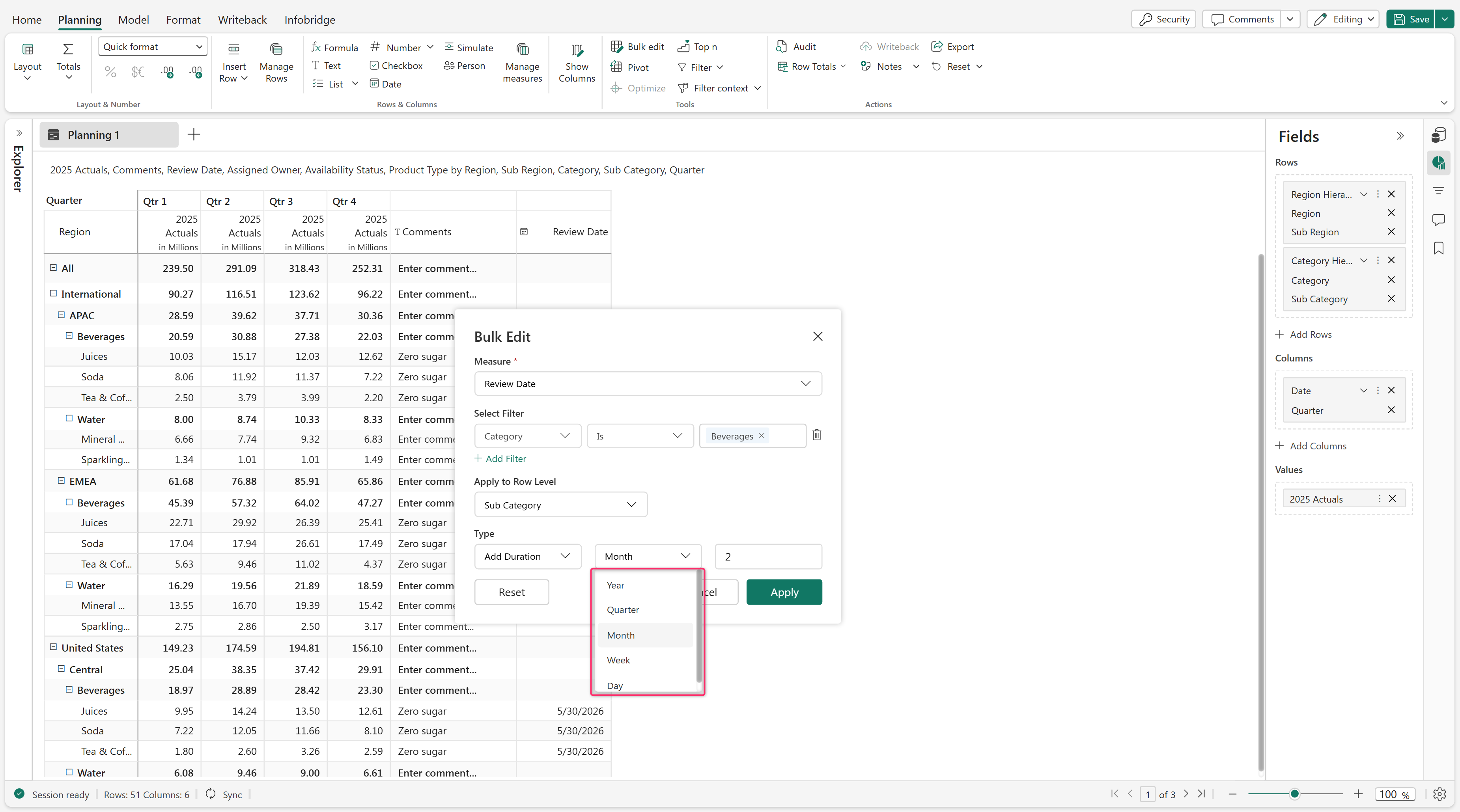
Date values are recalculated based on the selected duration.
Bulk edit person inputs
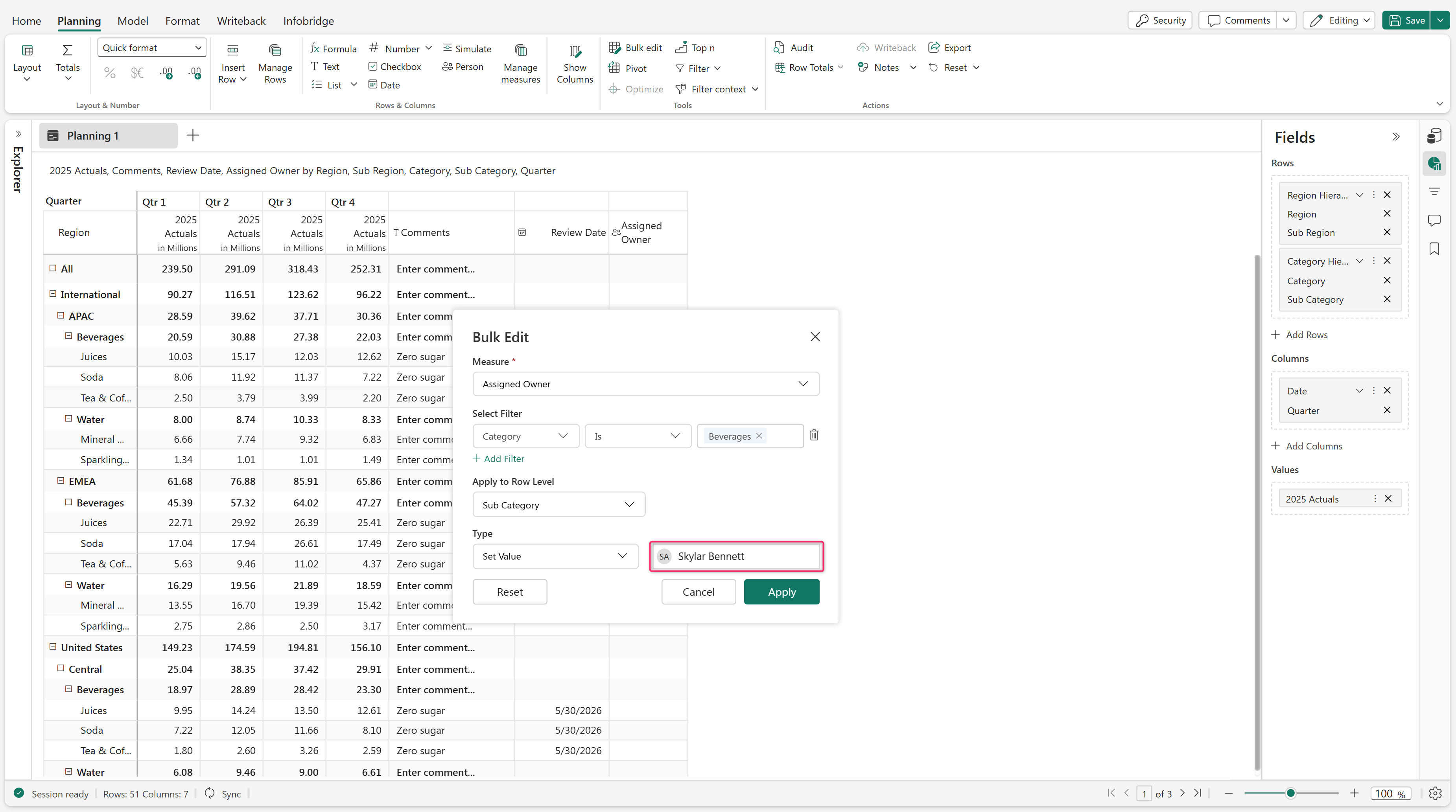
Use Bulk Edit to assign person values across selected categories and subcategories.
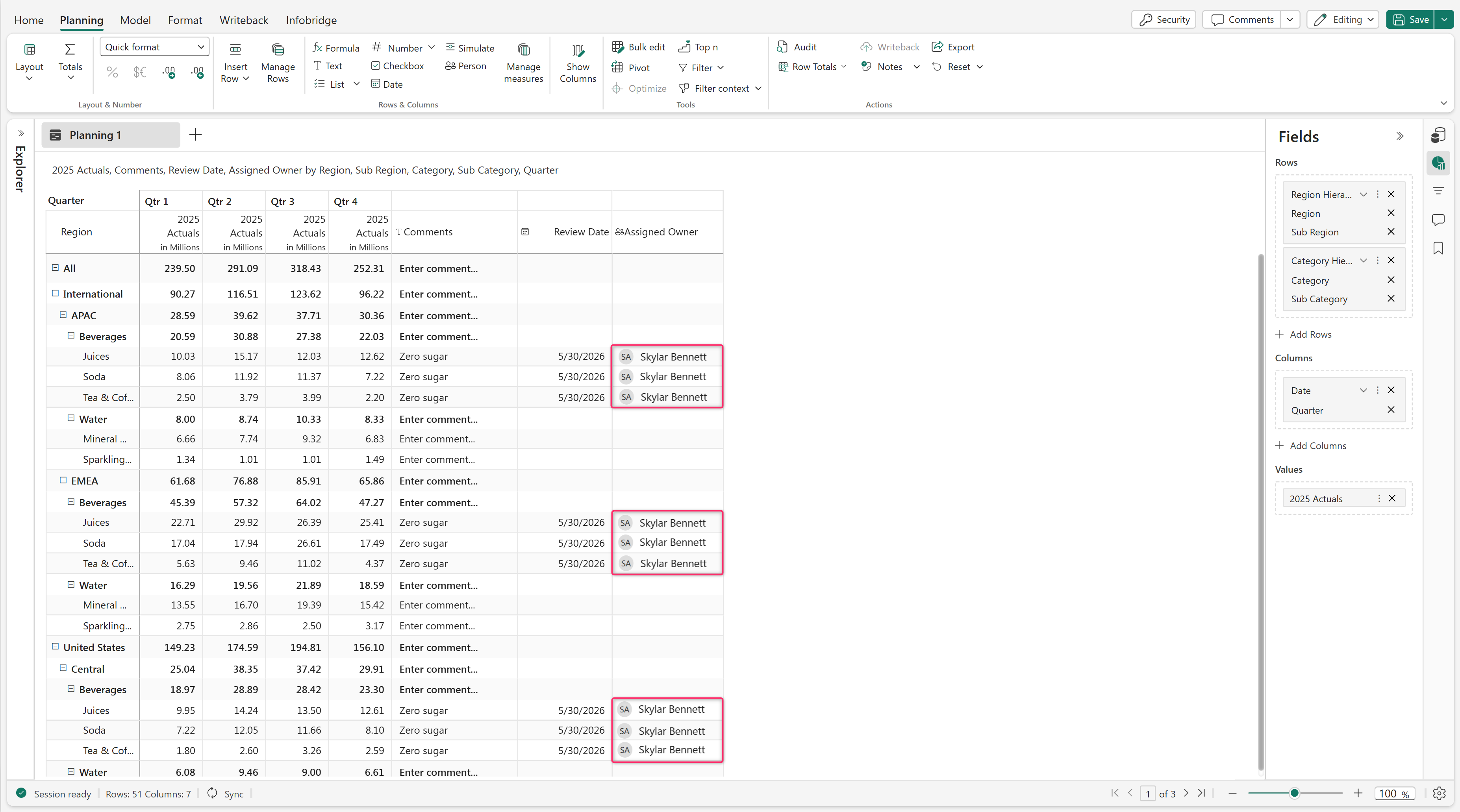
The person column is updated with the selected user value.
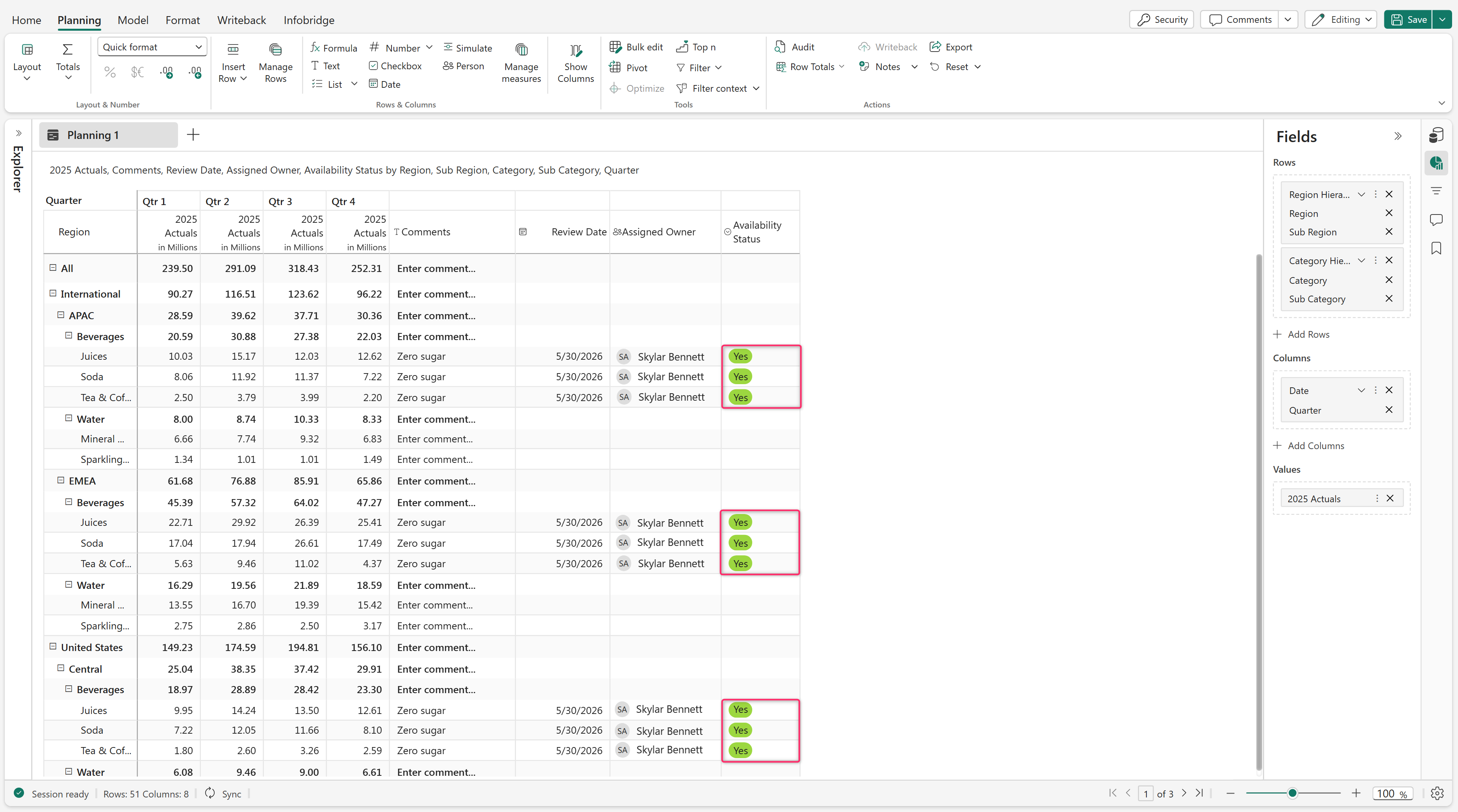
Bulk edit single-select dropdown inputs
Use Bulk Edit to apply a single dropdown value across selected categories and subcategories.
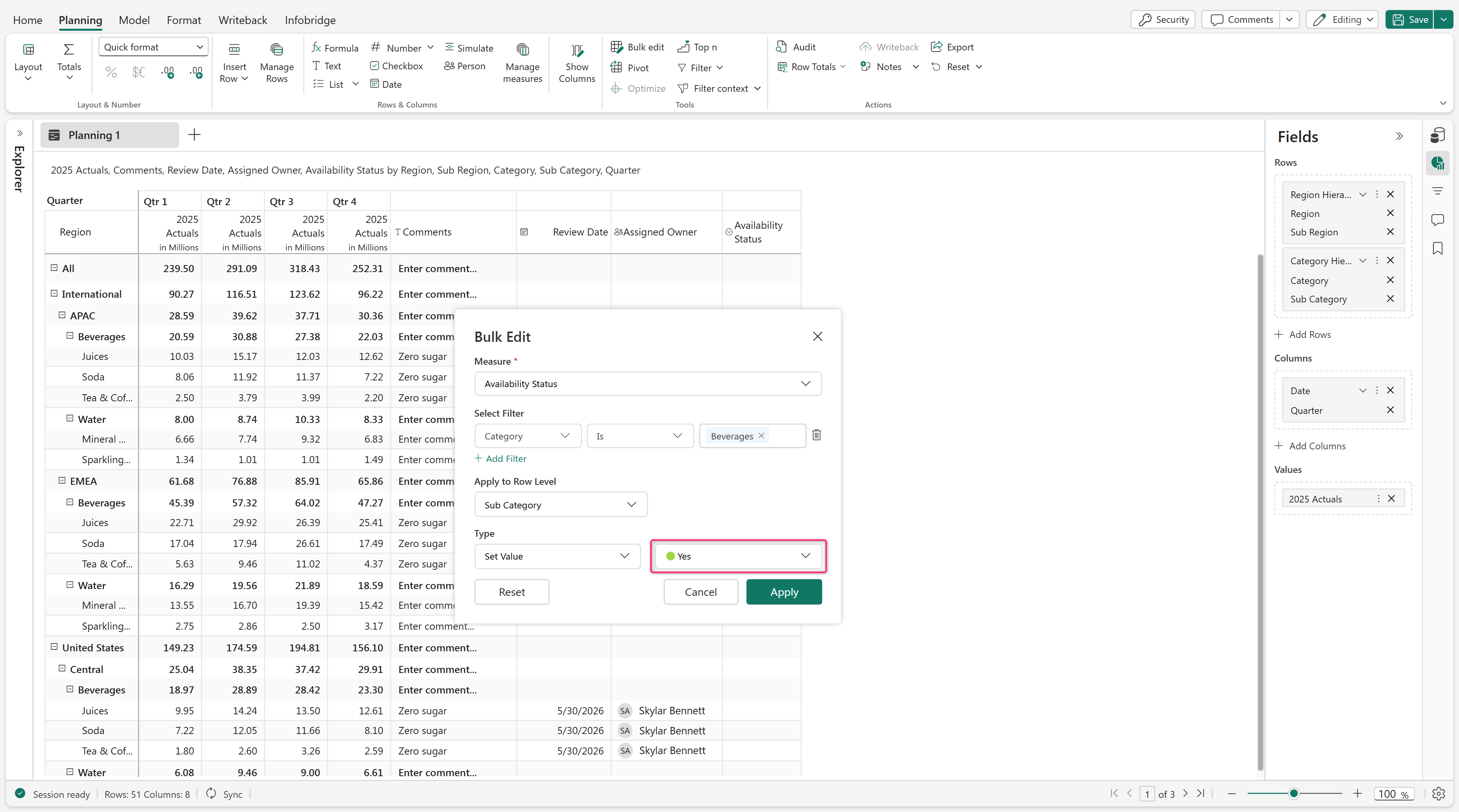
The single-select column is updated with the selected dropdown value.
Bulk edit multi-select dropdown inputs
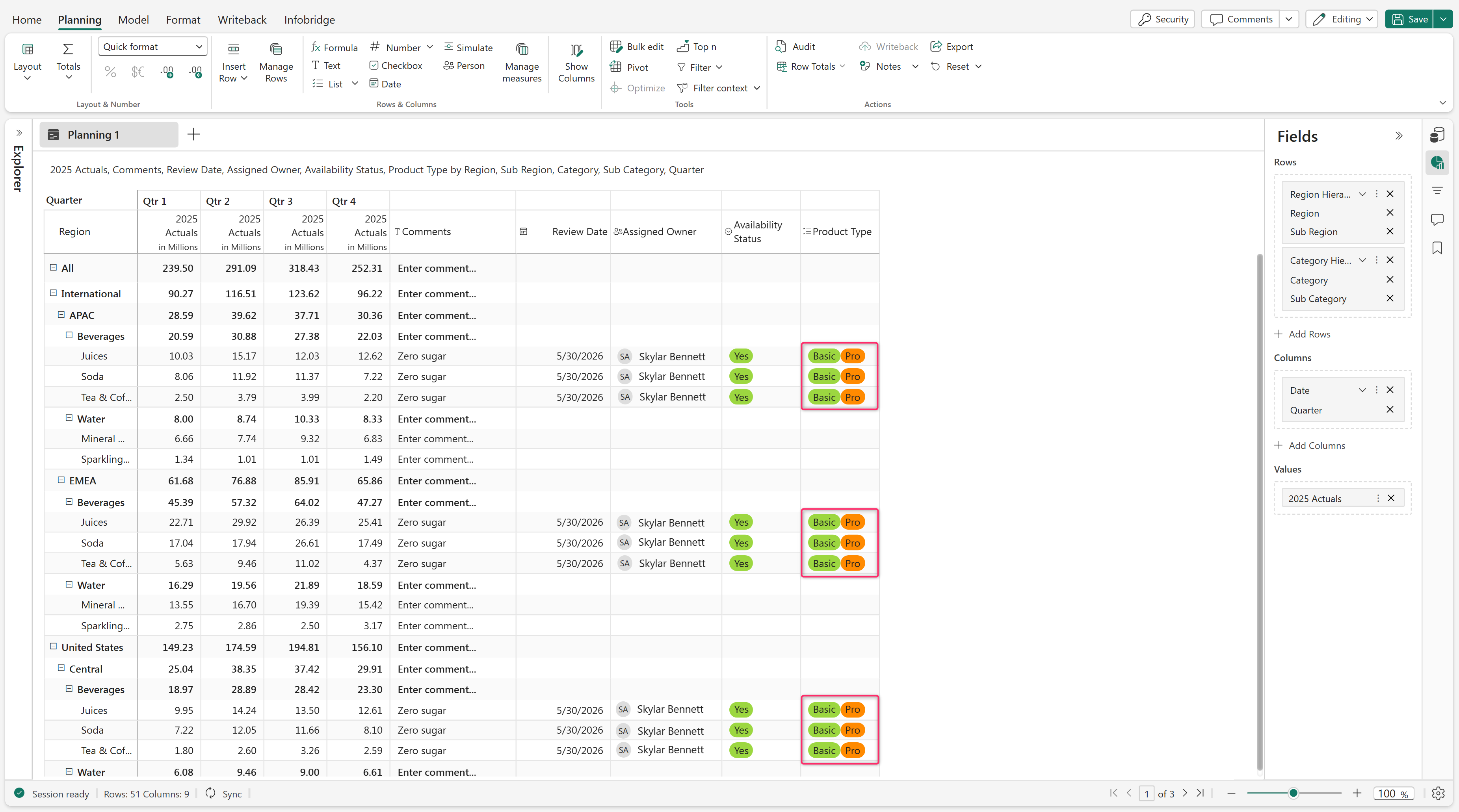
Use Bulk Edit to apply multiple dropdown values across selected categories and subcategories.
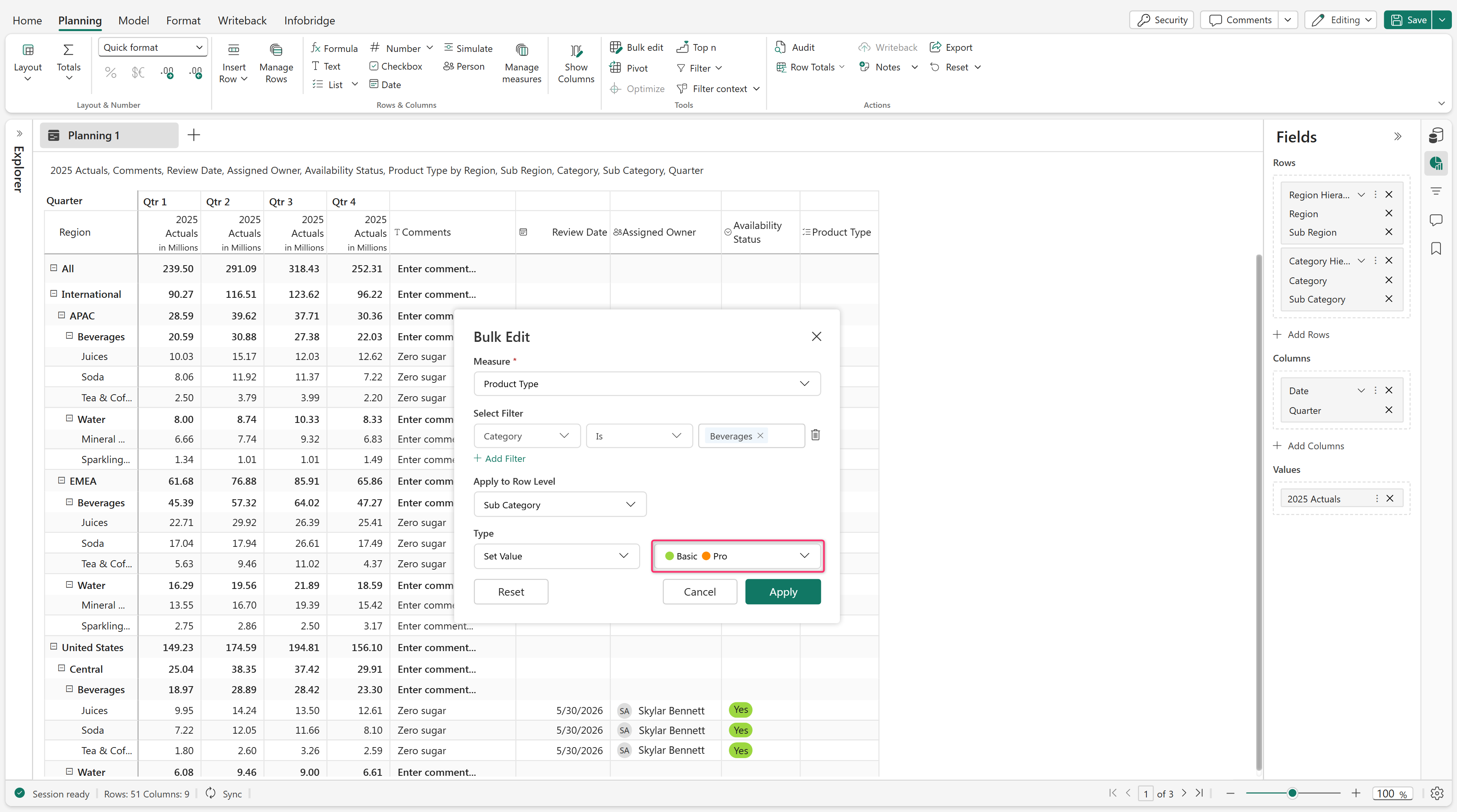
The multi-select column is updated with the selected dropdown values.
Usage notes
When editing data in bulk:
- Numerical data inputs support append and distribution operations.
- Date input types support duration-based updates and date selection.
- Apply changes to specific column hierarchy levels, such as region or date hierarchies.
Bulk editing is supported for simulation measures and scenarios. Apply simulations to selected categories and dimensions in a single operation.