Note
Access to this page requires authorization. You can try signing in or changing directories.
Access to this page requires authorization. You can try changing directories.
Planning sheets allow you to export reports to PDF and Excel formats while preserving formatting, layout, and data context. You can export complete sheets or select specific data.
Important
This feature is in preview.
Exported planning sheets retain key elements like:
- Planning sheet layout and structure
- Cell values and number formatting
- Notes and annotations
- Filters and layouts
- Calculated rows and columns
Prerequisite
You have access to the planning sheets to be exported.
Export a planning sheet to PDF
Use the PDF export capability to generate formatted, paginated sheets.
In the planning sheet, select Planning and Export from the toolbar.
Select PDF as the format.
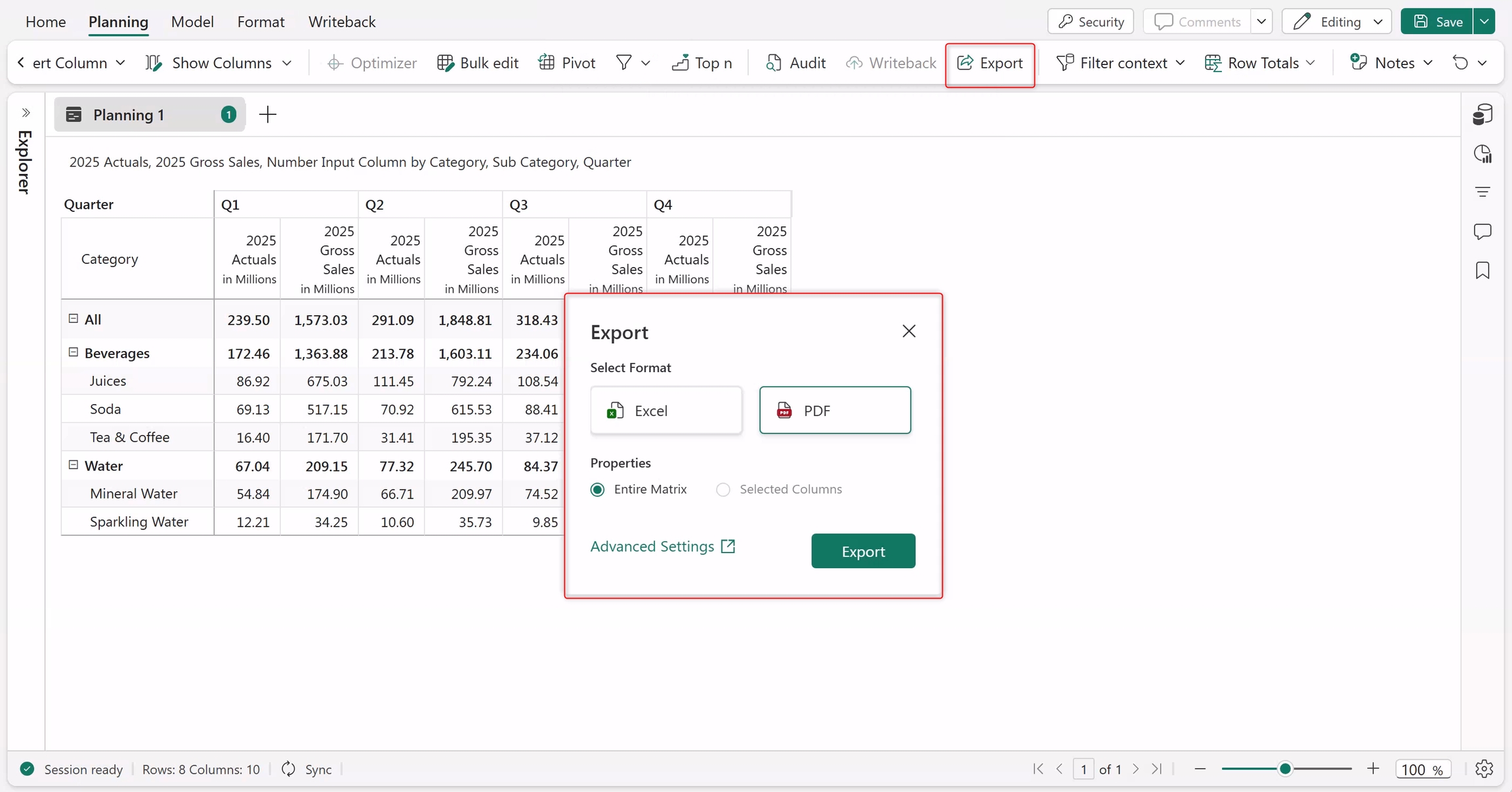
Under Properties, select one of the following:
- Entire Matrix: The entire matrix is exported.
- Selected Columns: Only the selected columns are exported.
Configure Advanced Settings if needed.
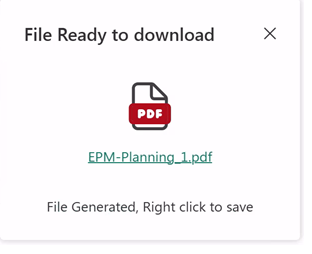
Select Export and download the file.
Advanced settings for PDF export
The advanced PDF Settings are presented in three tabs, described in the sections below.
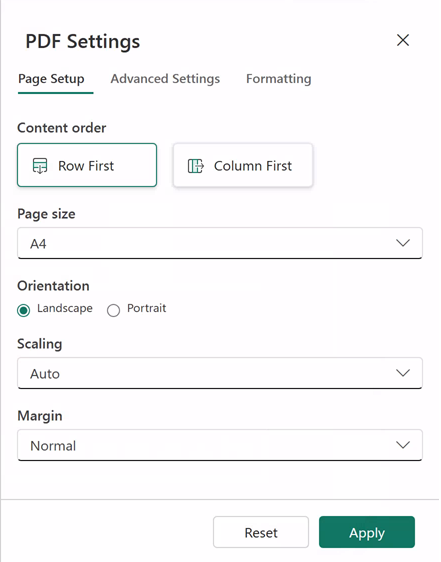
Page setup
The Page Setup tab contains these options to customize the output:
For Content order, select one of the following:
- Row-first: Data fills across rows first, then continues to the next page.
- Column-first: Data fills down columns first, then continues to the next page.
Select Page size (A4, A3, custom sizes)
Select portrait or landscape Orientation
Select Scaling to fit content
Select the Margin type
Advanced settings
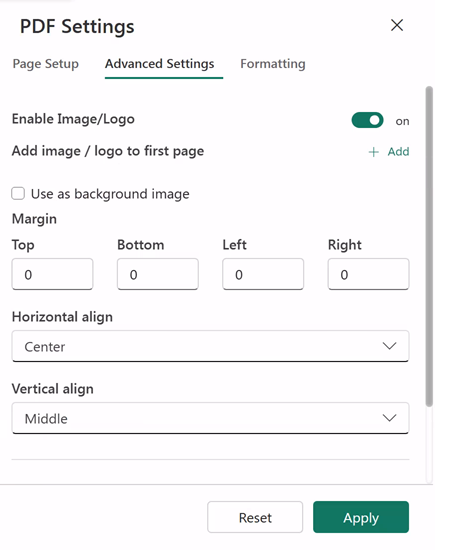
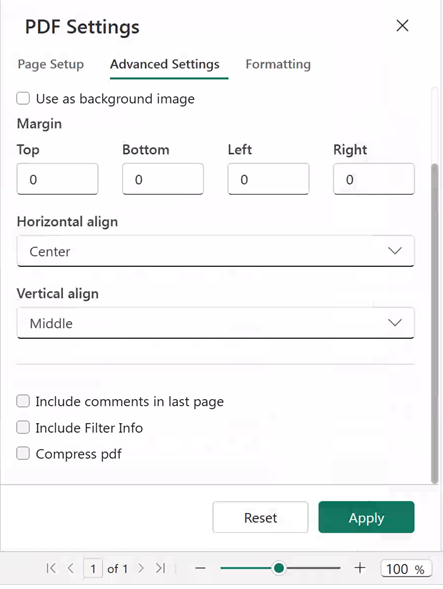
The Advanced Settings tab contains these options:
Enable Image/Logo to include images
Use an image as a background
Set Margins to align content horizontally and vertically
Include comments on the last page
Include Filter information
Enable compression to reduce the PDF file size
Formatting
The Formatting tab contains these options to customize formatting:
Apply Font styles
Select the display type for the Header and Footer
Set the Decimal Precision
Configure Word Wrap options
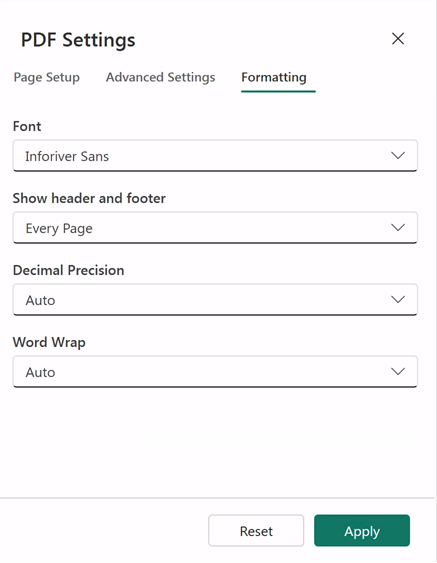
Select Apply to save your changes, or select Reset to clear all changes.
Export a planning sheet to Excel
Use the Excel export capability for further analysis and data manipulation.
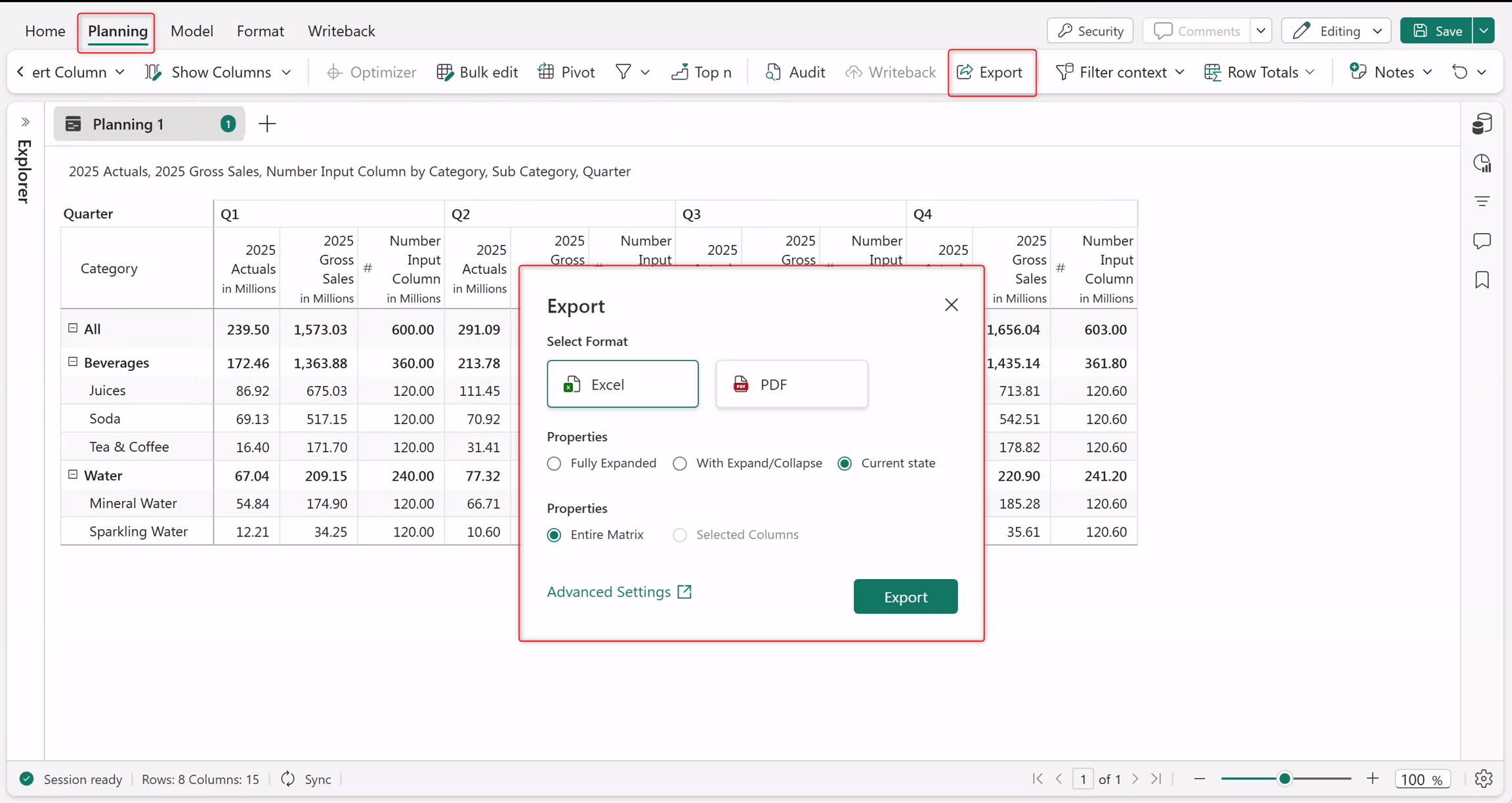
In the planning sheet, select Planning and Export from the toolbar.
Select Excel as the format.
Under Export mode, select one of the following:
- Fully expanded: Exports all hierarchy levels in an expanded view.
- With expand/collapse: Exports data with hierarchy controls to expand or collapse levels in Excel.
- Current state: Exports the report exactly as it appears, including applied filters and expanded levels.
Under Properties, select one of the following:
- Entire Matrix: The entire matrix is exported.
- Selected Columns: Only the selected columns are exported.
Configure Advanced Settings if needed.
Select Export to export the Excel file.
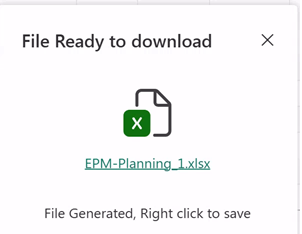
Select the link to save your file to your local system.
Advanced settings for Excel export
The advanced Excel Settings are presented in three tabs, described in the sections below.
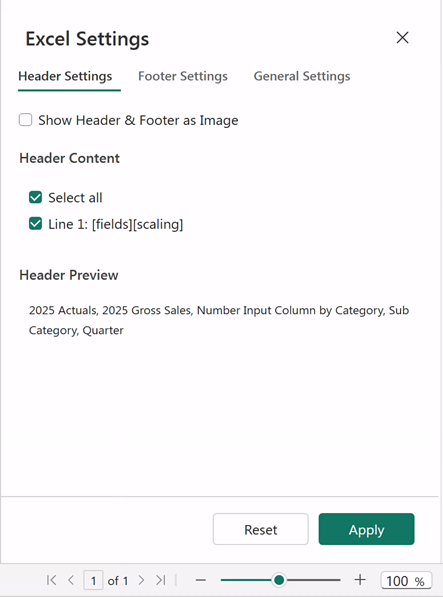
Header Settings
Planning sheets support exporting header elements such as dates and symbols to Excel. Use header settings to control and preview which header lines are included in the export.
Footer Settings
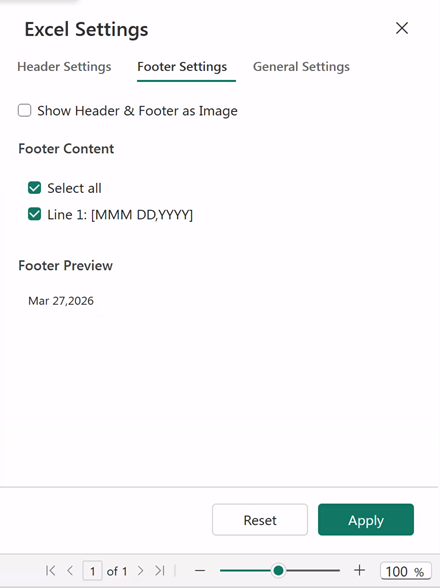
Planning sheets support exporting footer elements such as dates to Excel. Use footer settings to control and preview which footer lines are included in the export.
General Settings
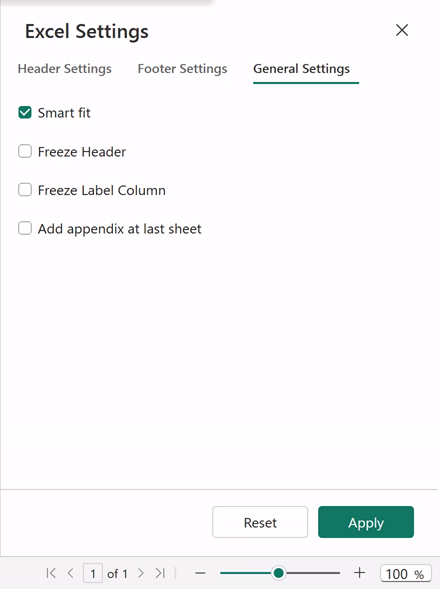
Configure additional options as required:
Smart fit to automatically fit content to columns
Freeze headers and label columns
Add a formula appendix sheet
Select Apply to apply the changes and configure your Excel Export settings, or select Reset to reset all the applied changes.