Note
Access to this page requires authorization. You can try signing in or changing directories.
Access to this page requires authorization. You can try changing directories.
Create and use a date column in the planning sheet to insert date values for each row. Define the date format, a default date, and acceptable date range as needed.
Insert a date column
To insert a date column:
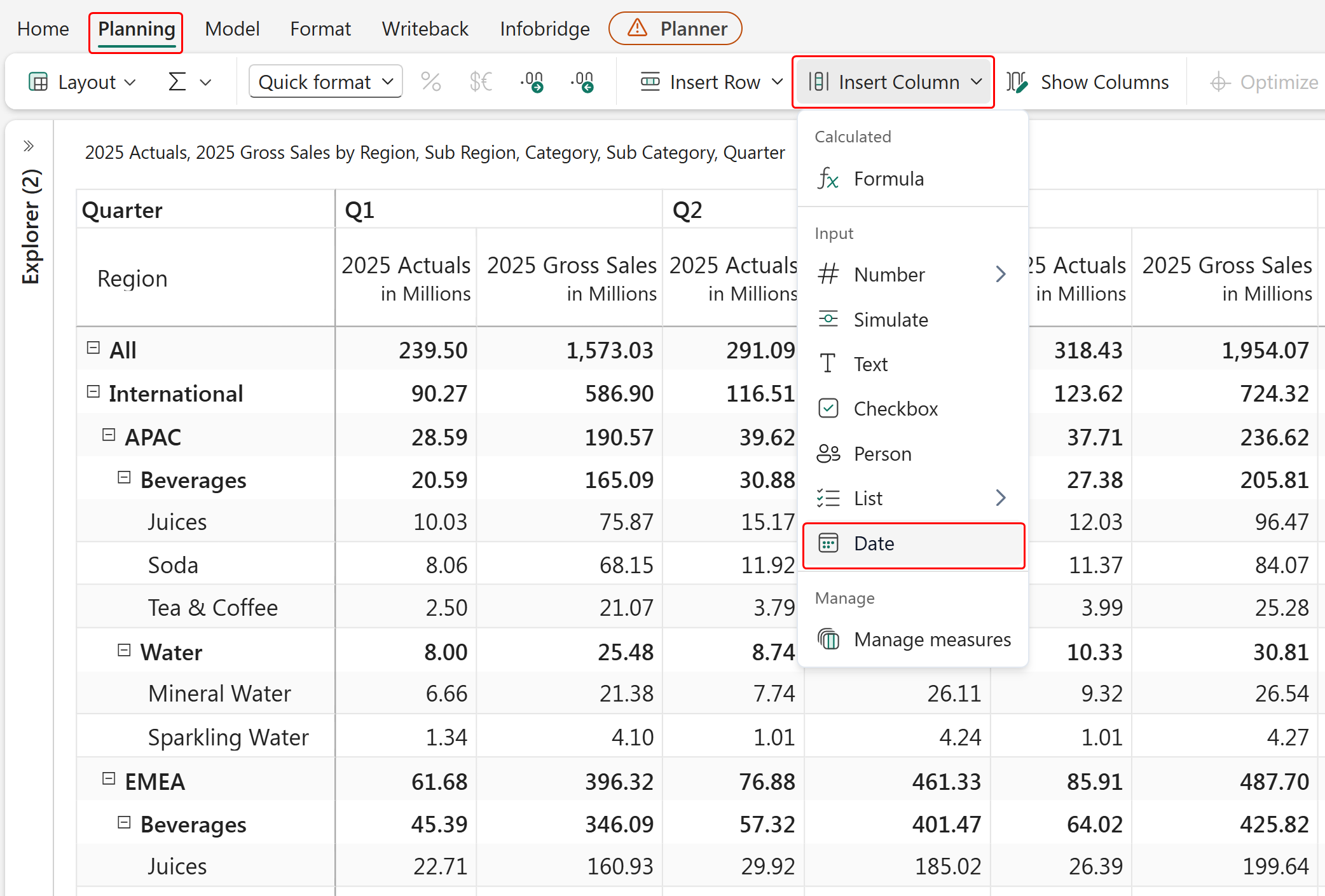
Go to Planning > Insert Column > Date.
Enter a title and configure the required properties in the side panel.
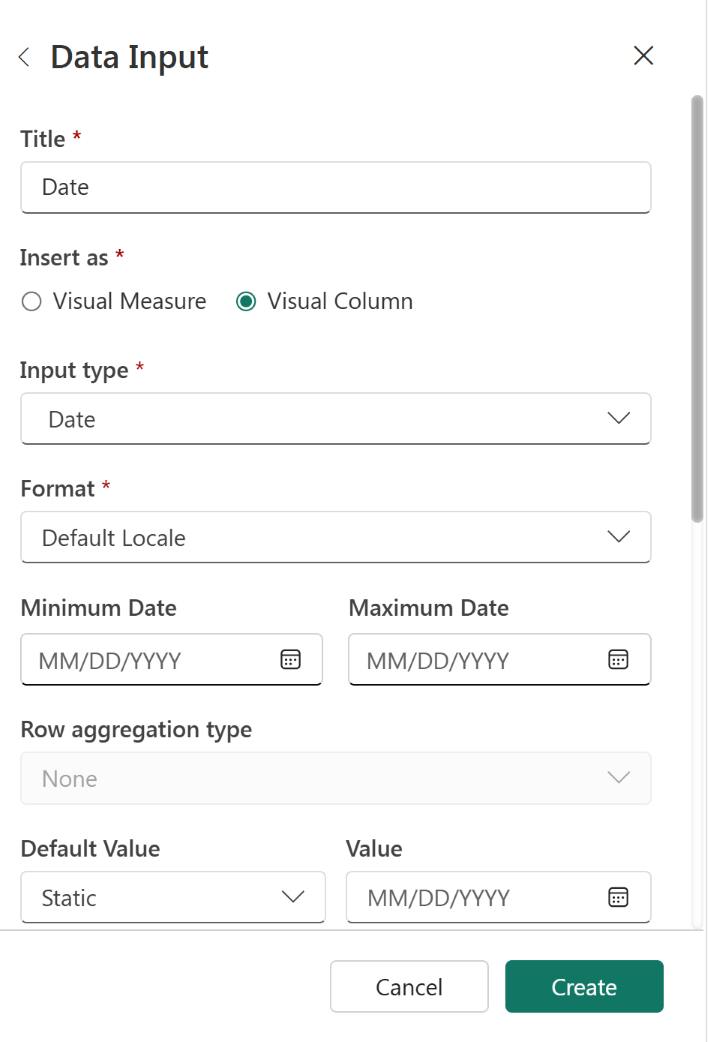
Select Create to add an empty date column to the report with the default configuration.
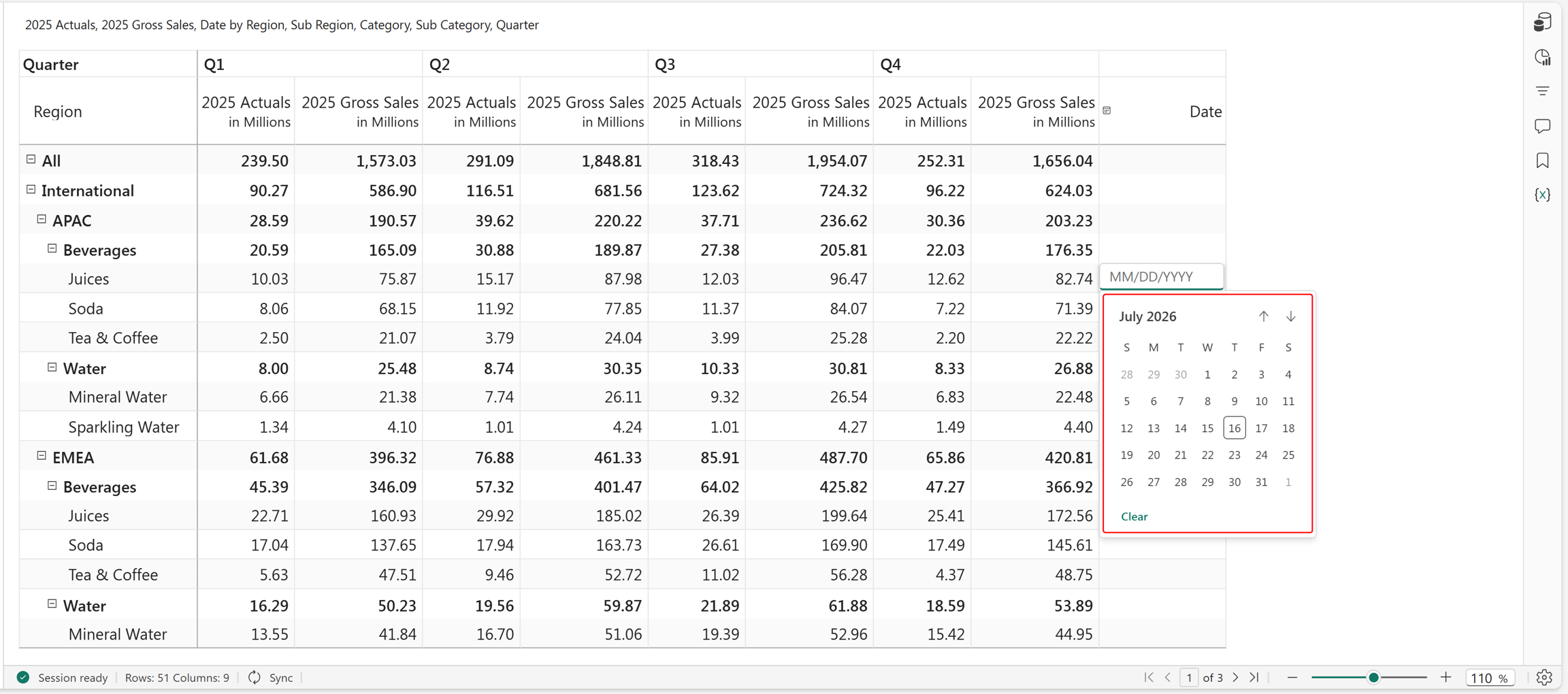
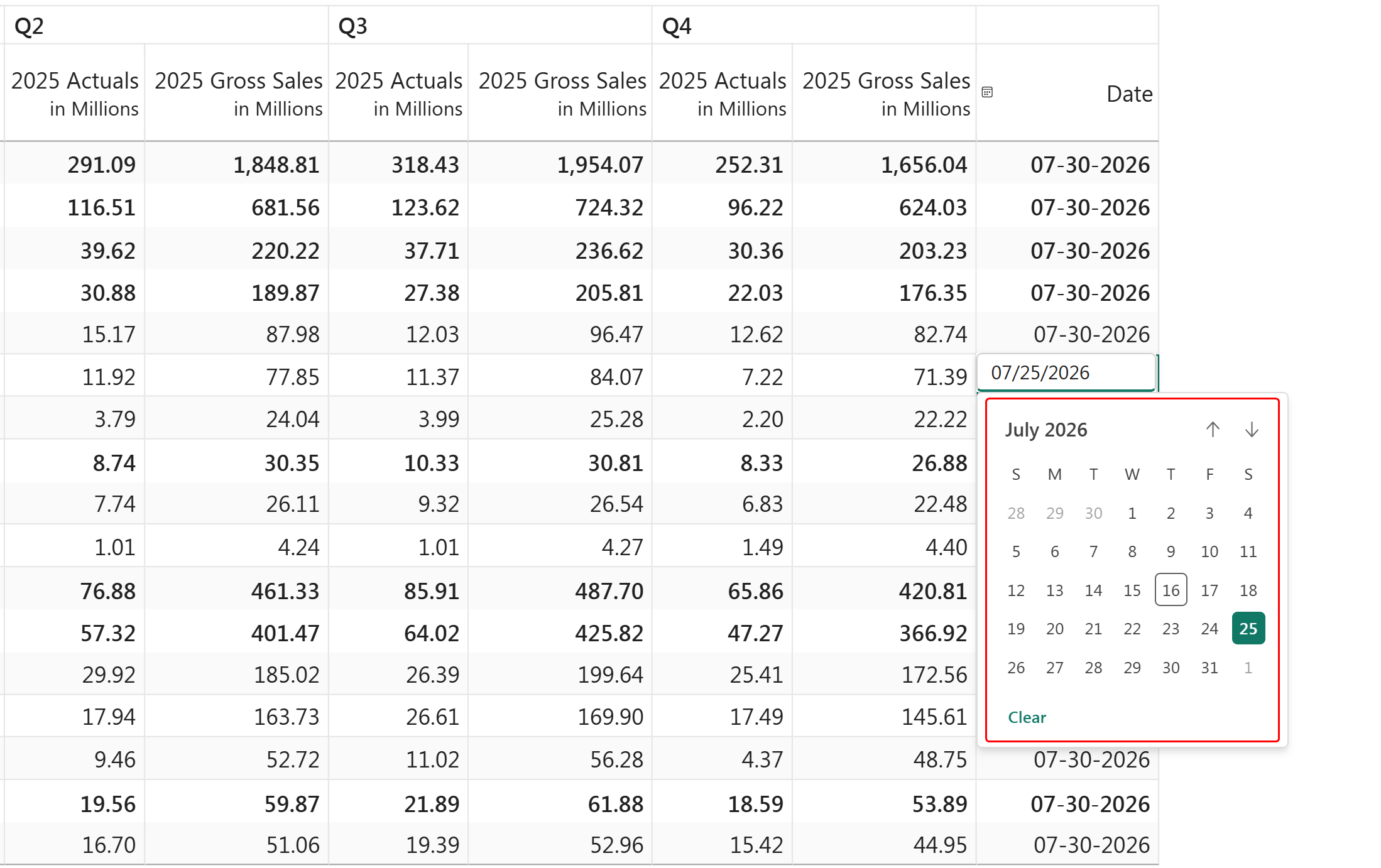
To enter a date, double-click a cell and select a value from the date picker or calendar.
Note
You can modify a date input column to update its properties.
Configure date column properties
You can define properties such as Insert As, Input type, Allow entry on Totals/Subtotals, On Change Formula, Allow Input, and Description, similar to other data input columns. For more information, see configure data input column properties.
Additional configurations for date columns include:
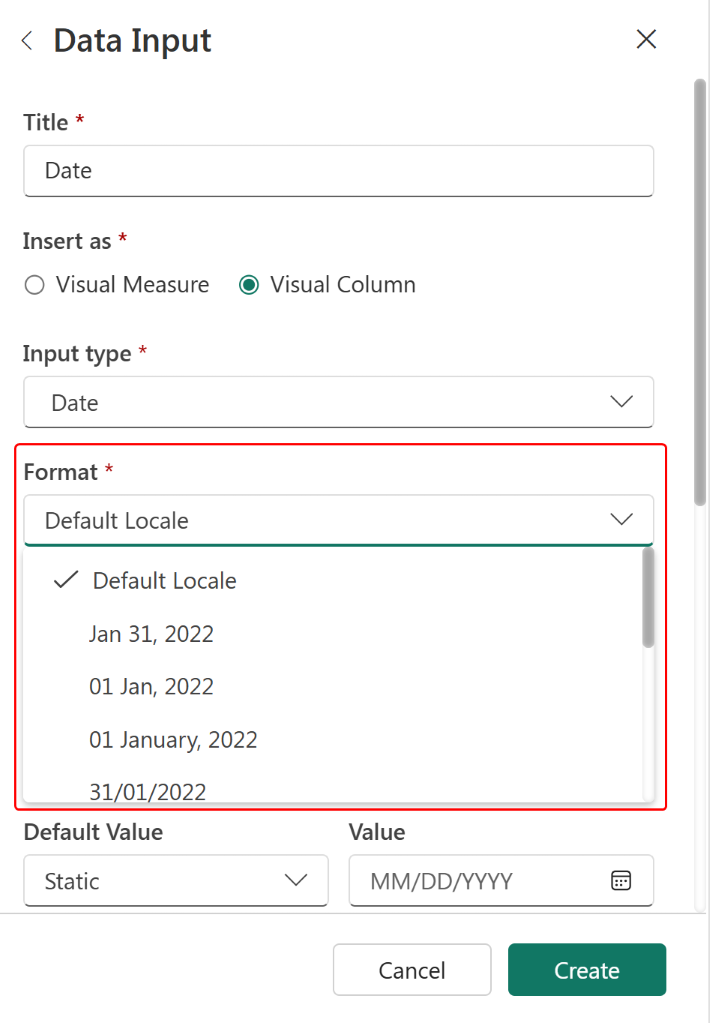
Format: Select the required date format from the Format dropdown.
Minimum and maximum date: Set the allowed date range by defining minimum and/or maximum values. Users can't enter dates outside this range.
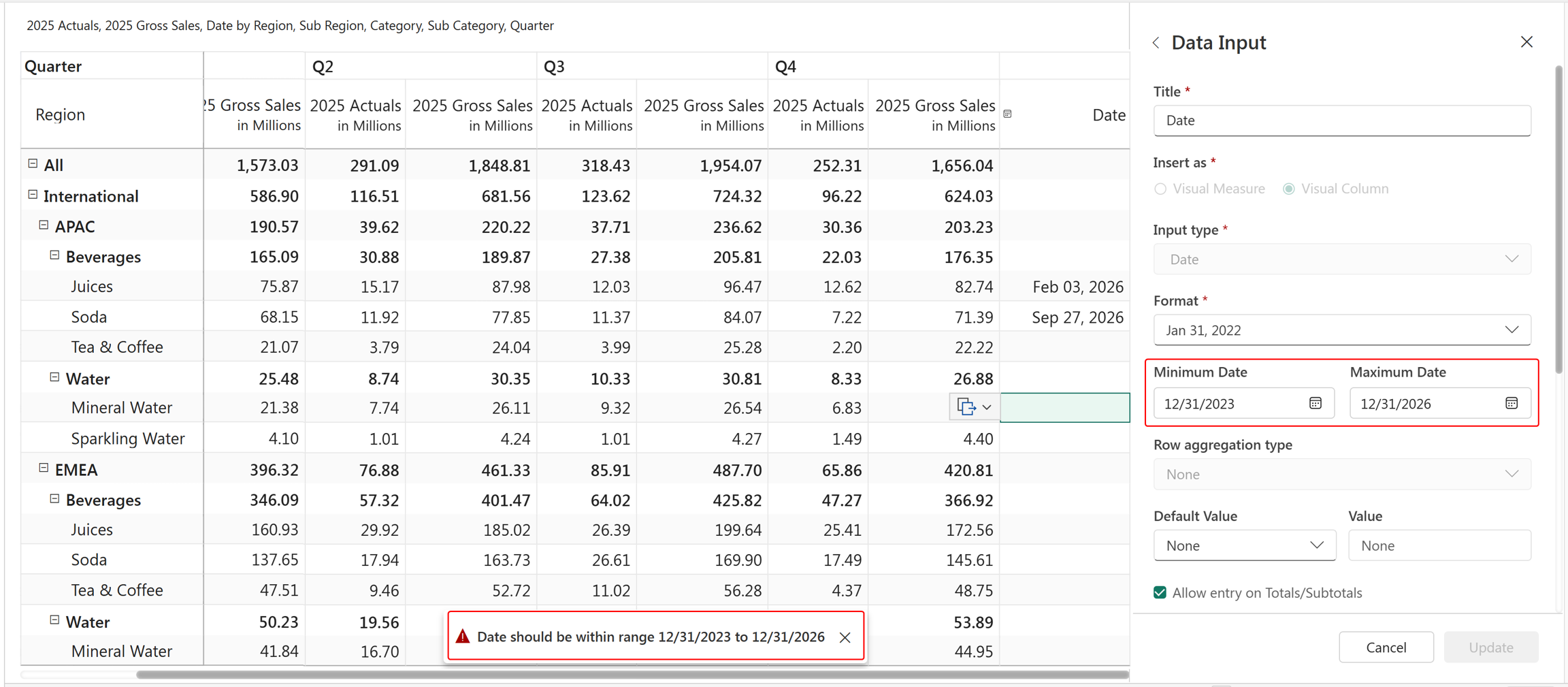
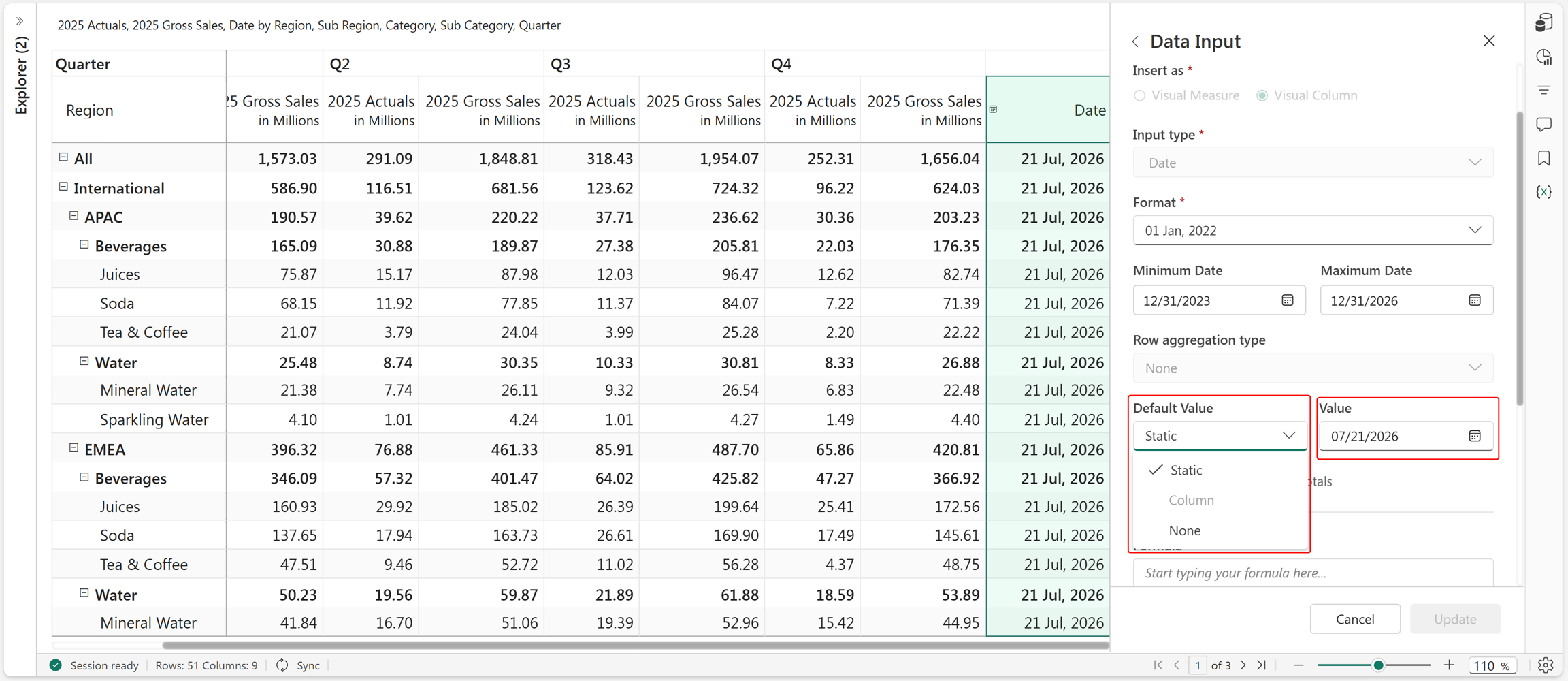
Default value: Pre-fill the column with a default date to avoid manual entry. Set the default value by using:
Static: Use the date picker to define a common date for all rows.
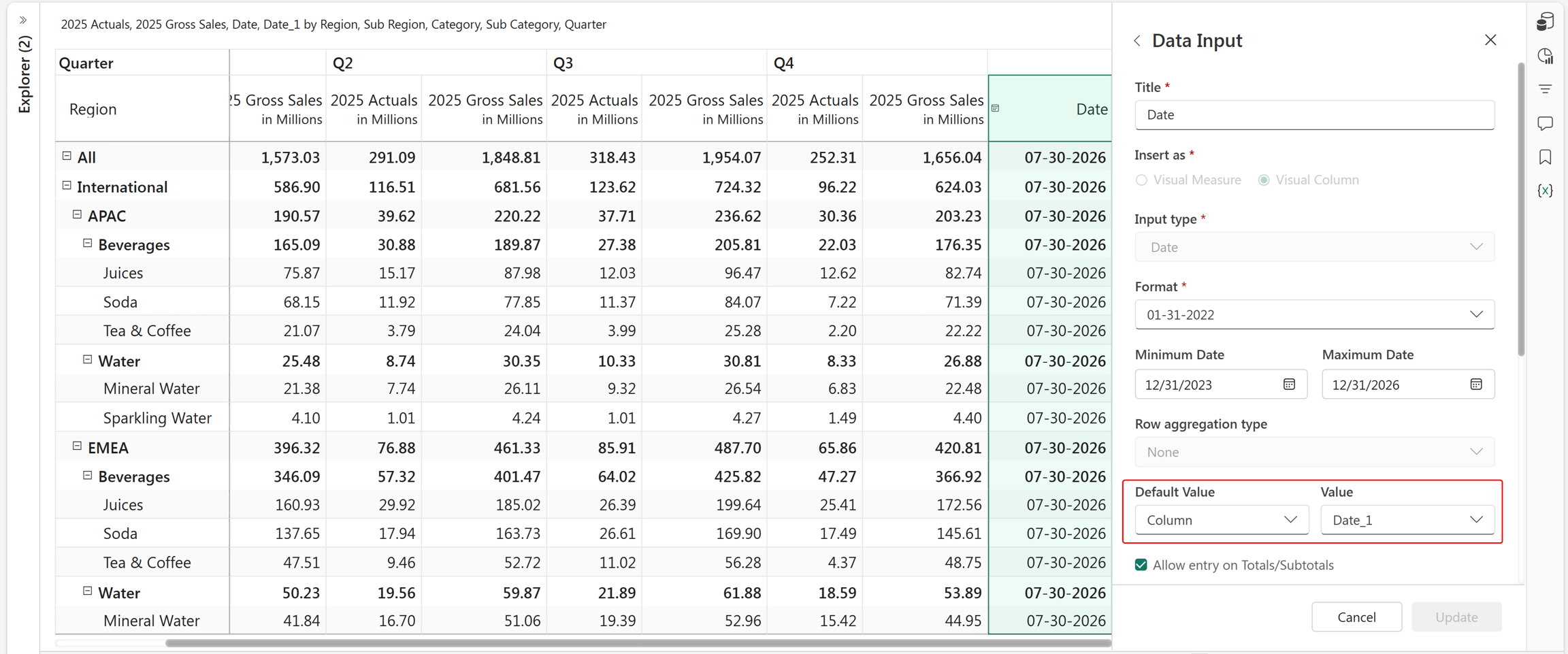
Measure/Column: Select a measure or column (native, formula, or date input) to source the default value.
After configuring the properties, select Create to insert the column. You can overwrite the default value by double-clicking a cell and selecting a new date from the date picker.
Note
The default value option is available for both visual measures and visual columns. The system automatically handles invalid date formats as blank values to ensure clean export and writeback.