Note
Access to this page requires authorization. You can try signing in or changing directories.
Access to this page requires authorization. You can try changing directories.
You can create single select or multiselect dropdown list columns in a planning sheet by using a predefined list of values.
- Single Select - Select one value for a row from a list of options.
- Multi-select - Select multiple values for a row from a list of options.
For the single select type, you can define the list of options manually or select one from the available presets. For the multiselect type, you can configure the list of options.
Create a dropdown list column
To insert a list column:
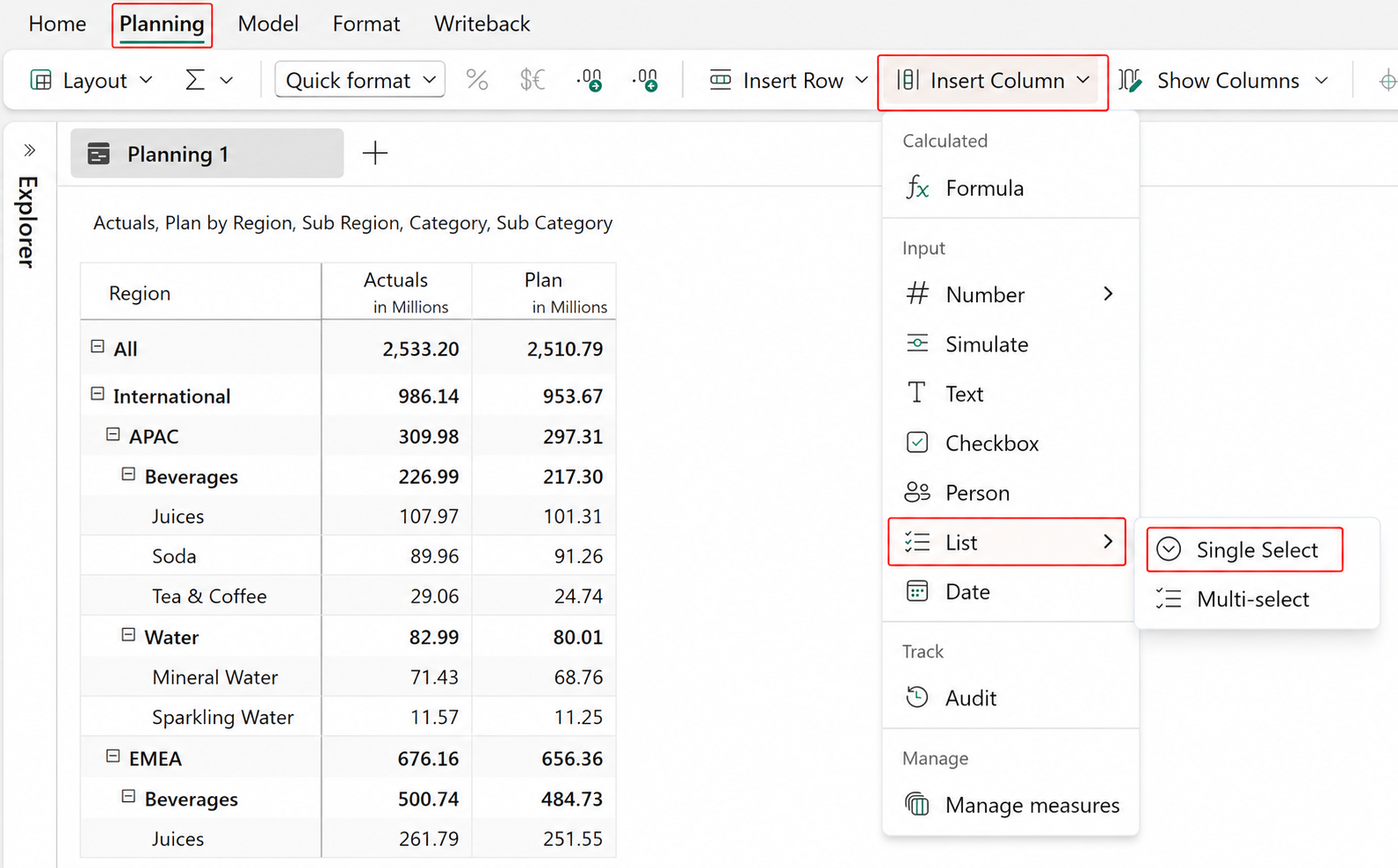
Go to Planning > Insert Column > List.
Select Single Select or Multi-select.
Configure list of values
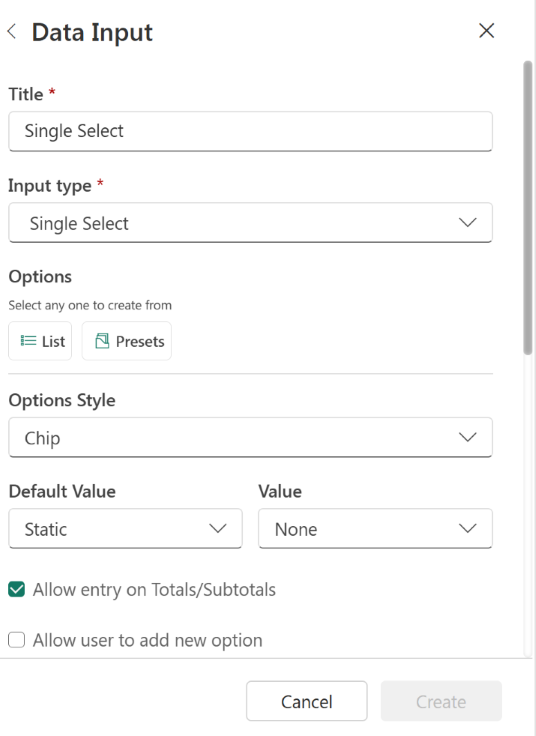
After selecting Single Select or Multi-select, a side panel opens where you can define the list of values (LOVs) by using List or Presets.
List
Select List to display three default options with colors.
Rename, add a new option, or modify the existing options. To learn more about adding or modifying the options, see Modify column properties and list of values.

Presets
Select Presets to open a list of predefined value sets.
Hover to preview the values.
Select a preset and choose Apply.
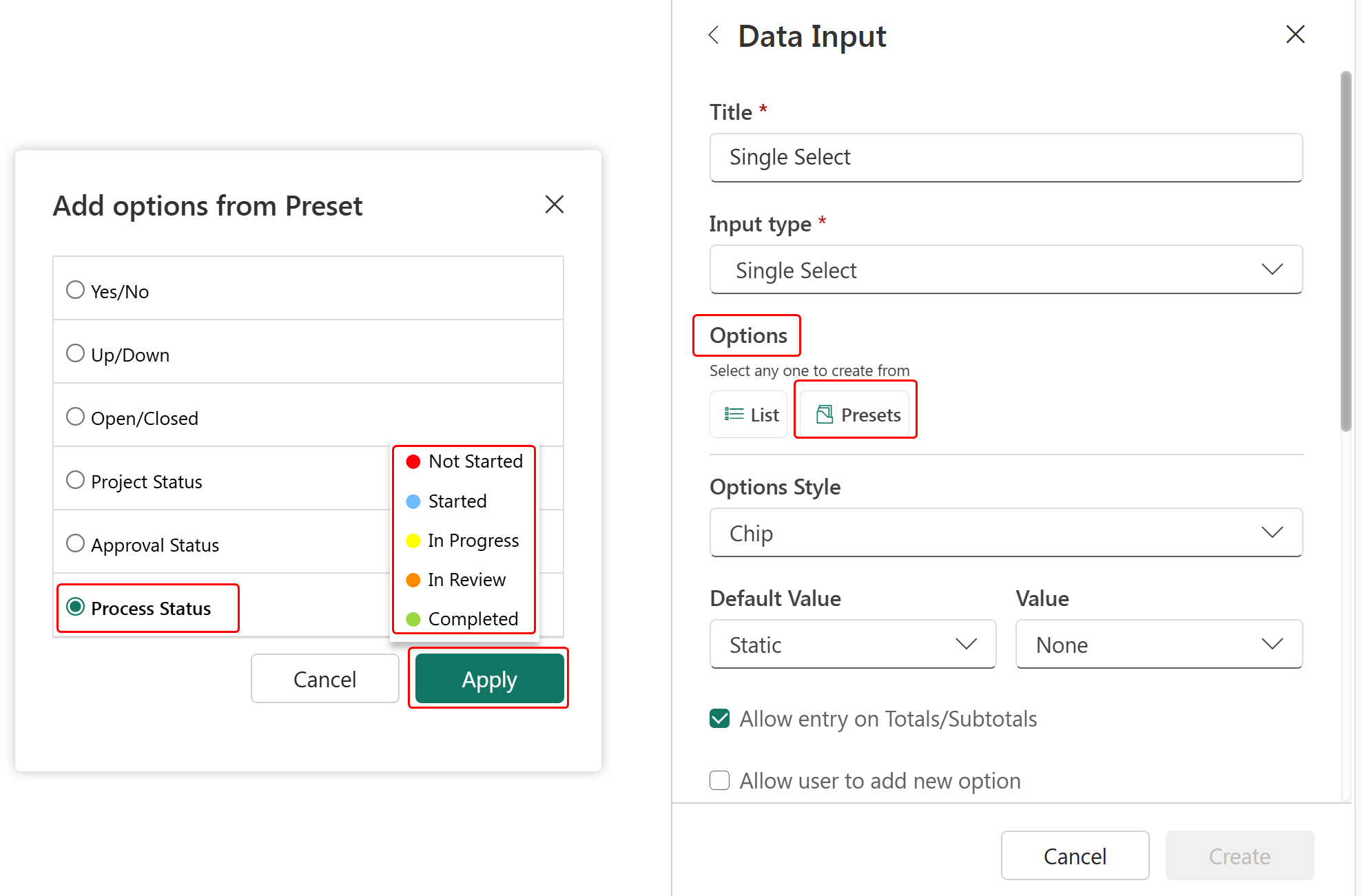
You configured the list of values. The following section explains how to configure other column properties.
Configure dropdown column properties
You can configure other properties such as Insert as, Input type, On Change Formula, Allow entry on Totals/Subtotals, Allow Input, and Description. For more information, see configure data input column properties.
In addition, you can configure these specific properties for dropdown columns:
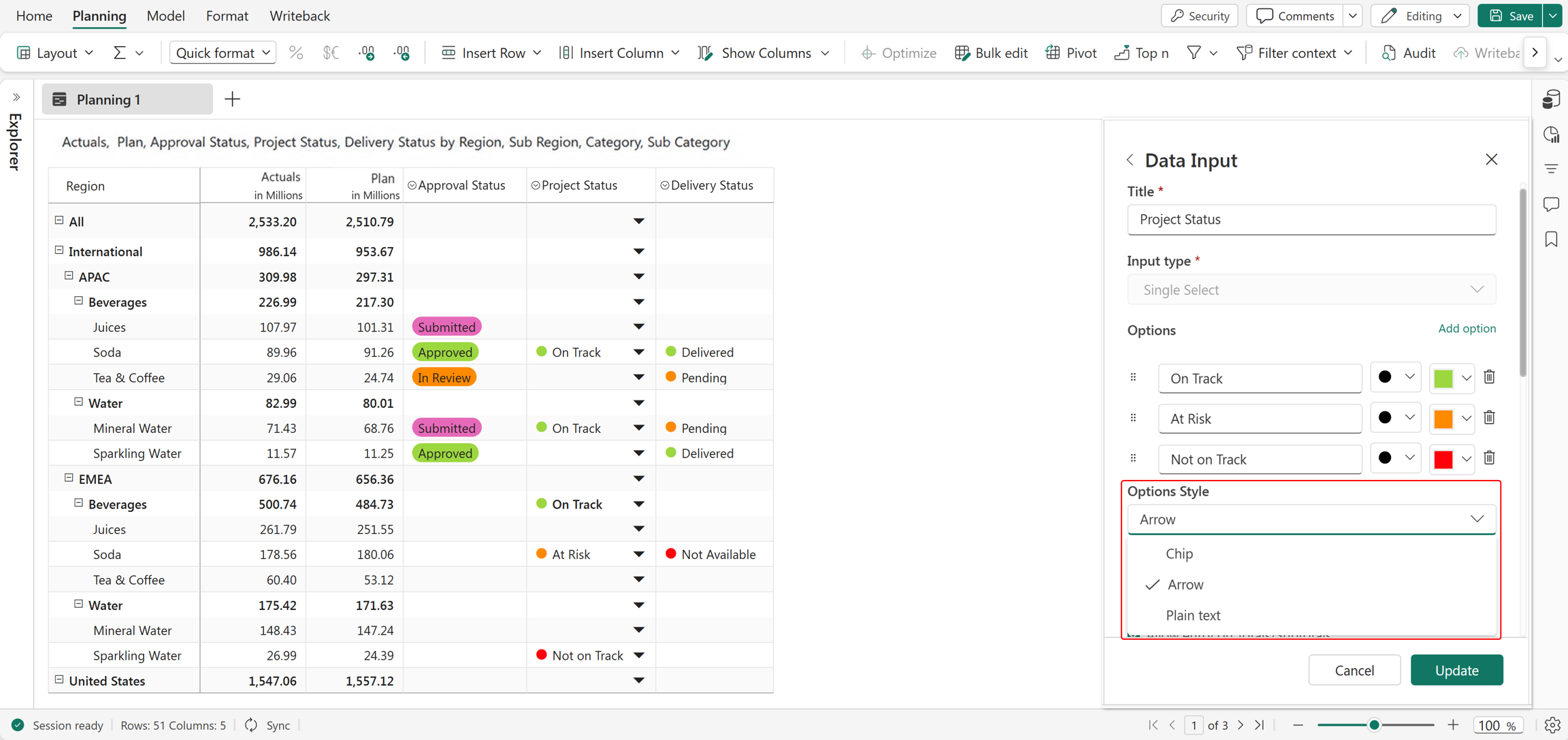
Options Style: Choose how dropdown values are displayed - Chip, Arrow, or Plain text. All three styles are illustrated in the following image.
Icon Position: Choose the desired icons and control where the icon appears in the option:
You can choose to display the icon on the left or right.
This option isn't applicable for Chip style.
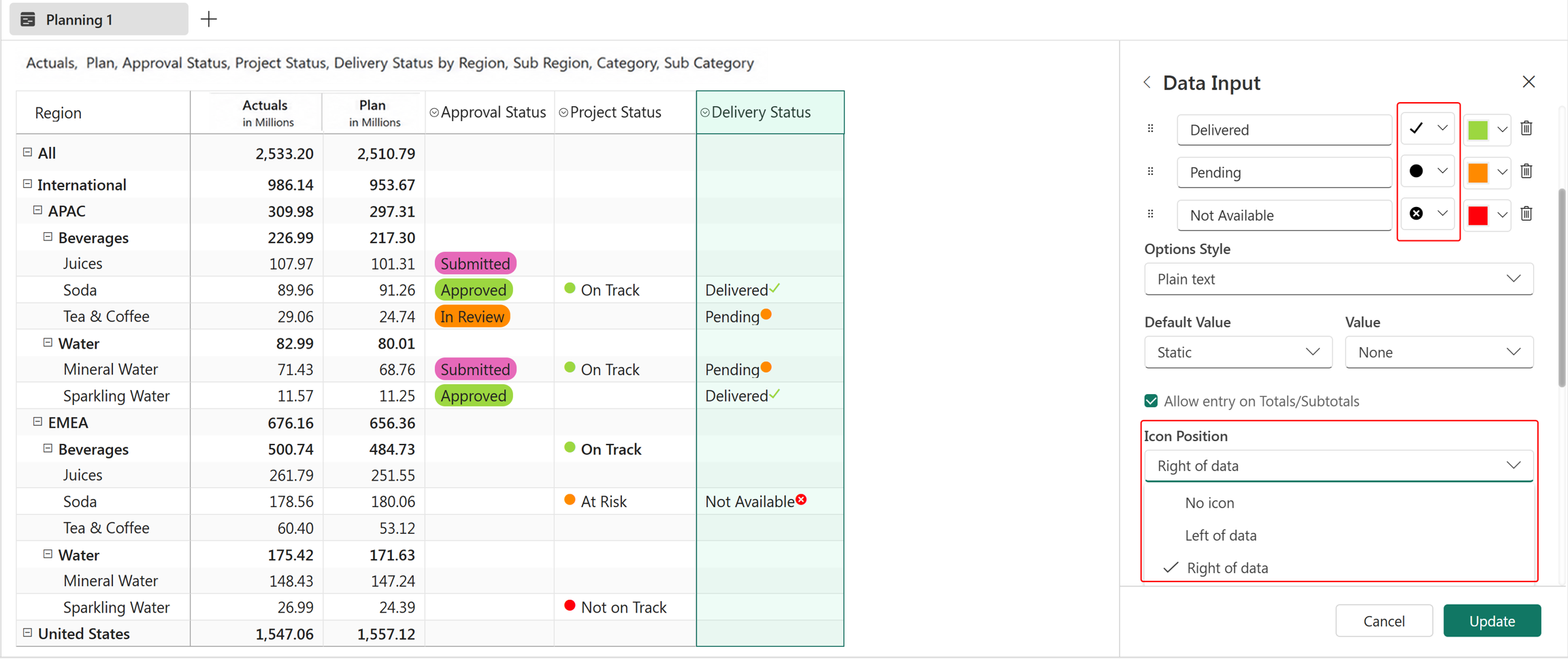
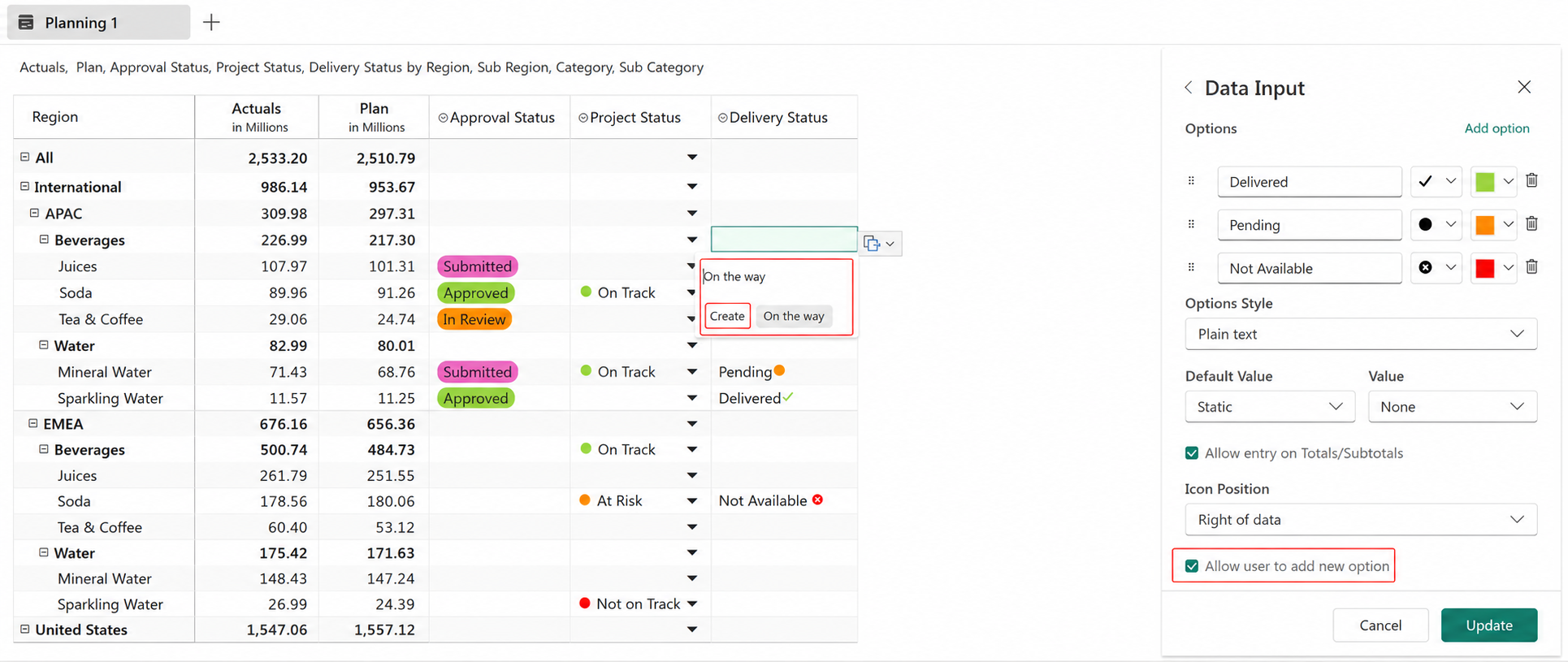
Allow user to add new option: When enabled, users can create new options directly from the dropdown, without opening the configuration panel. Select Create from the dropdown in the planning sheet to add a new option.
Prevent Null: Prevents users from leaving the value empty. To enable this option, configure a Default value to ensure that a value is entered when the column is created or updated.
Note
The Prevent Null option is available only for the Single Select input type and isn't available for Multi Select.
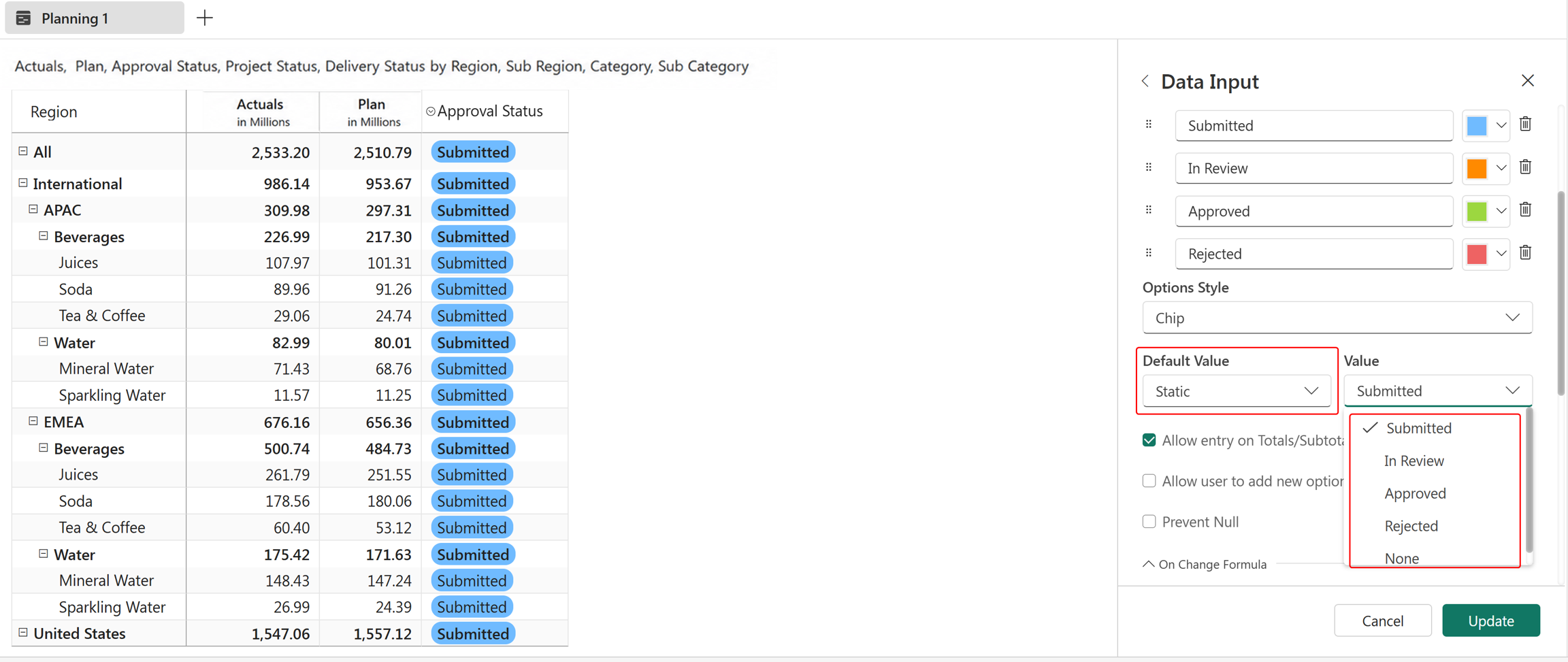
Default Value: You can define a default selection to avoid empty cells in the column. The default value can be one of the following types:
Static: Select a predefined value from the dropdown values.
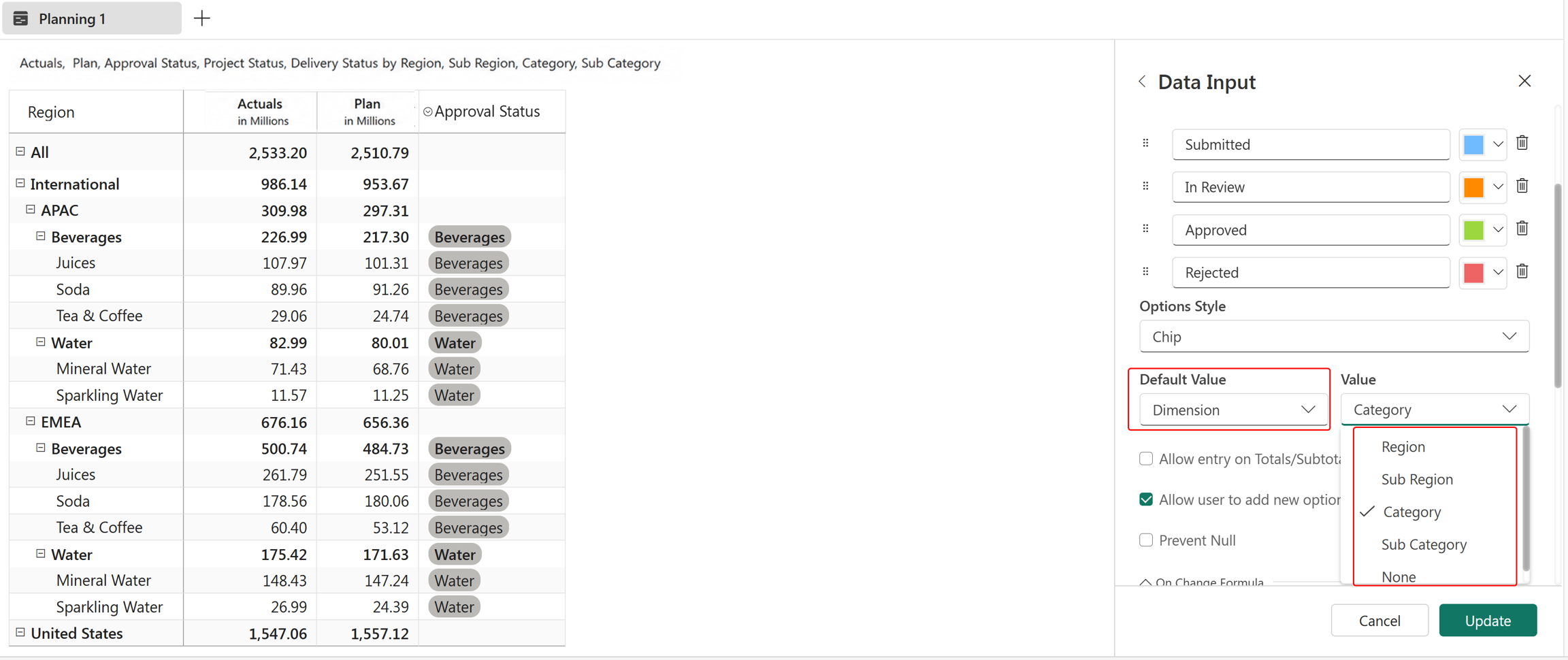
Dimension: Select one of the available row dimensions to populate the default values.
Measure - Select a measure to populate the default values.
Tip
When you use Dimension or Measure as the Default Value, enable Allow user to add new option. This setting allows you to create a new option if no existing dimension or measure values match.
After configuring the column and list of values, select Create. A dropdown column is added to the planning sheet with the configured properties.
Modify column properties and list of values
You can modify an existing dropdown column by using the same steps as other data input columns. For more information, see modify column properties.
Go to Insert Column > Manage measures and select the Edit (pencil) icon.
A side panel opens where you can update the required properties and also modify the list of values.
Edit options and colors: Modify option names by typing over existing values or change colors by using the color picker.
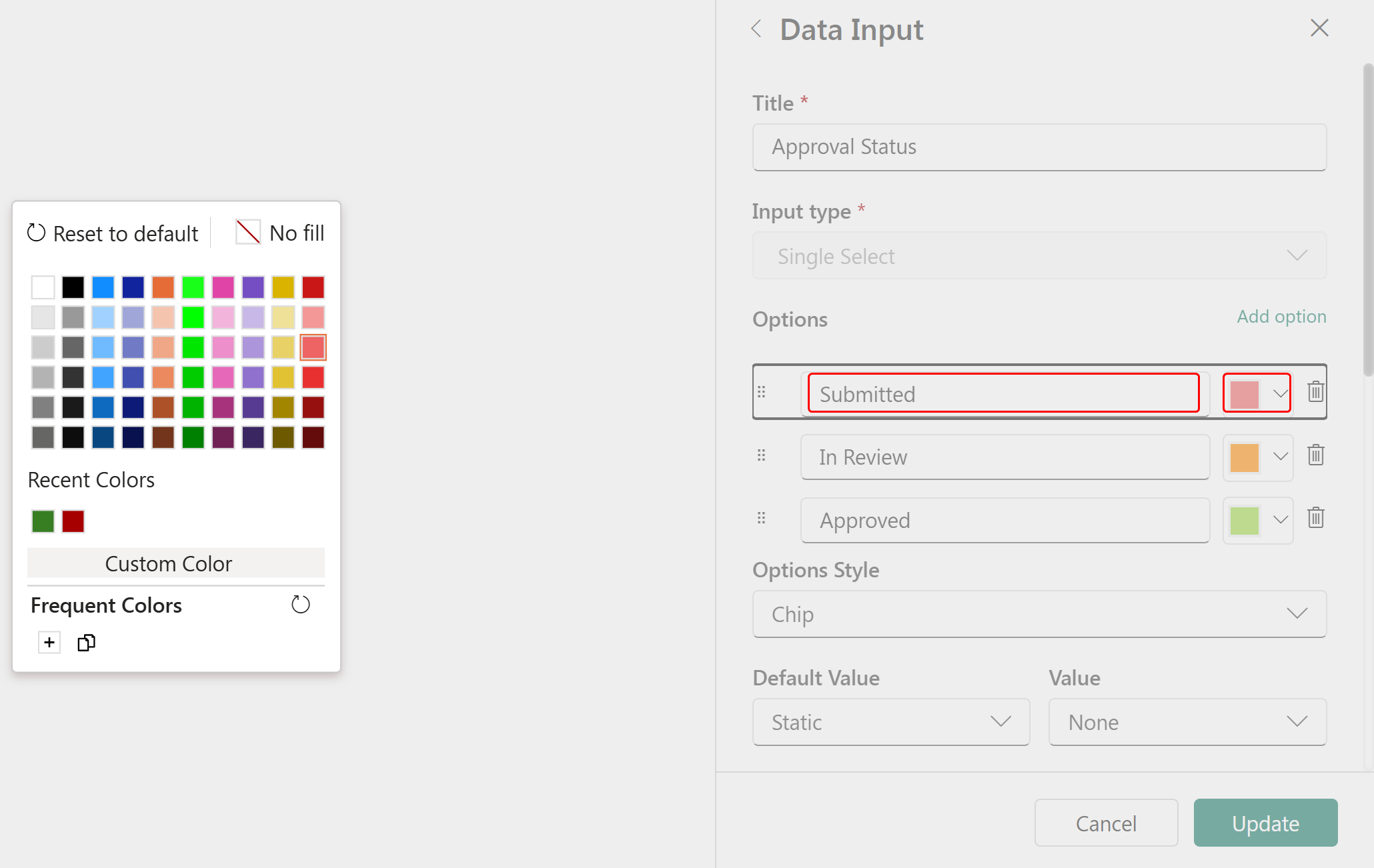
Add new options: To add a new option, select Add option, enter a value, and press Enter.
Delete or reorder: Use the reorder handle and the delete (bin) icon to reorder or delete options.
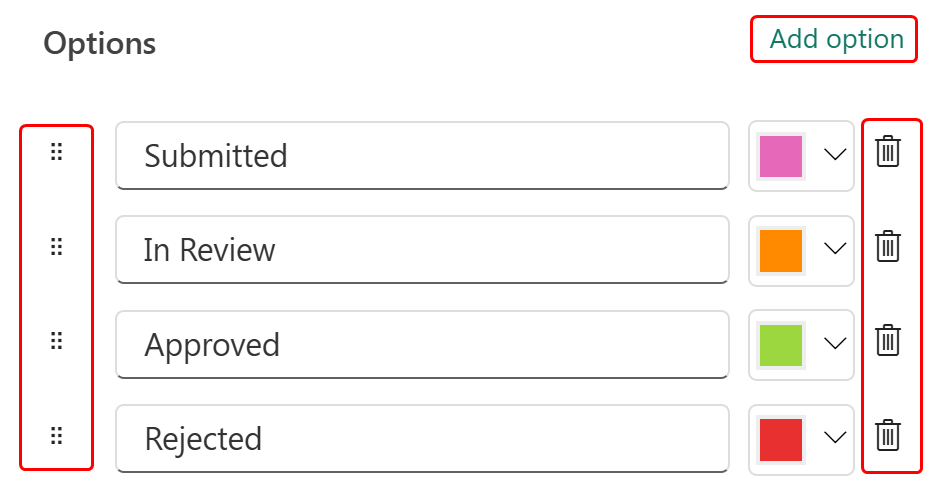
After making the changes, select Update.
Localization of options list
You can display dropdown values in different languages based on user preferences.
To configure localization:
Go to Format > Translations.
Add translation entries for the required keys and languages by selecting Add New or the + icon that appears when you hover over a row.
To add translation entries in bulk, select Export to download the Excel template, add the required translation entries, and then select Import to import the updated file.
Select Save to apply the changes.
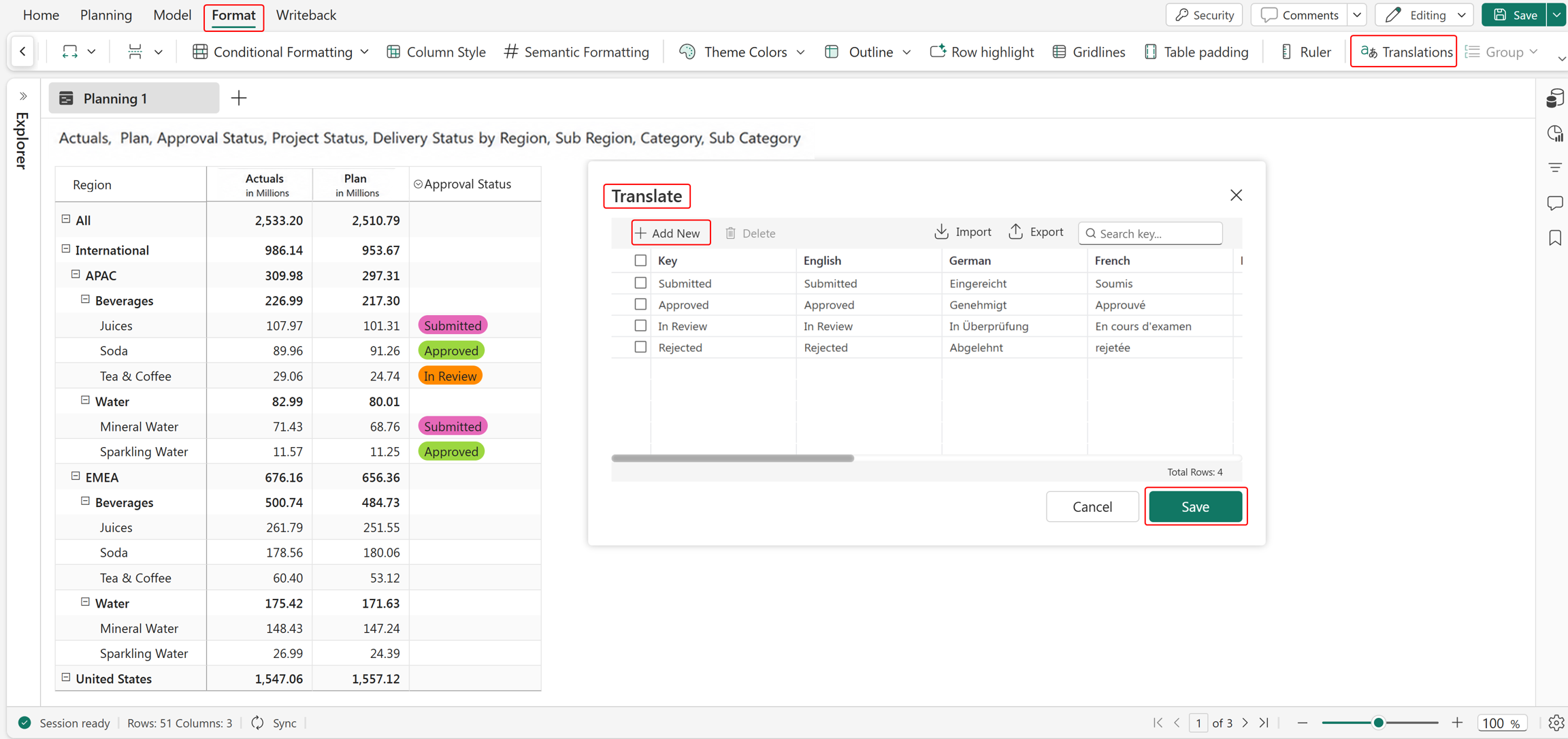
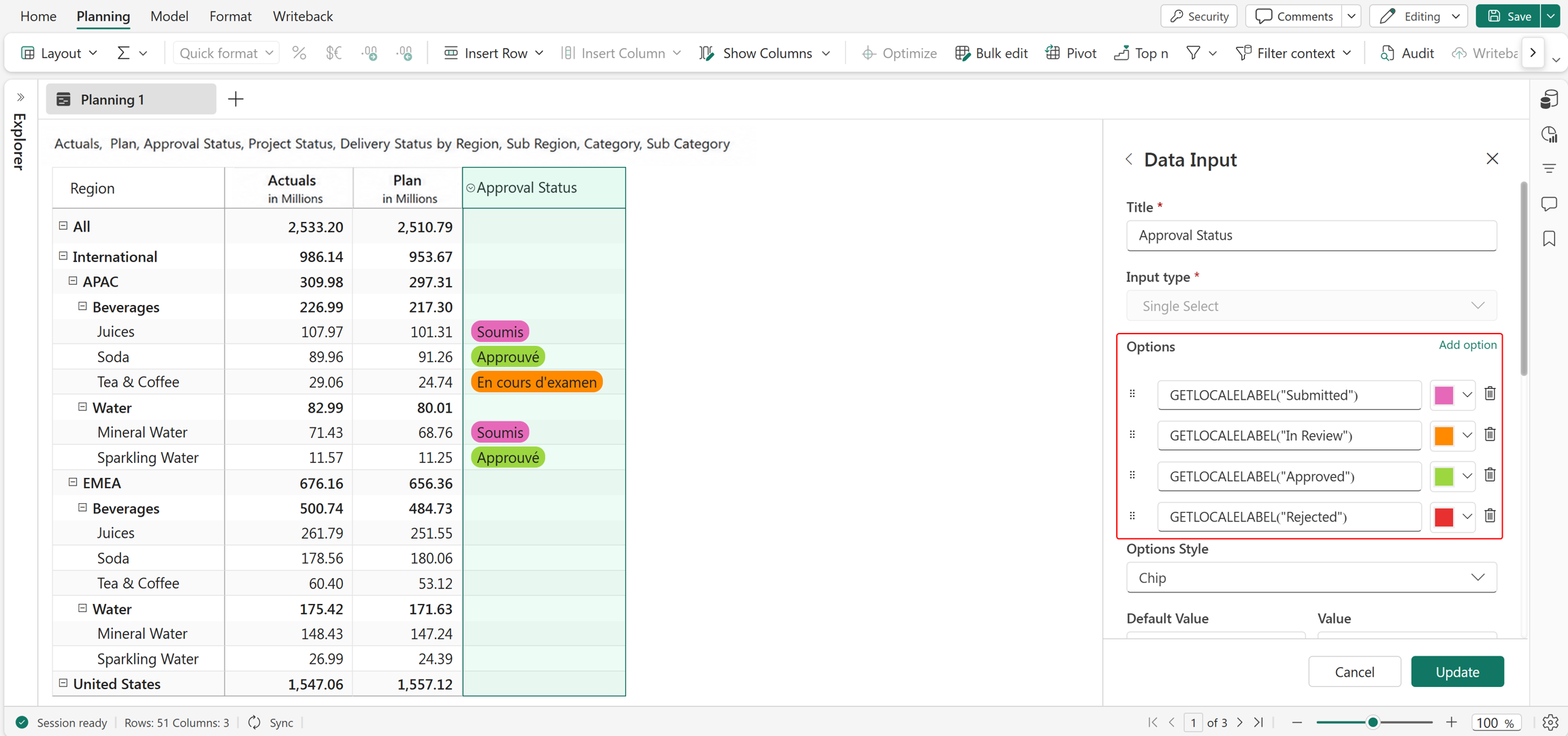
Then, in the Single Select data input column, use the GETLOCALELABEL function in the Options field and pass the key defined in the localization settings.
Now the dropdown values automatically display in the corresponding language based on the user's locale. The following example demonstrates this feature.
Example
In the example below, the dropdown options are displayed in French based on the current language settings.
Using the dropdown column
The following steps demonstrate how to use a dropdown column.
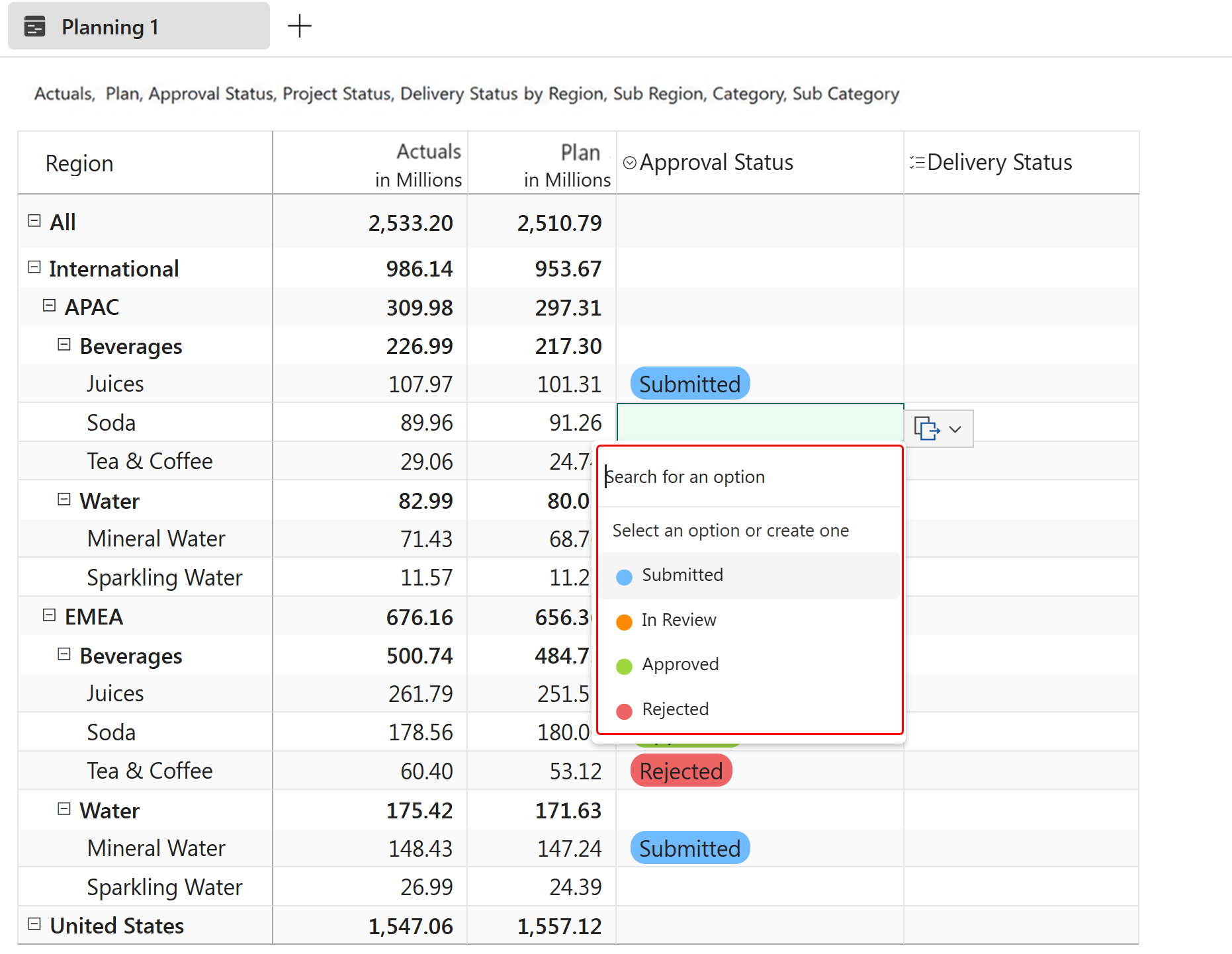
Select a cell in the column to open the dropdown.
Choose the required value.
For multiselect columns, you can select multiple values in a single cell.
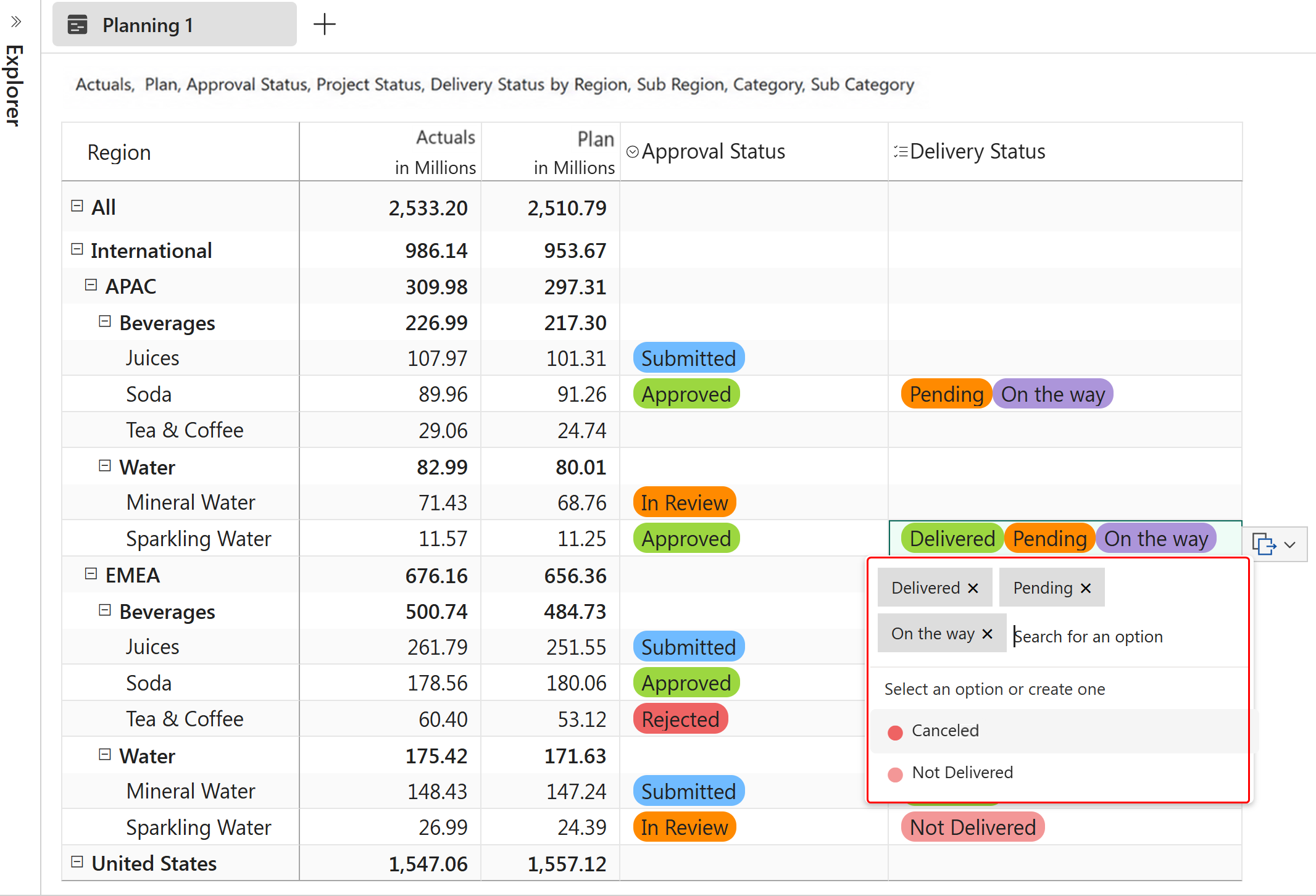
The selected options are added based on your configuration.