Note
Access to this page requires authorization. You can try signing in or changing directories.
Access to this page requires authorization. You can try changing directories.
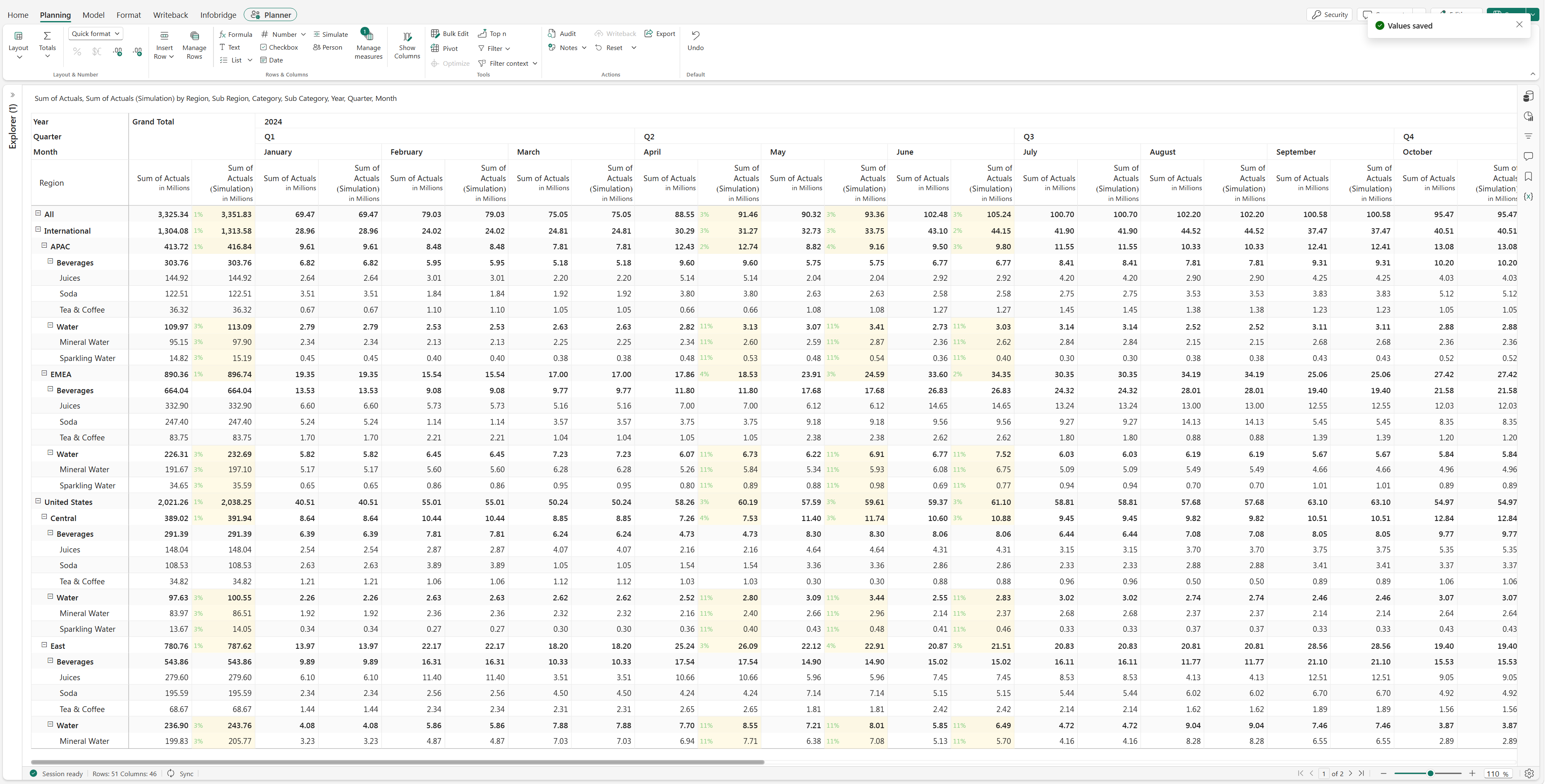
Simulation measures let you model projected values without modifying the original data. Use simulations to evaluate planning scenarios, compare projected and actual values, and analyze the impact of changes before committing them.
Create a simulation measure
Open the planning sheet.
On the Planning ribbon, select Simulate.
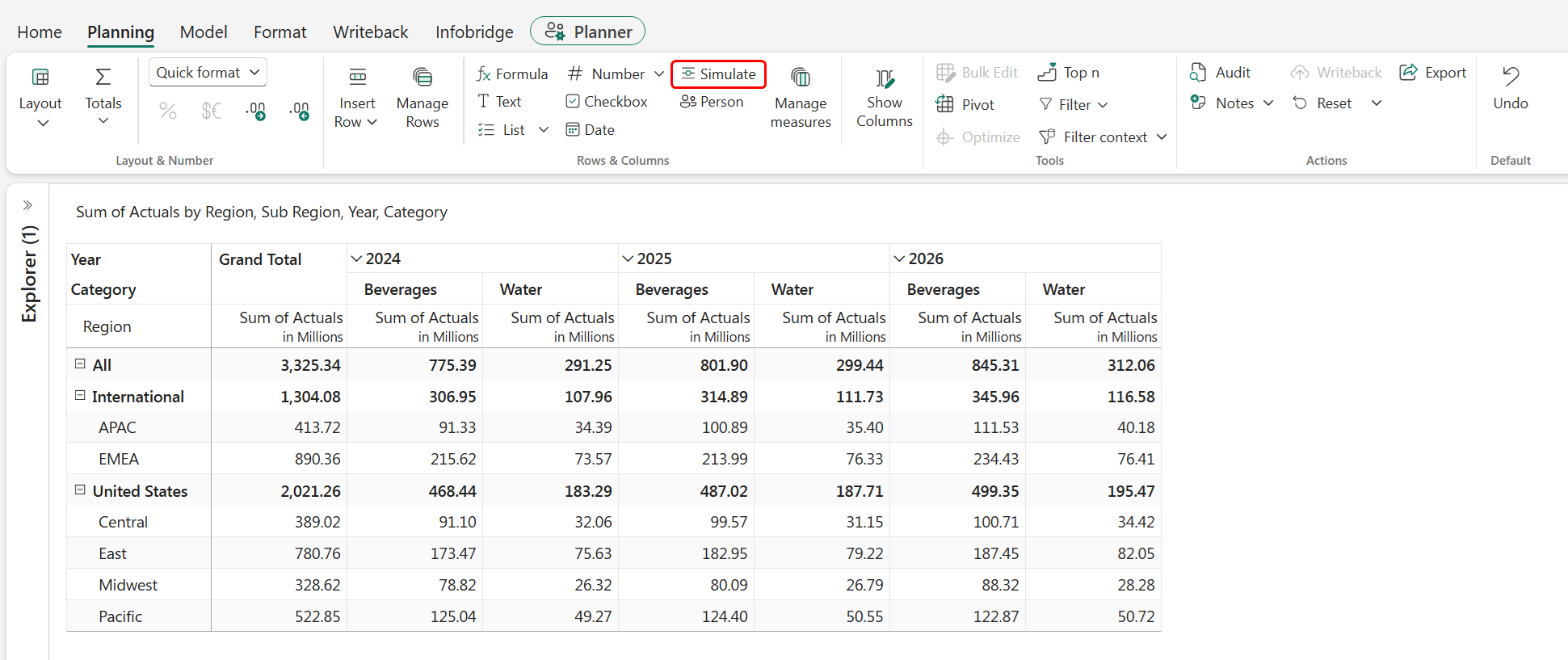
Configure the simulation in the Simulation pane.
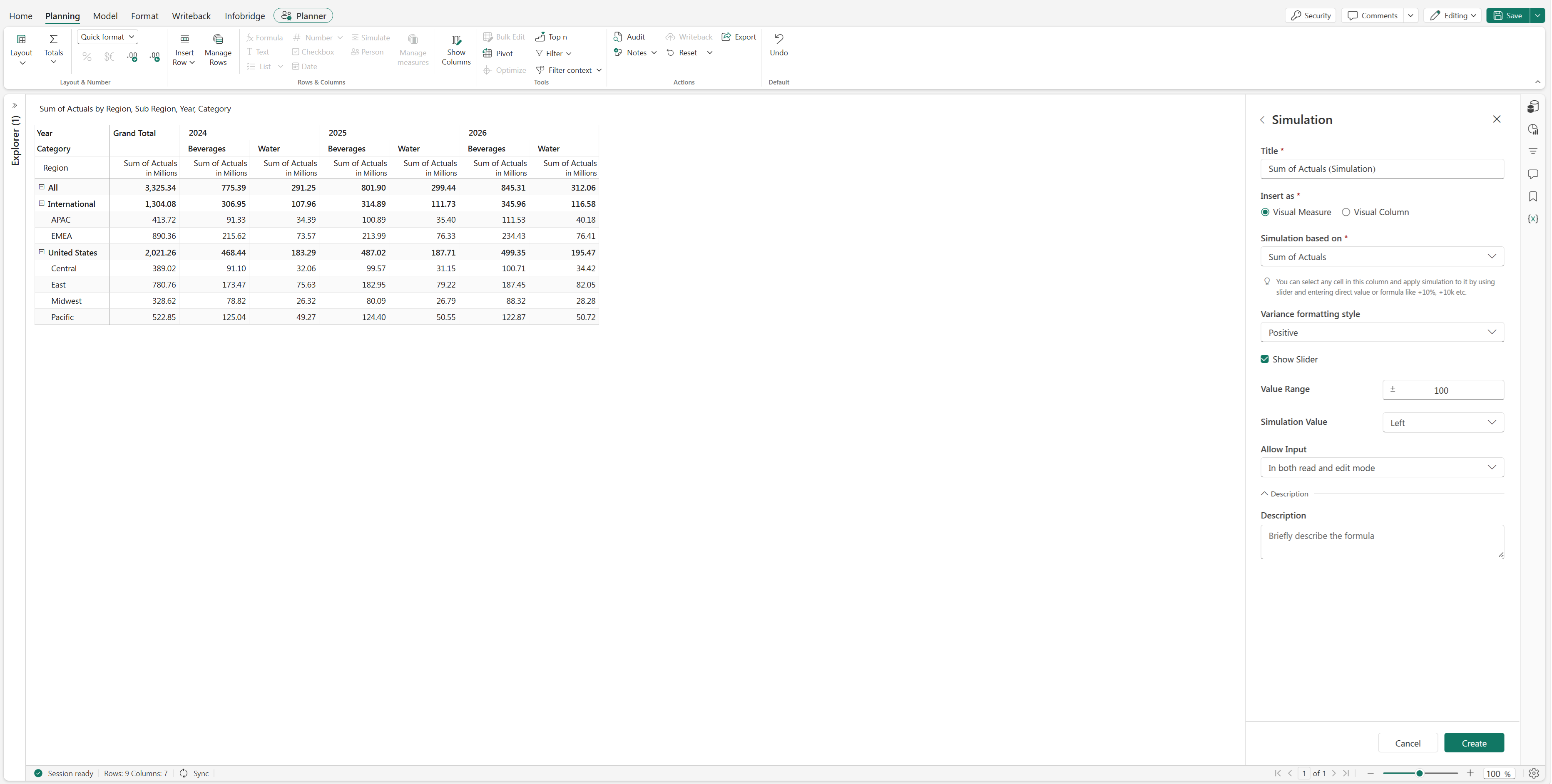
Configure the simulation by using the following options.
Option Description Title Specifies the display name of the simulation measure. Insert as Creates either a Visual Measure or Visual Column. Simulation based on Selects the measure to simulate. Variance formatting style Defines how favorable and unfavorable variances are displayed. Show slider Displays an interactive slider for editing simulation values. Value range Specifies the allowed simulation range. The default is ±100%. Simulation value Controls whether the percentage indicator is displayed to the left or right of the simulated value. Allow input Specifies whether users can edit simulated values in read mode, edit mode, or both. Description Adds an optional description for the simulation measure. Select Create.
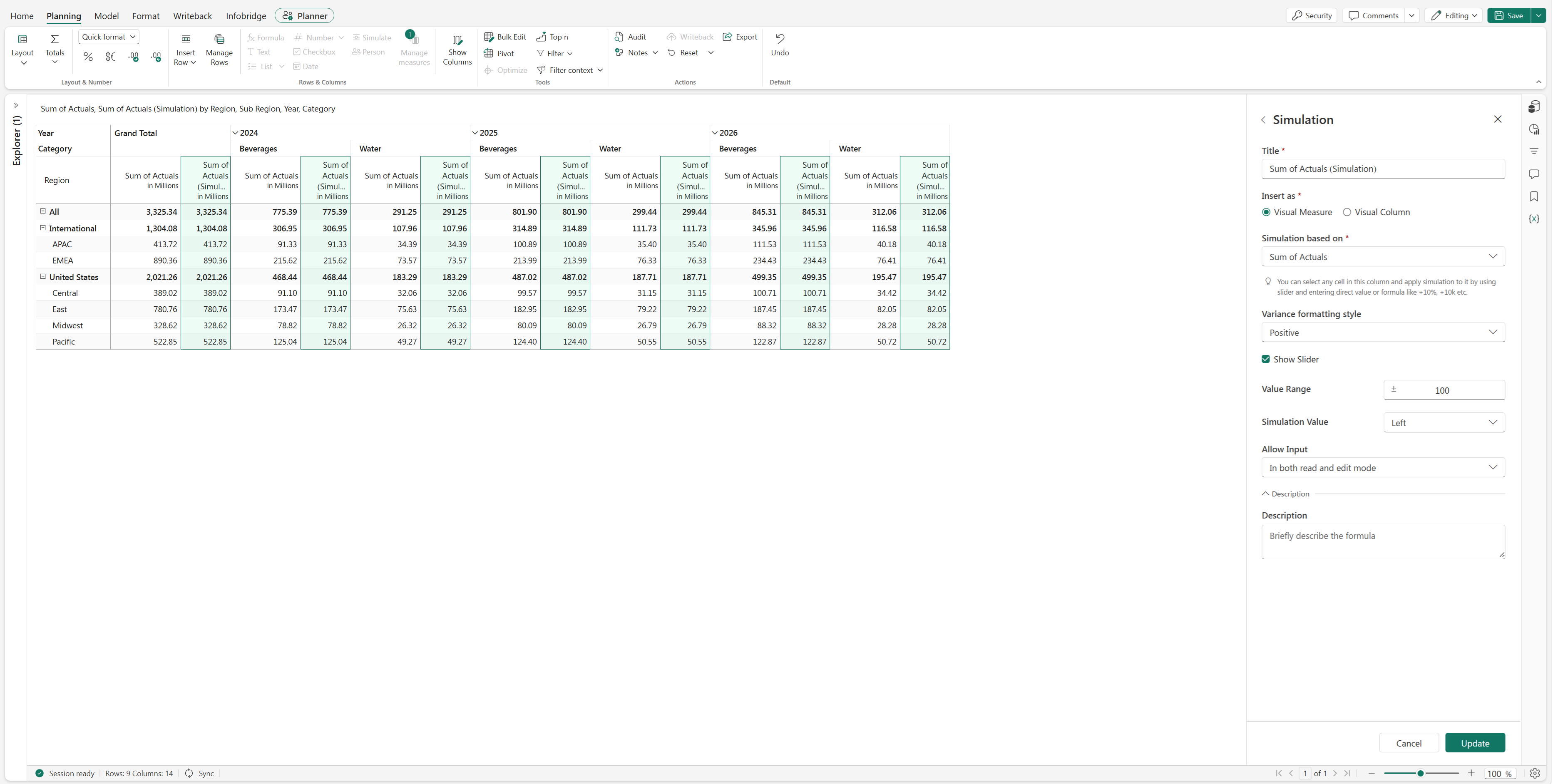
Adjust values by using the simulation slider
Select a simulated cell to display the slider.
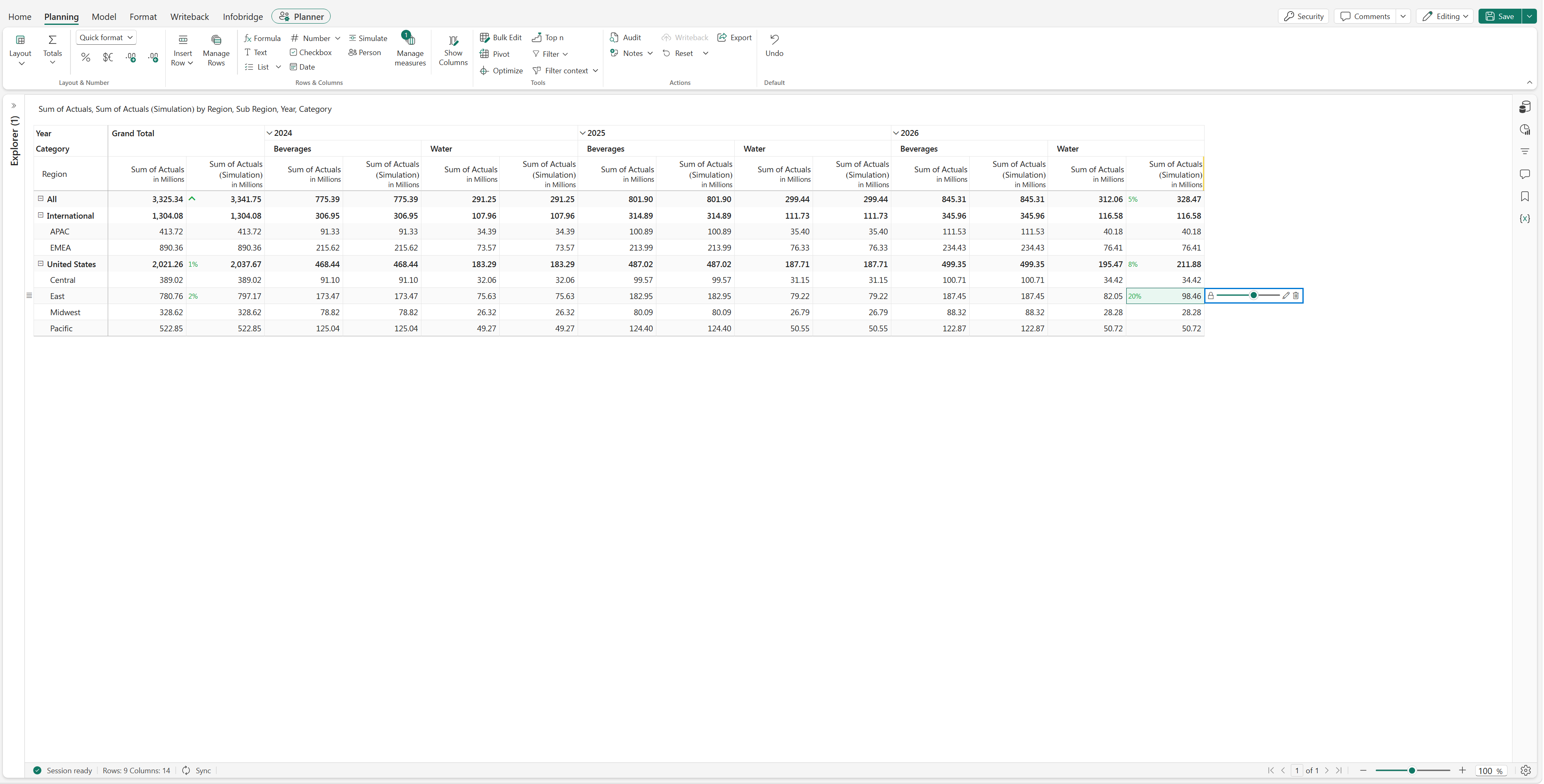
Drag the slider to increase or decrease the value. The percentage change appears while you drag, and the planning sheet recalculates totals when you release the slider.
If you simulate a parent value, the same percentage applies to all eligible child members.
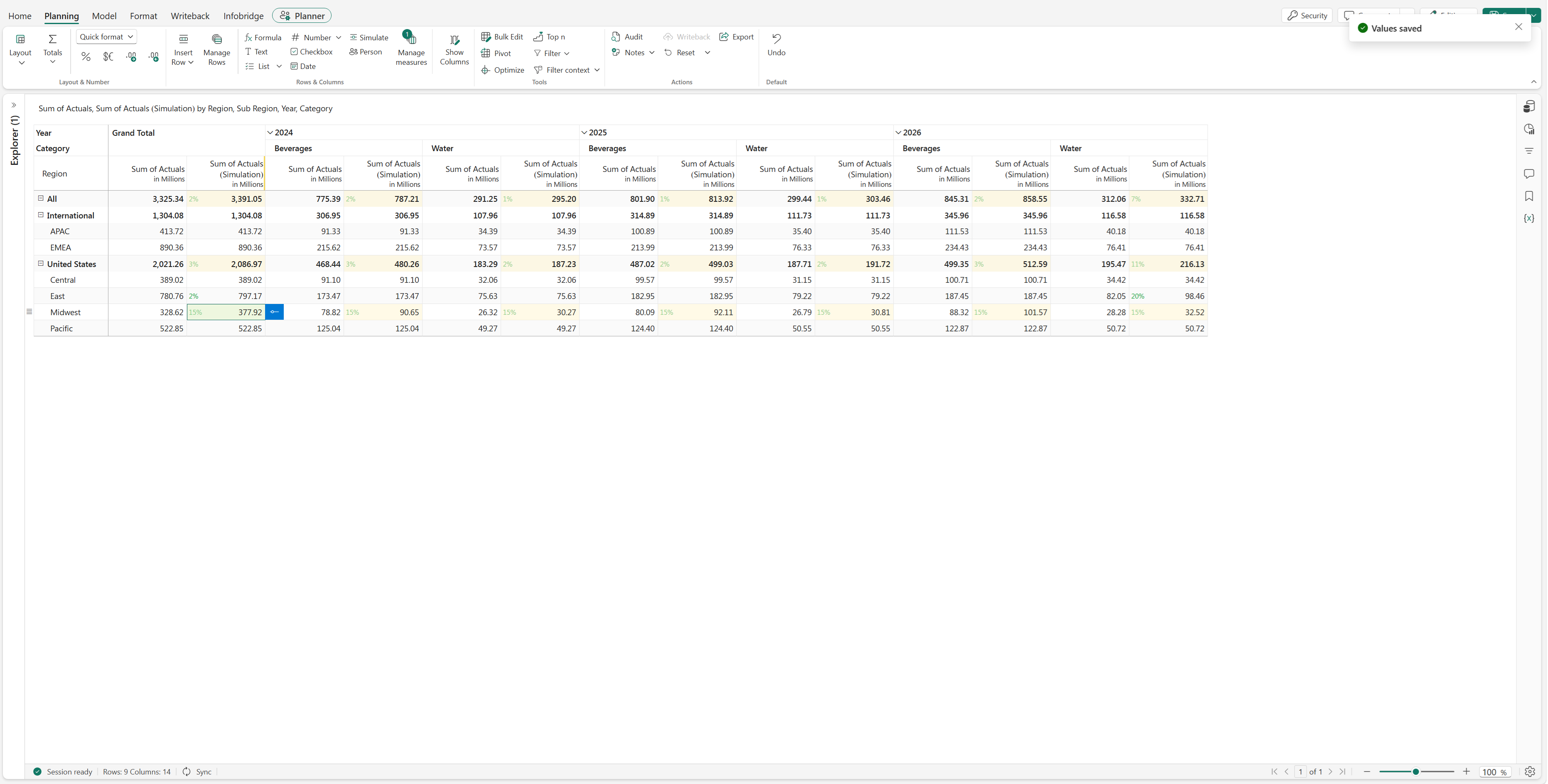
To simulate multiple values, select multiple cells by using Ctrl or Shift, and then adjust the slider on any selected cell.
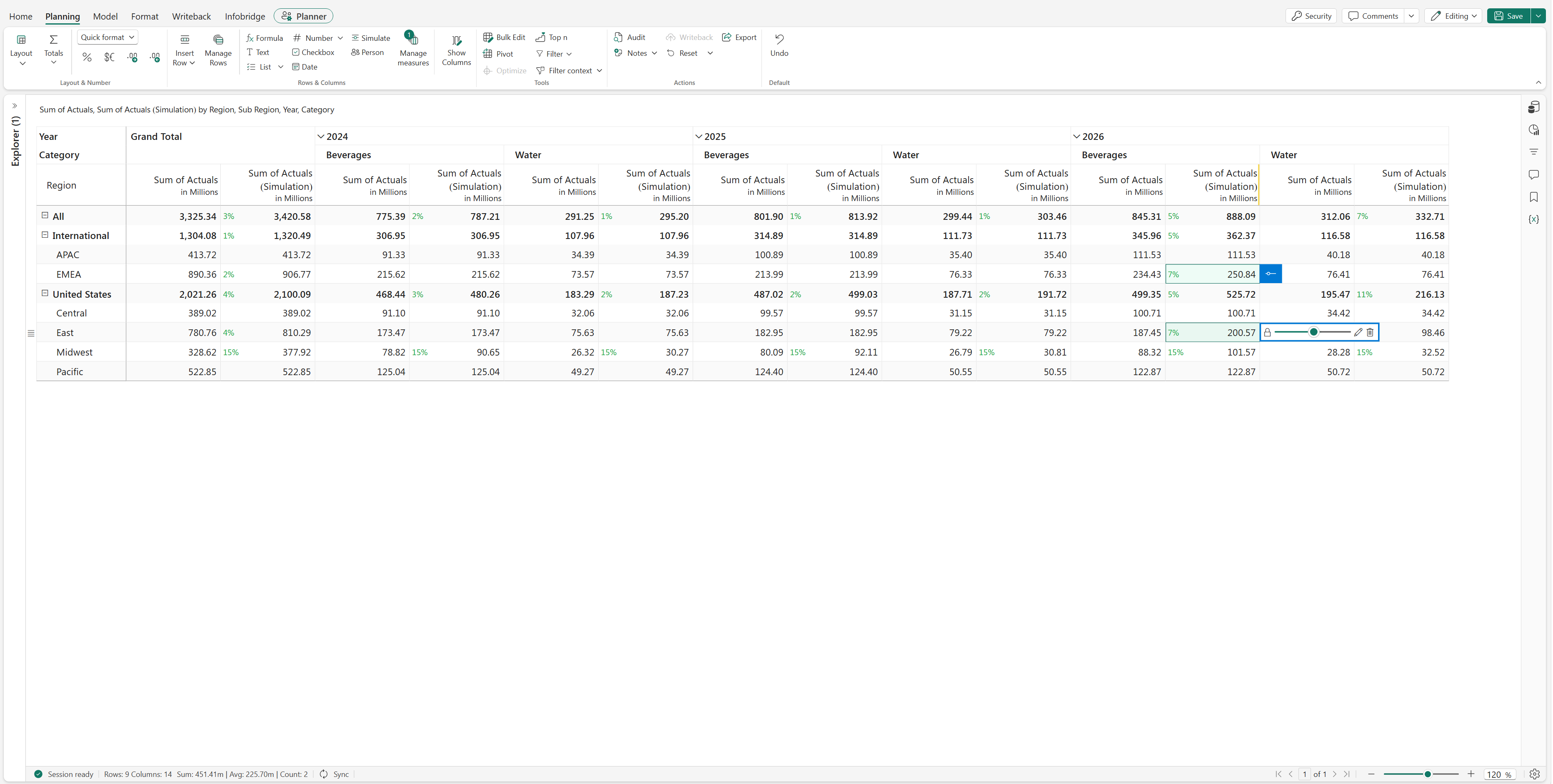
Edit a simulation
Select the Edit icon on the slider.
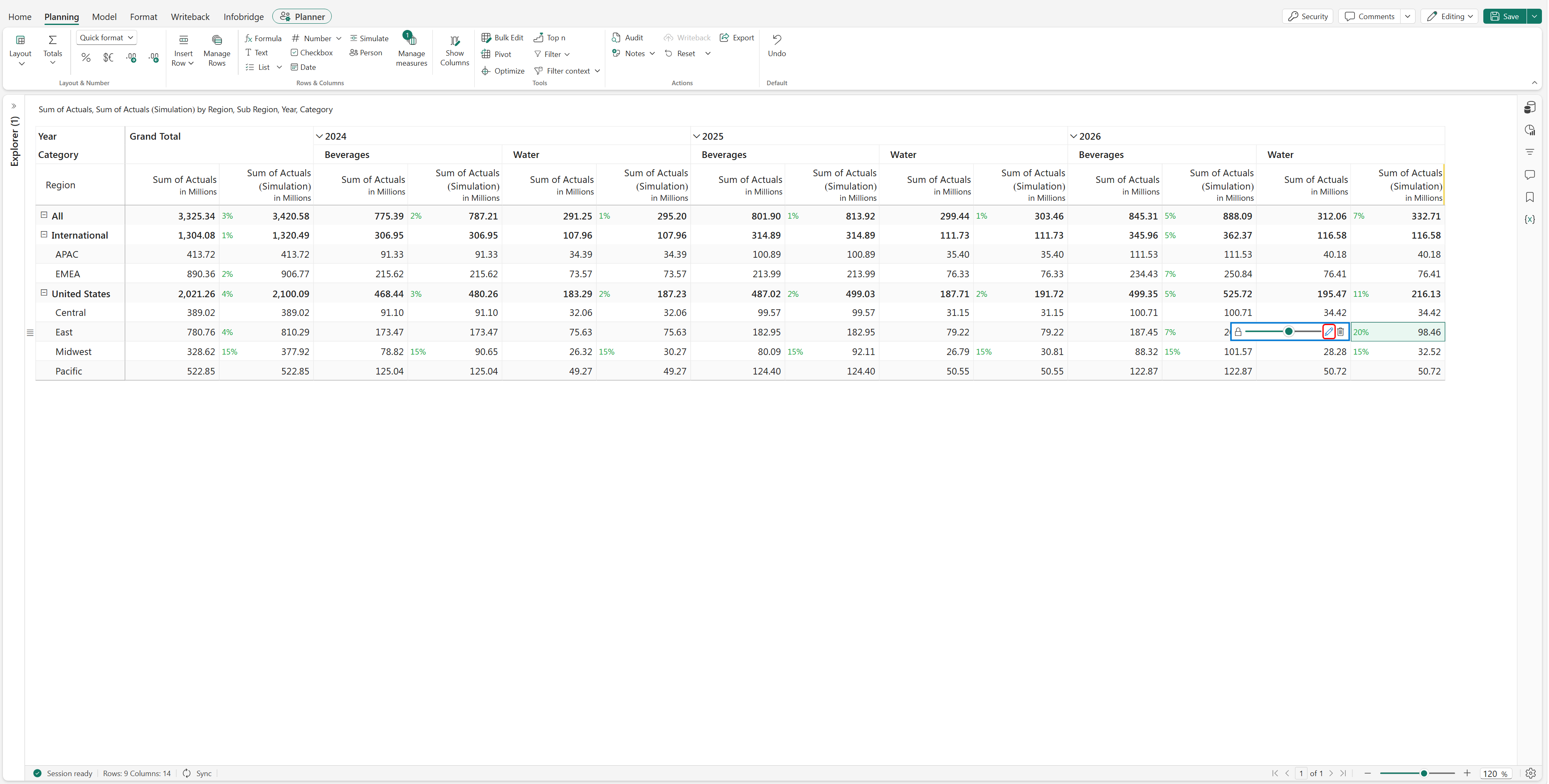
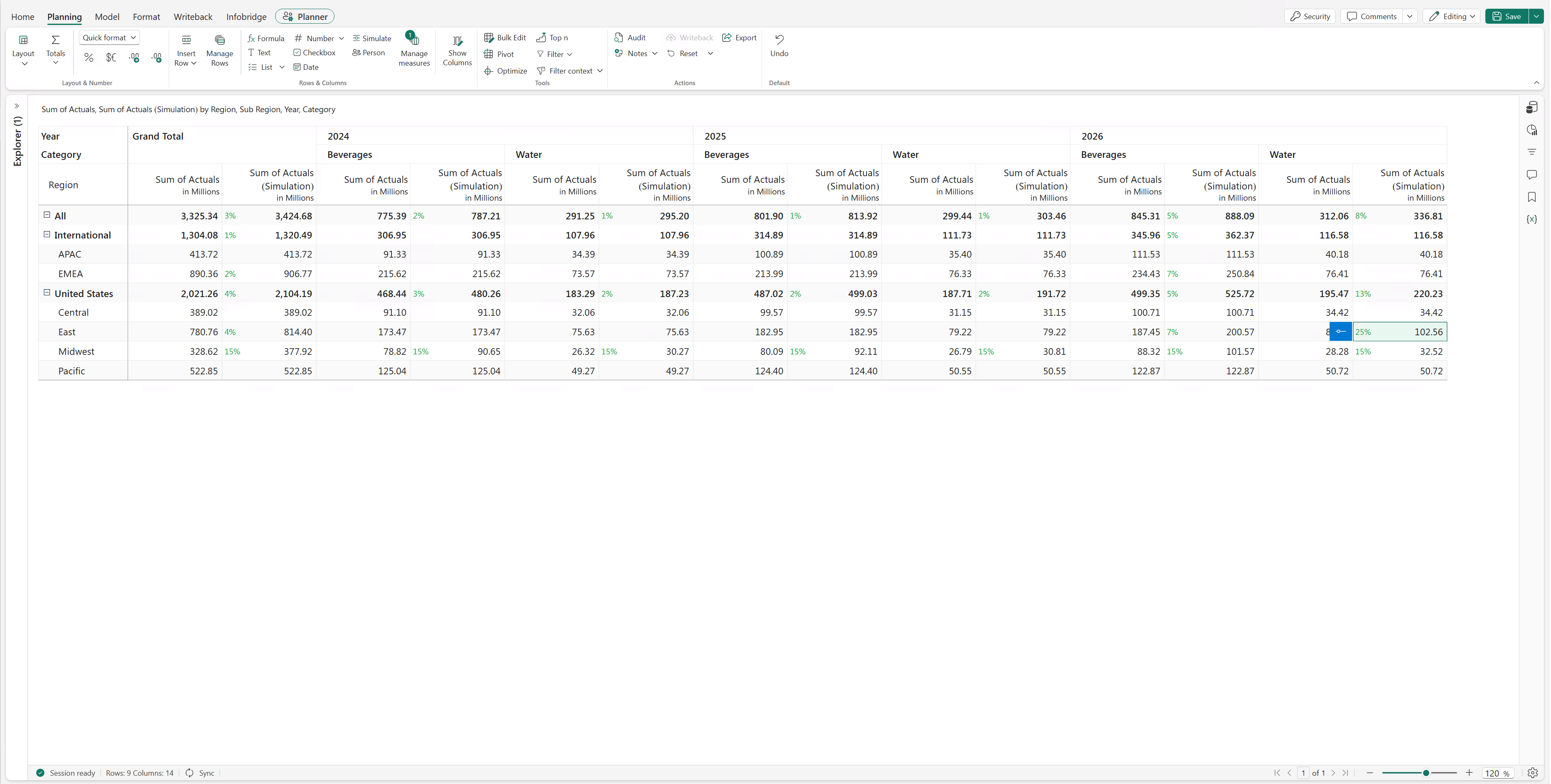
Enter the required percentage and select Apply.
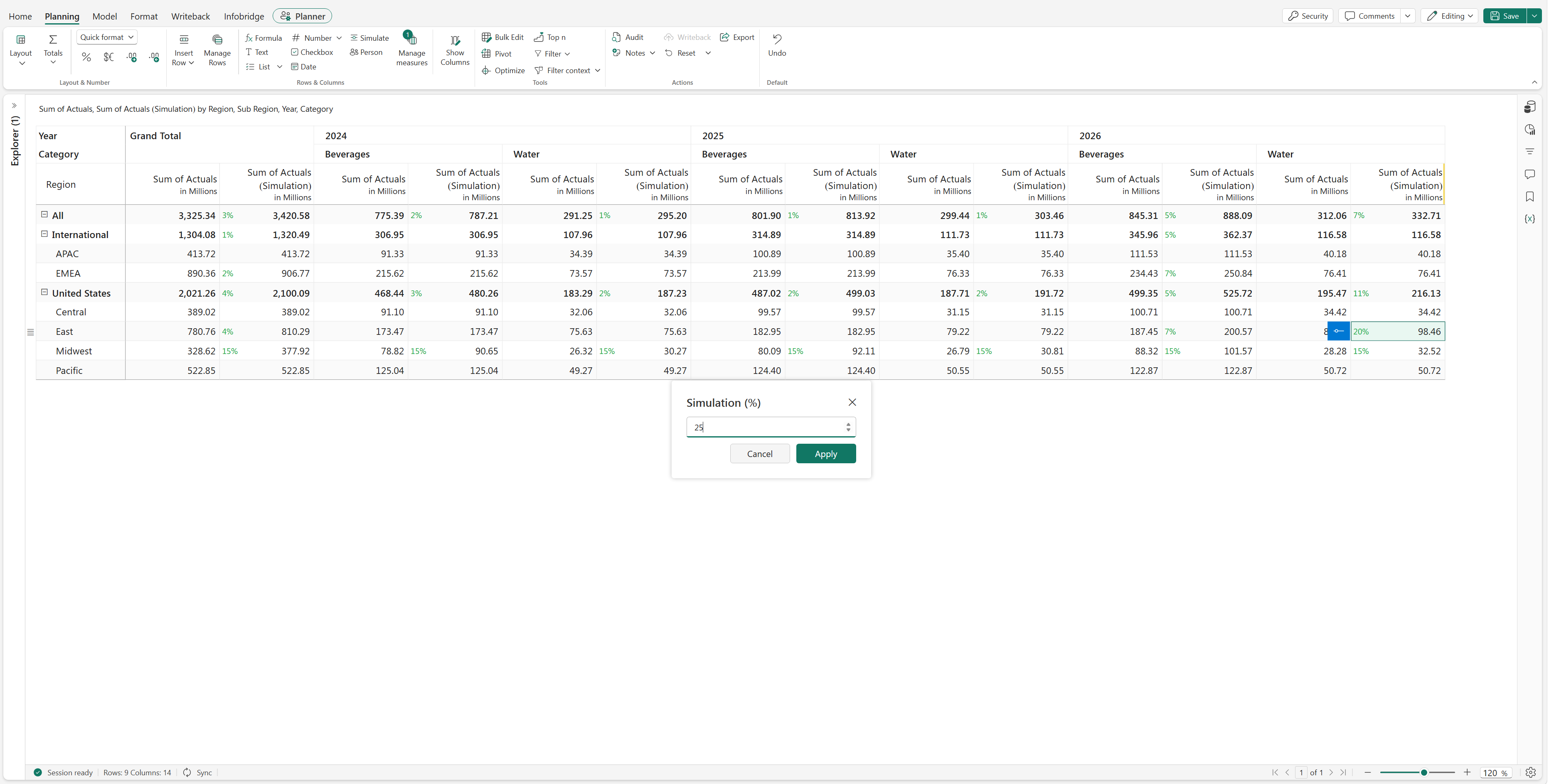
The simulation updates immediately.
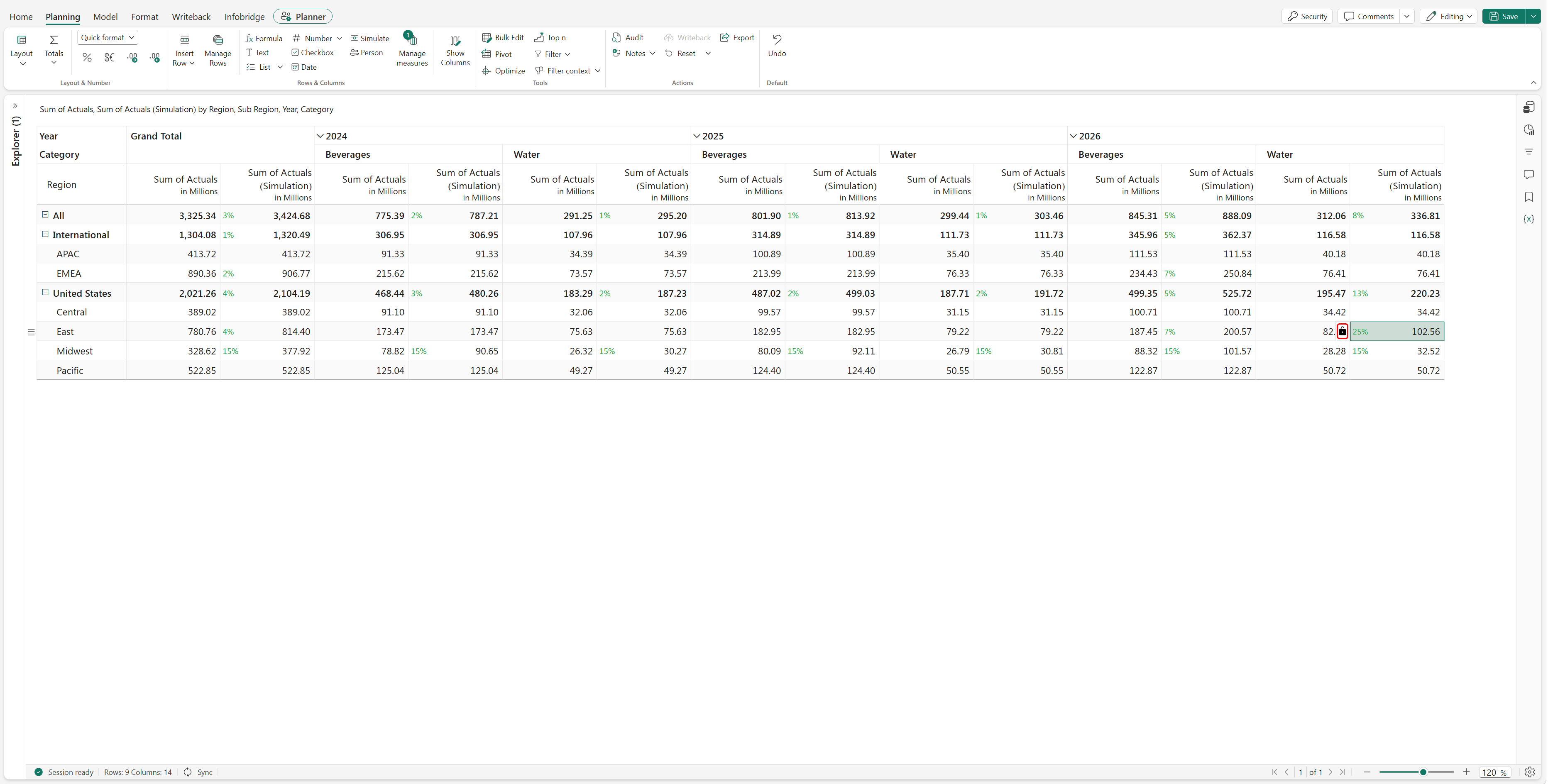
Lock or unlock a simulation
Select the Lock icon to lock the simulated cell. Locked cells aren't updated when parent-level simulations are applied.
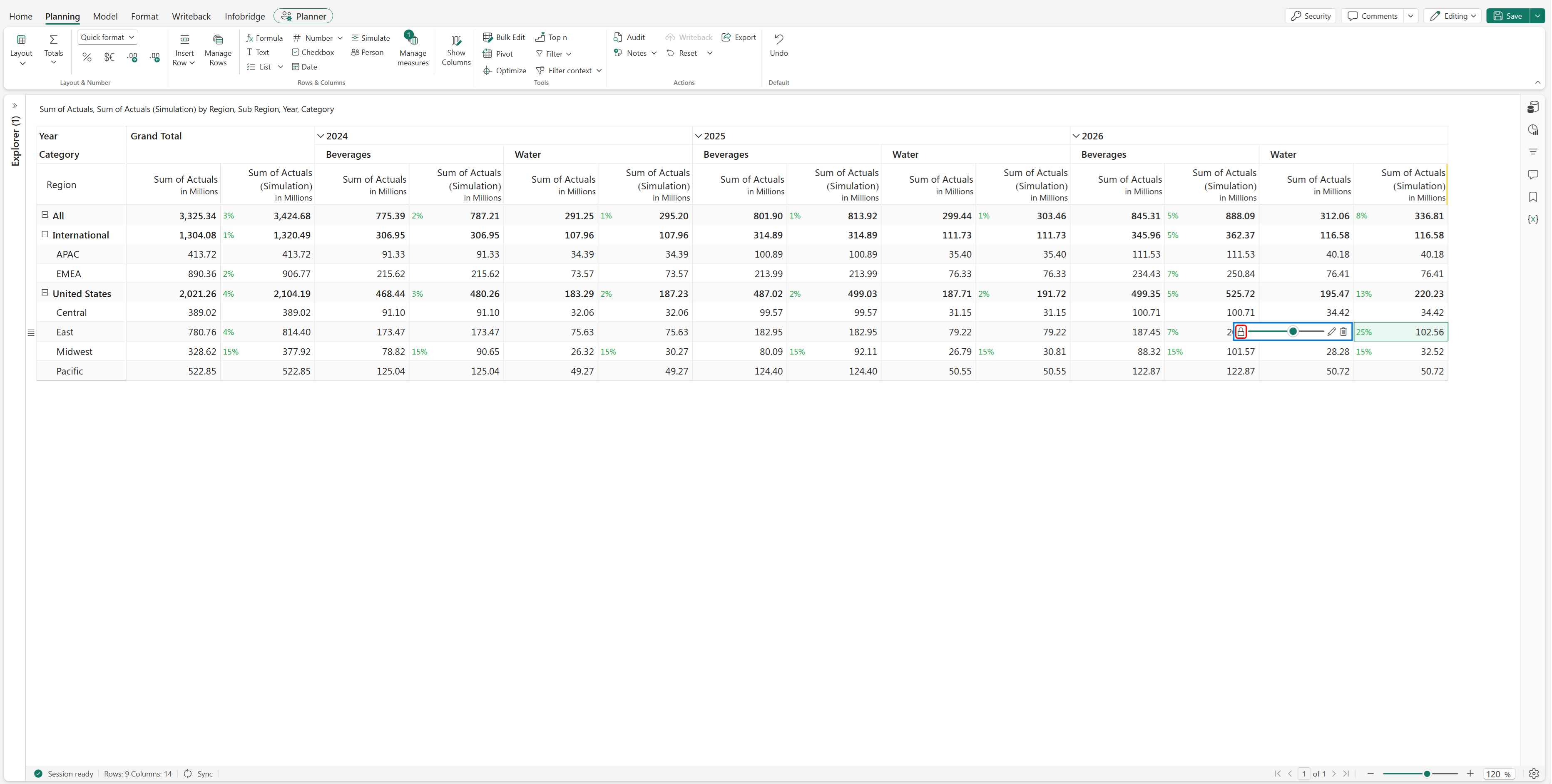
Locked cells are dimmed and aren't updated by parent simulations.
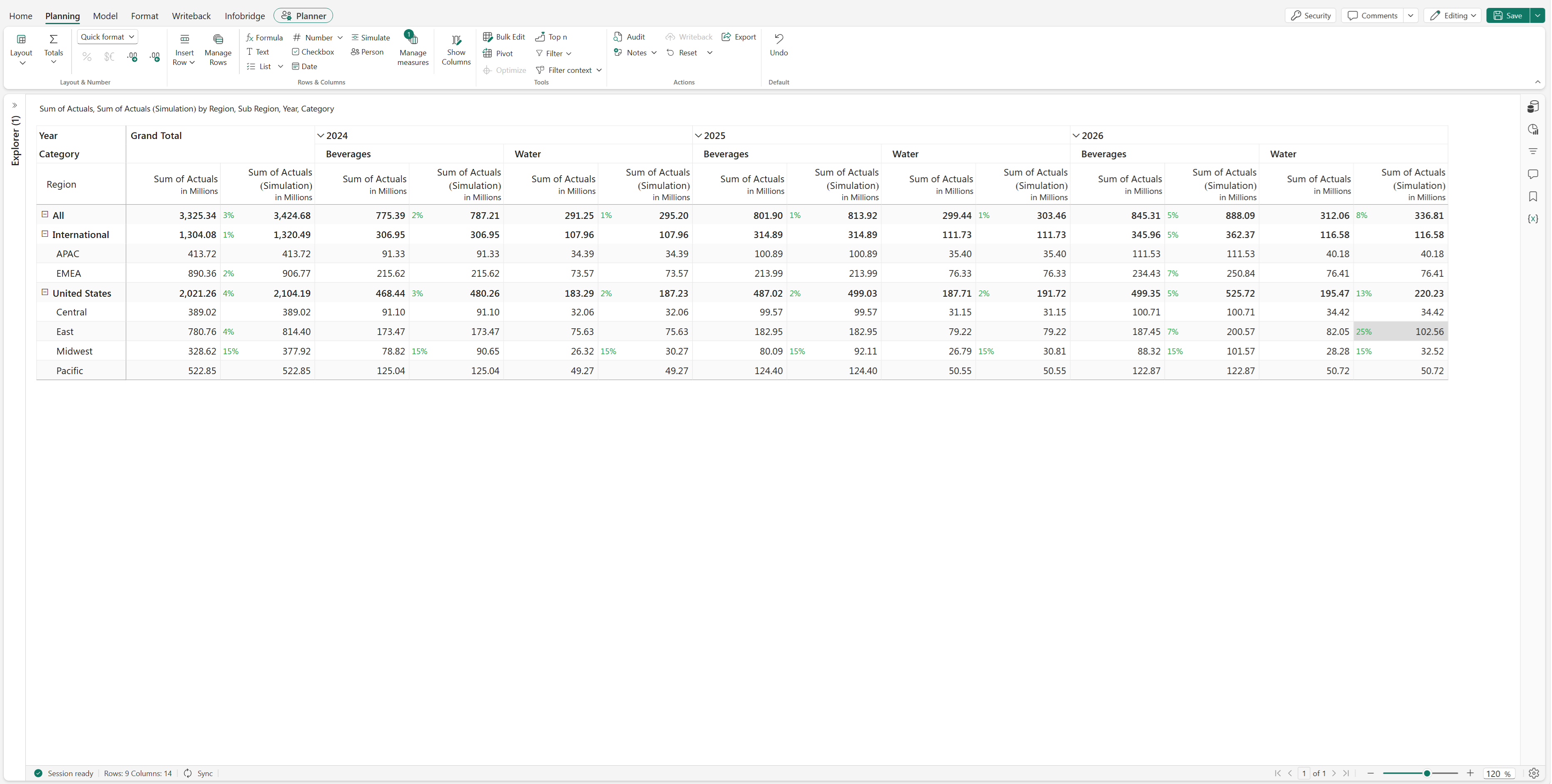
Select the lock icon again to unlock the cell.
Delete a simulation
Select the Delete icon to remove the simulation from the selected cell or cells.
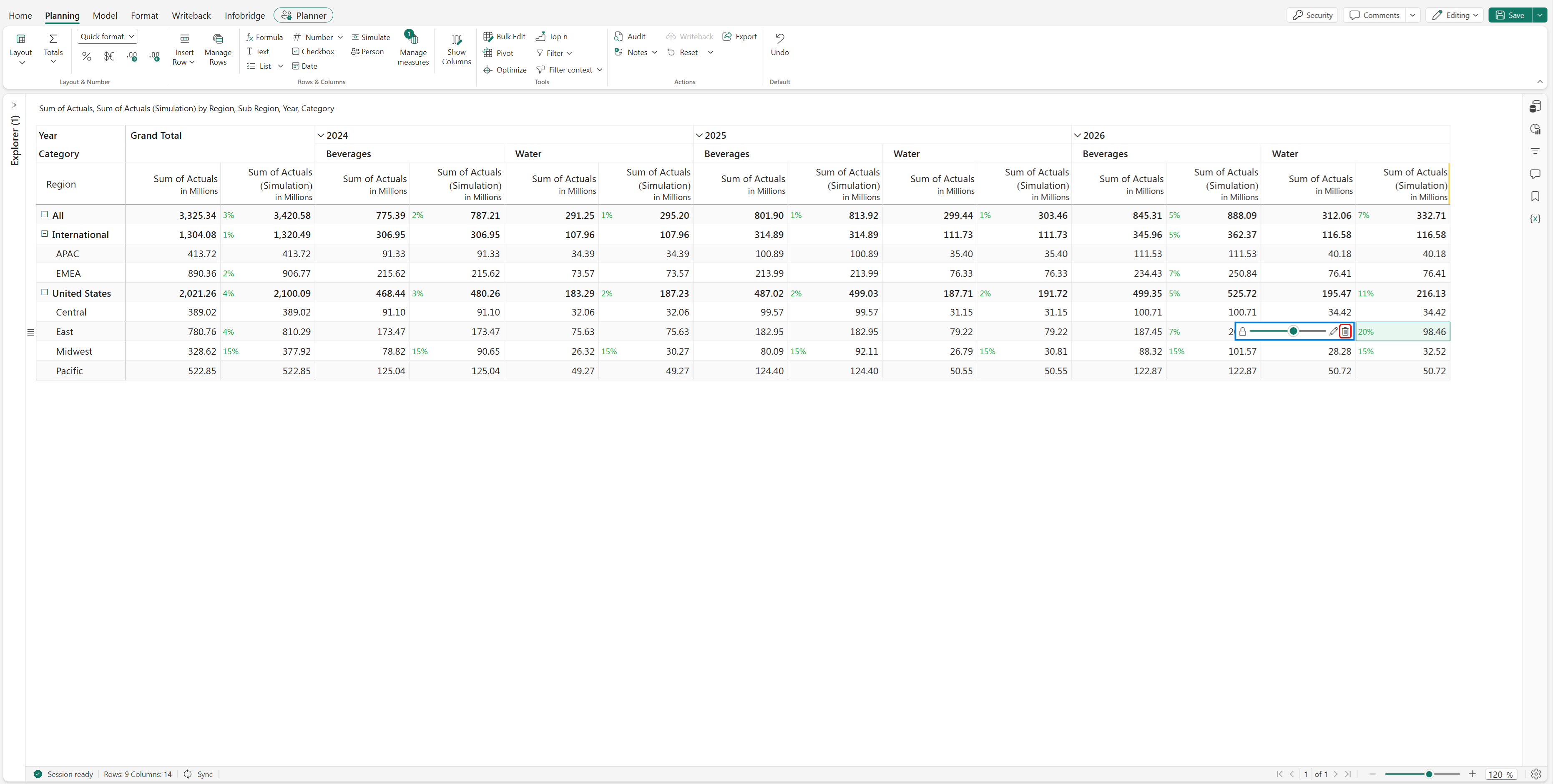
Note
You can edit, lock, or delete multiple simulations by selecting multiple cells with Ctrl or Shift.
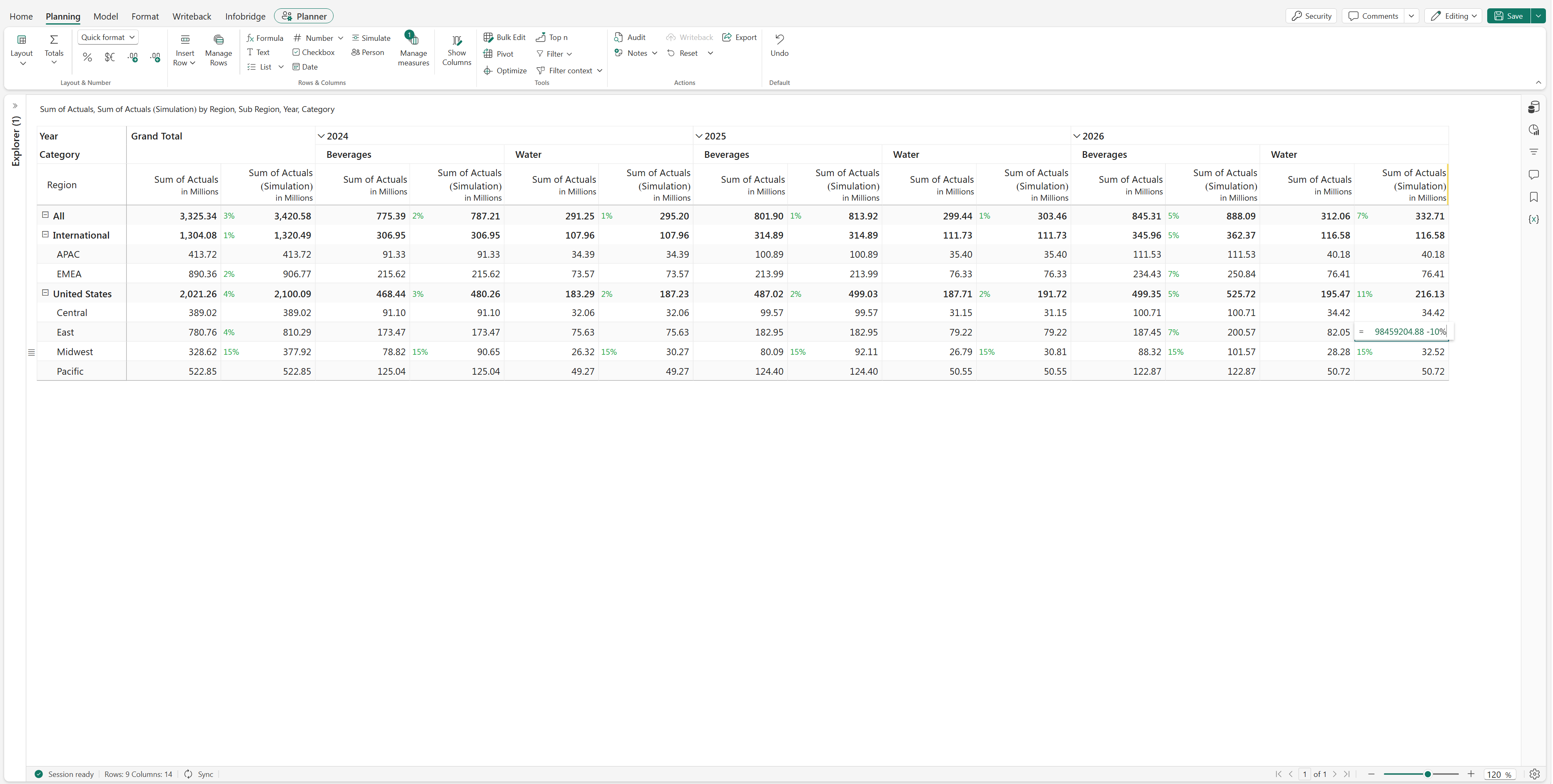
When the simulation slider isn't displayed, double-click a simulated cell, and enter the required value or formula directly.
Bulk edit simulation measures
Apply the same simulation percentage across multiple row and column members.
On the Planning ribbon, select Bulk Edit.
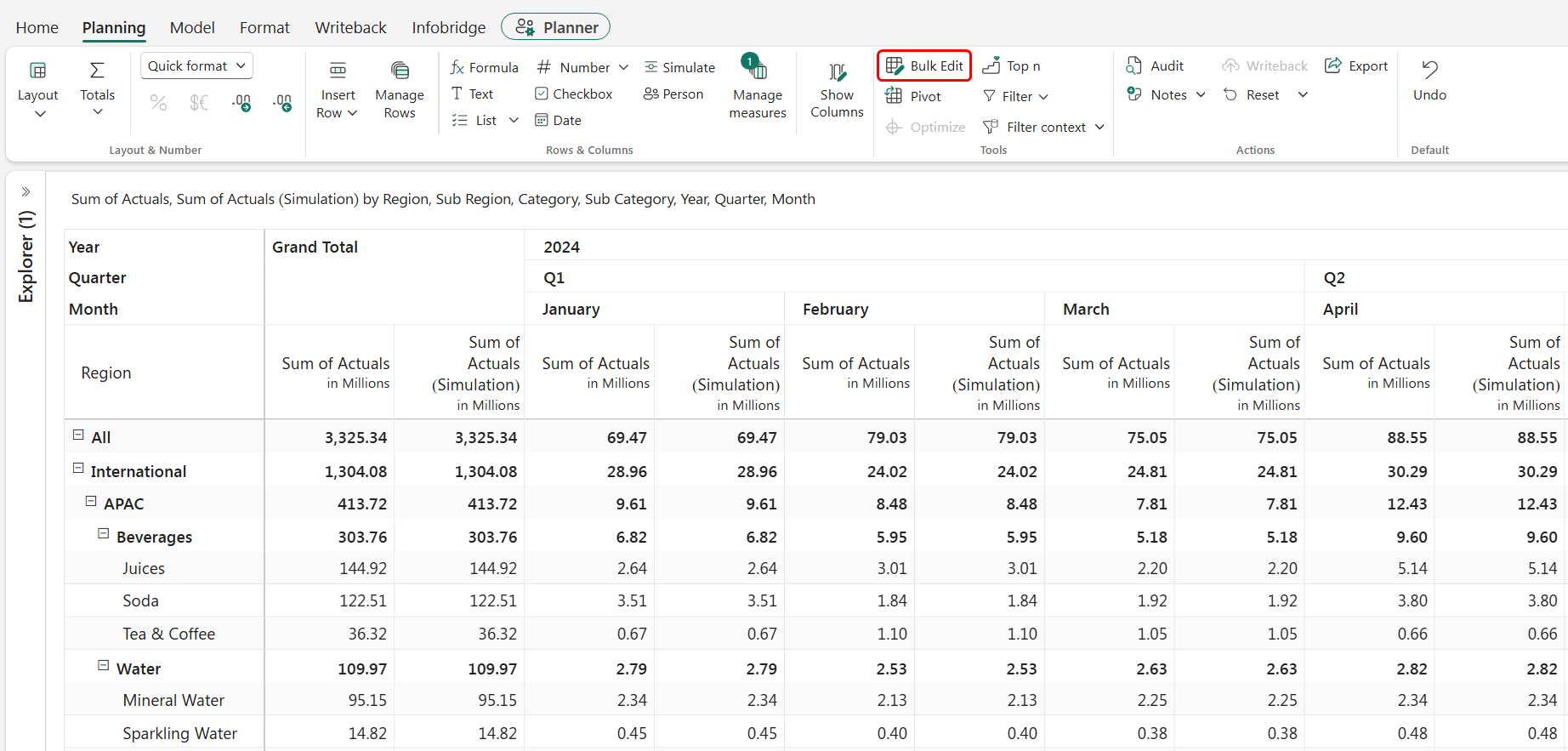
Select the simulation measure.
Configure filters, row level, column level, and the simulation percentage.
Select Apply.
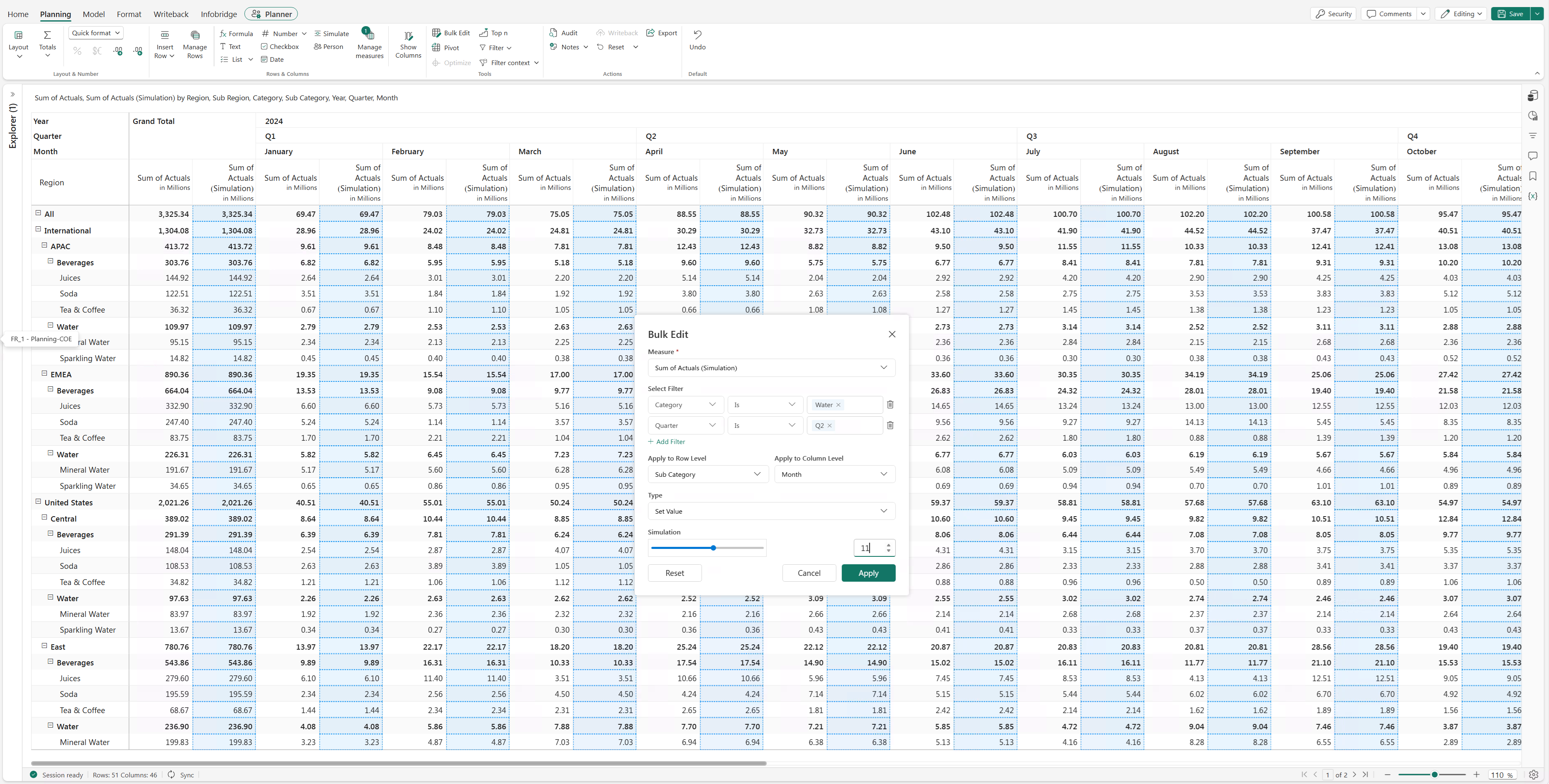
The selected members are updated using the specified simulation percentage.