Note
Access to this page requires authorization. You can try signing in or changing directories.
Access to this page requires authorization. You can try changing directories.
Arithmetic functions let you perform common mathematical operations and numerical calculations in reports. These functions are commonly used to calculate totals, percentages, remainders, powers, and differences between values.
In planning, arithmetic functions help you create calculations for scenarios such as variance analysis, percentage calculations, aggregations, and other day-to-day business computations.
ABS
The ABS function returns the absolute value of a number, which represents the number’s magnitude without considering its sign. Negative values are converted to positive values, while positive values and zero remain unchanged. This function is commonly used in calculations where only the magnitude of a value is required.
Syntax
ABS(value)
Arguments
value: The number for which the absolute value needs to be calculated.
Return value
Returns the absolute value of the specified number.
Example
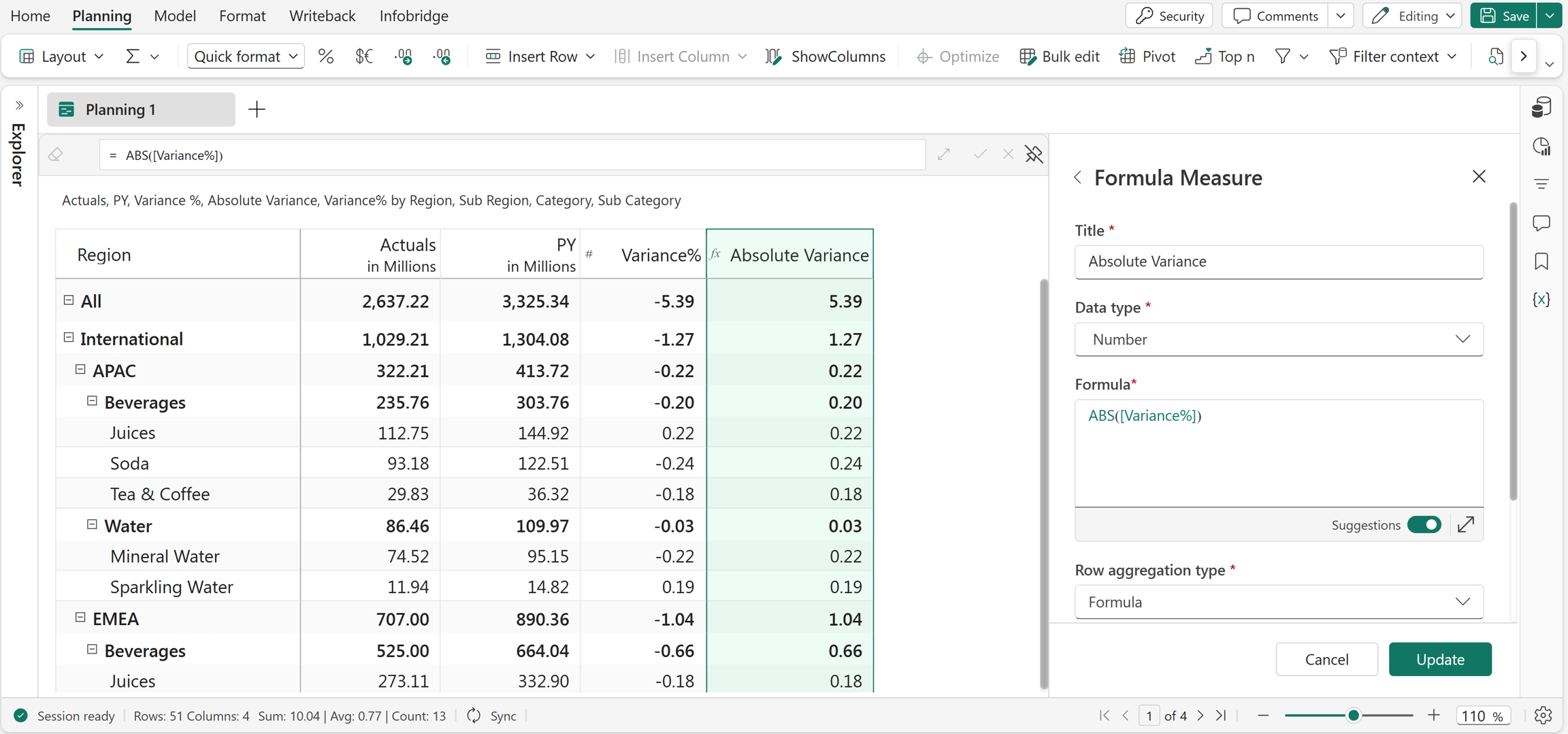
ABS(Variance%)
In the example below, the Absolute Variance measure is created using the ABS function to display the absolute values (without a sign) of the Variance% measure.
Excel equivalent
DIVIDE
The DIVIDE function returns the result of dividing one number by another. It takes a numerator and a denominator as inputs and performs the division operation. This function is commonly used in calculations involving ratios, percentages, averages, and other mathematical operations where one value needs to be divided by another.
Syntax
DIVIDE(Numerator, Denominator, Alternate)
Arguments
Numerator: The value to be divided.Denominator: The value by which the numerator is divided.Alternate(optional): The alternate value to return if the division results in an error. If the denominator is null and no alternate value is specified, the function returns a#VALUE!/0error.
Return value
Returns the result of dividing the numerator by the denominator.
Example
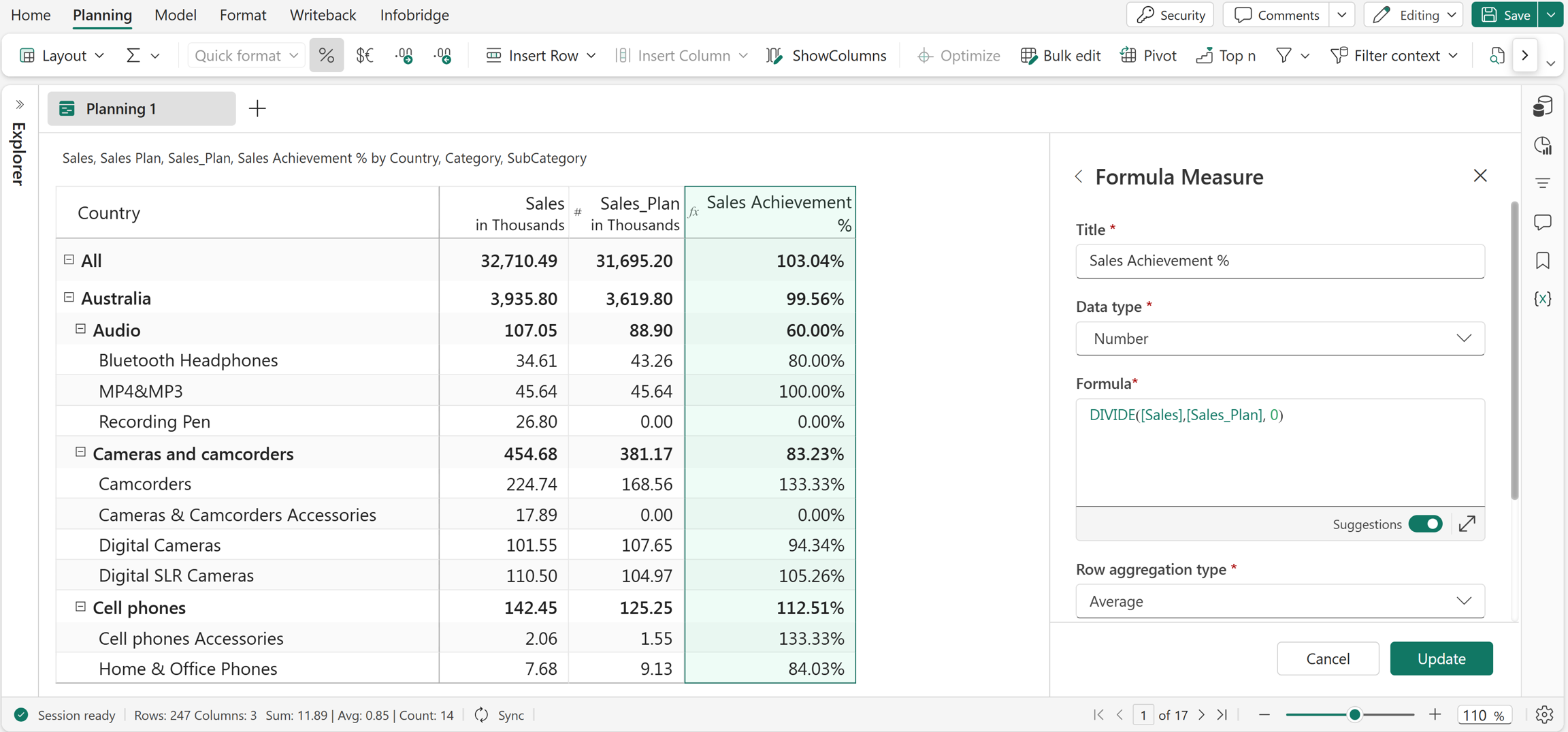
DIVIDE(Sales, Sales_Plan, 0)
In this example, the DIVIDE function is used to divide Sales (numerator) by Sales_Plan (denominator). If the denominator is 0 or the division results in an error, the function returns 0.
MOD
The MOD function divides one number by another and returns the remainder of the division. It is commonly used in calculations involving cyclic patterns, intervals, or determining whether a number is divisible by another number.
Syntax
MOD(dividend, divisor)
Arguments
dividend: The number to be divided.divisor: The number by which the dividend is divided.
Return value
Returns the remainder after division.
Example
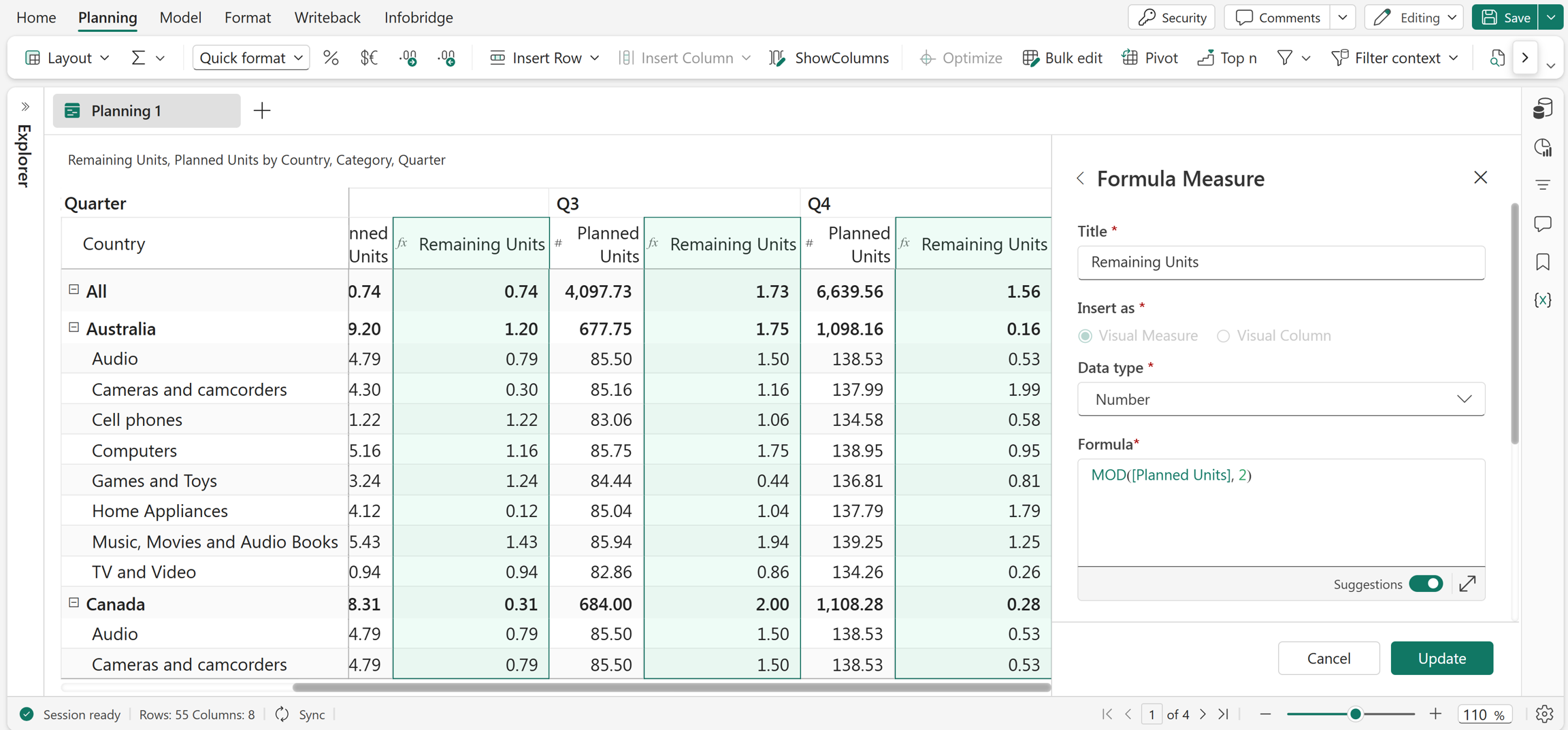
MOD(Planned Units, 2)
In this example, the MOD function is used to create the Remaining Units measure, which returns the remainder after dividing the Planned Units values by 2.
Excel equivalent
PCT
The PCT function is used to perform percentage calculations by converting a numeric value into its percentage equivalent. It is commonly used in financial and business calculations to apply percentage-based increases, decreases, or adjustments to measures and values.
Syntax
PCT(value)
Arguments
value: The percentage value in numeric format.
Return value
Returns the percentage equivalent of the specified value.
Example
SALES + PCT(10)
In this example, the PCT function converts 10 into 10% and adds it to the SALES value. The formula returns the current sales value plus 10% of sales.
POWER
The POW function returns the result of a number raised to a specified power. It calculates the value obtained by multiplying the number by itself the specified number of times. This function is commonly used in mathematical, financial, and scientific calculations involving exponential growth, scaling, and compound calculations.
Syntax
POW(value, power)
Arguments
value: The base number or reference.power: The exponent to which the value is raised.
Return value
Returns the result of the value raised to the specified power.
Example
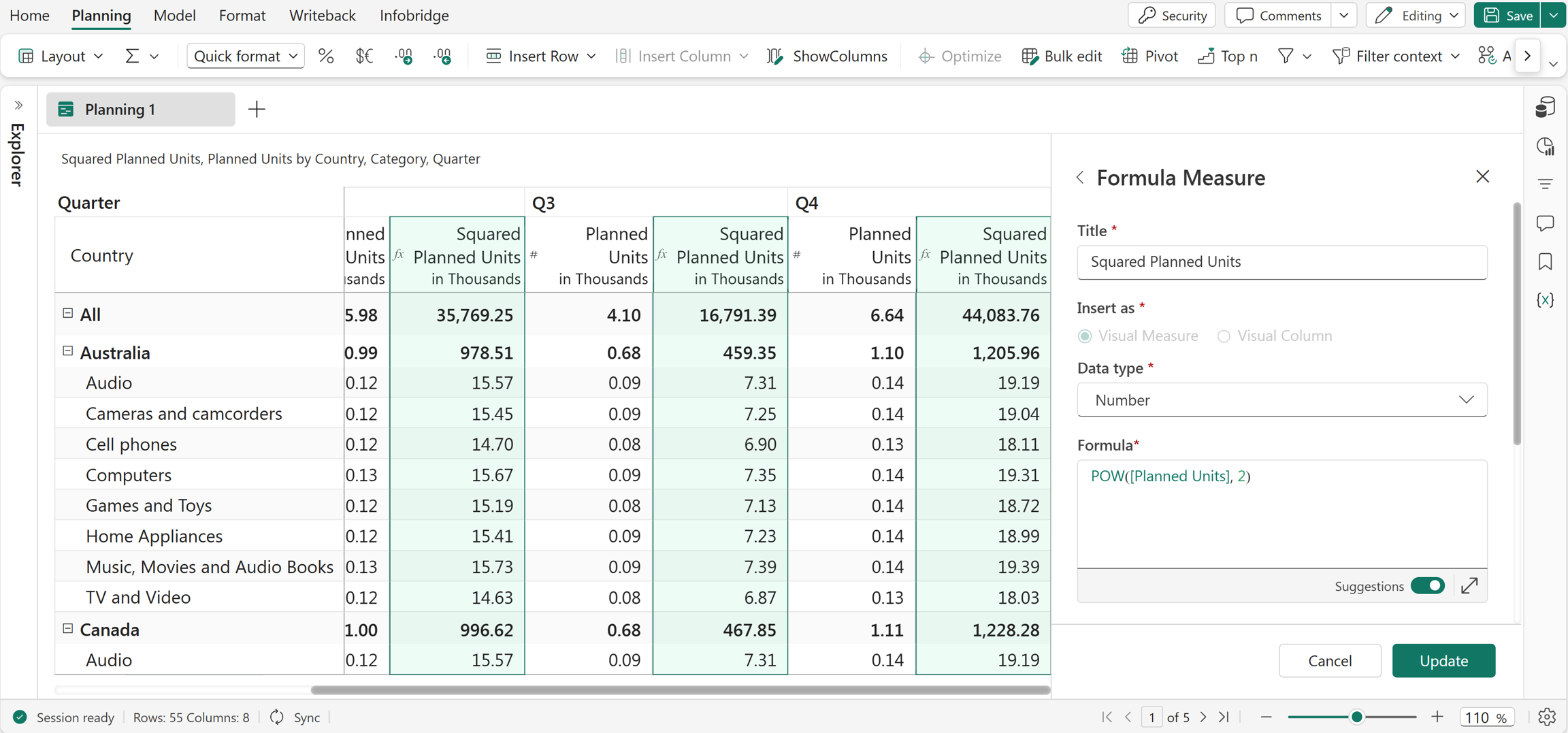
POW(Planned Units, 2)
In this example, the Squared Planned Units measure is created using the POW function, which raises the values in Planned Units to the power of 2.
Excel equivalent
PRODUCT
The PRODUCT function multiplies multiple values together and returns the resulting value. It performs multiplication across all provided numbers or references and is commonly used in calculations involving totals, scaling factors, or combined values.
Syntax
PRODUCT(value1, value2, ... valueN)
Arguments
value1, value2, ... valueN: Numbers or references to multiply.
Return value
Returns the product of the specified values.
Example
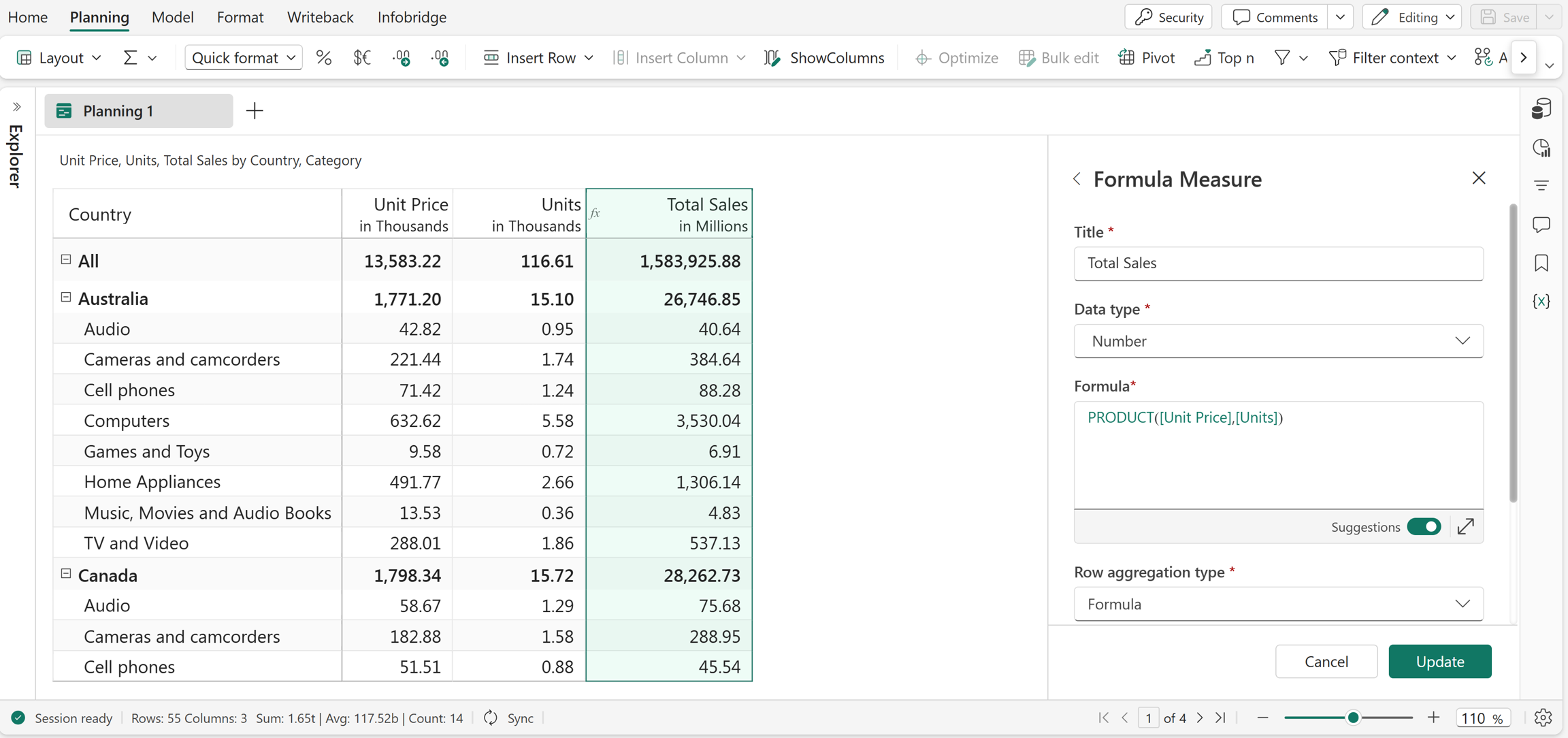
PRODUCT(Unit Price, Units)
In this example, the Total Sales measure is created using the PRODUCT function, which returns the product of the values in Unit Price and Units.
Excel equivalent
SUBTRACT
The SUBTRACT function subtracts a series of values and returns the resulting number. It deducts subsequent values from the first value provided and is commonly used in calculations where differences between numbers need to be determined.
Syntax
SUBTRACT(value1, value2, ... valueN)
Arguments
value1: The value from which the other values are subtracted.value2, ... valueN(optional): Additional values or references to subtract from the first value.
Return value
Returns the result after subtracting the specified values.
Example
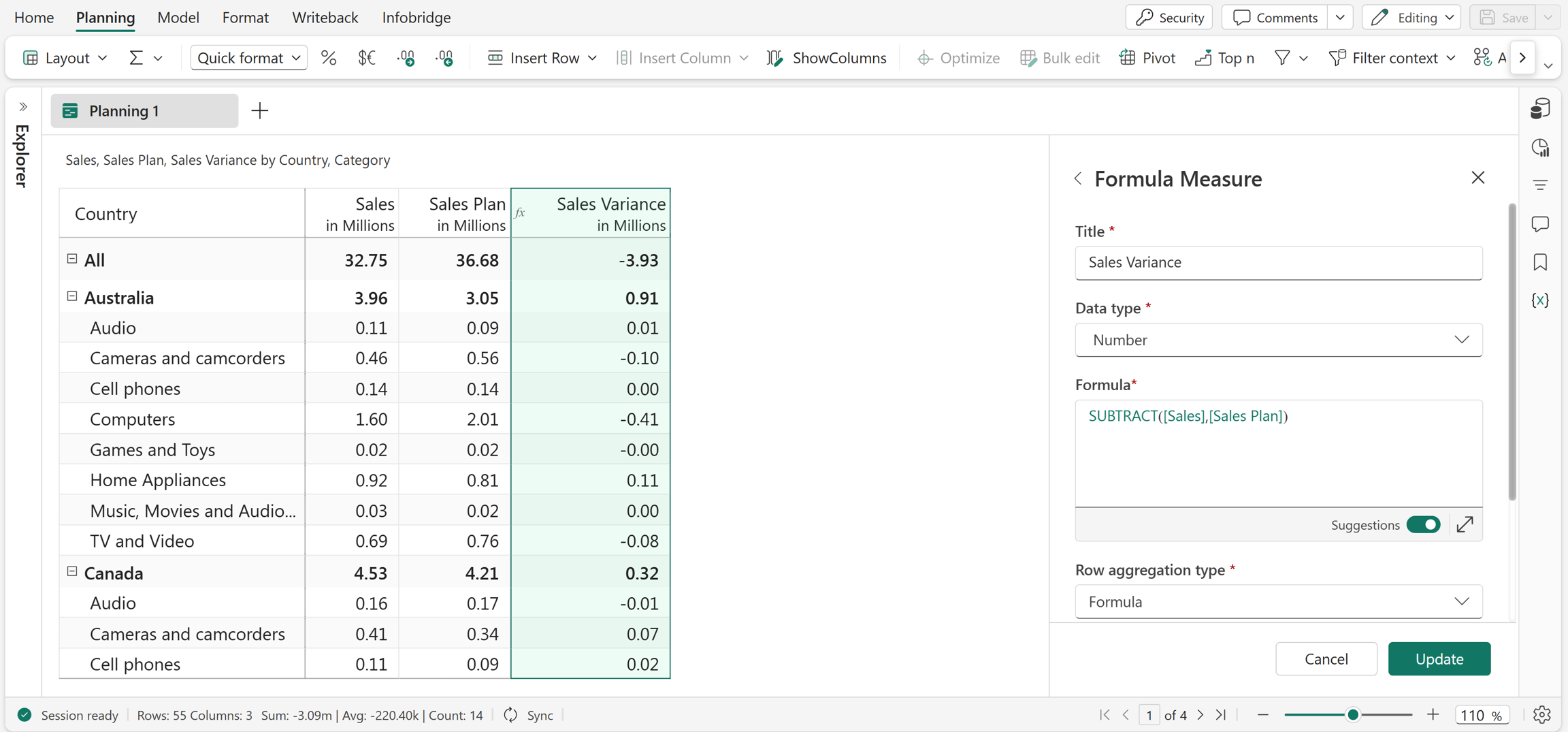
SUBTRACT(Sales, Sales Plan)
In this example, the Sales Variance measure is created using the SUBTRACT function, which returns the result of subtracting the values in Sales plan from Sales.
SUM
The SUM function returns the total of all numbers provided in the arguments by adding them together. The inputs can be numeric values or references. This function is commonly used to calculate totals, aggregates, and overall values in datasets.
Syntax
SUM(value1, [value2], ...)
Arguments
value1: The first number or reference to add.value2, ...(optional): Additional numbers or references to add.
Return value
Returns the total of the specified values.
Example
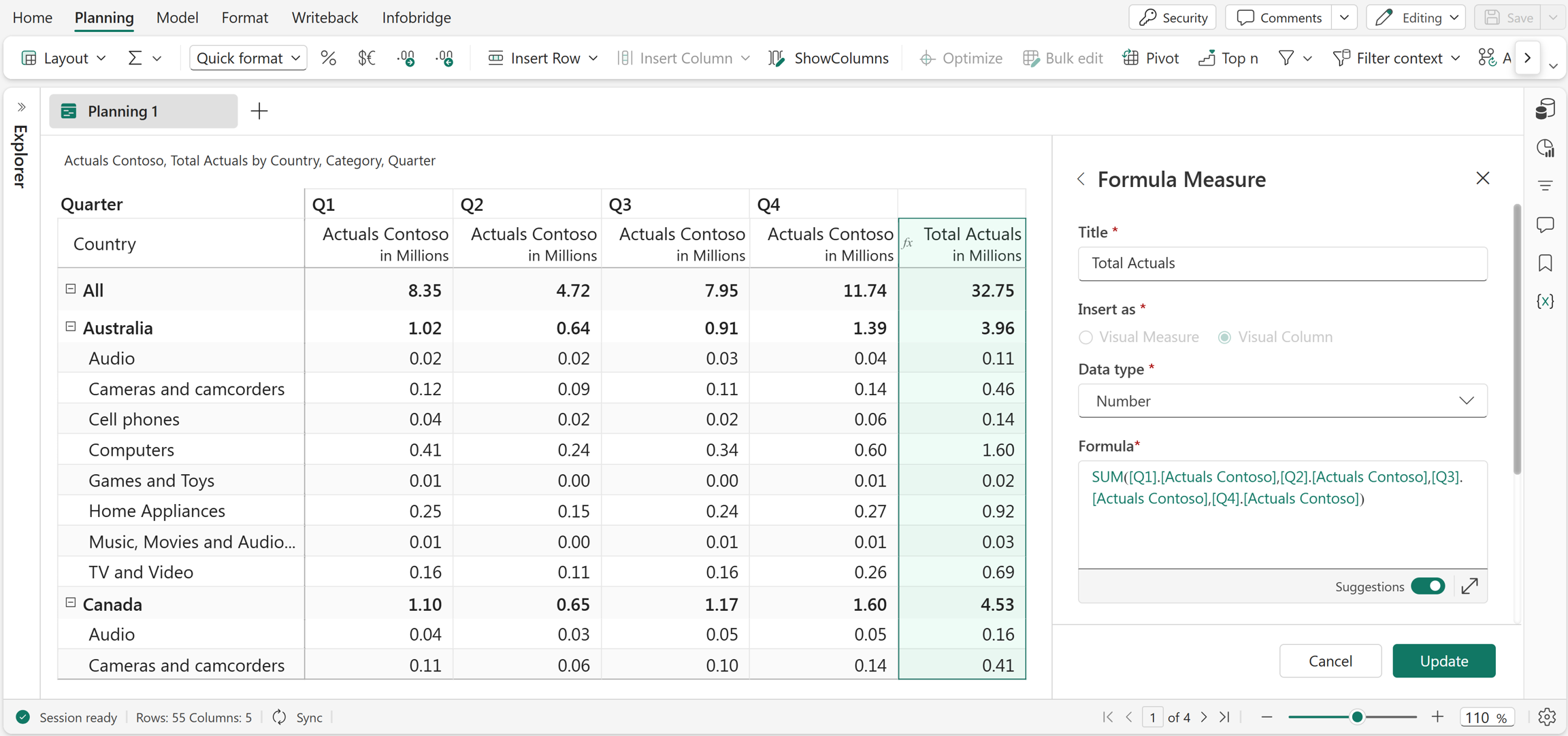
SUM(Q1.Actuals Contoso, Q2.Actuals Contoso, Q3.Actuals Contoso, Q4.Actuals Contoso)
In this example, the Total Actuals measure is created using the SUM function, which returns the sum of the quarterly Actuals for Contoso.