Note
Access to this page requires authorization. You can try signing in or changing directories.
Access to this page requires authorization. You can try changing directories.
Rounding and formatting functions let you round numbers, control numeric precision, and format numeric values in reports. These functions are commonly used to standardize calculations, adjust decimal precision, and round values to specified multiples or whole numbers.
In planning, rounding and formatting functions help you create calculations for scenarios such as financial reporting, data standardization, pricing analysis, and formatted business calculations.
CEILING
The CEILING function rounds a number up to the nearest integer or specified multiple (significance). If the number is already an exact multiple of the specified significance, it remains unchanged. This function is commonly used in financial calculations, pricing adjustments, quantity estimations, and scenarios where values must always be rounded upward.
Syntax
CEILING(value, significance)
Arguments
value: Number or reference to round.significance(optional): The multiple to which the value should be rounded. If not specified, the value is rounded up to the nearest integer.
Return value
Returns the rounded value based on the specified significance.
Example
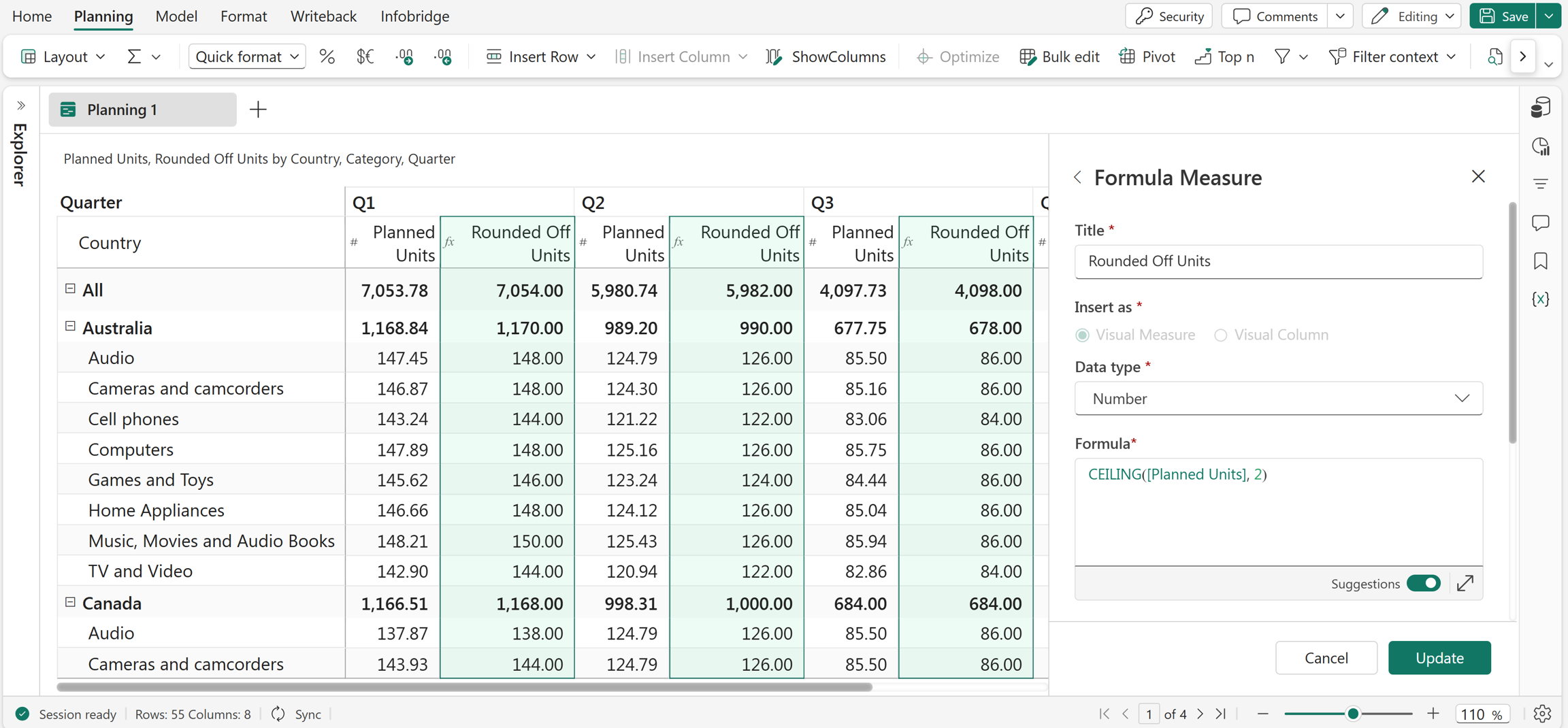
CEILING(Planned Units, 2)
In this example, the Rounded_Off Units measure is created using the CEILING function, which returns the values in the Planned Units measure rounded up to the nearest multiple of 2.
Excel equivalent
EVEN
The EVEN function rounds a number up to the nearest even integer. If the input number is already even, it remains unchanged. The function accepts numeric values and references as arguments. It is commonly used in calculations where results must conform to even-number requirements, such as packaging quantities, batch sizes, or standardized increments.
Syntax
EVEN(value)
Arguments
value: The number or reference to round to the nearest even integer.
Return value
Returns the nearest even integer greater than or equal to the specified value.
Example
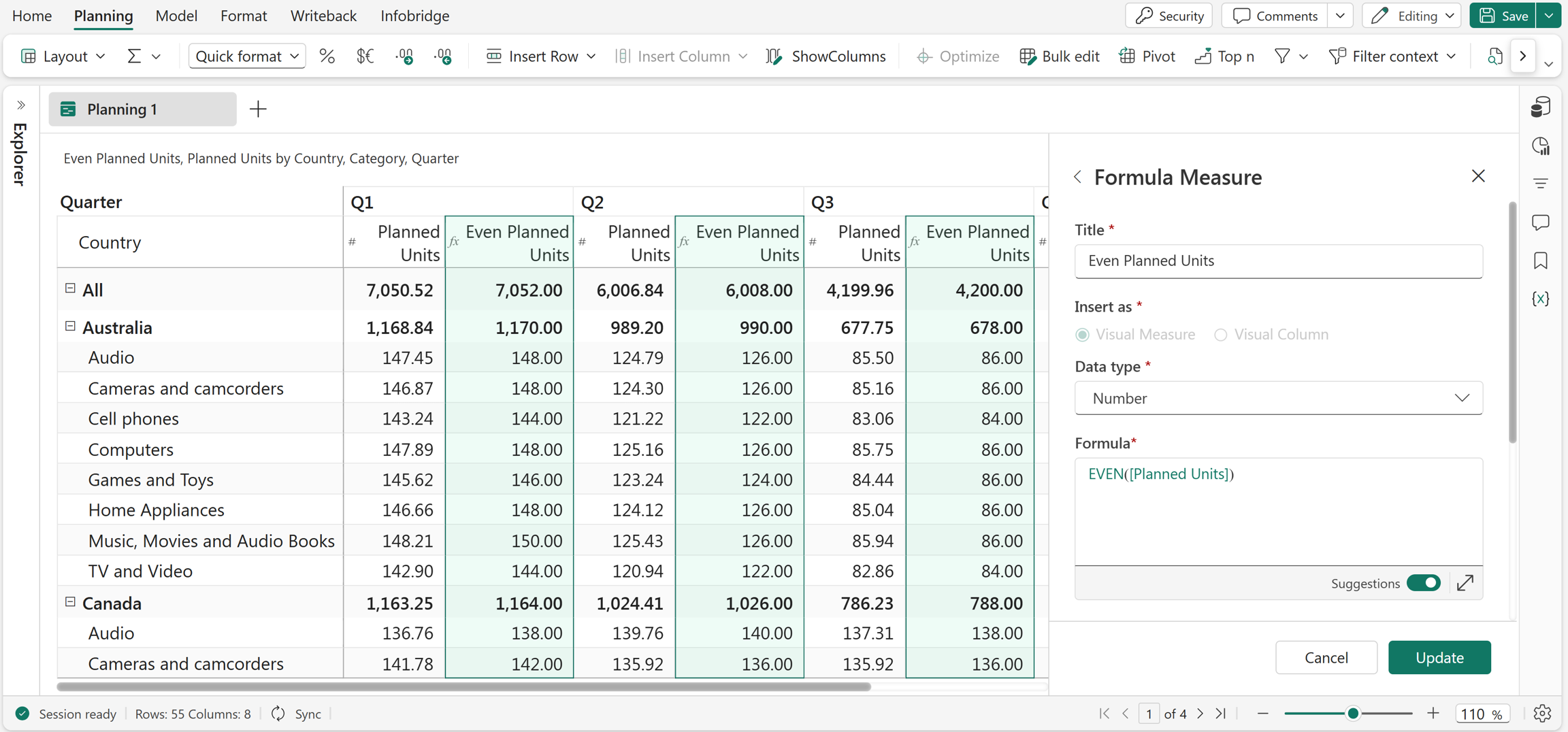
EVEN(Planned Units)
In this example, the EVEN function is used to create the Even Planned Units measure, which returns the values in the Planned Units measure rounded up to the nearest even integer.
Excel equivalent
FLOOR
The FLOOR function rounds a number toward zero to the nearest specified multiple of significance. It accepts numeric values or references as arguments and returns the rounded result based on the given multiple.
Syntax
FLOOR(value, significance)
Arguments
value: Number or reference to round.significance(optional): The multiple to which the number should be rounded. If not specified, the number is rounded down to the nearest integer toward zero.
Return value
Returns the number rounded toward zero to the specified multiple.
Example
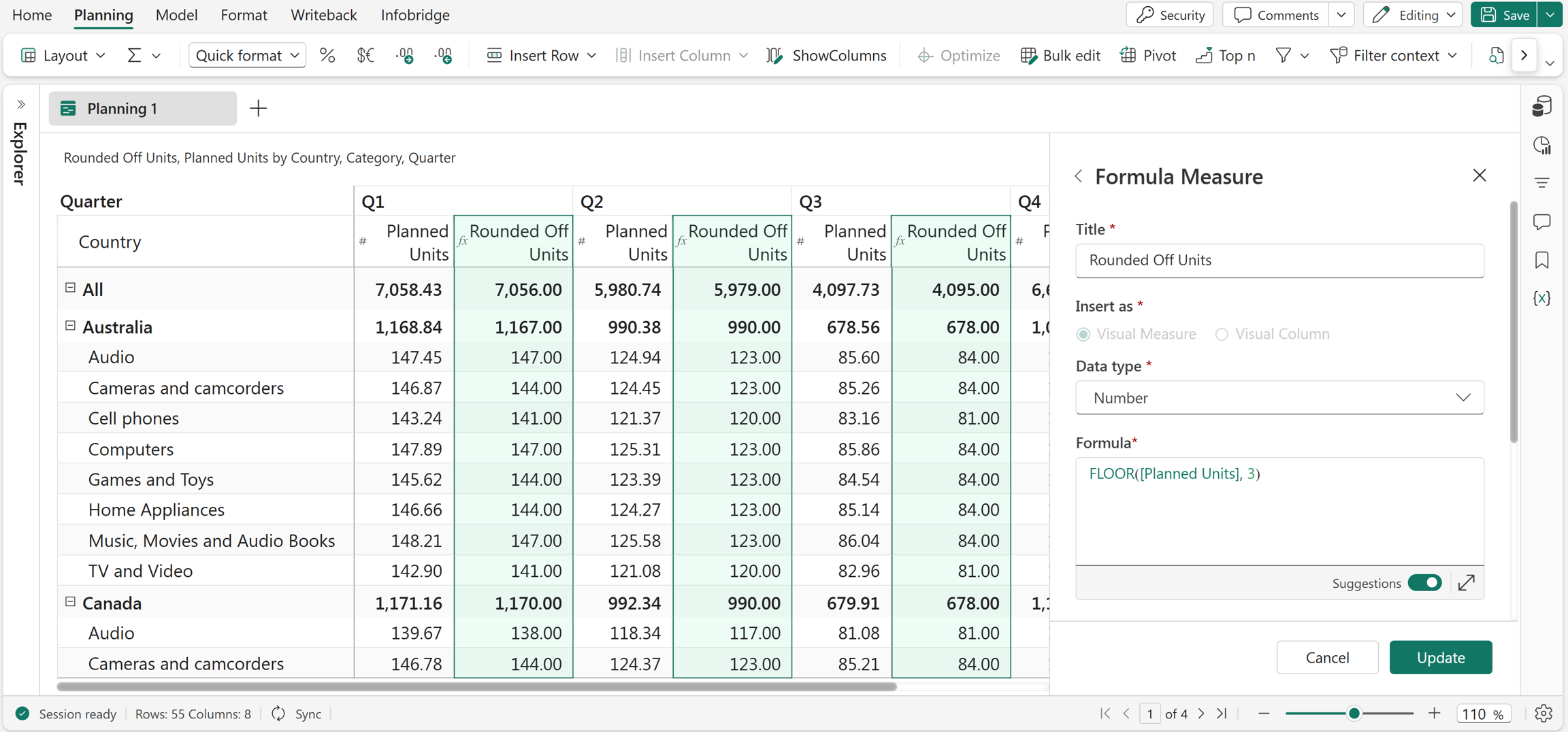
FLOOR(Planned Units, 3)
In this example, the FLOOR function is used to create the Rounded Off Units measure, which returns the values in the Planned Units measure rounded down to the nearest multiple of 3.
Excel Equivalent
MROUND
The MROUND function rounds a number to the nearest multiple of a specified value. It adjusts the input number up or down to the closest multiple based on the given significance. This function is commonly used in financial calculations, pricing, and quantity adjustments where values must align with defined increments.
Syntax
MROUND(value, multiple)
Arguments
value: The number to round.multiple: The multiple to which the number is rounded.
Return value
Returns the number rounded to the nearest specified multiple.
Example
MROUND(Planned Units, 5)
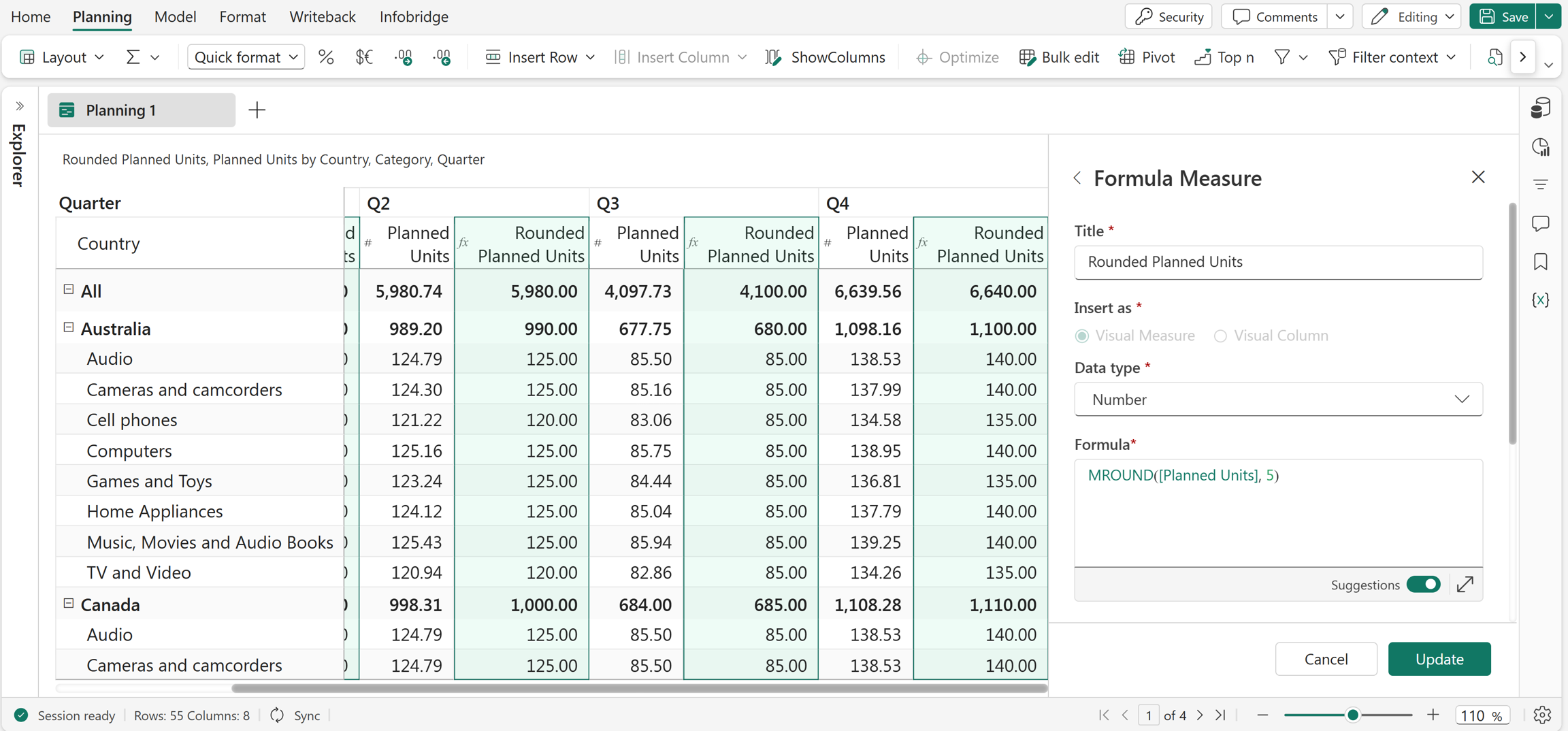
In this example, the Rounded Planned Units measure is created using the MROUND function, which rounds the Planned Units values to the nearest multiple of 5.
Excel equivalent
NUMBERVALUE
The NUMBERVALUE function converts text into a numeric value by interpreting decimal and thousands separators, such as commas and periods. It is useful when working with numbers stored as text, especially when data formats vary across regions or sources.
Syntax
NUMBERVALUE(text, decimal_separator, group_separator)
Arguments
text: The text to convert into a numeric value.decimal_separator(optional): The character used to separate the integer and fractional parts of a number.group_separator(optional): The character used as the thousands separator.
Return value
Returns the numeric value represented by the specified text.
Example
NUMBERVALUE(Interest_Text, ".", ",")
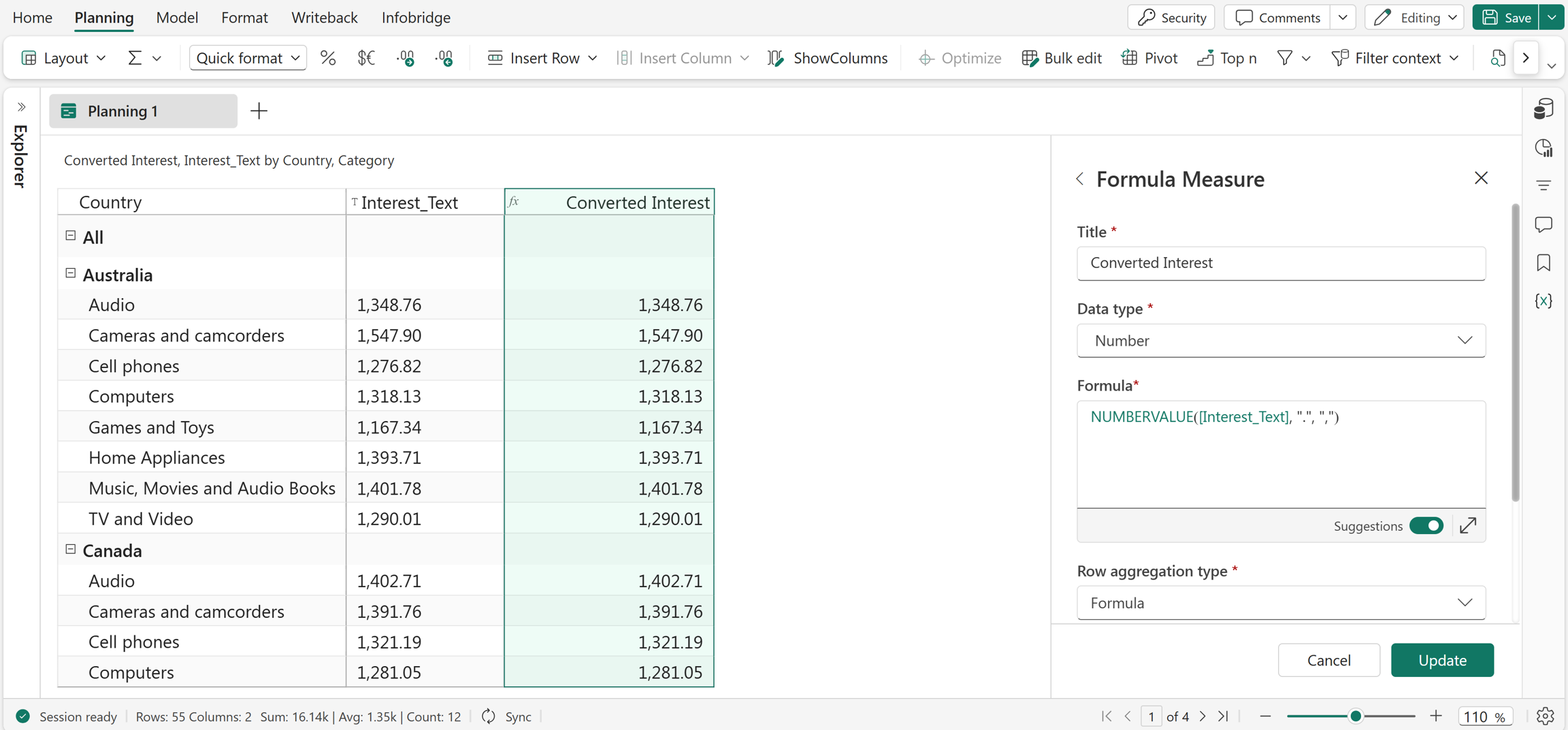
In this example, the Interest_Text column is a data input field containing numeric values stored as text. The NUMBERVALUE function is used to convert the Interest_Text values into numeric values that can be used along with other measures in the report.
Excel equivalent
ODD
The ODD function rounds a number up and returns the nearest higher odd integer. If the input number is already an odd number, it remains unchanged. The function accepts numeric values or references as arguments and is useful in calculations where results must conform to odd-number requirements.
Syntax
ODD(value)
Arguments
value: The input number to round to the nearest higher odd integer.
Return value
Returns the nearest higher odd integer.
Example
ODD(Planned Units)
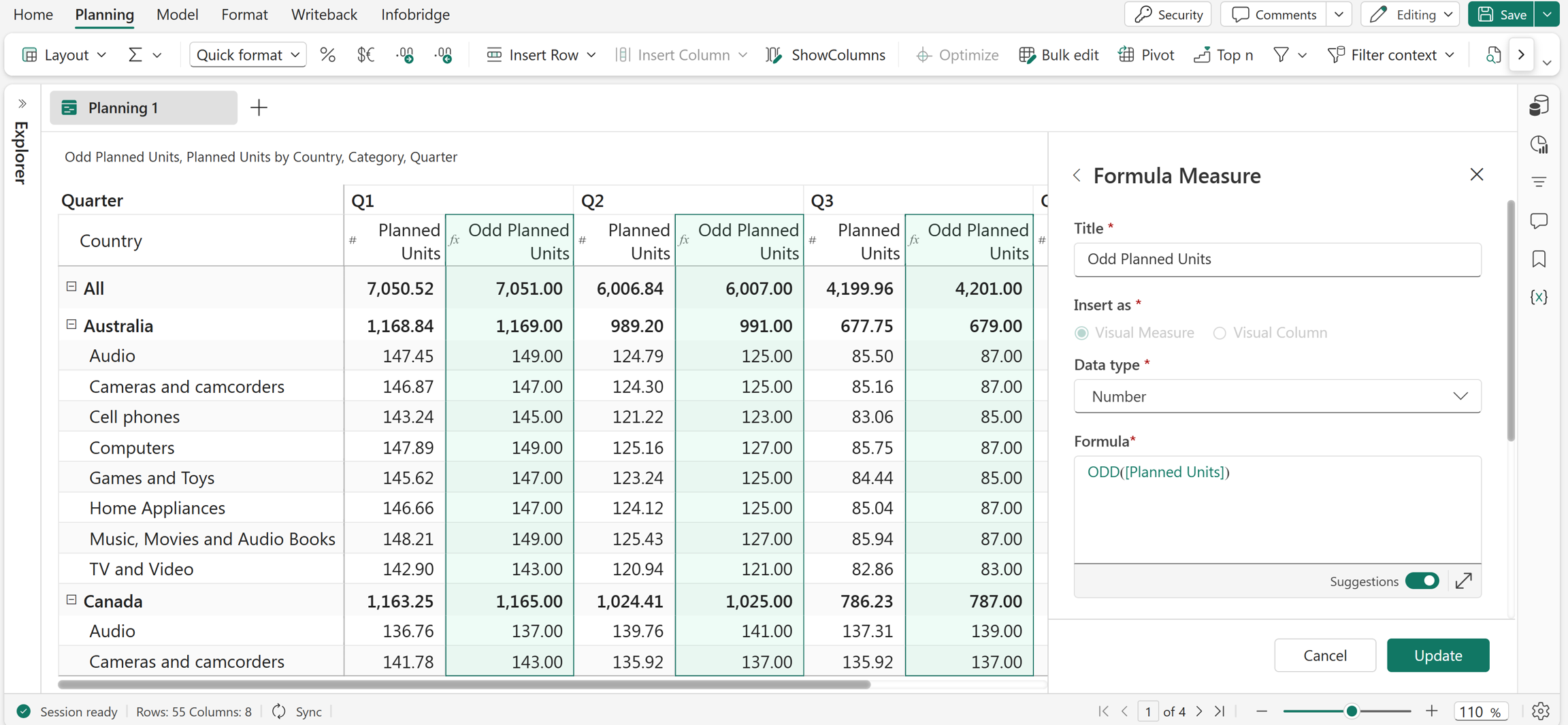
In this example, the ODD function is used to create the Odd Planned Units measure, which returns the values in the Planned Units measure rounded up to the nearest odd integer.
ROUND
The ROUND function rounds a number to a specified number of decimal places. It adjusts the value based on standard rounding rules to produce a result with the required precision. This function is commonly used in financial calculations, reporting, and data formatting where consistent decimal accuracy is required.
Syntax
ROUND(value, significance)
Arguments
value: The number to round.significance(optional): The number of decimal places to which the value should be rounded. If not specified, the default value is 1.
Return value
Returns the rounded value with the specified precision.
Example
ROUND(Total Sales, 2)
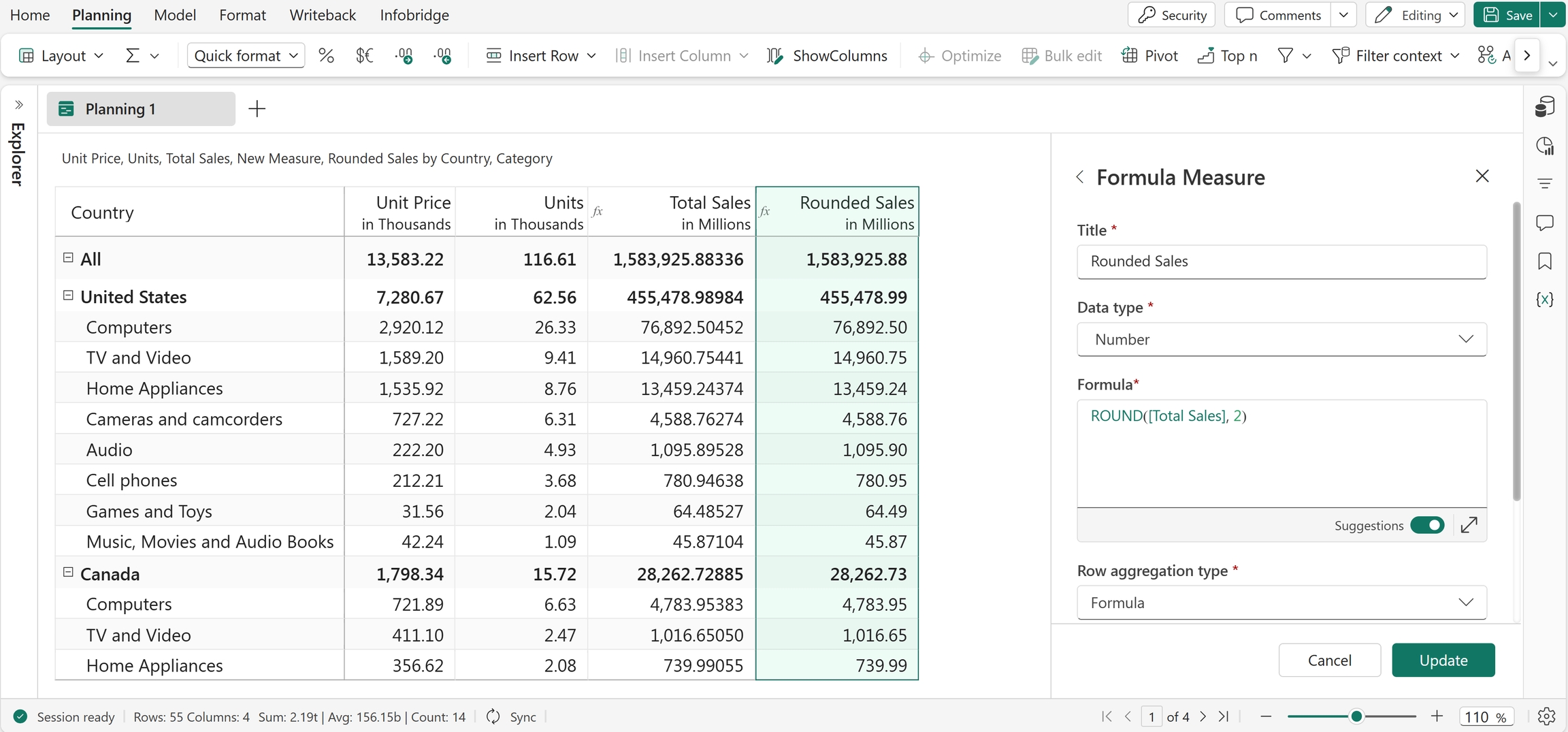
In the example below, the Rounded Sales measure is created using the ROUND function, which rounds the values in Total Sales to 2 decimal places.
Excel equivalent
ROUNDDOWN
The ROUNDDOWN function rounds a number down toward zero to a specified number of decimal places. Unlike standard rounding, the function always reduces the value regardless of the digit that follows. It is commonly used in financial and reporting calculations where conservative estimates or controlled rounding are required.
Syntax
ROUNDDOWN(value, significance)
Arguments
value: The number to round.significance(optional): The number of decimal places to round to.
Return value
Returns the number rounded down toward zero.
Example
ROUNDDOWN(Total Sales, 2)
In this example, the ROUNDDOWN function rounds the values in Total Sales down toward zero to two decimal places.
Excel equivalent
ROUNDUP
The ROUNDUP function rounds a number up, away from zero, to a specified number of decimal places. It always increases the value regardless of the following digits and is useful in scenarios where higher estimates, pricing adjustments, or safety margins are required.
Syntax
ROUNDUP(value, significance)
Arguments
value: The number to round.significance(optional): The number of decimal places to round to.
Return value
Returns the number rounded up, away from zero, to the specified number of decimal places.
Example
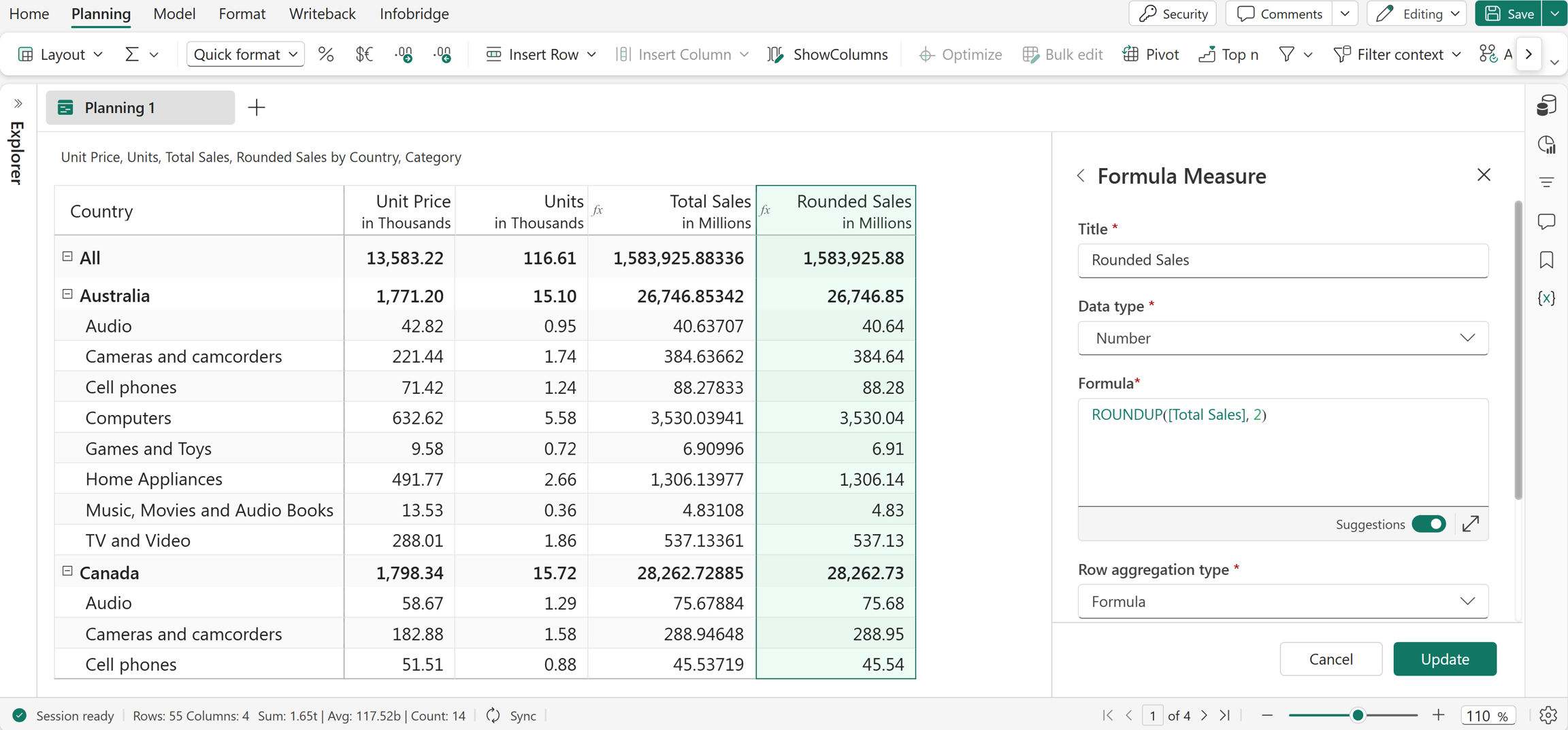
ROUNDUP(Actuals, 2)
In this example, the Rounded Sales measure is created using the ROUNDUP function, which rounds the values in Total Sales up, away from zero, to two decimal places.