Note
Access to this page requires authorization. You can try signing in or changing directories.
Access to this page requires authorization. You can try changing directories.
In planning, text formatting functions help you manipulate, format, and transform text values in the planning sheet. These functions can be used to combine text, extract characters, change letter casing, format values as text, clean text data, and create dynamic text-based calculations for reports and business scenarios.
Note
- When configuring the formula column, set the appropriate data type for the column (Number, Text, Boolean, or Date) based on the expected output.
- Alternatively, use the Text data type to display outputs of any data type, including text, number, boolean, and date values.
CONCATALL
The CONCATALL function joins all items in a list into a single text string by using the specified delimiter. This function is commonly used to combine multiple text values with separators such as spaces, commas, or symbols.
Syntax
CONCATALL([string1, string2, ..., stringn], delimiter)
Arguments
[string1, string2, ..., stringn]: The list of text values to join. Numeric values in the list are also converted to text and concatenated.delimiter: The text separator inserted between each value.
Return value
Returns a single text string that combines all items in the list using the specified delimiter.
Example
CONCATALL(["Product1", "Product2"], "--")
Returns Product1--Product2.
CONCATENATE
The CONCATENATE function joins two or more text strings into a single text string. This function is commonly used to combine text values, labels, and formatted outputs.
Syntax
CONCATENATE(string1, string2, ...)
Arguments
string1: The first text string to join.string2, ...: Additional text strings to join.
Return value
Returns a single text string that combines all specified text values.
Example
CONCATENATE("Total Sales: ", "5000")
Returns Total Sales: 5000.
Excel equivalent
HYPERLINK
The HYPERLINK function returns hyperlinked text that navigates to a specified URL. This function is commonly used to create clickable links in reports and dashboards.
Syntax
HYPERLINK(link, value)
Arguments
link: The URL to navigate to.value: The text displayed as the hyperlink in the report.
Return value
Returns clickable hyperlinked text that opens the specified URL.
Example
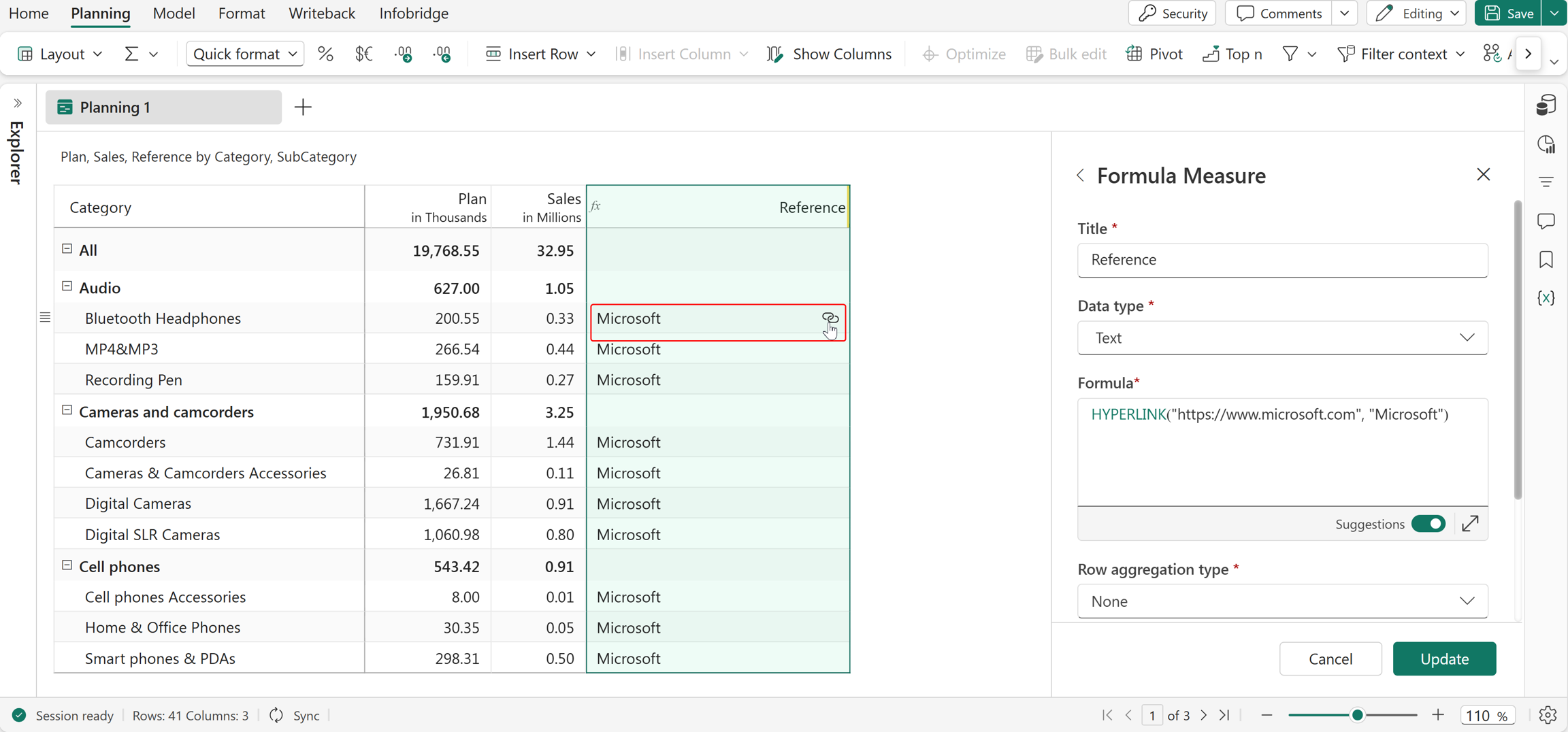
HYPERLINK("https://www.microsoft.com", "Microsoft")
Returns Microsoft as hyperlinked text that navigates to the Microsoft website.
Hover over the hyperlinked text to display the hyperlink icon, and then select the icon to navigate to the website.
Excel equivalent
LEFT
The LEFT function returns the specified number of characters from the beginning of a text string. When used with a number, the function returns the result as text.
Syntax
LEFT(text, num_chars)
Arguments
text: The text string that contains the characters to extract.num_chars: The number of characters to extract from the beginning of the text.
Return value
Returns the specified number of characters from the left side of the text string.
Example
LEFT([Full Name], 4)
If Full Name contains Johny Rivers, the function returns John.
Excel equivalent
LEN
The LEN function returns the total number of characters in a text string, including letters, numbers, spaces, and special characters. This function is commonly used to measure text length, validate input, and prepare data for further processing.
Syntax
LEN(text)
Arguments
text: The text string or reference whose length you want to calculate.
Return value
Returns the total number of characters in the text string.
Example
LEN([Product Name])
Calculates the number of characters in each value of the Product Name field, including spaces and special characters.
Excel equivalent
LOWER
The LOWER function converts all characters in a text string to lowercase. This function is commonly used to standardize text values and ensure consistent text formatting.
Syntax
LOWER(value)
Arguments
value: The text string to convert to lowercase.
Return value
Returns the text string in lowercase.
Example
LOWER("MICROsoft")
Returns microsoft.
Excel equivalent
MID
The MID function returns a specified number of characters from a text string, starting at the position you specify. When used with a number, the function returns the result as text.
Syntax
MID(text, position, length)
Arguments
text: The text string that contains the characters to extract.position: The starting position of the characters to extract.length: The number of characters to return from the text.
Return value
Returns the specified number of characters from the text string.
Example
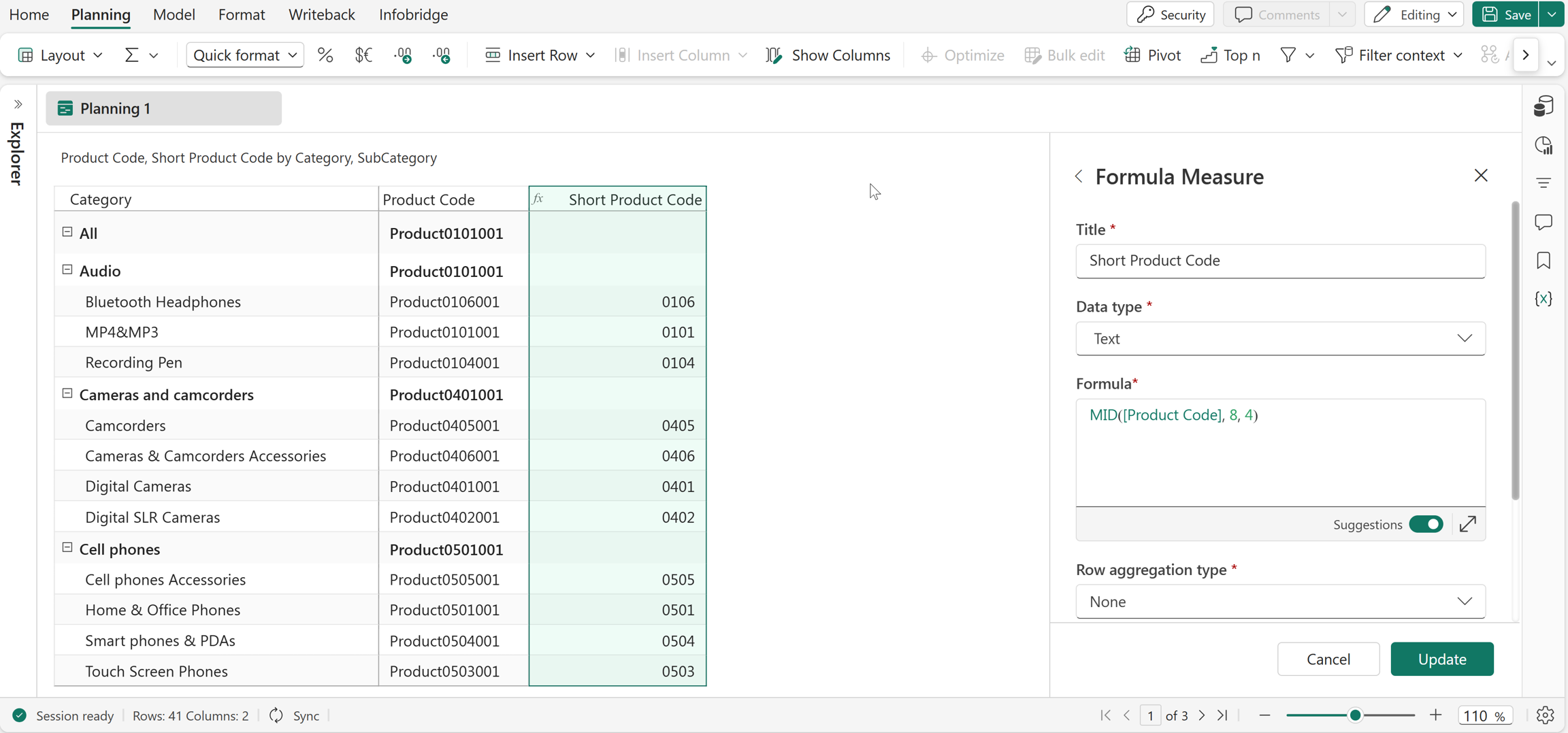
MID(Product Code, 8, 4)
In this example, the MID function extracts 4 characters from the Product Code field starting at position 8 to create a shorter product code. For example, Product0101001 returns 0101.
Excel equivalent
PROPER
The PROPER function converts the first character of each word in a text string to uppercase and converts the remaining characters to lowercase. This function is commonly used to format text in proper case.
Syntax
PROPER(value)
Arguments
value: The text string to convert to proper case.
Return value
Returns the text string in proper case.
Example
PROPER("annual SALES report")
Returns Annual Sales Report.
Excel equivalent
REPLACE
The REPLACE function replaces part of a text string with another text value based on the specified position and length. The index starts at 1, where the first character in the text string has an index of 1.
Syntax
REPLACE(old_string, index, length, replace_text)
Arguments
old_string: The original text string.index: The starting position of the characters to replace.length: The number of characters to replace.replace_text: The text string that replaces the specified characters.
Return value
Returns the updated text string after replacement.
Example
REPLACE("Sales_US", 7, 2, "UK")
Returns Sales_UK.
Excel equivalent
REPT
The REPT function repeats a text string a specified number of times. This function is commonly used to generate repeated text patterns and formatted outputs.
Syntax
REPT(value, count)
Arguments
value: The text string to repeat.count: The number of times to repeat the text string.
Return value
Returns a text string repeated the specified number of times.
Example
REPT("Qtr-", 3)
Returns Qtr-Qtr-Qtr-.
Excel equivalent
RIGHT
The RIGHT function returns the specified number of characters from the end of a text string. When used with a number, the function returns the result as text.
Syntax
RIGHT(text, num_chars)
Arguments
text: The text string that contains the characters to extract.num_chars: The number of characters to extract from the end of the text.
Return value
Returns the specified number of characters from the right side of the text string.
Example
RIGHT("Region-East", 4)
Returns East.
Excel equivalent
TEXT
The TEXT function converts a value into formatted text based on the specified format string. This function is commonly used to display numbers, currencies, percentages, and dates in a specific format.
Syntax
TEXT(value, format)
Arguments
value: The number or reference to format.format: The format string or format expression to apply.
Return value
Returns the formatted value as text.
Example
TEXT(6000, "$###,###.00")
Returns $6,000.00.
Excel equivalent
TRIM
The TRIM function removes leading and trailing spaces from a text string while retaining spaces between words. This function is commonly used to clean and standardize text values.
Syntax
TRIM(value)
Arguments
value: The text string to trim.
Return value
Returns the text string without leading and trailing spaces.
Example
TRIM(" Forecast Report ")
Returns Forecast Report.
Excel equivalent
UPPER
The UPPER function converts all characters in a text string to uppercase. This function is commonly used to standardize text values for comparison, formatting, and consistency.
Syntax
UPPER(value)
Arguments
value: The text string to convert to uppercase.
Return value
Returns the text string in uppercase.
Example
UPPER("south zone")
Returns SOUTH ZONE.
Excel equivalent
VALUE
The VALUE function converts a text string that represents a number into a numeric value. This function is commonly used to convert extracted or formatted text into numbers for calculations.
Syntax
VALUE(value)
Arguments
value: The text string that contains a number.
Return value
Returns the numeric value represented by the text string.
Example
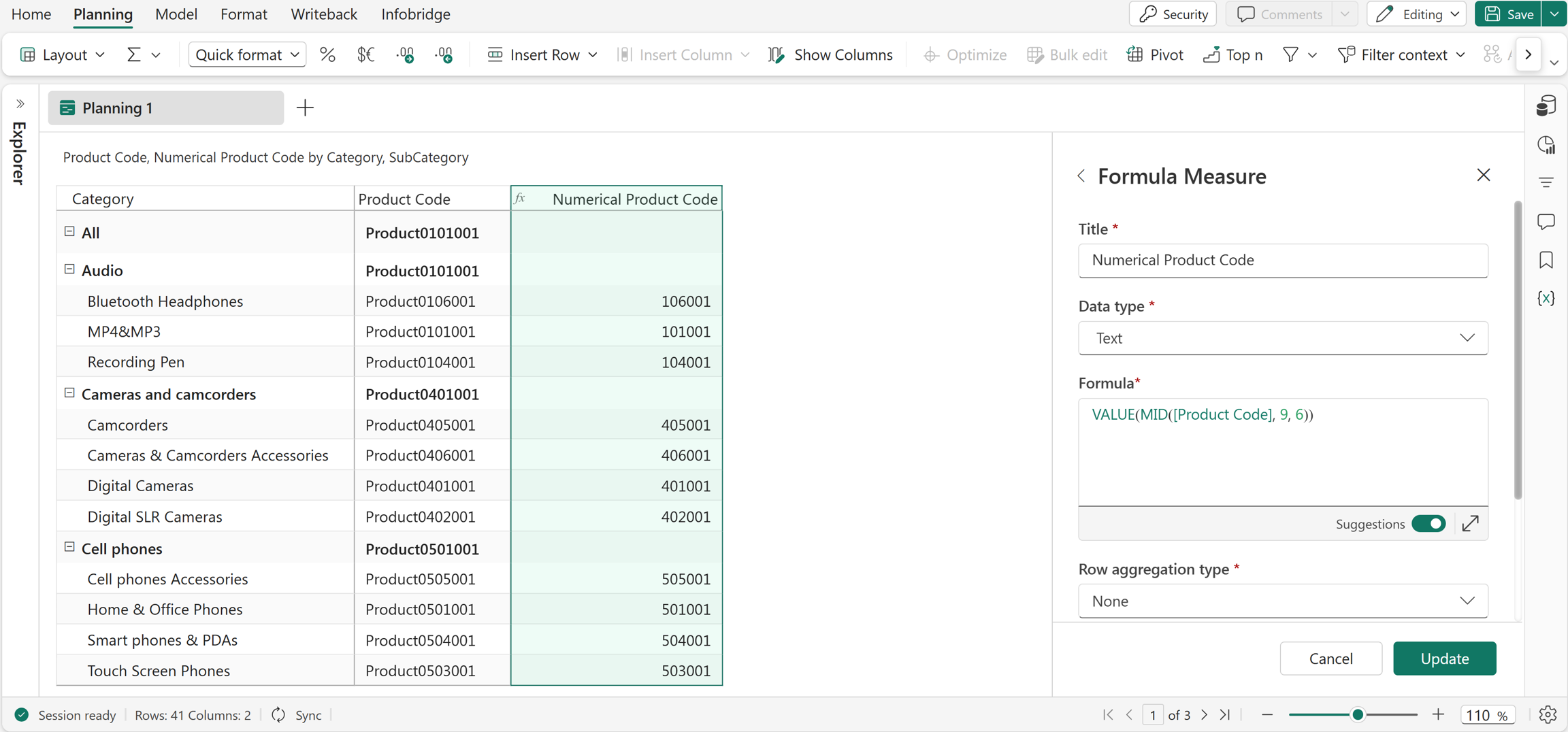
VALUE(MID(Product Code, 9, 6))
In this example, the VALUE function converts the extracted portion of the Product Code field into a numeric value. For example, Product0101001 returns 101001.