Note
Access to this page requires authorization. You can try signing in or changing directories.
Access to this page requires authorization. You can try changing directories.
This article provides troubleshooting guidance for semantic model connection issues in plan (preview) in Microsoft Fabric. For information about known limitations, see Known limitations in plan (preview).
Important
This feature is in preview.
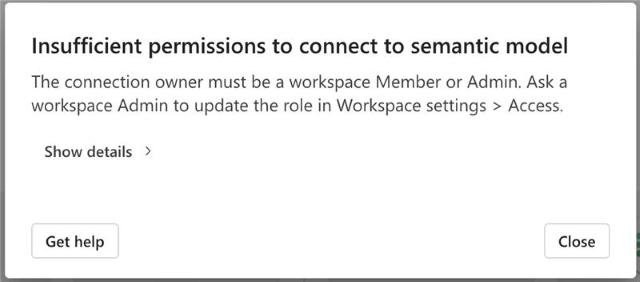
Insufficient permissions to connect to semantic model
The error appears with the following description: The connection owner must be a workspace Member or Admin. Ask a workspace Admin to update the role in Workspace settings > Access.
Cause
The shared cloud connection owner has insufficient permissions. The connection owner, whether using OAuth or a service principal, must have a workspace Member or Admin role. Users with lower-level permissions can't generate access tokens for the semantic model.
Resolution
If you're a Contributor or Member in the workspace, ask the workspace Admin to follow these steps:
- Go to the workspace and select Manage access.
- Check the role assigned to the connection owner.
- Upgrade the connection owner's role to Member or Admin.
Semantic model not found
Cause
The semantic model linked to the shared cloud connection can't be found. It might have been moved, renamed, or deleted.
Resolution
- Verify that the semantic model exists in the required workspace in Microsoft Fabric.
- If it got moved, locate the new workspace and connect to it.
- Ensure the connection owner has either Member or Admin access to the correct workspace.
- If not, ask a workspace Admin to upgrade the connection owner's role to either Member or Admin in Workspace > Manage access.
Shared cloud connection expired
Cause
The credentials for this shared cloud connection expired.
Resolution
The connection owner must reauthenticate the connection by following these steps:
- In Microsoft Fabric Home, go to Settings > Manage connections and gateways.
- Locate the connection, select More actions (
···), then Settings. - Select Edit credentials, reauthenticate, and then select Save.
- Return to the artifact and retry the connection.
When workspace is not accessible
Before troubleshooting, ensure that you have completed all the steps described in this article: Create and share a cloud connection for a semantic model.
Another possible cause
The owner of the shared cloud connection is not a Member of the workspace.
Resolution
If you're a Contributor in the workspace, ask a workspace Member or Admin to follow these steps:
- Go to the workspace and select Manage access.
- Add the connection owner as a Member or Admin of the workspace.
- Retry the connection in the artifact.