Note
Access to this page requires authorization. You can try signing in or changing directories.
Access to this page requires authorization. You can try changing directories.
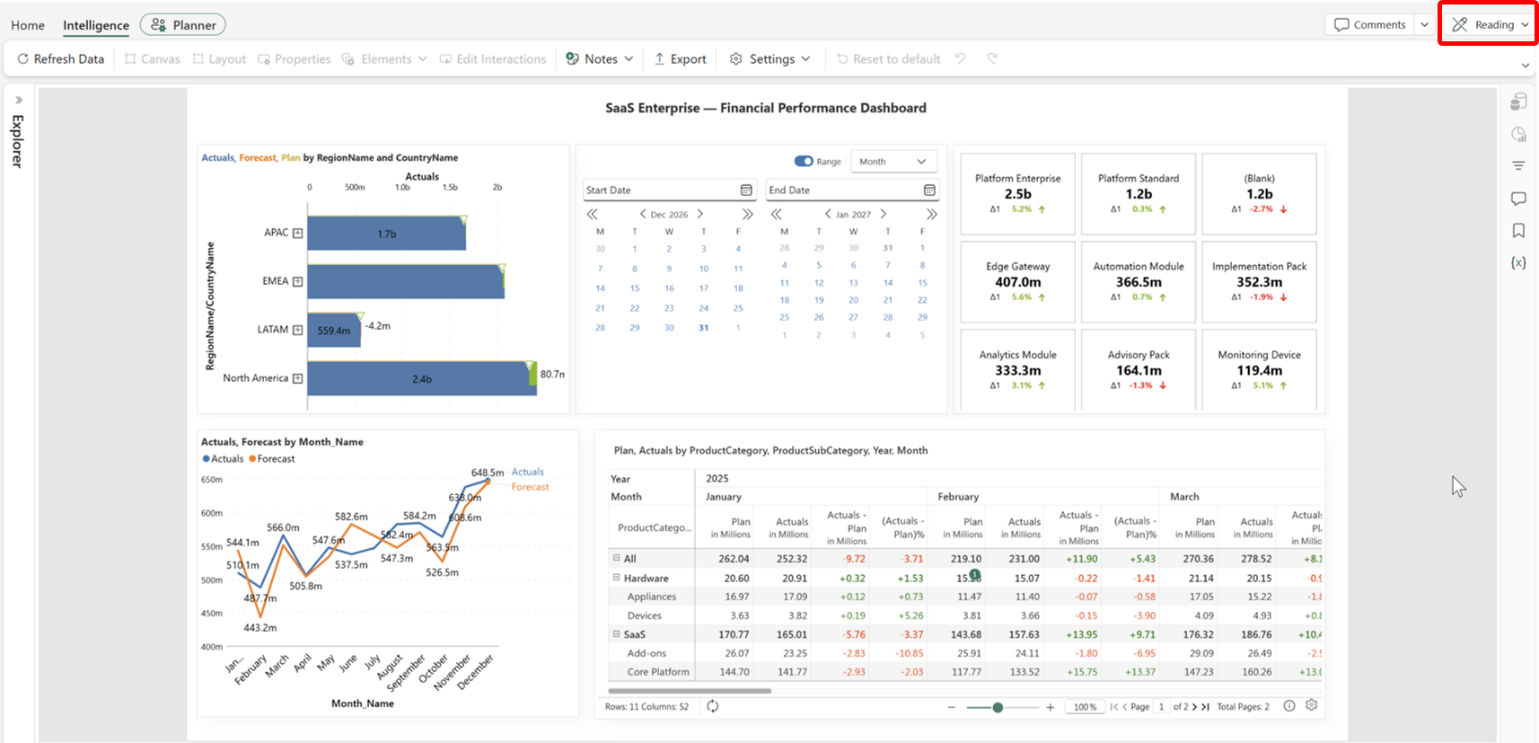
In this tutorial, you get a live SaaS Enterprise semantic model to build an interactive enterprise dashboard in a planning in Fabric environment.
An intelligence sheet is a canvas-based analysis layer that sits on top of a semantic model, a planning sheet, or PowerTable. It provides access to a visualization library that includes charts, matrices, KPI cards, Gantt charts, and filters without leaving the planning environment.
Prerequisites
Before you begin, ensure you have:
- Access to a Microsoft Fabric workspace where you can create a plan and upload a semantic model.
- Permission to create and edit an intelligence sheet.
- The Enterprise Dataset sample PBIX file. Download it from the Fabric samples GitHub repository.
Business context
In this tutorial, you use the Enterprise Dataset semantic model to build an interactive enterprise dashboard.
Follow the tutorial in order:
- Set up and plan: Connect the Enterprise Dataset semantic model and create a plan app.
- Overview of intelligence sheet: Before building the dashboard, take a quick tour of the tabs and features to understand what is available and its purpose.
- Build a variance chart: Use the Integrated Variance Bar Chart to compare Actuals versus Plan.
- Build a grouped line chart: Use Actuals and Forecast with
Dim Date > Month Name. - Build a KPI card: Use ProductName as the trellis to compare Actuals versus Plan.
- Interactivity and governance: Build a date filter that is connected to all visuals, add a text header, and add a comment to complete the dashboard.
Sample dataset
The SaaS Enterprise dataset models a mid-to-large software business across multiple products, regions, and customer segments. It contains 1.8 million rows of transactional data structured as a star schema, with fact tables linked to dimension tables through a shared semantic model.
All figures are synthetic but calibrated to produce meaningful variance analysis, realistic trend lines, and visible Actual vs Plan vs Forecast differences.
The dataset includes the following tables:
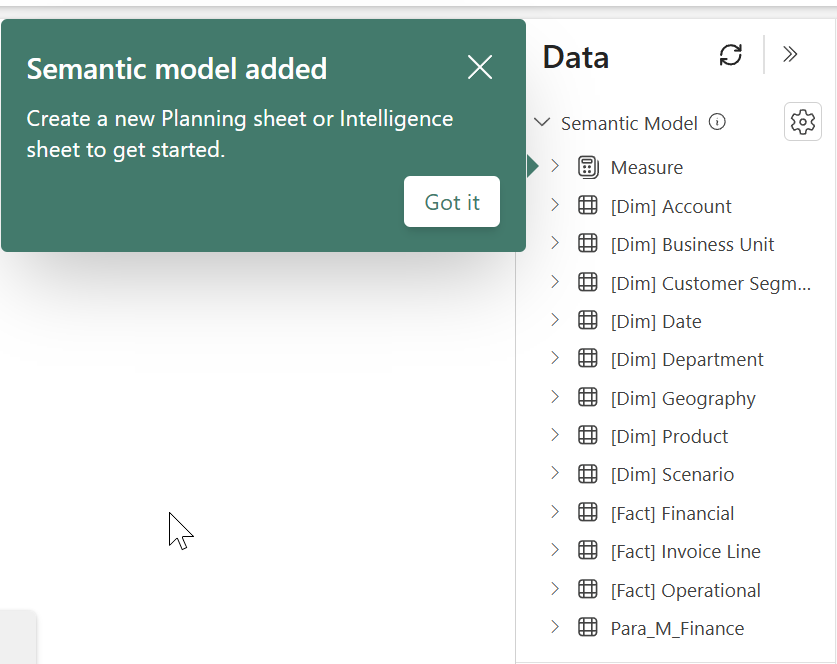
- Eight dimensions: [Dim] Account, [Dim] Business Unit, [Dim] Customer Segment, [Dim] Date, [Dim] Department, [Dim] Geography, [Dim] Product, [Dim] Scenario
- Three facts: [Fact] Financial, [Fact] Invoice Line, [Fact] Operational
- A Measure table, from which most measures are used.
Import the sample semantic model
Import the Enterprise Dataset PBIX file into your Fabric workspace.
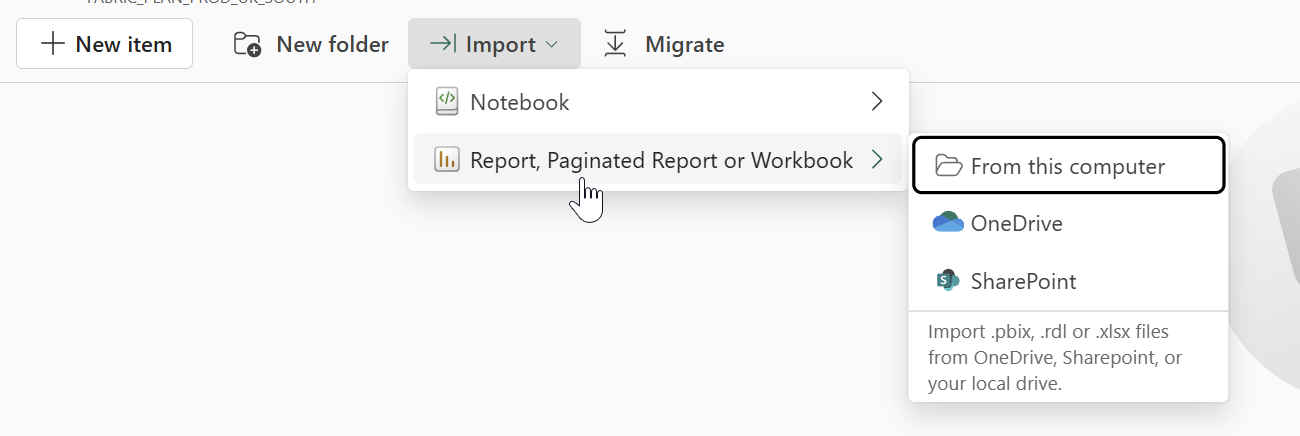
- In your workspace folder, select Import > Report, Paginated Report, or Workbook > From this computer.
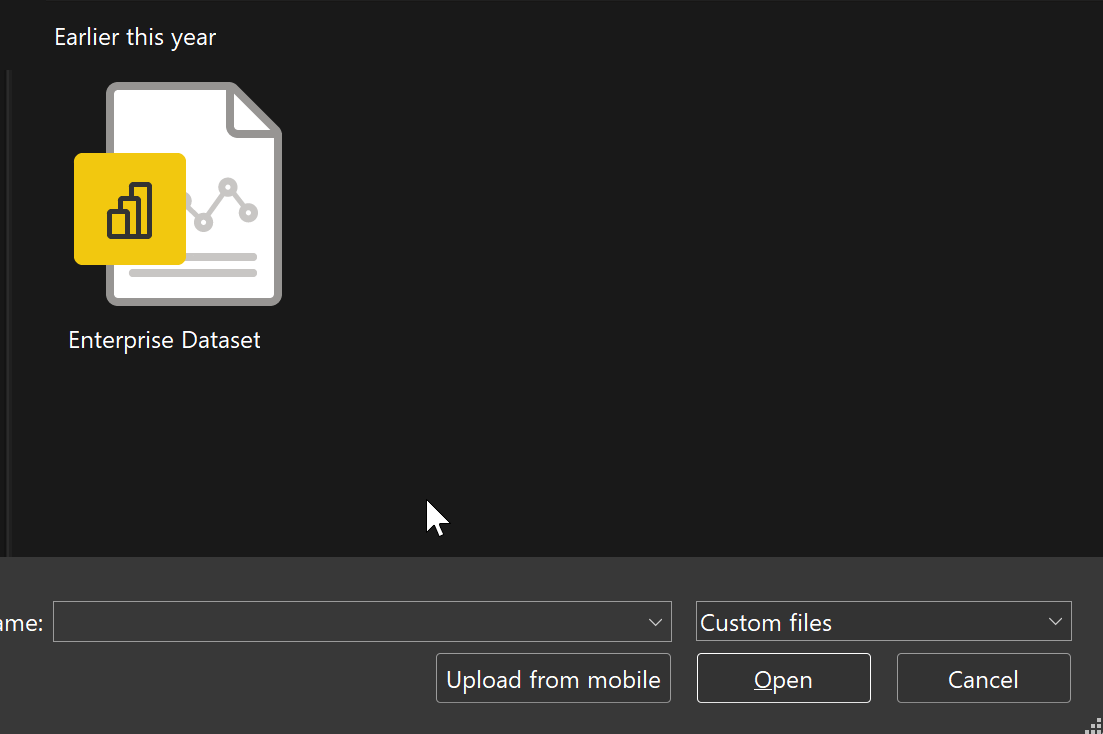
- Select the Enterprise Dataset PBIX file, and then select Open.
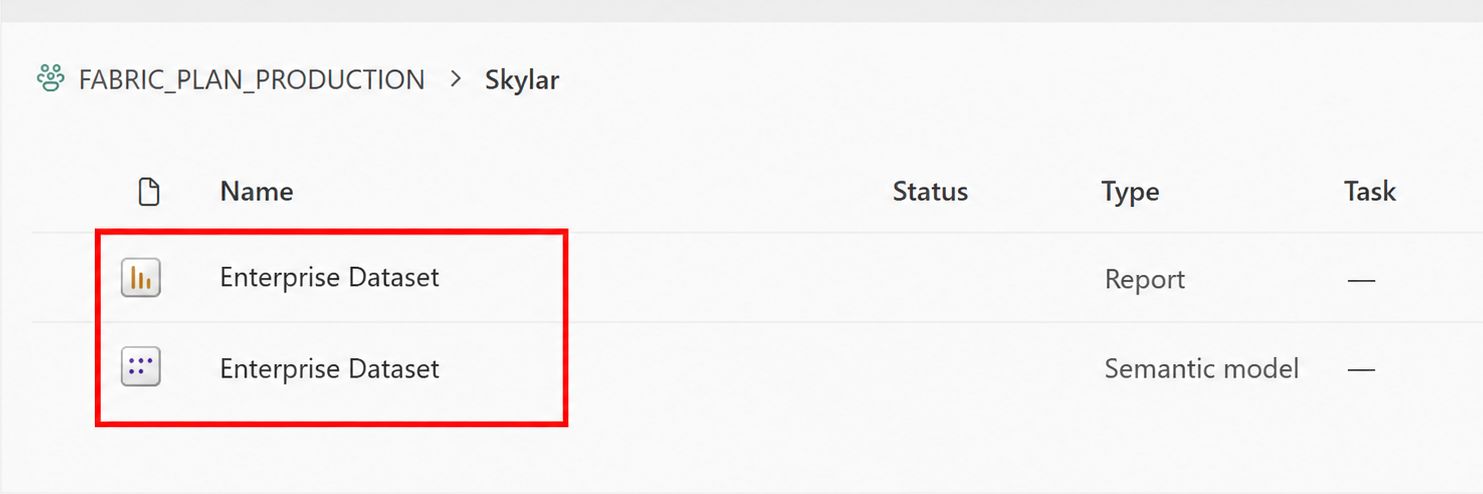
- Verify that the Enterprise Dataset report and semantic model appear in the workspace.
Note
Ensure that the Enterprise Dataset resource file is available before you continue.
Create a plan
Create a plan to host the intelligence sheet.
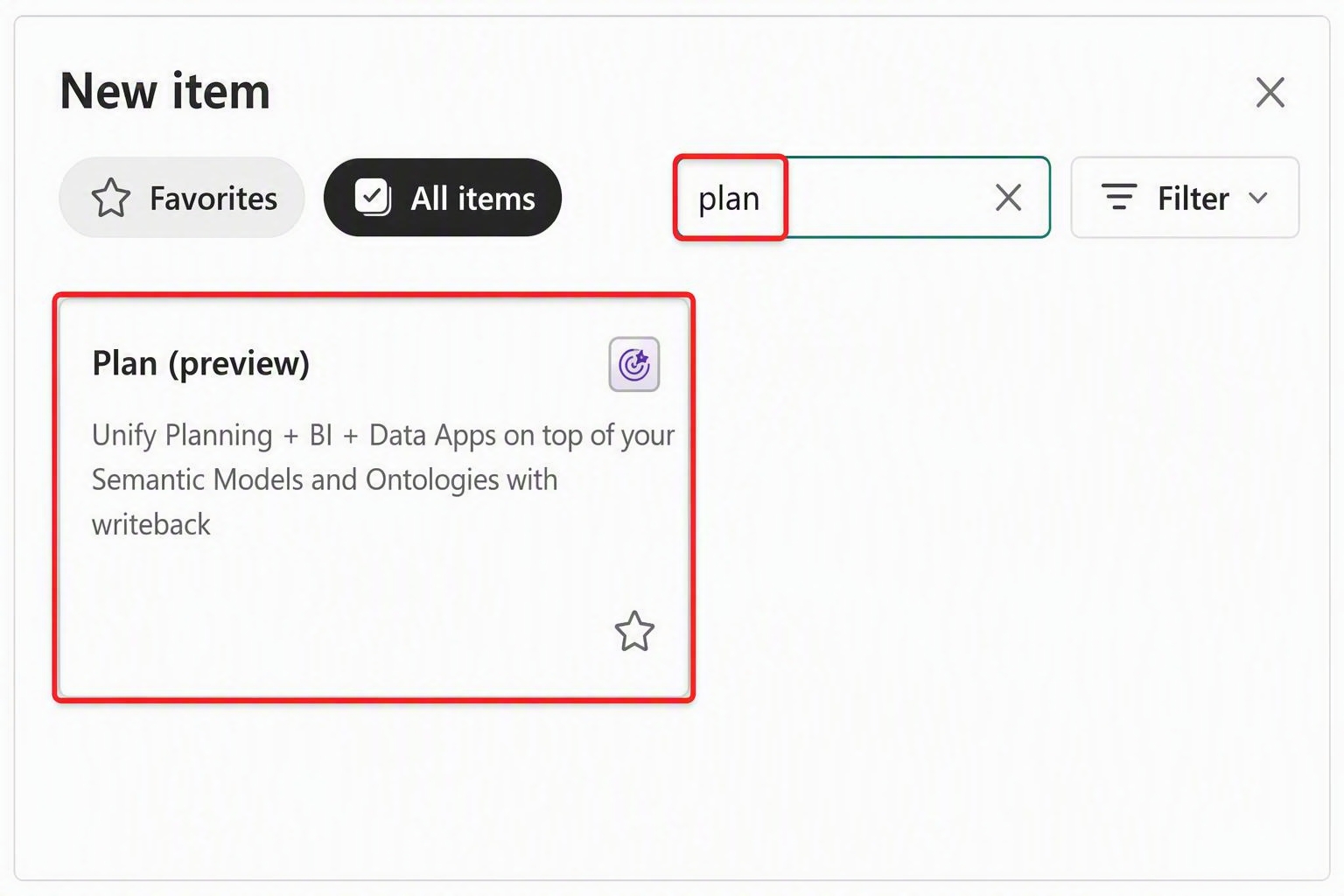
In your workspace, select New item.
In the item list, search for
plan, and then select Plan (preview).
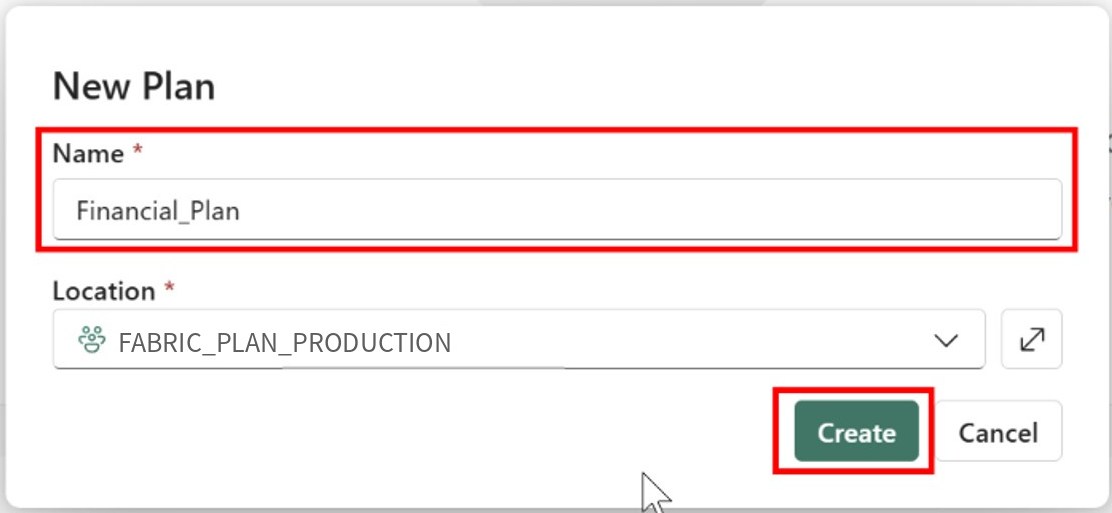
- In New Plan, enter
Financial-Planin Name, and then select Create.
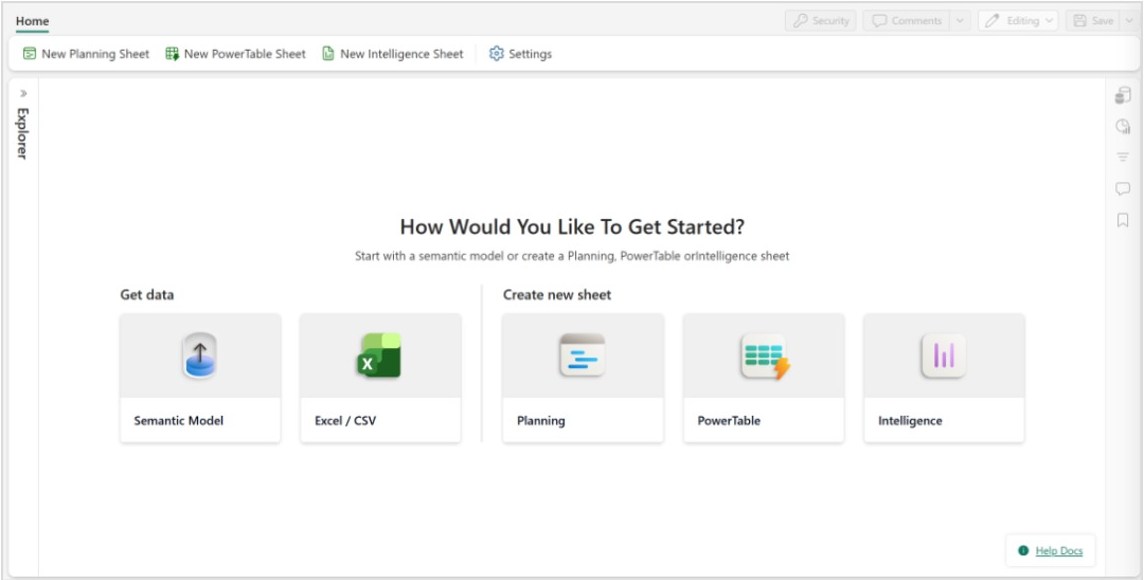
The plan opens to a launch screen where you can connect a semantic model or create a sheet.
The launch screen also provides options under Create new sheet for Planning, PowerTable, and Intelligence sheets.
Connect the semantic model
Connect the Enterprise Dataset semantic model to the plan.
On the launch screen, under Get data, select Semantic Model.
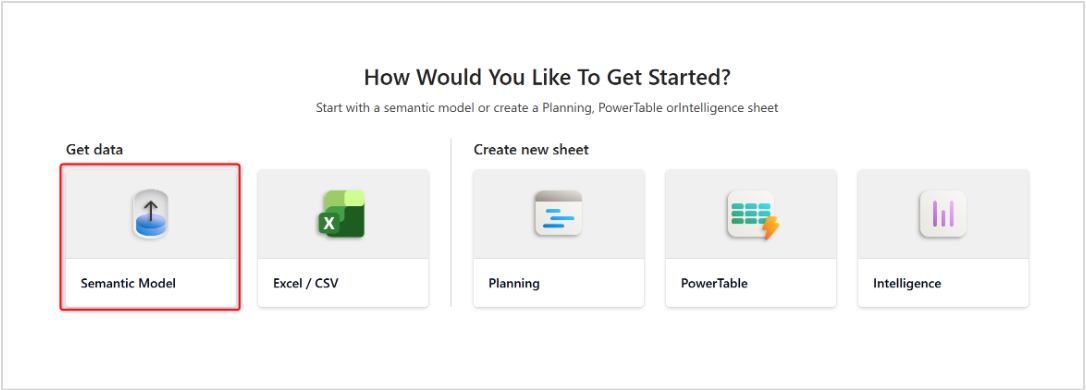
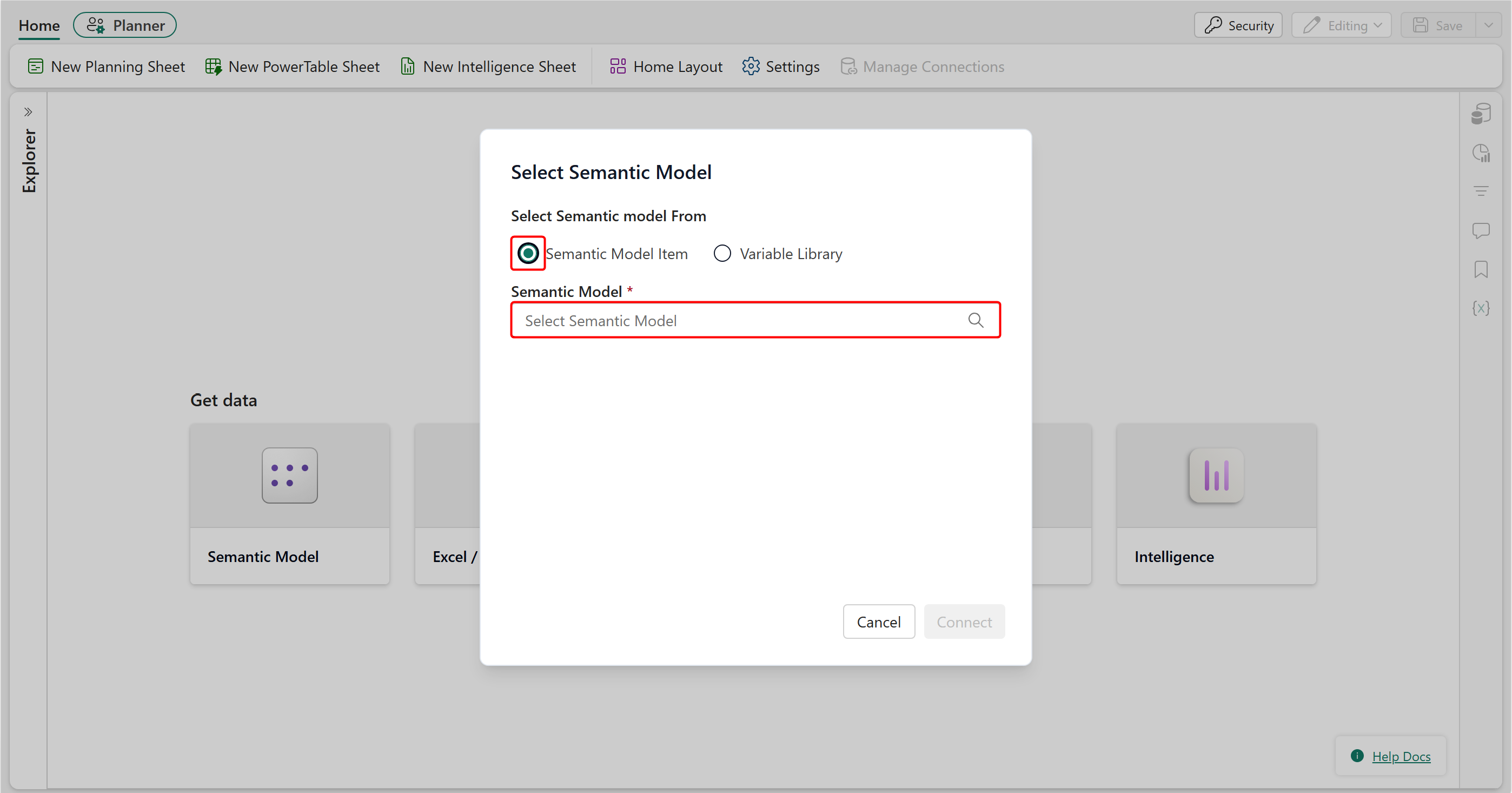
In the Select Semantic Model window, select Semantic Model Item and then select the search field.
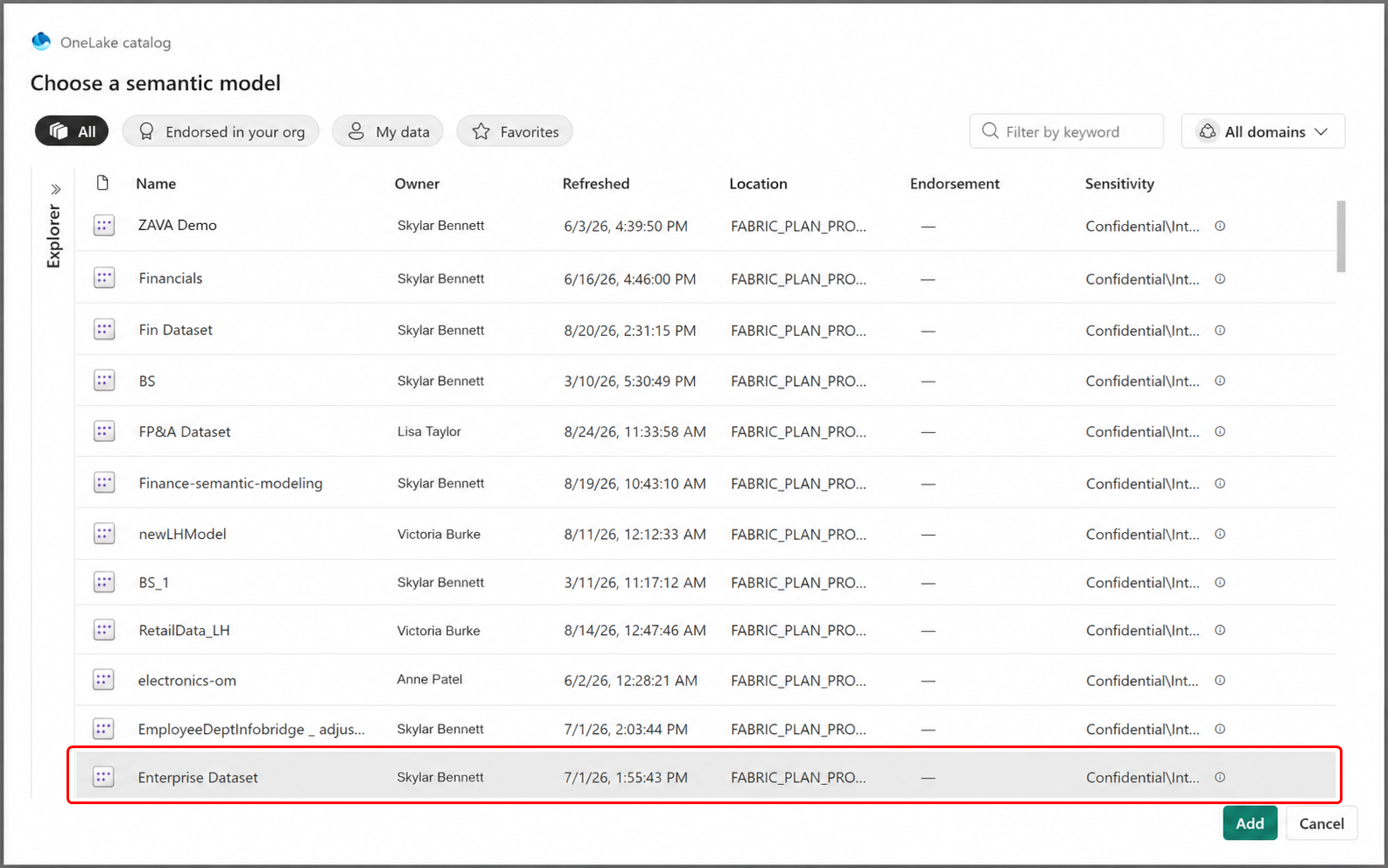
In OneLake catalog, select Enterprise Dataset, and then select Add.
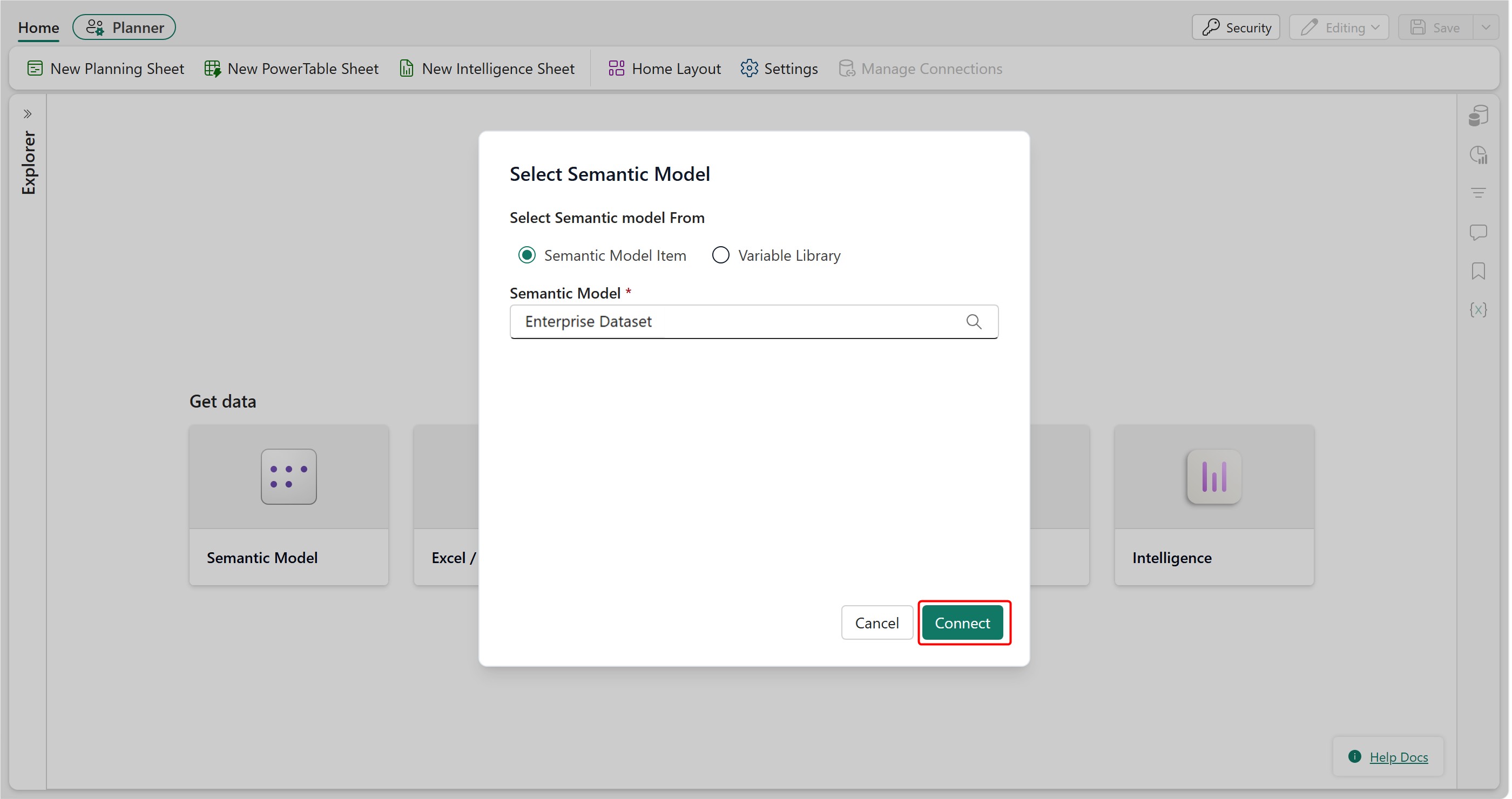
Under Semantic Model, verify that Enterprise Dataset is selected, and then select Connect.
After the connection is established, the semantic model is added and its tables are available in the Data pane.
Create an intelligence sheet
Create an intelligence sheet for the dashboard.
- On the Home tab, select New Intelligence Sheet.
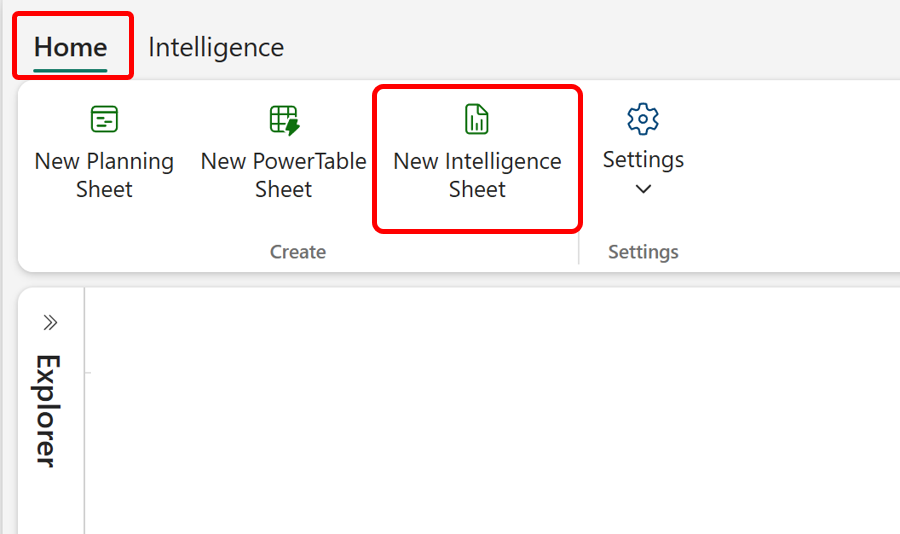
- Enter a name for the intelligence sheet, and then create the sheet.
The new intelligence sheet opens with the canvas and visualization controls.
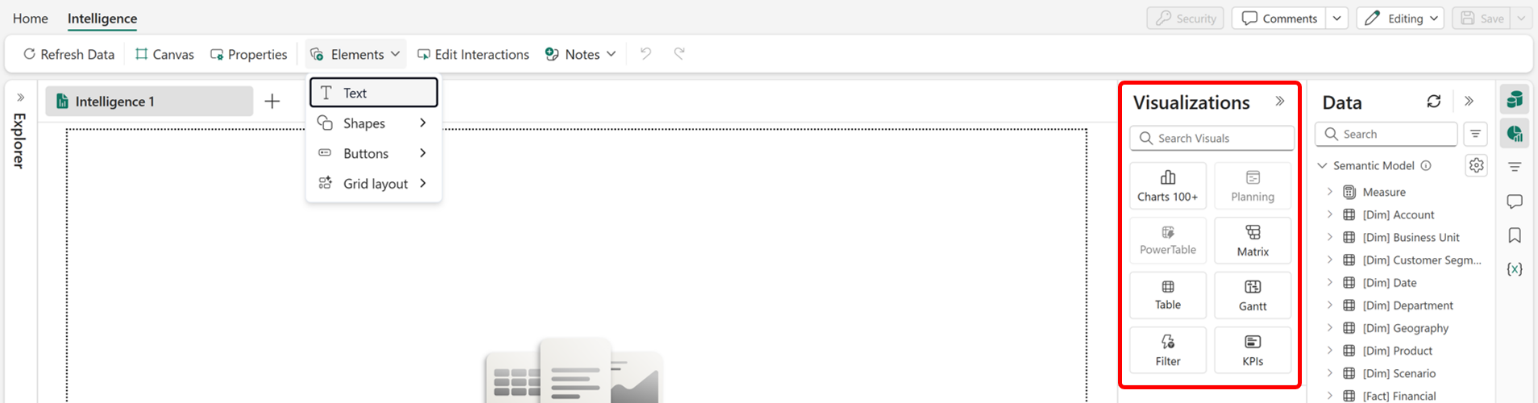
Explore the intelligence sheet interface
Before you build visuals, review the controls available in the intelligence sheet.
Review the canvas controls
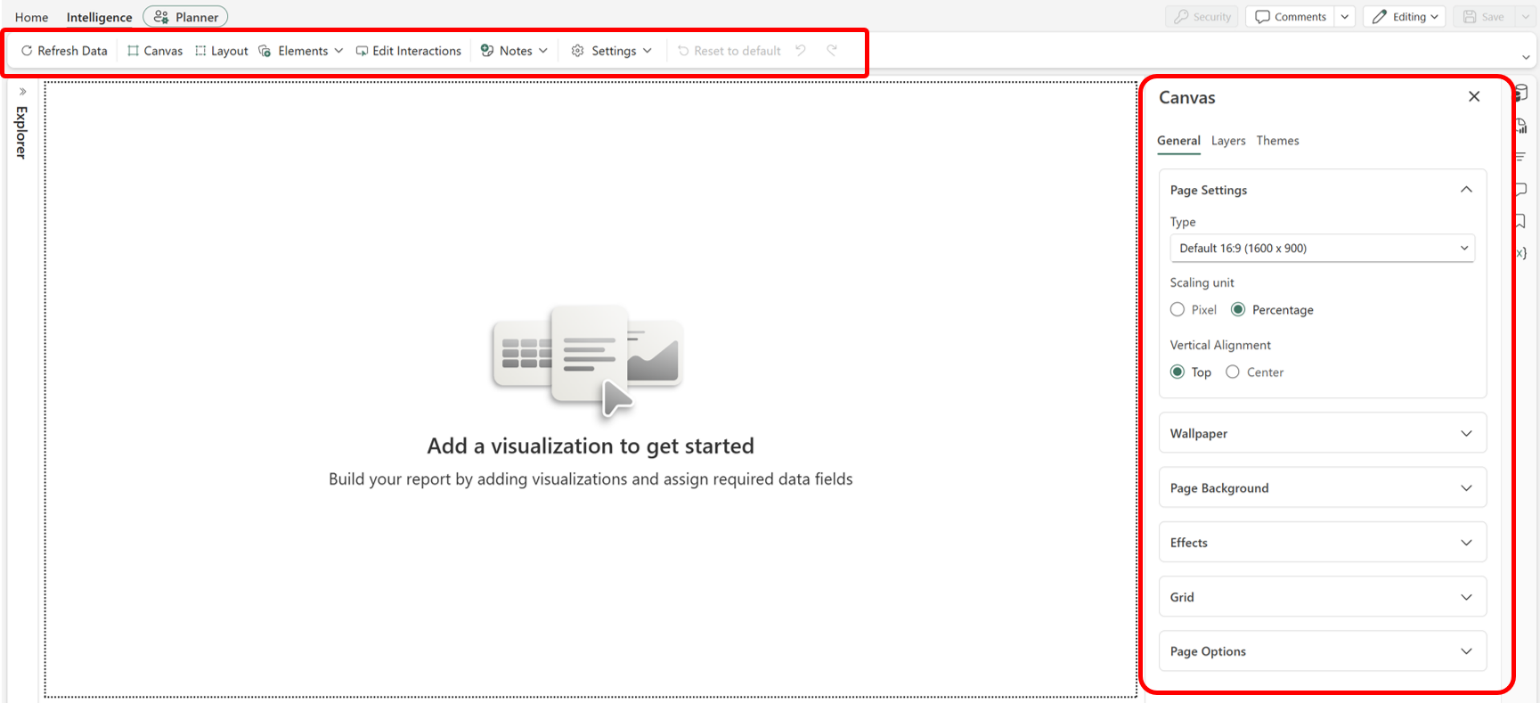
On the Intelligence tab, review the controls that apply to the entire canvas:
- Canvas: Adjust grid snapping, canvas size, and zoom level.
- Layout: Manage the canvas layout.
- Elements: Add text, shapes, buttons, and other elements.
- Edit Interactions: Define how filtering one visual affects other visuals on the canvas.
- Notes: Add notes to the canvas.
- Settings: Access sheet settings.
Review the filter pane
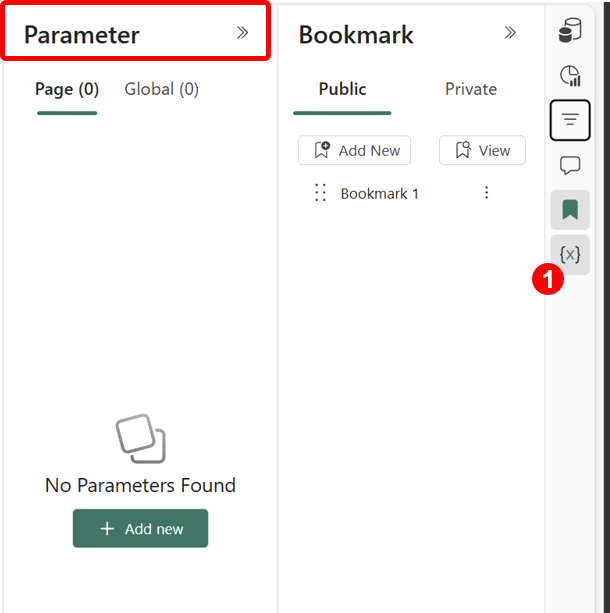
On the right side of the canvas toolbar, select the Filter icon.
The filter pane supports page-level filters that apply to visuals on the sheet and global filters that apply across the workbook.

For example, you can add Year to the global filter and select 2025
and 2026 to apply the filter across the dashboard.
Review bookmarks
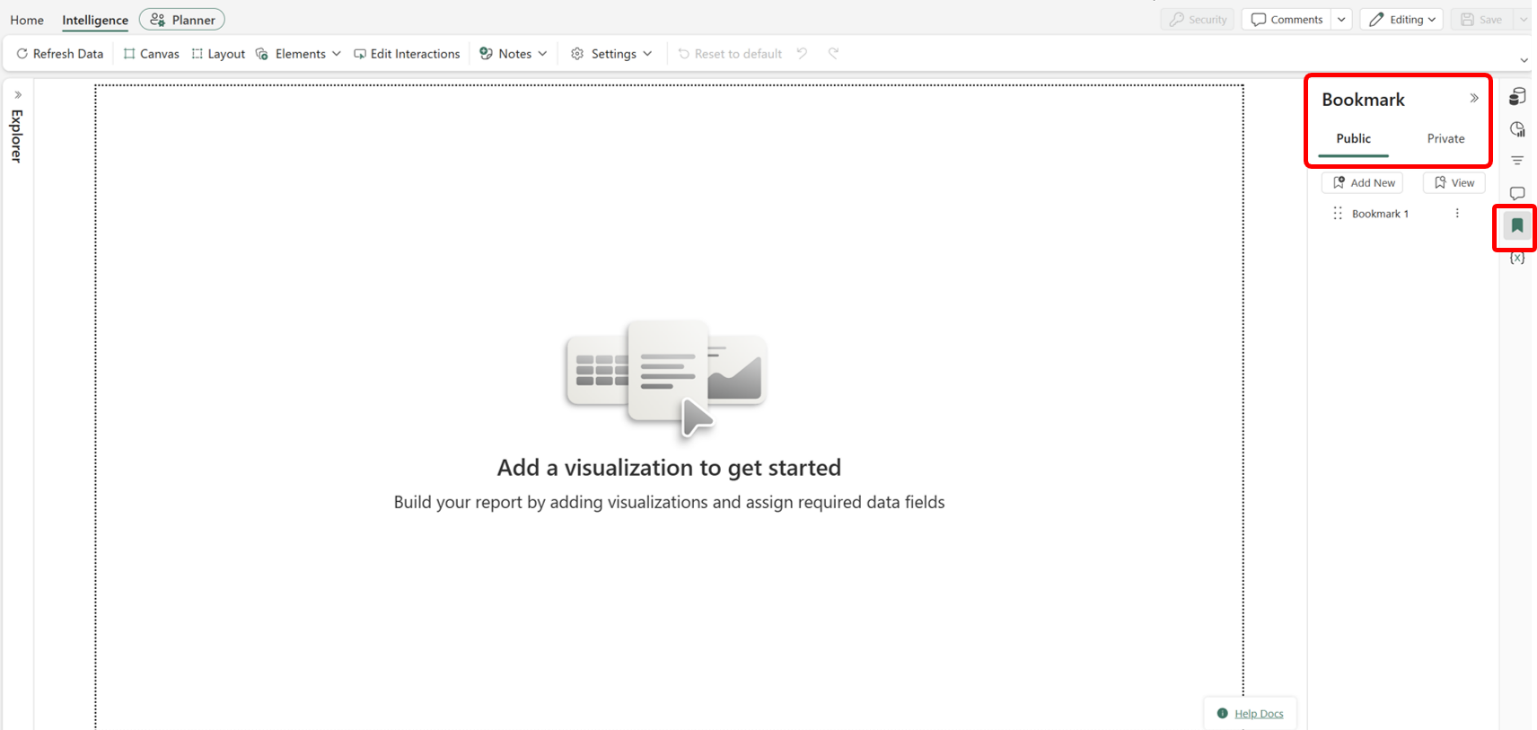
Select the Bookmarks icon located after the filter icon.
Bookmarks capture the current analytical view, including the filter state and scroll position. In reading mode, users can save private bookmarks and share specific views with colleagues.
Review parameters
Select the Parameters option to review available parameter controls.
Parameters can store reusable values, such as a target margin percentage, or support conditional display logic based on a user selection.
Review visualization types
The Visualizations pane provides the following visualization types:
- Charts 100+: Access a library of charts organized by chart family.
- Planning: Embed a planning sheet on the canvas.
- PowerTable: Embed a PowerTable sheet on the canvas.
- Matrix: Display hierarchical row and column data.
- Table: Display tabular data without a hierarchy.
- Gantt: Display Gantt and resource Gantt charts.
- Super Filter: Add interactive filters.
- KPI: Display key measures with KPI and trellis capabilities.
Build a variance chart
Add a variance chart to compare actuals, plan, and forecast by geography.
- In the Visualizations pane, select Charts 100+.
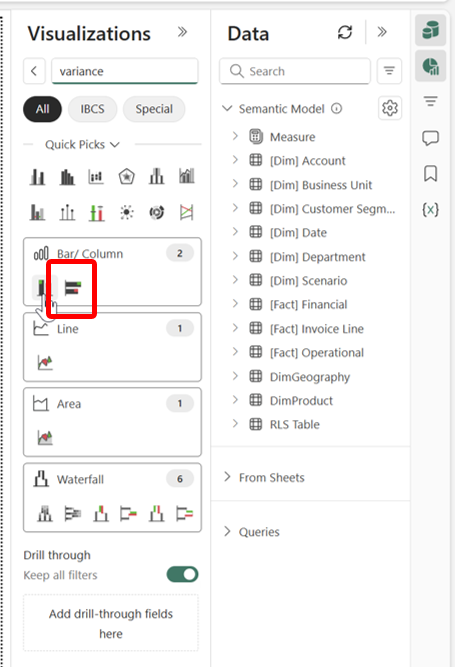
Search for
variance, and then select Integrated Variance Bar Chart.In the field well, map the following fields:
- Values (Actuals):
Measures > Financial > Base Measures > Actuals - Comparison 1 (vs Actuals):
Measures > Financial > Base Measures > Forecast - Comparison 2 (vs Actuals):
Measures > Financial > Base Measures > Plan - Category:
Dim Geography > RegionName - Category:
Dim Geography > CountryName
- Values (Actuals):
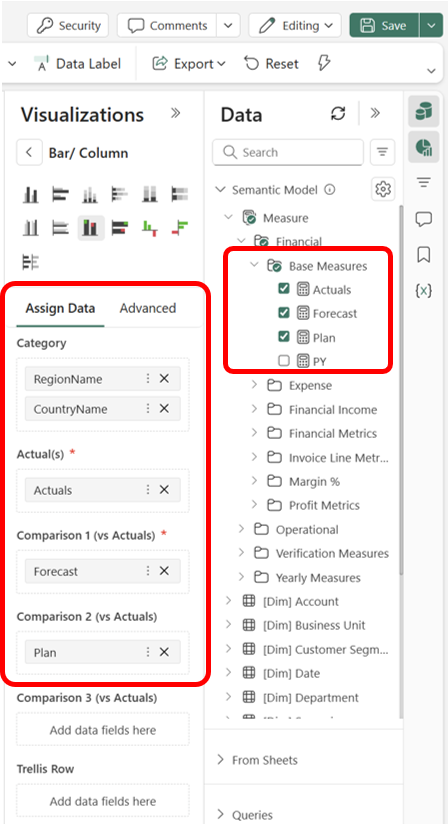
The chart displays Actuals, Forecast, and Plan by region.
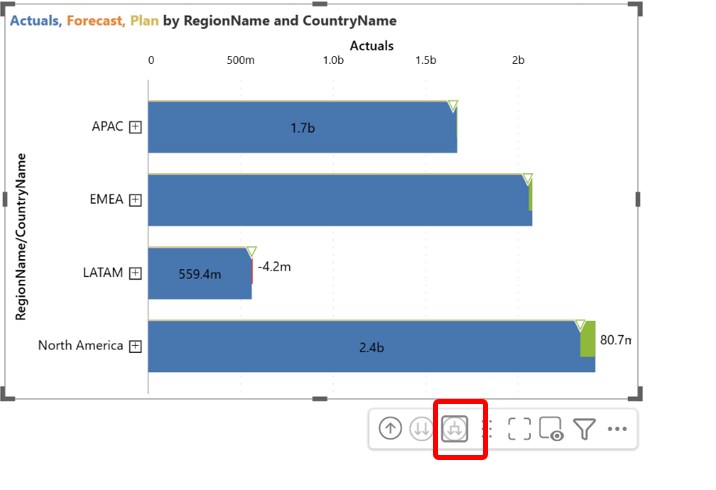
- With the chart selected, use the visual header to drill down from RegionName to CountryName.
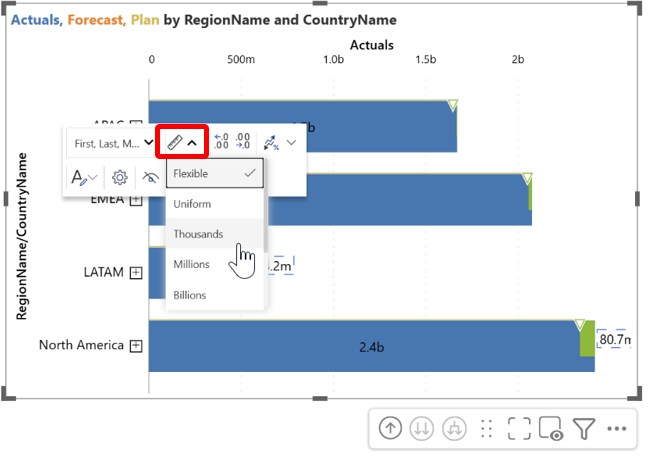
Use Expand all to display all hierarchy levels simultaneously.
Select a data label and use the on-object options to set Scaling to
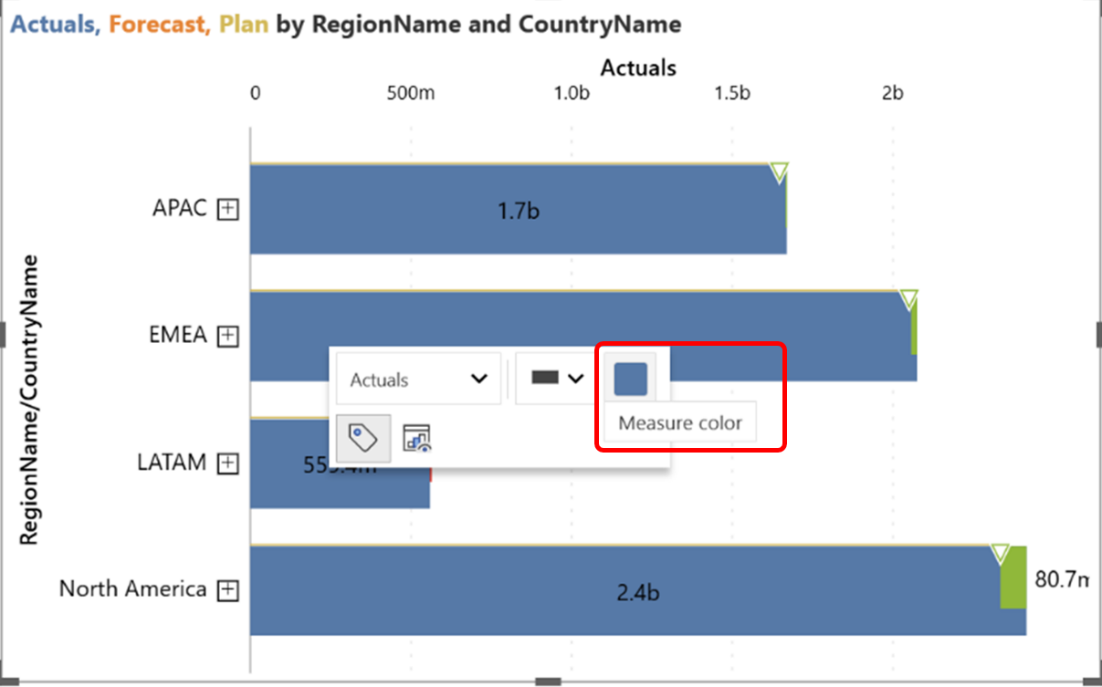
Thousands.Select a bar and set Series colours to
#3f7aab.
Build a grouped line chart
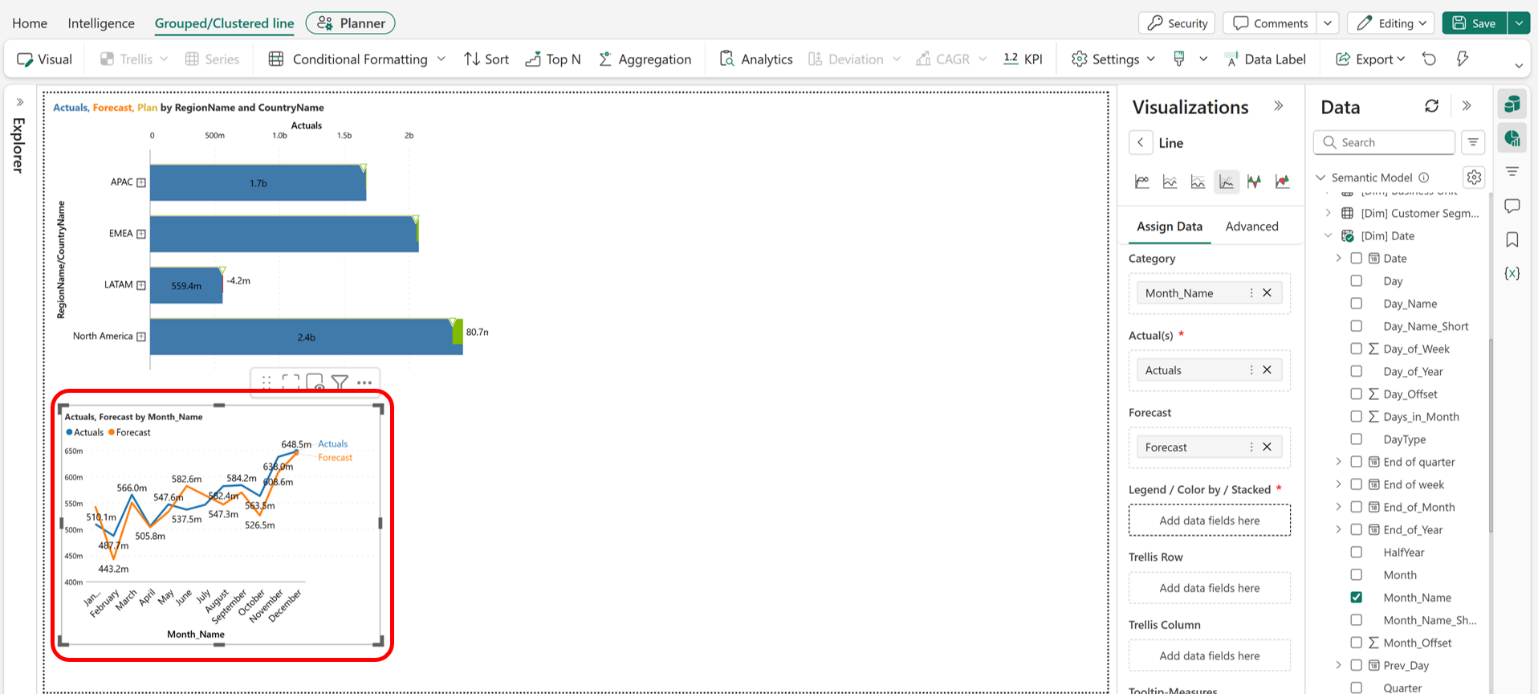
Add a grouped line chart to compare actuals and forecast over time.
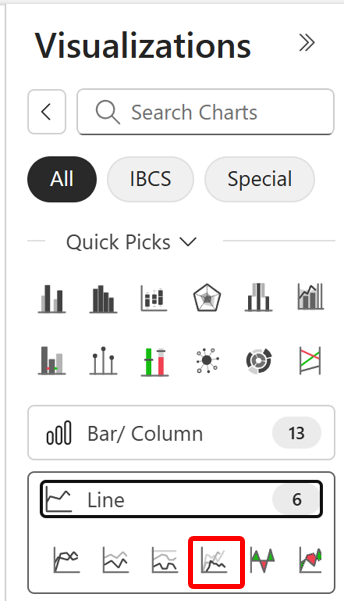
- In the Visualizations pane, select Charts 100+, expand Line, and select Grouped line.
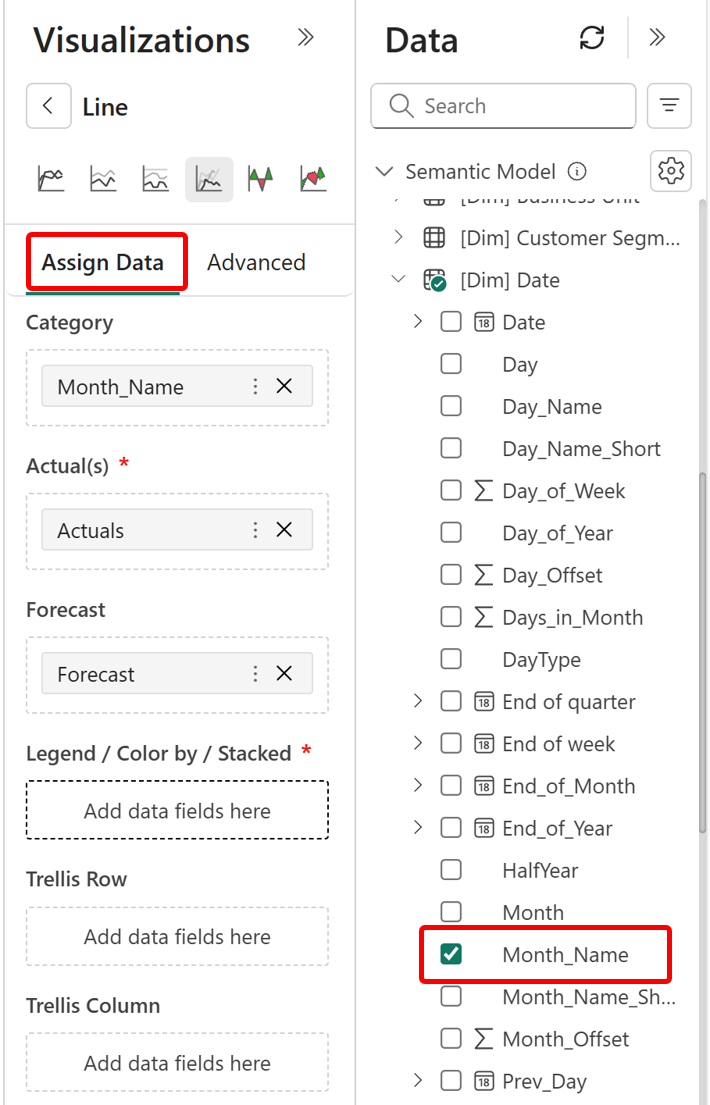
In the field well, map:
- Actuals:
Measures > Financial > Base Measures > Actuals - Forecast:
Measures > Financial > Base Measures > Forecast - Category:
Dim Date > Month-Name
- Actuals:
The chart shows how Actuals and Forecast change over the selected time range.
Add a KPI card
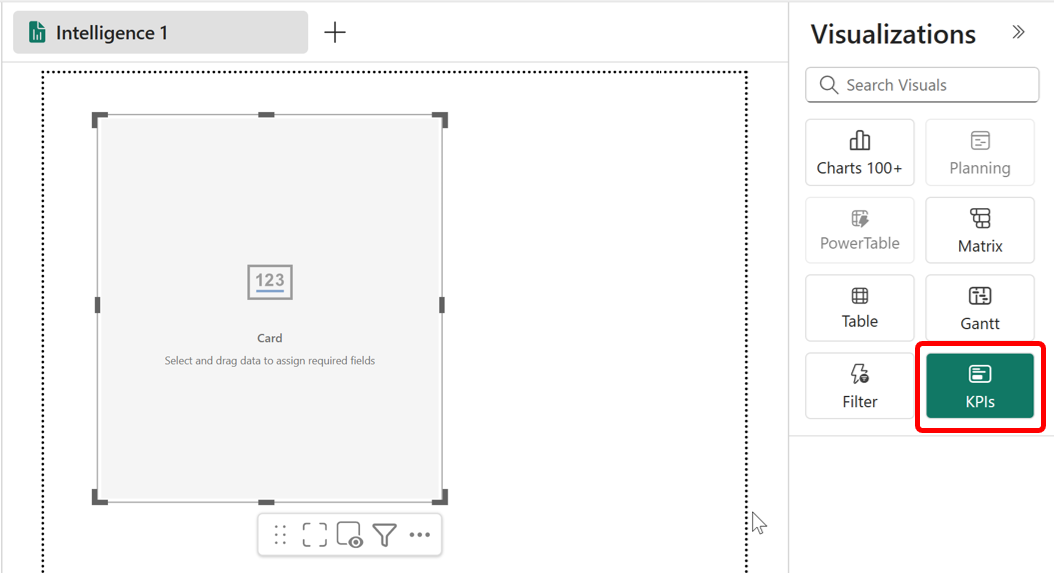
Add a KPI card to compare Actuals and Plan for each product.
- In the Visualizations pane, select KPI.
In the field well, map:
- Values (Actuals):
Measures > Financial > Base Measures > Actuals - Comparison 2 (vs Actuals):
Measures > Financial > Base Measures > Plan - Trellis Row:
Dim Product > ProductName
- Values (Actuals):
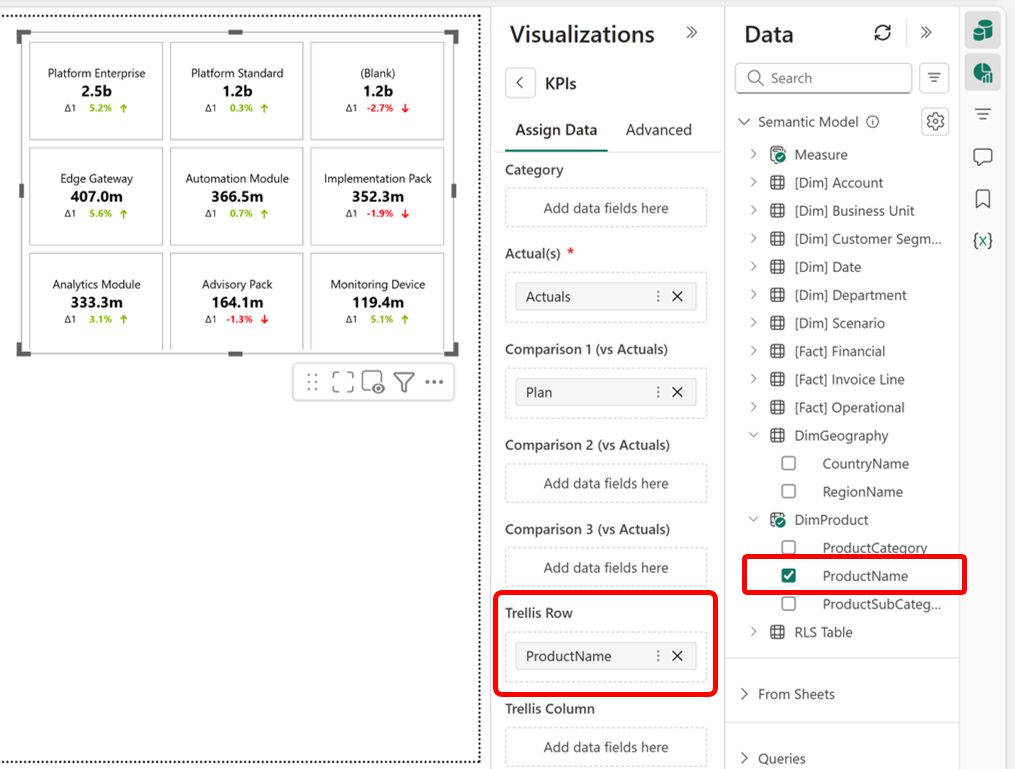
The KPI card tiles into one panel per product, providing an at-a-glance comparison across the product portfolio.
Add a matrix
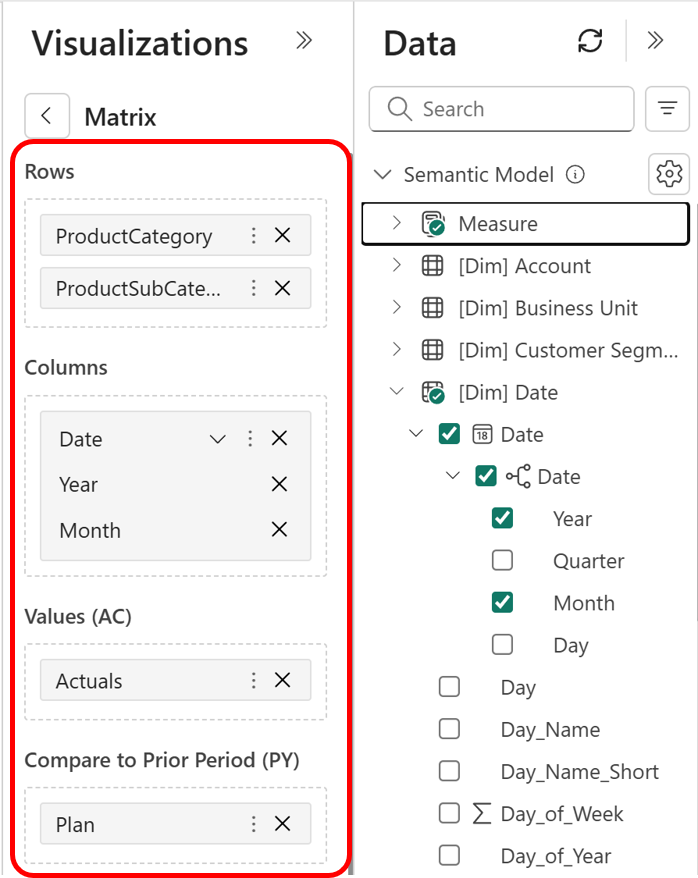
Add a matrix to compare Actuals and Plan by product category and subcategory over time.
In the Visualizations pane, select Matrix.
In the field well, map:
- Rows:
ProductCategory,ProductSubCategory - Columns:
Date > Year,Month - Values (Actuals):
Actuals - Compare to Prior Period (PY):
Plan
- Rows:
- On the Matrix tab, select Show Columns, and then enable Variance and Variance %.
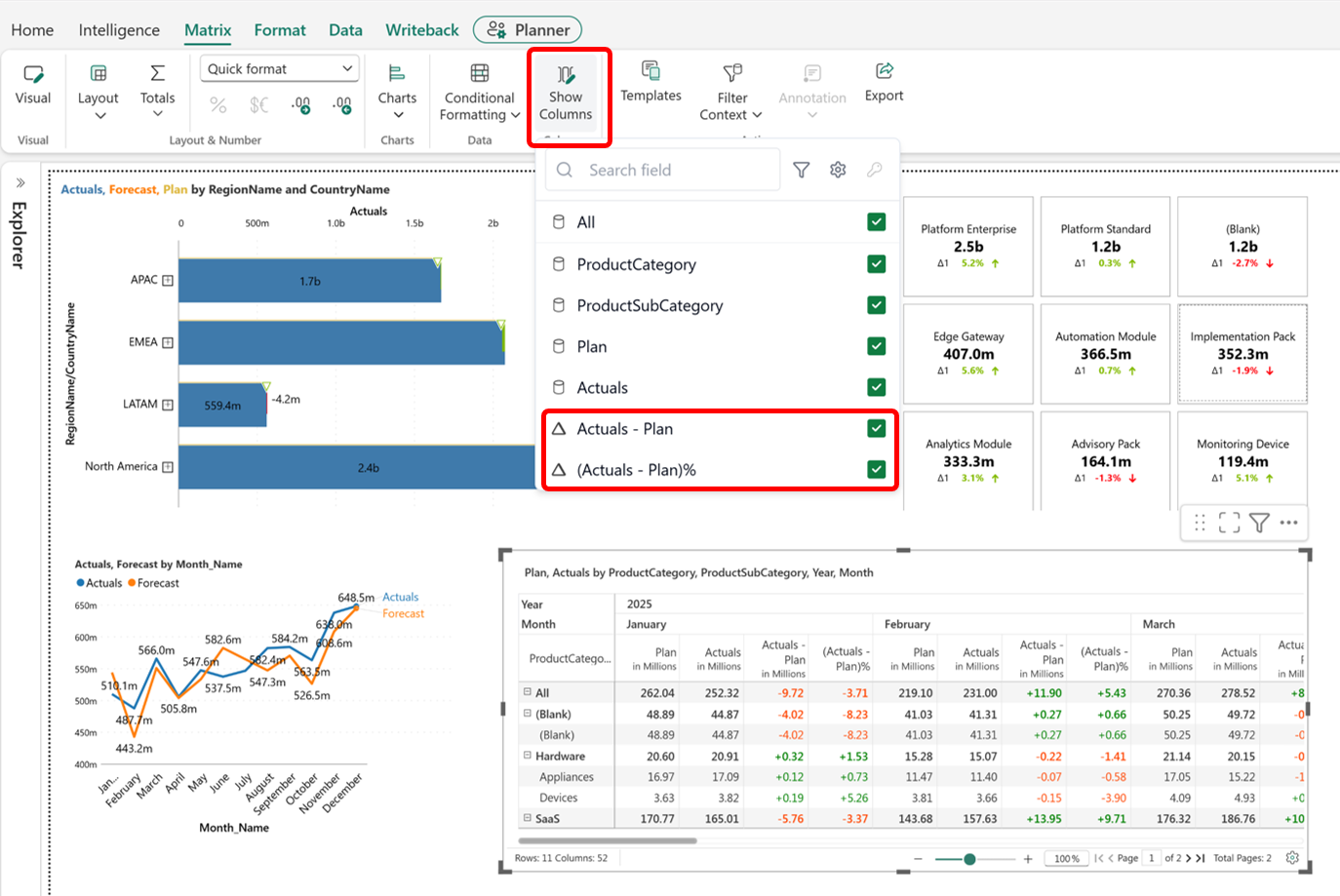
The variance and variance percentage columns are added automatically.
Add a date filter
Add a Super Filter visual that users can use to select a date range for the dashboard.
- In the Visualizations pane, select Super Filter.

Map the
Datedimension to the field well.Select the pencil icon to open the properties for the Super Filter.

In Properties, set the filter Type to Date.
Set the date mode to Calendar.

- Select a date range in the Super Filter.
The variance chart, grouped line chart, KPI card, and matrix update to reflect the selected period.

Add a dashboard header
Add a title to identify the dashboard.
- On the Intelligence tab, select Elements > Text.
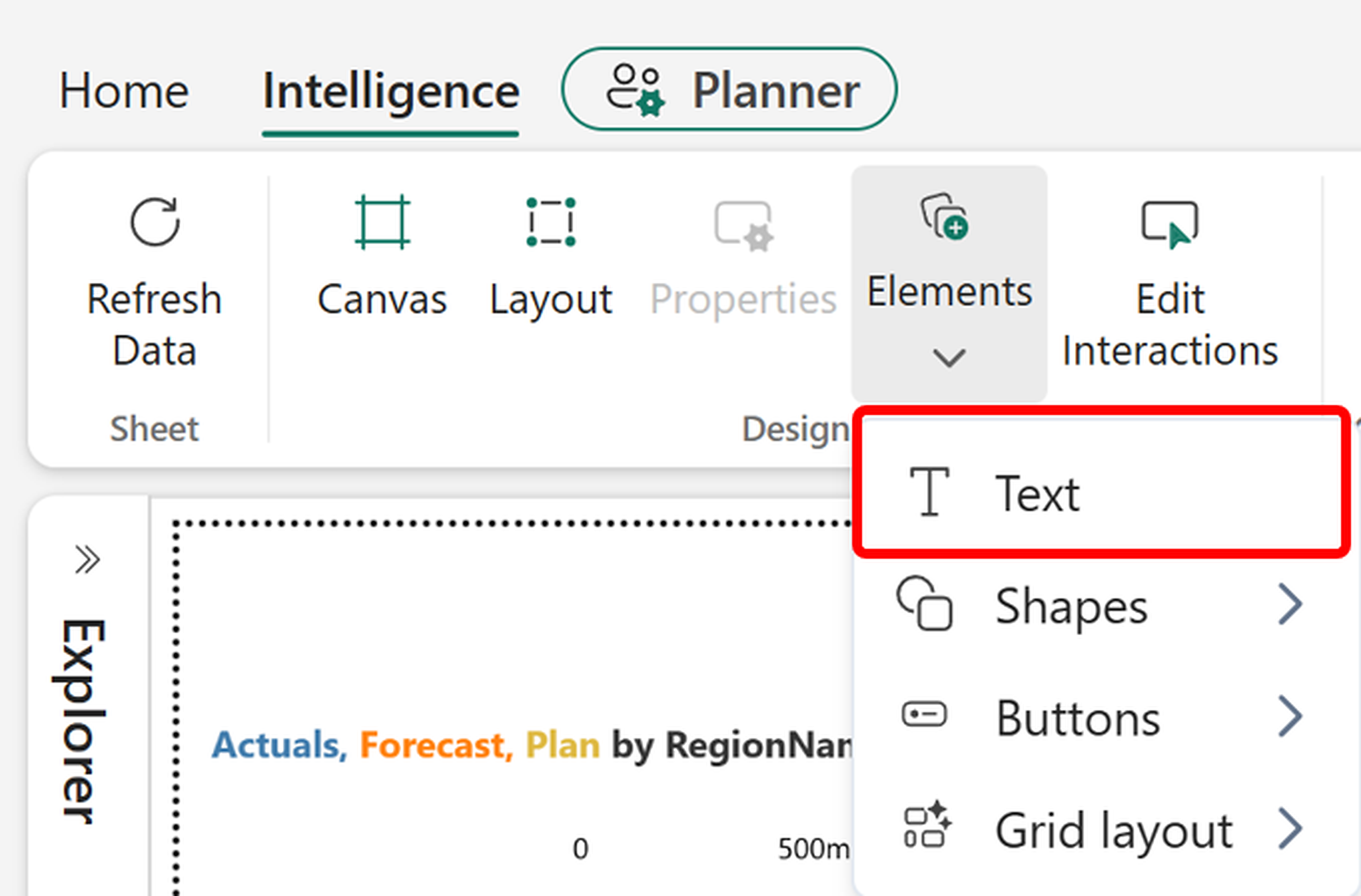
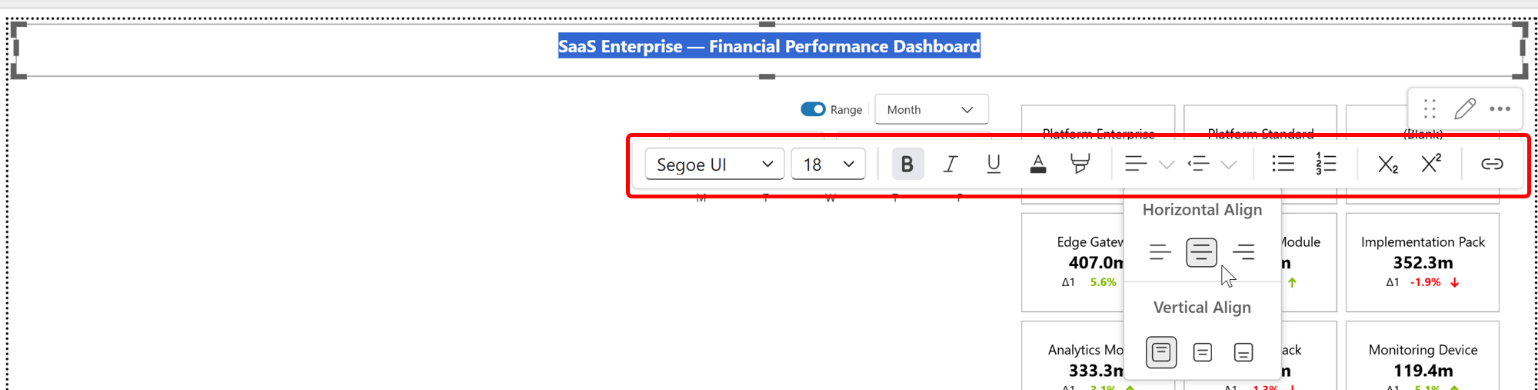
Enter
SaaS Enterprise - Financial Performance Dashboard.Use the formatting options to increase the font size and apply bold formatting.
Position the text box at the top of the canvas.
Add a comment
Add a comment to a data point and tag a colleague.
Select a cell or data point in the matrix.
On the top ribbon, select Comments, and then select Add new comment.
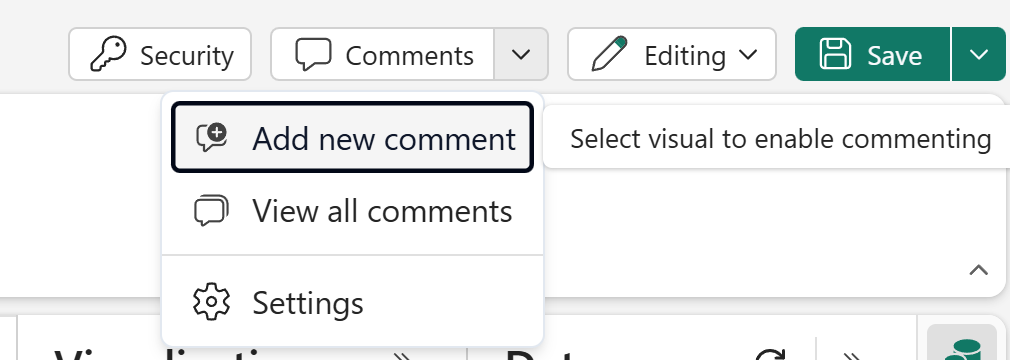
Enter a comment and use
@followed by a colleague's name to tag them.Press Enter to post the comment.
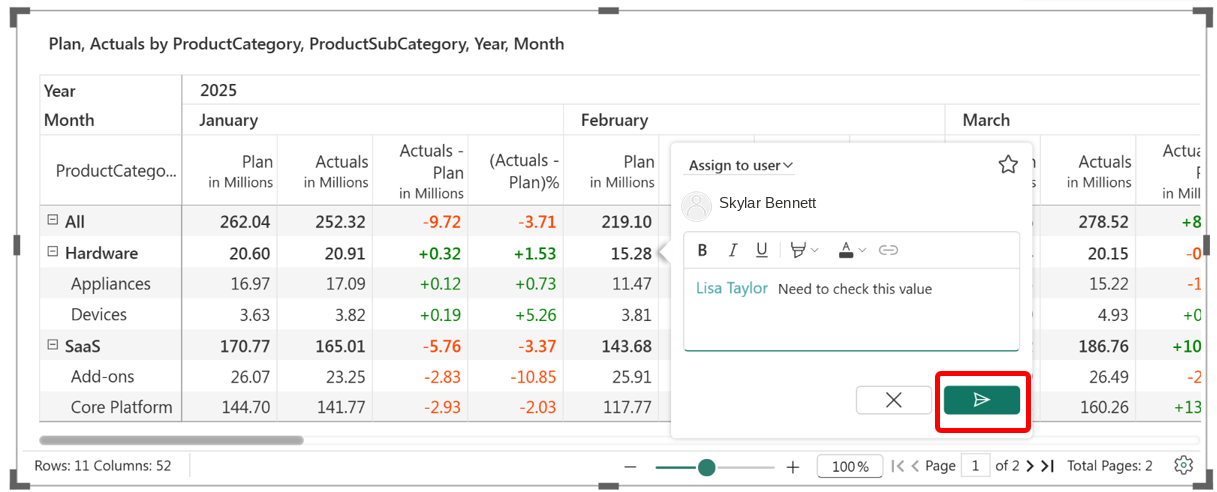
Commentary in intelligence sheets is context-aware and respects the current filter state. You can add comments at the cell, row, column, or report level.
Outcome
You now have an interactive enterprise dashboard that:
- Connects an intelligence sheet to the SaaS Enterprise semantic model.
- Uses the Intelligence tab and visual-level controls to configure the canvas and visuals.
- Includes a variance chart with drill-down and formatting.
- Includes a grouped line chart, KPI card, and matrix.
- Uses a date filter to update the dashboard visuals.
- Includes a dashboard header.
- Uses comments to collaborate with colleagues.