Note
Access to this page requires authorization. You can try signing in or changing directories.
Access to this page requires authorization. You can try changing directories.
Automation in PowerTable helps you reduce repetitive tasks and streamline business processes by automatically running predefined actions when specific events occur. Instead of performing routine tasks manually, you can configure automation workflows that run these tasks automatically when specified data changes or user interactions occur.
Automation helps maintain data consistency across related tables, reduces manual effort, and ensures that business processes run consistently. Data changes, user actions, form submissions, and other events can trigger workflows, so PowerTable can respond automatically to changes in your data.
Automation capabilities
Use PowerTable automations to:
- Trigger actions when users create, update, or delete records, submit forms, or select button columns.
- Create, update, or delete records automatically in response to data changes or business events.
- Synchronize changes across related and dependent tables.
- Perform cascading updates to maintain data consistency across tables.
- Process multiple records across one or more tables by using a single workflow.
- Perform bulk record operations by using a repeating group.
- Use a conditional group to execute different actions based on specified conditions.
How automation works
An automation workflow consists of the following components: a trigger and one or more actions defined by using logic.
| Component | Description |
|---|---|
| Trigger | Starts the workflow when a specified event occurs. |
| Action | Performs one or more tasks when the trigger happens. |
| Logic | Controls how and when actions run by using conditional or repeating groups. |
When a trigger event occurs, PowerTable automatically runs one or more configured actions based on the logic you set.
Triggers
Triggers define when an automation workflow runs. The supported trigger events include:
- Record creation
- Record updates
- Record deletion
- Form submissions
- Button clicks
Refine triggers further by defining conditions or rules that determine when the trigger should start.
Actions
Actions define what happens after a trigger occurs. After a trigger starts the workflow, automation can perform one or more actions:
- Create Record
- Update Record
- Delete Record
- Find Record(s)
- Bulk Create Records
- Execute Stored Procedure
You can combine multiple actions within a single workflow to automate complex business processes.
Basic automation workflow
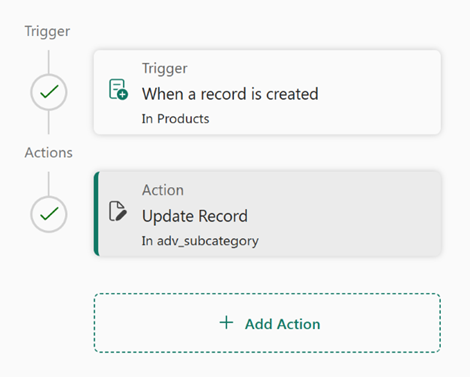
The following image shows a simple trigger-action automation workflow. Whenever a user creates a record in the Products table, the workflow triggers. It then executes the action of updating the relevant record in the advsubcategory table.
You can optionally configure conditions for triggers and actions so that they run only when the specified conditions are met.
Set up an advanced flow using logic
PowerTable supports two advanced action options to configure the logic: Conditional Group and Repeating Group.
Conditional Group enables branching logic by evaluating one or more conditions and running different sets of actions based on whether those conditions are met.
The following image shows a Conditional Group in an automation workflow that uses an If/Otherwise branch to determine which action to run based on the available quantity.
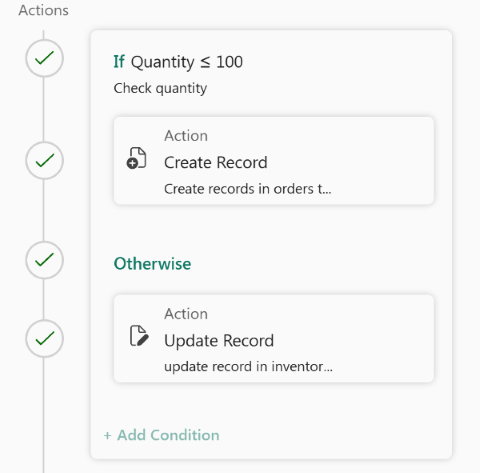
If the quantity is less than or equal to 100, the workflow runs the Create Record action to create a new record in the Orders table. Otherwise, the workflow runs the Update Record action to update the corresponding record in the Inventory table. You can add extra conditions to the conditional group by selecting + Add Condition.
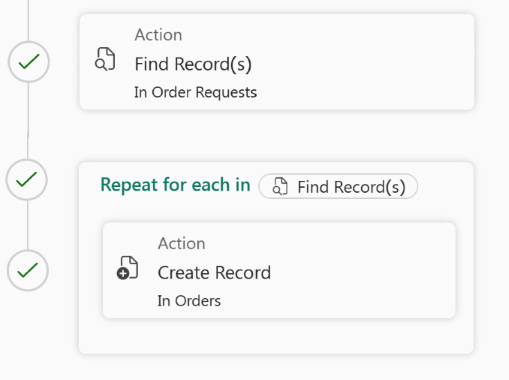
Repeating Group processes multiple records by repeating the same set of actions for each record returned by a Find Record(s) action.
In the following image, the Find Record(s) action retrieves records from the Order Requests table, and the repeating group executes the Create Record action once for each retrieved record to create corresponding records in the Orders table.
Benefits of automation
Automation helps organizations:
- Reduce manual and repetitive work.
- Ensure dependent tables stay synchronized.
- Improve data quality and consistency.
- Minimize errors from manual updates.
- Standardize business processes across teams.
- Scale operational workflows without code.
Automation workflow
An automation workflow performs the following steps:
- A trigger event occurs.
- The workflow evaluates the configured trigger conditions.
- If the conditions are true, the workflow runs the configured action or actions.
- The workflow updates the related records and tables.
- The workflow completes automatically without user intervention.
By combining triggers, actions, and logic, automation helps you automate repetitive business processes, improve data consistency, and perform complex operations with minimal manual effort.
Next steps
- To learn about workflow triggers and actions in detail and how to configure them, see Configure automation workflows.
- To learn how to build a complete automation workflow by using a sample scenario, see Create a sample automation.