Note
Access to this page requires authorization. You can try signing in or changing directories.
Access to this page requires authorization. You can try changing directories.
Use the REFRESH_REPORT function to refresh the entire report when a user runs a script in a planning item. For example, configure a button that refreshes the report when a user selects it.
Syntax
The following syntax refreshes the entire report.
REFRESH_REPORT()
Example
The following example configures a button that refreshes the report when a user selects it.
REFRESH_REPORT()
Configure a button to refresh a report
- Open the planning item and create or edit an action parameter.
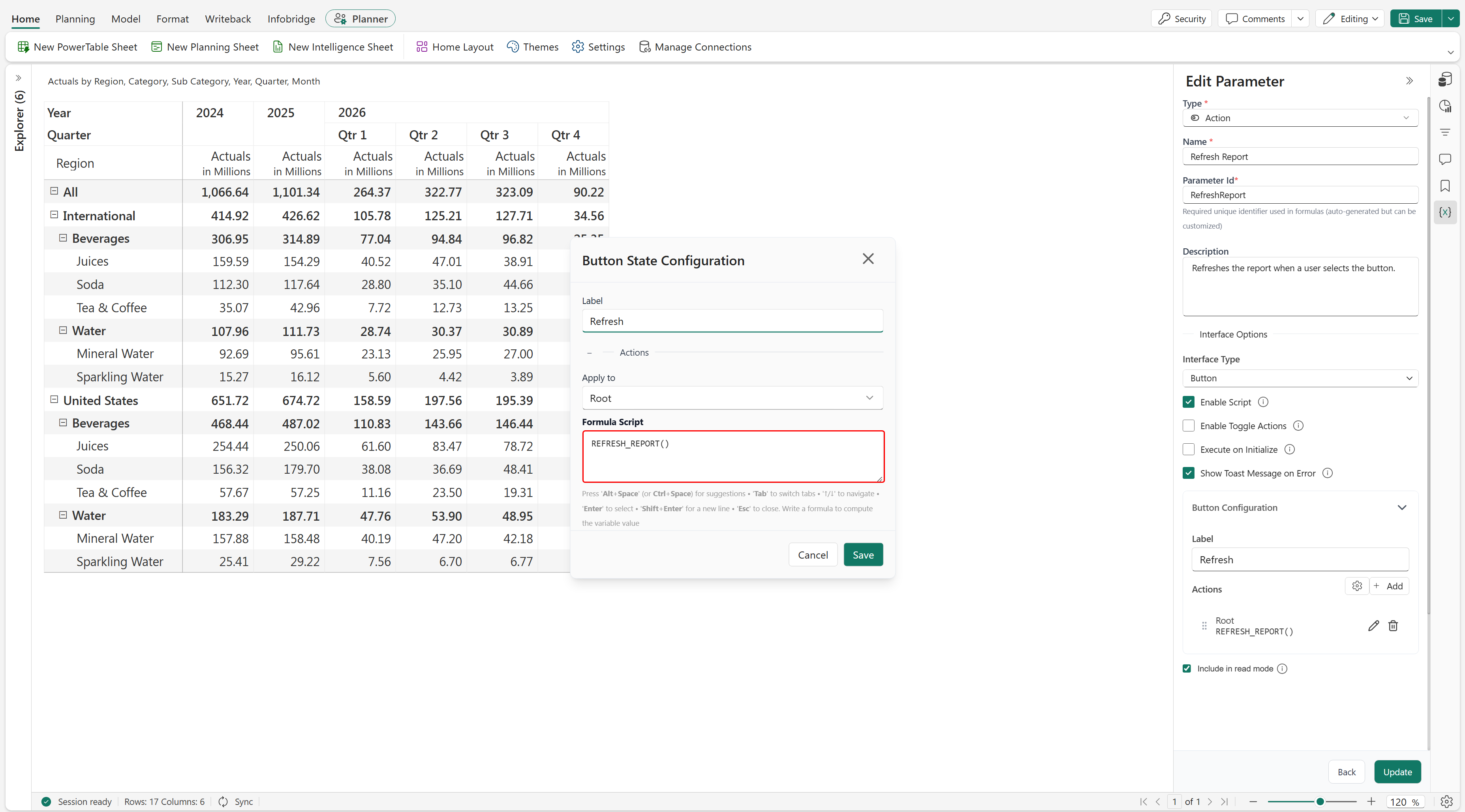
- In the Edit Parameter pane, set Type to Action, enter a name such as Refresh Report, and provide a description such as Refreshes the report when a user selects the button.
- Under Interface Options, set Interface Type to Button and select Enable Script.
- Under Button Configuration, set Label to Refresh.
- Add an action, set Apply to to Root, and enter
REFRESH_REPORT()in Formula Script. - Select Save in the Button State Configuration window, and then select Update in the Edit Parameter pane.
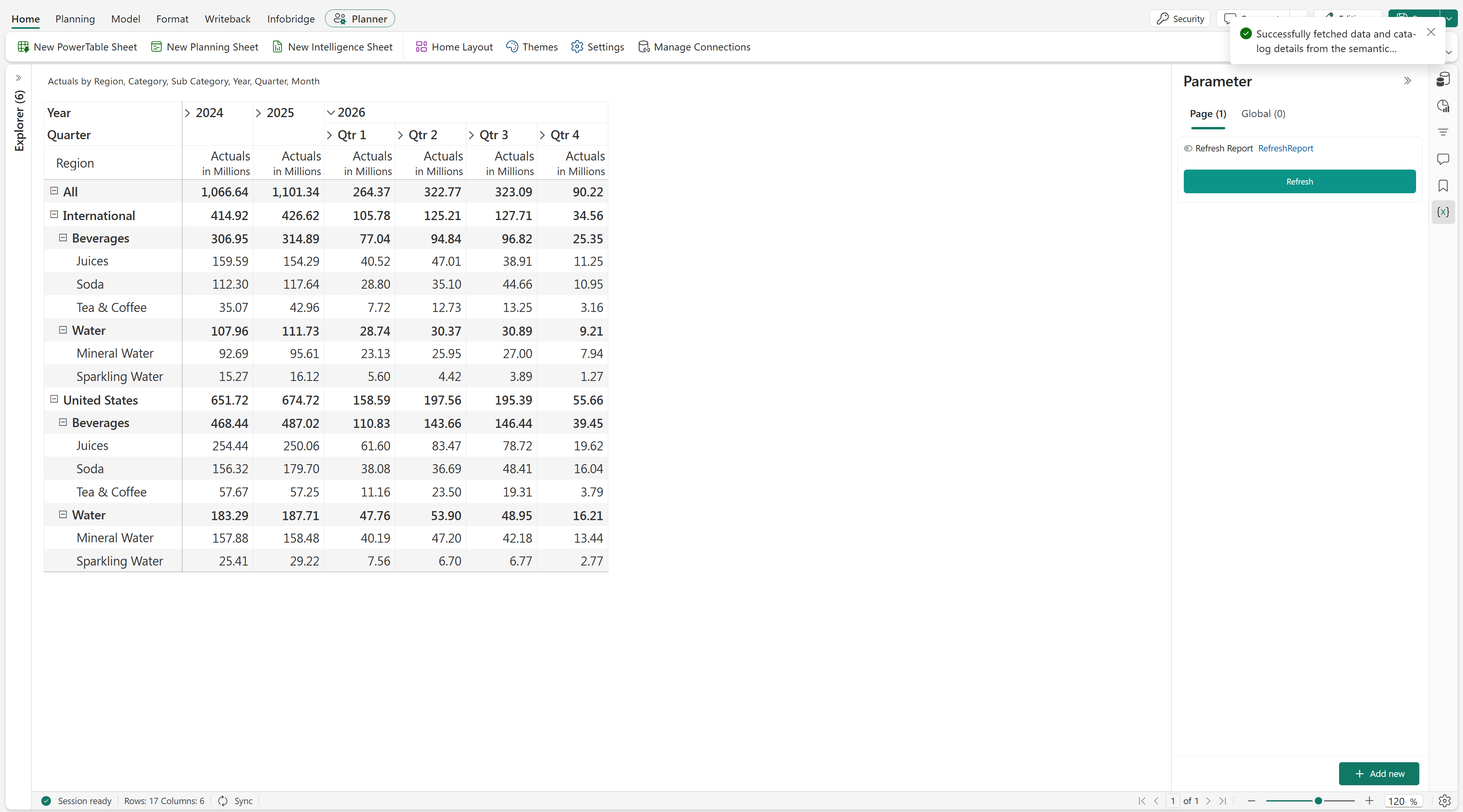
- In the Parameter pane, select Refresh to run the script and refresh the report.
After you select the Refresh button, the report refreshes and the updated data appears in the report.