Note
Access to this page requires authorization. You can try signing in or changing directories.
Access to this page requires authorization. You can try changing directories.
Use SETFILTER to apply a saved filter to a planning sheet. You can use the function in an action parameter so that users can apply a filter by selecting a button.
Syntax
SETFILTER(FILTER.Filter1)
Parameters
| Parameter | Description |
|---|---|
| FILTER.Filter1 | The reference to the saved filter to apply. Select the filter reference from the formula editor suggestions. Replace Filter1 with the applicable filter reference. |
Example
The following examples show how to create saved filters and apply them from buttons in a planning sheet.
Apply a filter for the International region
In this example, create a filter that displays records for the International region. Then configure an action button to apply the saved filter.
Open the planning sheet.
On the Planning ribbon, select Filter context, and then select Create Filter.
Enter International in Filter Name.
Configure the condition as Region is International.
Select Save.
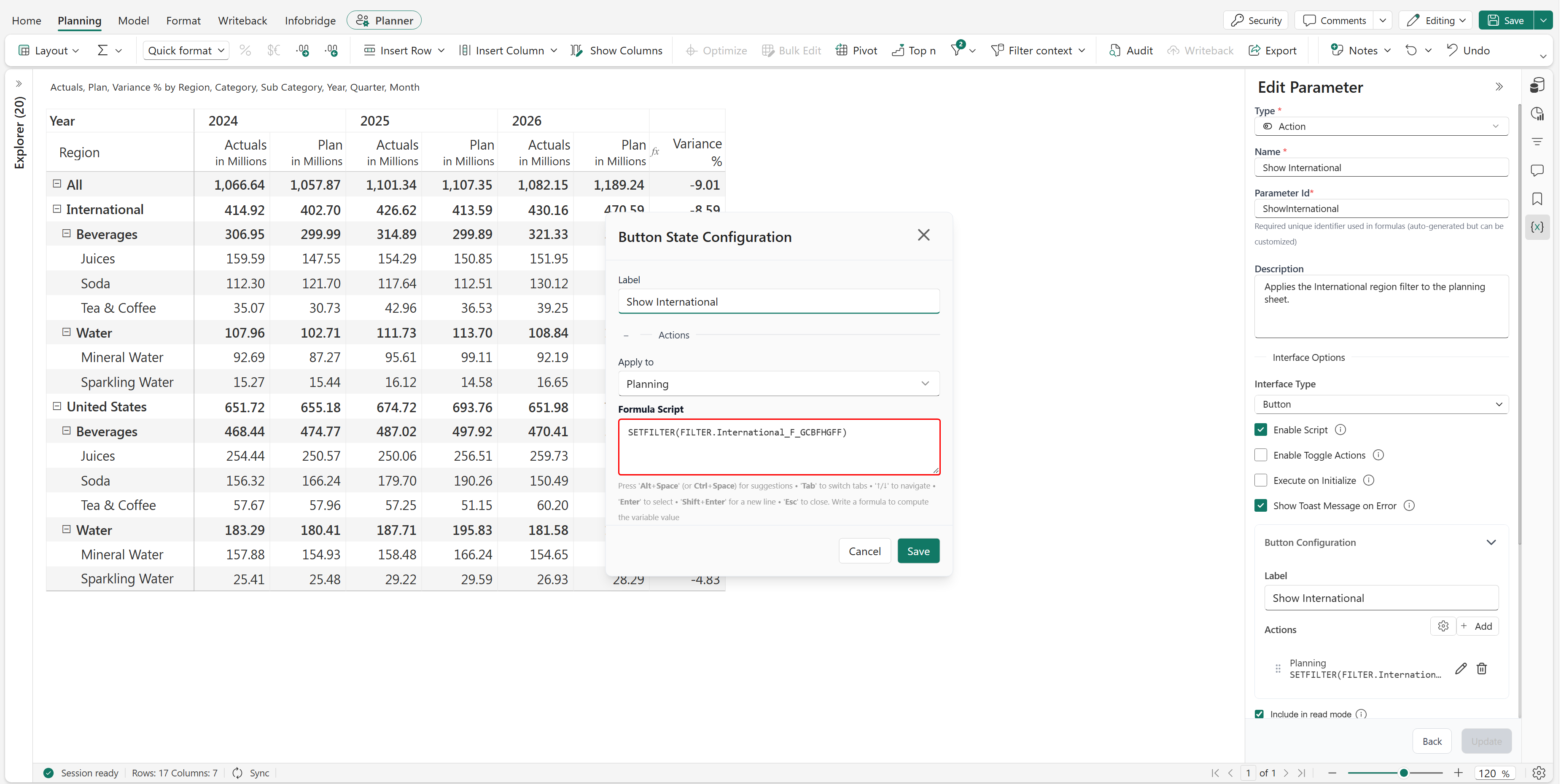
In the Parameter pane, select Add new, and set Type to Action.
Enter Show International in Name and ShowInternational in Parameter Id.
Optionally, enter a description such as Applies the International region filter to the planning sheet.
Set Interface Type to Button, and enable Enable Script.
In Button Configuration, set Label to Show International.
Add an action, set Apply to to Planning, and enter the following formula in Formula Script:
SETFILTER(FILTER.Filter1)In the formula editor, select the saved International filter reference from the suggestions. The generated filter identifier can differ between planning sheets.
Save the action parameter and save the planning sheet.
In the Parameter pane, select Show International.
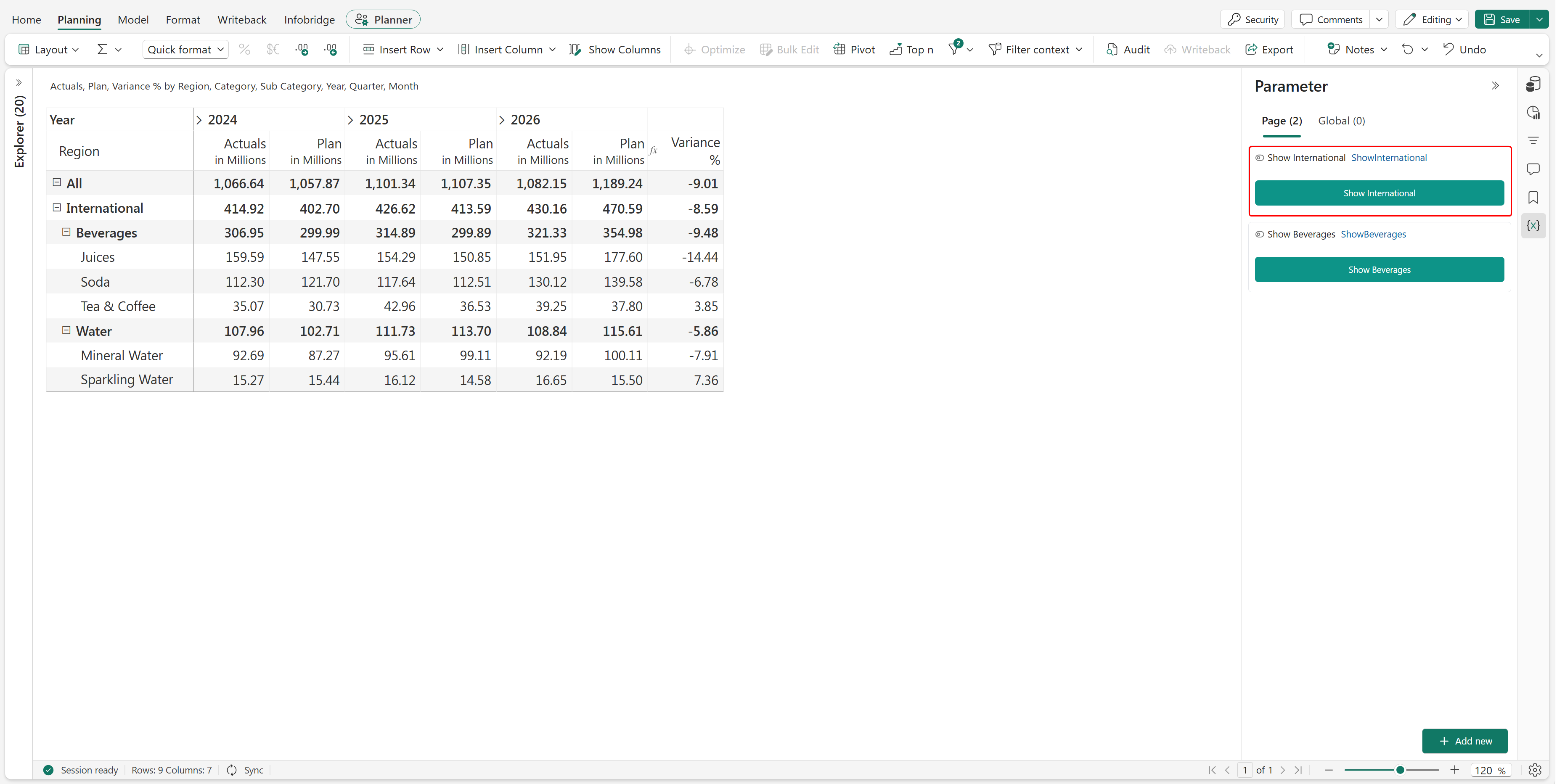
The planning sheet displays records for the International region.
Apply a filter for the Beverages category
In this example, create a filter that displays records in the Beverages category. Then configure a second action button to apply that filter.
On the Planning ribbon, select Filter context, and then select Create Filter.
Enter Beverages in Filter Name.
Configure the condition as Category is Beverages.
Select Save.
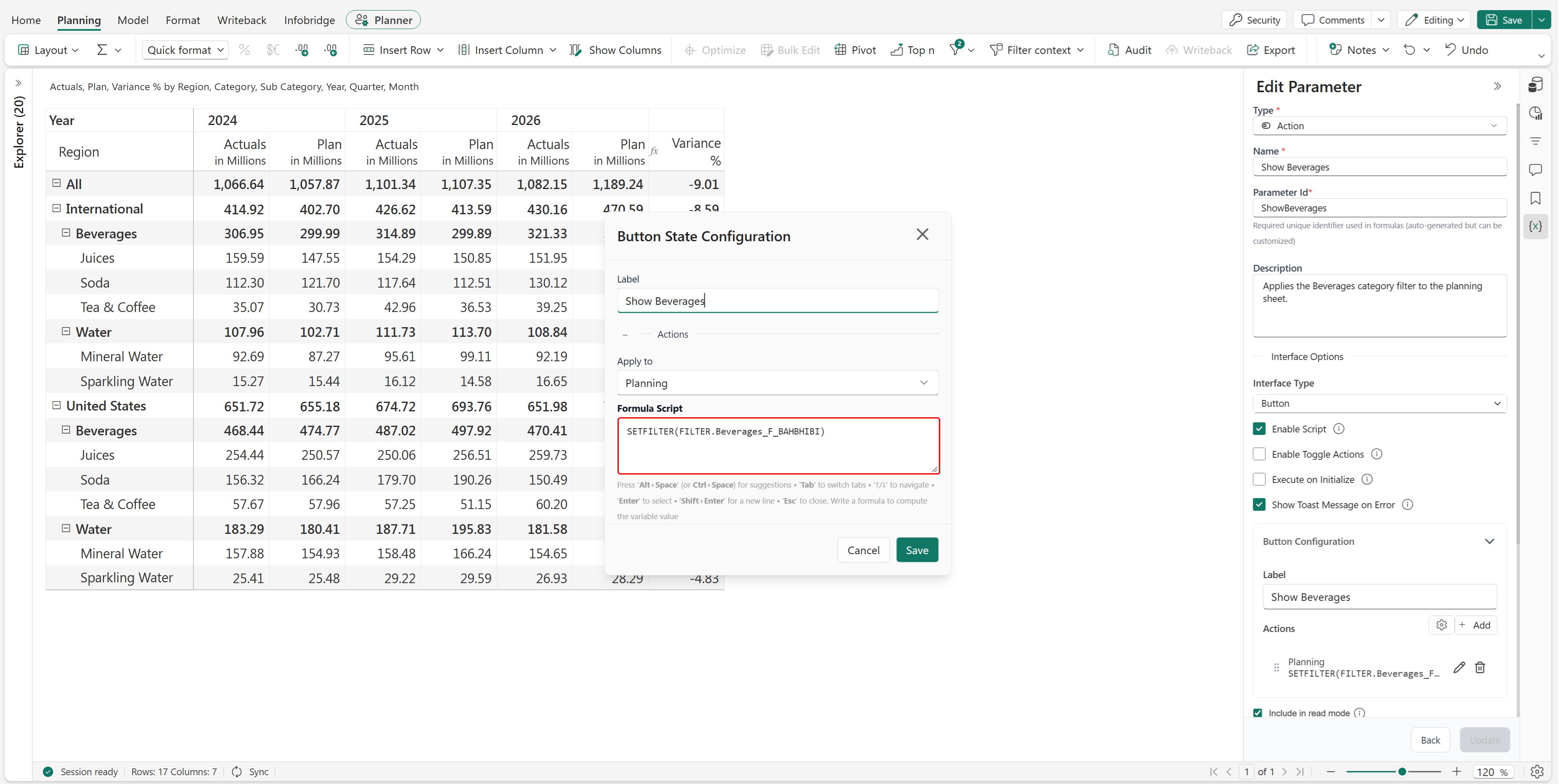
In the Parameter pane, select Add new, and set Type to Action.
Enter Show Beverages in Name and ShowBeverages in Parameter Id.
Optionally, enter a description such as Applies the Beverages category filter to the planning sheet.
Set Interface Type to Button, and enable Enable Script.
In Button Configuration, set Label to Show Beverages.
Add an action, set Apply to to Planning, and enter the following formula in Formula Script:
SETFILTER(FILTER.Filter1)In the formula editor, select the saved Beverages filter reference from the suggestions. The generated filter identifier can differ between planning sheets.
Save the action parameter and save the planning sheet.
In the Parameter pane, select Show Beverages.
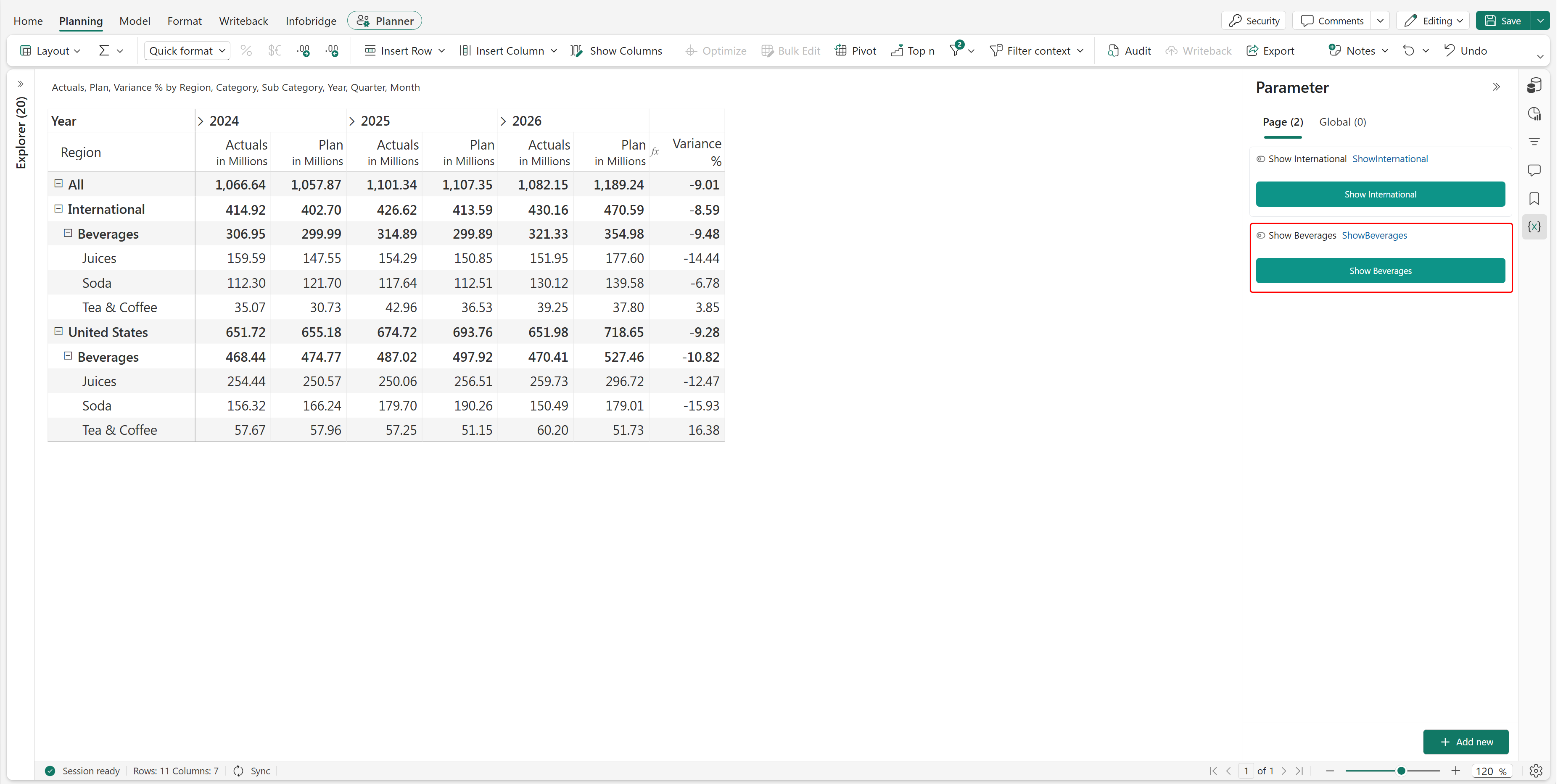
The planning sheet displays records in the Beverages category.
Configure the action parameter
Use the following settings for an action parameter that applies a saved filter:
| Setting | Recommended configuration |
|---|---|
| Type | Action |
| Interface Type | Button |
| Enable Script | Enabled |
| Enable Toggle Actions | Disabled for these examples |
| Execute on Initialize | Disabled so that the filter is applied when the user selects the button |
| Show Toast Message on Error | Enabled to display an error message if the action fails |
| Include in read mode | Enable if users should be able to apply the filter in read mode |
The button label should describe the filter action, such as Show International or Show Beverages.