Note
Access to this page requires authorization. You can try signing in or changing directories.
Access to this page requires authorization. You can try changing directories.
Use SETLAYOUT to apply a layout to a planning sheet. The function supports hierarchy, table, tree, default, measures-on-rows, and measures-on-columns layouts.
Syntax
SETLAYOUT(LAYOUT.layoutType)
Parameters
The following table lists the layout references available for the layoutType parameter.
| Parameter | Description |
|---|---|
| LAYOUT.HIERARCHY | Applies the Hierarchy layout. |
| LAYOUT.TABLE | Applies the Table layout. |
| LAYOUT.TREE | Applies the Tree layout. |
| LAYOUT.DEFAULT_LAYOUT | Applies the default layout. |
| LAYOUT.MoR | Displays measures on rows. |
| LAYOUT.MoC | Displays measures on columns. |
Examples
Use the following formulas to apply the required layout to a planning sheet.
To apply the Hierarchy layout:
SETLAYOUT(LAYOUT.HIERARCHY)
To apply the Table layout:
SETLAYOUT(LAYOUT.TABLE)
To apply the Tree layout:
SETLAYOUT(LAYOUT.TREE)
To apply the default layout:
SETLAYOUT(LAYOUT.DEFAULT_LAYOUT)
To display measures on rows:
SETLAYOUT(LAYOUT.MoR)
To display measures on columns:
SETLAYOUT(LAYOUT.MoC)
Configure the SETLAYOUT action
The following example configures a toggle parameter that switches between displaying measures on rows and columns.
In the planning sheet, create an action parameter.
In the Edit Parameter pane, configure the parameter as follows:
- Type: Action
- Name: Set Layout
- Parameter Id: SetLayout
- Description: Switch between displaying measures on rows and columns in the planning sheet.
- Interface Type: Toggle
In Interface Options, enable Enable Script and Include in read mode. Set Default State to Measures on Rows.
Configure the On State with the label Measures on Rows. Set Apply to to Planning, and enter the following formula in Formula Script:
SETLAYOUT(LAYOUT.MoR)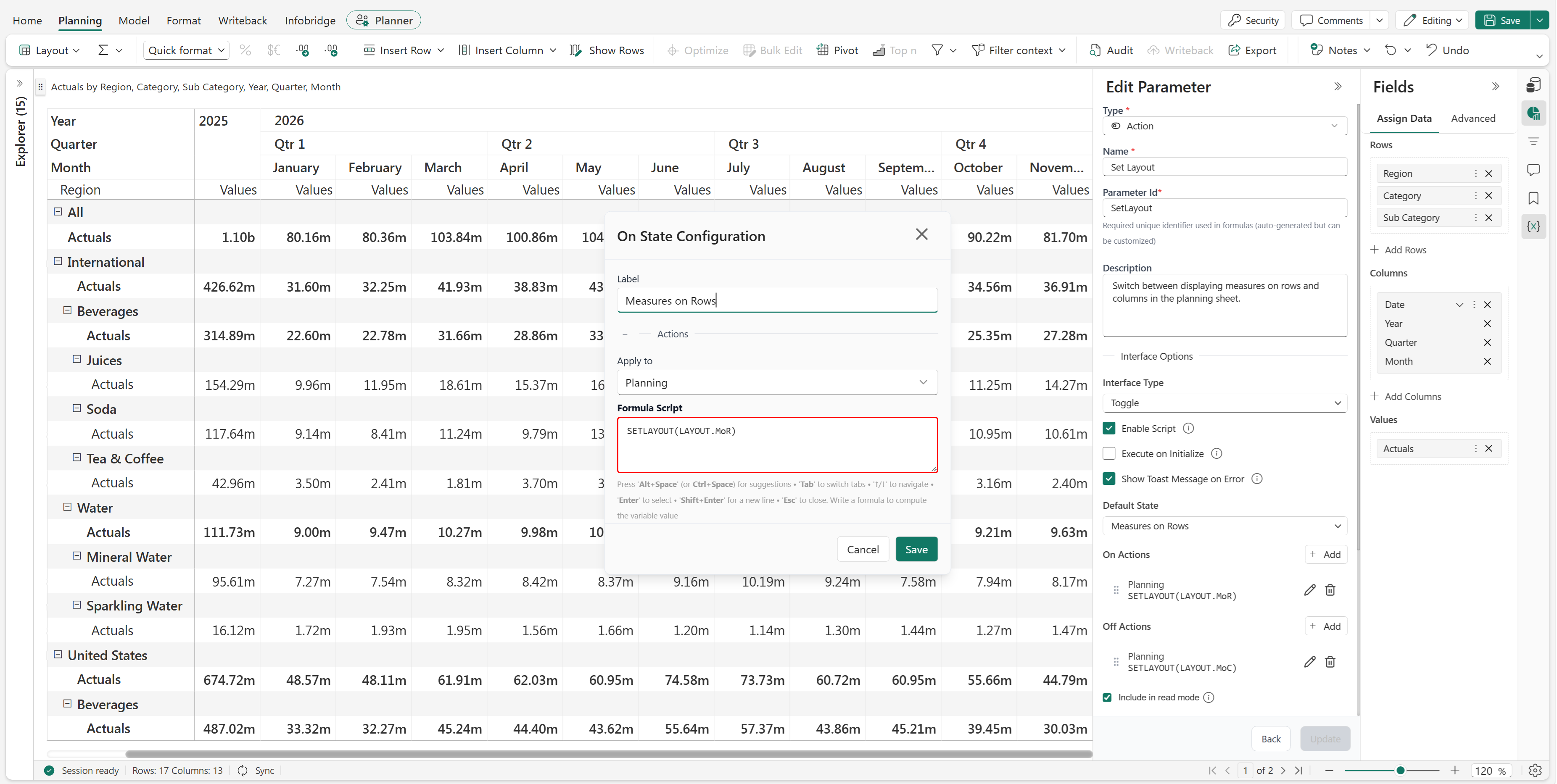
Configure the Off State with the label Measures on Columns. Set Apply to to Planning, and enter the following formula in Formula Script:
SETLAYOUT(LAYOUT.MoC)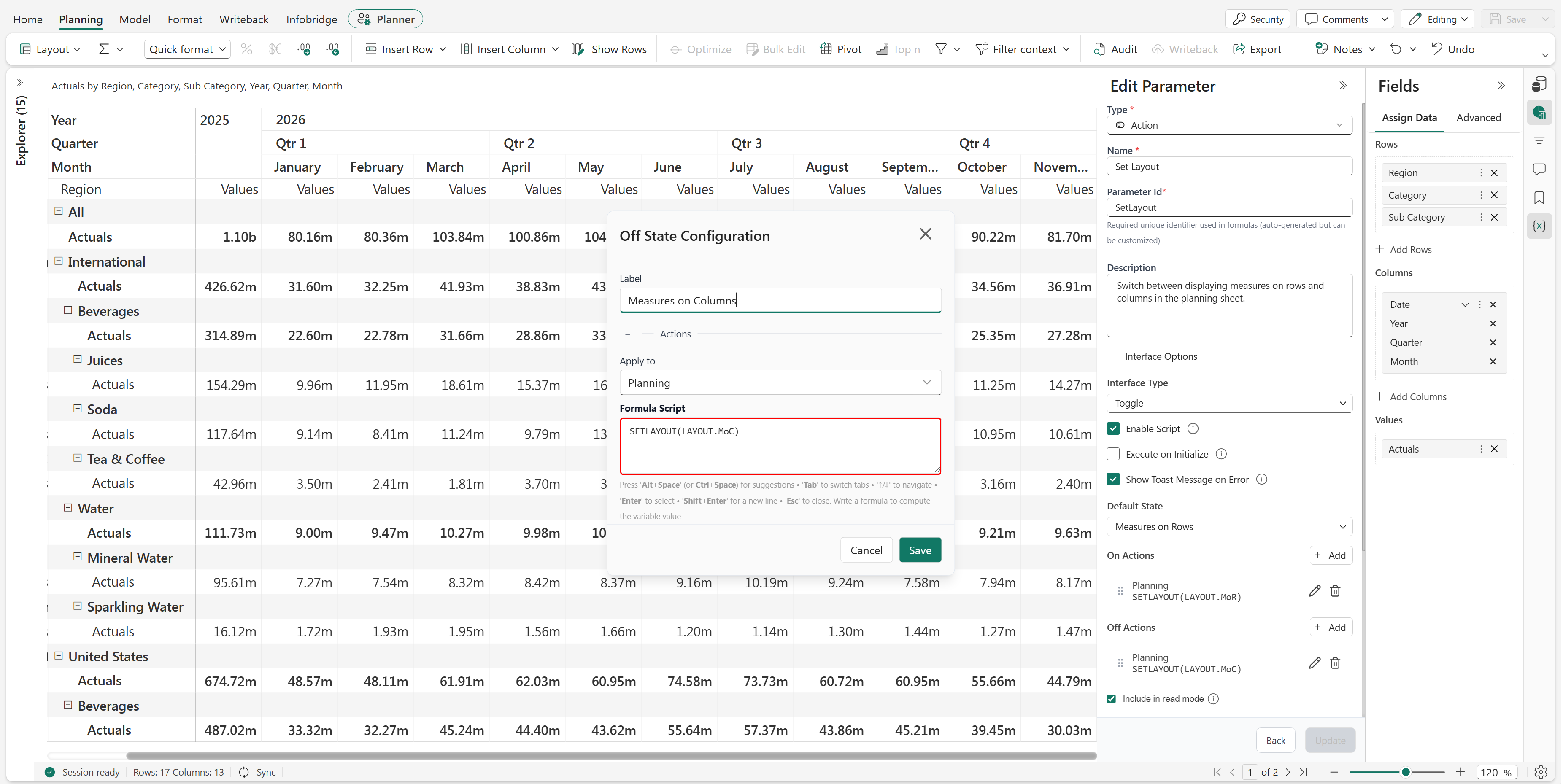
Save the action parameter and update the planning sheet.
Results
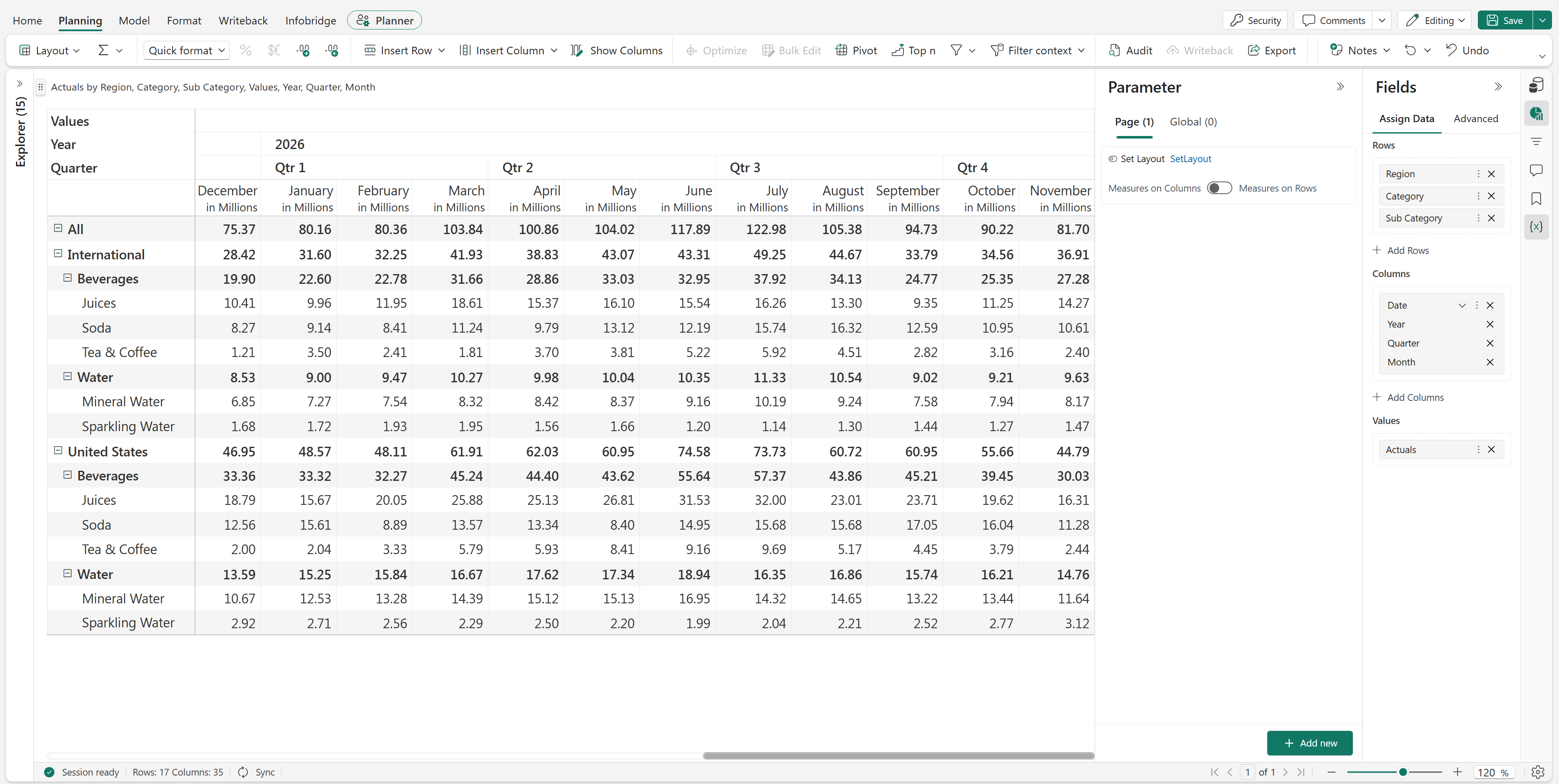
When the toggle is set to Measures on Rows, the planning sheet displays each measure as a row within the row hierarchy.
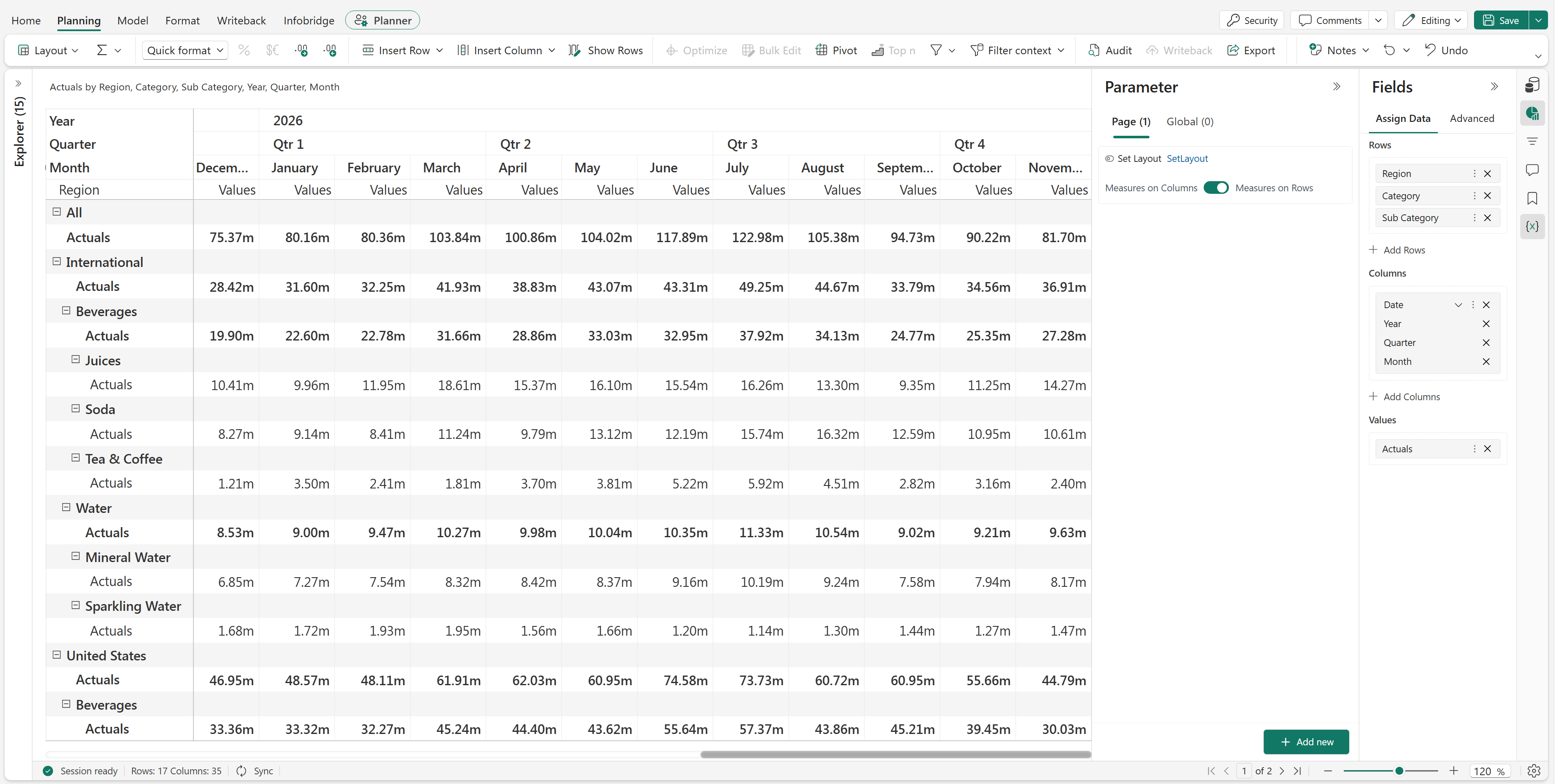
When the toggle is set to Measures on Columns, the planning sheet displays measure values across columns.