Note
Access to this page requires authorization. You can try signing in or changing directories.
Access to this page requires authorization. You can try changing directories.
Use SETNUMBERFORMATTING to switch the number formatting applied to values in a planning sheet. The function supports four formatting modes: Native, Uniform, Measure Level, and Auto.
Syntax
The following example switches the planning sheet to uniform number formatting.
SETNUMBERFORMATTING(NUMBERFORMATTING.UNIFORM)
Parameters
| Parameter | Description |
|---|---|
| NUMBERFORMATTING.NATIVE | Uses the native number formatting behavior. |
| NUMBERFORMATTING.UNIFORM | Applies uniform number formatting to values in the planning sheet. |
| NUMBERFORMATTING.MEASURELEVEL | Uses the number formatting configured for each measure. |
| NUMBERFORMATTING.AUTO | Uses automatic number formatting. |
The function accepts one formatting mode from the NUMBERFORMATTING reference. Select the mode that matches how you want values to appear in the planning sheet.
Example
Create a parameter that lets users switch between uniform number formatting and measure-level number formatting.
Open the planning sheet.
Open the Parameters pane and create a new parameter.
Set Type to Action.
Enter a name, such as Choose Number Format.
Set Interface Type to Toggle.
Enable Enable Script.
Set Default State to Uniform.
Add an action for each toggle state.
For the On state, set the label to Uniform and enter the following formula in Formula Script:
SETNUMBERFORMATTING(NUMBERFORMATTING.UNIFORM)
For the Off state, set the label to Measure level and enter the following formula in Formula Script:
SETNUMBERFORMATTING(NUMBERFORMATTING.MEASURELEVEL)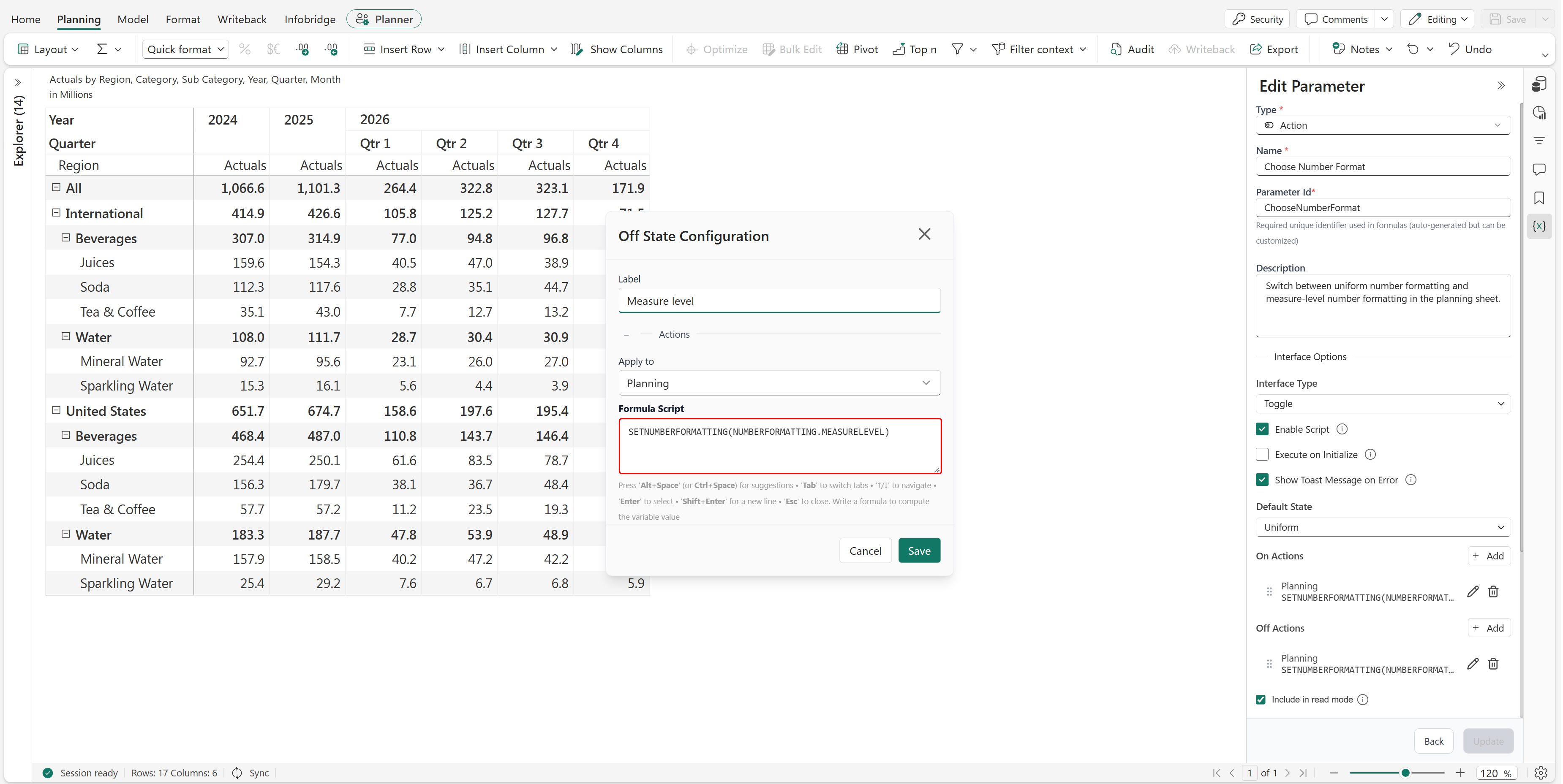
Select Include in read mode if users must be able to switch the formatting mode in read mode.
Save the parameter and update the planning sheet.
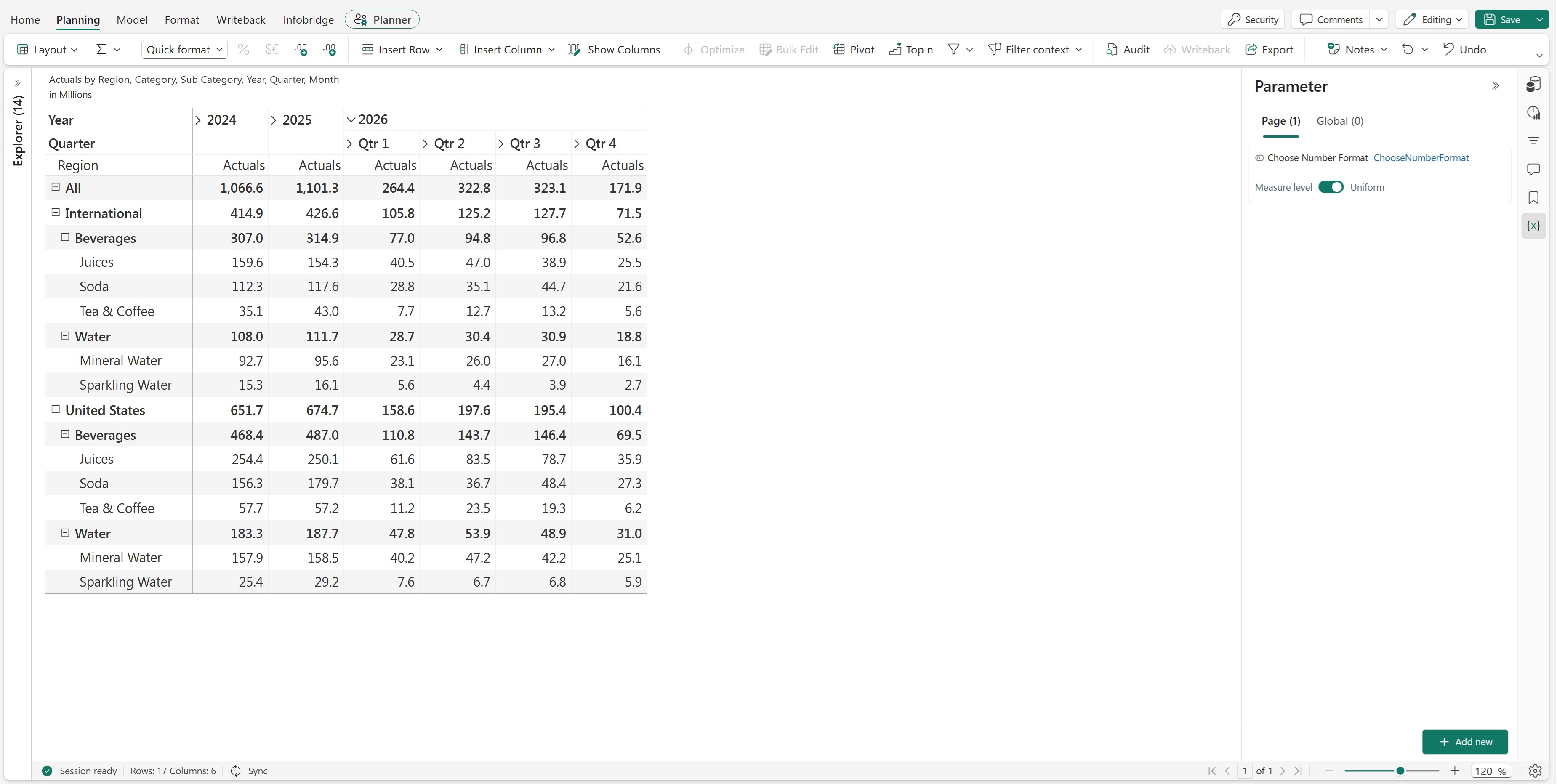
When the toggle is on, the planning sheet uses uniform number formatting. In the example, the values are displayed to one decimal place.
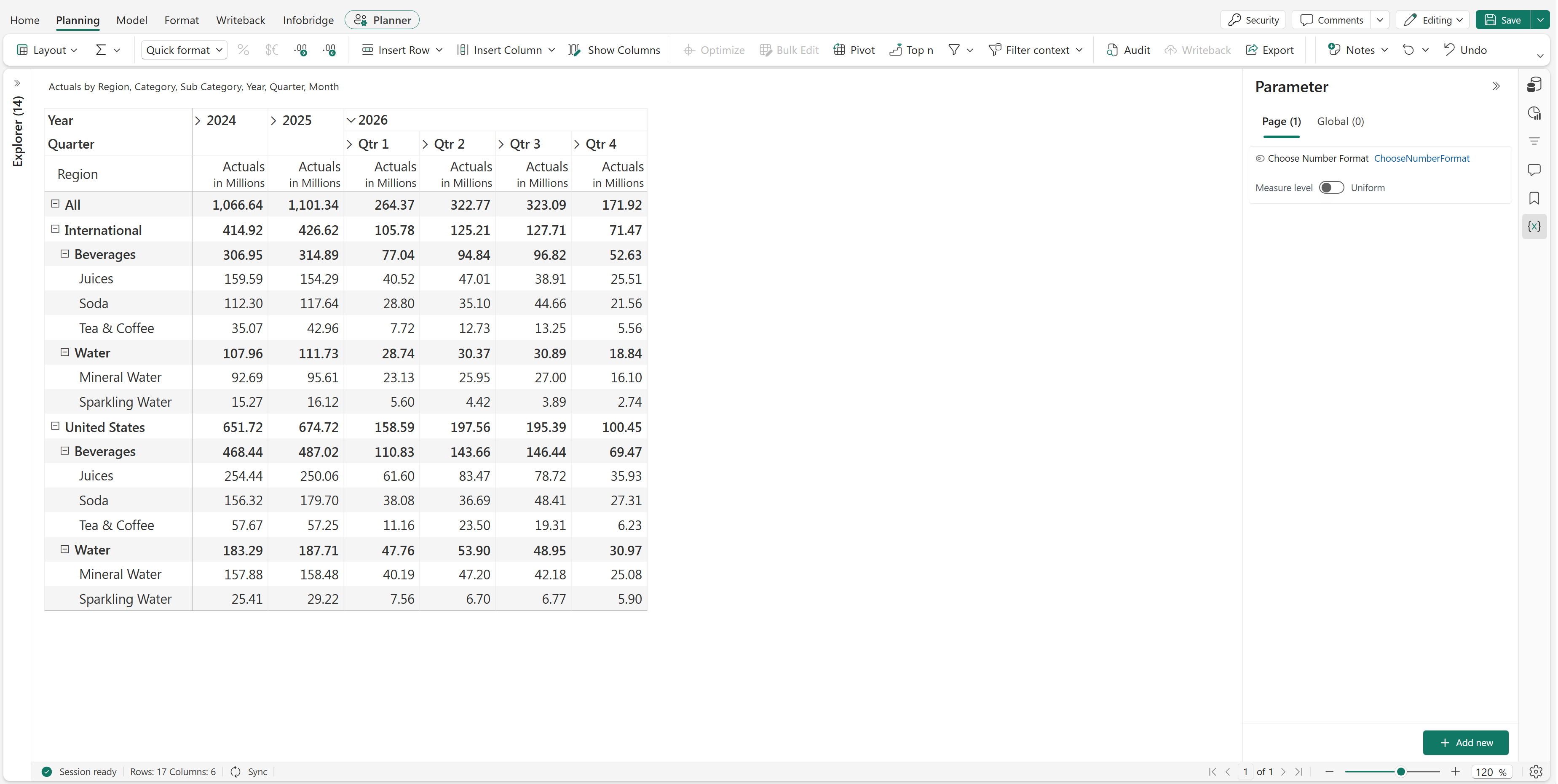
When the toggle is off, the planning sheet uses the number formatting configured at the measure level. In the example, the values retain two decimal places and the measure headers include the unit label.