Note
Access to this page requires authorization. You can try signing in or changing directories.
Access to this page requires authorization. You can try changing directories.
Use SETTOPBOTTOMN to filter the highest-ranking and lowest-ranking items within a category. You can apply the filter by specifying a number of items or a percentage. Items that don't meet the filtering criteria can be grouped under Others.
Syntax
SETTOPBOTTOMN(category, number, valueMode)
Parameters
| Parameter | Description |
|---|---|
| category | Specifies the category whose items you want to filter. |
| number | Specifies the number of items to display at the top and bottom when valueMode is TRUE, or the percentage to use when valueMode is FALSE. |
| valueMode | Specifies the filtering mode. Use TRUE to filter by a specified number of items or FALSE to filter by a percentage. |
Example
The following example creates a toggle parameter that switches between displaying the top and bottom 2 items by value and the top and bottom 5 percent of items in the Sub-Category dimension.
Create an action parameter in the planning sheet.
Set the Name to Set Top Bottom N and the Parameter Id to SetTopBottomN.
Enter the following description:
Applies Top N and Bottom N filtering to the selected category based on values or percentages.
Set the Interface Type to Toggle and enable Enable Script.
Configure the off state with the label Top/Bottom 5%. Set Apply to to Planning and enter the following formula in Formula Script:
SETTOPBOTTOMN(Sub-Category, 5, FALSE)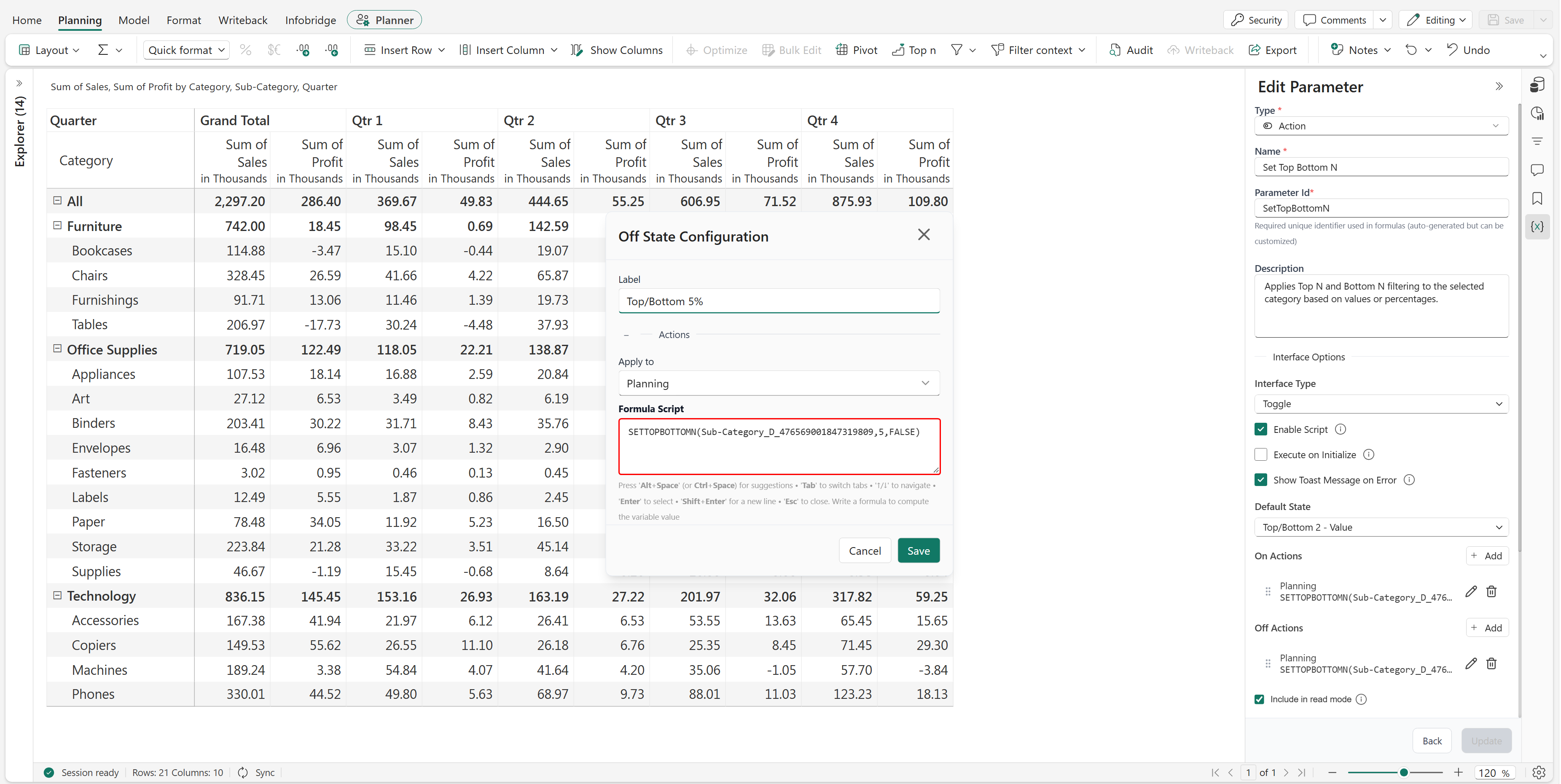
This configuration applies a percentage-based filter, displaying the top and bottom 5 percent of items in the Sub-Category dimension.
Configure the on state with the label Top/Bottom 2 - Value. Set Apply to to Planning and enter the following formula in Formula Script:
SETTOPBOTTOMN(Sub-Category, 2, TRUE)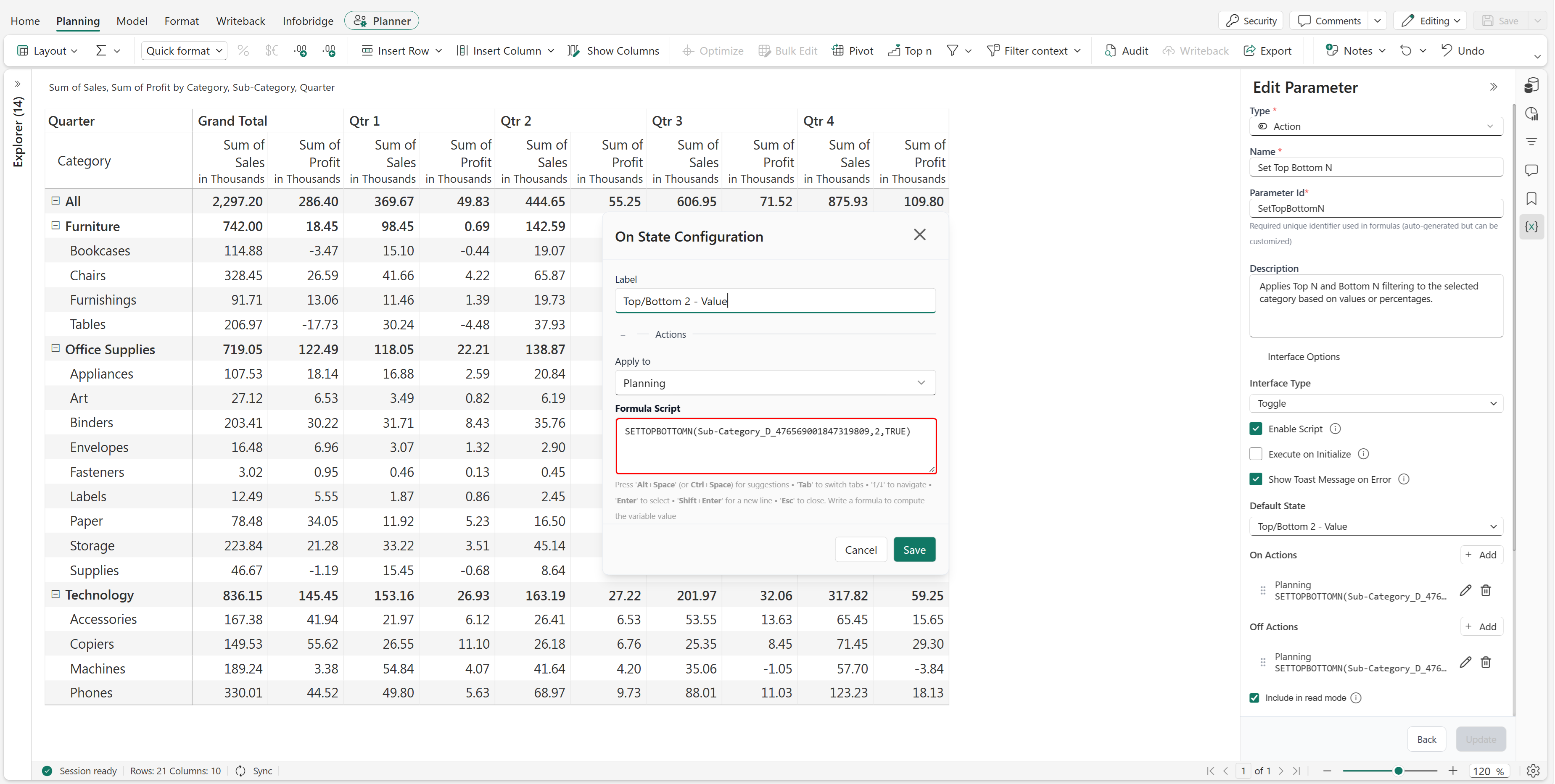
This configuration displays the two highest and two lowest items by value in the Sub-Category dimension.
Set the Default State to Top/Bottom 2 - Value and enable Include in read mode.
Save the parameter configuration and add the parameter to the planning sheet.
Turn off the toggle to apply the percentage-based filter.
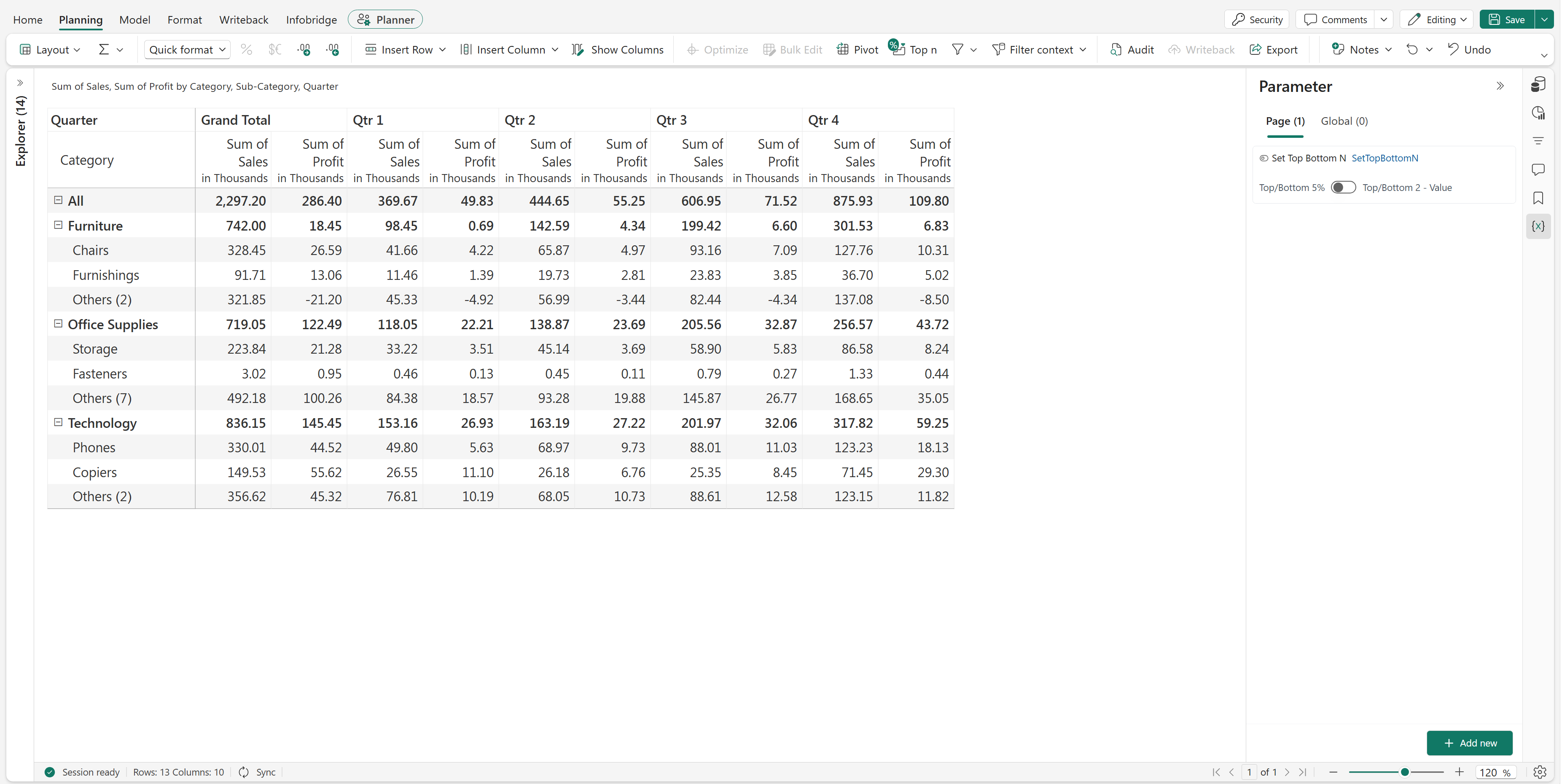
The planning sheet displays the top and bottom items based on the 5 percent setting. The remaining items are grouped under Others within each parent category.
Turn on the toggle to apply the value-based filter.
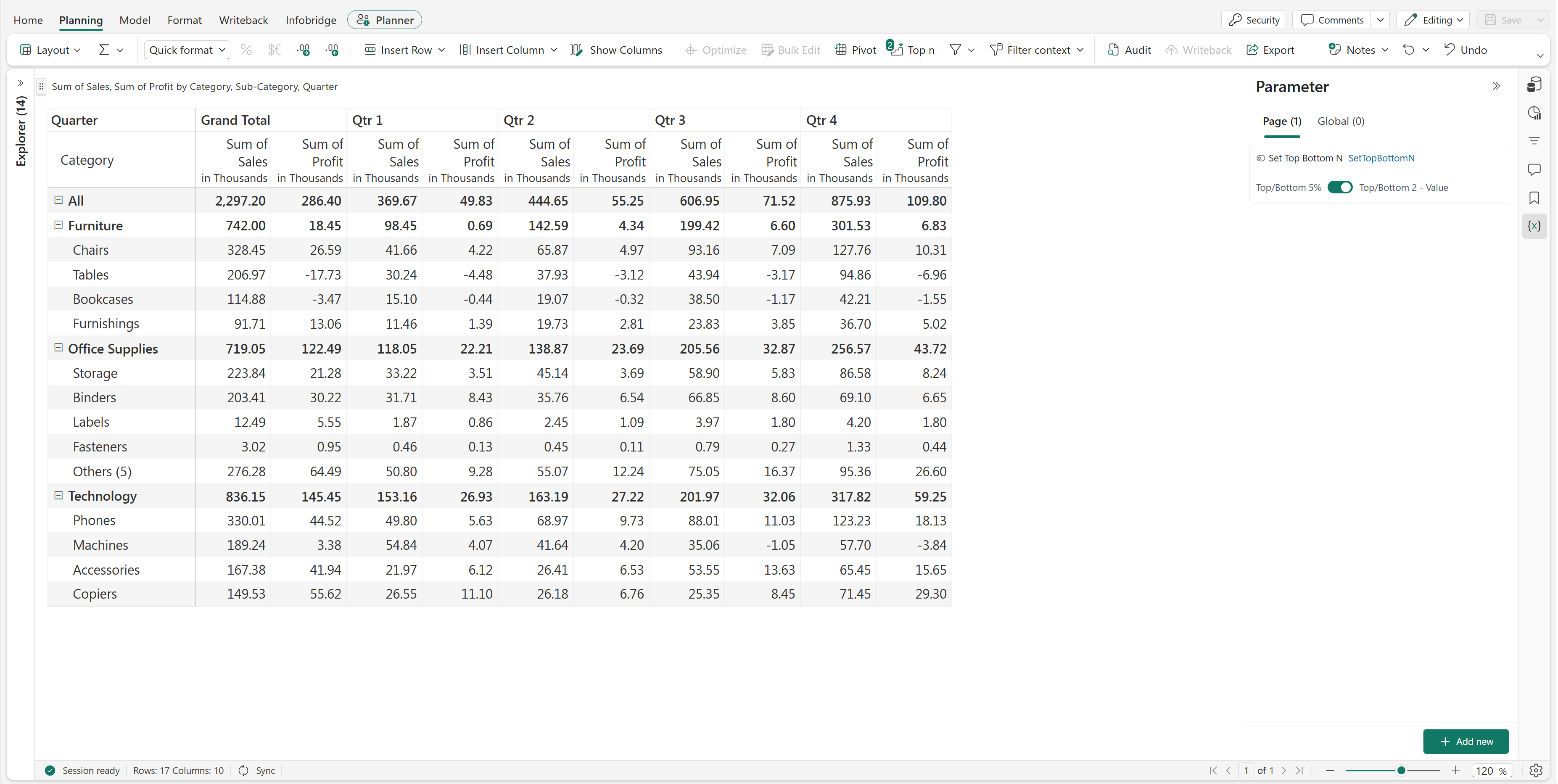
The planning sheet displays the two highest and two lowest items by value within each parent category. The remaining items are grouped under Others.
