Note
Access to this page requires authorization. You can try signing in or changing directories.
Access to this page requires authorization. You can try changing directories.
Use SETTOPN to display the top N records for a category in a planning sheet. Configure the function in a parameter's state actions to change the number of records displayed when users switch between parameter states.
Syntax
SETTOPN(category, number, boolean)
Parameters
The SETTOPN function uses the following parameters to specify the category to rank, the number of top records to display, and whether to enable ranking.
| Parameter | Description |
|---|---|
| category | The category to rank and filter. Select the relevant category field from the available references. |
| number | The number of top records to display. For example, use 1 to display the top record or 3 to display the top three records. |
| boolean | A Boolean value that enables or disables the Top N ranking. Use TRUE to enable ranking and FALSE to disable ranking. |
Example
Use a parameter with a toggle interface to let users switch between displaying the top one and top three subcategories based on the configured ranking criterion.
Configure the parameter
In the planning sheet, open the Parameters pane and add or select an action parameter.
Set Name to Set Top N and configure a unique Parameter ID, such as SetTopN.
Add a description, such as Displays the top N records based on the selected ranking criteria.
Under Interface Options, set Interface Type to Toggle.
Select Enable Script.
Set Default State to Top 1.
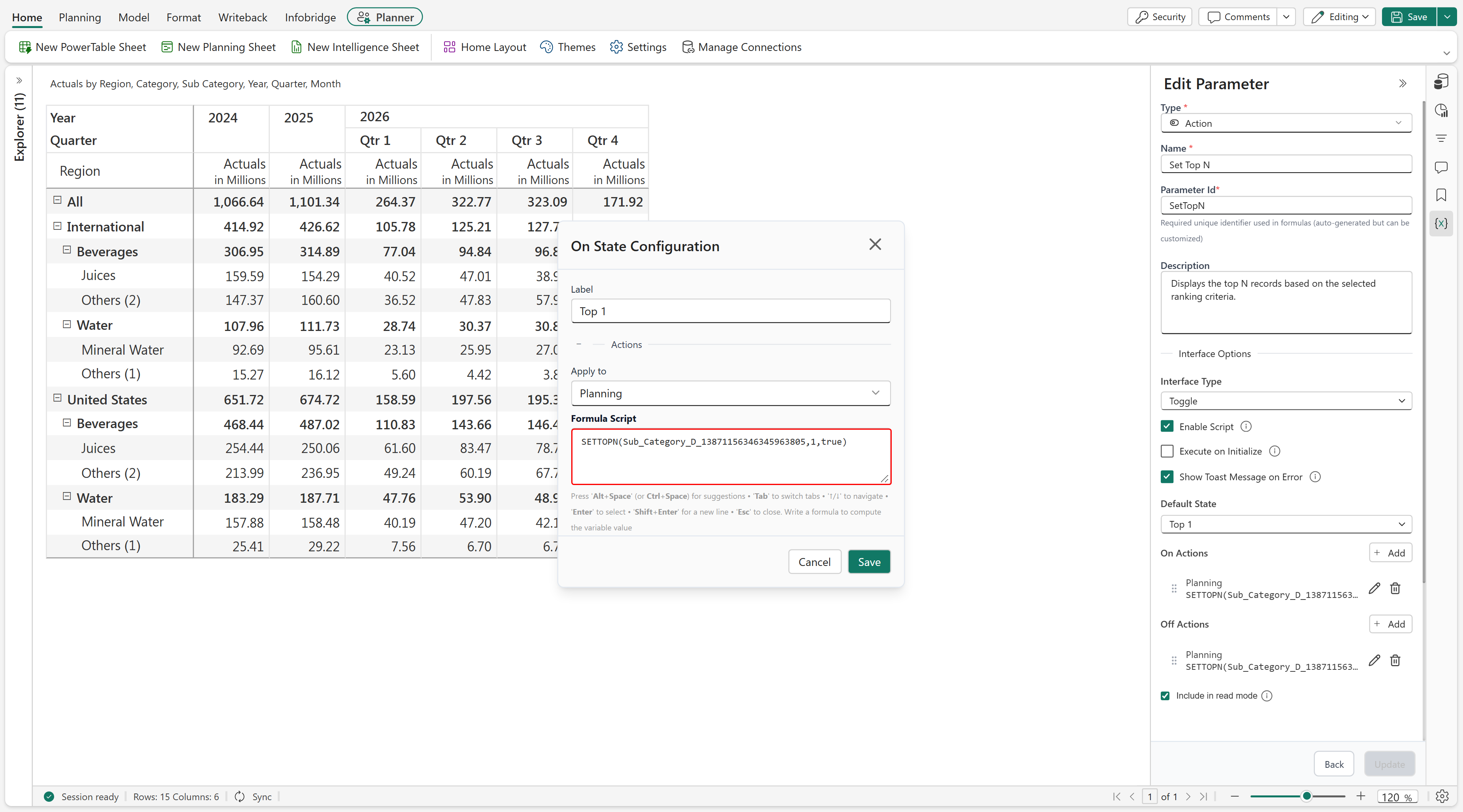
Under On Actions, add a state labeled Top 1. Set Apply to to Planning and enter the following formula in Formula Script:
SETTOPN(Sub_Category_D_13871156346345963805,1,true)Replace the category reference with the relevant category field in your planning sheet.
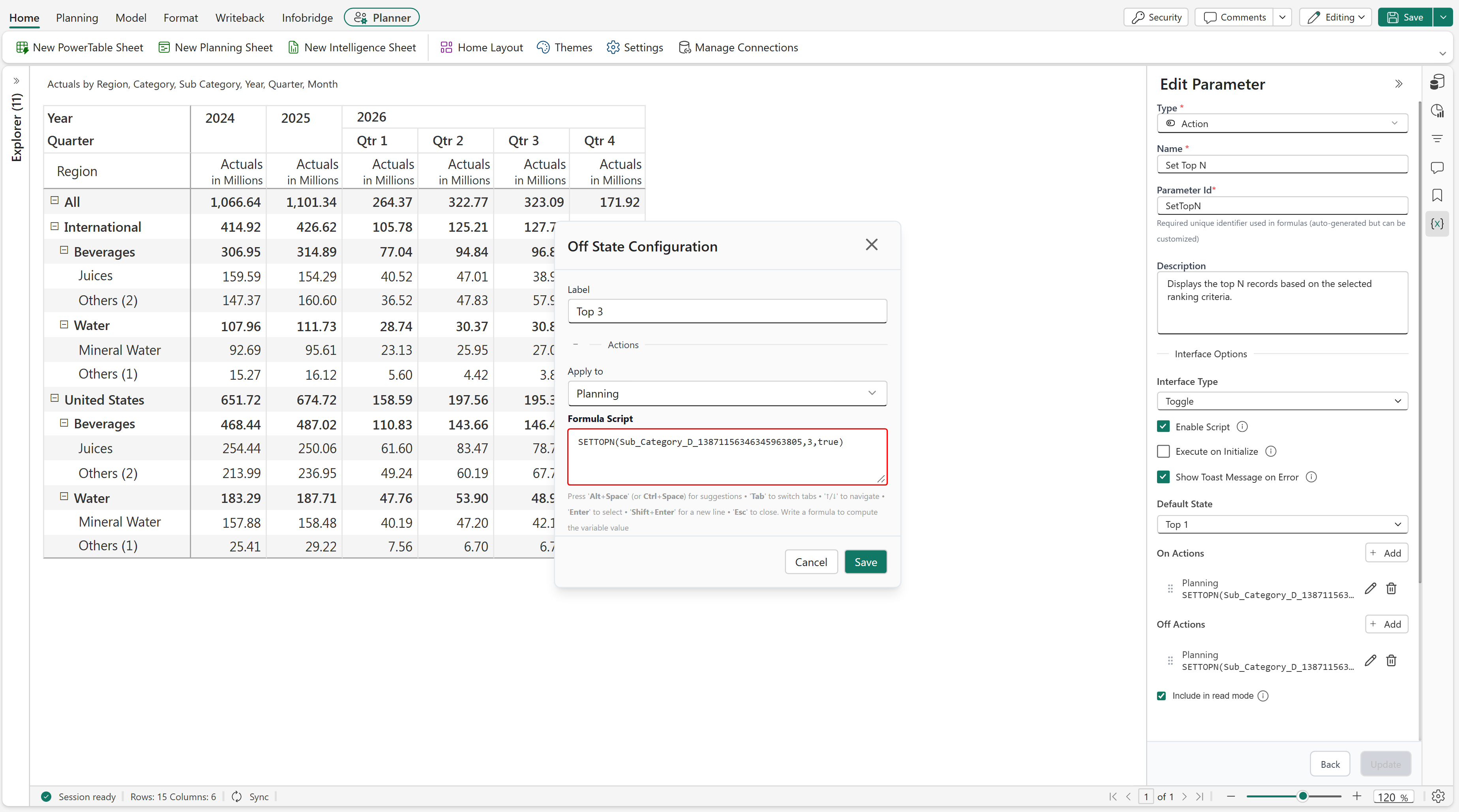
Under Off Actions, add a state labeled Top 3. Set Apply to to Planning and enter the following formula in Formula Script:
SETTOPN(Sub_Category_D_13871156346345963805,3,true)Use the same category reference and change the second argument to 3.
Save the state configurations, then save the parameter and the planning sheet.
View the results
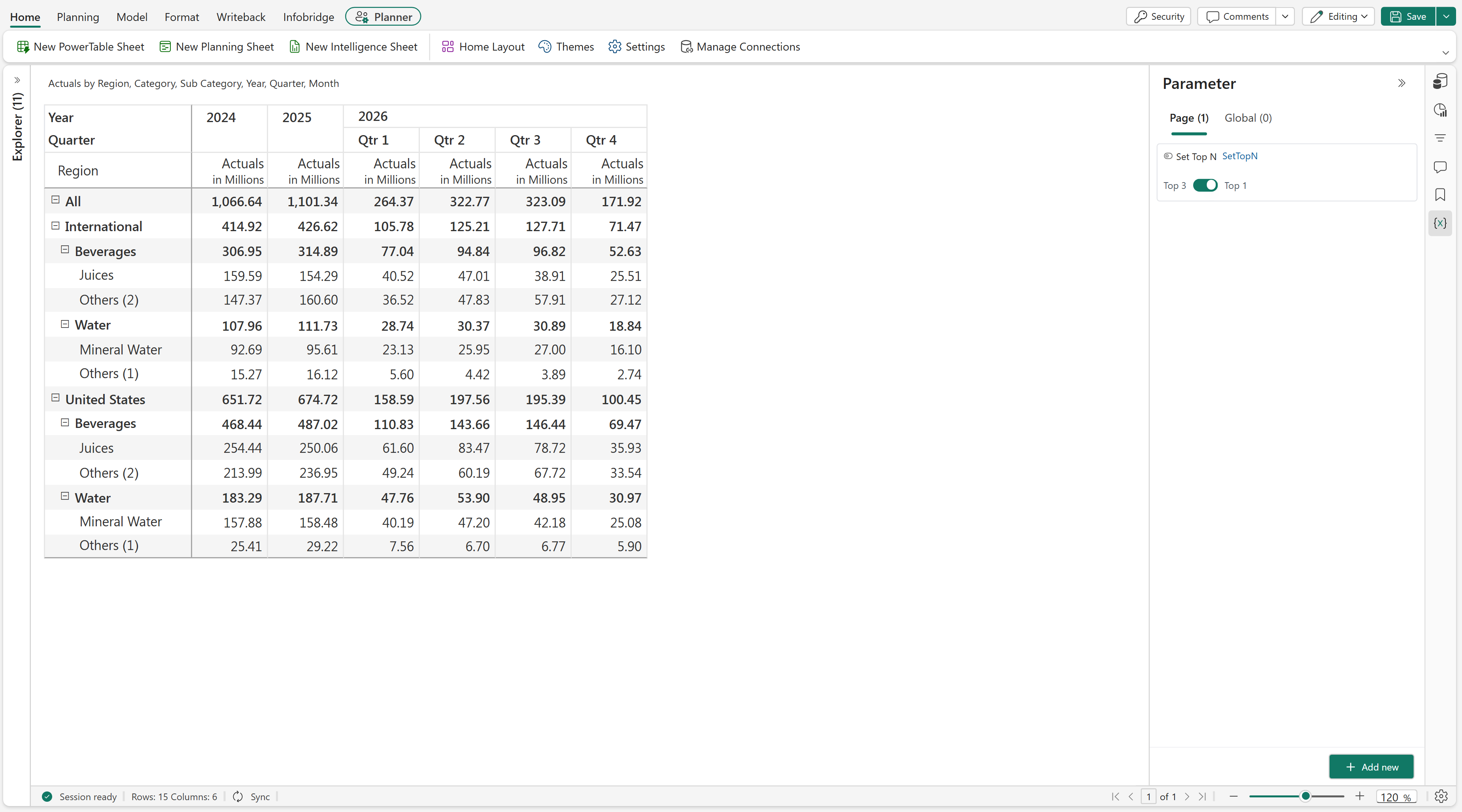
When the parameter is set to Top 1, the sheet displays the highest-ranked subcategory in each applicable group and groups the remaining subcategories under Others.
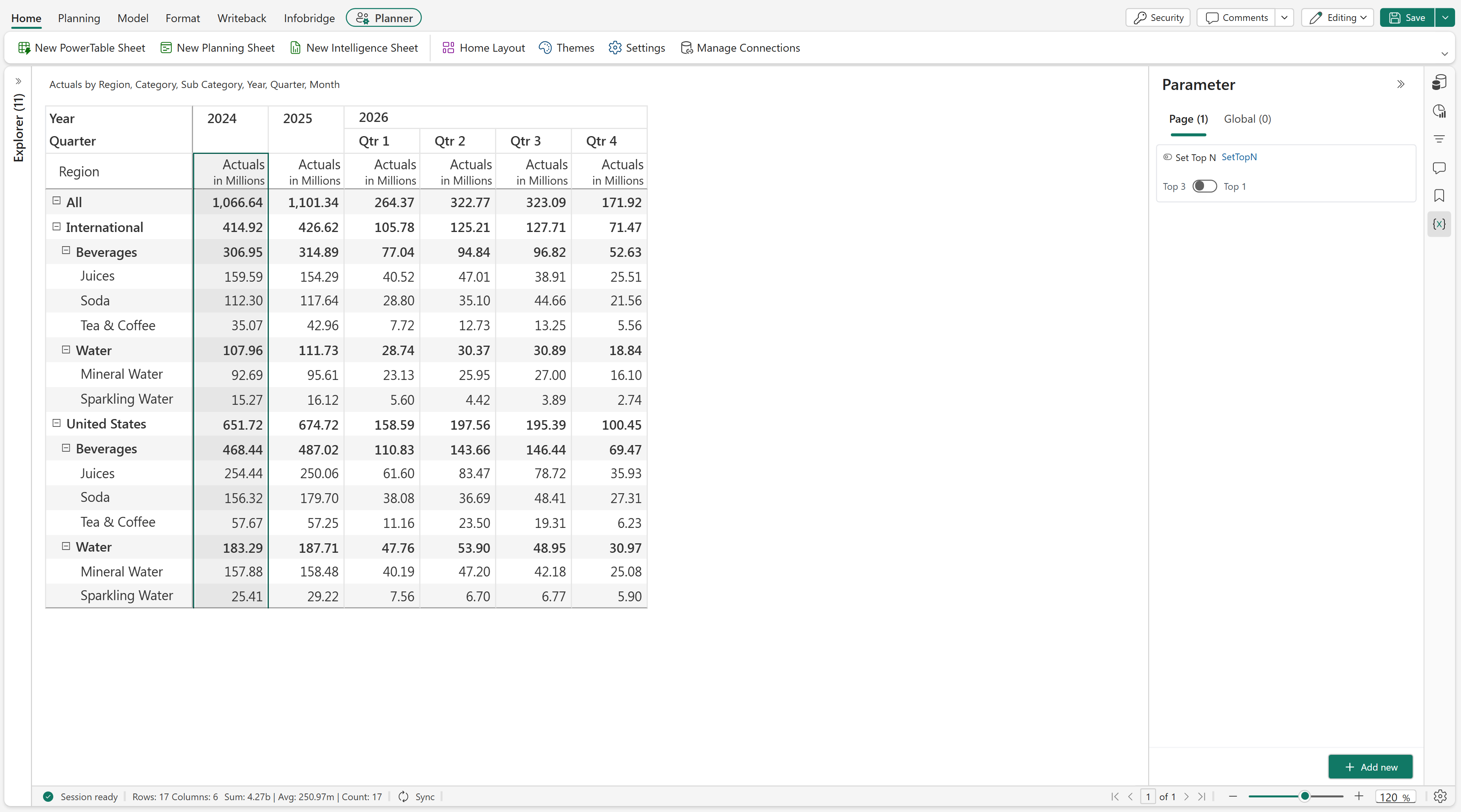
When the parameter is switched to Top 3, the sheet displays up to three top-ranked subcategories in each applicable group.
Expected result
The toggle lets users switch between Top 1 and Top 3 without editing the formula manually. The displayed records change according to the selected state and the ranking criteria configured for the category.