Note
Access to this page requires authorization. You can try signing in or changing directories.
Access to this page requires authorization. You can try changing directories.
Use SETVISIBILITY to show or hide one or more measures in a planning sheet. Use this function in a parameter action to switch between measures, such as showing actual values or plan values.
Syntax
SETVISIBILITY(measure, boolean)
Parameters
The SETVISIBILITY function uses the following parameters to control the visibility of measures in a planning sheet.
| Parameter | Description |
|---|---|
| measure | The measure to show or hide. Select the relevant measure from the available references. |
| boolean | A Boolean value that specifies whether to show or hide the measure. Use TRUE to show the measure and FALSE to hide it. |
Example
Use a toggle parameter to switch between the Actuals and Plan measures in a planning sheet. Configure the parameter actions as follows.
Create a parameter and set Interface Type to Toggle.
Enable Enable Script.
Set Default State to Show Actuals.
In On State Configuration, set Label to Show Actuals. Set Apply to to Planning, and enter the following formulas in Formula Script:
SETVISIBILITY(Actuals_M_11925419800285133932, true)
SETVISIBILITY(Plan_M_16435073439253070543, false)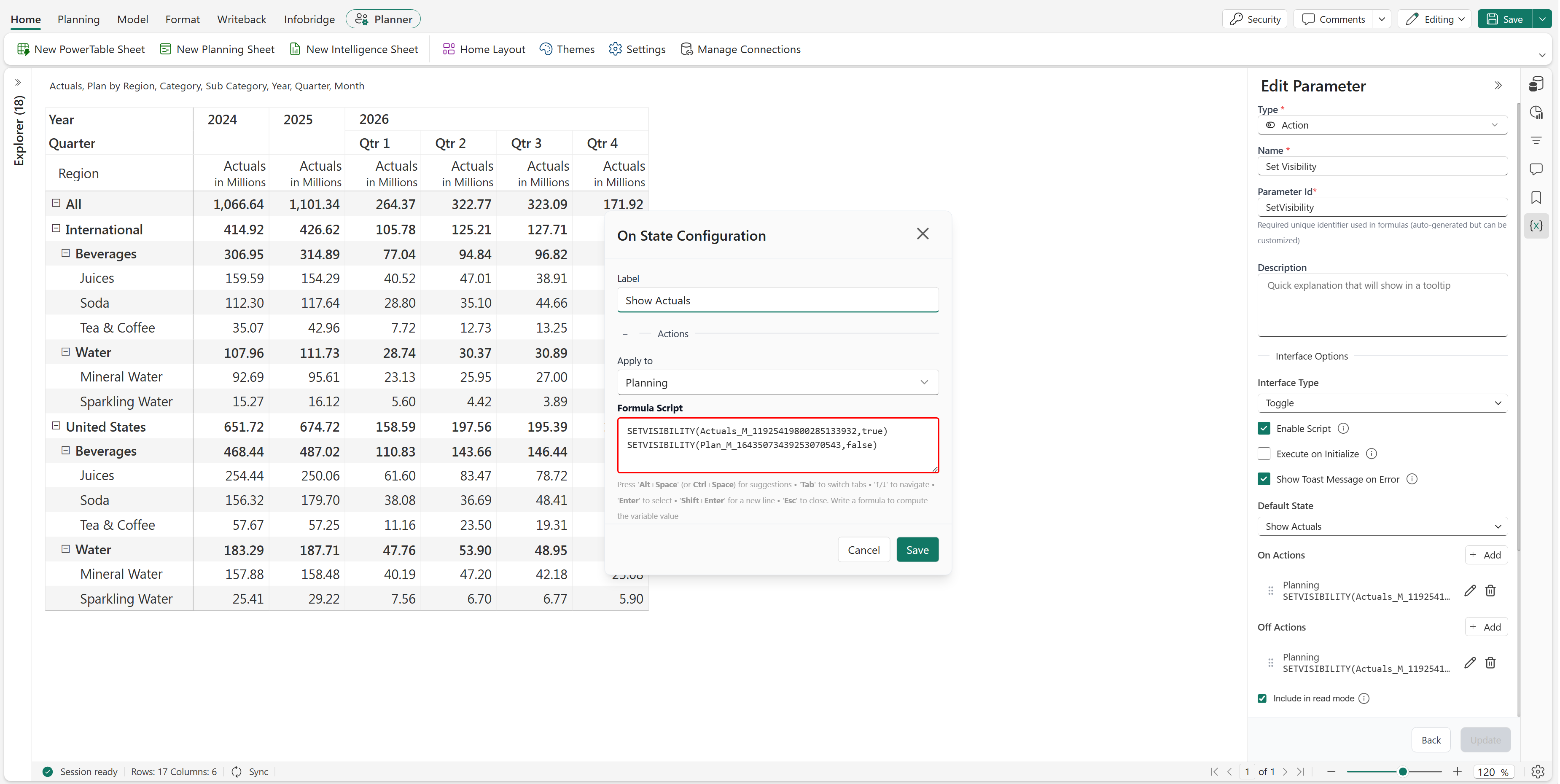
In Off State Configuration, set Label to Show Plan. Set Apply to to Planning, and enter the following formulas in Formula Script:
SETVISIBILITY(Actuals_M_11925419800285133932, false)
SETVISIBILITY(Plan_M_16435073439253070543, true)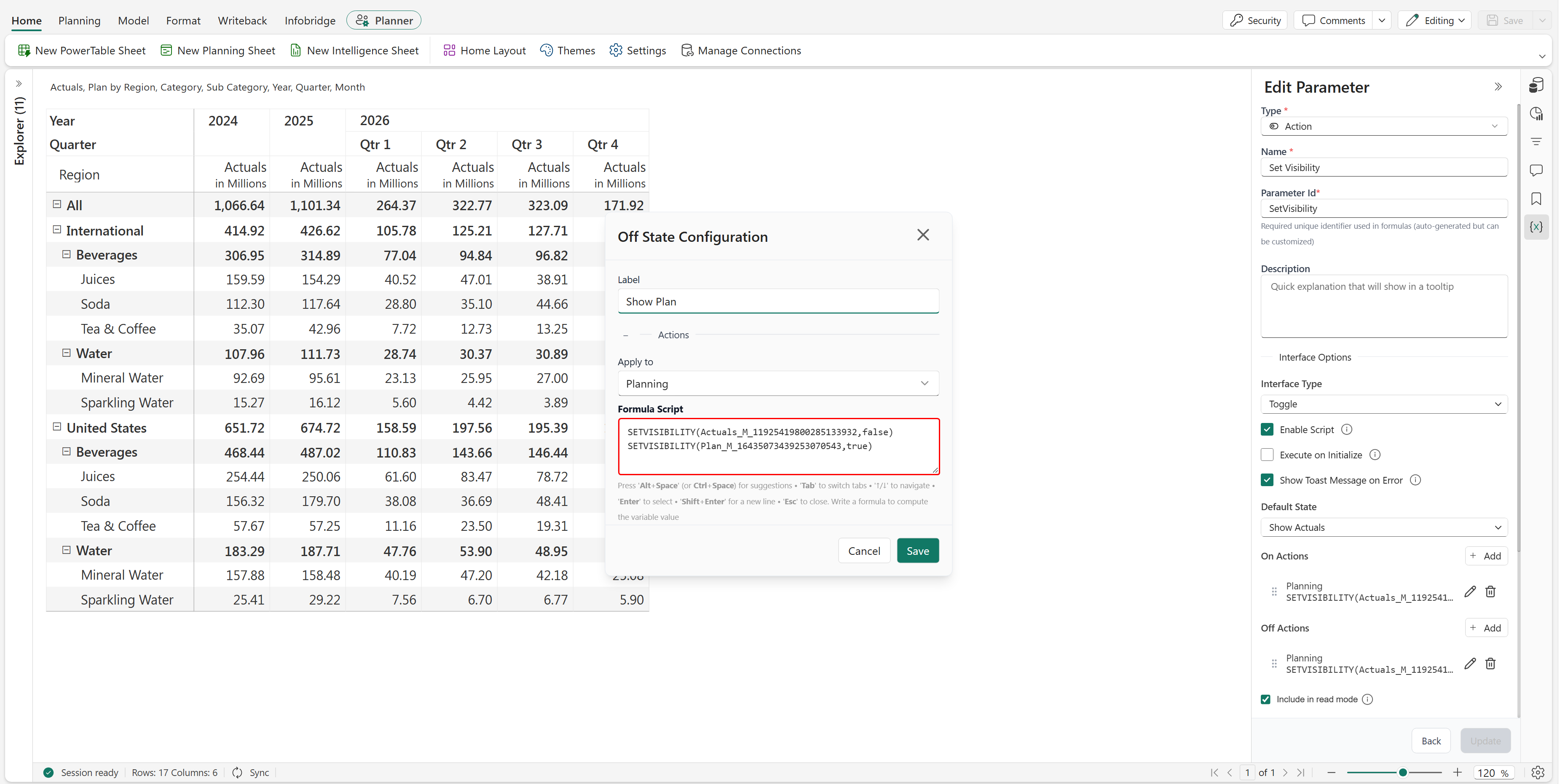
Save the parameter.
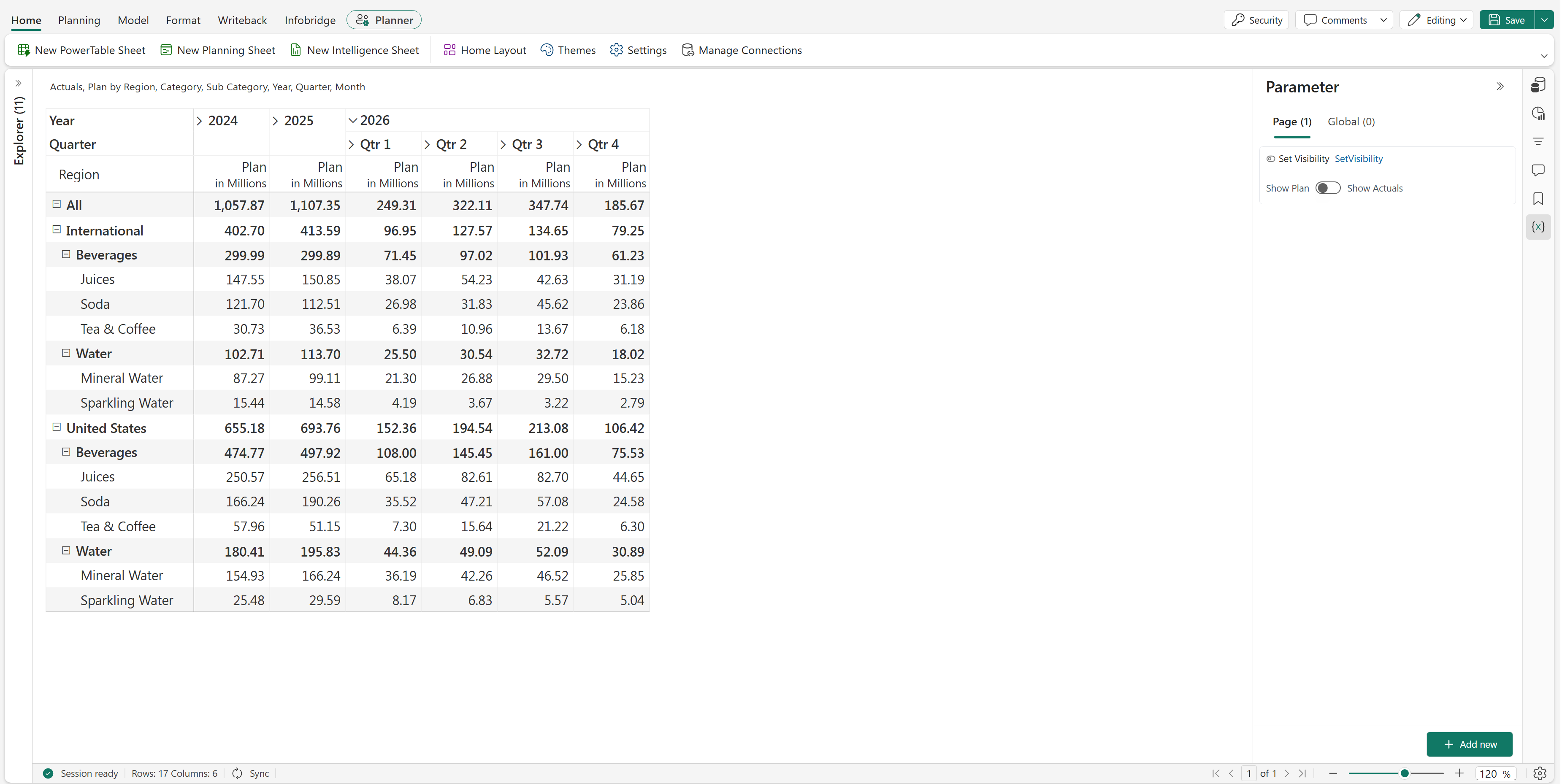
When the toggle is set to Show Actuals, the sheet displays the Actuals measure and hides the Plan measure.
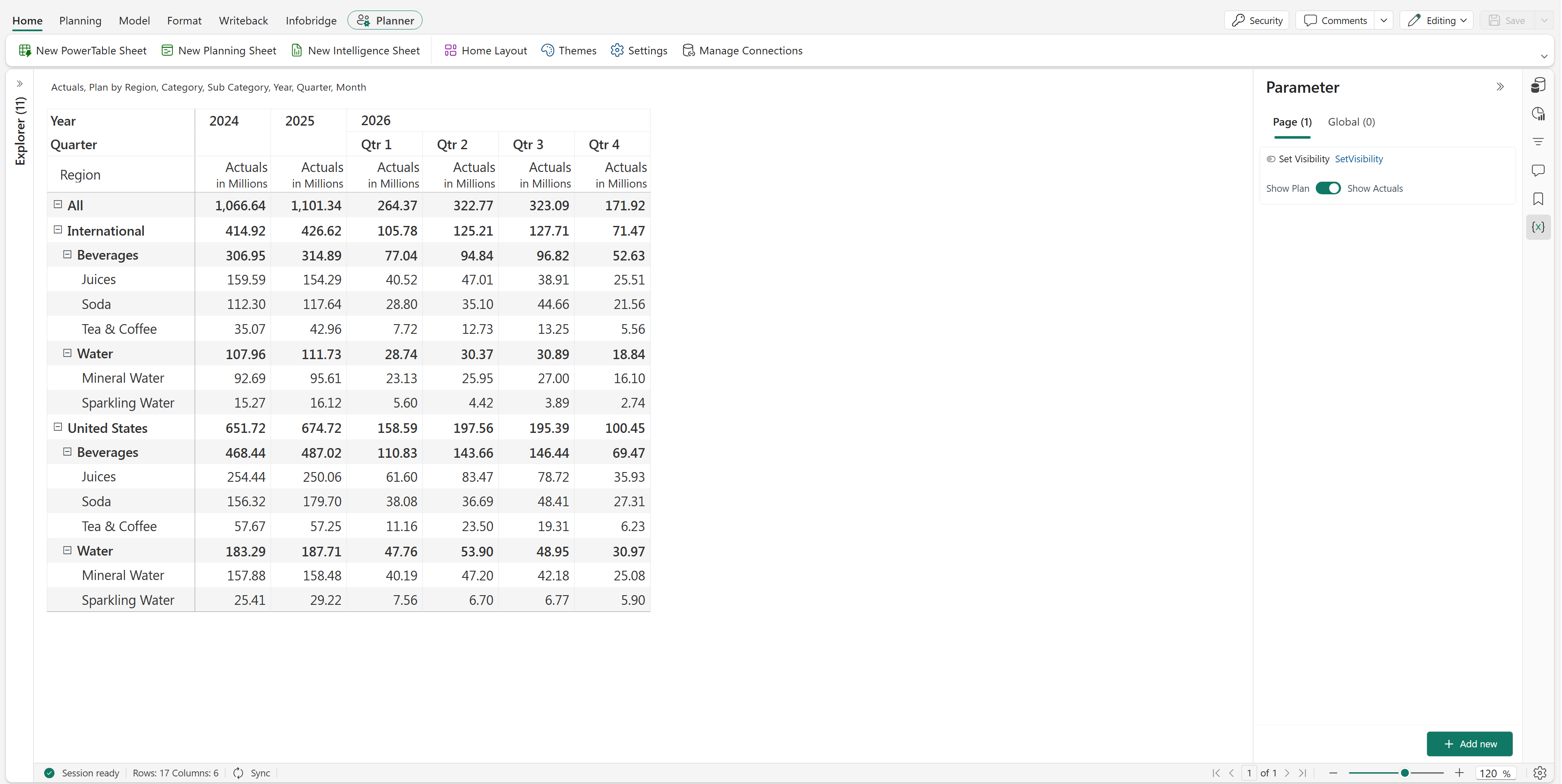
When the toggle is set to Show Plan, the sheet displays the Plan measure and hides the Actuals measure.